yahboom
HomeLearn
Solution
Blog
Online Store
About Us
EN/中文
Raspbot V2📖
1.About Raspbot V2
  • 1. First trial
  • 2. Expansion board interface distribution
  • 3. About battery and charging
  • 4. Install servo PTZ
  • 5.Servo Gimbal Installation
  • 6. Important Notes (Read Before Starting)
2.Assembly
  • Installation Video
3.Car basic course
  • 0. Preparation before development
  • 1.Buzzer control
  • 2.Key reading
  • 3.RGB control
  • 4.Servo control (PTZ control)
  • 5.Motor control
  • 6.Printing ultrasonic data
  • 7.Tracking module status printing
  • 8.IR control key value printing
4.Car motion control course
  • 0.Mecanum wheel motion principle
  • 1.Car vertical movement
  • 2.Car diagonal movement
  • 3.Car sideways movement
  • 4.Car rotation movement
  • 5.Car patrol
5.Car advanced courses
  • 1.Infrared patrol car
  • 2.Ultrasonic avoid
  • 3.Ultrasonic follow
  • 4.Infrared tracking+ ultrasonic avoid
  • 5.Restricting
  • 6.Infrared remote control car
6.OpenCV courses
A. Getting Started with OpenCV
  • 1. Introduction to OpenCV
  • 2.OpenCV image reading and display
  • 3. OpenCV image writing
  • 4. OpenCV Image Quality
  • 5.OpenCV pixel operations
B. OpenCV geometric transformation
  • 1. Image scaling
  • 2. Image cutting
  • 3. Image translation
  • 4. Image mirroring
  • 5. Affine Transformation
  • 6. Image Rotation
  • 7. Perspective Transformation
C. OpenCV image processing and text line drawing
  • 1. Grayscale processing
  • 2. Image Binarization
  • 3. Edge Detection
  • 4. Line drawing
  • 5. Rectangle and circle drawing
  • 6. Text and image drawing
D. Image beautification
  • 1. Color Image Histogram
  • 2. Histogram Equalization
  • 3. Image repair
  • 4. Brightness enhancement
  • 5. Smooth and whiten
  • 6. Gaussian mean filtering
  • 7. Median Filter
E. Machine Learning
  • 1. KNN
  • 2. SVM
7.AI vision recognition course
  • 1.Camera driver tutorial
  • 2.Color recognition
  • 3.HSV value test
  • 4.Object Recognition
  • 5.QR code recognition
  • 6.Face recognition
  • 7.License Plate Recognition
  • 8. Human Pose Estimation
  • 9. Target detection
  • 10.yolov5-lite
  • 11. Gesture Recognition
  • 12. Face Detection
  • 13. Face effects
  • 14. 3D Object Recognition
  • 15. Paintbrush
  • 16. Finger control
8.AI vision interaction module
  • 1. Color tracking
  • 2. Color follows
  • 3. QR code recognition to control movement
  • 4. Face tracking
  • 5. Face following
  • 6. Visual tracking
  • 7. Garbage identification
  • 8. Track map Autopilot(purchased separately)
  • 9. Gesture following
9.Voice control basic course(For Superior Kit)new
  • 1.Voice control car movement
  • 2.Voice control RGB light
  • 3.Voice control color recognition
  • 4.Voice control autonomous driving
  • 5.Voice control car tracking
10.AI large model knowledge(For Superior Kit)new
  • 1.AI large model types and principles
  • 2.RAG retrieval enhancement and model training samples
  • 3.Embodied intelligent robot system architecture
  • 4.Embodied intelligent functions core source code
  • 5.Configure AI large model(Required)
11.AI Large Model Development(For Superior Kit & Reference)new
  • 1.Register a model service provider account
  • 2. Configuring API-KEY(Optional)
  • 3. Introduction to Dify
  • 4. Basic Dify Features
  • 5. Deploy the RAG knowledge base
  • 6. AI Large Model Development - chatbot
  • 7. RAG knowledge base + chatbot
  • 8. AI agent workflow
  • 9. Custom wake-up response
  • 10. Core module testing tools
12.AI large basic course(For Superior Kit)new
  • 1.Free conversation
  • 2.Text-to-picture
  • 3.Scene description
  • 4.Video description
  • 5.Intelligent action choreography
  • 6.Dual-model agent application
13.ROS2-Robot chassis control course
  • 1. Robot information release
  • 2. Robot keyboard control
  • 3. URDF Model
14.ROS2-OpenCV course
  • 1.ROS+Opencv application
  • 2. AR Vision
  • 3. Mediapipe fun gameplay
  • 4. Gesture control car movement
  • 5. Gesture control car actions
  • 6. Palm control car movement
  • 7. Palm control servo PTZ
  • 8. Visual tracking
  • 9. AprilTag code recognition
  • 10. AprilTag tag code tracking
  • 11. AprilTag tag code follow
15.Development environment course
  • 1. Introduction to Raspberry Pi 5
  • 2. Image writing and backup
  • 3. Start the Raspberry Pi 5
  • 4. Remote Access
  • 5. Remote file transfer
  • 6. Common Linux commands and use of vim editor
  • 7. Install Raspbot V2 driver library
  • 8. Jupyter Lab environment construction
  • 9. Jupyter Lab plugin installation
  • 10. Basic use of Jupyter Widgets
16.Raspberry Pi basic settings
  • 1.Update and upgrade the operating system
  • 2. Introduction to raspi-config tool
  • 3. config.txt file description
  • 4. Network Configuration
  • 5. Set display resolution and rotation
  • 6. Set screen sleep
  • 7. Get real-time temperature of RPi
  • 8. Play audio and video
  • 9. Use USB Camera
  • 10.Use MIPI camera
17.Docker course
  • 1. Overview and installation
  • 2. Common commands
  • 3. Understand and publish images
  • 4. Docker data processing
  • 5. Enter docker container
18.ROS2 basic course
  • 1. Introduction to ROS2
  • 2.ROS2 install Humble
  • 3. ROS2 development environment
  • 4. ROS2 workspace
  • 5. ROS2 function package
  • 6. ROS2 node
  • 7.ROS2 topic communication
  • 8. ROS2 service communication
  • 9. ROS2 action communication
  • 10. ROS2 custom interface message
  • 11. ROS2 parameter service case
  • 12. ROS2 meta-function package
  • 13. ROS2 distributed communication
  • 14. ROS2 DDS
  • 15. ROS2 time related API
  • 16. ROS2 common command tools
  • 17. ROS2 rviz2 use
  • 18. ROS2 rqt toolbox
  • 19. ROS2 Launch startup file configuration
  • 20. ROS2 recording and playback tool
  • 21. ROS2 URDF model
  • 22. ROS2 Gazebo simulation platform
  • 23.ROS2 TF2 coordinate transformation
Download
  • APP(iOS/Android)
  • Code
  • System_File
  • Instruction Manual
  • Hardware_Info
  • 3D_Model_File
  • ROS2_Basic_VM
Download ZIP

Welcome to Raspbot V2 repository

当製品の日本語版マニュアル資料は、こちらからご取得ください。

20. ROS2 recording and playback tool

20. ROS2 Recording and Playback Tool

1. Introduction to Recording and Playback Tools

Bag2, a commonly used recording and playback tool in ROS2, is used to record topic data. We can use this command to store topic data as a file. Later, we can directly publish the topic data in the bag file without starting a node.

This tool is very useful when developing a real robot. For example, we can record topic data when the robot encounters a problem. After recording, we can publish it multiple times for testing and experimentation, or share the topic data with others to verify algorithms.

We will try using the bag tool to record topic data and replay it.

2. Usage Tutorial

2.1. Start the topic node to record

For example, the talker in the ros2 demo:

xxxxxxxxxx
ros2 run demo_nodes_py talker

2.2. Recording

/topic-name is the topic name

xxxxxxxxxx
# Record a single topic
ros2 bag record /topic-name
# Record multiple topics
ros2 bag record topic-name1 topic-name2
# Record all topics
ros2 bag record -a

Other Options

-o name Customize the output file name

xxxxxxxxxx
ros2 bag record -o file-name topic-name

-s Storage format

Currently only supports sqllite3; others are available with extensions.

2.3. Viewing Recorded Topic Information

Before playing a video, you can view relevant information about the video through the file information, such as the time, size, type, and number of topic records.

xxxxxxxxxx
# Assume the recorded file is rosbag2_2023_10_31-07_58_23
ros2 bag info rosbag2_2023_10_31-07_58_23

2.4. Play and View

2.4.1. Play

Next, we can replay the data using the following command.

xxxxxxxxxx
ros2 bag play rosbag2_2023_10_31-07_58_23

2.4.2. View

Use the ros2 topic command to view the data.

xxxxxxxxxx
ros2 topic echo /chatter

2.4.3. Playback Options

  1. Play at Multiple Speeds -r

The -r option modifies the playback speed. For example, the -r value, for example, 10 means 10x speed, playing the topic ten times faster.

xxxxxxxxxx
ros2 bag play rosbag2_2023_10_31-07_58_23 -r 10
  1. Loop Playback -l

This is for looping a single song.

xxxxxxxxxx
ros2 bag play rosbag2_2023_10_31-07_58_23 -l
  1. Play a Single Topic
xxxxxxxxxx
ros2 bag play rosbag2_2023_10_31-07_58_23 --topics /chatter

3. Example

3.1. Running the talker node

xxxxxxxxxx
ros2 run demo_nodes_py talker

3.2. Recording

xxxxxxxxxx
# Record all topics
ros2 bag record -a

image-20231031162153843

How do I stop recording? Simply press Ctrl+C in the terminal to interrupt the recording.

You will then find a folder named rosbag2_2023_10_31-08_21_21 in the terminal.

Open the folder to see its contents.
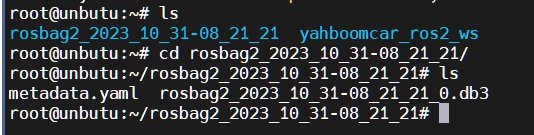
image-20231031162443246

This completes the recording.

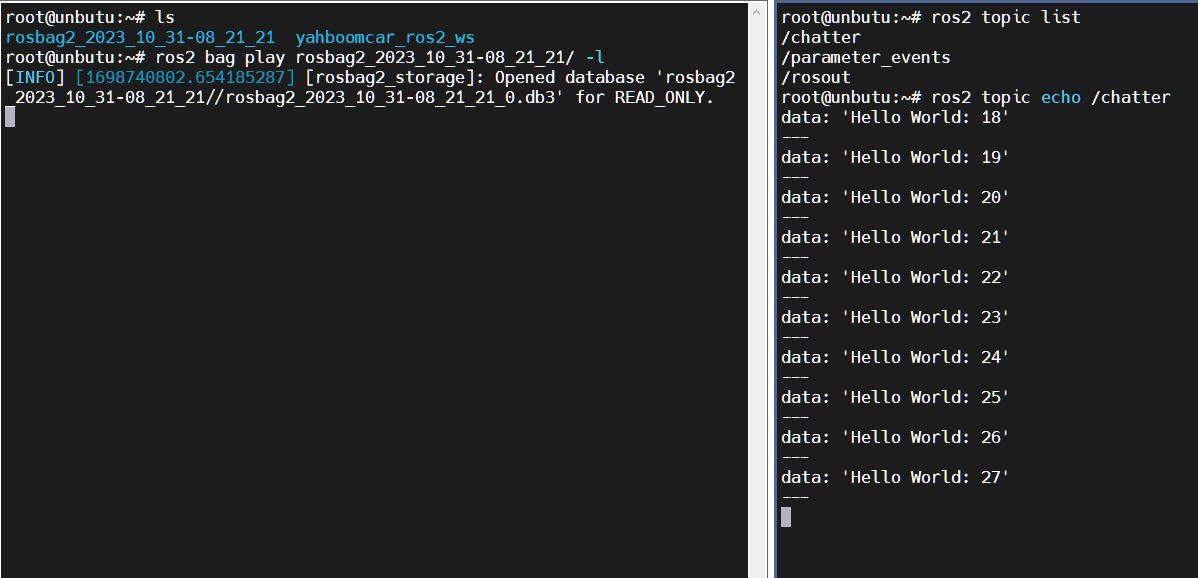
3.3. Play and View

Here we loop the playback.

xxxxxxxxxx
ros2 bag play rosbag2_2023_10_31-07_58_23 -l

Open another terminal to view the topic:

xxxxxxxxxx
ros2 topic echo /chatter

image-20231031162719003

ROS2 Launch startup file configuration
ROS2 URDF model

COMPANY

  • About us
  • Team Style
  • Blog

LEARNING & EXPLORATION

  • Tutorials
  • Edge AI hardware
  • Educational robots
  • Embedded intelligent hardware

WHERE TO BUY

  • Yahboom Online Store
  • Amazon
  • Alibaba
  • AliExpress
  • Mercado

TECHNOLOGY SUPPORT

  • Email: support@yahboom.com

BE A DISTRIBUTOR

  • Email: sales@yahboom.com
QR Code

Copyright © 2017-2026 Yahboom. All Rights Reserved.

EN/中文