Welcome to Raspbot V2 repository
当製品の日本語版マニュアル資料は、こちらからご取得ください。
6. Set screen sleep
Set screen sleep
Set screen sleepEnvironmentIdea 1 (recommended)Graphical interfaceCommand lineRebootIdea 2Configuration file modificationReboot
The tutorial mainly introduces how to set the screen to stay on. If the Raspberry Pi system has the screen off turned on, the default is to automatically turn off the screen after 10 minutes of no operation.
Environment
System: Raspberry Pi OS
Raspbian is the old name of the official operating system of Raspberry Pi based on the Debian system, and Raspberry Pi OS is its new name after the name change in 2020.
Idea 1 (recommended)
Graphical interface
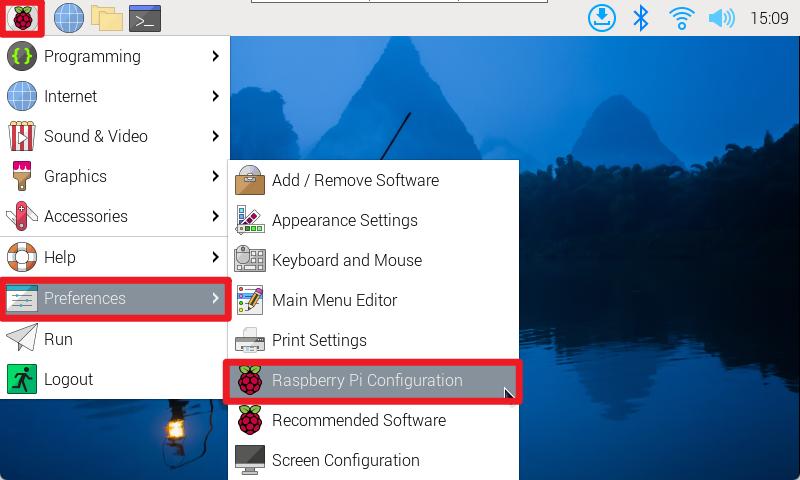
Turn on automatic screen blanking: applications menu → Preferences → Raspberry Pi Configuration
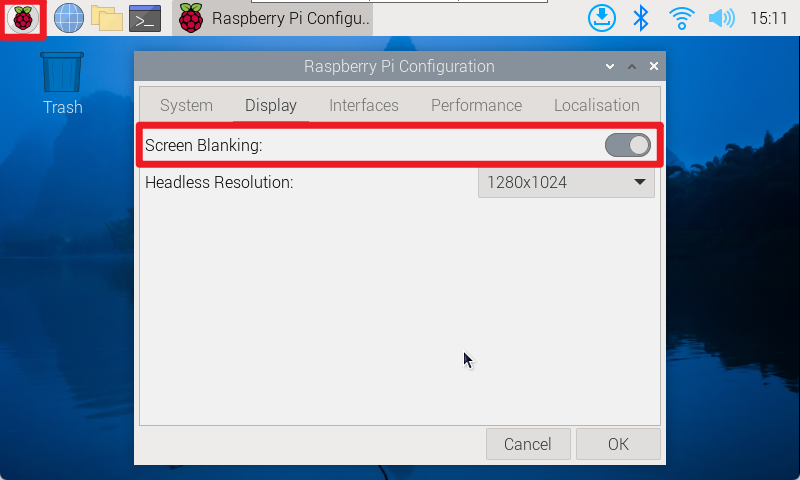
Display → Screen Blanking: Enable (if you need to turn off the screen blanking, just turn off the switch)
Command line
Use raspi-config tool to automatically blank the screen: Display Options → Screen Blanking: enable
Reboot
The modified configuration takes effect after reboot!
Idea 2
You can use xservice to configure the lightdm desktop display manager to achieve the purpose of keeping the screen on.
Configuration file modification
lightdm.conf file location: /etc/lightdm
xxxxxxxxxxsudo nano /etc/lightdm/lightdm.conf
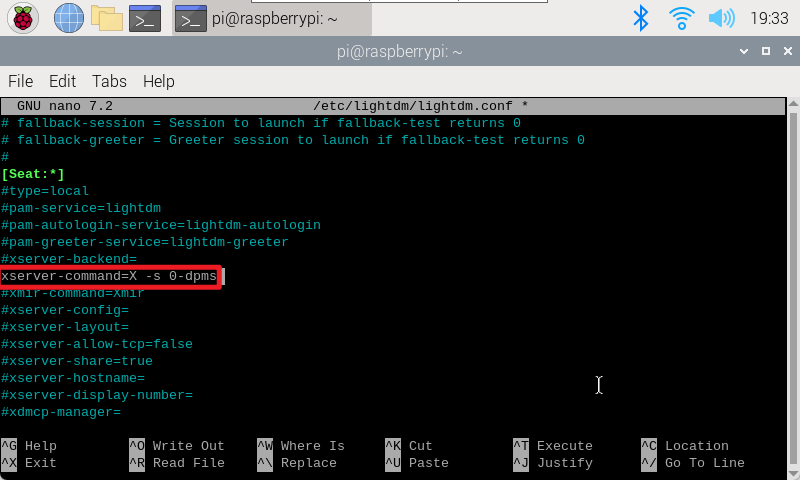
Uncomment the # in the file xserver-command=X and change it to xserver-command=X -s 0-dpms. After the modification is completed.
xxxxxxxxxxThe nano editor can use the shortcut key Ctrl+W to search for keywords!
Save and exit the nano editor: press Ctrl+X, enter y, and then press Enter.
xxxxxxxxxxAmong them, the -s parameter: set the screen saver not to start, 0 is the number zero, and the -dpms parameter: turn off power saving management.
Reboot
Enter the reboot command in the terminal to restart the system, and the modified configuration file will take effect after restart!