Welcome to Raspbot V2 repository
当製品の日本語版マニュアル資料は、こちらからご取得ください。
2. Robot keyboard control
2. Robot keyboard control
1. Program function description
After the program is started, the robot movement can be controlled by the keyboard.
2. Start the keyboard control program
2.1 Code path
Code path:
/root/yahboomcar_ws/src/yahboomcar_ctrl/yahboomcar_ctrl
2.2 Run the command
Raspberry Pi enters docker, enter in the terminal,
xxxxxxxxxx./docker_ros2.sh
The following interface appears, which means that you have successfully entered Docker.

xxxxxxxxxxros2 launch yahboomcar_bringup bringup.launch.py
Start the chassis drive, as shown below.

Open a new terminal and enter the same docker. Change the following da8c4f47020a to the ID displayed in the actual terminal.Open a new terminal and enter the same docker. Change the following da8c4f47020a to the ID displayed in the actual terminal.
xxxxxxxxxxdocker ps
xxxxxxxxxxdocker exec -it da8c4f47020a /bin/bash

Then enter in docker,
xxxxxxxxxxros2 run yahboomcar_ctrl yahboom_keyboard
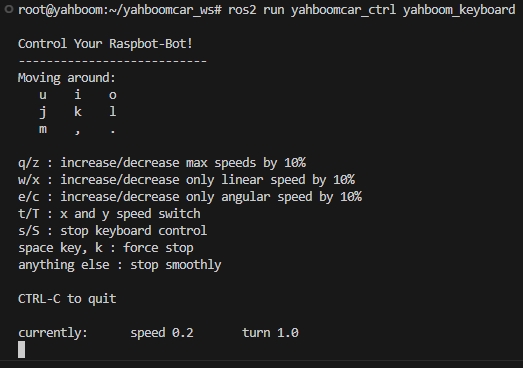
The keyboard keys are described as follows:
Directional control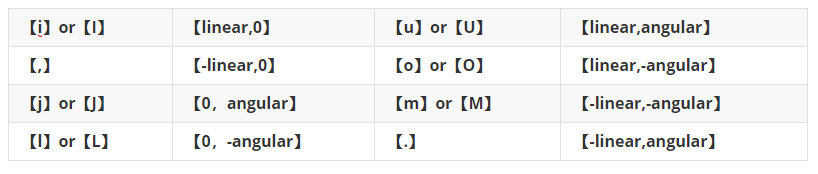
That is to say, install [i] to move forward, press [,] to move backward, press [l] to rotate right, press [j] to rotate left, and so on.
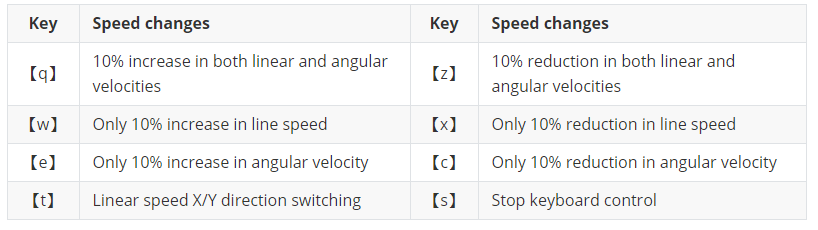
Speed control