Welcome to Raspbot V2 repository
当製品の日本語版マニュアル資料は、こちらからご取得ください。
5. Set display resolution and rotation
Set display resolution and rotation
Set display resolution and rotation1. Display settings1.1. System settings adjustment1.2. Modify the configuration file2. VNC remote display2.1, Graphical interface
The tutorial mainly introduces the relevant settings of the Raspberry Pi motherboard system interface display:
- Resolution and rotation direction settings of the display screen
- Resolution settings of VNC remote display when the display screen is not connected
If the display resolution is not selected correctly, the screen may be distorted. You can set it according to the display resolution supported by the product!
1. Display settings
1.1. System settings adjustment
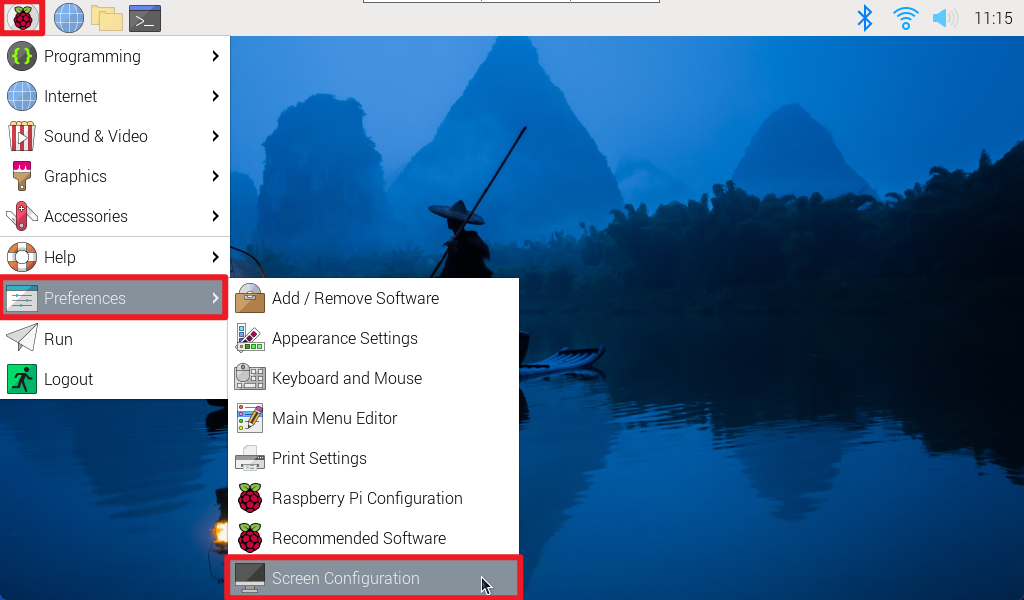
Adjust the resolution and rotation direction of the display screen: applications menu → Preferences → Screen Configuration
Right-click the corresponding HDMI output interface to set the resolution, rotation direction, etc.
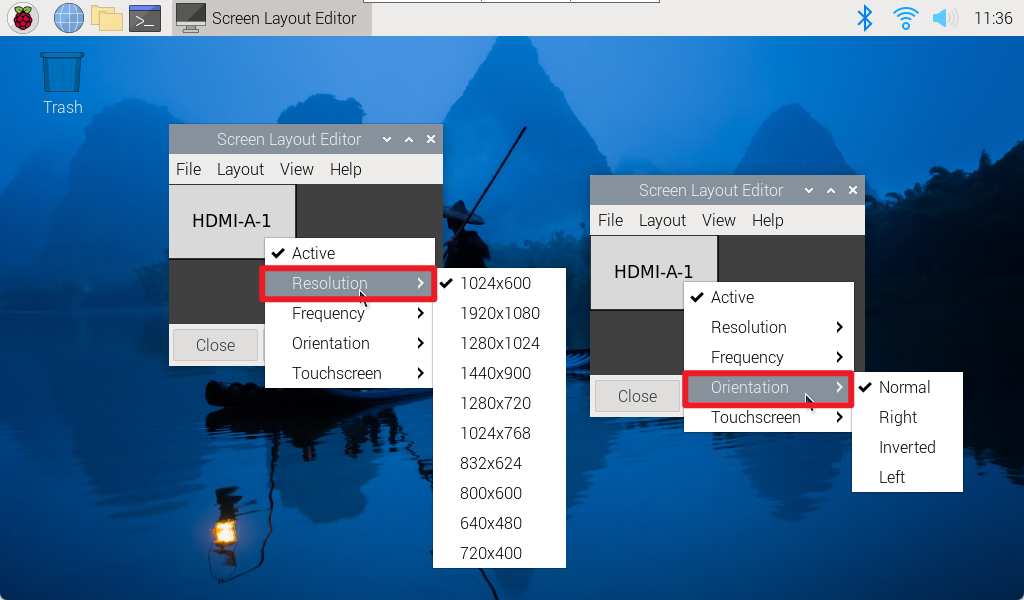
1.2. Modify the configuration file
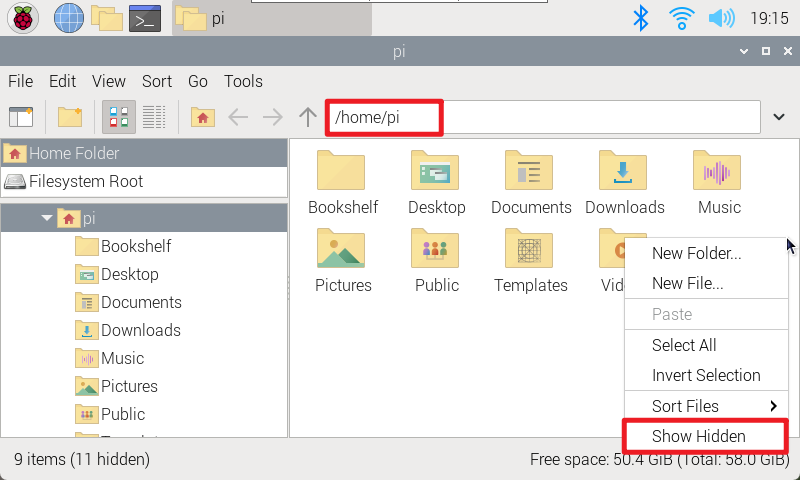
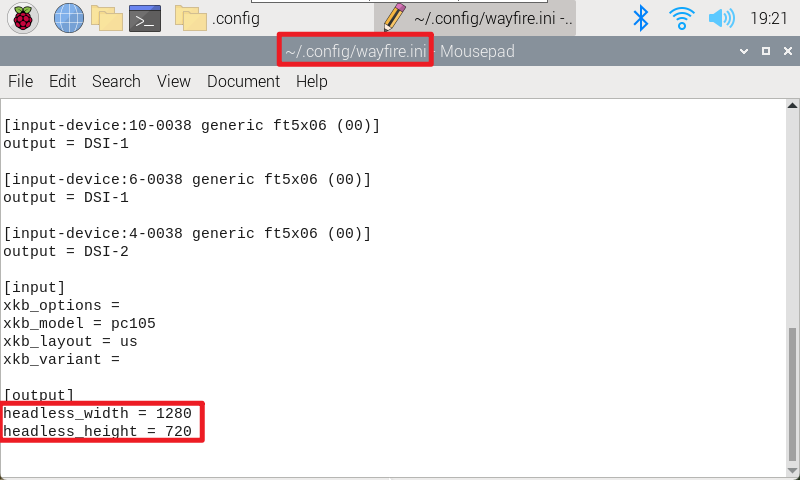
Enter the user directory of the Raspberry Pi system, display hidden files, and then enter the .config folder to modify the wayfire.ini file
xxxxxxxxxxThis method can customize the display resolution, position and rotation direction
- Display hidden files
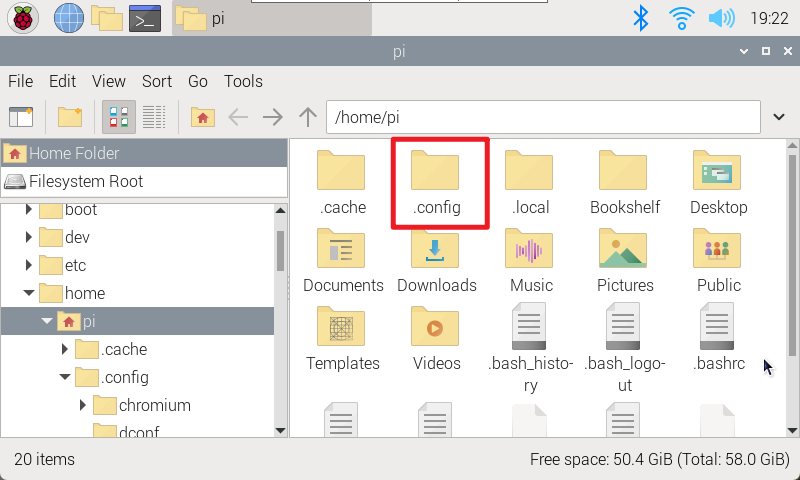
- Enter the .config folder to modify the wayfire.ini file
2. VNC remote display
Adjust the resolution displayed remotely.
xxxxxxxxxxWhen connected to a monitor, adjusting the resolution of the VNC remote will not have any effect, the display will still be based on the resolution set on the monitor!
2.1, Graphical interface
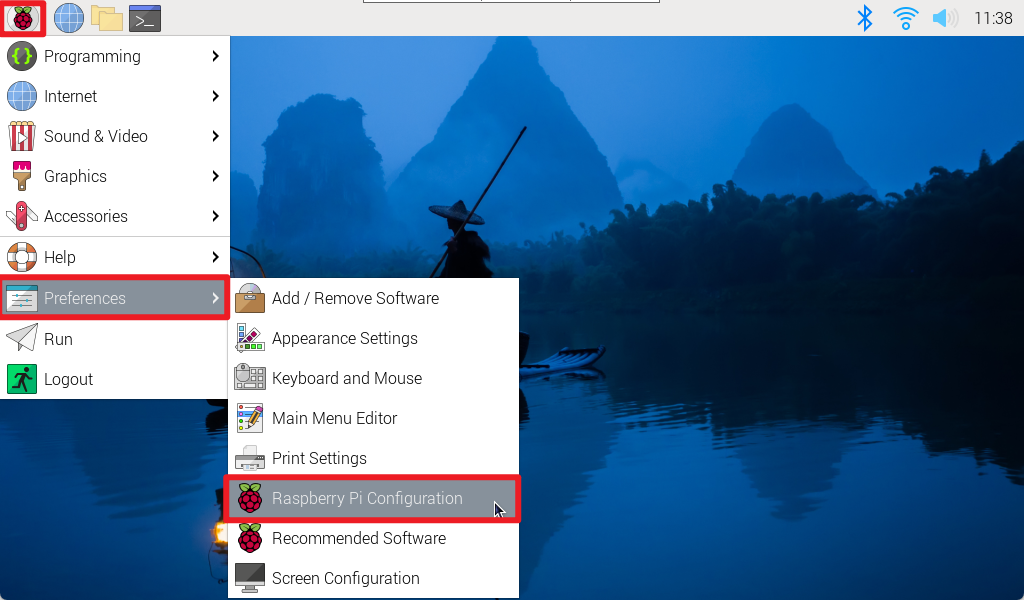
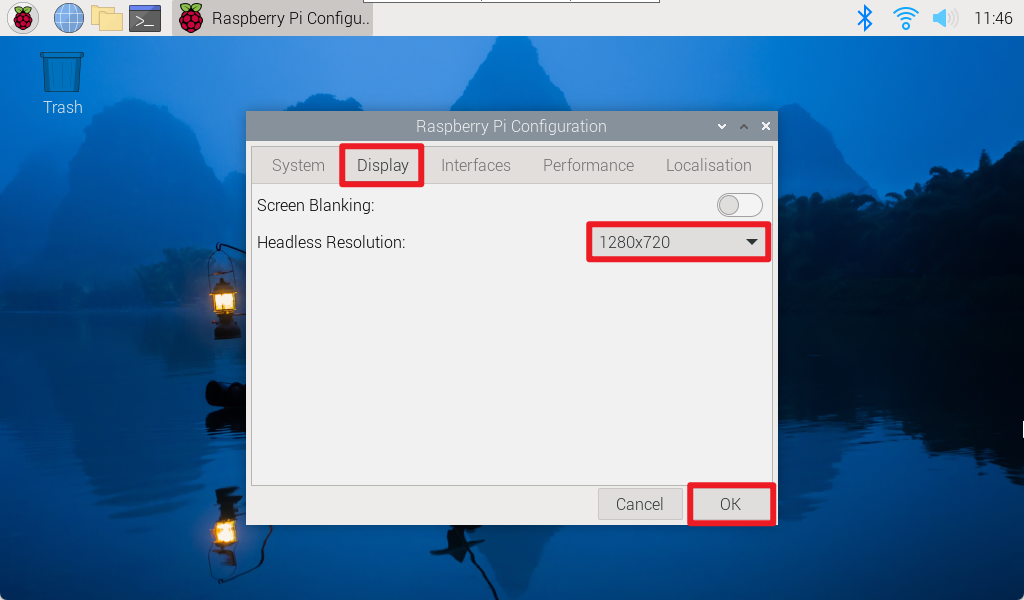
Enter Display to modify the resolution of the VNC remote. After modification, you need to restart the system and reconnect VNC!
applications menu → Preferences → Raspberry Pi Configuration → Display
2.2, Command Line
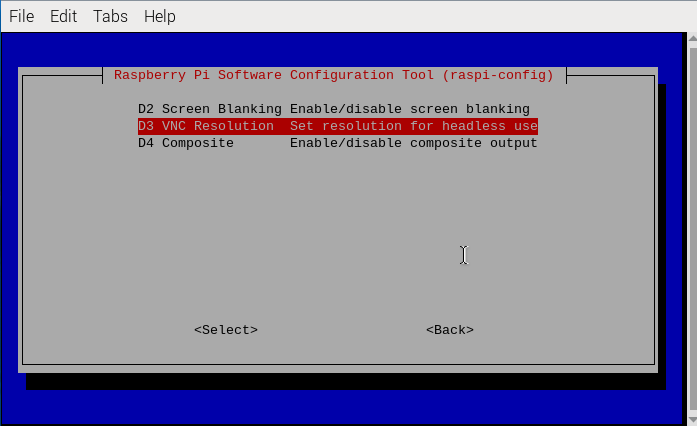
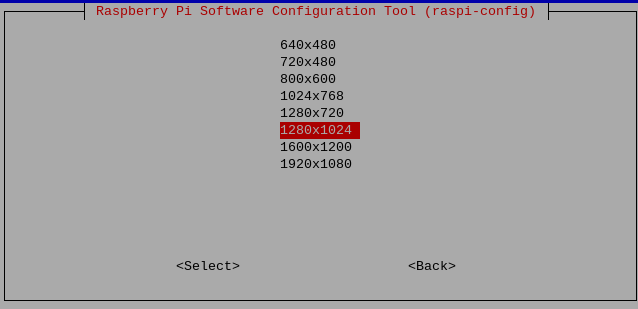
Use raspi-config tool to adjust VNC resolution.
- Display Options
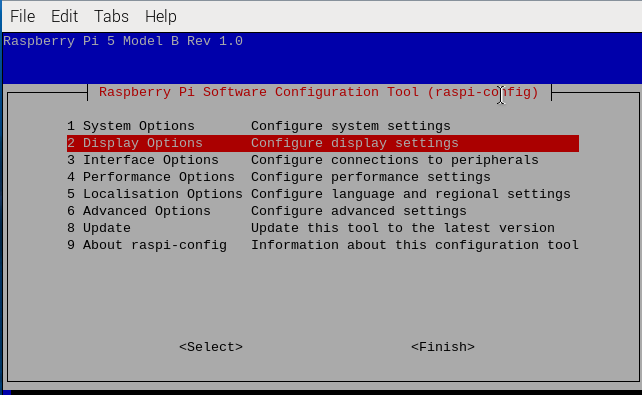
- VNC Resolution