Welcome to Raspbot V2 repository
当製品の日本語版マニュアル資料は、こちらからご取得ください。
8. Play audio and video
Play audio and video
The easiest way to play audio and video on the Raspberry Pi is to use the pre-installed VLC application;
The VLC program uses hardware acceleration and can play many popular audio and video file formats.
Graphical interface
Select the file to play, right-click, and select "VLC Media Player"
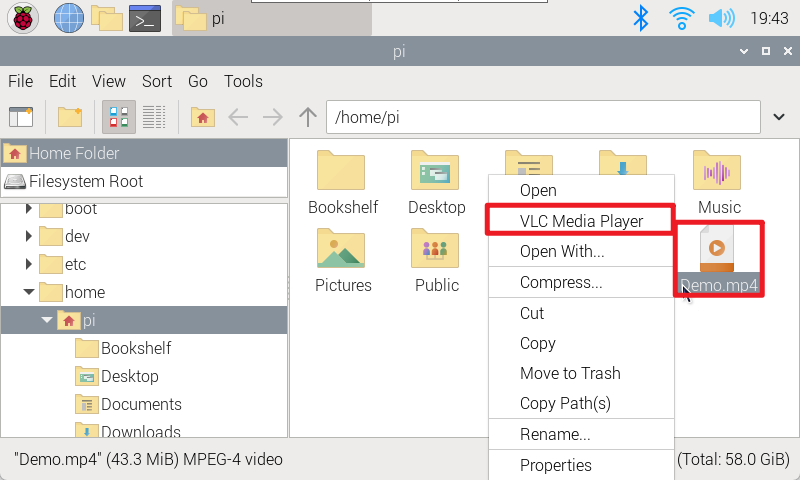
Command line
Note: To play audio or video in the command line, you need to enter the directory where the file is located
Play video
- vlc <video_name>
Example: Play Test.mp4 file
vlc Test.mp4
- vlc --play-and-exit <video_name>
Example: After playing Test.mp4 file, exit the application
xxxxxxxxxxvlc --play-and-exit Test.mp4
- vlc --play-and-exit --fullscreen <video_name>
Example: Play Test.mp4 file in full screen, and exit the application after playing
xxxxxxxxxxvlc --play-and-exit --fullscreen Test.mp4
- cvlc --play-and-exit <video_name>
Example: Play the Test.mp4 file without displaying the VLC graphical interface
xxxxxxxxxxcvlc --play-and-exit Test.mp4
- cvlc --play-and-exit --drm-vout-display
<video_name>
Replace the contents of
Example: Video is output through HDMI1
xxxxxxxxxxcvlc --play-and-exit --drm-vout-display HDMI-A-1 Test.mp4
Get a list of all DRM devices on the Raspberry Pi: kmsprint | grep Connector
| DRM device | Description |
|---|---|
| HDMI-A-1 connector | Raspberry Pi Zero or Raspberry Pi HDMI output on Model 1, 2, or 3;or HDMI400 output on Raspberry Pi 0 or 4 |
| HDMI-A-2 connector | HDMI400 output on Raspberry Pi 1 or 4 |
| DSI-1 model | Raspberry Pi touch display |
Playing audio
Raspberry Pi 5 can only be used normally when connected to an audio device.
The play audio command and play video command only differ in the file name: play Test.mp3 file
xxxxxxxxxxcvlc --play-and-exit Test.mp3
- cvlc --play-and-exit -A alsa --alsa-audio-device
<video_name>
Replace the contents of
Example: Output audio through HDMI
xxxxxxxxxxcvlc --play-and-exit -A alsa --alsa-audio-device vc4hdmi0 Test.mp3
Get the Raspberry Pi ALSA device: aplay -L | grep sysdefault
| ALSA device | Description |
|---|---|
| System default: CARD=vc4hdmi0 | HDMI400 output on Raspberry Pi 0 or 4 |
| System default: CARD=vc4hdmi1 | HDMI400 output on Raspberry Pi 1 or 4 |