Welcome to ROSMASTER M3 repository
02.Handle control
Handle Control
1. Course Content
- Control the robot's movement using a PS2 handle. After running the program, use the PS2 handle to control the robot chassis.
2. Preparations
2.1 Content Description
This lesson uses the Jetson Orin NX as an example. For Raspberry Pi boards, you need to open a terminal on the host machine, enter the command to get into the Docker container, and then input the commands mentioned in this lesson in the terminal within the Docker container. A tutorial on how to enter the Docker container from the host can be found in this product's guide [00.Configuration and Operation Guide]-[3.Enter the Docker (For RPI5)]. For ORIN and RDK boards, you can directly open a terminal and enter the commands mentioned in this lesson.
2.2 Start the Agent
Note: To test all examples, you must start the Docker agent first. If it is already running, you do not need to start it again.
Enter the command in the vehicle's terminal:
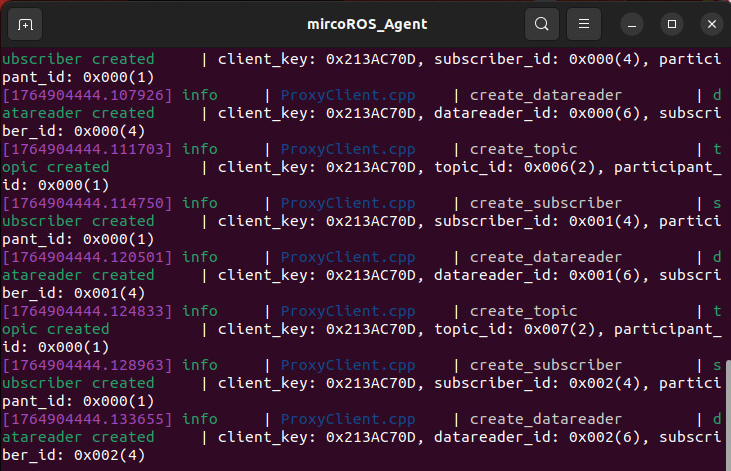
start_agentThe terminal will print the following information, indicating a successful connection:
2.3 Check the Device
First, insert the wireless handle's USB receiver into the main controller, open a terminal, and enter the following command. If js0 is displayed, this is the wireless handle. In special cases, you can also check the device list changes by connecting and disconnecting the wireless handle's USB receiver. If there is a change, the changing device is the correct one; otherwise, the connection is unsuccessful or the device is not recognized.
2.4 Test Handle Input
[!TIP]
- Testing the handle input here is for checking key value changes and is used for debugging. You can skip this step for normal use.
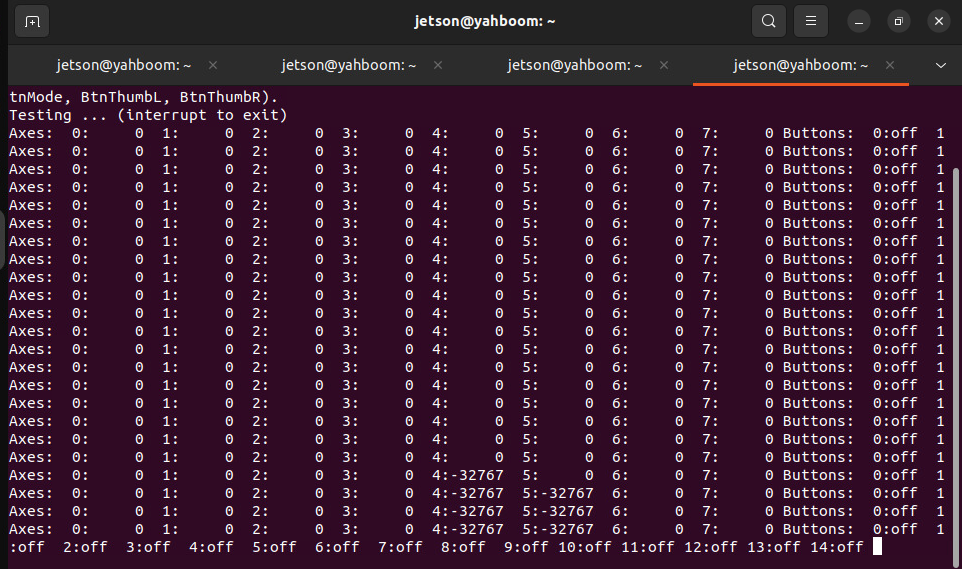
Open a terminal and enter the following command. As shown in the figure, the wireless handle has 8 analog stick inputs and 15 button inputs. You can press the buttons to test the corresponding numbers.
xxxxxxxxxxsudo jstest /dev/input/js0
3. Run the Example
3.1 Start the PS2 Handle Control Node
For Raspberry Pi 5 users, if the ROS container is not started, you need to start it first.
xxxxxxxxxxbringup_m3
Open a terminal inside the container,
xxxxxxxxxxexec_m3
Shortcut command:
xxxxxxxxxxps2
Full launch command:
xxxxxxxxxxros2 launch m3_bringup joy_contoller_launch.py
3.2 Button Control Description
| Handle Action | Function |
|---|---|
| Left Stick Up/Down | Car moves forward/backward |
| Left Stick Left/Right | Car strafes left/right |
| Right Stick Left/Right | Car rotates left/right |
| "START" Button | Exit sleep/Control buzzer |
| Left Stick Press | Adjust X/Y axis linear speed |
| Right Stick Press | Adjust angular speed |
| Right Button 1 | Switch ambient light mode |
4. Source Code Analysis
4.1 View Communication Between Nodes
- Open a terminal and enter the command:
xxxxxxxxxxros2 run rqt_graph rqt_graph
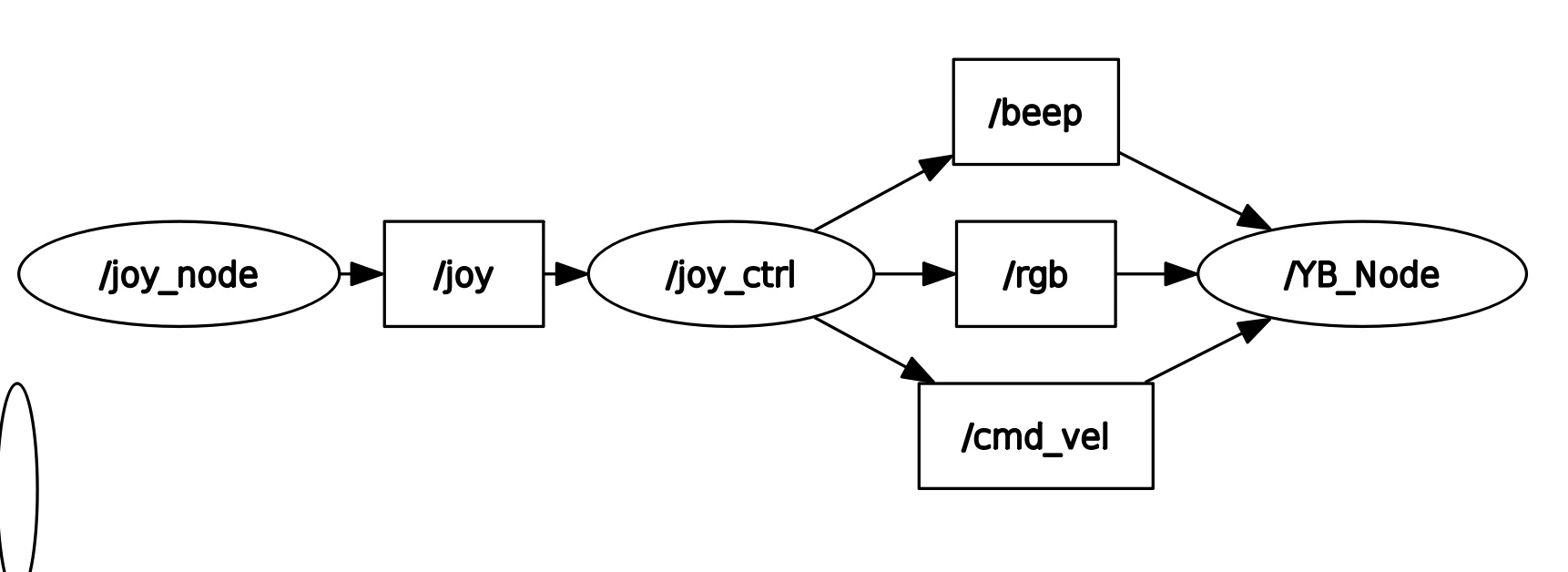
In the node relationship diagram above:
joy_node: Gets data from the handle receiver and publishes it to the/joytopic.joy_ctrl: Subscribes to the data on the/joytopic, parses the buttons and corresponding actions, and publishes to the/cmd_veland/rgbtopics to control the robot chassis.
4.2 View Topics and Message Types
Open a terminal on the vehicle or virtual machine and enter the command:
xxxxxxxxxxros2 interface show sensor_msgs/msg/Joy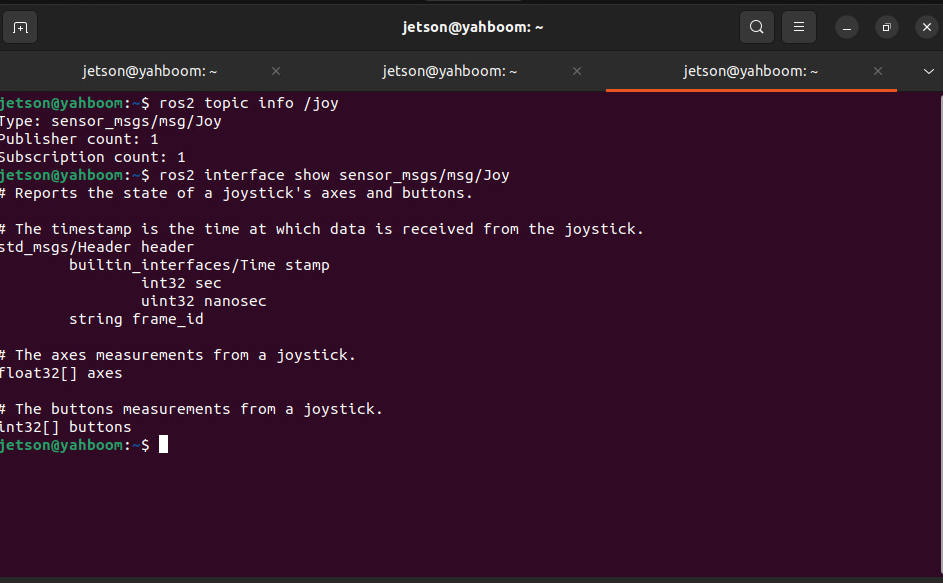
As you can see, the data on the /joy topic is a timestamped array of float32 numbers.
float32[] axes: 8 analog stick input data.int32[] buttons: 15 button inputs.
4.3 Source Code Analysis
Source code path:
xxxxxxxxxx~/yahboomM3_ws/code_ws/src/m3_common_demo/m3_common_demo/ps2_controller/joy2ros.py
4.3.1 Topic Communication
xxxxxxxxxxself.pub_cmdVel = self.create_publisher(Twist,'cmd_vel', 1)self.sub_Joy = self.create_subscription(Joy,'joy', self.buttonCallback,10)Here, the chassis movement is controlled by publishing to the /cmd_vel topic, and the PS2 handle's button states are obtained by subscribing to the /joy topic.
The basic principle of controlling the robot with a handle is to first parse the handle data, then convert it into corresponding control state quantities, and send them to the chassis control board via topic communication. The chassis control board subscribes to the topic data and converts it into values for controlling the hardware.
4.3.2 Chassis Movement Control
The PS2 handle controls the chassis movement through the user_jetson method in the JoyTeleop class:
xclass JoyTeleop(Node): def __init__(self, name): super().__init__(name) self.Joy_active = True self.Buzzer_active = 0 self.RGBLight_index = 0 self.cancel_time = time.time() self.user_name = getpass.getuser() self.linear_Gear = 1.0 / 3 self.angular_Gear = 1.0 / 4 self.loop_active = True # create pub self.pub_cmdVel = self.create_publisher(Twist, "cmd_vel", 1) self.pub_Buzzer = self.create_publisher(UInt16, "/beep", 1) self.pub_JoyState = self.create_publisher(Bool, "JoyState", 10) self.pub_RGBLight = self.create_publisher(ColorRGBA, "rgb", 10) # create sub self.sub_Joy = self.create_subscription(Joy, "joy", self.buttonCallback, 10) # declare parameter and get the value self.declare_parameter("xspeed_limit", 1.0) self.declare_parameter("yspeed_limit", 1.0) self.declare_parameter("angular_speed_limit", 5.0) self.xspeed_limit = ( self.get_parameter("xspeed_limit").get_parameter_value().double_value ) self.yspeed_limit = ( self.get_parameter("yspeed_limit").get_parameter_value().double_value ) self.angular_speed_limit = ( self.get_parameter("angular_speed_limit").get_parameter_value().double_value ) def buttonCallback(self, joy_data): if not isinstance(joy_data, Joy): return self.user_jetson(joy_data) def user_jetson(self, joy_data): # arm_ctrl_start if joy_data.buttons[10] == 1: pass if ( joy_data.buttons[0] == joy_data.buttons[1] == joy_data.buttons[6] == joy_data.buttons[3] == joy_data.buttons[4] == 0 and joy_data.axes[7] == joy_data.axes[6] == 0 and joy_data.axes[5] != -1 ): self.loop_active = False else: if joy_data.buttons[3] == 1: print("1,-") # X if joy_data.buttons[1] == 1: # B print("1,+") if joy_data.buttons[0] == 1: # A print("2,-") if joy_data.buttons[4] == 1: # Y print("2,+") if joy_data.axes[6] != 0: # Left button: left positive, right negative print("3,-/+") if joy_data.axes[7] != 0: # Left button: up positive, down negative print("4,-/+") if joy_data.buttons[9] == 1: pass # RGBLight if joy_data.buttons[7] == 1: self.RGBLight_index = self.RGBLight_index + 1.0 if self.RGBLight_index > 7: self.RGBLight_index = 0.0 rgb__msg = ColorRGBA() rgb__msg.a = 100.0 + self.RGBLight_index self.pub_RGBLight.publish(rgb__msg) # Buzzer if joy_data.buttons[11] == 1: Buzzer_ctrl = UInt16() if self.Buzzer_active == 0: self.Buzzer_active = self.Buzzer_active + 1 else: self.Buzzer_active = self.Buzzer_active - 1 Buzzer_ctrl.data = self.Buzzer_active self.pub_Buzzer.publish(Buzzer_ctrl) # linear Gear control if joy_data.buttons[13] == 1: if self.linear_Gear == 1.0: self.linear_Gear = 1.0 / 3 elif self.linear_Gear == 1.0 / 3: self.linear_Gear = 2.0 / 3 elif self.linear_Gear == 2.0 / 3: self.linear_Gear = 1 # angular Gear control if joy_data.buttons[14] == 1: if self.angular_Gear == 1.0: self.angular_Gear = 1.0 / 4 elif self.angular_Gear == 1.0 / 4: self.angular_Gear = 1.0 / 2 elif self.angular_Gear == 1.0 / 2: self.angular_Gear = 3.0 / 4 elif self.angular_Gear == 3.0 / 4: self.angular_Gear = 1.0 xlinear_speed = ( self.filter_data(joy_data.axes[1]) * self.xspeed_limit * self.linear_Gear ) ylinear_speed = ( self.filter_data(joy_data.axes[0]) * self.yspeed_limit * self.linear_Gear ) angular_speed = ( self.filter_data(joy_data.axes[2]) * self.angular_speed_limit * self.angular_Gear ) if xlinear_speed > self.xspeed_limit: xlinear_speed = self.xspeed_limit elif xlinear_speed < -self.xspeed_limit: xlinear_speed = -self.xspeed_limit if ylinear_speed > self.yspeed_limit: ylinear_speed = self.yspeed_limit elif ylinear_speed < -self.yspeed_limit: ylinear_speed = -self.yspeed_limit if angular_speed > self.angular_speed_limit: angular_speed = self.angular_speed_limit elif angular_speed < -self.angular_speed_limit: angular_speed = -self.angular_speed_limit twist = Twist() twist.linear.x = xlinear_speed twist.linear.y = ylinear_speed twist.angular.z = angular_speed if self.Joy_active == True: self.pub_cmdVel.publish(twist) def filter_data(self, value): if abs(value) < 0.2: value = 0 return value