Welcome to ROSMASTER M3 repository
03.Keyboard control
Keyboard Control
1. Course Content
- Control the robot's movement using the keyboard and understand the principles. After running the program, publish velocity topics via keyboard keys to control the robot chassis movement.
2. Preparations
2.1 Content Description
This lesson uses the Jetson Orin NX as an example. For Raspberry Pi boards, you need to open a terminal on the host machine, enter the command to get into the Docker container, and then input the commands mentioned in this lesson in the terminal within the Docker container. A tutorial on how to enter the Docker container from the host can be found in this product's guide [00.Configuration and Operation Guide]-[3.Enter the Docker (For RPI5)]. For ORIN and RDK boards, you can directly open a terminal and enter the commands mentioned in this lesson.
2.2 Start the Agent
Note: If it is already running, you do not need to start it again.
Enter the command in the vehicle's terminal:
start_agent
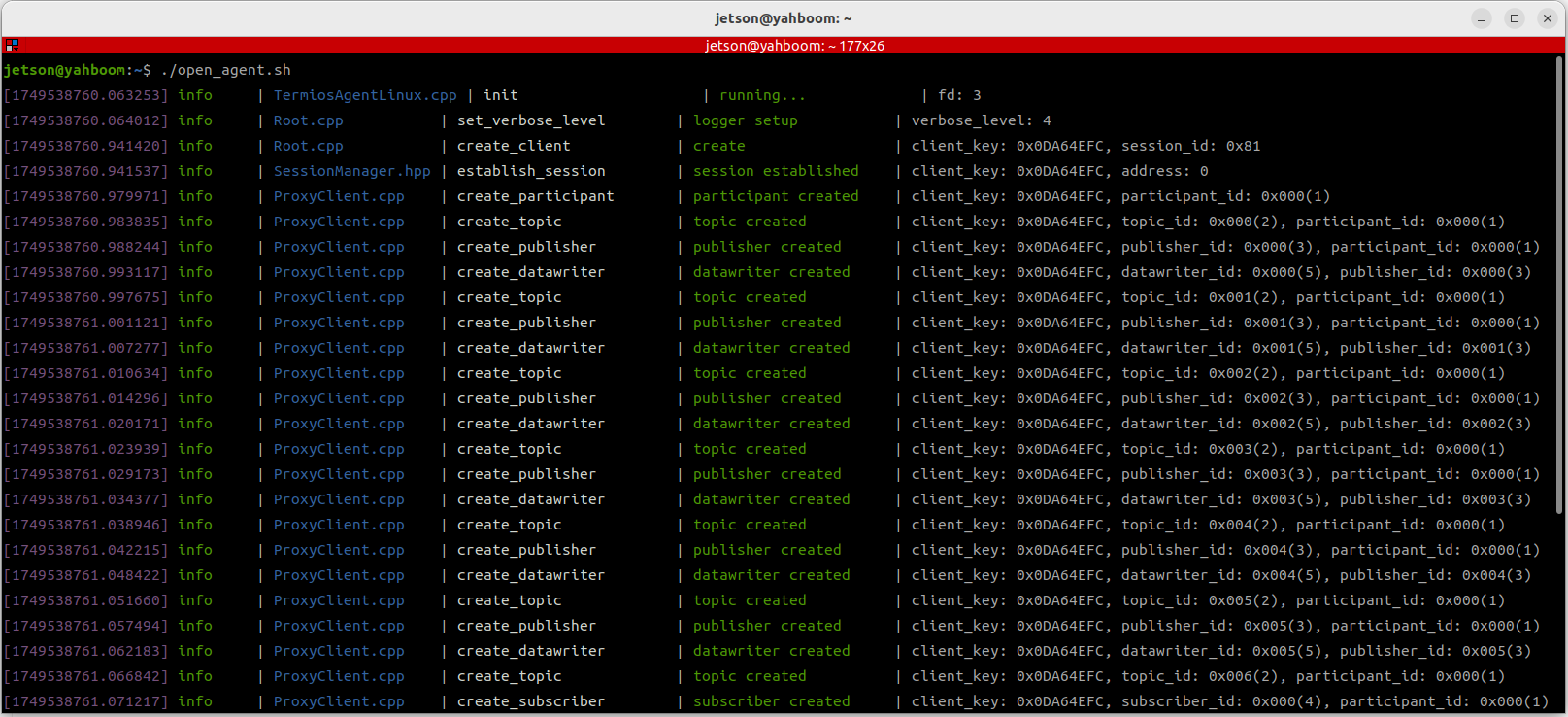
The terminal will print the following information, indicating a successful connection:
3. Run the Example
3.1 Start Keyboard Control
For Raspberry Pi 5 users, if the ROS container is not started, you need to start it first,
xxxxxxxxxxbringup_m3
Open a terminal inside the container,
xxxxxxxxxxexec_m3
Shortcut command:
xxxxxxxxxxkeyboard_control
Full launch command:
xxxxxxxxxxros2 run teleop_twist_keyboard teleop_twist_keyboard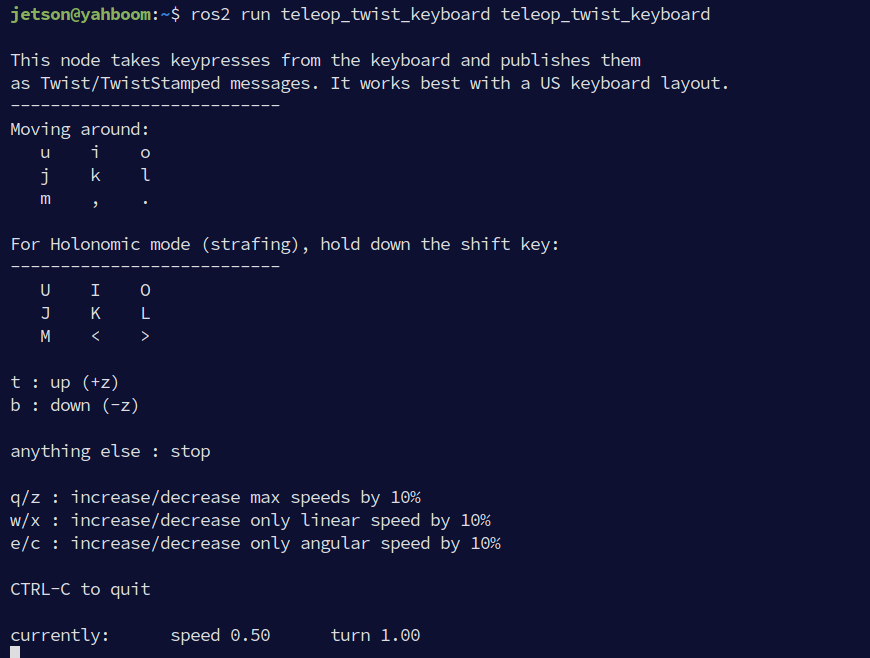
3.2 Key Control Description
3.2.1 Direction Control
| Key(s) | Function |
|---|---|
i or I | Forward |
, | Backward |
j or J | Turn Left/Strafe Left (lowercase for turn, uppercase for strafe) |
l or L | Right Turn/Strafe Right (lowercase for turn, uppercase for strafe) |
k | Stop Moving |
3.2.2 Speed Control
| Key | Speed Change | Key | Speed Change |
|---|---|---|---|
q | Increase linear and angular speed by 10% | z | Decrease linear and angular speed by 10% |
w | Increase only linear speed by 10% | x | Decrease only linear speed by 10% |
e | Increase only angular speed by 10% | c | Decrease only angular speed by 10% |
t | Switch linear speed between X and Y axis | s | Stop keyboard control |
4. Source Code Analysis
4.1 View Node Relationship Graph
Open a terminal and enter the command:
xxxxxxxxxxros2 run rqt_graph rqt_graph
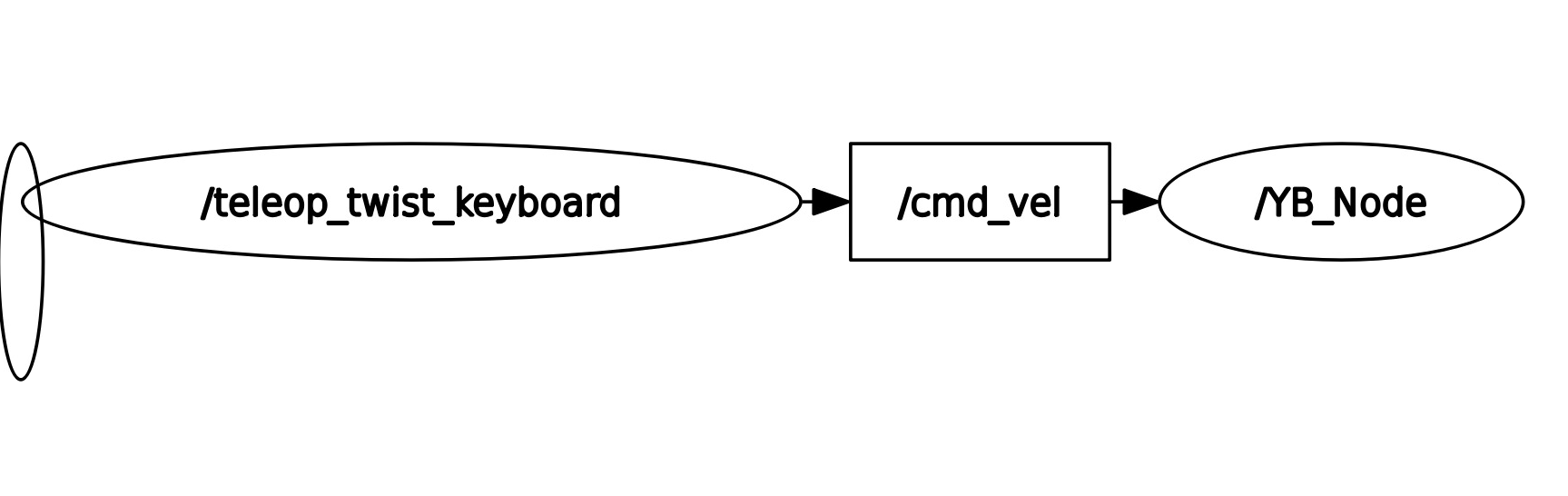
From the node relationship graph, we can see:
teleop_twist_keyboard: Controls the robot chassis by publishing to the /cmd_vel topic.
/YB_Node: The robot chassis node, which subscribes to the /cmd_vel topic and uses inverse kinematics to calculate the speed of each wheel to control the car's movement.
4.2 View Topic Messages and Message Types
Open a terminal and enter the command:
xxxxxxxxxxros2 topic echo /cmd_velWhen controlling the robot chassis with the keyboard, you can see from the topic's printed messages that data is being published to the /cmd_vel topic.
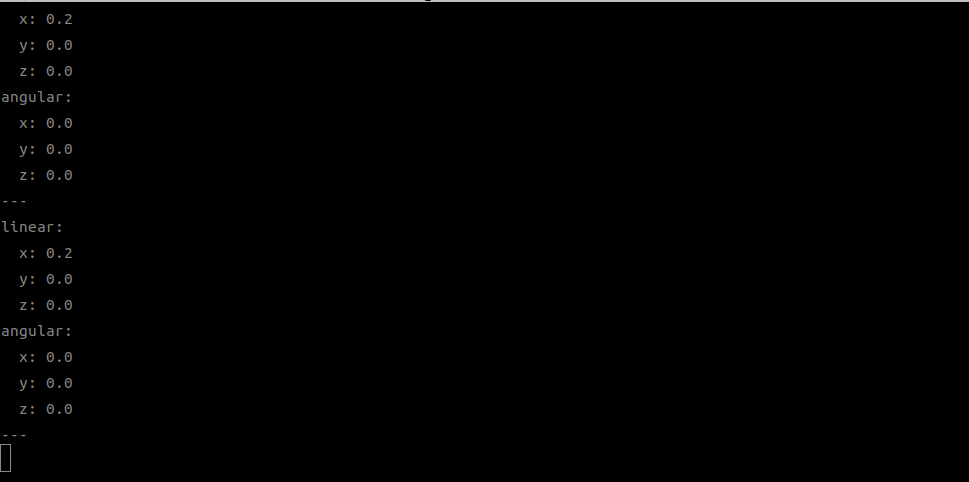
Enter the following command to view the message type of the /cmd_vel topic:
xxxxxxxxxxros2 topic info /cmd_vel
From the Type, you can see that the message type for the /cmd_vel topic is geometry_msgs/msg/Twist. Enter the following command to view the composition of the geometry_msgs/msg/Twist message type:
xxxxxxxxxxros2 interface show geometry_msgs/msg/Twist
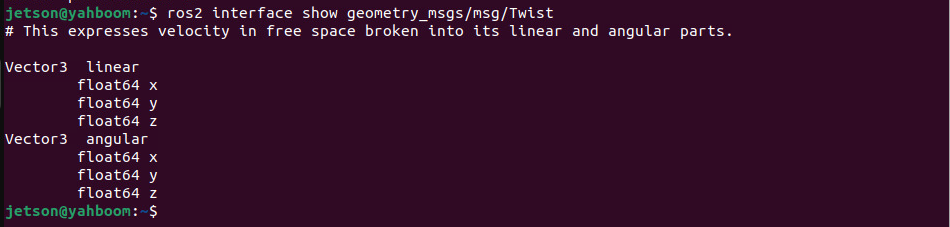
From the composition of the message type above, it can be seen that the robot chassis is controlled by two vector groups: linear (linear velocity) and angular (angular velocity). Each data point is a float64 type. Below is an explanation of each data field:
linear
float64 x: linear velocity on the x-axisfloat64 y: linear velocity on the y-axisfloat64 z: linear velocity on the z-axis
angular
float64 x: angular velocity on the x-axisfloat64 y: angular velocity on the y-axisfloat64 z: angular velocity on the z-axis
Since the robot chassis can only move in a 2D plane, only linear.x (x-axis linear velocity), linear.y (y-axis linear velocity), and angular.z (z-axis angular velocity) are actually published when controlling the robot with the keyboard.
4.3 Source Code Analysis
Source code path:
xxxxxxxxxx~/yahboomM3_ws/code_ws/src/m3_common_demo/m3_common_demo/keyboard_controller/teleop_twist_keyboard.py
4.3.1 Published Topic
xxxxxxxxxxpub = rospy.Publisher('cmd_vel', Twist, queue_size=1)You just need to package the speed and publish it via pub.publish(twist). The chassis's speed subscriber will then receive the speed data and drive the car.
4.3.2 Movement and Speed Dictionaries
The movement dictionary mainly stores characters related to direction control:
xxxxxxxxxxmoveBindings = {'i':(1,0,0,0),'o':(1,0,0,-1),'j':(0,0,0,1),'l':(0,0,0,-1),'u':(1,0,0,1),',':(-1,0,0,0),'.':(-1,0,0,1),'m':(-1,0,0,-1),'O':(1,-1,0,0),'I':(1,0,0,0),'J':(0,1,0,0),'L':(0,-1,0,0),'U':(1,1,0,0),'<':(-1,0,0,0),'>':(-1,-1,0,0),'M':(-1,1,0,0),'t':(0,0,1,0),'b':(0,0,-1,0),}The speed dictionary mainly stores characters related to speed control:
xxxxxxxxxxspeedBindings={'q':(1.1,1.1),'z':(.9,.9),'w':(1.1,1),'x':(.9,1),'e':(1,1.1),'c':(1,.9),}4.33 Get Current Key Information
xxxxxxxxxxdef getKey():tty.setraw(sys.stdin.fileno())select.select([sys.stdin], [], [], 0)key = sys.stdin.read(1)termios.tcsetattr(sys.stdin, termios.TCSADRAIN, settings)return key4.34 Check Key Value and Publish /cmd_vel Speed Topic
xdef main(args=None):if args is None:args = sys.argvrclpy.init(args)node = rclpy.create_node('teleop_twist_keyboard')pub = node.create_publisher(Twist, 'cmd_vel', qos_profile_default)speed = 0.5turn = 1.0x = 0y = 0z = 0th = 0status = 0try:print(msg)print(vels(speed,turn))while(1):key = getKey()if key in moveBindings.keys():x = moveBindings[key][0]y = moveBindings[key][1]z = moveBindings[key][2]th = moveBindings[key][3]elif key in speedBindings.keys():speed = speed * speedBindings[key][0]turn = turn * speedBindings[key][1]print(vels(speed,turn))if (status == 14):print(msg)status = (status + 1) % 15else:x = 0y = 0z = 0th = 0if (key == '\x03'):breaktwist = Twist()twist.linear.x = x*speed; twist.linear.y = y*speed; twist.linear.z = z*speed;twist.angular.x = 0.0; twist.angular.y = 0.0; twist.angular.z = th*turnpub.publish(twist)except:# print(e)passfinally:twist = Twist()twist.linear.x = 0.0; twist.linear.y = 0.0; twist.linear.z = 0.0twist.angular.x = 0.0; twist.angular.y = 0.0; twist.angular.z = 0.0pub.publish(twist)termios.tcsetattr(sys.stdin, termios.TCSADRAIN, settings)