Welcome to ROSMASTER M3 repository
7.Oriented object detection
Oriented object detection
Oriented object detection1. Enable optimal performance of the motherboardEnable Jetson clocks2. Oriented object detection: imageEffect preview3. Directed object detection: videoEffect preview4. Directed object detection: real-time detectionEffect previewReferences
Use Python to demonstrate the effects of Ultralytics: Oriented Bounding Boxes Object Detection in images, videos, and real-time detection.
1. Enable optimal performance of the motherboard
Enable Jetson clocks
Enabling Jetson Clocks will ensure that all CPU and GPU cores run at maximum frequency:
sudo jetson_clocks
2. Oriented object detection: image
Use yolo11n-obb.pt to predict images under the ultralytics project (not ultralytics built-in images).
Enter the code folder:
xxxxxxxxxxcd /home/jetson/ultralytics/ultralytics/yahboom_demo
Run the code:
xxxxxxxxxxpython3 05.obb_image.py
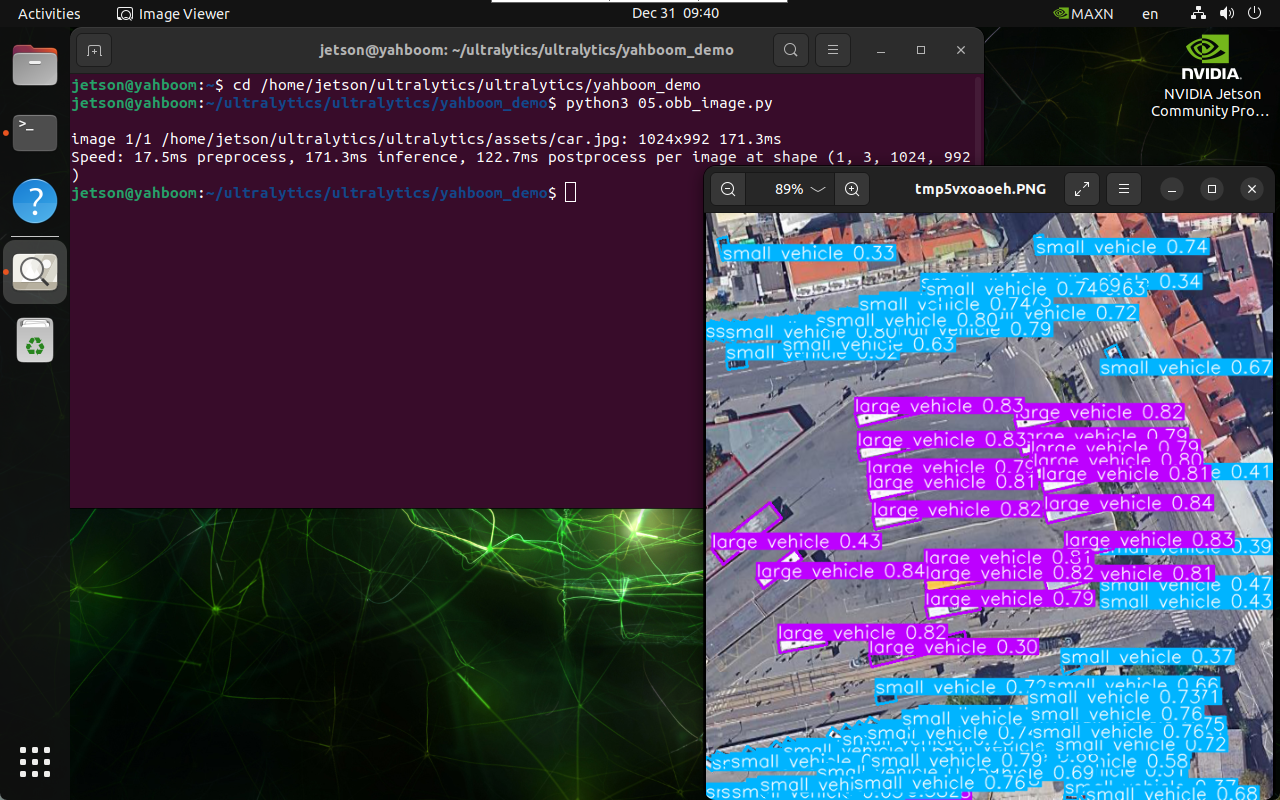
Effect preview
Yolo recognition output image location: /home/jetson/ultralytics/ultralytics/output/
Sample code:
xfrom ultralytics import YOLO# Load a modelmodel = YOLO("/home/jetson/ultralytics/ultralytics/yolo11n-obb.pt")# Run batched inference on a list of imagesresults = model("/home/jetson/ultralytics/ultralytics/assets/car.jpg") # return a list of Results objects# Process results listfor result in results: # boxes = result.boxes # Boxes object for bounding box outputs # masks = result.masks # Masks object for segmentation masks outputs # keypoints = result.keypoints # Keypoints object for pose outputs # probs = result.probs # Probs object for classification outputs obb = result.obb # Oriented boxes object for OBB outputs result.show() # display to screen result.save(filename="/home/jetson/ultralytics/ultralytics/output/car_output.jpg") # save to disk3. Directed object detection: video
Use yolo11n-obb.pt to predict the video under the ultralytics project (not the video that comes with ultralytics).
Enter the code folder:
xxxxxxxxxxcd /home/jetson/ultralytics/ultralytics/yahboom_demo
Run the code:
xxxxxxxxxxpython3 05.obb_video.py
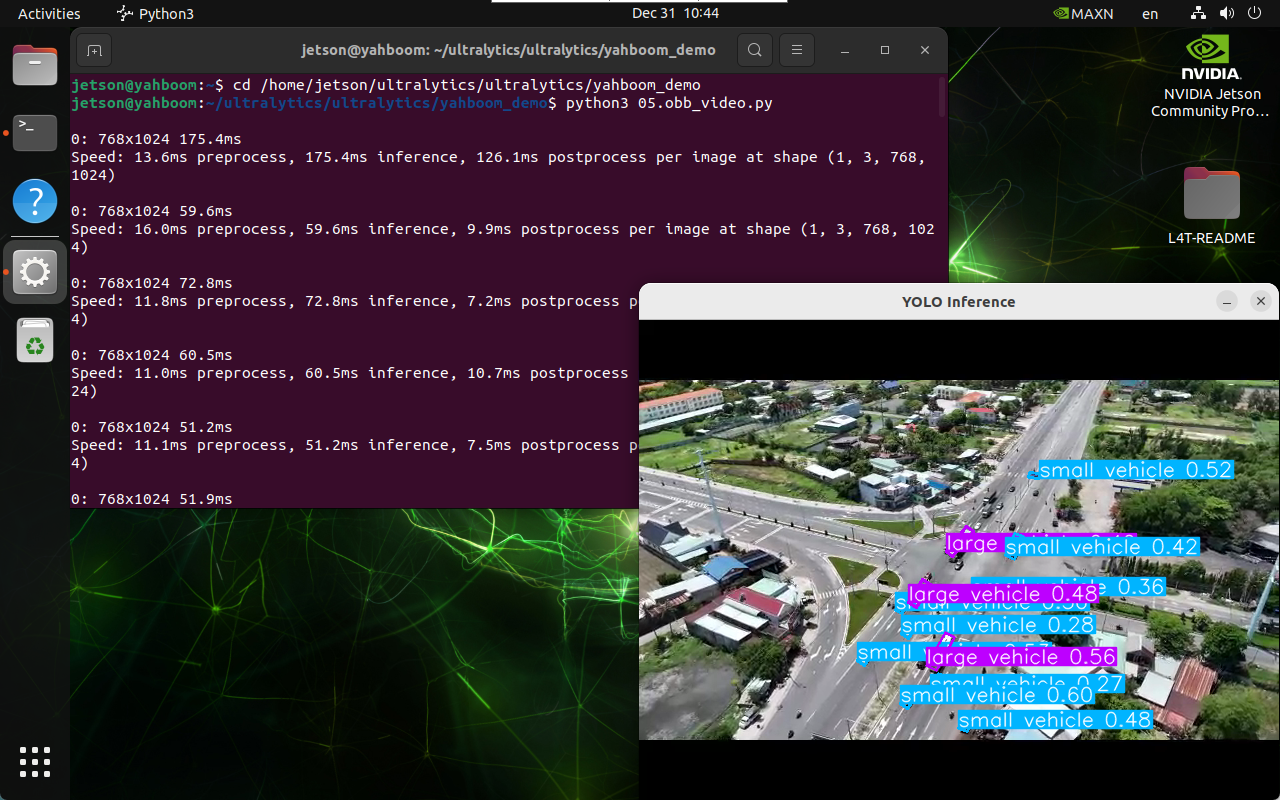
Effect preview
Video location of yolo recognition output: /home/jetson/ultralytics/ultralytics/output/
Sample code:
xxxxxxxxxximport cv2from ultralytics import YOLO# Load the YOLO modelmodel = YOLO("/home/jetson/ultralytics/ultralytics/yolo11n-obb.pt")# Open the video filevideo_path = "/home/jetson/ultralytics/ultralytics/videos/street.mp4"cap = cv2.VideoCapture(video_path)# Get the video frame size and frame rateframe_width = int(cap.get(cv2.CAP_PROP_FRAME_WIDTH))frame_height = int(cap.get(cv2.CAP_PROP_FRAME_HEIGHT))fps = int(cap.get(cv2.CAP_PROP_FPS))# Define the codec and create a VideoWriter object to output the processed videooutput_path = "/home/jetson/ultralytics/ultralytics/output/05.street_output.mp4"fourcc = cv2.VideoWriter_fourcc(*'mp4v') # You can use 'XVID' or 'mp4v' depending on your platformout = cv2.VideoWriter(output_path, fourcc, fps, (frame_width, frame_height))# Loop through the video frameswhile cap.isOpened(): # Read a frame from the video success, frame = cap.read() if success: # Run YOLO inference on the frame results = model(frame) # Visualize the results on the frame annotated_frame = results[0].plot() # Write the annotated frame to the output video file out.write(annotated_frame) # Display the annotated frame cv2.imshow("YOLO Inference", cv2.resize(annotated_frame, (640, 480))) # Break the loop if 'q' is pressed if cv2.waitKey(1) & 0xFF == ord("q"): break else: # Break the loop if the end of the video is reached break# Release the video capture and writer objects, and close the display windowcap.release()out.release()cv2.destroyAllWindows()4. Directed object detection: real-time detection
Use yolo11n-obb.pt to predict the camera image.
Start the camera.
xxxxxxxxxx#usb cameraros2 launch usb_cam camera.launch.py #nuwa cameraros2 launch ascamera hp60c.launch.pyEnter the code folder:
xxxxxxxxxxcd /home/jetson/ultralytics/ultralytics/yahboom_demo
Run the code: Click the preview screen and press the q key to terminate the program!
xxxxxxxxxxpython3 05.obb_camera_usb.py
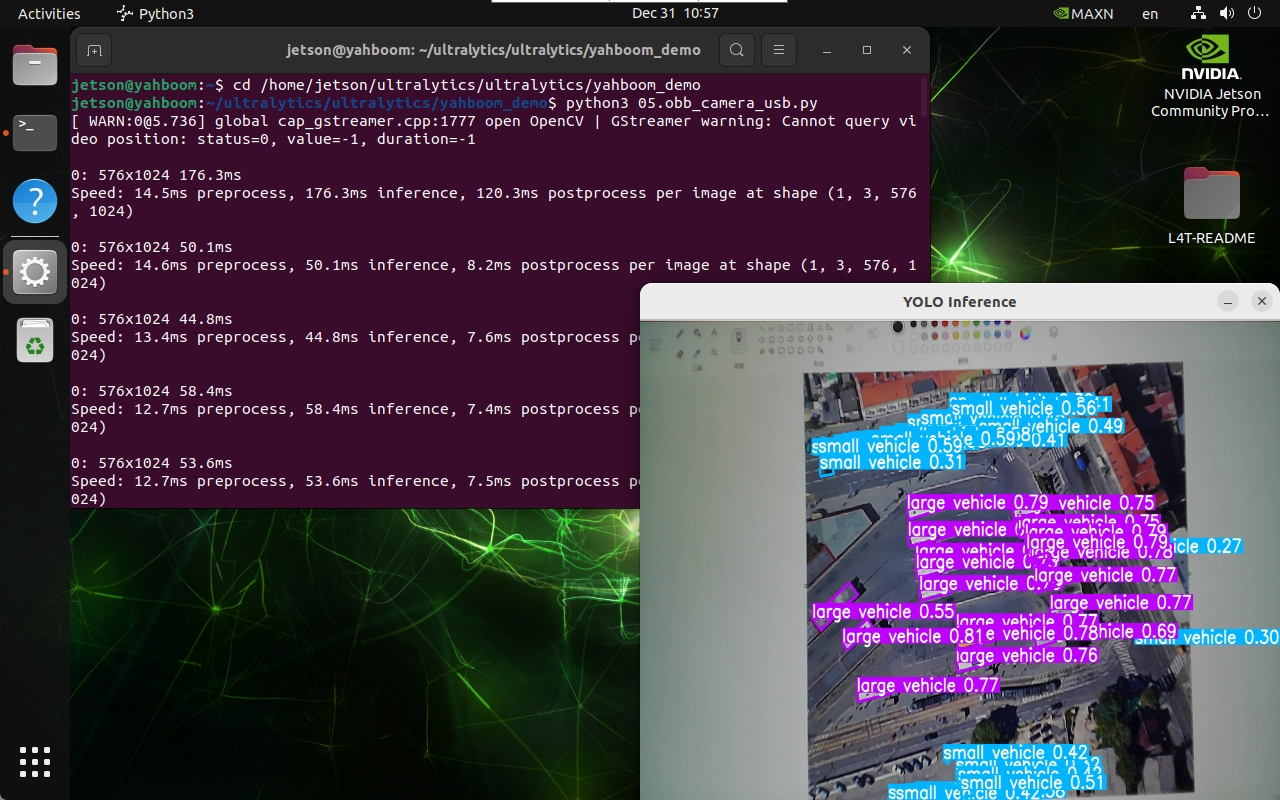
Effect preview
Yolo recognizes the output video location: /home/jetson/ultralytics/ultralytics/output/
Sample code:
x
#!/usr/bin/env python3import rclpyfrom rclpy.node import Nodefrom sensor_msgs.msg import Image, CompressedImagefrom cv_bridge import CvBridgeimport cv2from ultralytics import YOLOimport osclass Image_detection(Node): def __init__(self): super().__init__('Image_detection') self.model = YOLO("/home/jetson/ultralytics/ultralytics/yolo11n-obb.pt") self.camera_type = os.getenv('CAMERA_TYPE', 'usb') self.bridge = CvBridge() if self.camera_type == 'usb': topic_name = '/usb_cam/image_raw' else: topic_name = '/ascamera_hp60c/camera_publisher/rgb0/image' self.subscription = self.create_subscription(Image,topic_name, self.image_callback,10) # Get the video frame size and frame rate frame_width = 640 frame_height = 480 fps = 15 output_path = "/home/jetson/ultralytics/ultralytics/output/05.obb_camera_usb.mp4" fourcc = cv2.VideoWriter_fourcc(*'mp4v') # You can use 'XVID' or 'mp4v' depending on your platform self.out = cv2.VideoWriter(output_path, fourcc, fps, (frame_width, frame_height)) def image_callback(self, msg): cv_image = self.bridge.imgmsg_to_cv2(msg, desired_encoding='bgr8') self.proecc(cv_image) # Loop through the video frames def proecc(self,frame): # Run YOLO inference on the frame results = self.model(frame) # Visualize the results on the frame annotated_frame = results[0].plot() # Write the annotated frame to the output video file self.out.write(annotated_frame) # Display the annotated frame cv2.imshow("YOLO Inference", cv2.resize(annotated_frame, (640, 480))) # Break the loop if 'q' is pressed cv2.waitKey(1) & 0xFF == ord("q") def cancel(self): cv2.destroyAllWindows() self.out.release() def main(args=None): rclpy.init(args=args) node = Image_detection() try: rclpy.spin(node) except KeyboardInterrupt: pass finally: node.cancel() node.destroy_node() rclpy.shutdown()if __name__ == '__main__': main()