yahboom
HomeLearn
Solution
Blog
Online Store
About Us
EN/中文
ROSMASTER M3📖
00.Configuration and Operation Guide
  • 1.Quick start handle to control the car
  • 2.Log in to the car and view the code
  • 3.Enter the Docker (For RPI5)
  • 4.Camera and Radar Configuration (Must Read)
  • 5.Assembly video
  • 6.Modify Control Board Firmware Parameters
01.Chassis Control Course
  • 01.ROS control
  • 02.Handle control
  • 03.Keyboard control
  • 04.Robot state estimation
  • 05.Data remote visualization
  • 06.Line velocity calibration
  • 07.Angular velocity calibration
  • 08.Robot URDF model
  • 09.Line patrol automatic driving
  • 10.Patrol
02.Lidar Course
  • 01.Lidar introduction and use
  • 02.Lidar point cloud fusion and filtering
  • 03.Lidar obstacle avoidance
  • 04.Lidar tracking
  • 05.Lidar guard
  • 06.Gmapping-SLAM mapping
  • 07.Cartographer-SLAM mapping
  • 08.slam_toolbox mapping
  • 09.Lifelong mapping
  • 10.Navigation2 single-point navigation avoid
  • 11.Navigation2 multi-point navigation avoid
  • 12.Cartographer relocalization navigation
  • 13.slam_toolbox localization and navigation
  • 14.Synchronous mapping and navigation
  • 15.RTAB-Map mapping
  • 16.RTAB-Map navigation
  • 17.APP mapping and navigation
03.AI Model Basics
  • 1.AI large model types and principles
  • 2.RAG retrieval enhancement and model training samples
  • 3.Embodied intelligent robot system architecture
  • 4.Embodied intelligent functions core source code
04.AI Model Development
  • 01.Register a model service provider account
  • 02.Configuring API-KEY
  • 03.Introduction to Dify
  • 04.Basic Dify Features
  • 05.AI Large Model Development - chatbot
  • 06.Deploy the RAG knowledge base
  • 07.RAG knowledge base + chatbot
  • 08.AI agent workflow
  • 09.Custom wake-up response
  • 10.Core module testing tools
05.AI Model - Voice Version
  • 1.Semantic understand and command follow
  • 2.Multimodal visual understanding
  • 3.Multimodal visual understanding+SLAM navigation
  • 4.Intention estimation
06.AI Model - Text Version
  • 1.Semantic understand and command follow
  • 2.Multimodal visual understanding
  • 3.Multimodal visual understanding+SLAM navigation
  • 4.Intention estimation
07.Road Network Planning and Navigation
  • 1.Introduction and Quick Start
  • 2.Constructing a Pose Map
  • 3.Road Network Labelling
  • 4.Inter-Road Network Planning and Navigation
  • 5.Free-Pose Road Network Navigation
  • 6.Path Replanning
08.Autonomous Driving expand(Need purchase track map)
  • 01.Environment Setup & Precautions
  • 02.YOLO Environment Configuration
  • 03.Data Collection
  • 04.Data Annotation
  • 05.YOLOv11 Model Training
  • 06.Model Format Conversion
  • 07.Vehicle Centerline Calibration
  • 08.Lane Detection
  • 09.Lane-Keeping Autonomous Driving
  • 10.Traffic Sign Recognition
  • 11.Comprehensive Autonomous Driving Applications
  • 12.Autonomous Driving Debugging Module
  • 13.Road Network Planning with Track Map
  • 14.Road Network Planning with Traffic Sign Recognition
  • 15.AI Model with Road Network Planning
  • 16.AI Model with Track Map and SLAM Navigation
  • 17.AI Model with Road Network Planning and Autonomous Driving
09.Depth Camera Course
  • 01.Dabai_DCW2 Camera Introduction
  • 02.Nuwa-HP60C Camera Introduction
  • 03.Depth Pseudo-Color Image
  • 04.Depth Camera Distance Measurement
  • 05.Wood Block Volume Measurement
  • 06.Edge Detection
  • 07.YOLOv11 Object Detection
  • 08.YOLOv11 Object Tracking
  • 09.Color Following
  • 10.Face Following
  • 11.QR Code Following
  • 12.Machine Code Following
  • 13.KCF Object Tracking
  • 14.QR Code Motion Control
  • 15.AR Vision
10.Mediapipe Visual Course
  • 01.Hand Detection
  • 02.Posture Detection
  • 03.Overall Detection
  • 04.Facial Landmark Detection
  • 05.3D Object Recognition
  • 06.Face Detection
  • 07.Gesture Recognition
  • 08.Face Special Effects
  • 09.Brush
  • 10.Finger Control
  • 11.Palm Target Positioning
  • 12.Fingertip Trajectory Recognition
  • 13.Gesture Following
  • 14.Posture Following
  • 15.Gesture Motion Control
11.Multi-vehicle Course
  • 1.Multi-vehicle Control
  • 2.Multi-vehicle Navigation
  • 3.Multi-vehicle Platoon
12.AI Large Model Basic Course
Offline large model (Text Interaction)
  • 0. AI Large Model Mirroring Explanation
  • 1. Deployment of large-scale AI models
  • 2. Installation of the large model dialogue platform
  • 3. Meta AI Llama 3.2 model
  • 4. Alibaba Cloud Qwen3 Model
  • 5. DeepSeek DeepSeek-R1 model
  • 6. Microsoft Phi-4 mini model
  • 7. Alibaba Cloud Qwen2.5vl Visual Multimodal Large Model
  • 8. Google Gemma3 Visual Multimodal Large Model
  • 9. Llava Visual Multimodal Large Model
  • 10. Multimodal Visual Understanding Applications
  • 11.MiniCPM-V Visual Multimodal Large Model
  • 12. Multimodal Text-Based Image Application
  • 13. Multimodal Video Analysis Application
  • 14. Multimodal table scanning application
  • 15. Multimodal visual positioning applications
  • 16. Multimodal Autonomous Agent Application
Offline large model (Voice Interaction)
  • 0. Voice Interaction Hardware Connection (Must Read)
  • 1. Offline speech-to-text (ASR)
  • 2. Offline Text-to-Speech (TTS)
  • 3. AI large model voice interaction
  • 4. Multimodal visual understanding and voice interaction
  • 5. Multimodal Text-Based Image Application
  • 6. Multimodal Video Analysis Application
  • 7. Multimodal visual positioning applications
  • 8. Multimodal table scanning application
  • 9. Multimodal Autonomous Agent Applications
  • 10. AI large model offline voice assistant
Online large model (Text Interaction)
  • 1. OpenRouter Large Model API Aggregation Platform
  • 2. Multimodal visual understanding applications
  • 3. Multimodal visual positioning applications
  • 4. Multimodal table scanning application
  • 5. Multimodal Autonomous Agent Applications
Online large model (Voice Interaction)
  • 0. Voice Interaction Hardware Connection (Must Read)
  • 1. Online speech-to-text (ASR)
  • 2. Online Text-to-Speech (TTS)
  • 3. AI large model voice interaction
  • 4. Multimodal visual and voice interaction
  • 5. Multimodal visual positioning applications
  • 6. Multimodal table scanning application
  • 7. Multimodal Autonomous Agent Applications
  • 8. AI large model online voice assistant
13.Control Board Course
1.Development environment setup
  • 1.Introduction to the Control Board
  • 2.Set up the STM32CUBEIDE development environment
  • 3.Burning STM32 firmware using SWD
  • 4.Burning STM32 firmware using serial port
  • 5.Compile the microros driver library
  • 6.Install and start the microros agent
  • 7.Import Project
2.Control board STM32 basic routine
  • 1.Turn on the LED light
  • 2.Button functions
  • 3.Drive the buzzer
  • 4.Serial communication
  • 5.Battery voltage detection
  • 6.Driving PWM Servo
  • 7.Drive motor
  • 8.Read motor encoder data
  • 9.PID control of motor speed
  • 10.Robot kinematics analysis theory
  • 11.Read IMU data
  • 12.Read Lidar data
  • 13.Flash access data
  • 14.Driving OLED Displays
  • 15.Driving RGB light strip
  • 16.SBUS model aircraft remote control
  • 17.USB controller remote control
  • 18.CAN bus communication
3.Control board micro_ros basic routine
  • 1.Post a topic
  • 2.Subscribe to a topic
  • 3.Multi-topic subscription and publishing
  • 4.Subscribe to the buzzer topic
  • 5.Subscribe to the bus servo topic
  • 6.Subscribe to the rate control topic
  • 7.Release Speed Topic
  • 8.Publish IMU data topic
  • 9.Publish radar data topic
14.Main Control Course
Jetson Orin Nano_NX
  • 1.Jetson Orin board introduction
  • 2.Restore the factory image system
  • 3.Backup SSD system
  • 4.SSD expansion
  • 5.Network configuration
  • 6.SSH remote login
  • 7.VNC remote control
  • 8.Remote file transfer
  • 9.Jtop tool
  • 10.Exchange space expansion
Raspberry Pi
  • 1. Introduction to Raspberry PI 5
  • 2. Raspberry PI system installation and backup
  • 3. Powering the Raspberry PI 5
  • 4. Startup of Raspberry PI 5
  • 5. Update and upgrade operating system
  • 6. Introduction to raspi-config tool
  • 7. config.txt file description
  • 8. Network Configuration
  • 9. remote access
  • 10. Transfer files remotely
  • 11. Set display resolution and rotation
  • 12. Set screen to sleep
  • 13. Play audio and video
  • 14. Using USB camera
  • 15. Using MIPI camera
  • 16. Get real-time temperature of Raspberry Pi
RDKX5
  • 1.Introduction to RDK X5 board
  • 2.Write system file
  • 3.Hardware interface description
  • 4.Install case and other accessories
  • 5.Network configuration
  • 6.Remote login
  • 7.Update system
  • 8.srpi-config user guide
  • 9.config. txt configuration file
  • 10.Self-startup setting
  • 11.RDK exclusive command usage
  • 12.Linux command usage
  • 13.GPIO readwrite operation
  • 14.Image classification algorithm
  • 15.Use USB camera
  • 16.Use MIPI camera
  • 17.Binocular camera depth algorithm
15.YOLOv11 Development (ORIN)
  • 1.YOLO environment construction
  • 2.CLI use
  • 3.Object detection
  • 4.Instance segmentation
  • 5.Pose estimation
  • 6.Image classification
  • 7.Oriented object detection
  • 8.Model conversion
  • 9.Dataset annotation
  • 10.Model Training_Conversion
  • 11.Model prediction
16.YOLOv11 Development(RDKX5)
  • 1.YOLO environment construction
  • 2.CLI use
  • 3.Object detection
  • 4.Instance segmentation
  • 5.Pose estimation
  • 6.Image classification
  • 7.Oriented object detection
  • 8.Model prediction
  • 9.Model Quantization
17.YOLOv11 Development (RPI)
  • 1.YOLO environment construction
  • 2.CLI use
  • 3.Object detection
  • 4.Instance segmentation
  • 5.Pose estimation
  • 6.Image classification
  • 7.Oriented object detection
  • 8.Model conversion
  • 9.Model prediction
18.Linux Operating System
  • 1.Introduction to Linux system
  • 2.Ubuntu file system
  • 3.Ubuntu common commands
  • 4.Ubuntu common editors
  • 5.Ubuntu software operation commands
  • 6.Virtual machine installation
  • 7.SSH remote control
  • 8.VNC remote control
  • 9.Transfer files remotely
  • 10.Driver library and communication
  • 11.Static IP and hotspot mode
  • 12.Bind device ID
  • 13.Capacity expansion and resource allocation
  • 14.Update system software sources
  • 15.Set root user password
  • 16.sudo free password
  • 17.Connect to WiFi network
  • 18.View system version
  • 19.Customized service management
  • 20.Back up system image
19.ROS2 Basic Course
  • 1.Introduction to ROS2
  • 2.ROS2 install Humble
  • 3.ROS2 development environment
  • 4.ROS2 workspace
  • 5.ROS2 function package
  • 6.ROS2 node
  • 7.ROS2 topic communication
  • 8.ROS2 service communication
  • 9.ROS2 action communication
  • 10.ROS2 custom interface message
  • 11.ROS2 parameter service case
  • 12.ROS2 meta-function package
  • 13.ROS2 distributed communication
  • 14.ROS2 DDS
  • 15.ROS2 time related API
  • 16.ROS2 common command tools
  • 17.ROS2 rviz2 use
  • 18.ROS2 rqt toolbox
  • 19.ROS2 Launch startup file configuration
  • 20.ROS2 recording and playback tool
  • 21.ROS2 URDF model
  • 22.ROS2 Gazebo simulation platform
  • 23.ROS2 TF2 coordinate transformation
20.Docker Course
  • 1、Docker overview and docker installation
  • 2、Common commands for docker image containers
  • 3、Docker images deeply understand and publish images
  • 4、Docker hardware interaction and data processing
  • 5、Enter the bot's docker container
  • 6、Robot development environment construction in Docker
21.Image Processing Basics Course
  • 1. Introduction to Open Source CV
  • 2. Image reading and display
  • 3. Image writing
  • 4. Image quality
  • 5. Pixel Operation
  • 6. Image zoom
  • 7. Image cutting
  • 8. Image translation
  • 9. Image Mirroring
  • 10. Affine Transformation
  • 11. Image Rotation
  • 12. Perspective Transformation
  • 13. Grayscale processing
  • 14. Image Binarization
  • 15. Edge Detection
  • 16. Line drawing
  • 17. Rectangle and circle drawing
  • 18. Drawing text and pictures
Download
  • Mapping_APP(iOS_Android)
  • MainBoard_AI_Pure_System
  • Robot_Image_System_File
  • Code-Firmware
  • Instruction_Manual
  • VM_File
  • Software_Tools
  • Firmware_DriverFile
  • 3D_Model_File
  • ROS2_Basic_VM
  • Other_Annex
Download ZIP

Welcome to ROSMASTER M3 repository

0. AI Large Model Mirroring Explanation

AI Large Model Image Usage Instructions

AI Large Model Image Usage InstructionsImportant NotesParameter Description

This tutorial mainly introduces the differences between the mainboard AI large model image and the car's factory image.

Important Notes

1. The TF card/SSD included with the purchased robot kit contains the factory default image for the robot, which is only suitable for running the AI large language model development chapters for the robot. To run the examples in this chapter, please flash the corresponding image for your main board:
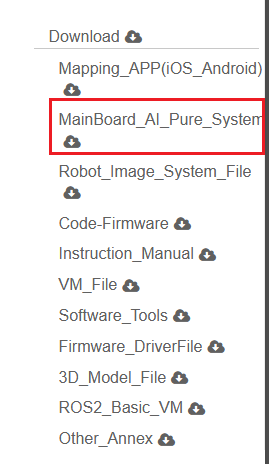
image-20260206094955957

2. Because Ollam requires a lot of memory to run large models, mainboards with limited memory can only use models with small parameters, or even cannot run them. Sometimes, when memory usage is at its limit, the performance will be poor. For a better experience of this feature, please refer to the online large model chapter.

3. The commands in the AI ​​large model section of the Raspberry Pi 5 are mostly run within Docker containers. You need to enter a Docker container before running any commands. This is not necessary for RDK X5 and Orin mainboards. Slowing down may occur when running within a Docker container; this is normal.

4. The ros2_docker.sh script on the Raspberry Pi 5 creates a container on its first run. If you don't manually delete this container, subsequent runs of the script will continuously enter it. If you encounter any issues or need to modify the Docker script, please delete the existing Docker container before rerunning the script.

System Information

  • Raspberry Pi 5

Based on Raspberry Pi OS (64-bit): 2025-05-13

Username: pi

Password: yahboom

Hotspot Name: Pi_Hot

Hotspot Password: 12345678

Hotspot IP: 192.168.1.11

  • RDK X5

Based on rdk_os_3.3.1-2025-08-08

Username: sunrise

Password: sunrise

  • ORIN

Based on jetpack 6.2, ubuntu 22.04

Username: jetson

Password: yahboom

System Environment

  • Raspberry Pi 5, RDK X5, ORIN
  • Ollama
  • Docker
  • Open WebUI
  • Offline large model storage path: /usr/share/ollama/.ollama/models
​x
Due to SD (TF) card limitations, we have not downloaded all models from the tutorial to the AI large model image system (except ORIN). Some high-parameter versions of models in the tutorials have been deleted. Users can delete and download the models themselves.
​

Parameter Description

  • Raspberry Pi 5

Raspberry Pi 5B (16GB RAM): Runs models with 14B or fewer parameters

Raspberry Pi 5B (8GB RAM): Runs models with 8B or fewer parameters

Raspberry Pi 5B (4GB RAM): Runs models with 3B or fewer parameters

Raspberry Pi 5B (2GB RAM): Runs models with 1B or fewer parameters

  • RDK X5

RDK X5 (8GB RAM): Runs models with 8B or fewer parameters

RDK X5 (4GB RAM): Runs models with 3B or fewer parameters

While the above conclusions are not entirely accurate, they can be used as a reference!

Ollam's official website states that the following specifications apply to running models: 7B parameter models require at least 8GB of available RAM; 13B parameter models require at least 16GB of available RAM; and 33B parameter models require at least 32GB of available RAM.

Multi-vehicle Platoon
Deployment of large-scale AI models

COMPANY

  • About us
  • Team Style
  • Blog

LEARNING & EXPLORATION

  • Tutorials
  • Edge AI hardware
  • Educational robots
  • Embedded intelligent hardware

WHERE TO BUY

  • Yahboom Online Store
  • Amazon
  • Alibaba
  • AliExpress
  • Mercado

TECHNOLOGY SUPPORT

  • Email: support@yahboom.com

BE A DISTRIBUTOR

  • Email: sales@yahboom.com
QR Code

Copyright © 2017-2026 Yahboom. All Rights Reserved.

EN/中文