Welcome to ROSMASTER M3 repository
2.Multimodal visual understanding
Multimodal Visual Understanding
Multimodal Visual Understanding1. Course Content2. Starting the Agent3. Running the Case3.1 Starting the Program3.2 Test Cases3.2.1 Case 14. Source Code Analysis
1. Course Content
Basics: Run the example program to allow the robot to observe its environment and execute task instructions.
Advanced: Understanding the key source code introduced in this lesson
2. Starting the Agent
Note: The agent must be started before testing any case. If it is already started, it does not need to be started again.
Enter the following command on the vehicle's terminal:
xxxxxxxxxxstart_agent
The terminal prints the following information, indicating a successful connection:
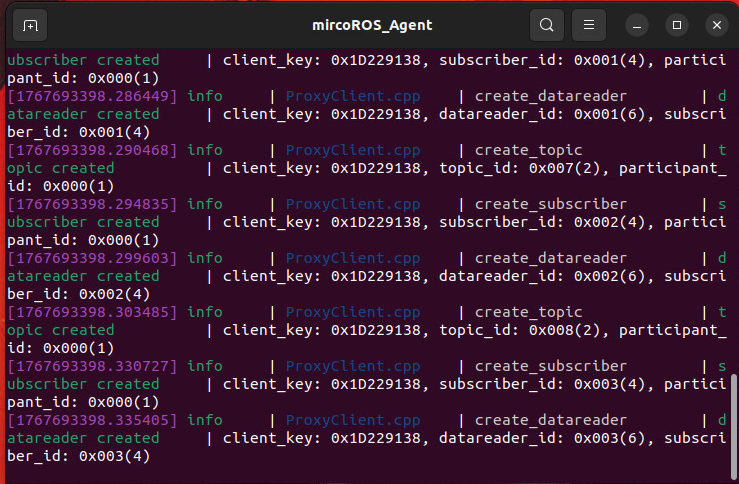
3. Running the Case
3.1 Starting the Program
For Raspberry Pi 5 users, if the ROS container is not running, you need to start it first.
xxxxxxxxxxbringup_m3
Open a terminal inside the container.
xxxxxxxxxxexec_m3
Open the terminal on the vehicle's terminal and enter the following command:
xxxxxxxxxxros2 launch m3_bringup llm_agent_control.launch.pyAlternatively, you can use the following shortcut:
xxxxxxxxxxmulti_brains
3.2 Test Cases
The test cases here are for demonstration purposes only. Users can create their own dialogue commands.
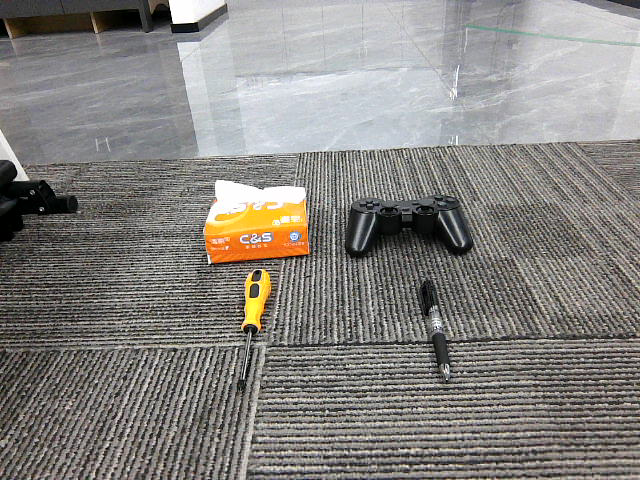
- Help me see what items are in front of me and explain their functions.
3.2.1 Case 1
- First, wake up the robot with "Hello yahboom". The robot will respond. After hearing the recording prompt tone, the user can speak. If there is sound activity, it will print "1-1-1-1"; if there is no sound activity, it will print "---------". After speaking, it will perform an end-of-speech detection. If there is silence for more than 1.5 seconds, recording will stop.
- The robot will first respond to the user, then follow the instructions. Simultaneously, the terminal will print the following information:
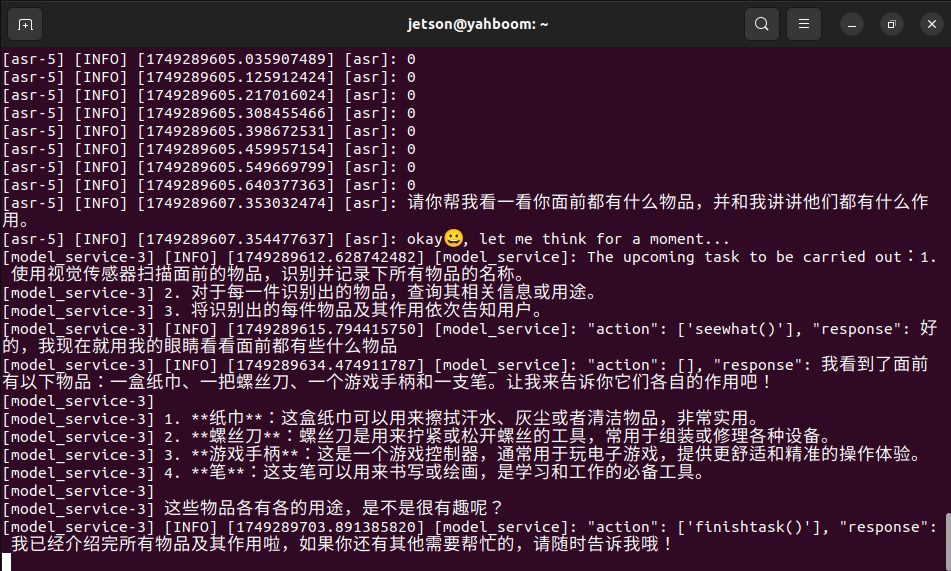
Robot's perspective:
[!IMPORTANT]
Important Note:
- The robot possesses short-term memory. After being activated, all information is stored in the AI's historical context memory. The robot will only clear its previous memory when the user actively requests to end the current task or instructs the robot to step down or rest.
4. Source Code Analysis
- Robot Action Source Code Path:
xxxxxxxxxx~/yahboomM3_ws/code_ws/src/multi_brains/multi_brains/action_service.py
- Model Service Source Code:
xxxxxxxxxx~/yahboomM3_ws/code_ws/src/multi_brains/multi_brains/model_service.py
- The main program implementing the robot's visual observation function is the
seewhatmethod in theaction_service.pyprogram: - The function implementation is: save and display an image from the latest perspective
- Then send a request to the
model_servicenode of the model service, requesting the multi_brains agent in the dify to provide feedback on the image.
xxxxxxxxxx def seewhat(self): """ Save the current view image and send it back to the dify-agent. """ self.save_single_image() msg=LlmRequest() msg.llm_request=self.actionlog.get_text("image_feedback") msg.robot_feedback=True self.llm_request_pub.publish(msg) return None def save_single_image(self): """保存一张图片 / Save a single image""" cv_image = self.bridge.imgmsg_to_cv2(self.image_msg, "bgr8") cv2.imwrite(self.image_cache_path, cv_image) time.sleep(0.05) display_thread = threading.Thread(target=self.__display_saved_image) display_thread.start() def __display_saved_image(self): """ 显示已保存的图片4秒后关闭窗口 / Display the saved image for 4 seconds before closing the window """ try: img = cv2.imread(self.image_cache_path) if img is not None: cv2.imshow("Saved Image", img) cv2.waitKey(4000) # 等待4秒 / Wait for 4 seconds cv2.destroyAllWindows() else: self.get_logger().error( "Failed to load saved image for display." ) # Loading saved image for display failed... except Exception as e: self.get_logger().error(f"Error displaying image: {e}") # Error displaying image...
- Additionally, in model_service.py, the
llm_request_callbackcallback function is used to receive requests to access themulti_brainsagent. - If the
llm_requestfield in the request information is an image request, then a list[msg.llm_request,'image_request',True]is constructed and added to the model request processing queue.
xxxxxxxxxx def llm_request_callback(self, msg:LlmRequest): ''' 话题回调函数,接收调用模型请求并放入队列中 / Topic callback function, receive model request and put into queue ''' if self.debug_mode: self.get_logger().info(f"robot_feedback:{msg.robot_feedback},llm_request:{msg.llm_request}") if msg.robot_feedback: # Robot Feedback Request if msg.llm_request ==self.syslog.get_text("image_feedback"): self.llm_handler_queue.put([msg.llm_request,'image_request',True]) elif msg.llm_request =="finish": # Upon receiving the finish command from dify-agent, the current task cycle ends, which clears the historical context and begins a new task cycle. self.clear_request_queue() # Clear the request queue self.dify_llmclient.reset_conversation() # Reset Session else: #Standard robot feedback results if self.debug_mode: self.get_logger().info(self.syslog.get_text("system_log_4")) self.llm_handler_queue.put([msg.llm_request,'text_request',True]) else:# Model requests from other sources self.llm_handler_queue.put([msg.llm_request,'text_request',None])