Welcome to ROSMASTER M1 repository
3.Multimodal visual understand + PTZ tracking
Multimodal visual understand + PTZ tracking(Voice Version)
Multimodal visual understand + PTZ tracking(Voice Version)1. Course Content2. Preparation2.1 Content Description3. Running the Example3.1 Starting the Program3.2 Test Case3.2.1 Example 1: "Start Tracking Red"3.2.2 Example 2: "Please track the object in my hand"4. Source Code Analysis4.1 Example 14.2 Example 2
1. Course Content
- Learn to use the robot's visual understanding capabilities
- Learn new key source code
2. Preparation
2.1 Content Description
This course uses the Jetson Orin Nano as an example. For users of the gimbal servo USB camera version, this is used as an example. For Raspberry Pi and Jetson Nano boards, you need to open a terminal on the host computer and enter the command to enter the Docker container. Once inside the Docker container, enter the commands mentioned in this course in the terminal. For instructions on entering the Docker container from the host computer, refer to [01. Robot Configuration and Operation Guide] -- [5.Enter Docker (For JETSON Nano and RPi 5)]. For RDKX5 and Orin boards, simply open a terminal and enter the commands mentioned in this course.
📝 This example uses model:"qwen/qwen2.5-vl-72b-instruct:free","qwen-vl-latest"
⚠️ The responses from the big model for the same test command may not be exactly the same and may differ slightly from the screenshots in the tutorial. If you need to increase or decrease the diversity of the big model's responses, refer to the section on configuring the decision-making big model parameters in the [04.AI Large Model Development] -- [5.Deploy the RAG knowledge base].
⚡️ It is recommended that you first try the previous visual example. This example adds voice functionality to the singleton, and while the functionality is largely the same, I will not elaborate on the program implementation, code debugging, or results in detail! ! !
3. Running the Example
3.1 Starting the Program
Open the host terminal and start the Dify environment.
xxxxxxxxxxsh ~/bringup_dify.sh
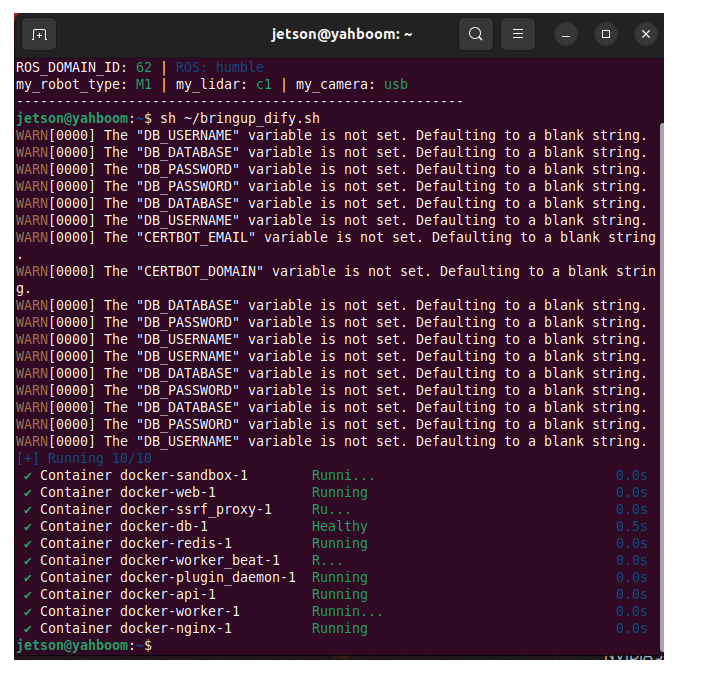
For Raspberry Pi 5 and Jetson Nano controllers, you must first enter the Docker container. For RDKX5 and Orin board, this is not necessary.
Open a terminal on the car and enter the following command:
xxxxxxxxxxros2 launch multi_brains llm_agent_control.launch.pyAfter initialization is complete, the following content will be displayed.
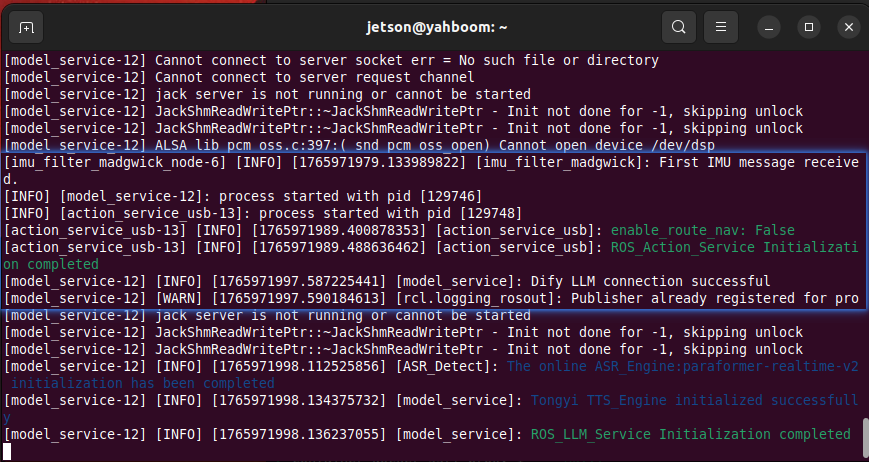
3.2 Test Case
This is a reference test case; users can create their own dialogue commands.
Start xx tracking
Color/Face/Object/Machine Code/QR Code/Gesture Recognition/Human Posture
Color tracking, including: red, green, blue, and yellow (color calibration is required according to the AI Large Model Preparation tutorial).
Object Tracking
3.2.1 Example 1: "Start Tracking Red"
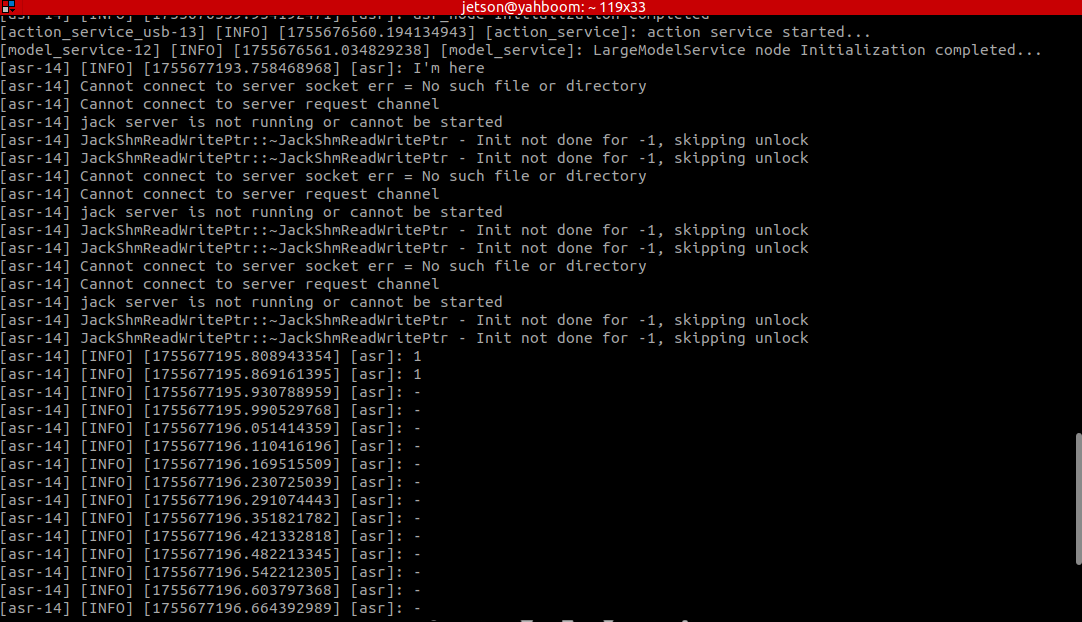
First, wake the robot with "Hi, yahboom" The robot responds: "I'm here, please." After the robot responds, the buzzer beeps briefly (beep—). The user can then speak. The robot will detect sound activity, printing 1 if there is sound activity and - if there is no sound activity. When the speech ends, it detects the end of the voice and stops recording if there is silence for more than 450ms.
The following image shows Voice Active Detection (VAD):
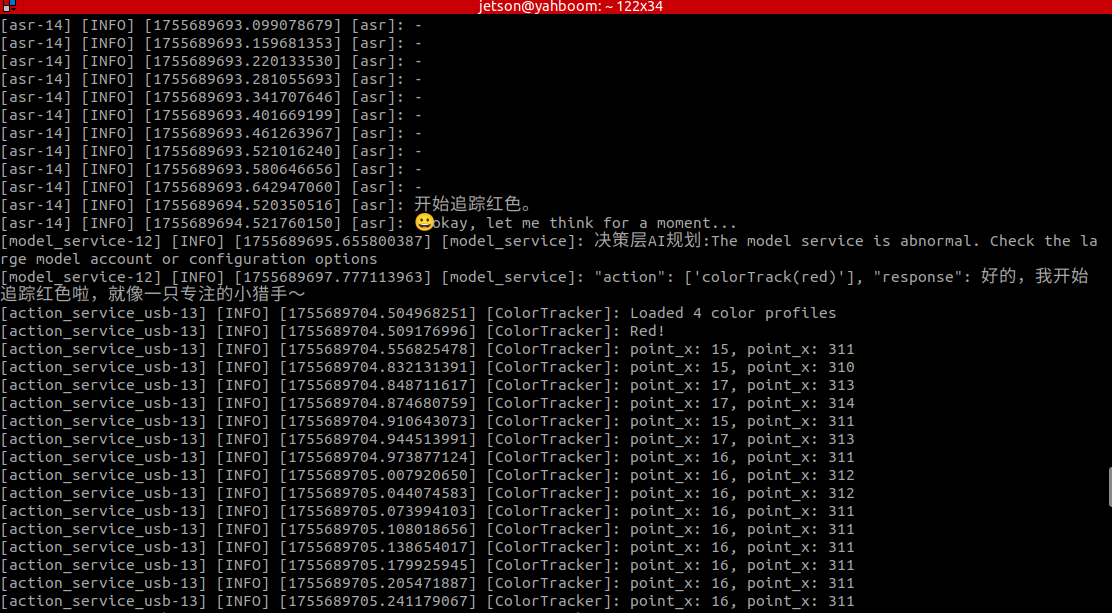
The robot will first communicate with the user, then respond to the user's instructions. The following information will be printed on the terminal:
A window titled frame will open on the VNC screen, displaying the current robot's view.
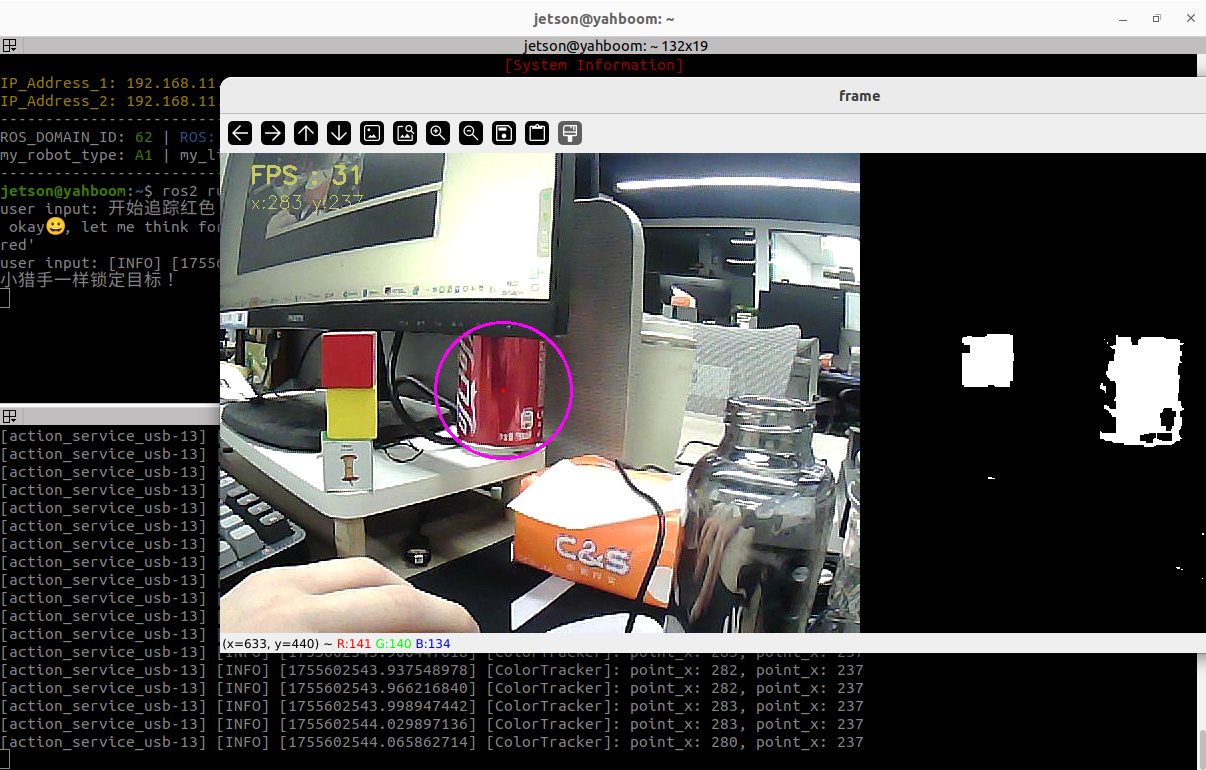
Move the object slowly, and the servo and gimbal will follow.
If there is no target to track in the image, the program will count down for 10 seconds, a 5-second countdown will be printed on the terminal, and the process will automatically end, indicating the task is complete.
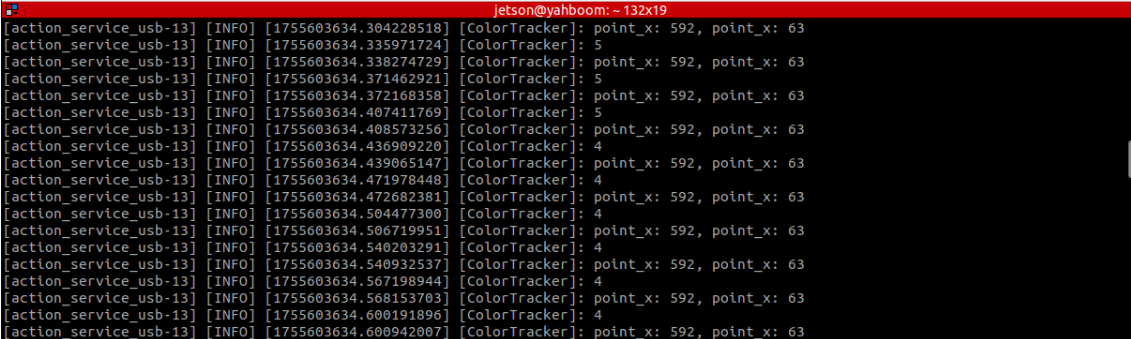
To manually end a task, wake the robot by saying "Hi, yahboom" The robot will respond, "I'm here, please." This will interrupt the program and automatically terminate the process, allowing you to proceed to the next command.
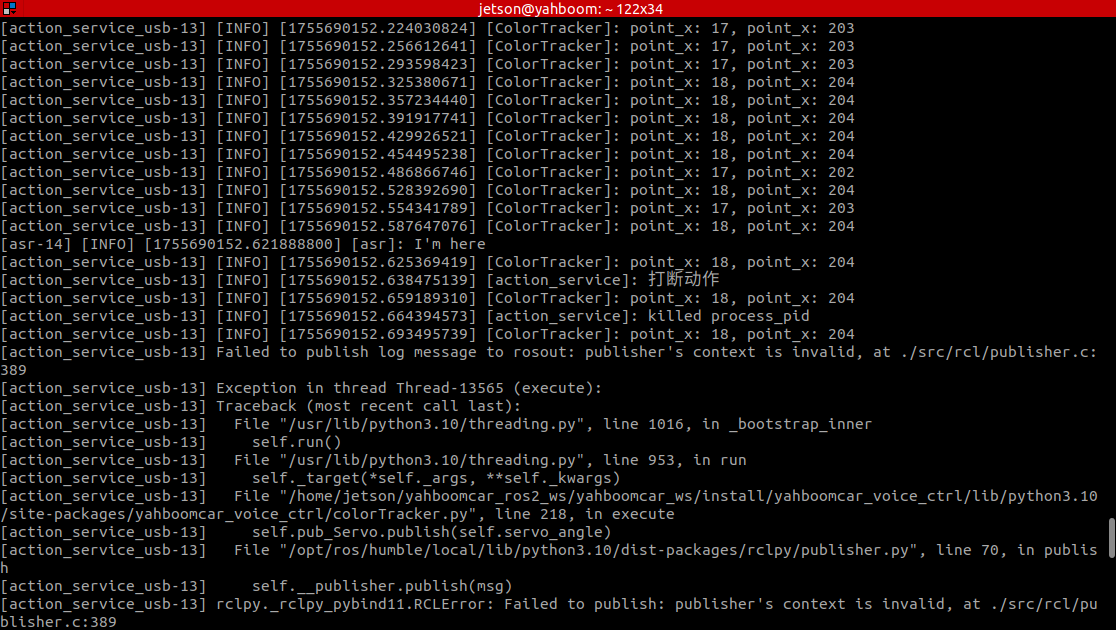
🔧 If the following warning appears when ending a trace, this is normal. It indicates that the child process has been terminated and will not affect normal program operation.
xxxxxxxxxx[action_service_usb-13] Failed to publish log message to rosout: publisher's context is invalid, at ./src/rcl/publisher.c:389[action_service_usb-13] Exception in thread Thread-284 (execute):[action_service_usb-13] rclpy._rclpy_pybind11.RCLError: Failed to publish: publisher's context is invalid, at ./src/rcl/publisher.c:389
The robot now enters the free conversation state again, but all conversation history is retained. You can wake yahboom up again and use "End Current Task" to terminate the current task cycle, clear the conversation history, and start a new one.
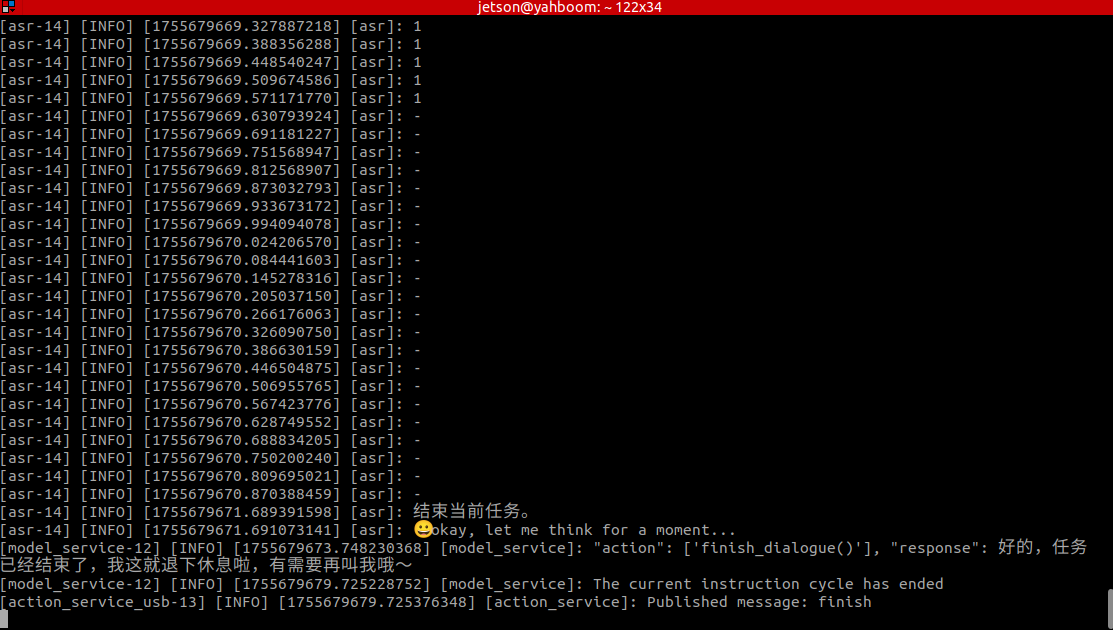
3.2.2 Example 2: "Please track the object in my hand"
⚠️ The coordinates obtained in this example are entirely derived from the inference of a large AI model. Therefore, it is recommended to use a newer model for better results!
Similar to the test in Example 1, first wake the robot with "Hi, yahboom" After the robot responds, the buzzer will briefly beep. The user can then speak. After speaking, the robot will respond and move according to the user's instructions. Hold any object in its field of view and hold until the tracking box appears.
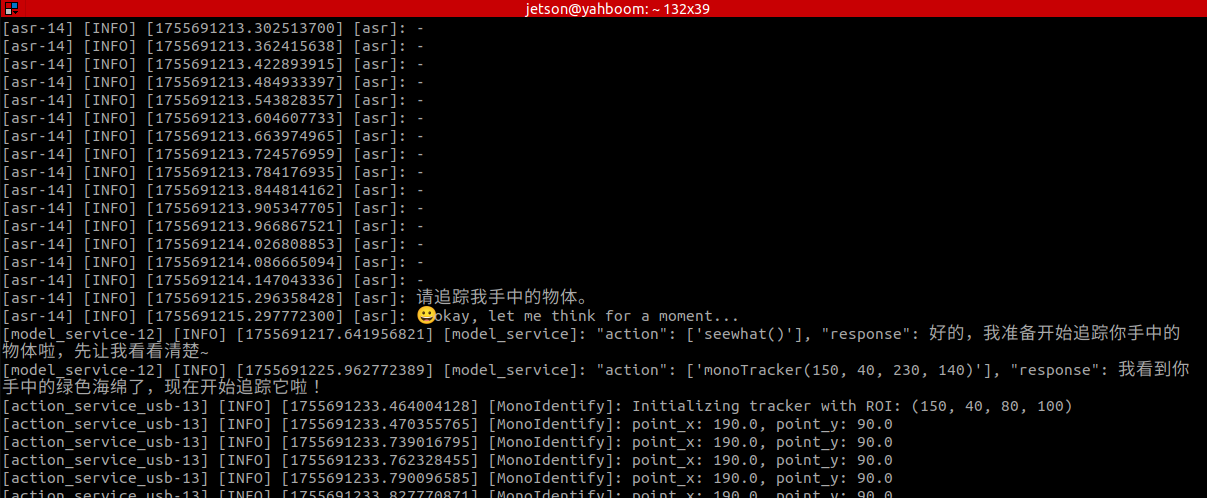
A window titled frame will open on the VNC screen, displaying the current robot's view.
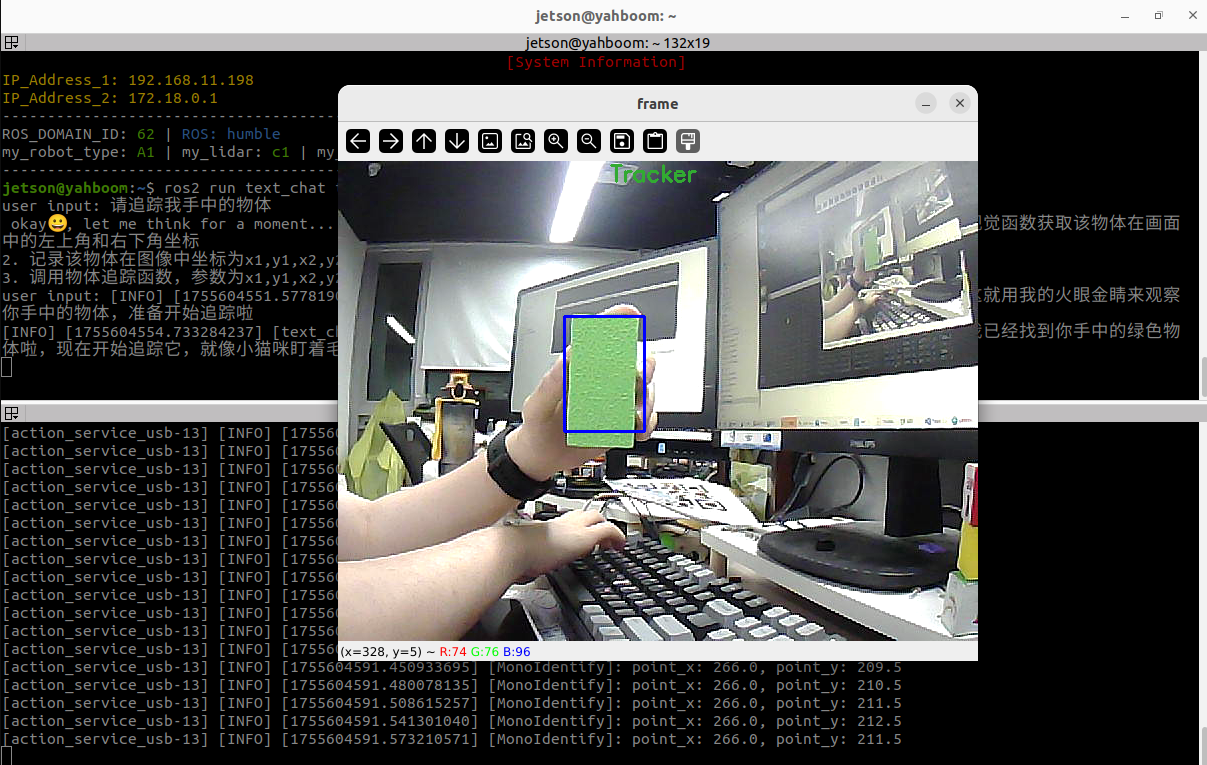
Move the object slowly, and the servo and gimbal will follow.
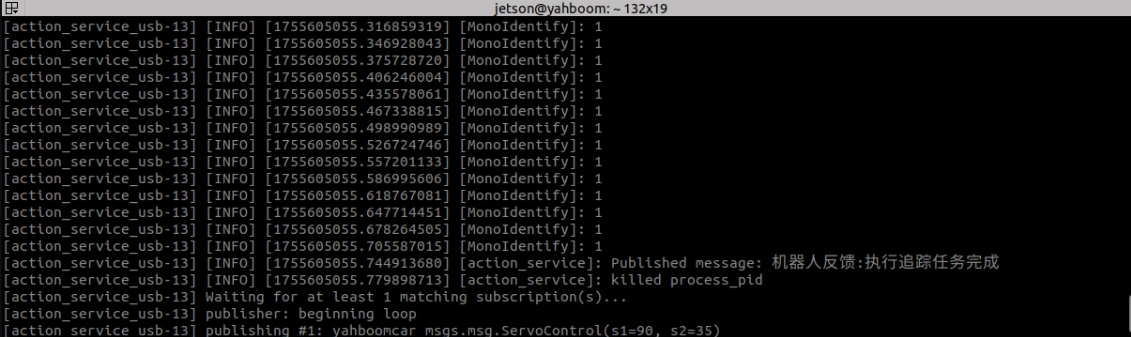
If there is no target to track in the image, the program will count down for 10 seconds, a 5-second countdown will be printed on the terminal, and the process will automatically end, indicating the task is complete. Success
To manually end a task, wake up the robot with the voice command "Hi, yahboom" The robot will respond, "I'm here, please." This will interrupt the program and automatically terminate the process, allowing you to proceed to the next command.
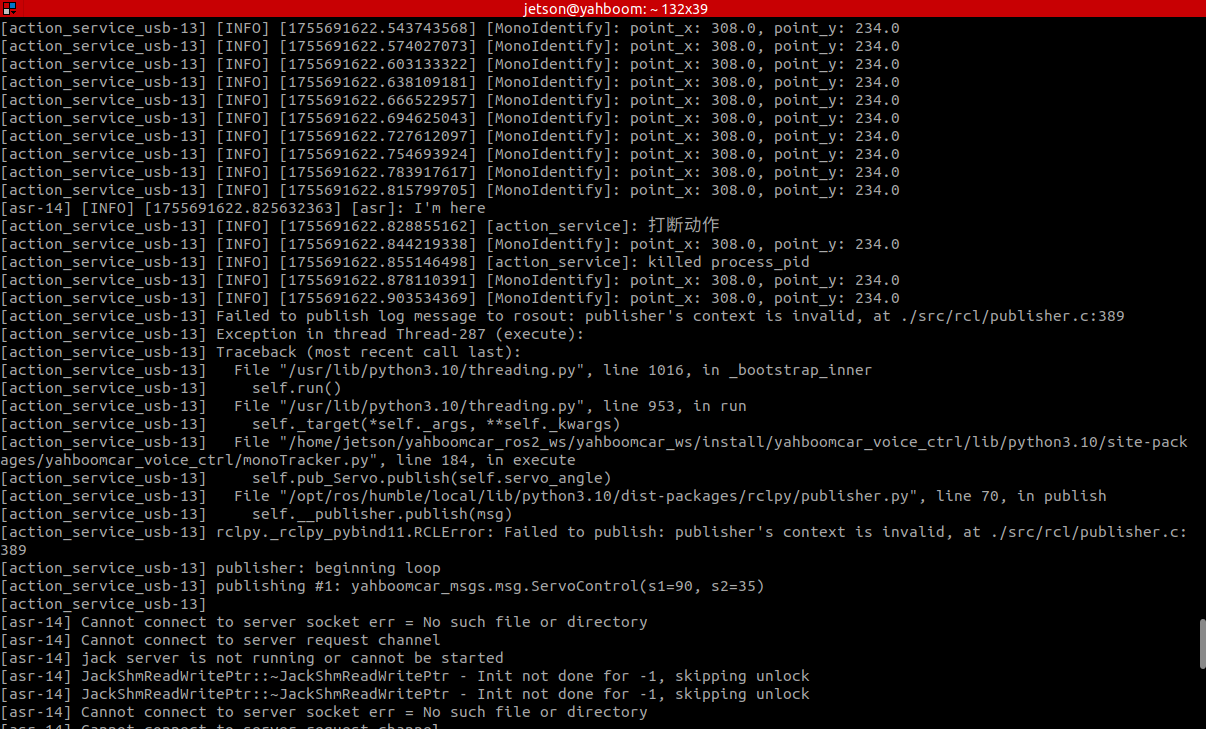
The robot will now enter a free conversation mode, but all conversation history will be retained. You can wake yahboom up again and select "End Current Task" to have the robot end the current task cycle, clear the conversation history, and start a new one.
4. Source Code Analysis
Source code location:
Jetson Orin Nano host:
xxxxxxxxxx/home/jetson/yahboomcar_ros2_ws/yahboomcar_ws/src/multi_brains/multi_brains/action_service_usb.py
Jetson Nano, Raspberry Pi host:
You need to enter Docker first.
xxxxxxxxxx/root/yahboomcar_ros2_ws/yahboomcar_ws/src/multi_brains/multi_brains/action_service_usb.py
RDKX5:
xxxxxxxxxx/home/sunrise/yahboomcar_ros2_ws/yahboomcar_ws/src/multi_brains/multi_brains/action_service_usb.py
4.1 Example 1
action_service_usb.py :
Example 1 uses the seewhat, color_follow, and stop_track methods in the CustomActionServer class.
- The seewhat function primarily retrieves the camera's color image.
- The colorTrack(self, color) function performs color tracking.
- The stop_track() function issues a stop tracking command.
This section focuses on the colorTrack(self, color) function, which requires a color parameter, which can be 'red', 'green', 'blue', or 'yellow'.

xxxxxxxxxx# Start the color tracking subprocessprocess_1 = subprocess.Popen(['ros2', 'run', 'yahboomcar_voice_ctrl', 'colorTracker', '--ros-args', '-p', f'target_color:={target_color}'])The startup program source code is located at:
~/yahboomcar_ros2_ws/yahboomcar_ws/src/yahboomcar_voice_ctrl/yahboomcar_voice_ctrl/colorTracker.py
xxxxxxxxxxdef colorTrack(self,color): try: self.colorTracker_future = Future() color = color.strip("'\"") if color == 'red': target_color = int(1) elif color == 'green': target_color = int(2) elif color == 'blue': target_color = int(3) elif color == 'yellow': target_color = int(4) else: target_color = int(1) process_1 = subprocess.Popen(['ros2', 'run', 'yahboomcar_voice_ctrl', 'colorTracker','--ros-args','-p',f'target_color:={target_color}']) while not self.colorTracker_future.done(): if self.interrupt_flag: break time.sleep(0.1) self.get_logger().info(f'killed process_pid') self.kill_process_tree(process_1.pid) self.cancel() except: self.get_logger().error('colorTrack Startup failure') returnWhen the main model receives a user input command for "Stop Tracking" or "End Tracking,"
or if the tracking target is lost for more than 10 seconds,
the stop_track method is called, sending the future.done signal. The while not self.colorTracker_future.done() block in the colorTrack function then exits. The kill_process_tree method is then called to recursively kill the child process tree. Finally, the status of the action execution is reported back to the main model at the execution layer.
4.2 Example 2
action_service_usb.py:
Example 2 uses the seewhat, monoTracker, and stop_track methods in the CustomActionServer class.
- The seewhat function primarily retrieves the camera's color image.
- The monoTracker(self,x1,y1,x2,y2) function performs object tracking. - stop_track() issues a tracking stop command.
The seewhat function primarily retrieves the camera's color image. The monoTracker(self,x1,y1,x2,y2) function takes as parameters the coordinates of the upper-left and lower-right vertices of the object's bounding box (the upper-left corner of the image is the pixel origin). For example, the coordinates of the outer bounding box of the identified green square in Example 2 can be found from the large model's response: the upper-left corner is (240,145) and the lower-right corner is (320,260).

xxxxxxxxxx#Start the object tracking subprocess programprocess_1 = subprocess.Popen(['ros2', 'run', 'yahboomcar_voice_ctrl', 'monoTracker','--ros-args','-p',f'x1:={x1}','-p',f'y1:={y1}','-p',f'x2:={x2}','-p',f'y2:={y2}'])The startup program source code path is:
~/yahboomcar_ros2_ws/yahboomcar_ws/src/yahboomcar_voice_ctrl/yahboomcar_voice_ctrl/monoTracker.py
xxxxxxxxxxdef monoTracker(self,x1,y1,x2,y2): try: self.monoTracker_future = Future() x1 = int(x1) x2 = int(x2) y1 = int(y1) y2 = int(y2) process_1 = subprocess.Popen(['ros2', 'run', 'yahboomcar_voice_ctrl', 'monoTracker','--ros-args','-p',f'x1:={x1}','-p',f'y1:={y1}','-p',f'x2:={x2}','-p',f'y2:={y2}']) while not self.monoTracker_future.done(): if self.interrupt_flag: break time.sleep(0.1) self.get_logger().info(f'killed process_pid') self.kill_process_tree(process_1.pid) self.cancel() except: self.get_logger().error('monoTracker Startup failure') returnWhen the main model receives a user input command for "Stop Tracking" or "End Tracking,"
or if the tracking target is lost for more than 10 seconds,
The stop_track method will be called to send the future.done signal. After that, while not self.monoTracker_future.done() in the monoTracker function will exit the blocking state. Then the kill_process_tree method will be called to recursively kill the process tree of the child process. Finally, the status of the execution action will be fed back to the execution layer model.