Welcome to ROSMASTER M1 repository
1.OpenRouter large model API aggregation platform
OpenRouter large model API aggregation platform
OpenRouter large model API aggregation platformConcept Introduction1.1 What is "OpenRouter"?2. Practical Operations2.1 Obtaining API Credentials2.2 Graphical Process2.3 Configuration file modification
Concept Introduction
1.1 What is "OpenRouter"?
OpenRouter is a large-model API aggregation platform. You can think of it as a "universal remote control for large models." Typically, if you want to use OpenAI's GPT-4, Anthropic's Claude-3, and Google's Gemini, you need to register accounts on each platform, obtain three sets of API keys, and write three different sets of calling code for each of their different API formats.
OpenRouter solves this problem. It provides a unified API interface (compatible with OpenAI's API format). With just one OpenRouter API key, you can access all of these models, as well as hundreds of other open and closed-source models, through this single entry point.
The core advantages of integrating OpenRouter into largemodel projects are:
- Ultimate flexibility: You can seamlessly switch between any model, such as GPT, Claude, or Llama, by simply changing a single model name in the configuration file, without changing any code. Cost-Effectiveness: OpenRouter provides clear pricing for each model, allowing you to easily compare and select the most cost-effective model for your specific task.
Explore Cutting-Edge Models: Many new and excellent open source models are included in OpenRouter as soon as possible, allowing developers to quickly try them out.
In the largemodel project, configure the llm_platform parameter to openrouter to enable this powerful aggregation platform.
2. Practical Operations
2.1 Obtaining API Credentials
- Register for OpenRouter: Visit OpenRouter.ai and register an account using Google or email. If the connection fails, search for the "OpenRouter" platform yourself.
- Top Up: OpenRouter uses a prepaid payment model. You must first top up a small amount (e.g., $5) on the "Credits" page to start using it. Alternatively, you can directly use the free models, but there are rate limits.
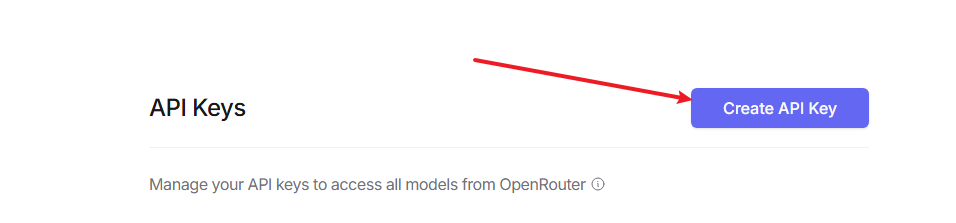
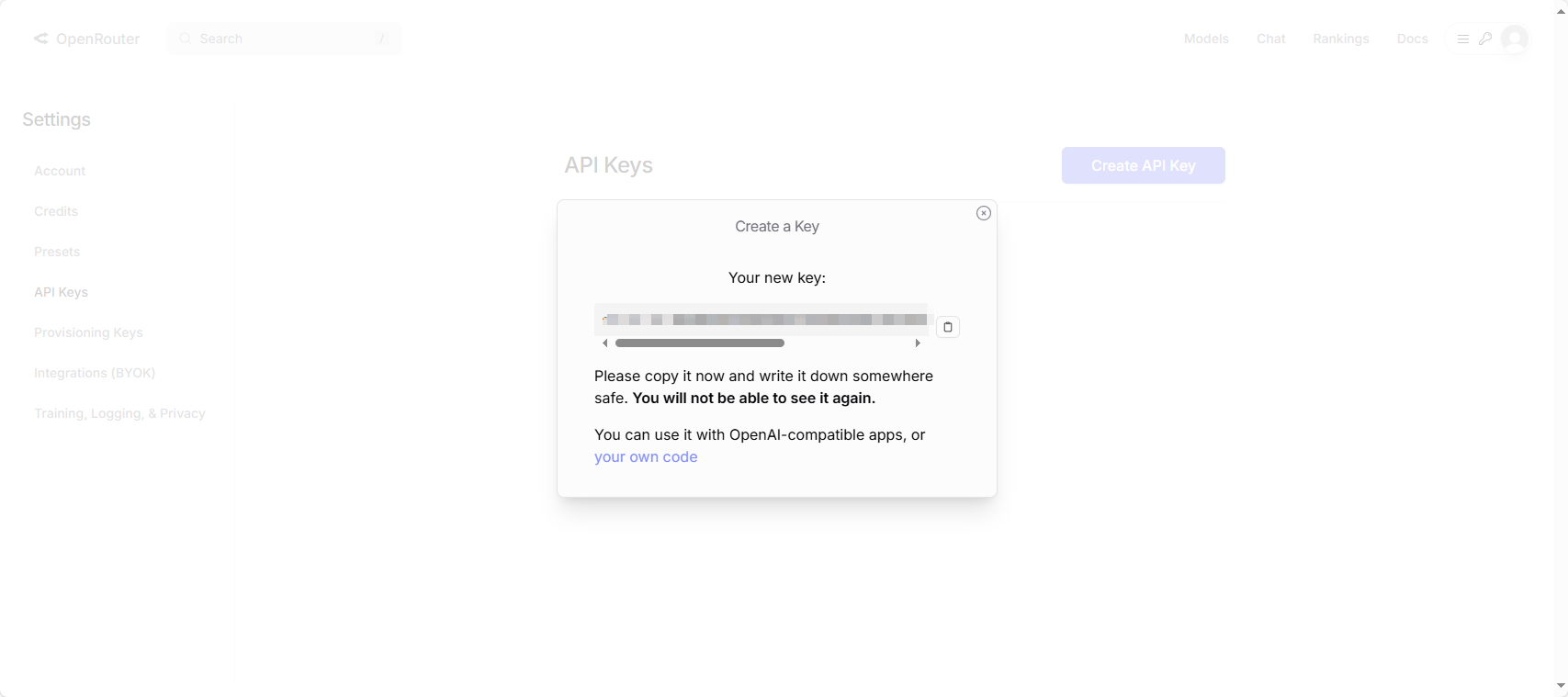
- Create an API Key: On the "Keys" page, click "Create Key" to generate a new API key. Copy and save it immediately.
2.2 Graphical Process
- First, visit the following website. If the connection fails, search for the "OpenRouter" platform and then search for the keyword for the large model.
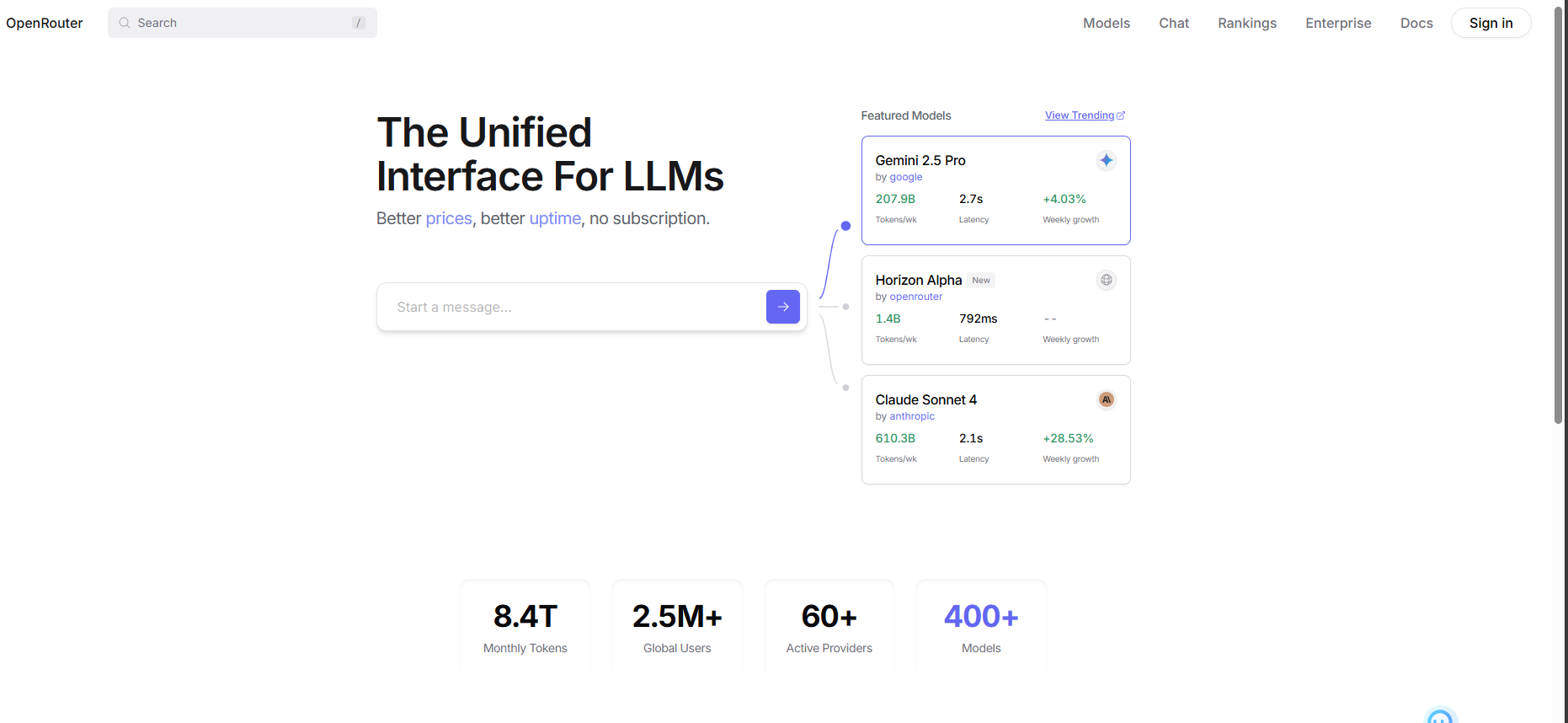
2.Register and log in to your account
3.After registering your account, click to enter the Model Square
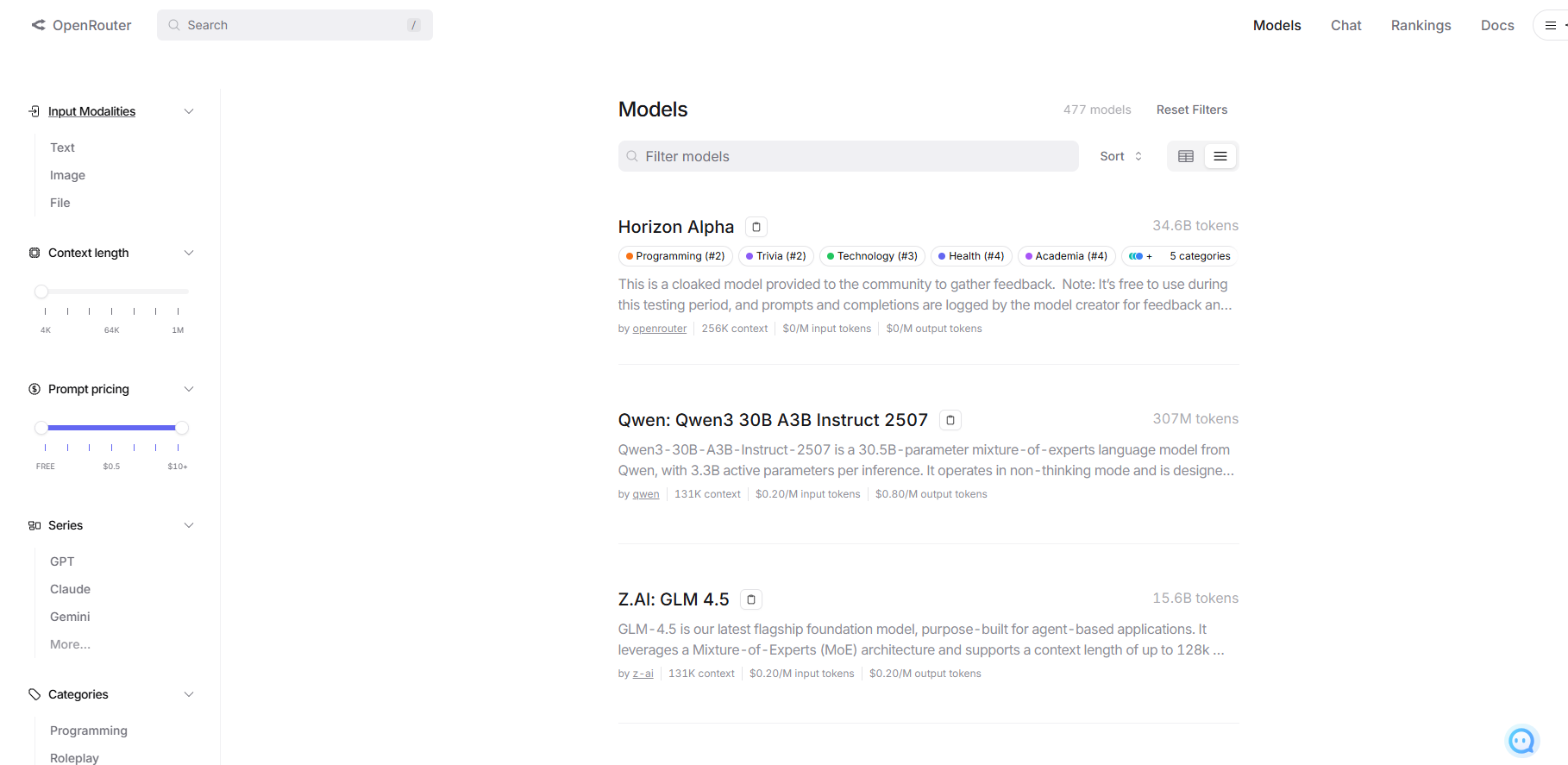
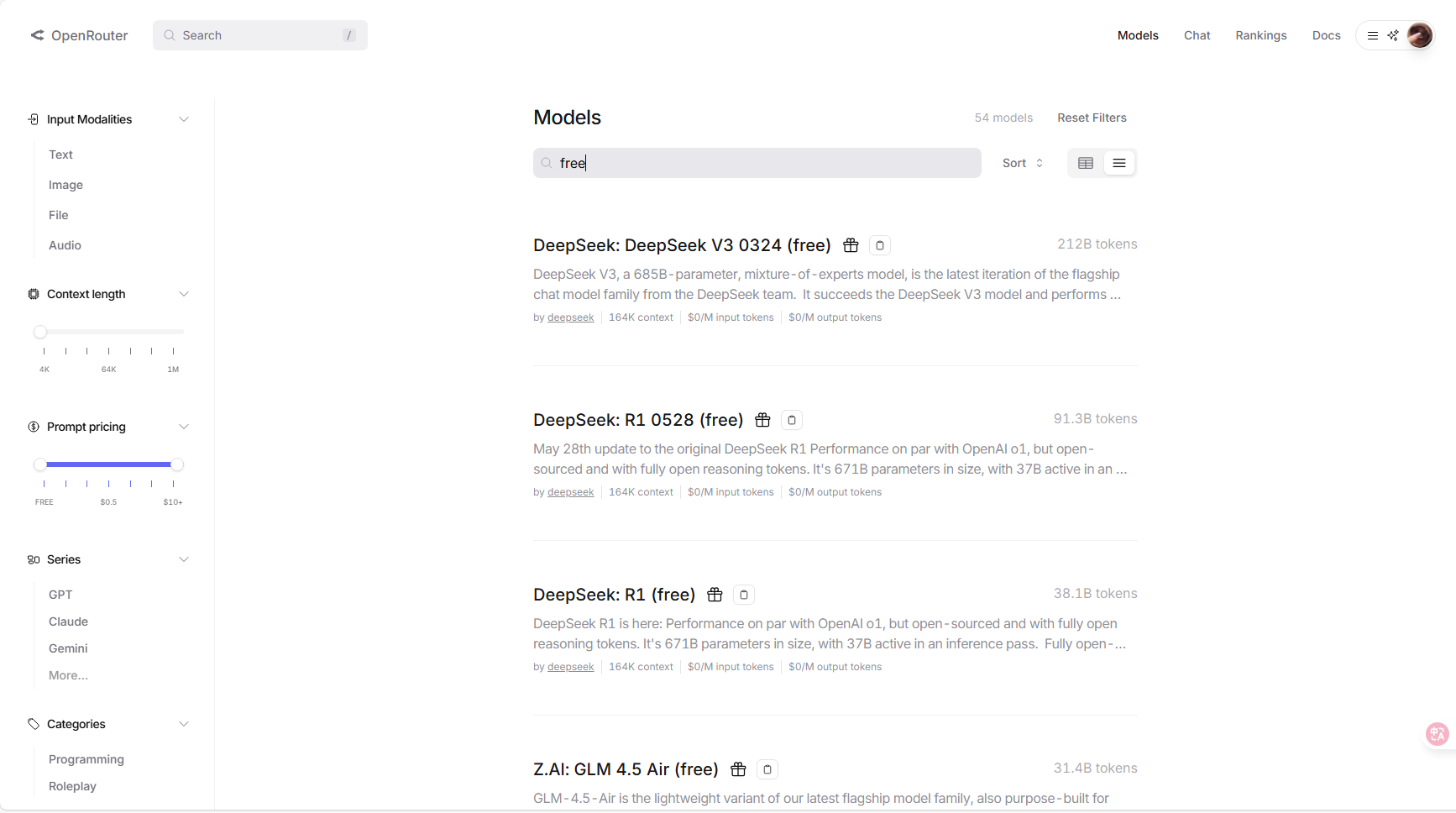
4.You can enter free in the search bar to find models that can be called for free.
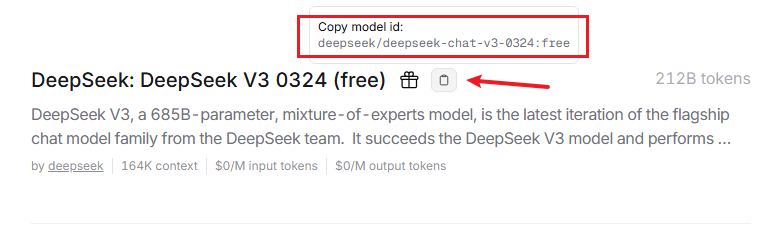
5.Place the mouse on the clipboard icon next to the model to see the name to be used when calling the model. Click it to copy it.
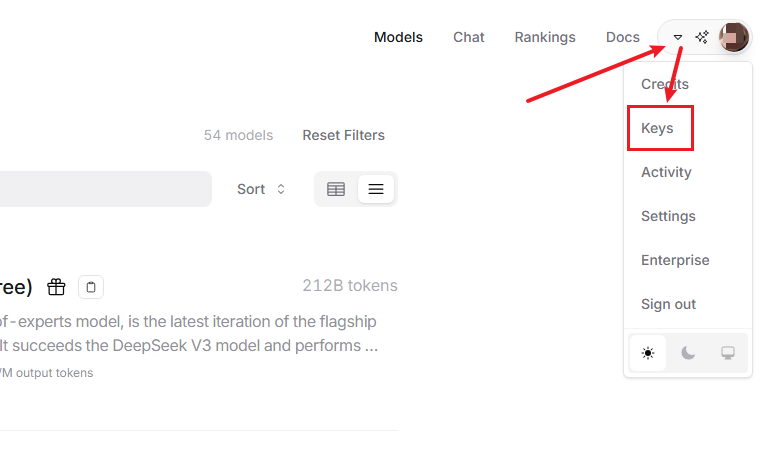
6.Move the mouse to the upper right corner next to the avatar, it will expand, you can click Keys, go in and create a key.
7.Click to apply for API key
8.After applying, you will get a string of API keys
2.3 Configuration file modification
Open
large_model_interface.yaml:vim ~/yahboom_ws/src/largemodel/config/large_model_interface.yamlThen, in the openrouter_api_key field, replace sk-xxxxxxxxxxxx with the API key you copied earlier.
openrouter_model is used to configure the main model during the session.
xxxxxxxxxx# OpenRouter平台配置 (OpenRouter Platform Configuration)openrouter_api_key: "sk-xxxxxxxxxxxxxxxxxxx"openrouter_model: "moonshotai/kimi-k2:free" # The model to use, for example "google/gemini-pro-vision"Open
yahboom.yaml:xxxxxxxxxxvim ~/yahboom_ws/src/largemodel/config/yahboom.yamlSwitch platform: Change the
llm_platformparameter toopenrouter.xxxxxxxxxxllm_platform'openrouter'
After switching the platform parameters, return to the workspace and compile again to make them effective.