Welcome to ROSMASTER M1 repository
11.QR code follow
QR code follow
QR code follow1. Program Functionality2. Program Code Reference Path3. Program Startup3.1. Startup Command3.2 Dynamic Parameter Adjustment4. Core Code4.1. qrFollow.py4.2、astra_common.py
1. Program Functionality
After the program starts, it automatically detects the QR code on the screen, and the robot enters follow mode. The servos and gimbal will lock onto the center of the QR code and maintain it in the center of the screen. Press the
q/Q keyto exit the program. The remote controller'sR2function provides a [Pause/Start] function for this gameplay.
⚠️ This function will only begin following the QR code after the characters are successfully decoded. Therefore, the recognition rate and following performance will be lower than other visual examples!
📝 The following object example uses a QR code printed on A5-sized paper. If you change the following object, you will need to adjust the corresponding parameters to achieve your desired effect!
2. Program Code Reference Path
xxxxxxxxxx~/yahboomcar_ros2_ws/yahboomcar_ws/src/yahboomcar_astra/yahboomcar_astra/qrFollow.py~/yahboomcar_ros2_ws/yahboomcar_ws/src/yahboomcar_astra/yahboomcar_astra/common/astra_common.py
qrFollow.py
Mainly performs QR code recognition. Based on the center coordinates of the QR code, it calculates the required servo rotation angle and the required angular velocity of the car. It also calculates the required linear velocity of the car based on the area of the QR code. After PID calculation, the data is published to the car chassis.
astra_common.py
- QR Code Detection (detect_qrcode()): Identifies and locates QR codes, supports geometric verification, and decodes and displays text.
- Shape Detection (is_regular_square function): Verifies whether the detected QR code is a regular square.
3. Program Startup
3.1. Startup Command
For Raspberry Pi and Jetson-Nano boards, you need to enter the Docker container first. For RDKX5 and Orin controllers, this is not necessary.
Enter the Docker container (see [Docker course] --- [4. Docker Startup Script] for steps).
All the following commands must be executed within the same Docker container (see [Docker course] --- [3. Docker Submission and Multi-Terminal Access] for steps).
Enter the terminal.
xxxxxxxxxx# Start the car chassis and joystick nodes.ros2 launch yahboomcar_bringup yahboomcar_bringup_M1_launch.py# Start the QR code tracking program.ros2 run yahboomcar_astra qrFollow 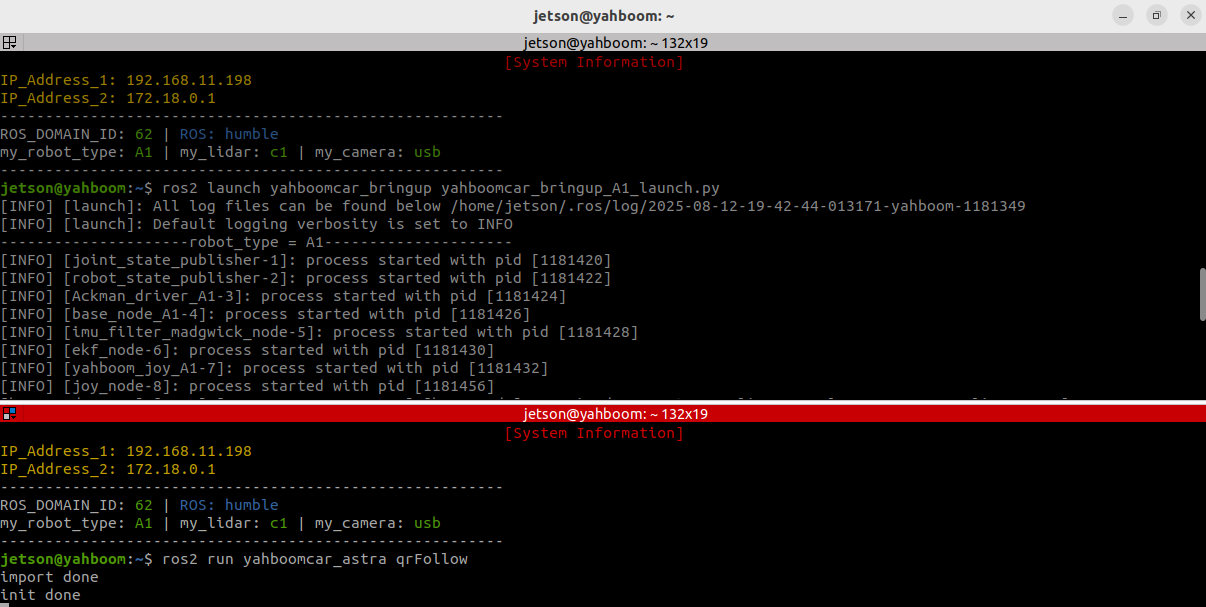
After the program starts, the camera screen will appear and the QR code will be detected in real time.
When a QR code is detected, a green rectangle will be drawn around it if it is successfully decoded, and a red rectangle will be drawn if it fails. The decode information, the center coordinates of the QR code, and the area size will also be displayed.
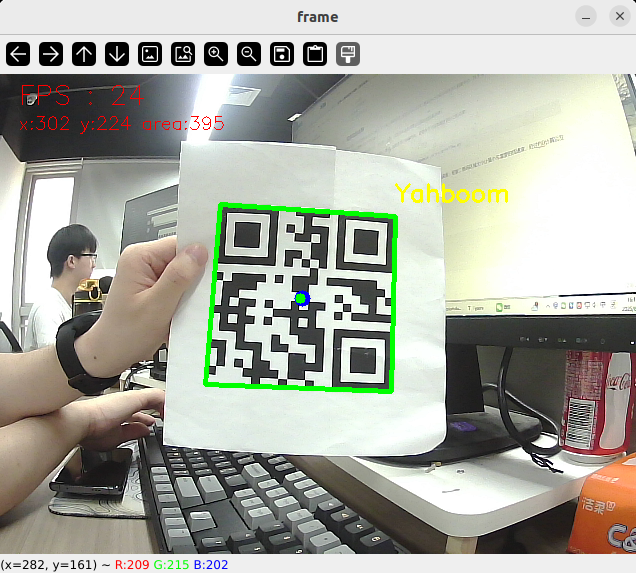
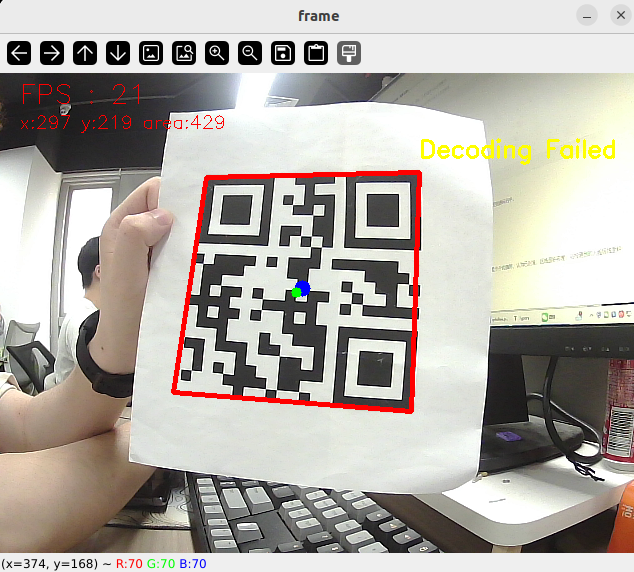
Then, the robot enters tracking mode. Slowly move the QR code, and the robot and servo gimbal will follow.
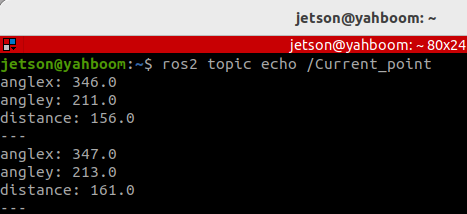
In addition, we can also enter the following command to print information about the target center coordinates and area size:
xxxxxxxxxxros2 topic echo /Current_point
3.2 Dynamic Parameter Adjustment
Enter in the terminal:
xxxxxxxxxxros2 run rqt_reconfigure rqt_reconfigure
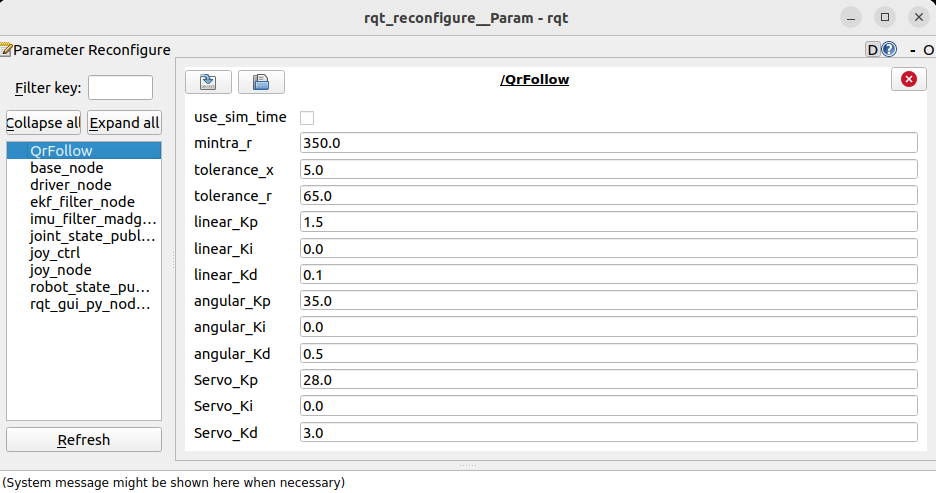
☑️ After modifying the parameters, click a blank area in the GUI to enter the parameter value. Note that this will only take effect for the current boot. To permanently take effect, you need to modify the parameters in the source code.
As shown in the figure above:
- qrFollow is primarily responsible for robot motion. PID-related parameters can be adjusted to optimize robot motion.
🛠 Parameter Analysis:
[mintra_r]: Critical tracking area. When the QR code area is smaller than this value, the robot moves forward; when it is larger than this value, the robot moves backward.
[tolerance_x], [tolerance_r]: X-axis position tolerance. When the deviation between the QR code center's x-coordinate and the screen center (320) is smaller than this value, alignment is considered complete. Area tolerance: When the deviation between the detected QR code area and the critical tracking area (mintra_r) is smaller than this value, the distance is considered appropriate.
[linear_Kp], [linear_Ki], [linear_Kd]: PID control of linear velocity during robot following.
[angular_Kp], [angular_Ki], [angular_Kd]: PID control of angular velocity during robot following.
[Servo_Kp], [Servo_Ki], [Servo_Kd]: PID control of the servo gimbal speed during the following process.
4. Core Code
4.1. qrFollow.py
This program has the following main functions:
- Opens the camera and acquires an image;
- Calls the detect_qrcode function to recognize a QR code;
- Calculates the center coordinates and area size of the QR code;
- Uses the PID algorithm to calculate the control variable;
- Issues control commands to the robot and servo.
The following is some of the core code:
x# Define the servo data publisherself.pub_Servo = self.create_publisher(ServoControl, 'Servo', 10)# Define the vehicle velocity publisherself.pub_cmdVel = self.create_publisher(Twist, '/cmd_vel', 10)# Create a publisher to publish the center coordinates and area of ••the tracked objectself.pub_position = self.create_publisher(Position, "/Current_point", 10)# Define the controller node data subscriberself.sub_JoyState = self.create_subscription(Bool,"/JoyState", self.JoyStateCallback, 1)...# QR code recognition and processingprocessed_frame, (x, y, w, h) = detect_qrcode(frame)if processed_frame is not None: self.Center_x = x + w // 2 self.Center_y = y + h // 2 self.Center_r = w * h // 100 # Issue control instructions self.execute(self.Center_x, self.Center_y, self.Center_r)...# According to the x value, y value and area size, use the PID algorithm to calculate the car speed and servo angledef execute(self, x, y, z=None): position = Position() position.anglex = x * 1.0 position.angley = y * 1.0 position.distance = z * 1.0 self.pub_position.publish(position) ... # PID control calculation [linear_Pid, Servox_Pid, Servoy_Pid] = self.PID_controller.update([ z - self.mintra_r, # Distance error x - 320, # X-axis error y - 240 # Y-axis error ]) angular_Pid = self.angular_PID_controller.update([ self.PWMServo_X - self.init_servos1 # Servo angle error ]) ... # Limit output range linear_Pid = max(-0.55, min(linear_Pid, 0.28)) angular_Pid = max(-3.0, min(angular_Pid, 3.0)) ... # Limit the servo PID polarity and maximum value Servox_Pid = Servox_Pid * (abs(Servox_Pid) <=self.Servo_Kp/5.6) Servoy_Pid = Servoy_Pid * (abs(Servoy_Pid) <=self.Servo_Kp/5.6) ... # Issue control instructions self.pub_Servo.publish(self.servo_angle) self.pub_cmdVel.publish(self.twist)4.2、astra_common.py
def detect_qrcode(image): qr_decoder = cv.QRCodeDetector() decoded_text, points, _ = qr_decoder.detectAndDecode(image) if points is not None: # Calculate center point and bounding box center_x = int(np.mean(points[:, 0])) center_y = int(np.mean(points[:, 1])) x, y, w, h = cv.boundingRect(points) return image, (x, y, w, h) return None, (0, 0, 0, 0)... def is_regular_square(points): # Calculate the lengths of the four sides edges = [np.linalg.norm(points[(i + 1) % 4] - points[i]) for i in range(4)] # Check if the angle is close to 90 degrees angles = [] for i in range(4): vec1 = points[(i - 1) % 4] - points[i] vec2 = points[(i + 1) % 4] - points[i] angle_rad = np.arccos(np.dot(vec1, vec2) / (np.linalg.norm(vec1) * np.linalg.norm(vec2))) angles.append(np.degrees(angle_rad)) return max(abs(angle - 90) for angle in angles) < 30