Welcome to ROSMASTER M1 repository
11.RTAB-Map mapping
RTAB-Map Mapping
RTAB-Map Mapping1. Contents1.1 Introduction to RTAB-Map1.2. RTAB-Map Working Principle2. Preparation3. Program Startup
1. Contents
This section explains how to combine a vehicle chassis, LiDAR, and a depth camera to implement RTAB-Map mapping.
1.1 Introduction to RTAB-Map
RTAB-MAP (Real-Time Appearance-Based Mapping) is a vision-based real-time simultaneous localization and mapping (SLAM) algorithm primarily used for mapping and navigation tasks in fields such as robotics and augmented reality. RTAB-Map has the following features.
- Appearance-based loop closure detection: Primarily uses visual features for location recognition
- Real-time performance: Ensures real-time performance through memory management
- Multi-sensor support: Supports RGB-D cameras, stereo cameras, and monocular cameras
- 3D map construction: Creates dense 3D point cloud maps
1.2. RTAB-Map Working Principle
Front-end processing
- Acquires image data from sensors
- Extracts visual features (such as SIFT, SURF, ORB, etc.)
- Calculates the pose transformation between the current frame and the previous frame
Back-end optimization
- Optimizes the pose graph using graph optimization techniques (such as g2o)
- Detects loop closures (when the robot returns to a previously visited location)
Memory management
- Employs a working memory (WM) and long-term memory (LTM) mechanism
- Recent data is stored in the WM, while older data is transferred to the LTM
- When a loop closure is detected, the relevant data is transferred from the LTM back to the WM
This section requires entering commands in a terminal. The terminal you choose to open depends on your board type. This lesson uses the Raspberry Pi as an example. For Raspberry Pi and Jetson-Nano boards, you need to open a terminal on the host computer and enter the command to enter the Docker container. Once inside the Docker container, enter the commands mentioned in this lesson in the terminal. For instructions on entering the Docker container from the host computer, refer to [01. Robot Configuration and Operation Guide] -- [4.Enter Docker (For JETSON Nano and RPi 5)].
For RDKX5 and Orin boards, simply open a terminal and enter the commands mentioned in this lesson.
2. Preparation
Due to performance limitations, the Raspberry Pi 5 and Jetson Nano cannot smoothly run the RTAB-Map algorithm in Docker on the board. Therefore, a virtual machine is required to facilitate this. To enable distributed communication between the car and the virtual machine, two steps are required:
- Both must be on the same local area network. This is most easily achieved by connecting to the same Wi-Fi network.
- Both devices must have the same ROS_DOMAIN_ID. The default ROS_DOMAIN_ID for the car is 30, and the default ROS_DOMAIN_ID for the virtual machine is also 30. If they are different, modify the virtual machine's ROS_DOMAIN_ID. To do this, modify the ~/.bashrc file and change the ROS_DOMAIN_ID value to match the car's. Save and exit the file, then enter the command source ~/.bashrc to refresh the environment variables.
- To verify distributed communication between the two, run the driver program on the board, then enter ros2 node list on the virtual machine. If the underlying data topic appears, the two devices are communicating.
The Orin board can be run directly on the board.
3. Program Startup
For Raspberry Pi and Jetson-Nano boards, you need to enter the Docker container first. For RDKX5 and Orin controllers, this is not necessary.
Enter the Docker container (see [Docker course] --- [4. Docker Startup Script] for steps).
All the following commands must be executed within the same Docker container (see [Docker course] --- [3. Docker Submission and Multi-Terminal Access] for steps).
First, enter the following command in the car terminal to start the depth camera.
xxxxxxxxxxros2 launch ascamera hp60c.launch.py
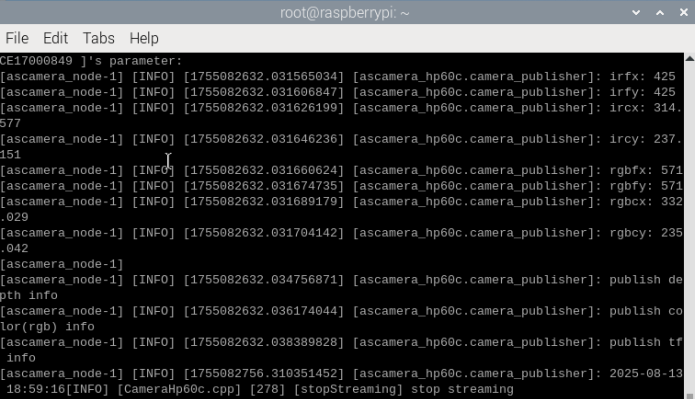
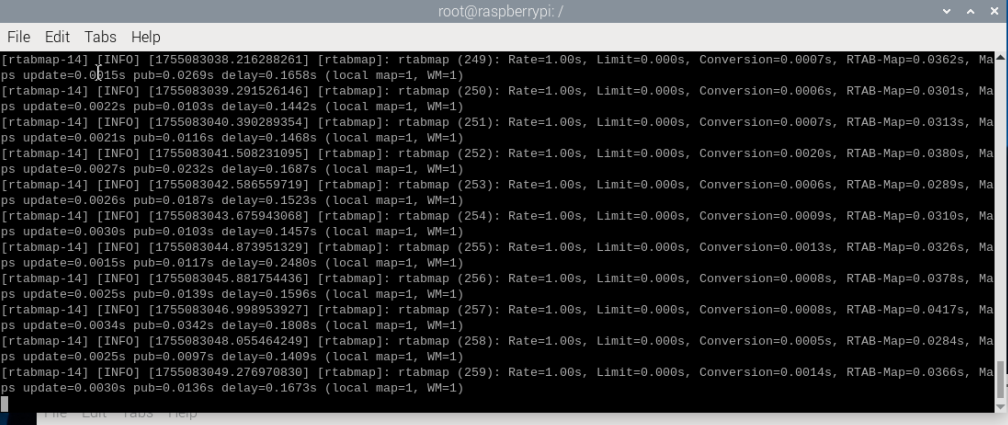
Enter the following command in the car terminal to start mapping, chassis, and radar.
xxxxxxxxxxros2 launch yahboomcar_nav map_rtabmap_launch.py
Enter the following command on the virtual machine to perform rviz visualization.
xxxxxxxxxxros2 launch yahboomcar_nav display_rtabmap_map_launch.py
After successful startup, the image below will appear.
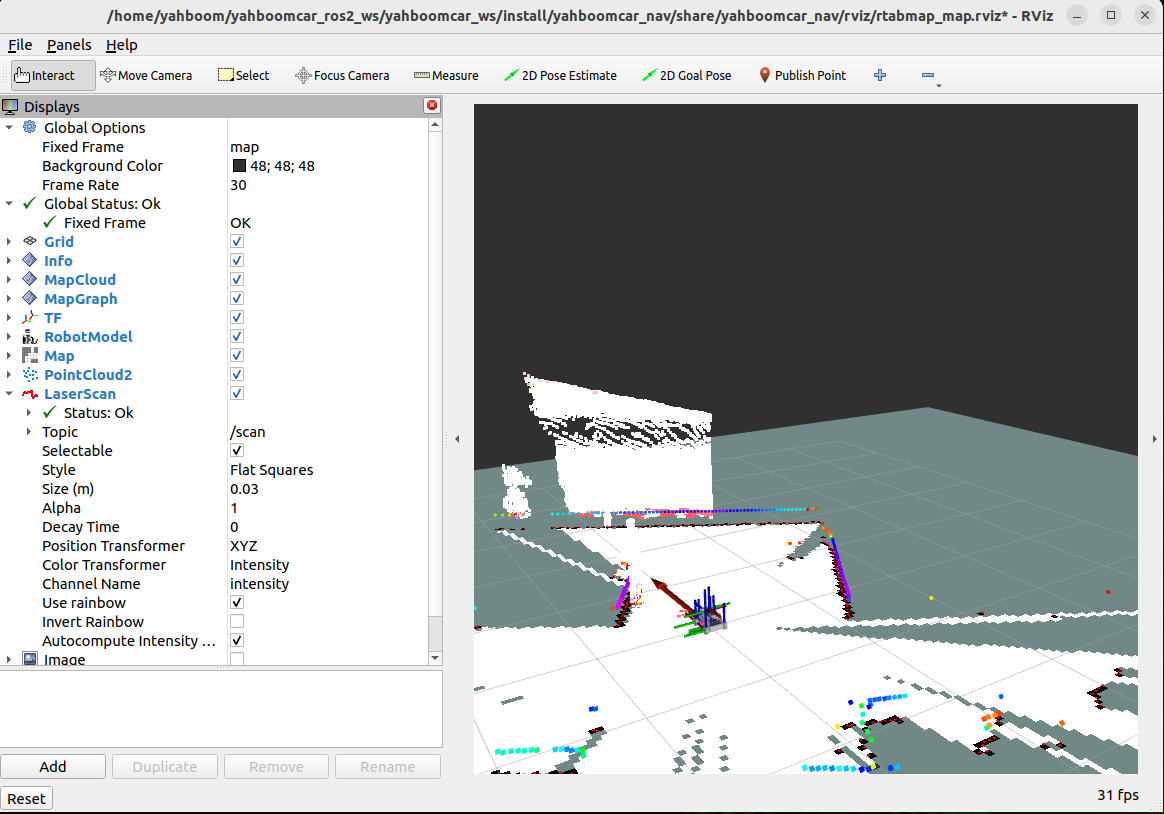
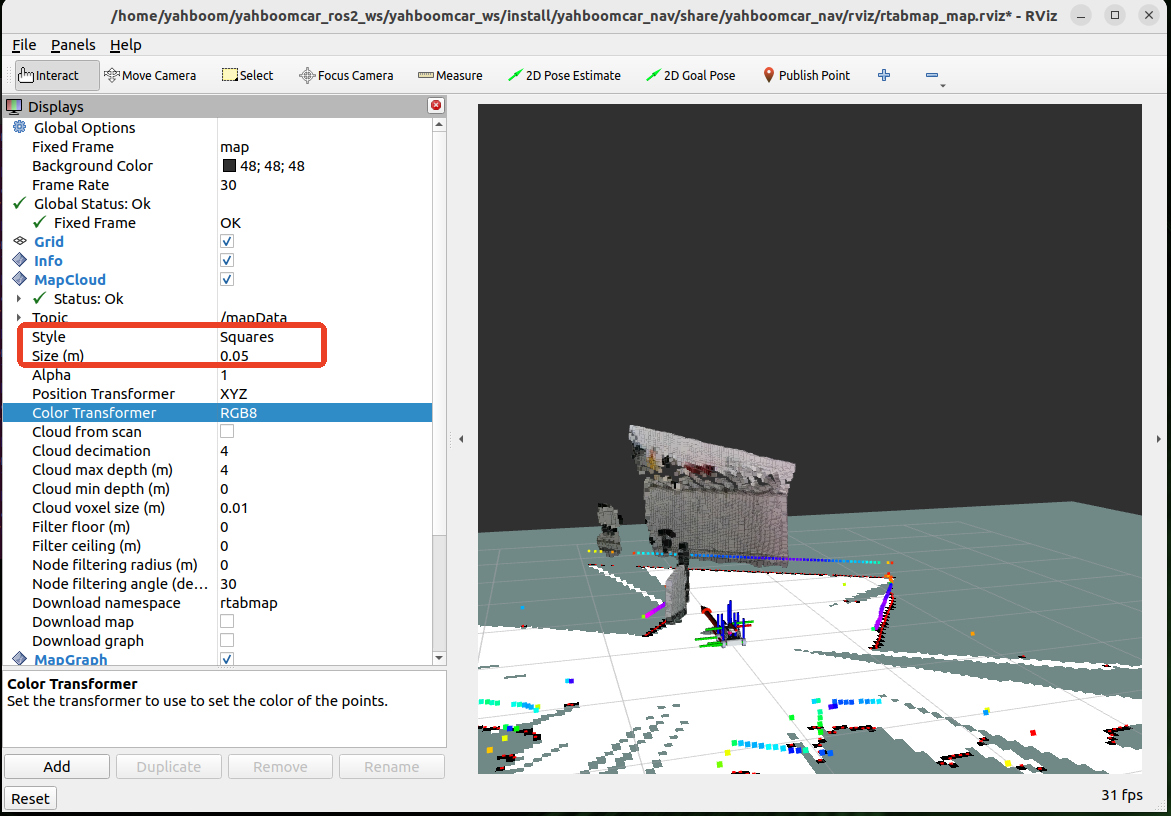
Modify the settings in rviz to change the point cloud display to RGB, as shown below.
Finally, open a terminal in the virtual machine and enter the following command to control the car's movement and map creation using the keyboard.
xxxxxxxxxxros2 run yahboomcar_ctrl yahboom_keyboard
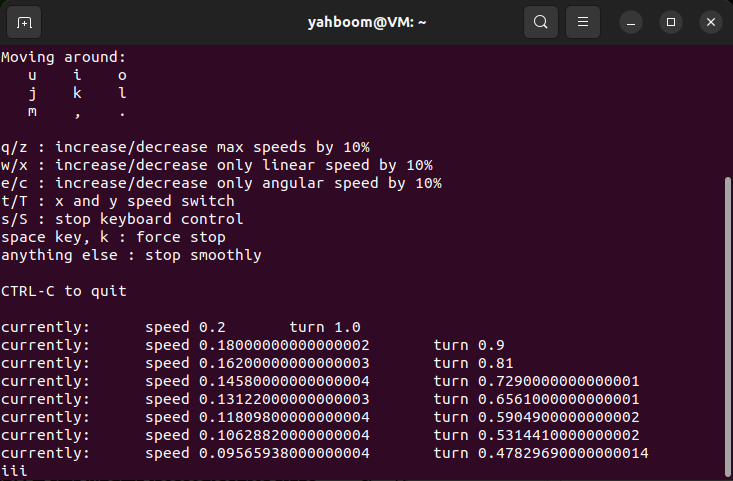
Here, control the car's movement as slowly as possible. Press the [z] key to reduce the linear velocity and deceleration. Then, press the [i] key to move the car forward, the [,] key to move it backward, the [j] key to rotate the car left, and the [l] key to rotate the car right.
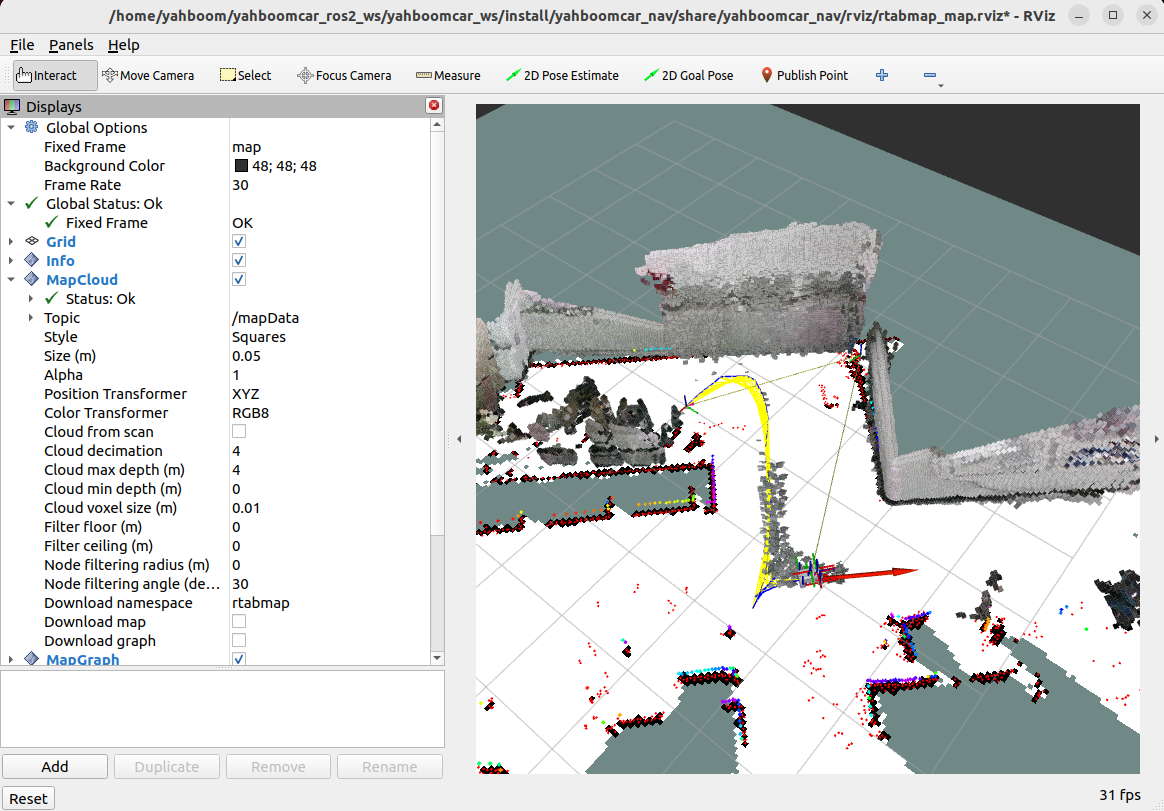
As shown below, the map is created.
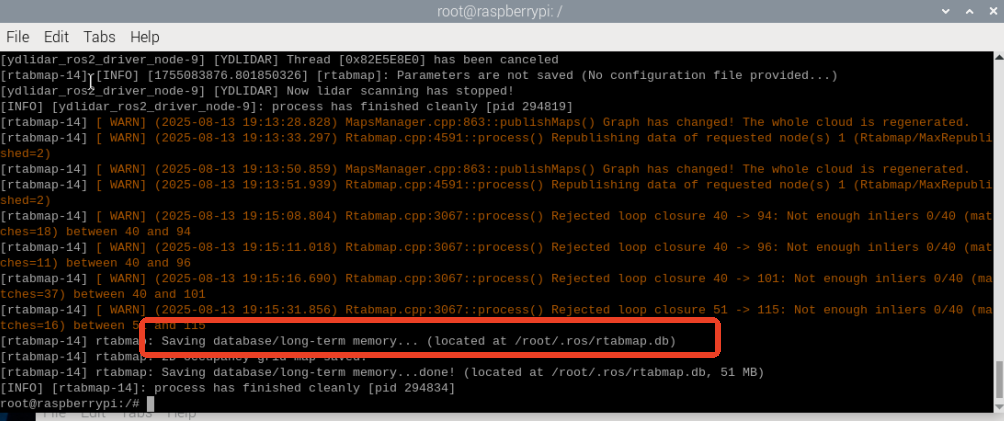
After the map is created, press Ctrl+C in the terminal where you launched map_rtabmap_launch.py to close the program. The map will be saved in /root/.ros/rtabmap.db.