Welcome to ROSMASTER M1 repository
7.QR code follow
QR code follow
This lesson uses the Raspberry Pi as an example. For Raspberry Pi and Jetson-Nano boards, you need to open a terminal on the host computer and enter the command to enter the Docker container. Once inside the Docker container, enter the commands mentioned in this lesson in the terminal. For instructions on entering the Docker container from the host computer, refer to [01. Robot Configuration and Operation Guide] -- [4.Enter Docker (For JETSON Nano and RPi 5)]. For RDKX5 and Orin boards, simply open a terminal and enter the commands mentioned in this lesson.
1. Program Functionality
After the program starts, the robot will recognize and select the QR code. The robot will then continuously follow the QR code, remaining centered on the screen and maintaining a 0.4-meter distance from the recognized QR code. Press the
q/Q keyto exit the program.
2. Program Code Reference Path
~/yahboomcar_ros2_ws/yahboomcar_ws/src/yahboomcar_depth/yahboomcar_depth/Advanced/qrFollow.py~/yahboomcar_ros2_ws/yahboomcar_ws/src/yahboomcar_depth/yahboomcar_depth/astra_common.py
- qrFollow.py
Mainly performs QR code detection, calculates the vehicle's forward distance and turning angle based on the QR code's center coordinates and the distance from the QR code to the vehicle, and publishes the forward and turning data to the vehicle.
astra_common.py
- Color tracking (color_follow class): Identifies and tracks objects of a specific color using the HSV color space
- Image processing tools: Includes multi-image stitching (ManyImgs function), shape detection (is_regular_square function), and QR code detection
- File read/write functions: Used to save/read HSV color ranges
3. Program startup
3.1. Startup commands
For Raspberry Pi and Jetson-Nano boards, you need to enter the Docker container first. For RDKX5 and Orin controllers, this is not necessary.
Enter the Docker container (see [Docker course] --- [4. Docker Startup Script] for steps).
All the following commands must be executed within the same Docker container (see [Docker course] --- [3. Docker Submission and Multi-Terminal Access] for steps).
In the terminal, enter:
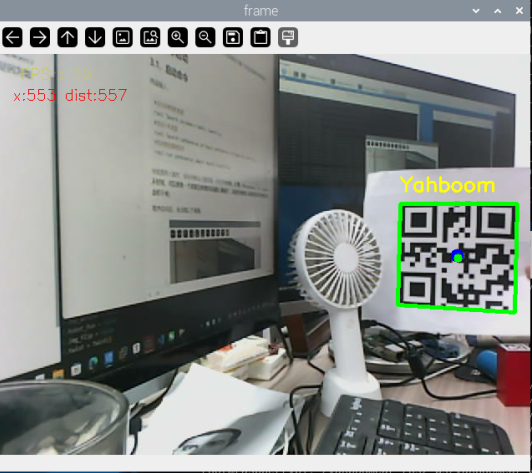
xxxxxxxxxx# Start the depth camera dataros2 launch ascamera hp60c.launch.py# Start the car chassisros2 launch yahboomcar_bringup yahboomcar_bringup_M1_launch.py#Start the QR code following programros2 run yahboomcar_depth depth_qrFollowWhen a QR code is detected, the QR code area is automatically outlined and the car begins following. (Note: If the robot is running intermittently and the performance is poor, you can replace the QR code image with one that better captures the depth information. This is because the robot will stop if the QR code depth information is 0.)
After starting the program, the following screen will appear.
3.2 Dynamic Parameter Adjustment
Enter in the terminal:
xxxxxxxxxxros2 run rqt_reconfigure rqt_reconfigure
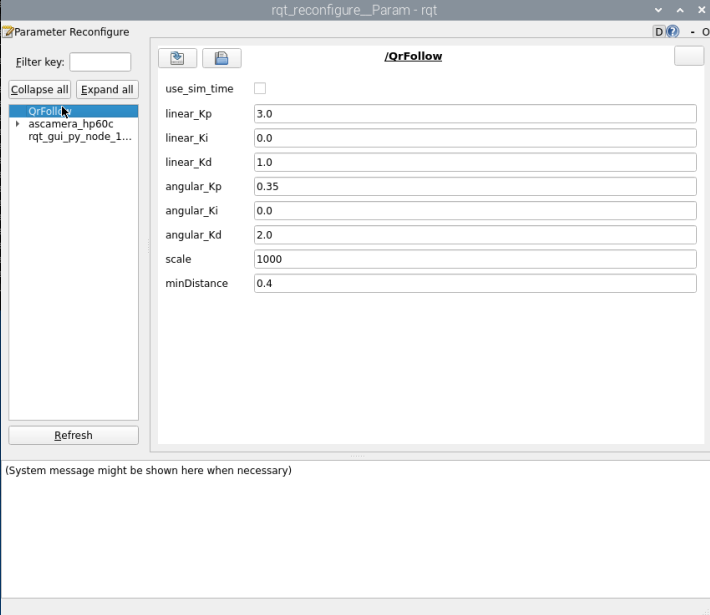
☑️ After modifying the parameters, click a blank area in the GUI to write the parameter value. Note that this will only take effect for the current startup. To permanently change the parameters, you need to modify them in the source code.
Parameter Analysis:
[linear_Kp], [linear_Ki], [linear_Kd]: PID control of linear velocity during the car's following process.
[angular_Kp], [angular_Ki], [angular_Kd]: PID control of angular velocity during the car's following process.
[minDistance]: Following distance, which is maintained at this distance.
[scale]: PID scaling.
4. Core Code
4.1. qrFollow.py
This program has the following main functions:
- Subscribes to the depth camera topic and obtains topic images;
- Uses OpenCV's QR code detector to detect QR codes;
- Processes the image to obtain the center coordinates of the QR code image and depth and distance information.
- Calculates the distance PID and center coordinate PID to obtain the car's forward speed, distance, and turning angle.
Some of the core code is as follows.
x#二维码检测与跟踪#QR Code Detection and Trackingprocessed_frame, (x, y, w, h) = detect_qrcode(result_image) # 二维码检测函数 # QR code detection functionif processed_frame is not None: # 使用处理后的带标记图像 Use the processed labeled image result_image = processed_frame # 计算二维码中心坐标 Calculate the center coordinates of the QR code self.Center_x = x + w // 2 self.Center_y = y + h // 2 self.Center_r = x * w // 100 # 标记中心点 Mark the center point cv.circle(result_image, (self.Center_x, self.Center_y), 5, (0,255,0), -1) #测试目标点距离 Test target point distancepoints = [ (int(self.Center_y), int(self.Center_x)), # 中心点 Center Point (int(self.Center_y+1), int(self.Center_x+1)), # 右下偏移 Bottom right offset (int(self.Center_y-1), int(self.Center_x-1)) # 左上偏移 Upper left offset]valid_depths = []for y, x in points: depth_val = depth_image_info[y][x] # 获取深度值 Get the depth value if depth_val != 0: # 过滤无效值 Filter invalid values valid_depths.append(depth_val)# 计算平均距离 Calculate the average distancedist = int(sum(valid_depths)/len(valid_depths)) if valid_depths else 0 #启动控制线程 Start the control threadthreading.Thread(target=self.execute).start()# 根据x值、y值,使用PID算法,计算运动速度,转弯角度# Calculate the movement speed and turning angle using the PID algorithm based on the x and y valuesdef execute(self, rgb_img, action): #PID计算偏差 PID calculation deviation linear_x = self.linear_pid.compute(dist, self.minDist) angular_z = self.angular_pid.compute(point_x,320) # 小车停车区间,速度为0 The car is in the parking area and the speed is 0 if abs(dist - self.minDist) < 30: linear_x = 0 if abs(point_x - 320.0) < 30: angular_z = 0 twist = Twist() ... # 将计算后的速度信息发布 Publish the calculated speed information self.pub_cmdVel.publish(twist)