Welcome to ROSMASTER M1 repository
12.Mediapipe gesture recognition and following
Mediapipe gesture recognition and following
Mediapipe gesture recognition and following1. Program Functionality2. Program Code Reference Path3. Program Startup3.1. Startup Command3.2 Dynamic Parameter Adjustment4. Core Code4.1. gestureFollow.py
1. Program Functionality
After the program starts, it automatically detects hand gestures in the image, and the robot enters follow mode. The servo gimbal locks onto the detected hand gesture position (the base of the index finger joint), keeping it in the center of the image. Following stops when a "0" (fist) gesture is detected, but continues for all other gestures. To exit the program, press the Ctrl+C shortcut key in the terminal. The remote controller's R2 button has the [Pause/Start] function for this function.
2. Program Code Reference Path
~/yahboomcar_ros2_ws/yahboomcar_ws/src/yahboomcar_astra/yahboomcar_astra/gestureFollow.py~/yahboomcar_ros2_ws/yahboomcar_ws/src/yahboomcar_astra/yahboomcar_astra/common/media_common.py
gestureFollow.py Mainly performs gesture detection. It calculates the required servo rotation angle and the required vehicle angular velocity based on the detected gesture center coordinates. It also calculates the required vehicle linear velocity based on the size of the gesture area. After PID calculation, it publishes the data to the vehicle chassis.
media_common.py
This is a gesture and posture recognition system based on MediaPipe.
HandDetector Class:
- Real-time hand keypoint detection and tracking
- Gesture recognition (supports multiple gestures, including 0-8)
- Provides finger state detection and angle calculation
3. Program Startup
3.1. Startup Command
For Raspberry Pi and Jetson-Nano boards, you need to enter the Docker container first. For RDKX5 and Orin controllers, this is not necessary.
Enter the Docker container (see [Docker course] --- [4. Docker Startup Script] for steps).
All the following commands must be executed within the same Docker container (see [Docker course] --- [3. Docker Submission and Multi-Terminal Access] for steps).
Enter the terminal.
xxxxxxxxxx# Start the car chassis and joystick nodesros2 launch yahboomcar_bringup yahboomcar_bringup_M1_launch.py# Start the gesture tracking programros2 run yahboomcar_astra gestureFollow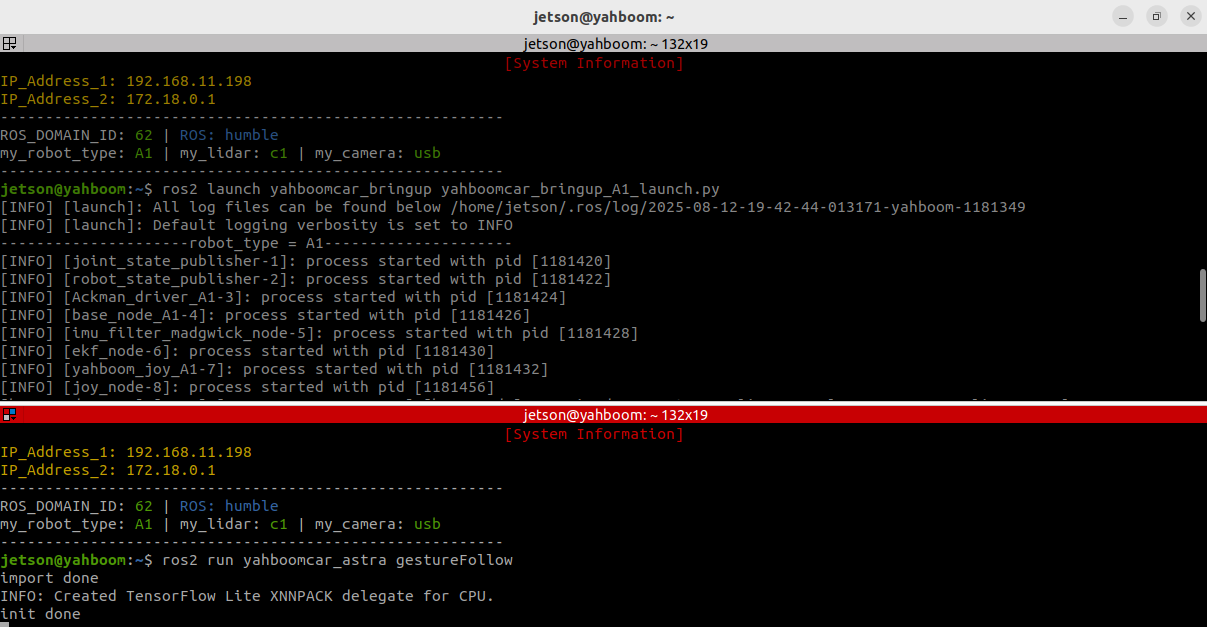
After starting the program, the camera image will appear and gestures will be detected in real time.
When a gesture is detected, a yellow dot will be drawn in the center of your palm, and the center coordinates and gesture area size will be displayed.
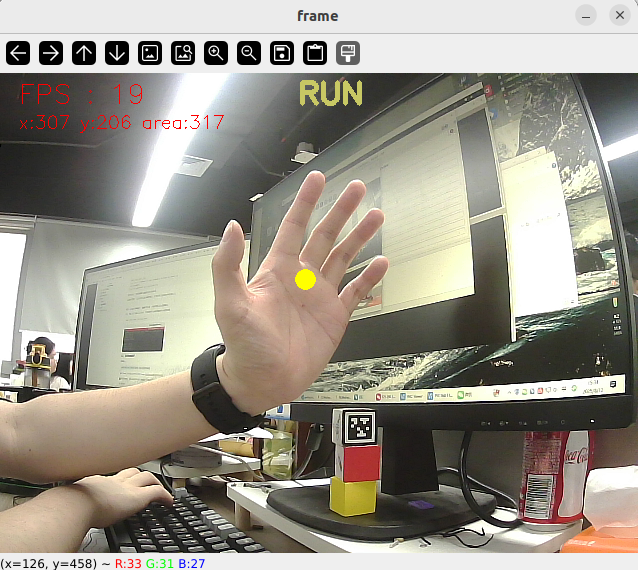
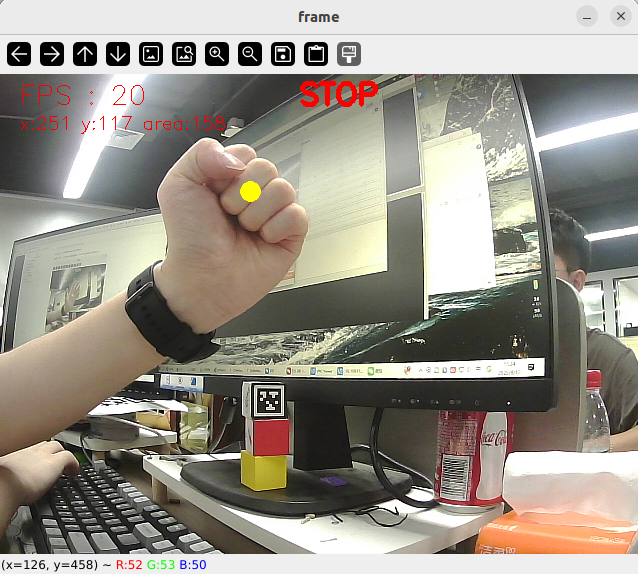
Then, the robot enters follow mode. Slowly move your palm, and the robot and servo gimbal will follow.
Alternatively, we can enter the following command to print the target center coordinates and area information:
xxxxxxxxxxros2 topic echo /Current_point
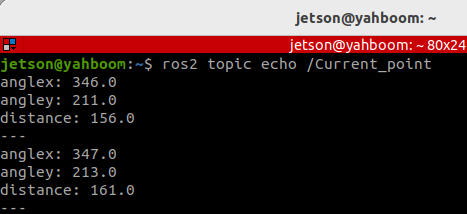
3.2 Dynamic Parameter Adjustment
Enter in the terminal:
xxxxxxxxxxros2 run rqt_reconfigure rqt_reconfigure
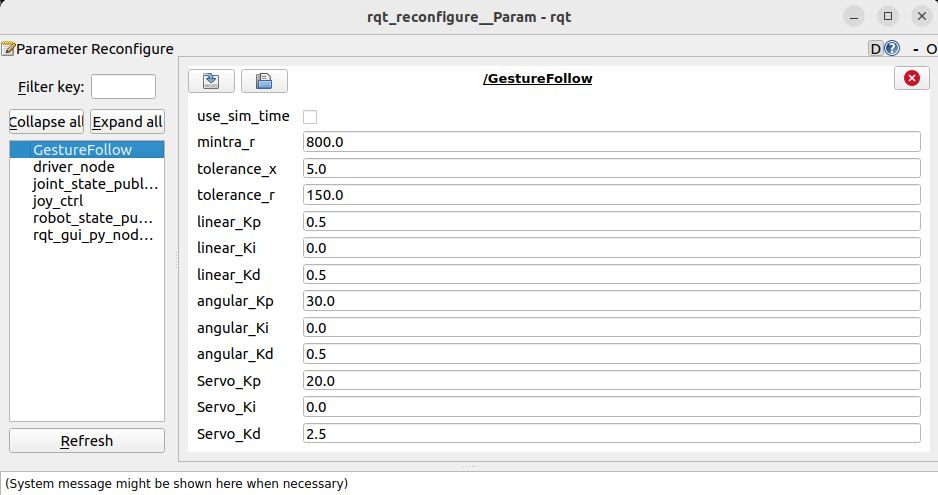
☑️ After modifying the parameters, click a blank area in the GUI to enter the parameter value. Note that this will only take effect for the current boot. To permanently effect the parameter, you need to modify it in the source code.
As shown in the figure above:
- gestureFollow is primarily responsible for car motion. PID-related parameters can be adjusted to optimize car motion.
🛠 Parameter Analysis:
[mintra_r]: Critical tracking area. When the gesture area is smaller than this value, the car moves forward; when it is larger than this value, the car moves backward.
[tolerance_x], [tolerance_r]: X-axis position tolerance. When the deviation between the gesture center's x-coordinate and the screen center (320) is smaller than this value, alignment is considered complete. Area tolerance: When the deviation between the detected gesture area and the critical tracking area (mintra_r) is smaller than this value, the distance is considered appropriate.
[linear_Kp], [linear_Ki], [linear_Kd]: Linear velocity PID control during car following.
[angular_Kp], [angular_Ki], [angular_Kd]: Angular velocity PID control during car following.
[Servo_Kp], [Servo_Ki], [Servo_Kd]: PID control of the servo gimbal speed during the following process.
4. Core Code
4.1. gestureFollow.py
This program has the following main functions:
- Opens the camera and acquires images;
- Uses the mediapipe library to detect gestures;
- Calculates the gesture center coordinates (landmark 9) and area size;
- Controls the following state based on the gesture type ("Zero" or other);
- Calculates the robot's movement speed and servo angle, and issues control commands.
Some core code is as follows:
x# Define the servo data publisherself.pub_Servo = self.create_publisher(ServoControl, 'Servo', 10)# Define the vehicle velocity publisherself.pub_cmdVel = self.create_publisher(Twist, '/cmd_vel', 10)# Create a publisher to publish the center coordinates and radius of the tracked objectself.pub_position = self.create_publisher(Position, "/Current_point", 10)# Define the controller node data subscriberself.sub_JoyState = self.create_subscription(Bool,"/JoyState", self.JoyStateCallback, 1)...# Initialize the gesture detectorself.hand_detector = handDetector(detectorCon=0.8)...# Gesture detection_, _, z = self.hand_detector.findHands(frame, draw=False)if len(self.hand_detector.lmList) != 0: # Get the coordinates of landmark 9 x, y = self.hand_detector.findPoint(9) cv.circle(frame, (int(x), int(y)), 5, (0, 255, 255), 10) # Control follow status according to gesture type if self.hand_detector.get_gesture() == "Zero": self.execute(320, 240, self.mintra_r) # Stop following else: self.execute(x, y, z) # Follow gestures...# According to the x value, y value and area size, use the PID algorithm to calculate the car speed and servo angledef execute(self, x, y, z=None): position = Position() position.anglex = x * 1.0 position.angley = y * 1.0 position.distance = z * 1.0 self.pub_position.publish(position) ... # Calculate PID control quantity [linear_Pid, Servox_Pid, Servoy_Pid] = self.PID_controller.update([z - self.mintra_r, x - 320, y - 240]) angular_Pid = self.angular_PID_controller.update([self.PWMServo_X - self.init_servos1])[0] ... # Limit output range linear_Pid = max(-0.55, min(linear_Pid, 0.55)) angular_Pid = max(-3.0, min(angular_Pid, 3.0)) ... # Limit the servo PID polarity and maximum value Servox_Pid = Servox_Pid * (abs(Servox_Pid) <=self.Servo_Kp/3.6) Servoy_Pid = Servoy_Pid * (abs(Servoy_Pid) <=self.Servo_Kp/3.6) ... # Set the car speed and servo angle self.twist.linear.x = -linear_Pid self.twist.angular.z = -angular_Pid if self.img_flip else angular_Pid self.PWMServo_X += Servox_Pid if not self.img_flip else -Servox_Pid self.PWMServo_Y += Servoy_Pid if not self.img_flip else -Servoy_Pid ... # Issue control instructions self.pub_Servo.publish(self.servo_angle) self.pub_cmdVel.publish(self.twist)