yahboom
HomeLearn
Solution
Blog
Online Store
About Us
EN/中文
ROSMASTER M3 PRO📖
0.Configuration and Operation Guide
  • 1. Quick start handle to control the car
  • 2. Log in to the car and view the code
  • 3. Robotic Arm Calibration
  • 4. Enter the Docker (Jetson-Nano and Raspberry Pi 5 users, see here)
  • 5. Assembly video
  • 6. Modify the firmware parameters of the car control board
  • 7. Frequently Asked Questions and Precautions
  • 8. Precautions for DIY Robotic Arm
1.Chassis Control Course
  • 1.ROS control
  • 2.Handle control
  • 3.Keyboard control
  • 4.Angular velocity calibration
  • 5.Line velocity calibration
  • 6.Line patrol automatic driving
  • 7.Patrol
2.Lidar Course
  • 1.Lidar introduction and use
  • 2.Dual Lidar fusion
  • 3.Lidar obstacle avoidance
  • 4.Lidar tracking
  • 5.Lidar guard
  • 6.Gmapping-SLAM mapping
  • 7.Cartographer-SLAM mapping
  • 8.slam_toolbox mapping
  • 9.Navigation2 single-point navigation avoid
  • 10.Navigation2 multi-point navigation avoid
  • 11.Repositioning navigation
  • 12.RTAB-Map mapping
  • 13.RTAB-Map navigation
  • 14.APP mapping navigation
  • 15.Machine code handling
  • 16.Color block transport
  • 17.Navigation via Pose-Constrained Visual Relocalizationnew
3.Depth Camera Course
  • 1.Dabai_DCW2 camera introduction
  • 2.Depth pseudo-color image
  • 3.Depth camera distance measurement
  • 4.Wood block volume measurement
  • 5.Mediapipe gesture recognition
  • 6.Edge detection
  • 7.YOLOv8 object detection
  • 8.Deep learning object tracking
  • 9. Transformer Model Tracking Algorithmnew
4.Robotic Arm and 3D Space Gripping Course
  • 1.Robotic arm solution
  • 2.Robotic arm chassis linkage control
  • 3.Machine code ID sorting
  • 4.Sorting height abnormality machine code
  • 5.Tracking and gripping machine code
  • 6.Color block color sorting
  • 7.Sorting height abnormality color block
  • 8.Tracking and gripping color block
  • 9.Wood block shape sorting
  • 10.KCF tracking and gripping objects
  • 11.Medipipe gesture ID sorting machine code
  • 12.Mediapipe gesture height sorting machine code
  • 13.Desktop tracking and gripping machine code
  • 14.3D tracking machine code
  • 15.Line patrol and obstacle removal
5.Road network planning and navigationnew
  • 1. Introduction To Road Network Planning
  • 2. Build A Pose Map
  • 3. Road Network Annotation
  • 4. Planning And Navigation Between Waypoints
  • 5. Road Network Navigation In Any Pose
  • 6. Path Re-planning
6.OpenClaw Basic Coursenew
  • 1. Introduction to OpenClaw
  • 2. OpenClaw Core Concepts
  • 3. OpenClaw API-KEY Configuration
  • 4. OpenClaw Switch Models
  • 5. OpenClaw System Prompt Words
  • 6. OpenClaw Common CLI Commands
7.OpenClaw Interaction Methodnew
  • 1. OpenClaw Webchat Interaction
  • 2. OpenClaw Tui Interaction
  • 3. OpenClaw Voice Dialogue Interaction
  • 4. OpenClaw WhatsApp Interaction
8.OpenClaw Developmentnew
  • 1. OpenClaw connects to the MCP interface of the robot
  • 2. Robot CLI Command Tool
  • 3. Robot control plugin tool
  • 4. Reply bridge plugin tool
  • 5. OpenClaw multimodal vision
  • 6. OpenClaw chassis control
  • 7. OpenClaw robotic arm control
  • 8. OpenClaw skills development
  • 9. OpenClaw timed tasks
  • 10. OpenClaw multi-agent intelligent agent
  • 11. OpenClaw active interaction
  • 12. OpenClaw vector memory
9.OpenClaw Embodied intelligent applicationnew
  • 1. OpenClaw target tracking
  • 2. OpenClaw robotic arm tracking and grasping
  • 3. OpenClaw robotic arm fixed-point placement
  • 4. OpenClaw garbage sorting
  • 5. OpenClaw slam mapping and navigation
  • 6. OpenClaw navigation transfer
  • 7. OpenClaw machine code clip
  • 8. OpenClaw color line patrol
  • 9. OpenClaw visual distance measurement
10.OpenClaw scenario sandboxnew
  • 1. Map description and prop placement
  • 2. Build sand table map
  • 3. Visual relocation markers
  • 4. Map mapping markers
  • 5. OpenClaw scenario sandbox comprehensive case
11.AI Model Basics
  • 1.AI large model types and principles
  • 2.RAG retrieval enhancement and model training samples
  • 3.Embodied intelligent robot system architecture
  • 4.Embodied intelligent functions core source code
12.AI Model Development
  • 01.Register a model service provider account
  • 02. Configuring API-KEY
  • 03. Introduction to Dify
  • 04. Basic Dify Features
  • 05. AI Large Model Development - chatbot
  • 06. Deploy the RAG knowledge base
  • 07. RAG knowledge base + chatbot
  • 08. AI agent workflow
  • 09. Custom wake-up response
  • 10. Core module testing tools
13.AI Large Model (Text Version)
  • 1.Semantic understand instruction following
  • 2.Multimodal visual understand
  • 3.Multimodal visual understand+robotic arm grab
  • 4.Multimodal visual understand+SLAM navigation
  • 5.Robotic arm grab+Multimodal visual understand+SLAM navigation
  • 6.Intention estimation
14.AI Large Model(Voice Version)
  • 1.Semantic understand instruction following
  • 2.Multimodal visual understand
  • 3.Multimodal visual understand+robotic arm grab
  • 4.Multimodal visual understand+SLAM navigation
  • 5.Robotic arm grab+Multimodal visual understand+SLAM navigation
  • 6.Intention estimation
15.Mediapipe Visual Course
  • 1.Hand detection
  • 2.Posture detection
  • 3.Overall detection
  • 4.Facial Landmark Detection
  • 5.Face detection
  • 6.Face special effects
  • 7.3D object recognition
  • 8.Brush
  • 9.Finger control
  • 10.Palm target positioning
  • 11.Fingertip trajectory recognition
  • 12.Fingertip gesture control robotic arm
  • 13.Gesture grabbing and releasing objects
  • 14.Finger control robotic arm
  • 15.Medipipe gesture control robotic arm action group
16.MoveIt2 Simulation Course
  • 1.MovelT2 configuration
  • 2.MovelT2 simulation-reality linkage
  • 3.Random movement
  • 4.Forward kinematics design
  • 5.Inverse kinematics design
  • 6.Cartesian path
  • 7.Trajectory planning
  • 8.Collision detection
  • 9.Scene design
17.Multi-vehicle Course
  • 1.Multi-vehicle chassis control
  • 2.Multi-vehicle robotic arm control
  • 3.Multi-vehicle navigation
  • 4.Multi-vehicle formation
18.Control Board Course
  • 1.Development environment setup
  • 2.Control board STM32 basic routine
  • 3.Control board micro_ros basic routine
19.Docker Course
  • 1、Docker overview and docker installation
  • 2、Common commands for docker image containers
  • 3、Docker images deeply understand and publish images
  • 4、Docker hardware interaction and data processing
  • 5、Enter the bot's docker container
  • 6、Robot development environment construction in Docker
20.Image Processing Basics Course
  • 1. Introduction to Open Source CV
  • 2. Image reading and display
  • 3. Image writing
  • 4. Image quality
  • 5. Pixel Operation
  • 6. Image zoom
  • 7. Image cutting
  • 8. Image translation
  • 9. Image Mirroring
  • 10. Affine Transformation
  • 11. Image Rotation
  • 12. Perspective Transformation
  • 13. Grayscale processing
  • 14. Image Binarization
  • 15. Edge Detection
  • 16. Line drawing
  • 17. Rectangle and circle drawing
  • 18. Drawing text and pictures
21.Main Control Course
Jetson Nano B01
  • 1. Introduction to the Jetson Nano B01 SUB Board
  • 2. Burn the system image
  • 3. Re-read the memory card or USB drive that has been burned
  • 4. Startup system
  • 5. Jetson Nano B01 System and Desktop Introduction
  • 6. Memory card or USB flash drive expansion
  • 7. Network Configuration
  • 8. SSH remote login & file transfer
  • 9. VNC Remote Login
  • 10. Jetson Nano B01 system backup
  • 11. Jetson Nano Swap space increased
  • 12. Installation and use of Jtop
Jetson Orin Nano_NX
  • 1.Jetson Orin board introduction
  • 2.Restore the factory image system
  • 3.Backup SSD system
  • 4.SSD expansion
  • 5.Network configuration
  • 6.SSH remote login
  • 7.VNC remote control
  • 8.Remote file transfer
  • 9.Jtop tool
  • 10.Exchange space expansion
Raspberry Pi
  • 1. Introduction to Raspberry PI 5
  • 2. Raspberry PI system installation and backup
  • 3. Powering the Raspberry PI 5
  • 4. Startup of Raspberry PI 5
  • 5. Update and upgrade operating system
  • 6. Introduction to raspi-config tool
  • 7. config.txt file description
  • 8. Network Configuration
  • 9. remote access
  • 10. Transfer files remotely
  • 11. Set display resolution and rotation
  • 12. Set screen to sleep
  • 13. Play audio and video
  • 14. Using USB camera
  • 15. Using MIPI camera
  • 16. Get real-time temperature of Raspberry Pi
22.Linux System Course
  • 1.Introduction to Linux system
  • 2.Ubuntu file system
  • 3.Ubuntu common commands
  • 4.Ubuntu common editors
  • 5.Ubuntu software operation commands
  • 6.Virtual machine installation
  • 7.SSH remote control
  • 8.VNC remote control
  • 9.Transfer files remotely
  • 10.Driver library and communication
  • 11.Static IP and hotspot mode
  • 12.Bind device ID
  • 13.Capacity expansion and resource allocation
  • 14.Update system software sources
  • 15.Set root user password
  • 16.sudo free password
  • 17.Connect to WiFi network
  • 18.View system version
  • 19.Customized service management
  • 20.Back up system image
23.ROS2 Basic Course
  • 1.Introduction to ROS2
  • 2.ROS2 install Humble
  • 3.ROS2 development environment
  • 4.ROS2 workspace
  • 5.ROS2 function package
  • 6.ROS2 node
  • 7.ROS2 topic communication
  • 8.ROS2 service communication
  • 9.ROS2 action communication
  • 10.ROS2 custom interface message
  • 11.ROS2 parameter service case
  • 12.ROS2 meta-function package
  • 13.ROS2 distributed communication
  • 14.ROS2 DDS
  • 15.ROS2 time related API
  • 16.ROS2 common command tools
  • 17.ROS2 rviz2 use
  • 18.ROS2 rqt toolbox
  • 19.ROS2 Launch startup file configuration
  • 20.ROS2 recording and playback tool
  • 21.ROS2 URDF model
  • 22.ROS2 Gazebo simulation platform
  • 23.ROS2 TF2 coordinate transformation
Download
  • Mapping_APP(iOS_Android)
  • Robot_Image_System_File
  • Code-Firmware
  • Instruction_Manual
  • VM_File
  • Software_Tools
  • Firmware_DriverFile
  • 3D_Model_File
  • ROS2_Basic_VM
  • Other_Annex
Download ZIP

Welcome to ROSMASTER M3 PRO repository

7.VNC remote control

VNC remote control

VNC remote control1. VNC Viewer1.1. VNC download1.2. VNC Installation2. System Settings (Jetson)2.1. Enable desktop remote2.1.1. Sharing2.1.2. Remote Desktop2.1.3, Media Sharing2.1.4 Remote Login2.2, Fixed remote passwordPasswords and Keys2.3, Start VNC automatically after bootingDesktop extension manager3. VNC remote controlFrequently Asked QuestionsVNC Remote Display ReconnectionReconnection PhenomenonSolutionVNC remote switch uppercase and lowercase

Tutorial to configure the built-in screen sharing of Ubuntu22.04 system for VNC remote control.

Windows computer needs to download and install VNC Viewer in advance and the remote device and the remote device are in the same LAN

1. VNC Viewer

1.1. VNC download

Official website download address: https://www.realvnc.com/en/connect/download/viewer/
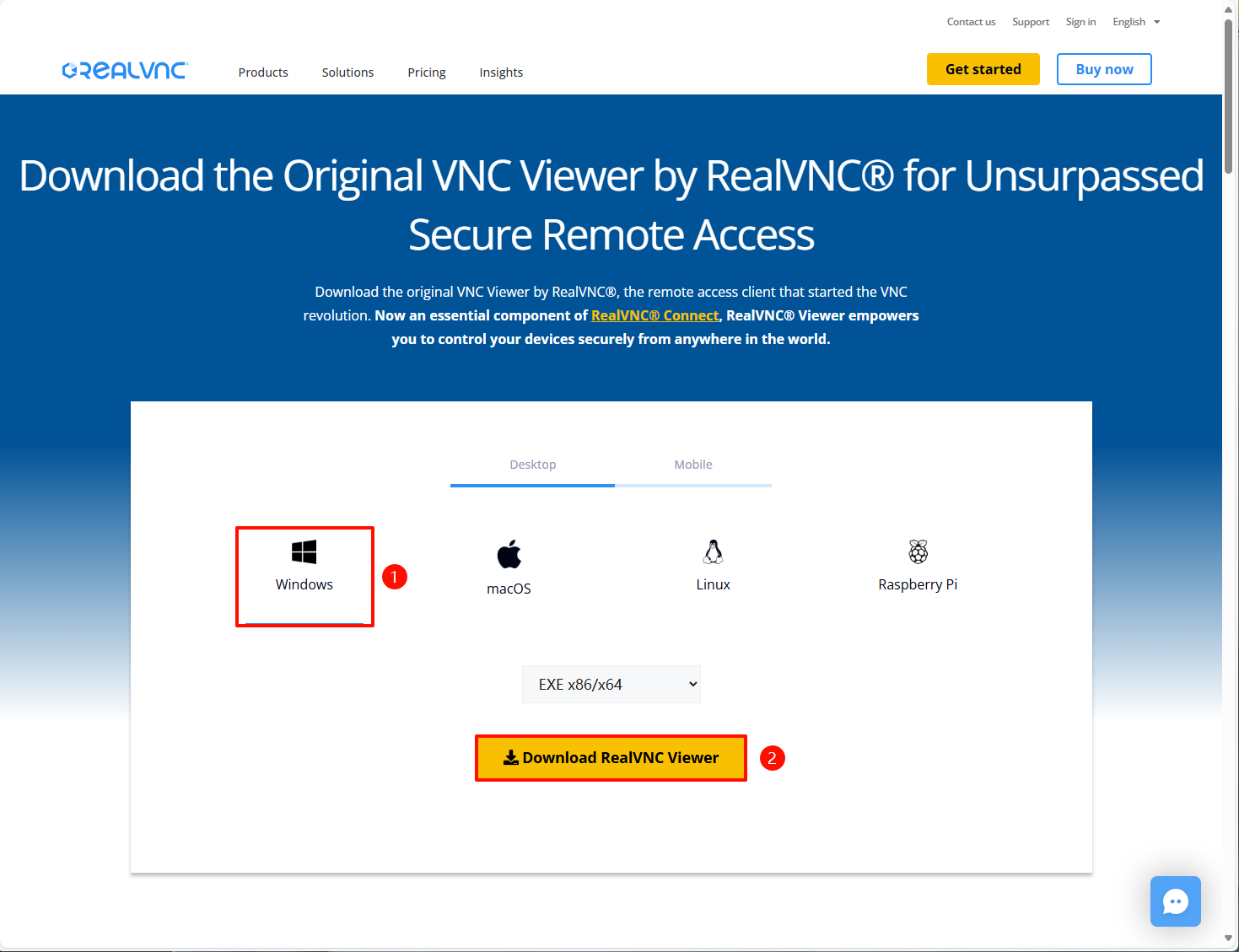
img

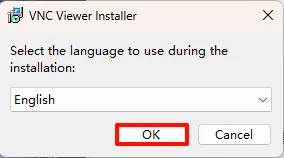
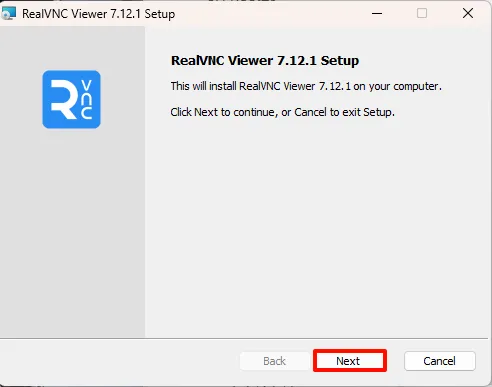
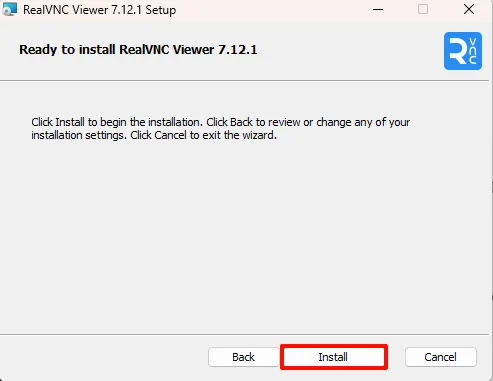
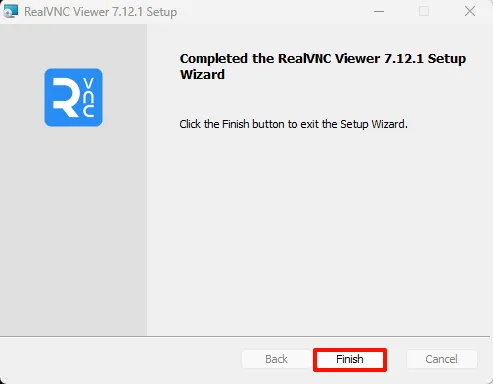
1.2. VNC Installation

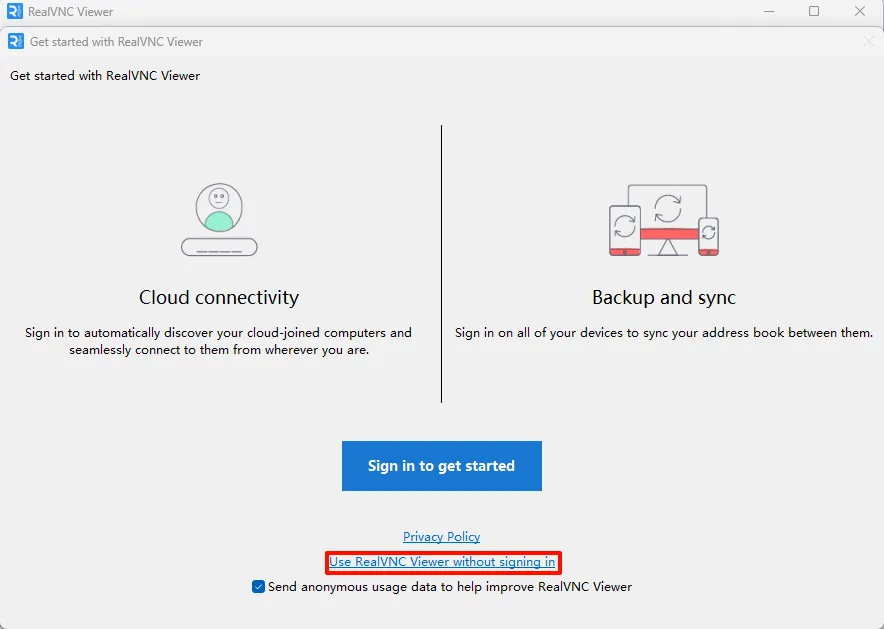
Run VNC-Viewer-xxx.exe as an administrator:

image.png

image.png

image.png

![image.png] (1731245794795-9efa7e97-85ea-4c79-b598-f17a6c46ad8b.webp) image.png image.png image.png ### 1.3. Use VNC
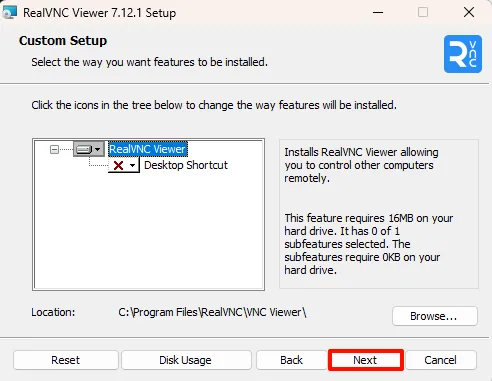
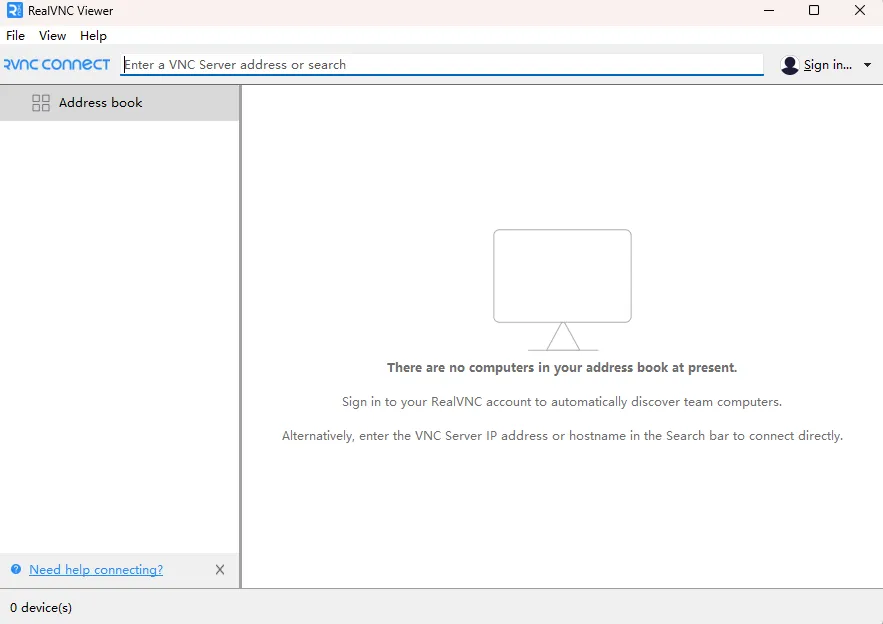
image.png

image.png

2. System Settings (Jetson)

2.1. Enable desktop remote

2.1.1. Sharing

Settings → Sharing
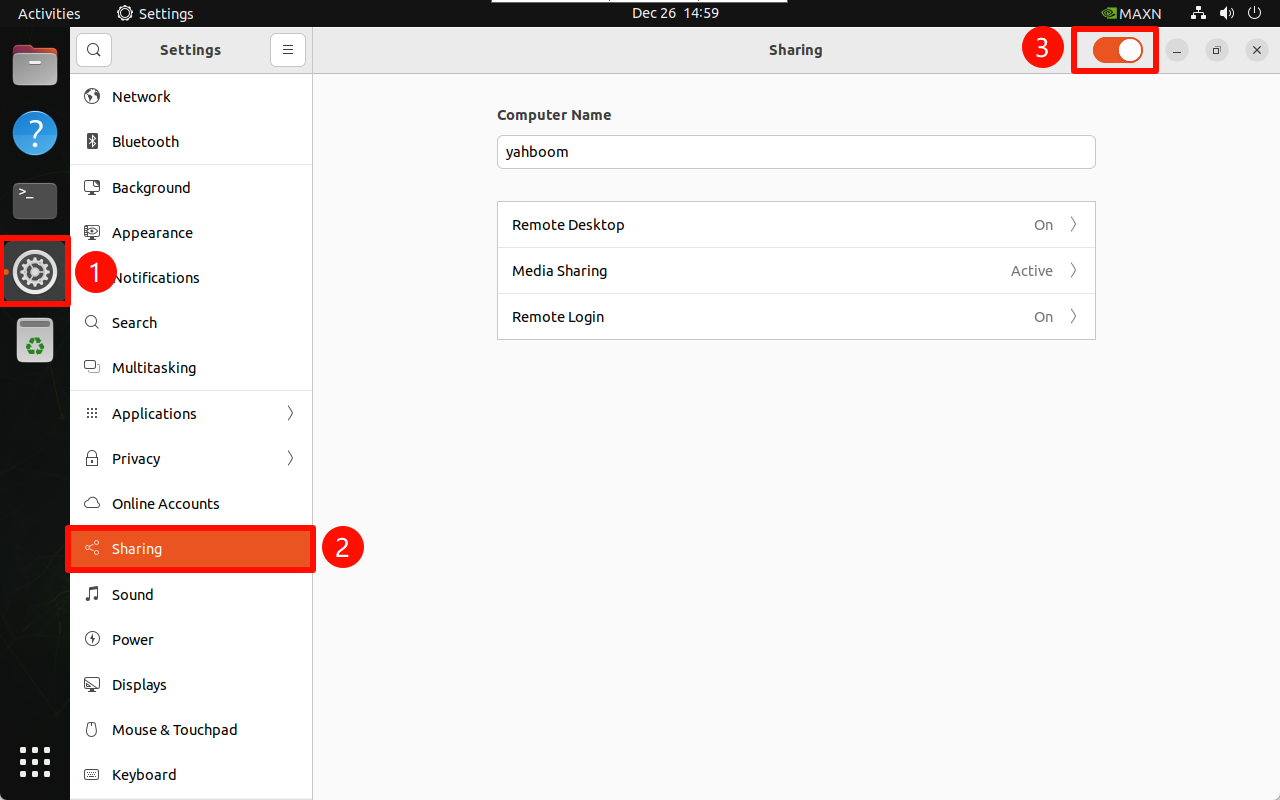
image-20241226150132128

2.1.2. Remote Desktop

Turn on the remote desktop and enable the traditional VNC protocol (need to check the password required): the access password can be modified by yourself!
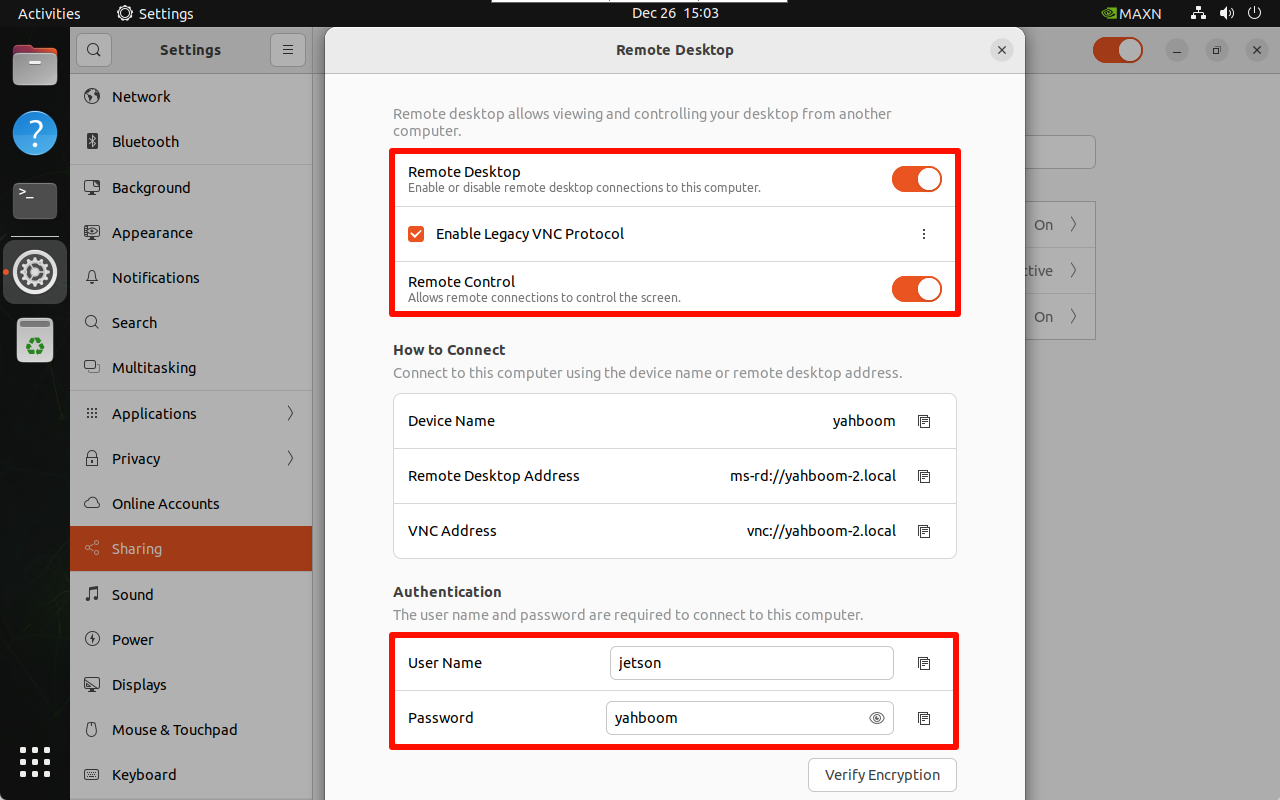
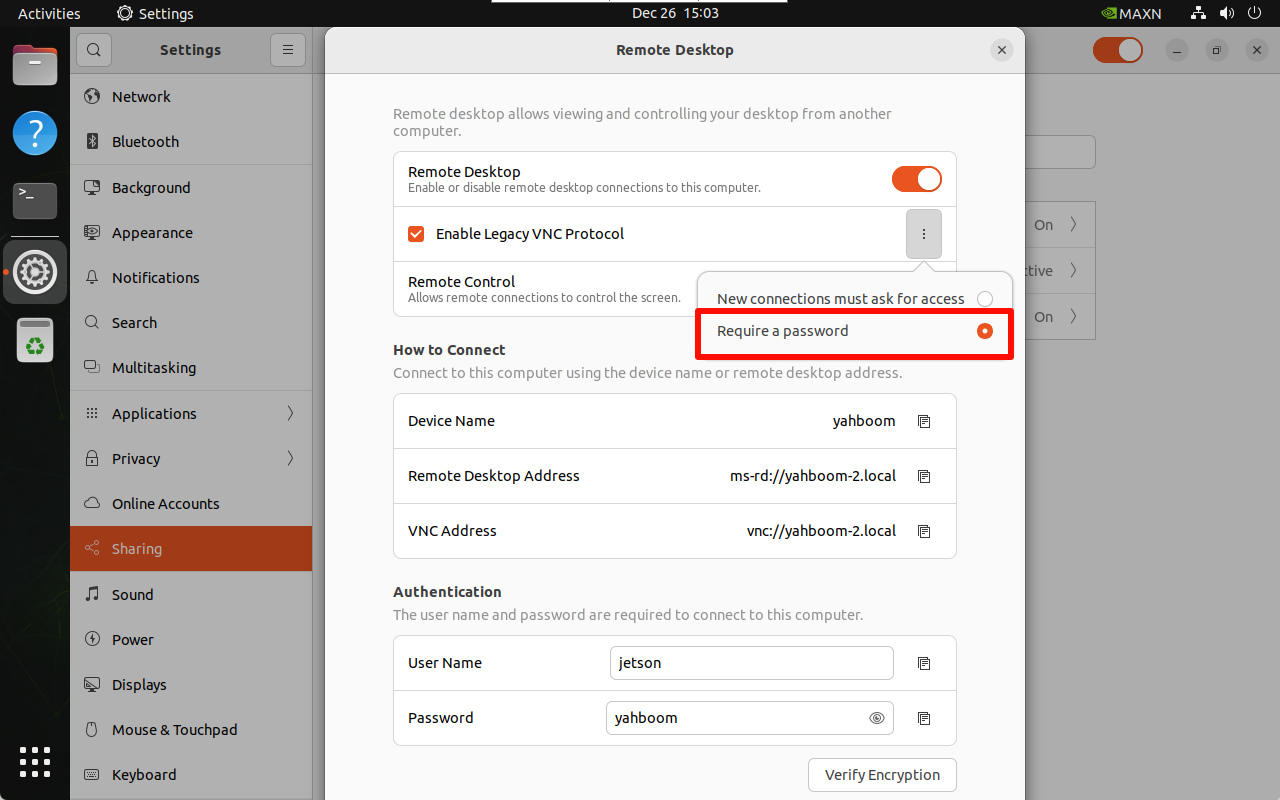
image-20241226150351236

image-20241226150404221

2.1.3, Media Sharing

You need to check this option every time you switch networks and turn on the switch of the new network:
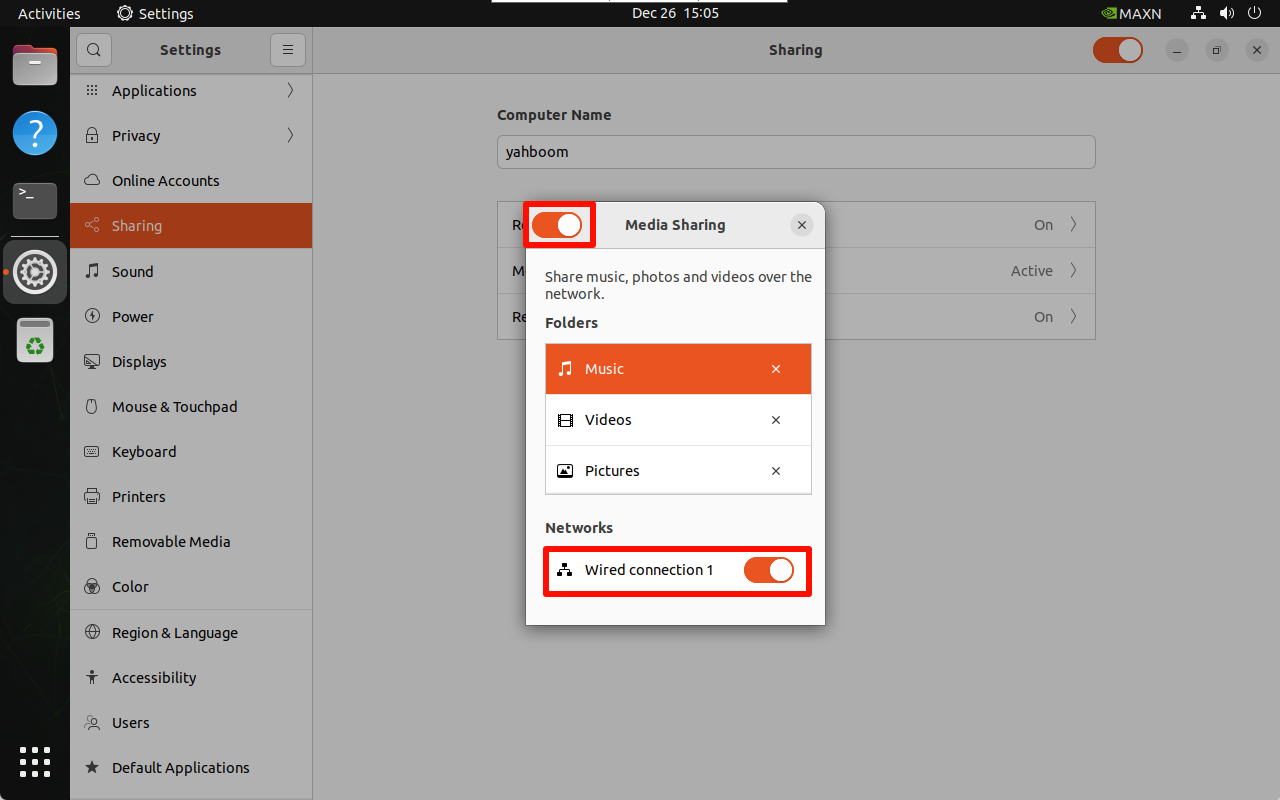
image-20241226150556441

2.1.4 Remote Login

Turn on remote login:
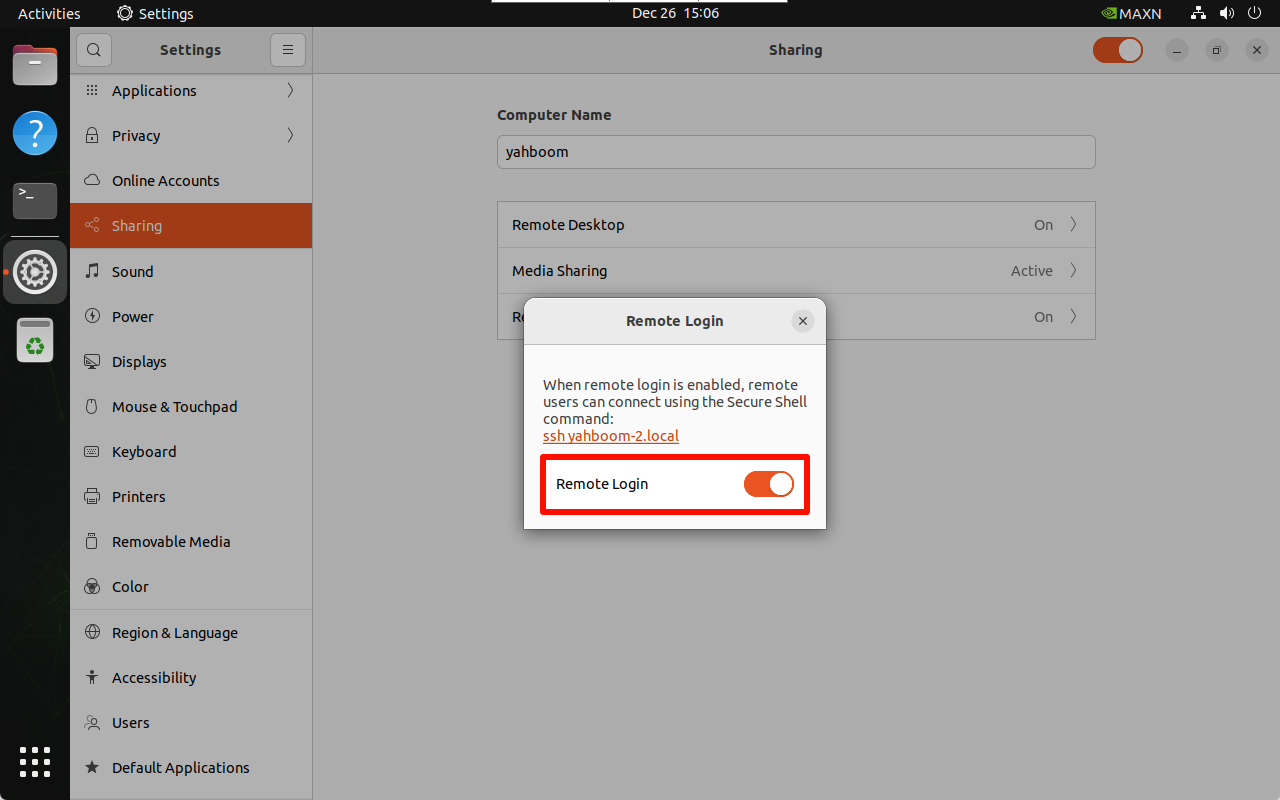
image-20241226150706947

2.2, Fixed remote password

You can perform VNC remote control by completing the above settings, but the access password of the Jetson motherboard will change every time it restarts. The fixed password needs to be operated as follows!

Passwords and Keys

Enter Passwords and Keys to set no key:
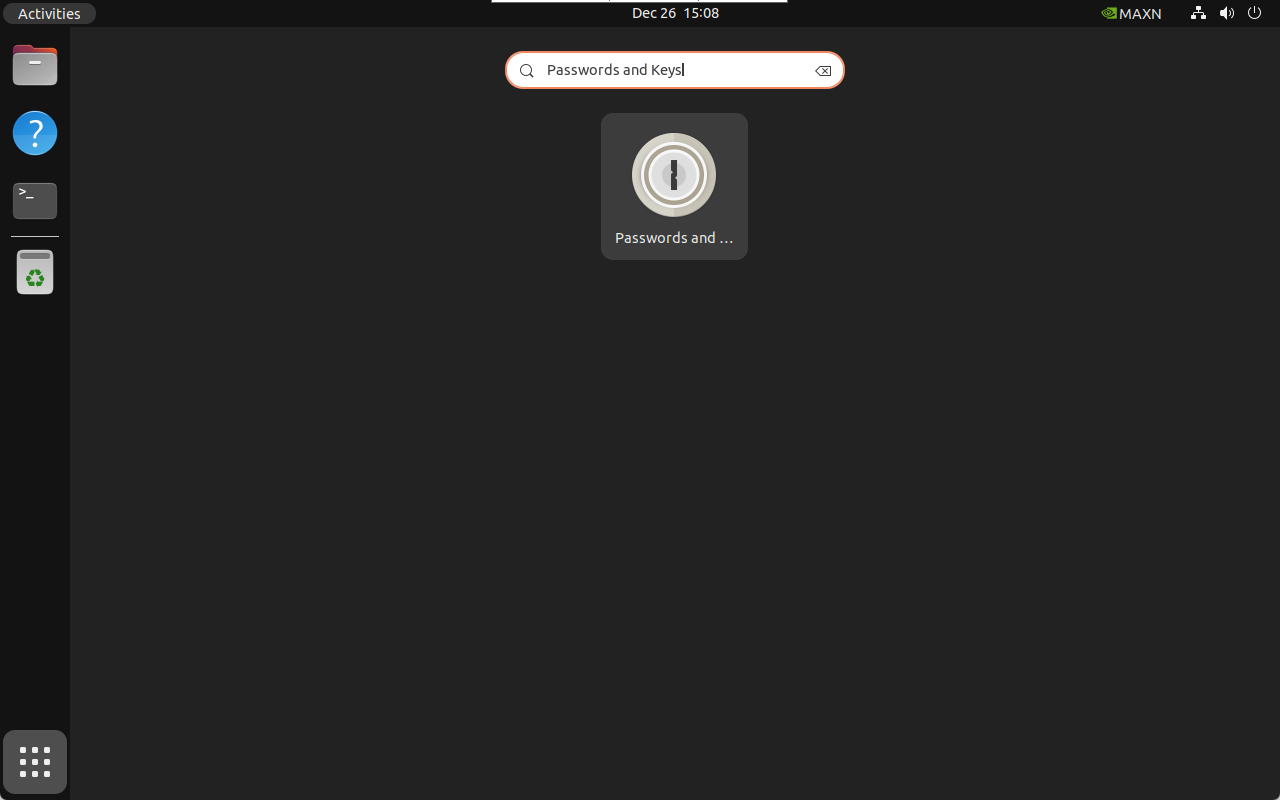
image-20241226150816361

Select the default key to modify the password:
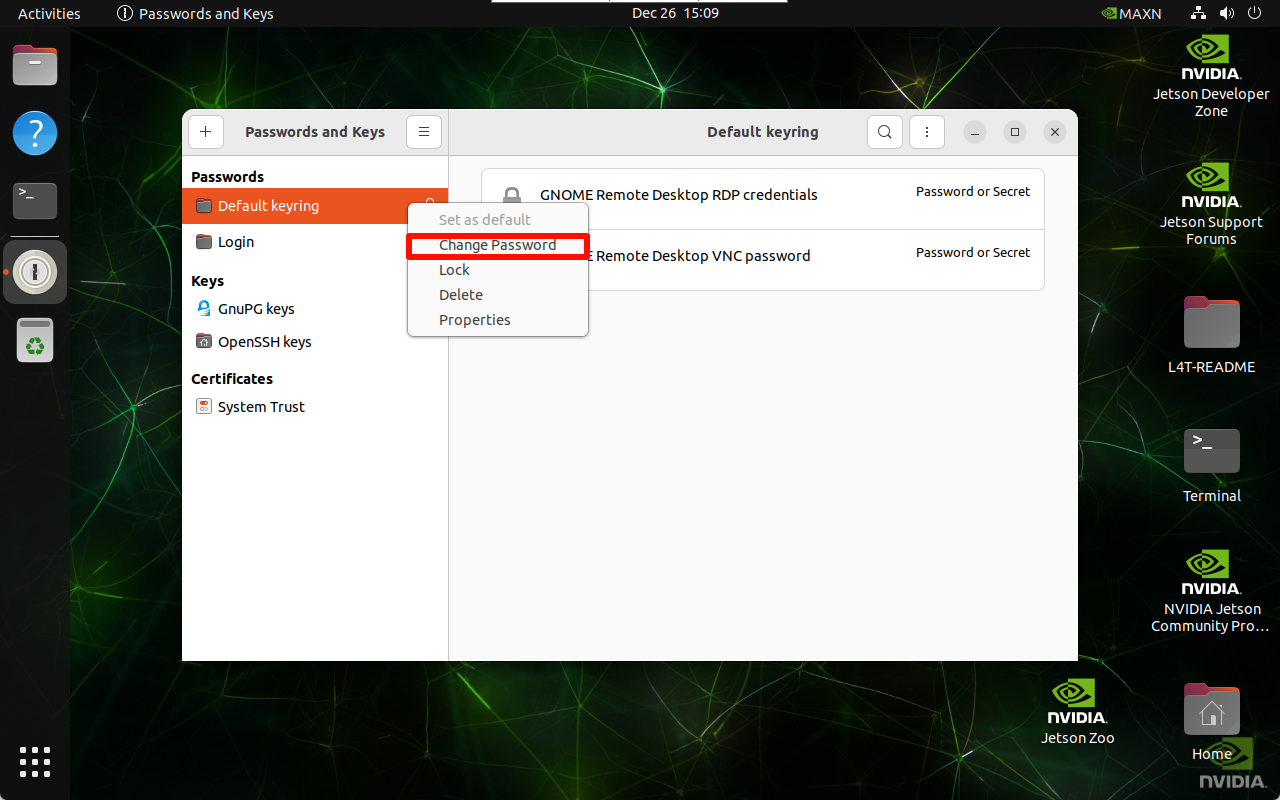
image-20241226150953862

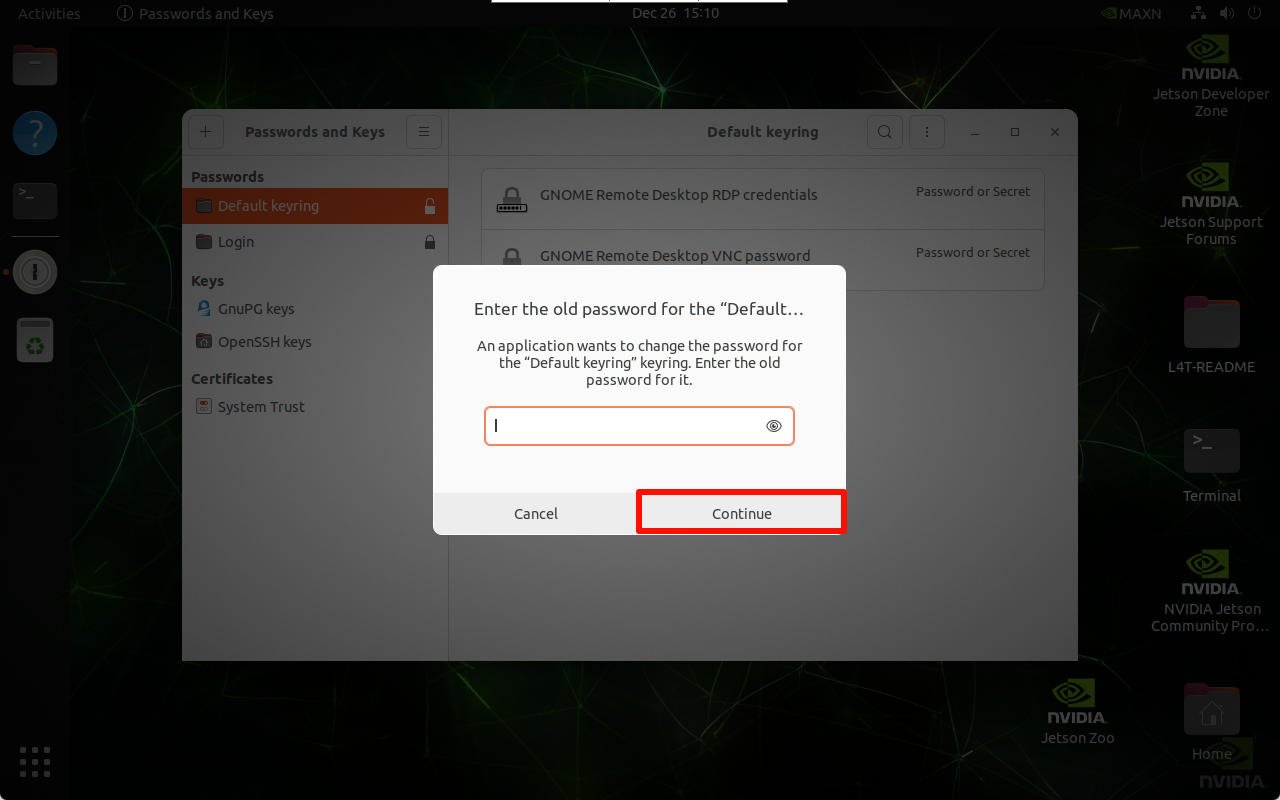
Enter the current password:

image-2024122615104 1911

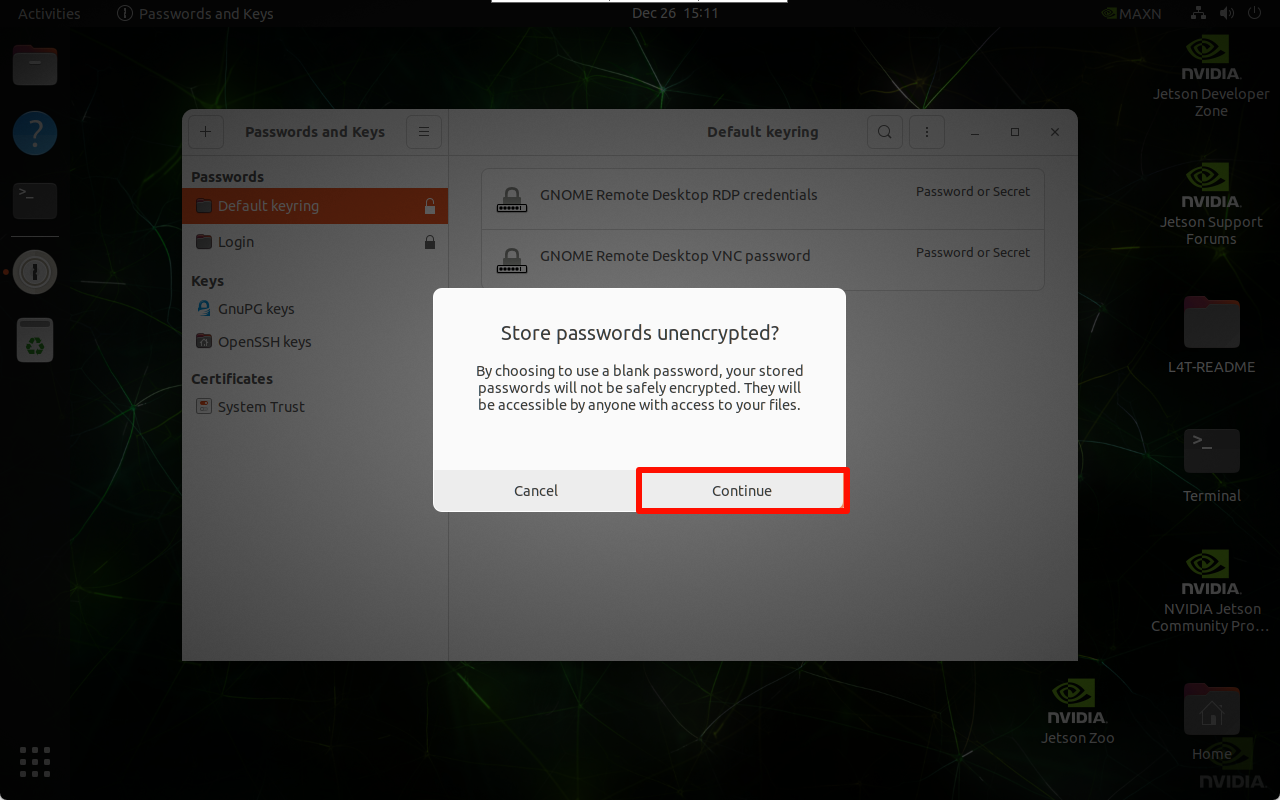
Set an empty key: Submit without filling in any content
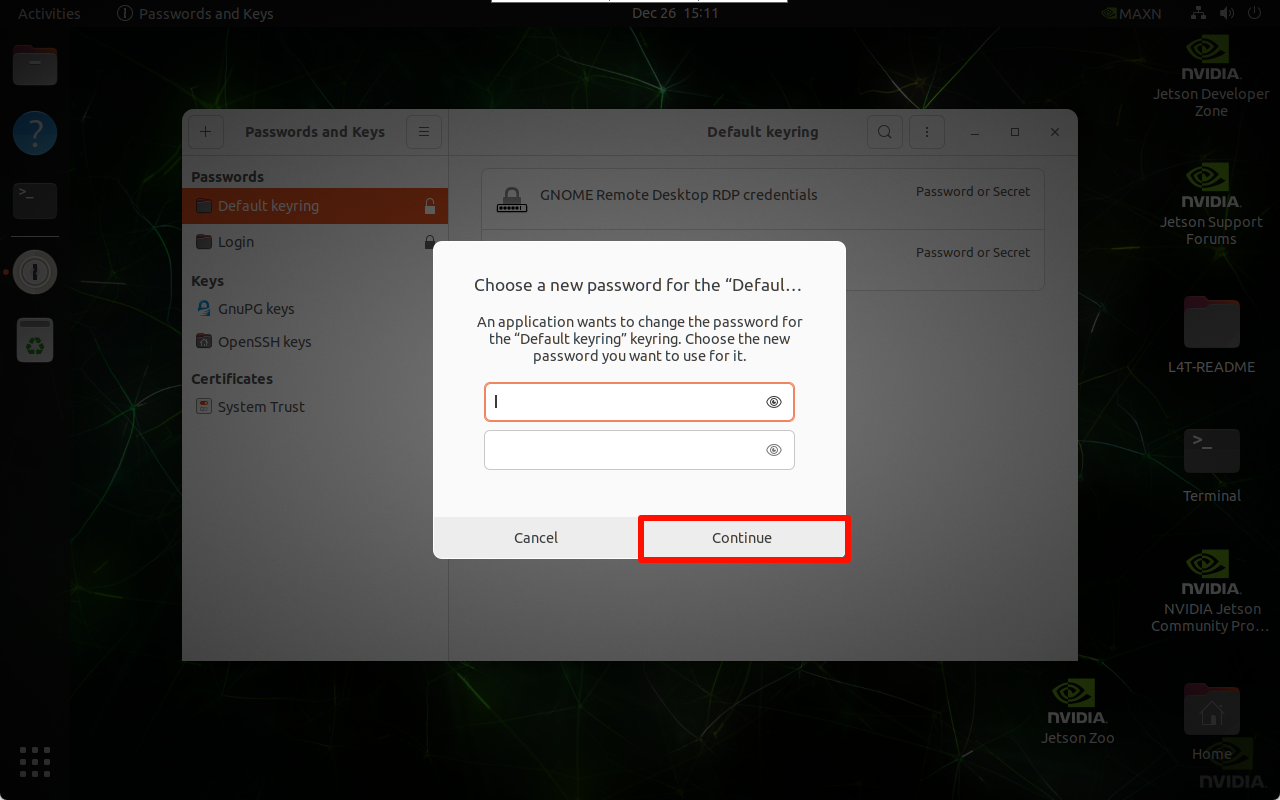
image-20241226151117841

image-20241226151130227

2.3, Start VNC automatically after booting

After completing the above operations, the Jetson motherboard cannot be remotely accessed by VNC after the screen is locked. We can follow the following operations to solve the remote problem of locked screen.

Desktop extension manager

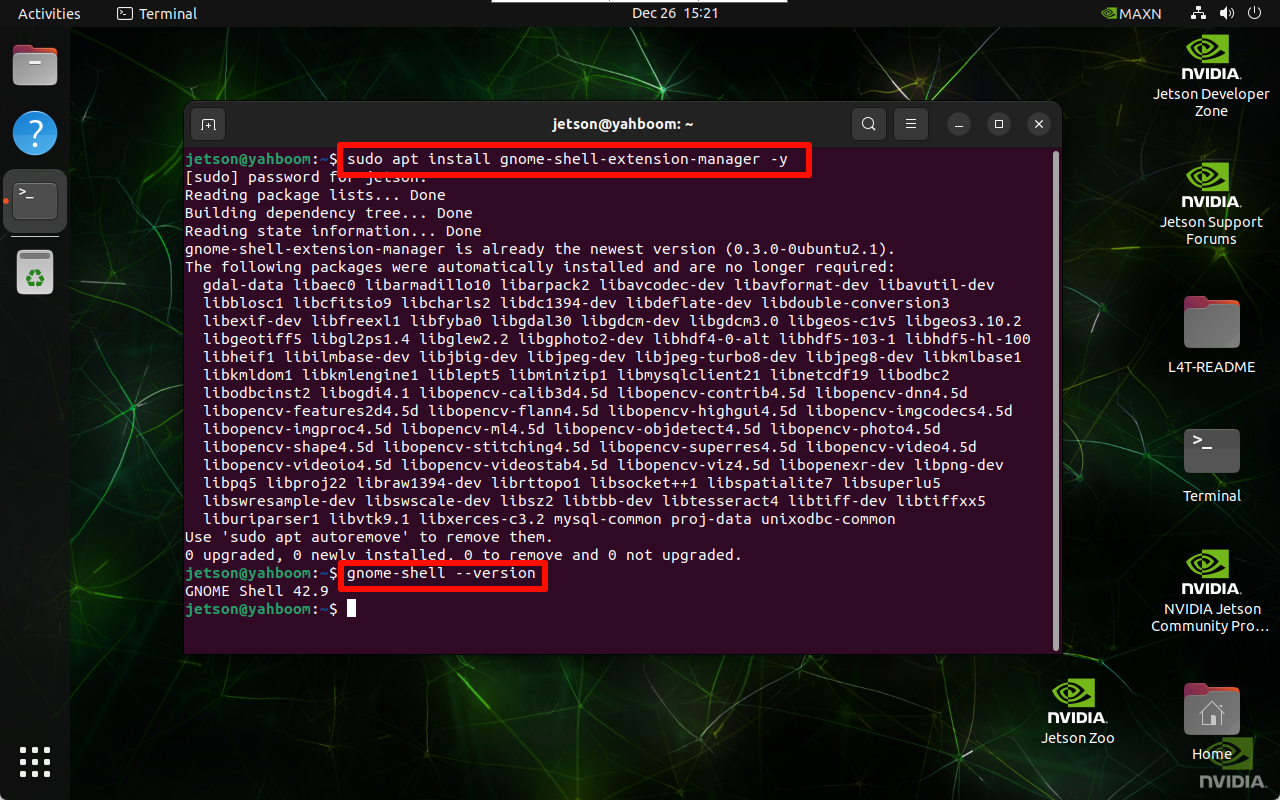
Install desktop extension manager:

xxxxxxxxxx
sudo apt install gnome-shell-extension-manager -y

Get the gnome-shell version number:

xxxxxxxxxx
gnome-shell --version

image-20241226152159374

Download the plug-in that allows remote access under lock screen according to the version number:

xxxxxxxxxx
Official website: https://extensions.gnome.org/extension/4338/allow-locked-remote-desktop/
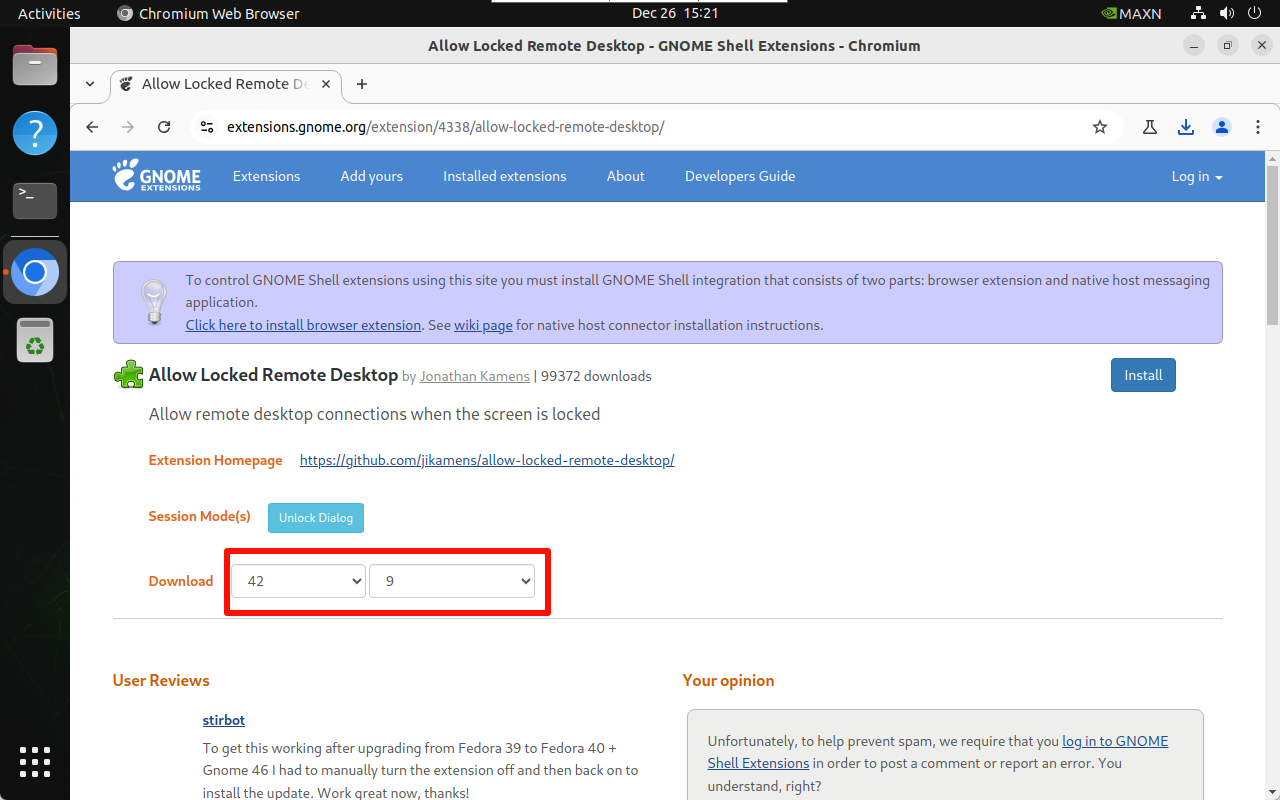
image-20241226152116720

Install/enable plug-in: Users need to enter the file location to install

xxxxxxxxxx
gnome-extensions install allowlockedremotedesktopkamens.us.v9.shell-extension.zip
xxxxxxxxxx
sudo gnome-extensions enable allowlockedremotedesktop@kamens.us
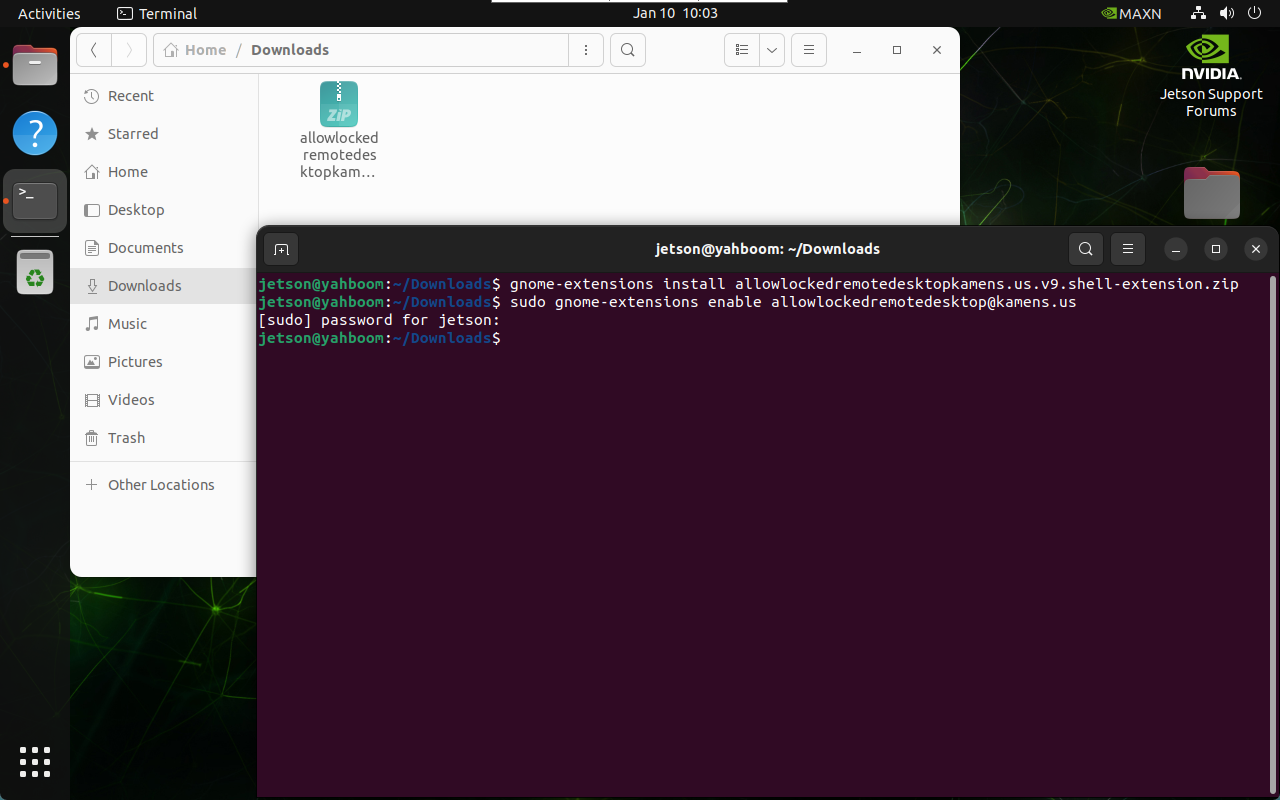
image-20250110100353197

Restart the system: open Extension Manager to enable the corresponding function (find it in the Ubuntu system application)
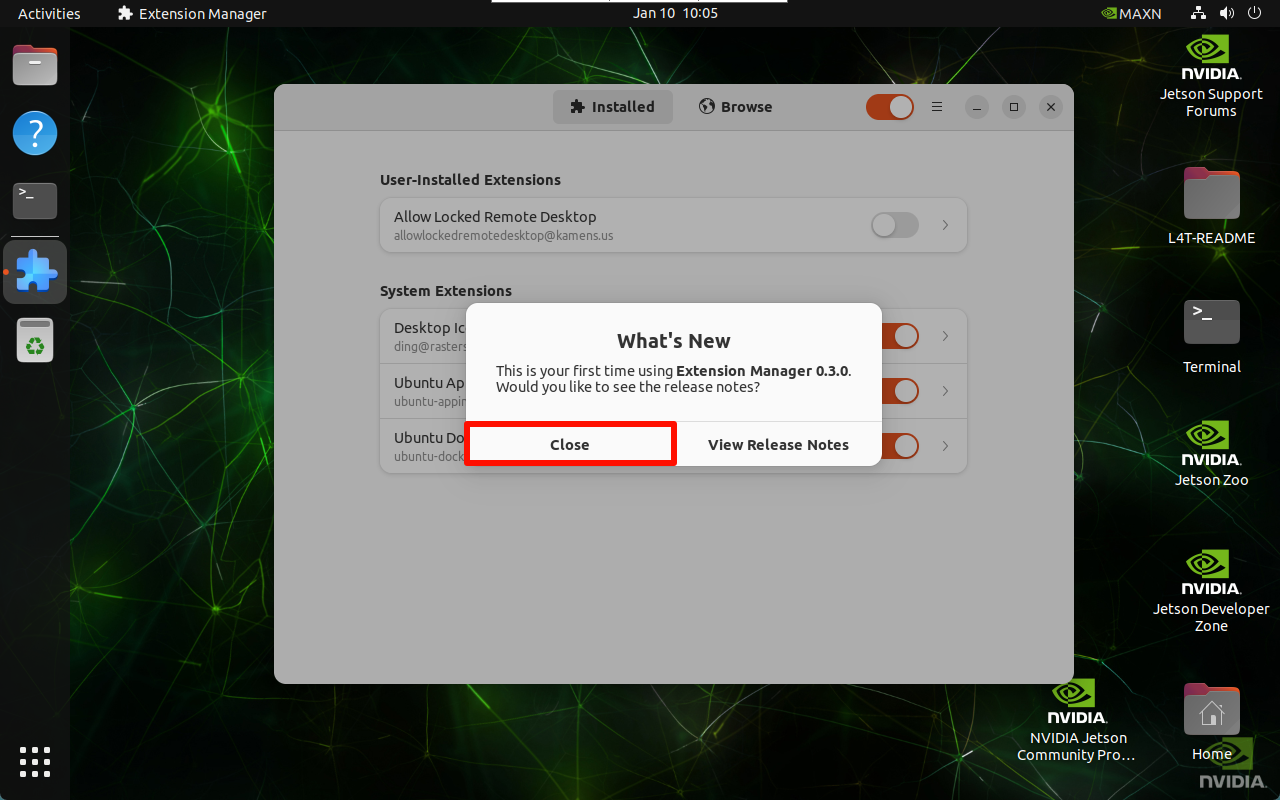
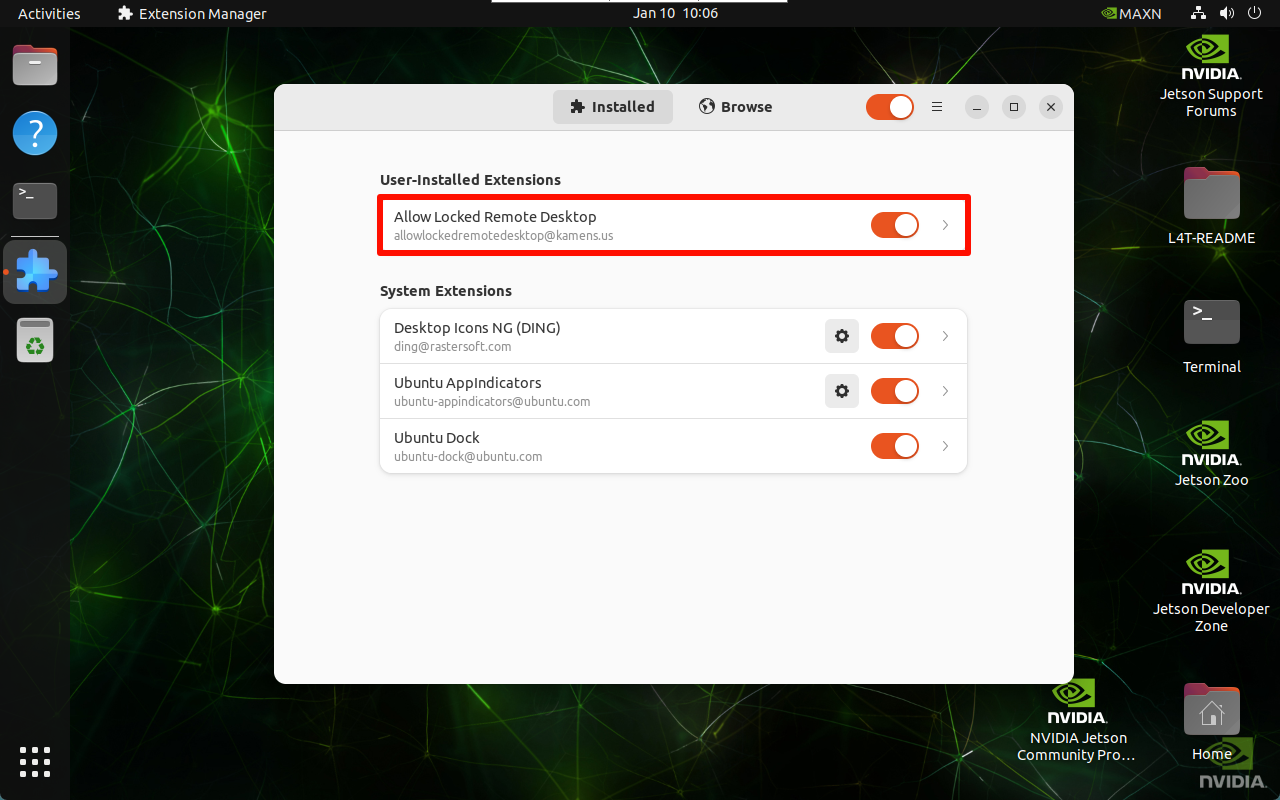
image-20250110100556772

image-20250110100610568

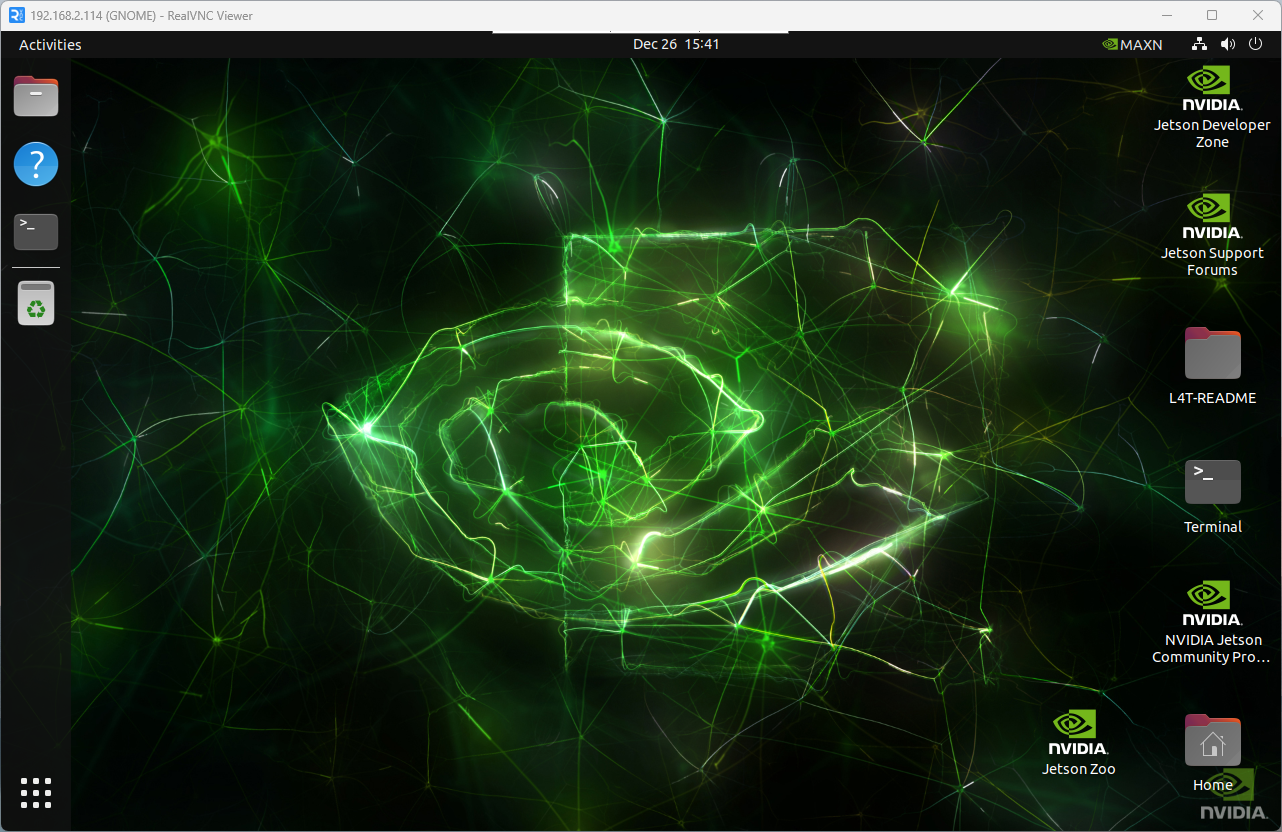
3. VNC remote control

VNC Viewer input motherboard IP:
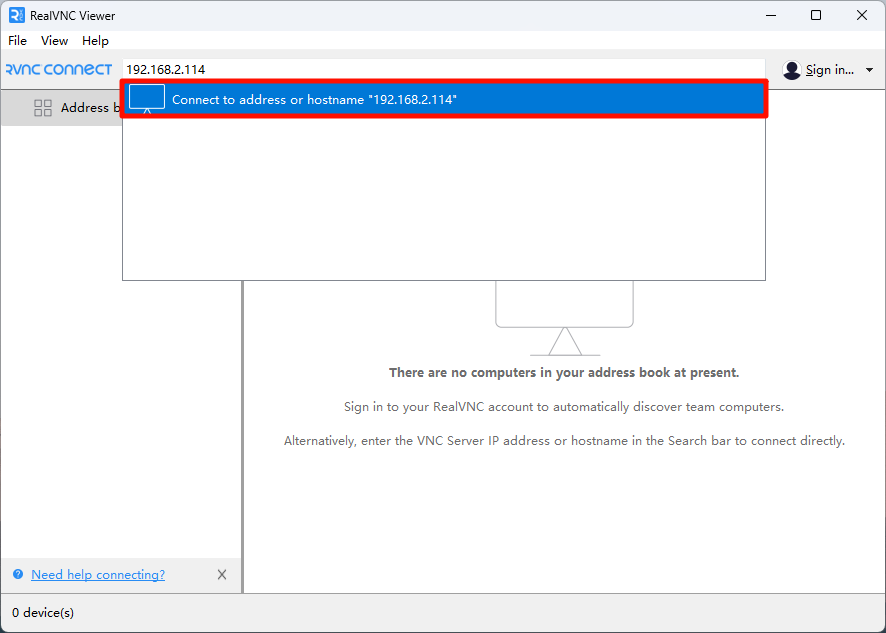
image-20241226153719054

Fill in the motherboard system password:
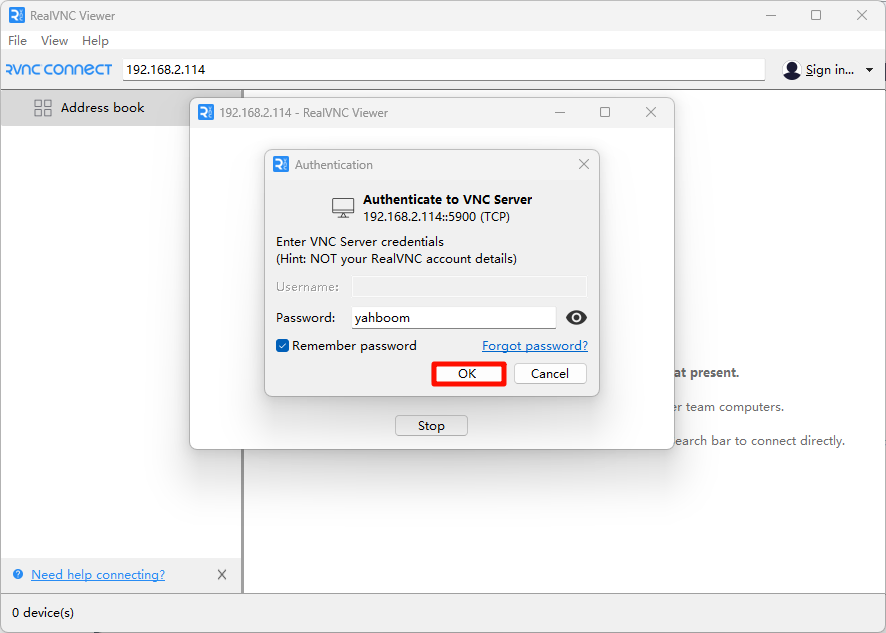
image-20241226153812612

image-20241226154140728

Frequently Asked Questions

VNC Remote Display Reconnection

Reconnection Phenomenon
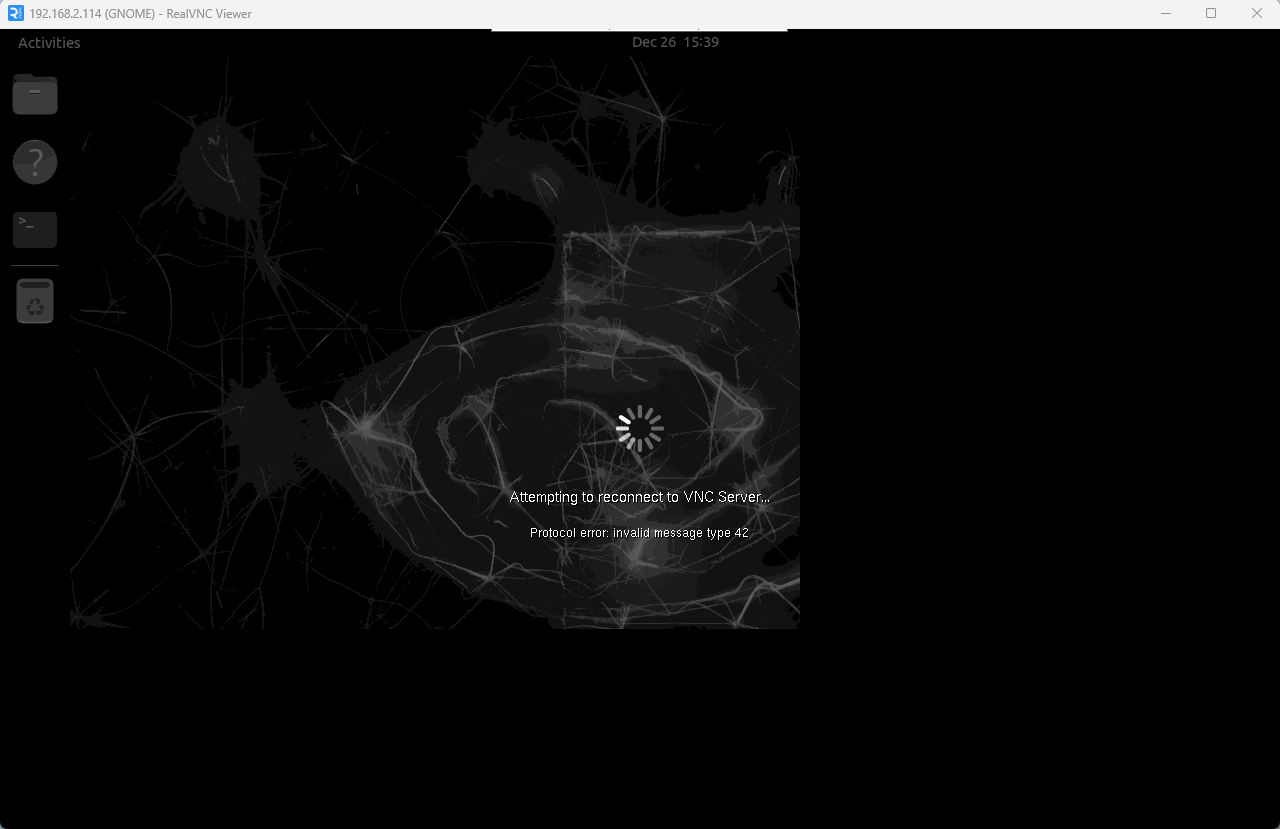
image-20241226153930074

Solution

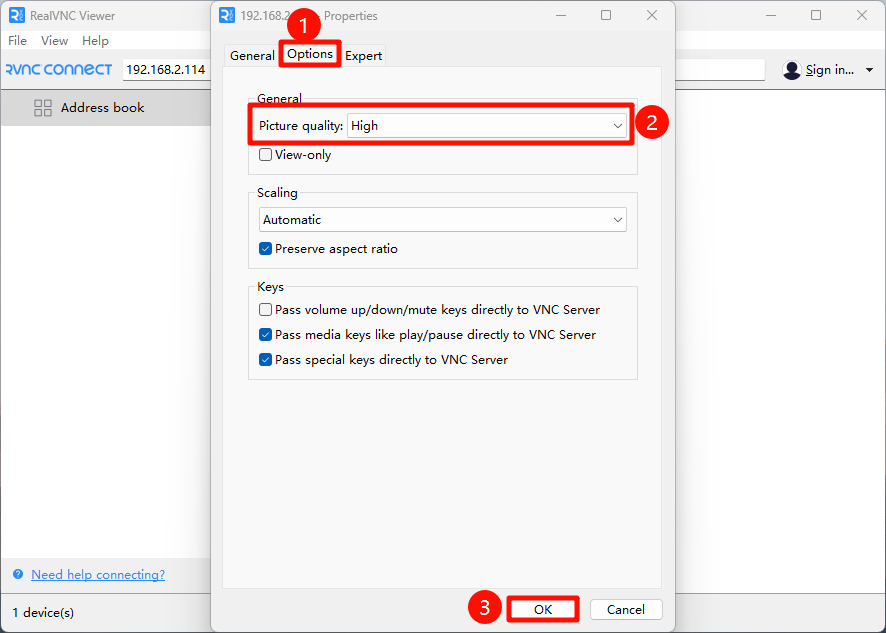
Modify the options of the corresponding remote device → Specify remote image quality
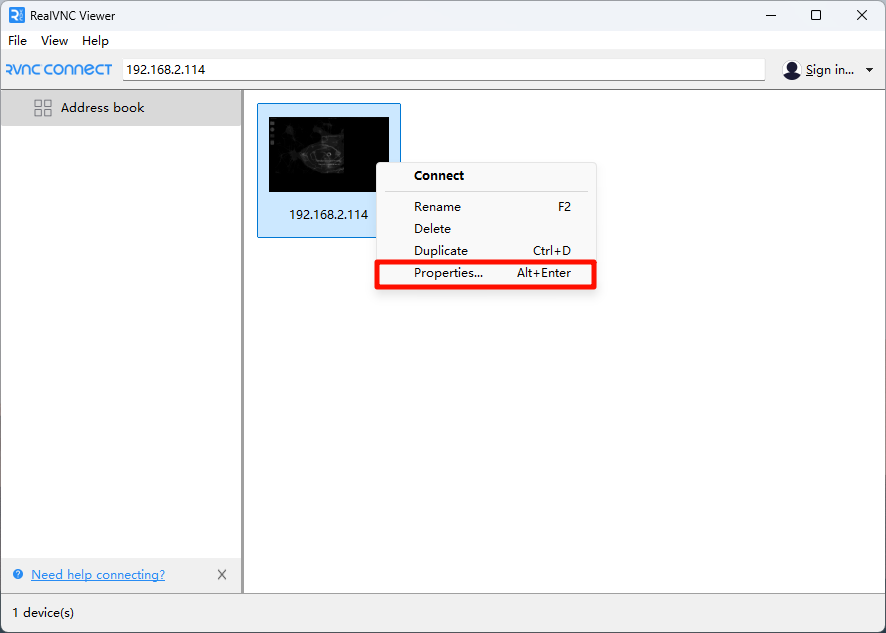
image-20241226154023304

image-20241226154110695

image-20241226154145590

VNC remote switch uppercase and lowercase

Enter Settings → Compose Key → Caps Lock: Set to Caps Lock to switch uppercase and lowercase input
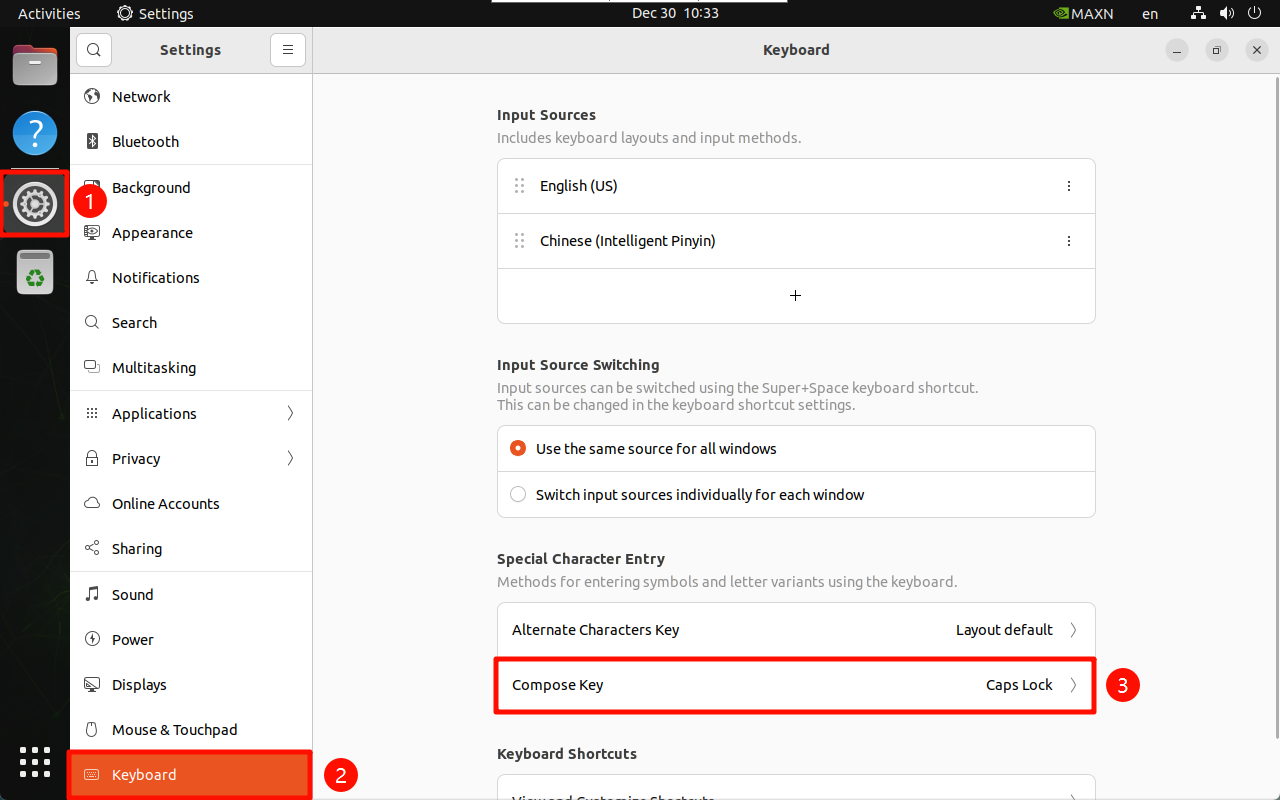
image-20241230103417649

SSH remote login
Remote file transfer

COMPANY

  • About us
  • Team Style
  • Blog

LEARNING & EXPLORATION

  • Tutorials
  • Edge AI hardware
  • Educational robots
  • Embedded intelligent hardware

WHERE TO BUY

  • Yahboom Online Store
  • Amazon
  • Alibaba
  • AliExpress
  • Mercado

TECHNOLOGY SUPPORT

  • Email: support@yahboom.com

BE A DISTRIBUTOR

  • Email: sales@yahboom.com
QR Code

Copyright © 2017-2026 Yahboom. All Rights Reserved.

EN/中文