yahboom
HomeTutorialsProduct
Solution
Blog
Online Store
About Us
EN/中文
Store
ROSMASTER M3 PRO📖
0.Configuration and Operation Guide
  • 1. Quick start handle to control the car
  • 2. Log in to the car and view the code
  • 3. Robotic Arm Calibration
  • 4. Enter the Docker (Jetson-Nano and Raspberry Pi 5 users, see here)
  • 5. Assembly video
  • 6. Modify the firmware parameters of the car control board
  • 7. Frequently Asked Questions and Precautions
  • 8. Precautions for DIY Robotic Arm
1.Chassis Control Course
  • 1.ROS control
  • 2.Handle control
  • 3.Keyboard control
  • 4.Angular velocity calibration
  • 5.Line velocity calibration
  • 6.Line patrol automatic driving
  • 7.Patrol
2.Lidar Course
  • 1.Lidar introduction and use
  • 2.Dual Lidar fusion
  • 3.Lidar obstacle avoidance
  • 4.Lidar tracking
  • 5.Lidar guard
  • 6.Gmapping-SLAM mapping
  • 7.Cartographer-SLAM mapping
  • 8.slam_toolbox mapping
  • 9.Navigation2 single-point navigation avoid
  • 10.Navigation2 multi-point navigation avoid
  • 11.Repositioning navigation
  • 12.RTAB-Map mapping
  • 13.RTAB-Map navigation
  • 14.APP mapping navigation
  • 15.Machine code handling
  • 16.Color block transport
  • 17.Navigation via Pose-Constrained Visual Relocalizationnew
3.Depth Camera Course
  • 1.Dabai_DCW2 camera introduction
  • 2.Depth pseudo-color image
  • 3.Depth camera distance measurement
  • 4.Wood block volume measurement
  • 5.Mediapipe gesture recognition
  • 6.Edge detection
  • 7.YOLOv8 object detection
  • 8.Deep learning object tracking
  • 9. Transformer Model Tracking Algorithmnew
4.Robotic Arm and 3D Space Gripping Course
  • 1.Robotic arm solution
  • 2.Robotic arm chassis linkage control
  • 3.Machine code ID sorting
  • 4.Sorting height abnormality machine code
  • 5.Tracking and gripping machine code
  • 6.Color block color sorting
  • 7.Sorting height abnormality color block
  • 8.Tracking and gripping color block
  • 9.Wood block shape sorting
  • 10.KCF tracking and gripping objects
  • 11.Medipipe gesture ID sorting machine code
  • 12.Mediapipe gesture height sorting machine code
  • 13.Desktop tracking and gripping machine code
  • 14.3D tracking machine code
  • 15.Line patrol and obstacle removal
5.Road network planning and navigationnew
  • 1. Introduction To Road Network Planning
  • 2. Build A Pose Map
  • 3. Road Network Annotation
  • 4. Planning And Navigation Between Waypoints
  • 5. Road Network Navigation In Any Pose
  • 6. Path Re-planning
6.OpenClaw Basic Coursenew
  • 1. Introduction to OpenClaw
  • 2. OpenClaw Core Concepts
  • 3. OpenClaw API-KEY Configuration
  • 4. OpenClaw Switch Models
  • 5. OpenClaw System Prompt Words
  • 6. OpenClaw Common CLI Commands
7.OpenClaw Interaction Methodnew
  • 1. OpenClaw Webchat Interaction
  • 2. OpenClaw Tui Interaction
  • 3. OpenClaw Voice Dialogue Interaction
  • 4. OpenClaw WhatsApp Interaction
8.OpenClaw Developmentnew
  • 1. OpenClaw connects to the MCP interface of the robot
  • 2. Robot CLI Command Tool
  • 3. Robot control plugin tool
  • 4. Reply bridge plugin tool
  • 5. OpenClaw multimodal vision
  • 6. OpenClaw chassis control
  • 7. OpenClaw robotic arm control
  • 8. OpenClaw skills development
  • 9. OpenClaw timed tasks
  • 10. OpenClaw multi-agent intelligent agent
  • 11. OpenClaw active interaction
  • 12. OpenClaw vector memory
9.OpenClaw Embodied intelligent applicationnew
  • 1. OpenClaw target tracking
  • 2. OpenClaw robotic arm tracking and grasping
  • 3. OpenClaw robotic arm fixed-point placement
  • 4. OpenClaw garbage sorting
  • 5. OpenClaw slam mapping and navigation
  • 6. OpenClaw navigation transfer
  • 7. OpenClaw machine code clip
  • 8. OpenClaw color line patrol
  • 9. OpenClaw visual distance measurement
10.OpenClaw scenario sandboxnew
  • 1. Map description and prop placement
  • 2. Build sand table map
  • 3. Visual relocation markers
  • 4. Map mapping markers
  • 5. OpenClaw scenario sandbox comprehensive case
11.AI Model Basics
  • 1.AI large model types and principles
  • 2.RAG retrieval enhancement and model training samples
  • 3.Embodied intelligent robot system architecture
  • 4.Embodied intelligent functions core source code
12.AI Model Development
  • 01.Register a model service provider account
  • 02. Configuring API-KEY
  • 03. Introduction to Dify
  • 04. Basic Dify Features
  • 05. AI Large Model Development - chatbot
  • 06. Deploy the RAG knowledge base
  • 07. RAG knowledge base + chatbot
  • 08. AI agent workflow
  • 09. Custom wake-up response
  • 10. Core module testing tools
13.AI Large Model (Text Version)
  • 1.Semantic understand instruction following
  • 2.Multimodal visual understand
  • 3.Multimodal visual understand+robotic arm grab
  • 4.Multimodal visual understand+SLAM navigation
  • 5.Robotic arm grab+Multimodal visual understand+SLAM navigation
  • 6.Intention estimation
14.AI Large Model(Voice Version)
  • 1.Semantic understand instruction following
  • 2.Multimodal visual understand
  • 3.Multimodal visual understand+robotic arm grab
  • 4.Multimodal visual understand+SLAM navigation
  • 5.Robotic arm grab+Multimodal visual understand+SLAM navigation
  • 6.Intention estimation
15.Mediapipe Visual Course
  • 1.Hand detection
  • 2.Posture detection
  • 3.Overall detection
  • 4.Facial Landmark Detection
  • 5.Face detection
  • 6.Face special effects
  • 7.3D object recognition
  • 8.Brush
  • 9.Finger control
  • 10.Palm target positioning
  • 11.Fingertip trajectory recognition
  • 12.Fingertip gesture control robotic arm
  • 13.Gesture grabbing and releasing objects
  • 14.Finger control robotic arm
  • 15.Medipipe gesture control robotic arm action group
16.MoveIt2 Simulation Course
  • 1.MovelT2 configuration
  • 2.MovelT2 simulation-reality linkage
  • 3.Random movement
  • 4.Forward kinematics design
  • 5.Inverse kinematics design
  • 6.Cartesian path
  • 7.Trajectory planning
  • 8.Collision detection
  • 9.Scene design
17.Multi-vehicle Course
  • 1.Multi-vehicle chassis control
  • 2.Multi-vehicle robotic arm control
  • 3.Multi-vehicle navigation
  • 4.Multi-vehicle formation
18.Control Board Course
1.Development environment setup
  • 12.Read Lidar data
  • 1.Introduction to the Control Board
  • 2.Set up the STM32CUBEIDE development environment
  • 3.Burning STM32 firmware using SWD
  • 4.Burning STM32 firmware using serial port
  • 5.Compile the microros driver library
  • 6.Install and start the microros agent
  • 7.Import Project
2.Control board STM32 basic routine
  • 1.Turn on the LED light
  • 2.Button functions
  • 3.Drive the buzzer
  • 4.Serial communication
  • 5.Battery voltage detection
  • 6.Driving PWM Servo
  • 7.Drive motor
  • 8.Read motor encoder data
  • 9.PID control of motor speed
  • 10.Robot kinematics analysis theory
  • 11.Read IMU data
  • 13.Flash access data
  • 14.Driving OLED Displays
  • 15.Driving RGB light strip
  • 16.SBUS model aircraft remote control
  • 17.USB controller remote control
  • 18.CAN bus communication
3.Control board micro_ros basic routine
  • 1.Post a topic
  • 2.Subscribe to a topic
  • 3.Multi-topic subscription and publishing
  • 4.Subscribe to the buzzer topic
  • 5.Subscribe to the bus servo topic
  • 6.Subscribe to the rate control topic
  • 7.Release Speed Topic
  • 8.Publish IMU data topic
  • 9.Publish radar data topic
19.Docker Course
  • 1、Docker overview and docker installation
  • 2、Common commands for docker image containers
  • 3、Docker images deeply understand and publish images
  • 4、Docker hardware interaction and data processing
  • 5、Enter the bot's docker container
  • 6、Robot development environment construction in Docker
20.Image Processing Basics Course
  • 1. Introduction to Open Source CV
  • 2. Image reading and display
  • 3. Image writing
  • 4. Image quality
  • 5. Pixel Operation
  • 6. Image zoom
  • 7. Image cutting
  • 8. Image translation
  • 9. Image Mirroring
  • 10. Affine Transformation
  • 11. Image Rotation
  • 12. Perspective Transformation
  • 13. Grayscale processing
  • 14. Image Binarization
  • 15. Edge Detection
  • 16. Line drawing
  • 17. Rectangle and circle drawing
  • 18. Drawing text and pictures
21.Main Control Course
Jetson Nano B01
  • 1. Introduction to the Jetson Nano B01 SUB Board
  • 2. Burn the system image
  • 3. Re-read the memory card or USB drive that has been burned
  • 4. Startup system
  • 5. Jetson Nano B01 System and Desktop Introduction
  • 6. Memory card or USB flash drive expansion
  • 7. Network Configuration
  • 8. SSH remote login & file transfer
  • 9. VNC Remote Login
  • 10. Jetson Nano B01 system backup
  • 11. Jetson Nano Swap space increased
  • 12. Installation and use of Jtop
Jetson Orin Nano_NX
  • 1.Jetson Orin board introduction
  • 2.Restore the factory image system
  • 3.Backup SSD system
  • 4.SSD expansion
  • 5.Network configuration
  • 6.SSH remote login
  • 7.VNC remote control
  • 8.Remote file transfer
  • 9.Jtop tool
  • 10.Exchange space expansion
Raspberry Pi
  • 1. Introduction to Raspberry PI 5
  • 2. Raspberry PI system installation and backup
  • 3. Powering the Raspberry PI 5
  • 4. Startup of Raspberry PI 5
  • 5. Update and upgrade operating system
  • 6. Introduction to raspi-config tool
  • 7. config.txt file description
  • 8. Network Configuration
  • 9. remote access
  • 10. Transfer files remotely
  • 11. Set display resolution and rotation
  • 12. Set screen to sleep
  • 13. Play audio and video
  • 14. Using USB camera
  • 15. Using MIPI camera
  • 16. Get real-time temperature of Raspberry Pi
22.Linux System Course
  • 1.Introduction to Linux system
  • 2.Ubuntu file system
  • 3.Ubuntu common commands
  • 4.Ubuntu common editors
  • 5.Ubuntu software operation commands
  • 6.Virtual machine installation
  • 7.SSH remote control
  • 8.VNC remote control
  • 9.Transfer files remotely
  • 10.Driver library and communication
  • 11.Static IP and hotspot mode
  • 12.Bind device ID
  • 13.Capacity expansion and resource allocation
  • 14.Update system software sources
  • 15.Set root user password
  • 16.sudo free password
  • 17.Connect to WiFi network
  • 18.View system version
  • 19.Customized service management
  • 20.Back up system image
23.ROS2 Basic Course
  • 1.Introduction to ROS2
  • 2.ROS2 install Humble
  • 3.ROS2 development environment
  • 4.ROS2 workspace
  • 5.ROS2 function package
  • 6.ROS2 node
  • 7.ROS2 topic communication
  • 8.ROS2 service communication
  • 9.ROS2 action communication
  • 10.ROS2 custom interface message
  • 11.ROS2 parameter service case
  • 12.ROS2 meta-function package
  • 13.ROS2 distributed communication
  • 14.ROS2 DDS
  • 15.ROS2 time related API
  • 16.ROS2 common command tools
  • 17.ROS2 rviz2 use
  • 18.ROS2 rqt toolbox
  • 19.ROS2 Launch startup file configuration
  • 20.ROS2 recording and playback tool
  • 21.ROS2 URDF model
  • 22.ROS2 Gazebo simulation platform
  • 23.ROS2 TF2 coordinate transformation
Download
  • Mapping_APP(iOS_Android)
  • Robot_Image_System_File
  • Code-Firmware
  • Instruction_Manual
  • VM_File
  • Software_Tools
  • Firmware_DriverFile
  • 3D_Model_File
  • ROS2_Basic_VM
  • Other_Annex
Download ZIP

Welcome to ROSMASTER M3 PRO repository

5. OpenClaw System Prompt Words

OpenClaw System Prompt Words

OpenClaw System Prompt Words1. Course ContentCourse Overview2. 📂 Switch Workspace3. AGENTS.md4. SOUL.md5. IDENTITY.md6. HEARTBEAT.md7. 🛠️ TOOLS.md8. 👤 USER.md9. 🧠 MEMORY.md

1. Course Content

Course Overview

  • 💡 OpenClaw adopts an innovative "file as prompt" architecture — the behavior, identity, memory, tool usage rules, etc. of AI Agents are all defined and loaded through multiple Markdown files in the Workspace.


2. 📂 Switch Workspace

  • OpenClaw's system prompt words and skills are stored in the workspace path: $HOME/.openclaw/workspace

  • ROSMASTER-M3Pro has factory-preset Chinese and English workspace content with the same meaning but different languages

  • Users in different regions can switch the language of OpenClaw workspace documents according to their needs

  • Chinese Workspace (prompt words and skills content in Chinese)

cd $HOME/.openclaw
rsync -av --delete .workspace_zh/ workspace/
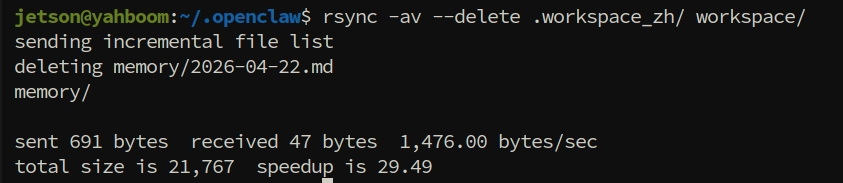
image-20260427200447176

  • English Workspace (prompt words and skills content in English)

xxxxxxxxxx
cd $HOME/.openclaw
rsync -av --delete .workspace_en/ workspace/
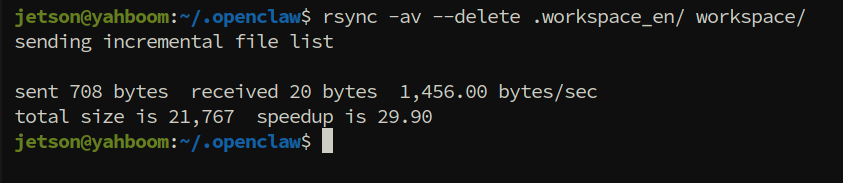
image-20260427200508200

  • After configuration, restart the OpenClaw gateway to take effect

xxxxxxxxxx
openclaw gateway restart

Warning

  • The .workspace_en and .workspace_zh hidden folders under the $HOME/.openclaw/workspace path are Chinese and English template files. It is recommended not to modify them.


3. AGENTS.md

  • Function Description

AGENTS.md defines the top-level specifications for how Agents operate in the workspace. 📖 It can be understood as the Agent's "user manual" — telling the Agent how to start up, how to manage memory, what things it can do, and what things it absolutely cannot do.

  • Content Structure

AGENTS.md mainly includes the following core sections:

SectionDescription
First RunGuides the Agent through the initialization process when first started (reads BOOTSTRAP.md)
Mechanical BodyDescribes the Agent's physical carrier (robotic arm, chassis, camera) and control methods
Session StartupSpecifies the startup process and file reading order for each session
Memory SystemDefines the layered architecture of daily records and long-term memory
Red Line RulesLists absolutely prohibited behaviors (destructive commands, modifying robot program code)
Operation SpecificationsDistinguishes between freely executable operations and operations that need to be confirmed first
Memory MaintenanceMemory organization and update mechanism during heartbeats

Note

⚠️ The factory AGENTS.md prompt restricts OpenClaw from modifying robot program code

4. SOUL.md

  • Function Description

SOUL.md is the Agent's "soul" and kernel 🧠. It defines the Agent's thinking methods and behavioral guidelines when facing tasks — how to control the robot body, how to find and use skills, how to plan and execute actions, and under what circumstances it should pause or refuse to execute. SOUL.md shapes the core behavioral patterns of the Agent as a "robot operator".

  • Working Principle

SOUL.md is read by the Agent at session startup and serves as the underlying guiding principle for task execution. It does not specify concrete skill parameters but rather dictates how the Agent should approach any task with what kind of thinking process. For example, the Agent is forced to check the skills database before starting any task and cannot execute based on intuition or memory alone — this habit of "checking documentation before acting" is defined by SOUL.md.


5. IDENTITY.md

  • Function Description

IDENTITY.md defines the AI Agent's self-awareness and personality traits. It defines who the Agent "is" — its name, personality, language style, and basic identity positioning. This file gives the Agent a consistent personality when interacting with users.

  • Working Principle

At each session startup, the Agent reads IDENTITY.md and establishes "self-awareness" based on it. This information affects the Agent's tone when answering questions, the way it proactively offers help, and the style of building relationships with users. For example, an Agent set as "friendly and gentle" will naturally use more亲和 (approachable) language expressions when responding to users.

6. HEARTBEAT.md

  • Function Description

HEARTBEAT.md is the configuration file that controls the heartbeat detection mechanism in OpenClaw ⏰. The heartbeat mechanism allows the Agent to periodically "wake up" and execute background inspection and maintenance tasks without user-initiated sessions. This is similar to robot automatic timed inspection — the Agent can silently complete memory organization, status checks, and other work in the background.

  • Working Principle

The OpenClaw gateway regularly checks the content of the HEARTBEAT.md file to determine whether to trigger Agent heartbeat API calls:

  • File is empty or contains only comments: Skip heartbeat calls, Agent will not be woken up in the background

Note

💤 In the factory configuration of the robot, the heartbeat mechanism is closed by default.


7. 🛠️ TOOLS.md

  • Function Description

TOOLS.md is the Agent's localized notes for tool usage 📝. In the OpenClaw system, "Skills" define the general working methods of tools, while TOOLS.md records the Agent's own unique configurations and personalized settings. Simply put: Skills are instruction manuals (general), and TOOLS.md is your personal notes (unique).

  • Working Principle

During a session, the Agent reads both related Skills documentation to understand the general usage of tools and reads TOOLS.md to get configurations unique to its deployment environment.

8. 👤 USER.md

  • Function Description

USER.md is the exclusive file for the Agent to understand and remember user information. If IDENTITY.md is the window for the Agent to know "who I am", then USER.md is the window for the Agent to know "who you are interacting with". It records the user's basic information, preferences, project background, and other contextual information to help the Agent provide more personalized and thoughtful service.

  • Working Principle

At each session startup, the Agent reads USER.md according to the process specified in AGENTS.md. Through this file, the Agent can:

  • Know how to address the user (name, form of address)

  • Understand the user's timezone, preferences, and other background information

  • Remember what the user cares about and projects being worked on

9. 🧠 MEMORY.md

  • Function Description

MEMORY.md is the AI Agent's long-term memory file 📚. In OpenClaw's memory system, there are two levels of memory storage:

  1. 📓 Daily Records (memory/YYYY-MM-DD.md): Records raw events and conversation logs that occur each day, similar to a human's "diary"

  2. 🗂️ Long-term Memory (MEMORY.md): Refined information extracted from daily records, similar to a human's "long-term memory" — containing important events, learned experiences, key decisions, and insights

  • Working Principle

The loading and use of MEMORY.md follows these rules:

  • Loaded only in main sessions: When the user converses directly with the Agent, the Agent reads MEMORY.md to retrieve long-term memory

  • Autonomously maintained by Agent: The Agent can freely read, edit, and update MEMORY.md during main sessions


Note

In actual user operation, you can:

  • ✏️ Proactively write important information: Write content you think the Agent should remember long-term directly into MEMORY.md

  • 👀 Observe Agent autonomous maintenance: After the Agent runs for a period, check the content that automatically accumulates in MEMORY.md

  • 🔄 Manage memory content: Regularly check and organize MEMORY.md, remove outdated information, ensuring long-term memory remains refined and accurate

OpenClaw Switch Models
OpenClaw Common CLI Commands

COMPANY

  • About us
  • Team Style
  • Blog

LEARNING & EXPLORATION

  • Tutorials
  • Edge AI hardware
  • Educational robots
  • Embedded intelligent hardware

WHERE TO BUY

  • Yahboom Online Store
  • Amazon
  • Alibaba
  • AliExpress
  • Mercado

TECHNOLOGY SUPPORT

  • Email: support@yahboom.com

BE A DISTRIBUTOR

  • Email: sales@yahboom.com
QR Code

Copyright © 2017-2026 Yahboom. All Rights Reserved.

EN/中文