Welcome to ROSMASTER M3 PRO repository
9. OpenClaw timed tasks
OpenClaw Scheduled Tasks
OpenClaw Scheduled Tasks1. Course ContentCourse OverviewLearning Objectives2. Introduction to OpenClaw Scheduled Tasks3. Preparation4. Creating Scheduled Tasks5. Viewing and Managing Scheduled Tasks
1. Course Content
Course Overview
- OpenClaw scheduled tasks are the task automation scheduling function of the OpenClaw platform, allowing users to create timed robot tasks to achieve unattended automated operations.
- Scheduled tasks support periodic execution (e.g., every N minutes) and single execution, and can program any sequence of robot control instructions.
Learning Objectives
- Understand the functions and application scenarios of OpenClaw scheduled tasks.
- Master the method of creating scheduled tasks using natural language.
- Master the operation of viewing, managing, and maintaining scheduled tasks.
2. Introduction to OpenClaw Scheduled Tasks
- Scheduled tasks are OpenClaw's intelligent scheduling function. Users can create scheduled tasks to allow robots to automatically perform specific operations at specified times or periods.
- After creating a scheduled task, OpenClaw will automatically execute the task instructions according to the set time and record the execution log for each execution.
3. Preparation
- Start the MicroROS chassis agent (if it's already running, no need to repeat the process)
sh start_agent.sh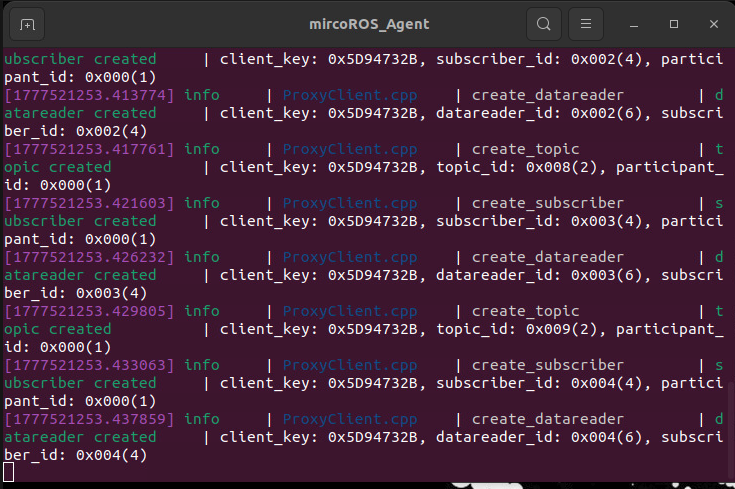
- Start the odometer, tf, robotic arm assistance, camera nodes, etc.
xxxxxxxxxxros2 launch m3pro_bringup mcp_service.launch.py- Start the MCP service
xxxxxxxxxxros2 launch m3pro_bringup mcp_service.launch.py
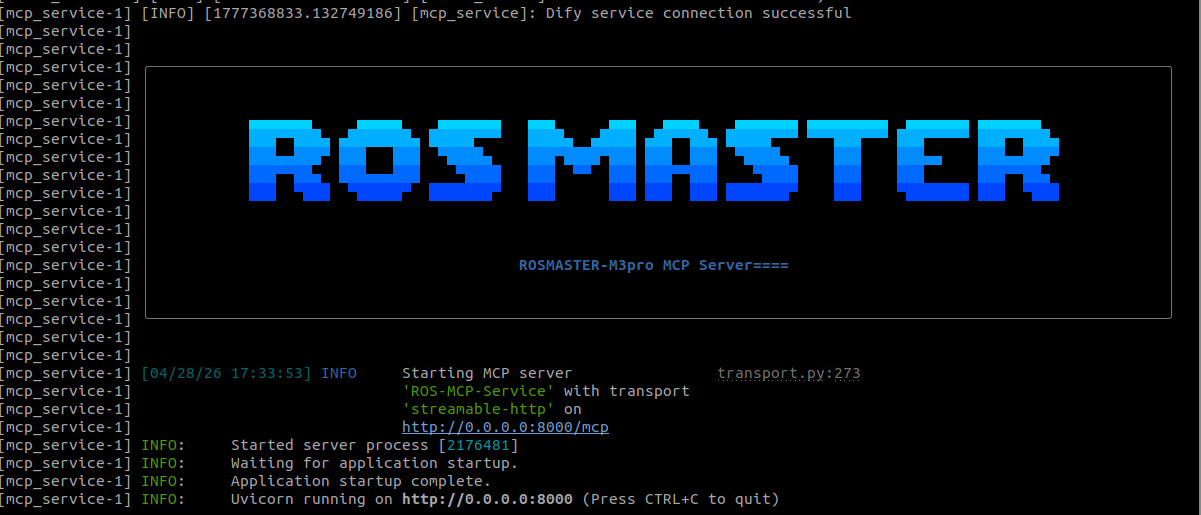
- If you require voice responses, you must additionally launch
openclaw_bridge; otherwise, this step can be omitted.
xxxxxxxxxxros2 run multi_brains_pre openclaw_bridge
4. Creating Scheduled Tasks
- The simplest method is to issue commands directly to OpenClaw. For example:
- Create a scheduled task: Move forward 0.5 meters every five minutes, then observe the environment.
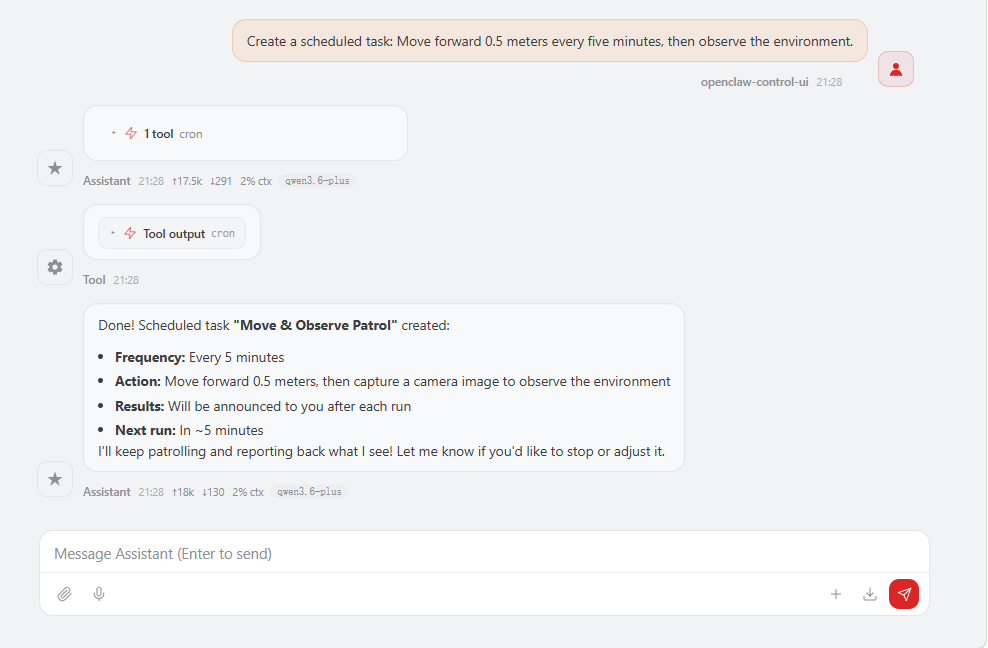
[!TIP]
- If you have configured
SeeWhat_channelswithin the [OpenClaw Multimodal Vision] settings, the robot's visual observations will also be automatically sent to the corresponding channels.- If you have enabled voice tags and launched the
openclaw_bridgenode, the robot will provide voice responses.
5. Viewing and Managing Scheduled Tasks
- Open WebChat and click on Scheduled Tasks to view a list of all created tasks.
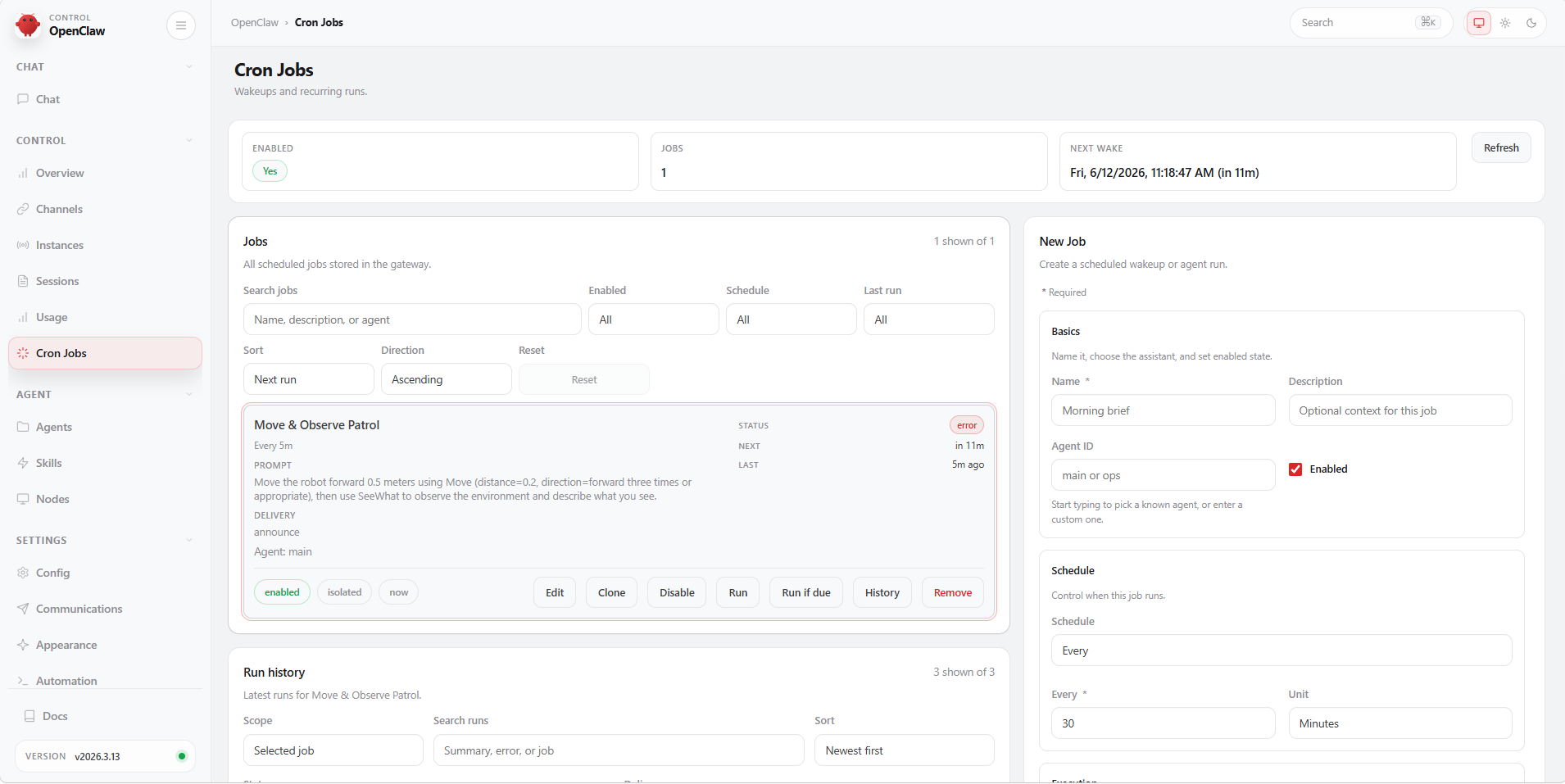
- The scheduled task list supports the following management operations:
- Enable/Disable: Use the toggle switch to control whether a scheduled task is active; once disabled, the task will no longer execute according to its schedule.
- Run Now: Manually trigger a scheduled task once, useful for quickly verifying that the task is functioning correctly.
- Delete: Remove scheduled tasks that are no longer needed.
- Click on a scheduled task to view and edit its details, including the task description and execution schedule.
- Under Run History, you can view the execution records for every time the scheduled task was triggered, including the execution time, status, and results.
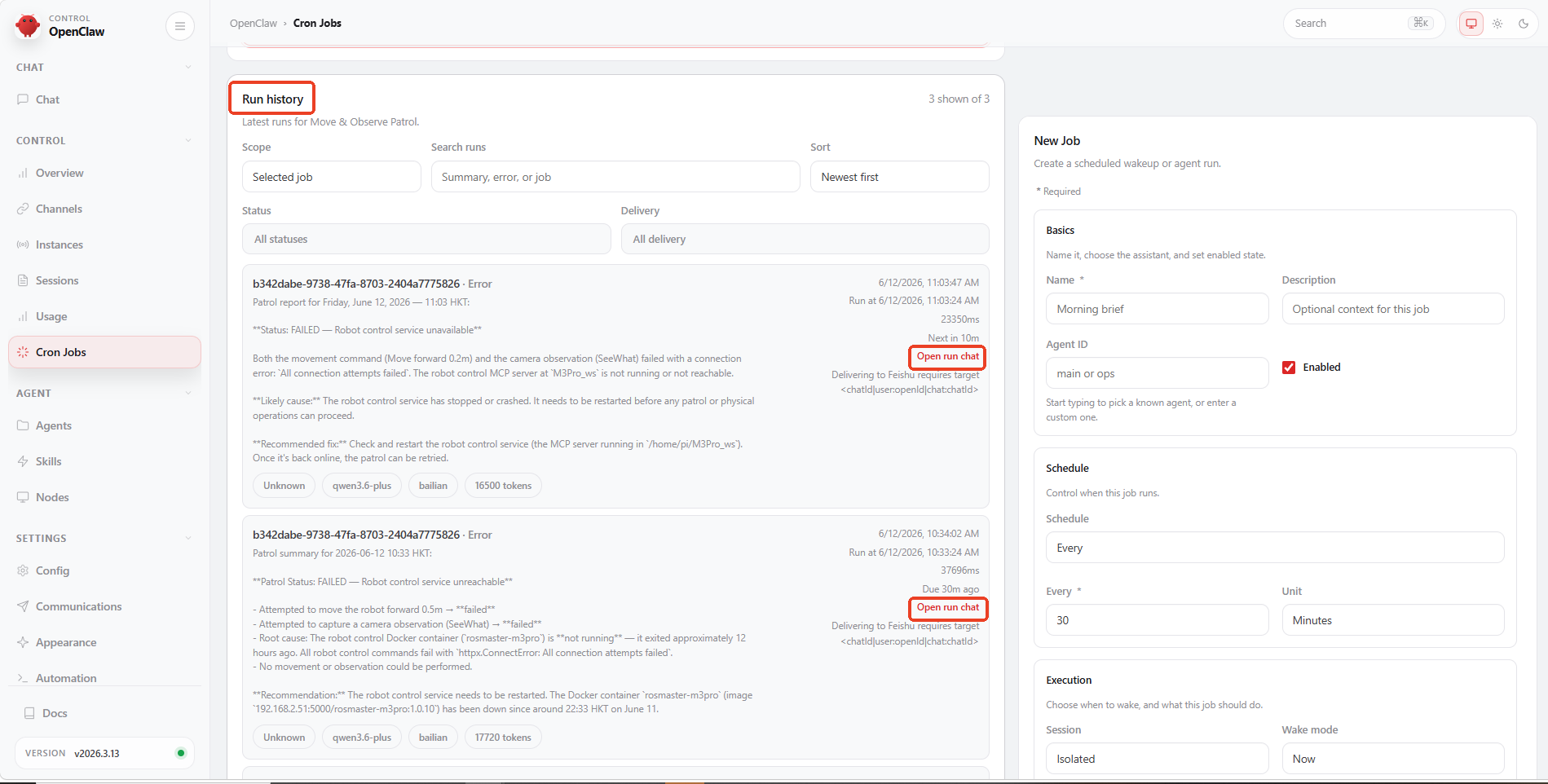
- If you need to view detailed logs for a specific execution, you can use Open Run Chat to review the AI's complete reasoning process and tool call records during the task execution, facilitating troubleshooting.