Welcome to DOGZILLA-Lite repository
1. Main interface function experience(cm4)
Main page function experience
Main page function experienceThe function of the robot dog screen buttonsBoot page introductionExample Function Case
The function of the robot dog screen buttons
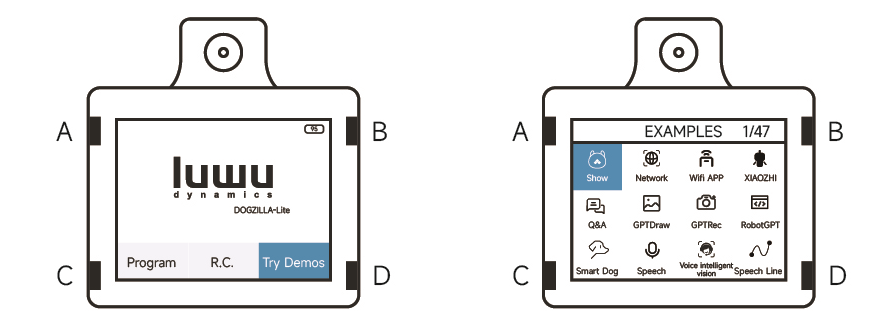
The A and B keys are the left and right selection keys, the C key is the exit key, and the D key is the confirmation key.
Boot page introduction
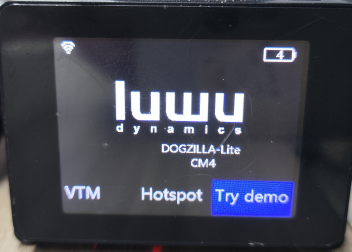
Wi-Fi icon in the upper left corner: It will appear if you successfully connect to Wi-Fi, otherwise it will not appear
The upper right corner shows the battery level: real-time display of battery level with an error of ±3.
Image transmission mode: In the same LAN, the control device can input the IP address of this function in the browser to control the robot dog and browse the robot dog's screen.
Hotspot mode: a hotspot will be randomly generated with the wifi name on top and a password below. Note: the wifi name and password are not fixed each time you enter. In this mode, you can connect to the wifi of the robot dog through the host computer and access the robot dog's desktop system through vnc to prepare for the configuration of the large model.
Example mode: After entering, there are 45 example functions, each of which can be run independently. The functions of the 47 functions will be explained below.
Example Function Case
- Page 1 Function
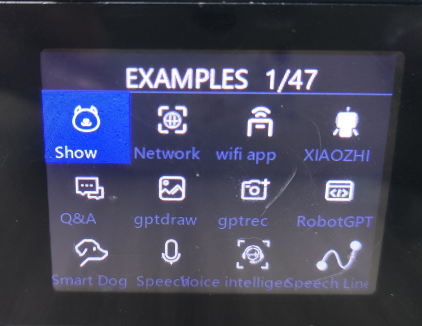
Performance mode: After entering, the action carousel will be played and fixed built-in music will be played.
Unlimited Internet access: You can connect to the 2.4GHz wifi of the local area network by scanning the QR code.
Mobile phone remote control: You can remotely control the robot dog through the yahboomROBOT app.
Xiaozhi: This function does not need to be awakened. You can have a question-and-answer conversation through dialogue. Press the standby button to communicate freely, and press the standby button again to enter the standby state. For example, ask: Who are you?
Note: Xiaozhi is an open source project. Since Xiaozhi is still updating, it may be unstable. If there is any abnormality, please contact technical support for resolution.
Spark Large Model: First wake up through "lulu", then you can have a free communication function through dialogue. This function requires the key of the large model to be configured first, which can be learned through Chapter 7, Section 1. For example: Tell me a joke
Wensheng Picture: This function is awakened by speaking "lulu" first, and then the robot dog will feedback the corresponding picture according to the semantics. This function requires the key of the large model to be configured first, which can be learned in Section 1 of Chapter 7. For example: a happy picture.
Figure: First wake up through "lulu", this function returns the corresponding result according to the semantics and the picture captured at the scene. This function requires the key of the large model to be configured first, which can be learned in Section 1 of Chapter 7. For example: What color do you see?
Embodied intelligence: wake up by "lulu" first. This function can say a series of actions, and the robot dog will perform a sequence of actions. This function requires the key of the large model to be configured first, which can be learned in Section 1 of Chapter 7. For example: move forward for 3s, dance in circles, say hello to me, and finally show the robot arm.
Smart dog: wake up by "lulu" first. This function has the function of embodied intelligence, plus a multi-modal large model function combined with the scene. This function requires the key of the large model to be configured first, which can be learned in Section 1 of Chapter 7. For example: if you see red, you dance, if you see green, you turn around, otherwise you do push-ups and finally bark twice.
Voice recognition: Wake up with "lulu" first. This function will perform an action based on the words prompted on the screen.
Voice intelligent vision: Wake up with "lulu" first. This function will enter AI mode according to the words prompted on the screen. Press C to exit.
Line patrol and obstacle clearance: First wake up through "lulu", this function will patrol the line with the corresponding color according to the words prompted on the screen, and will capture the color of other obstacles when it encounters them.
- Page 2 Function
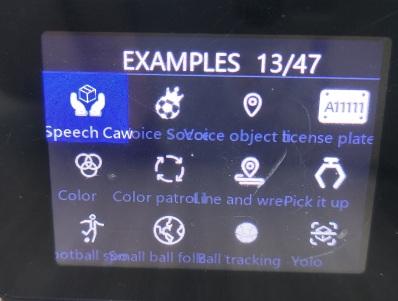
- Block grabbing: First wake up through "lulu", this function will grab the corresponding color wooden blocks according to the words prompted on the screen.
- Fun ball kicking: wake up with "lulu" first, this function will kick the ball of the corresponding color according to the words prompted on the screen.
- Voice object tracking: first wake up with "lulu", then this function will track the corresponding object according to the words prompted on the screen. This function requires the key of the large model to be configured first, which can be learned from Chapter 7, Section 1.
- License plate recognition: This function is to detect and identify the license plate.
- Color tracking: This function can identify the four colors of "red, green, blue, and yellow" and then shake the body according to the position of the color. You can switch colors by pressing the B button.
- Color line patrol: This function can identify the four colors of "red, green, blue, and yellow" and patrol the line according to the specified color. You can switch colors by pressing the B button.
- Line patrol, grab and clear obstacles: This function can identify the four colors of "red, green, blue and yellow", patrol the line according to the specified color, and if there are other target colors in the line patrol, the target color will be grabbed and cleared first. You can switch the line patrol color by pressing the B button.
- You release, I check: This function is to identify the four colors of "red, green, blue, and yellow" and pick up according to the specified color. You can switch the target color by pressing the B button.
- Kickball: This function can recognize the four colors of "red, green, blue, and yellow" and kick away the specified color. You can switch the target color by pressing the B button.
- Ball following: This function is to identify the four colors of "red, green, blue, and yellow". The robot dog can follow the specified color. When running this case, the robot dog will follow the movement. It is best not to run it in a high place. You can switch the target color by pressing the B button.
- Ball tracking: For this function, first place the ball in the white box, then press the B button to confirm. After successful selection, the robot dog's body will make tracking movements.
- Target Detection: This function is a static target type detection.
- Page 3 Function
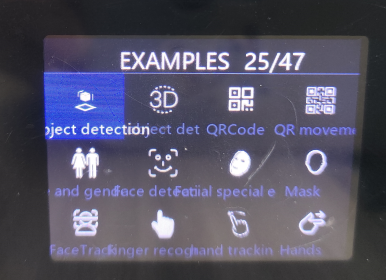
- Object detection: The function is the same as target detection, but the recognition model used is different.
- 3D object detection: can detect the 3D space of objects such as cups, chairs, cameras, and shoes.
- QR code: Information that can identify the QR code.
- QR code recognition: It can recognize QR code information. If the QR code is the target QR code, it can trigger the motion control of the robot dog.
- Age and gender recognition: Able to identify a person’s age and gender.
- Face detection: can detect faces
- Face effects: can add special fixed effects to detected faces
- Face mask: can add a fixed mask to the detected face
- Face tracking: can track the body according to the position of the face on the screen
- Finger recognition: can recognize finger movements.
- Gesture tracking: The body can track the position of finger movements.
- Gesture recognition: The robot dog can make corresponding actions based on the gestures.
- Page 4 Function
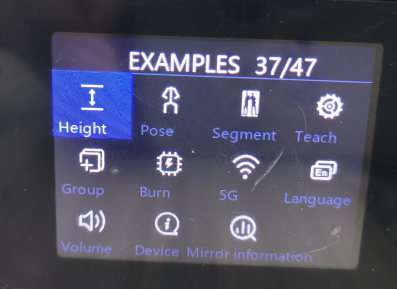
- Remote control: The height of the robot dog can be controlled according to the distance between the thumb and index finger. This case is best run on a white background.
- Bone recognition: can identify the human skeleton.
- Background separation: The human body and the background can be separated, and only the human body is displayed.
- Teaching mode: In this case, you can design the action group according to your own needs and then run it. When recording the movement, it is best to set up the robot dog for recording.
- Group performance: In this case, the dog starts moving by receiving a start action command from the host computer.
- Burn firmware: This case is to burn the bottom firmware to version 4.3.7. This function only burns the firmware of the app partition. Note: If the bottom layer has been fully erased or other firmware has been burned, this function cannot restore the factory firmware.
- Set channel: Set the national channel of wifi. Basically no operation is required, just use the system default.
- Language switch: switch to Chinese and English version of the interface.
- Volume setting: This function is to change the volume of the sound.
- Device information: This function is to query the system version information.
- Image information: This function is the information related to the yahboom image.