yahboom
HomeTutorialsProduct
Solution
Blog
Online Store
About Us
EN/中文
Store
DOGZILLA-Lite📖
1. Get started quickly
  • 0. Notes (Must Read)new
  • 1. Main interface function experience (cm5)new
  • 1. Main interface function experience(cm4)
  • 2. APP control experience
  • 3. Web page image transmission control
  • 4. LLM-Embodied Intelligence Capabilities
  • 5. LLM-Smart Dog Capabilities
2. Basic operations of Raspberry Pi system
  • 1.SSH remote login
  • 2.VNC remote login desktop
  • 3.Remote file transfer
  • 4.JupyterLab environment construction and use
  • 5.Burn the system image
  • 6.Connect to WiFi
  • 7.Close large programs
  • 8.Raspberry Pi system expansion
3. Basic control of the dogzilla
  • 0. Introduction to DOGZILLA-Lite
  • 1. Screen display control
  • 2. Record Audio
  • 3. Play Audio
  • 4. Text to audio
  • 5. Voice to text
  • 6. Record Video
  • 7. Play Video
  • 8. Video recording function
  • 9. Read the posture angle
  • 10. Battery level reading
  • 11. Read the servo angle
  • 12. Screen display of expressions
  • 13. Calibration of the robot dog
  • 14. Burn the firmware
  • 15. Analysis of common problems
4. Motion control of the dogzilla
  • 1. The dog's forward, backward, left, and right movements and gait
  • 2. Dog Spin
  • 3. The dog adjusts its height and posture
  • 4. Dog periodic translation and rotation
  • 5. Self-balancing mode
  • 6. The dog performs preset actions
  • 7. Single Leg Control
  • 8. Robotic arm control
  • 9. Teaching mode
  • 10. Group Control Performance
  • 11. Teaching demonstration onlinenew
5. Open Source CV
A. Getting started with OpenCV
  • 1. Introduction to OpenCV
  • 2. OpenCV image reading and display
  • 3. OpenCV image writing
  • 4. OpenCV Image Quality
  • 5.OpenCV pixel operations
B. OpenCV geometric transformation
  • 1. Image scaling
  • 2. Image cutting
  • 3. Image translation
  • 4. Image mirroring
  • 5. Affine Transformation
  • 6. Image Rotation
  • 7. Perspective Transformation
C. OpenCV image processing and drawing text segments
  • 1. Grayscale processing
  • 2. Image Binarization
  • 3. Edge Detection
  • 4. Line drawing
  • 5. Rectangle and circle drawing
  • 6. Text and picture drawing
D. Image beautification
  • 1. Color Image Histogram
  • 2. Histogram Equalization
  • 3. Image repair
  • 4. Brightness enhancement
  • 5. Skin whitening
  • 6. Gaussian mean filtering
  • 7. Median Filter
6. AI recognition of the dogzilla
  • 1. Camera driver tutorial
  • 2. Color recognition
  • 3. HSV value test
  • 4. Object Recognition
  • 5. QR code recognition
  • 6. License Plate Recognition
  • 7. Human Pose Estimation
  • 8. Yolo detection
  • 9. Face Detection
  • 10. Human face mask
  • 11. Face effects
  • 12. 3D Object Recognition
  • 13. Paintbrush
  • 14. Finger recognition
  • 15. Gesture Recognition
  • 16. Age and gender identification
  • 17. Background Segmentation
  • 18. Facial Recognitionnew
  • 19. Emotion Recognitionnew
  • 20. Motion Detectionnew
7. Dogzilla AI Interaction
  • 1. Color patrol
  • 2. Line patrol and obstacle removal
  • 3. Color tracking
  • 4. Ball tracking
  • 5. The ball follows
  • 6. QR code recognition exercise
  • 7. Face tracking
  • 8. Remote control
  • 9. Gesture tracking
  • 10. Gesture-controlled movement
  • 11. You Drop, I Pick
  • 12. Independent football exercise
  • 13. Human Body Followingnew
8. AI large model interaction
  • 0.AI large model principle foundation
  • 1.Large model premise use configuration
  • 2.Q&A
  • 3.Embodied intelligence
  • 4.Smart dog
  • 5.Picture to text
  • 6.Intelligent interaction
  • 7.Voice intelligent vision
  • 8.Playing football
  • 9.Block gripping
  • 10.Line tracking and obstacle removal
  • 11.Control object tracking
Download
  • System_File
  • Code
  • Firmware
  • Communication interface
  • Instruction Manual
  • Appendix
Download ZIP

Welcome to DOGZILLA-Lite repository

19. Emotion Recognition

Emotion Recognition

Emotion Recognition1. Experimental Objective2. Experimental Procedure3. Experimental Results4. Experimental Source Code Analysis

This tutorial is specific to the CM5 version and will not work directly with the CM4 version

1. Experimental Objective

Learn to manually control the robotic arm of a robot dog, thereby enabling control of multiple robot arms.

2. Experimental Procedure

Log in to the robot dog's system, exit the robot dog program, and enter "ip (the IP address of the robot dog):8888" in your browser. Once logged in, enter the password "yahboom."
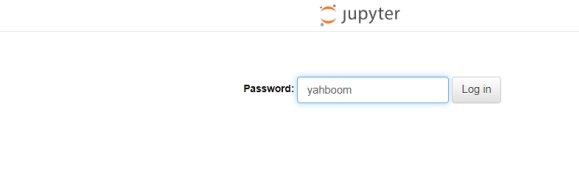
image-2024112100001

Then log in. Go to the directory cd ~/DOGZILLA_Lite_class/5.AI Visual Recognition Course/19. Emotion_Recognition and run emotion_demo.ipynb.

Finally, run the program.

3. Experimental Results

  1. After the program runs, this function will detect a person's facial expression. If an emotion is detected, a box will be drawn on the live screen and the result will be marked.
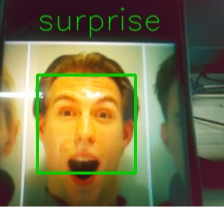
image-2024112100002

  1. Exit the program by pressing the button in the lower left corner of the screen.

4. Experimental Source Code Analysis

xxxxxxxxxx
while True:
    bgr_image = picam2.capture_array()
    gray_image = cv2.cvtColor(bgr_image, cv2.COLOR_BGR2GRAY)
    rgb_image = cv2.cvtColor(bgr_image, cv2.COLOR_BGR2RGB)
    faces = detect_faces(face_detection, gray_image)
​
    for face_coordinates in faces:
        x1, x2, y1, y2 = apply_offsets(face_coordinates, emotion_offsets)
        gray_face = gray_image[y1:y2, x1:x2]
        try:
            gray_face = cv2.resize(gray_face, (emotion_target_size))
        except:
            continue
​
        gray_face = preprocess_input(gray_face, True)
        gray_face = np.expand_dims(gray_face, 0)
        gray_face = np.expand_dims(gray_face, -1)
        emotion_prediction = emotion_classifier.predict(gray_face)
        emotion_probability = np.max(emotion_prediction)
        emotion_label_arg = np.argmax(emotion_prediction)
        emotion_text = emotion_labels[emotion_label_arg]
        emotion_window.append(emotion_text)
        if emotion_text != last_emotion:
            Count_num = 0
        else:
            Count_num += 1
        last_emotion = emotion_text
​
        if len(emotion_window) > frame_window:
            emotion_window.pop(0)
        try:
            emotion_mode = mode(emotion_window)
        except:
            continue
​
        if emotion_text == 'angry' and Count_num >= Count :
            color = emotion_probability * np.asarray((255, 0, 0))
            Count_num = 0
        elif emotion_text == 'sad' and Count_num >= Count :
            color = emotion_probability * np.asarray((0, 0, 255))
            Count_num = 0
        elif emotion_text == 'happy' and Count_num >= Count :
            color = emotion_probability * np.asarray((255, 255, 0))
            Count_num = 0
        elif emotion_text == 'surprise' and Count_num >= Count :
            color = emotion_probability * np.asarray((0, 255, 255))
            Count_num = 0
        elif emotion_text == 'neutral' and Count_num >= Count :
            color = emotion_probability * np.asarray((0, 255, 255))
            Count_num = 0
        else:
            color = emotion_probability * np.asarray((0, 255, 0))
​
        color = color.astype(int)
        color = color.tolist()
        
        draw_bounding_box(face_coordinates, rgb_image, color)
        draw_text(face_coordinates, rgb_image, emotion_mode,
                  color, 0, -45, 1, 1)
​
    bgr_image = cv2.cvtColor(rgb_image, cv2.COLOR_RGB2BGR)
    
    image_widget.value = bgr8_to_jpeg(bgr_image)
      
    
    if button.press_b():
        break
    if cv2.waitKey(1) & 0xFF == ord('q'):
        break

detect_faces(): This function's main business logic is to detect faces. apply_offsets(): This function's business logic is to detect facial expressions. draw_bounding_box(): Draws the recognition result box. draw_text(): Draws the recognized emotional text. bgr8_to_jpeg(): Displays the image.


Facial Recognition
Motion Detection

COMPANY

  • About us
  • Team Style
  • Blog

LEARNING & EXPLORATION

  • Tutorials
  • Edge AI hardware
  • Educational robots
  • Embedded intelligent hardware

WHERE TO BUY

  • Yahboom Online Store
  • Amazon
  • Alibaba
  • AliExpress
  • Mercado

TECHNOLOGY SUPPORT

  • Email: support@yahboom.com

BE A DISTRIBUTOR

  • Email: sales@yahboom.com
QR Code

Copyright © 2017-2026 Yahboom. All Rights Reserved.

EN/中文