yahboom
HomeLearn
Solution
Blog
Online Store
About Us
EN/中文
DOGZILLA-Lite📖
1. Get started quickly
  • 0. Notes (Must Read)new
  • 1. Main interface function experience (cm5)new
  • 1. Main interface function experience(cm4)
  • 2. APP control experience
  • 3. Web page image transmission control
  • 4. LLM-Embodied Intelligence Capabilities
  • 5. LLM-Smart Dog Capabilities
2. Basic operations of Raspberry Pi system
  • 1.SSH remote login
  • 2.VNC remote login desktop
  • 3.Remote file transfer
  • 4.JupyterLab environment construction and use
  • 5.Burn the system image
  • 6.Connect to WiFi
  • 7.Close large programs
  • 8.Raspberry Pi system expansion
3. Basic control of the dogzilla
  • 0. Introduction to DOGZILLA-Lite
  • 1. Screen display control
  • 2. Record Audio
  • 3. Play Audio
  • 4. Text to audio
  • 5. Voice to text
  • 6. Record Video
  • 7. Play Video
  • 8. Video recording function
  • 9. Read the posture angle
  • 10. Battery level reading
  • 11. Read the servo angle
  • 12. Screen display of expressions
  • 13. Calibration of the robot dog
  • 14. Burn the firmware
  • 15. Analysis of common problems
4. Motion control of the dogzilla
  • 1. The dog's forward, backward, left, and right movements and gait
  • 2. Dog Spin
  • 3. The dog adjusts its height and posture
  • 4. Dog periodic translation and rotation
  • 5. Self-balancing mode
  • 6. The dog performs preset actions
  • 7. Single Leg Control
  • 8. Robotic arm control
  • 9. Teaching mode
  • 10. Group Control Performance
  • 11. Teaching demonstration onlinenew
5. Open Source CV
A. Getting started with OpenCV
  • 1. Introduction to OpenCV
  • 2. OpenCV image reading and display
  • 3. OpenCV image writing
  • 4. OpenCV Image Quality
  • 5.OpenCV pixel operations
B. OpenCV geometric transformation
  • 1. Image scaling
  • 2. Image cutting
  • 3. Image translation
  • 4. Image mirroring
  • 5. Affine Transformation
  • 6. Image Rotation
  • 7. Perspective Transformation
C. OpenCV image processing and drawing text segments
  • 1. Grayscale processing
  • 2. Image Binarization
  • 3. Edge Detection
  • 4. Line drawing
  • 5. Rectangle and circle drawing
  • 6. Text and picture drawing
D. Image beautification
  • 1. Color Image Histogram
  • 2. Histogram Equalization
  • 3. Image repair
  • 4. Brightness enhancement
  • 5. Skin whitening
  • 6. Gaussian mean filtering
  • 7. Median Filter
6. AI recognition of the dogzilla
  • 1. Camera driver tutorial
  • 2. Color recognition
  • 3. HSV value test
  • 4. Object Recognition
  • 5. QR code recognition
  • 6. License Plate Recognition
  • 7. Human Pose Estimation
  • 8. Yolo detection
  • 9. Face Detection
  • 10. Human face mask
  • 11. Face effects
  • 12. 3D Object Recognition
  • 13. Paintbrush
  • 14. Finger recognition
  • 15. Gesture Recognition
  • 16. Age and gender identification
  • 17. Background Segmentation
  • 18. Facial Recognitionnew
  • 19. Emotion Recognitionnew
  • 20. Motion Detectionnew
7. Dogzilla AI Interaction
  • 1. Color patrol
  • 2. Line patrol and obstacle removal
  • 3. Color tracking
  • 4. Ball tracking
  • 5. The ball follows
  • 6. QR code recognition exercise
  • 7. Face tracking
  • 8. Remote control
  • 9. Gesture tracking
  • 10. Gesture-controlled movement
  • 11. You Drop, I Pick
  • 12. Independent football exercise
  • 13. Human Body Followingnew
8. AI large model interaction
  • 0.AI large model principle foundation
  • 1.Large model premise use configuration
  • 2.Q&A
  • 3.Embodied intelligence
  • 4.Smart dog
  • 5.Picture to text
  • 6.Intelligent interaction
  • 7.Voice intelligent vision
  • 8.Playing football
  • 9.Block gripping
  • 10.Line tracking and obstacle removal
  • 11.Control object tracking
Download
  • System_File
  • Code
  • Firmware
  • Communication interface
  • Instruction Manual
  • Appendix
Download ZIP

Welcome to DOGZILLA-Lite repository

7.Close large programs

Close large programs (important to read)

If we want to conduct other experiments, in order to avoid the occupation of critical resources between processes, we must stop the large program. The method is as follows: User name: pi

Password: yahboom

  1. First of all, the interface of the big program must stay on this page. If not, please return to this page by yourself.
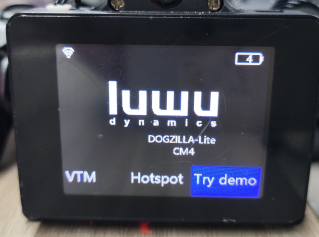
image-2024112100004

  1. Then we enter the dog 's system and open the terminal.
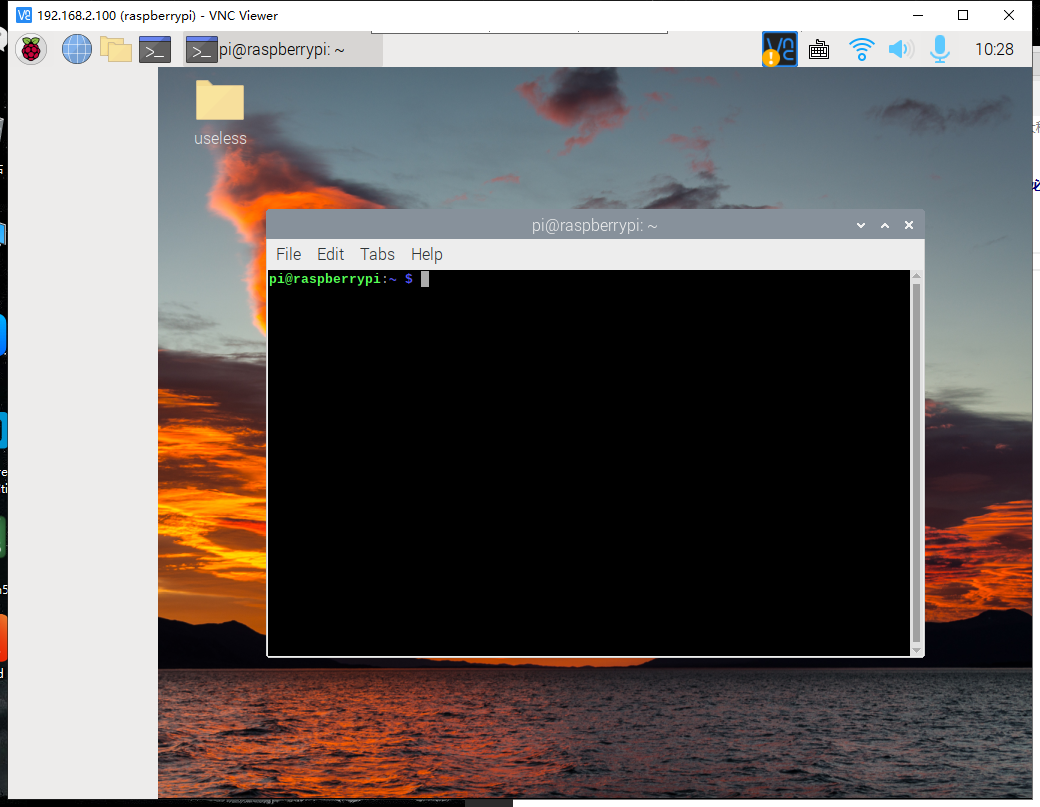
image-2024112100001

  1. Enter the following command to find out the process number of the large program
ps -ef | grep "python"
  1. Then find the process number of mian.py. The process number is different each time you start the computer. You need to get it according to the actual situation. The tutorial here is 878.
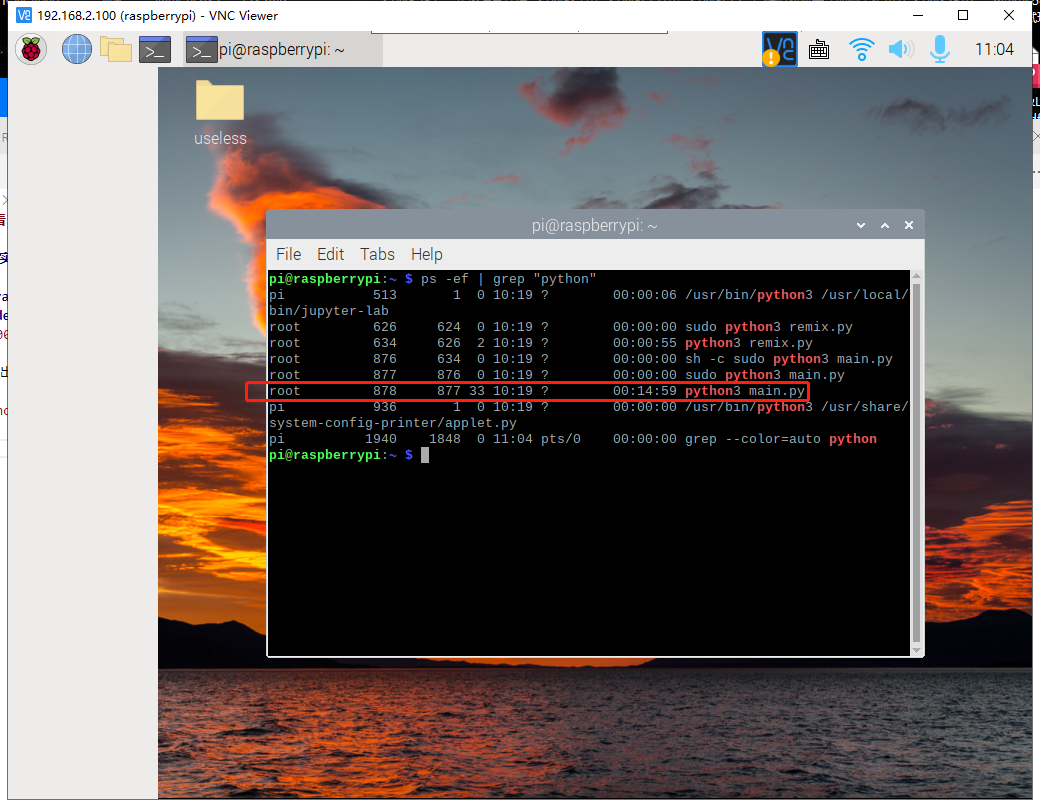
image-2024112100002

  1. Enter the following command to close the large program
xxxxxxxxxx
sudo kill 878  #878 is the process ID, which needs to be obtained based on actual conditions.
  1. Make sure the big program is closed, and then check whether the big program is still running.
xxxxxxxxxx
ps -ef | grep "python"

Found that the big program has been closed.
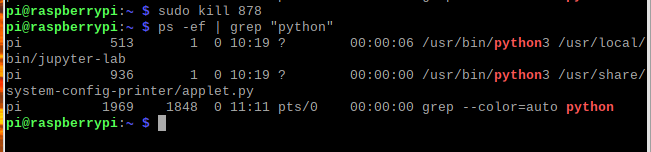
image-2024112100003

If the main program is not closed, running a separate routine will cause the dog's screen to be distorted or black. The screen will not recover until the dog is restarted.

Connect to WiFi
Raspberry Pi system expansion

COMPANY

  • About us
  • Team Style
  • Blog

LEARNING & EXPLORATION

  • Tutorials
  • Edge AI hardware
  • Educational robots
  • Embedded intelligent hardware

WHERE TO BUY

  • Yahboom Online Store
  • Amazon
  • Alibaba
  • AliExpress
  • Mercado

TECHNOLOGY SUPPORT

  • Email: support@yahboom.com

BE A DISTRIBUTOR

  • Email: sales@yahboom.com
QR Code

Copyright © 2017-2026 Yahboom. All Rights Reserved.

EN/中文