Welcome to DOGZILLA-Lite repository
2.VNC remote login desktop
VNC remote login desktop
VNC remote login to the desktop requires that the host computer and the Raspberry Pi are in the same LAN to work properly.
If you are not using a factory image, you need to configure the VNC environment in advance before you can remotely log in to the desktop.
2.1 Get the IP address of the Raspberry Pi
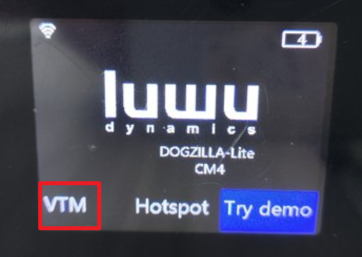
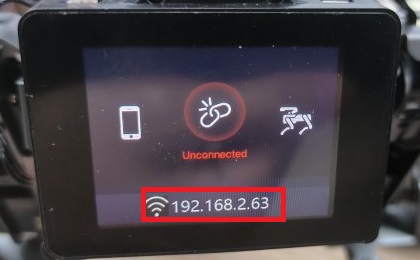
When you boot up the machine for the first time with the factory image, you need to configure the network connection in the boot program, then enter the image transmission mode interface, press the button in the lower right corner of the mechanical dog screen, and you can query the corresponding IP address.
2.2 VNC Remote Desktop
Please download and install the VNC-Viewer software on your computer first.
VNC-Viewer download website:
https://www.realvnc.com/en/connect/download/viewer/
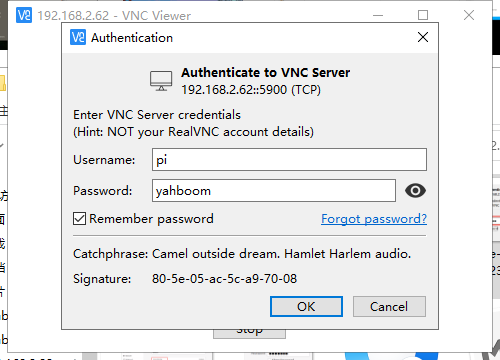
Double-click to open the VNC-Viewer software, enter the IP address of the Raspberry Pi, and press Enter to confirm.

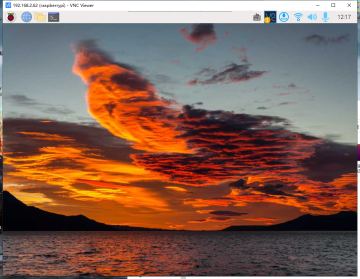
Then enter the VNC password (yahboom) and press OK to enter the desktop. Check Remember password to record the password for your convenience next time you log in.