Welcome to DOGZILLA-Lite repository
1. Main interface function experience (cm5)
Main page function experience(cm5 version)
Main page function experience(cm5 version)The function of the robot dog screen buttonsBoot page introductionDemo Function Examples
The function of the robot dog screen buttons
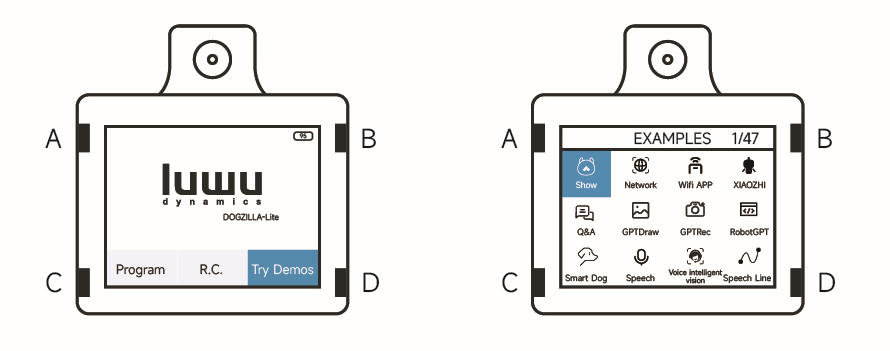
The A and B keys are the left and right selection keys, the C key is the exit key, and the D key is the confirmation key.
Boot page introduction
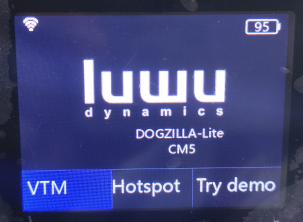
The Wi-Fi icon in the upper left corner will appear if you're successfully connected to Wi-Fi; otherwise, it won't appear.
The battery level indicator in the upper right corner displays the battery level in real time, with an accuracy of ±3.
Image Transmission Mode: Within the same LAN, the control device can enter the IP address of this function in a browser to control the robot dog and view its images.
Hotspot Mode: A random hotspot will be created, with the Wi-Fi name displayed above and the password below. Note: The Wi-Fi name and password are different each time you enter the hotspot. In this mode, you can connect to the Wi-Fi connection of the robot dog from a host computer via VNC to access the robot dog's desktop system, preparing for the configuration of the larger model.
Demo Mode: Once in this mode, there are 56 sample functions, each of which can be run independently. The following describes the functions of each of these 56 functions.
Demo Function Examples
- Page 1 Function
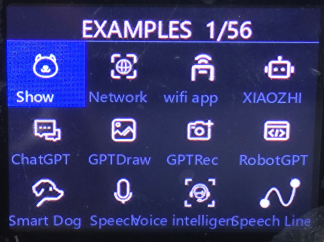
- Show: Upon entering, a carousel of actions will be displayed, along with a fixed built-in music track.
- Network: Connect to the 2.4GHz Wi-Fi network by scanning a QR code.
- wifi app: Control the robot remotely via the yahboomROBOT app.
- XIAOZHI: This feature doesn't require waking up. You can engage in a Q&A conversation. Press the "Standby" button to start a free conversation, and press "Standby" again to return to standby mode. For example, ask: "Who are you?" Note: XIAOZHI is an open source project. Since XIAOZHI is still updating, it may be unstable. If there is any abnormality, please contact technical support for resolution. This feature is not available in the international version.
- ChatGPT: Wake up with "lulu," then engage in a free conversation. This feature requires the model's key to be configured first; learn more about it in Chapter 7, Section 1. For example: "Tell me a joke."
- GPTDraw: This feature requires speaking with "lulu," and the robot will then display a corresponding image based on the meaning. This feature requires the model's key to be configured first; learn more about it in Chapter 7, Section 1. For example: "A picture of happiness." Note: This feature is not available in the international version.
- GPTRec: Activate with "lulu." This function returns results based on semantic meaning and captured images. This function requires the configuration of the master model key. You can learn more about this in Section 1 of Chapter 7. For example: What color do you see?
- RobotGPT: Activate with "lulu." This function allows you to speak a series of actions, and the robot dog will then execute the sequence. This function requires the configuration of the master model key. You can learn more about this in Section 1 of Chapter 7. For example: Move forward for 3 seconds, dance in circles, say hello, and finally show off its robotic arm.
- Smart Dog: Activate with "lulu." This function offers embodied intelligence and a multimodal master model that integrates with the scene. This function requires the configuration of the master model key. You can learn more about this in Section 1 of Chapter 7. For example: If you see red, dance; if you see green, spin in circles; otherwise, do push-ups; and finally, bark twice.
- Speech: Activate with "lulu." This function performs an action based on the words prompted on the screen.
- Voice Intelligent Vision: Activate it with "lulu." This function will enter AI mode based on the words prompted on the screen. Press C to exit.
- Speech Line: Activate it with "lulu." This function will patrol the line based on the words prompted on the screen, using the corresponding color. It will capture the color of any obstacle it encounters.
- Page 2 Function
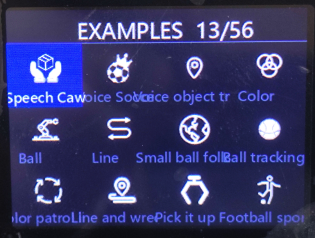
- Speech Caw: First wake up with "lulu." This function will grab blocks of the corresponding color according to the word on the screen.
- Voice Soccer: First wake up with "lulu." This function will kick balls of the corresponding color according to the word on the screen.
- Voice object tracking: First wake up with "lulu." This function will then track objects according to the word on the screen. This function requires the configuration of the large model key. You can learn more about this in Chapter 7, Section 1.
- Color: This function recognizes one of the four colors: red, green, blue, and yellow, and then shakes its body based on the color's position. You can switch colors by pressing the B button.
- Ball: Use the on-screen buttons to adjust the color and size of the ball to be grabbed.
- Line: This function follows a black line and cannot switch colors.
- Small ball following: This function recognizes the four colors: red, green, blue, and yellow, and the robot dog will follow a specific color. When running this example, the robot dog will follow the target. It's best not to operate it at height. You can switch the target color by pressing the B button.
- Ball tracking: To use this function, place the ball in the white box and press the B button to confirm. Once selected, the robot dog will begin tracking.
- Color patrol line: This function recognizes the four colors (red, green, blue, and yellow) and patrols the line based on the specified color. You can switch colors by pressing the B button.
- Line and wrecker: This function recognizes the four colors (red, green, blue, and yellow) and patrols the line based on the specified color. If there are other target colors on the line, the target color will be grabbed and cleared first. You can switch the line patrol color by pressing the B button.
- Pick it up: This function recognizes the four colors (red, green, blue, and yellow) and grips the target based on the specified color. You can switch the target color by pressing the B button.
- Football sports: This function recognizes the four colors of "red, green, blue, and yellow" and can kick the target color. You can switch the target color by pressing the B button.
- Page 3 Function
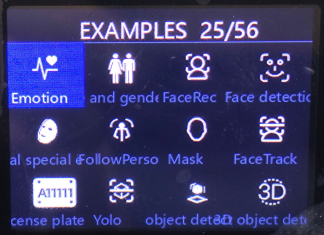
- Emotion: Detects a person's current facial expression.
- Age and gender testing: Detects a person's age and gender.
- FaceRec: Determines whether a recorded face is the same as the one it was entered into.
- Face detection: Detects faces.
- Facial special effects: Adds special effects to detected faces.
- FollowPerson: Detects a person and follows them based on their size.
- Mask: Adds a fixed mask to a detected face.
- FaceTrack: Tracks the camera based on the position of the face on the screen.
- license plate: Detects and recognizes license plates.
- Yolo: Detects static objects.
- object detection: Functions similarly to object detection, but uses a different recognition model.
- 3D object detection: Detects objects such as cups, chairs, cameras, and shoes in three dimensions.
- Page 4 Function
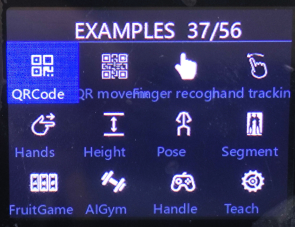
- QRCode: Recognizes QR code information.
- QR movement: Recognizes QR code information. If the QR code matches the target QR code, it triggers motion control for the robot dog.
- Finger recognition: Recognizes finger movements.
- hand tracking: The device tracks the position of finger movements.
- Hands: The robot dog performs corresponding movements based on gestures.
- Height: Controls the robot dog's height based on the distance between the thumb and index finger. This example works best with a white background.
- Pose: Recognizes human skeletons.
- Segment: Separates the human body from the background, displaying only the human body.
- FruitGame: This function is similar to a slot machine game. Press the button at the top of the screen to add or subtract money, and the button in the lower right corner of the screen starts the rotation.
- AIGym: Detects and records the user's current movements.
- Handle: This requires connecting to a Type-C docking station, then connecting the remote controller receiver to the docking station, and then activating this function.
- Teach: In this mode, you can design your own motions and then run them. It's best to set up the robot while recording motions.
- Page 5 Function
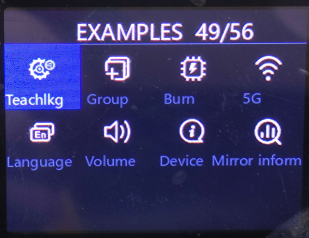
- Teachlkg: This example allows a single robot to control the motion of multiple robots.
- Group: This example uses a start motion command from the host computer to initiate the robot's motion.
- Burn: This example updates the underlying firmware to version 4.3.7. This function only updates the firmware in the app partition. Note: If the underlying firmware has been fully erased or other firmware has been updated, this function will not restore the factory firmware.
- 5G: Set the Wi-Fi country channel. This operation is generally unnecessary; the system default is sufficient.
- Language: Switches the interface between Chinese and English.
- Volume: This function adjusts the volume.
- Device: This function queries the system version.
- Mirror information: This function displays information related to the Yahboom image.