yahboom
HomeLearn
Solution
Blog
Online Store
About Us
EN/中文
DOGZILLA-Lite📖
1. Get started quickly
  • 0. Notes (Must Read)new
  • 1. Main interface function experience (cm5)new
  • 1. Main interface function experience(cm4)
  • 2. APP control experience
  • 3. Web page image transmission control
  • 4. LLM-Embodied Intelligence Capabilities
  • 5. LLM-Smart Dog Capabilities
2. Basic operations of Raspberry Pi system
  • 1.SSH remote login
  • 2.VNC remote login desktop
  • 3.Remote file transfer
  • 4.JupyterLab environment construction and use
  • 5.Burn the system image
  • 6.Connect to WiFi
  • 7.Close large programs
  • 8.Raspberry Pi system expansion
3. Basic control of the dogzilla
  • 0. Introduction to DOGZILLA-Lite
  • 1. Screen display control
  • 2. Record Audio
  • 3. Play Audio
  • 4. Text to audio
  • 5. Voice to text
  • 6. Record Video
  • 7. Play Video
  • 8. Video recording function
  • 9. Read the posture angle
  • 10. Battery level reading
  • 11. Read the servo angle
  • 12. Screen display of expressions
  • 13. Calibration of the robot dog
  • 14. Burn the firmware
  • 15. Analysis of common problems
4. Motion control of the dogzilla
  • 1. The dog's forward, backward, left, and right movements and gait
  • 2. Dog Spin
  • 3. The dog adjusts its height and posture
  • 4. Dog periodic translation and rotation
  • 5. Self-balancing mode
  • 6. The dog performs preset actions
  • 7. Single Leg Control
  • 8. Robotic arm control
  • 9. Teaching mode
  • 10. Group Control Performance
  • 11. Teaching demonstration onlinenew
5. Open Source CV
A. Getting started with OpenCV
  • 1. Introduction to OpenCV
  • 2. OpenCV image reading and display
  • 3. OpenCV image writing
  • 4. OpenCV Image Quality
  • 5.OpenCV pixel operations
B. OpenCV geometric transformation
  • 1. Image scaling
  • 2. Image cutting
  • 3. Image translation
  • 4. Image mirroring
  • 5. Affine Transformation
  • 6. Image Rotation
  • 7. Perspective Transformation
C. OpenCV image processing and drawing text segments
  • 1. Grayscale processing
  • 2. Image Binarization
  • 3. Edge Detection
  • 4. Line drawing
  • 5. Rectangle and circle drawing
  • 6. Text and picture drawing
D. Image beautification
  • 1. Color Image Histogram
  • 2. Histogram Equalization
  • 3. Image repair
  • 4. Brightness enhancement
  • 5. Skin whitening
  • 6. Gaussian mean filtering
  • 7. Median Filter
6. AI recognition of the dogzilla
  • 1. Camera driver tutorial
  • 2. Color recognition
  • 3. HSV value test
  • 4. Object Recognition
  • 5. QR code recognition
  • 6. License Plate Recognition
  • 7. Human Pose Estimation
  • 8. Yolo detection
  • 9. Face Detection
  • 10. Human face mask
  • 11. Face effects
  • 12. 3D Object Recognition
  • 13. Paintbrush
  • 14. Finger recognition
  • 15. Gesture Recognition
  • 16. Age and gender identification
  • 17. Background Segmentation
  • 18. Facial Recognitionnew
  • 19. Emotion Recognitionnew
  • 20. Motion Detectionnew
7. Dogzilla AI Interaction
  • 1. Color patrol
  • 2. Line patrol and obstacle removal
  • 3. Color tracking
  • 4. Ball tracking
  • 5. The ball follows
  • 6. QR code recognition exercise
  • 7. Face tracking
  • 8. Remote control
  • 9. Gesture tracking
  • 10. Gesture-controlled movement
  • 11. You Drop, I Pick
  • 12. Independent football exercise
  • 13. Human Body Followingnew
8. AI large model interaction
  • 0.AI large model principle foundation
  • 1.Large model premise use configuration
  • 2.Q&A
  • 3.Embodied intelligence
  • 4.Smart dog
  • 5.Picture to text
  • 6.Intelligent interaction
  • 7.Voice intelligent vision
  • 8.Playing football
  • 9.Block gripping
  • 10.Line tracking and obstacle removal
  • 11.Control object tracking
Download
  • System_File
  • Code
  • Firmware
  • Communication interface
  • Instruction Manual
  • Appendix
Download ZIP

Welcome to DOGZILLA-Lite repository

1.Large model premise use configuration

Prerequisites for using large models (must read)

Prerequisites for using large models (must read)1. Overseas version of OpenRouterOpenRouter operation steps2. Overseas version of Qwen

Example cases related to large models, important prerequisite: you need to connect to a wifi that can access the Internet. For specific connection methods, you can go to [1. Basic operations of Raspberry Pi system] --> [6. Connect to WiFi] to see the specific operations. This tutorial will briefly explain it.

  1. First download the xgo Bluetooth remote control APP.
  2. Enter the app, click the network configuration information in the upper right corner, fill in the wifi name and password, and click to generate a QR code.
  3. The robot dog selects the wireless networking function through the buttons on the screen, and points the QR code generated by xgo at the robot dog's camera.
  4. After waiting for a while, the wireless networking function will automatically exit, indicating that the wifi is connected

This tutorial is about the configuration of AI large models. If you want to run the large model related cases of the boot program example gameplay normally, you need to follow the steps below to configure it.

1. Overseas version of OpenRouter

Some online large models of the overseas version of the boot example use the middleware of the OpenRouter platform, which is a third-party platform. This large model can be called for free 50 times a day. If you want to continue using it, you can refer to the usage rules for expansion.

The following cases require the use of this large model: Q&A, Embodied intelligence, Smart dog, and Picture to text

OpenRouter operation steps

  1. First log in to the following official website

https://openrouter.ai/

  1. Then log in. You can use multiple ways to log in. This article recommends using a github account to log in to this platform.
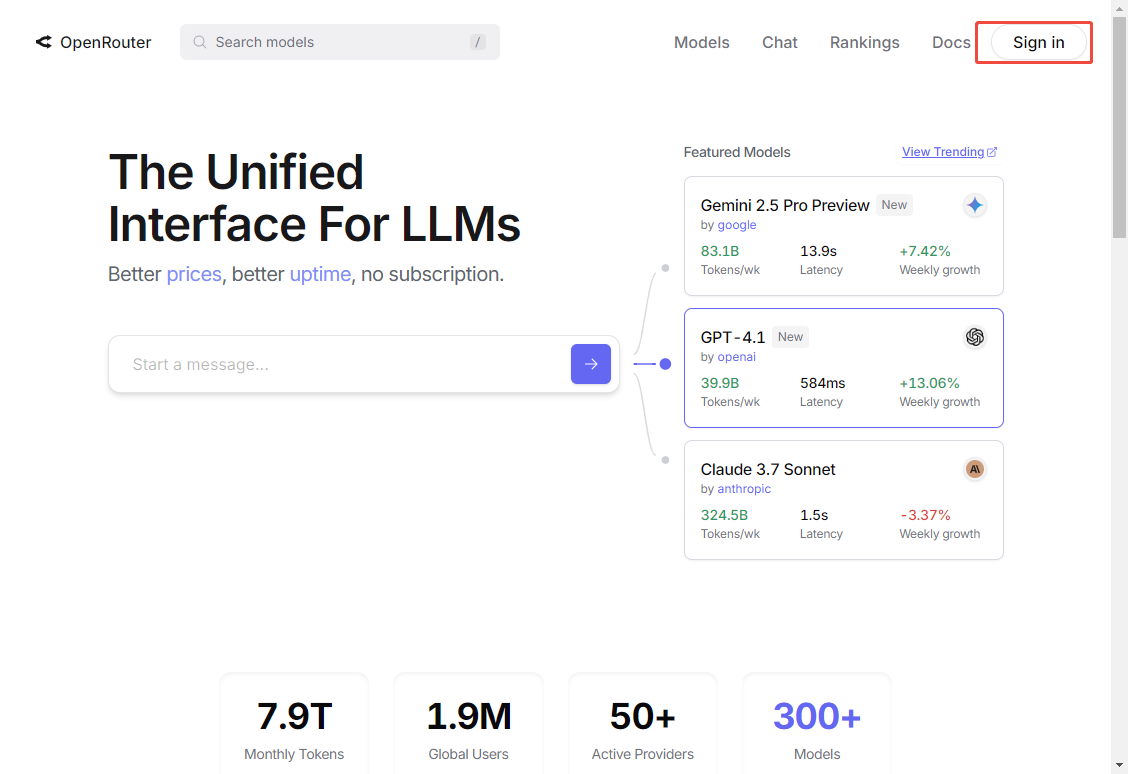
image-2025042700001

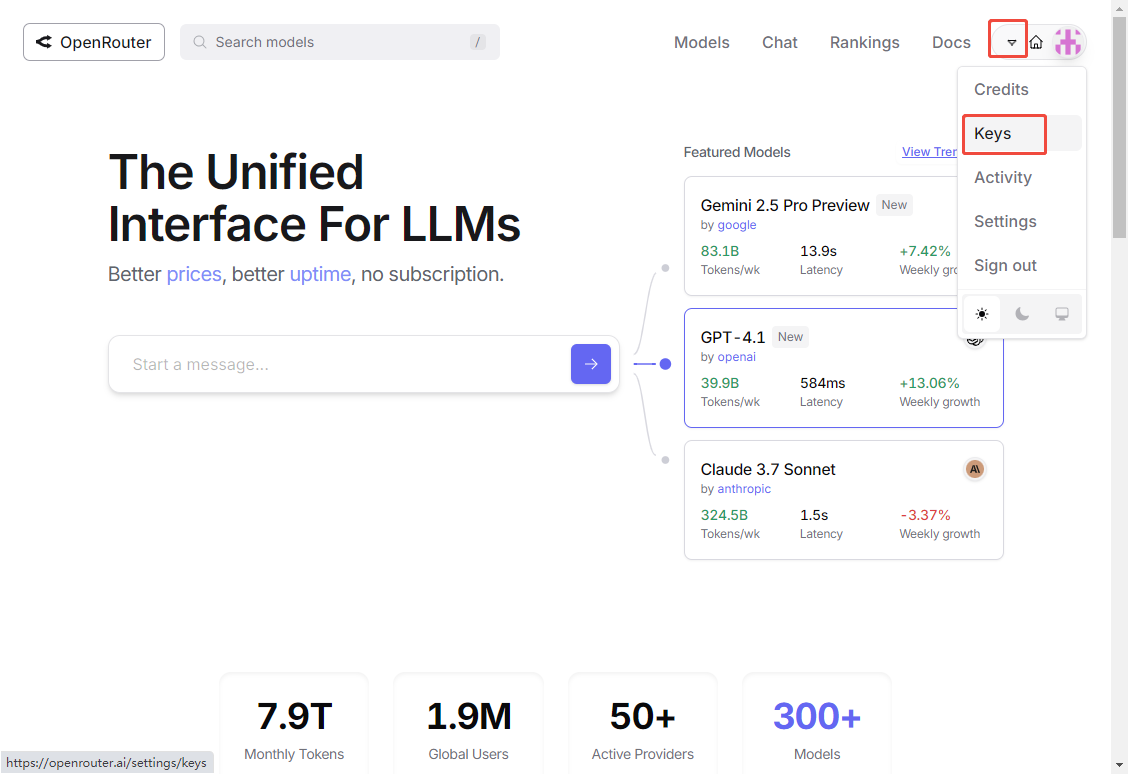
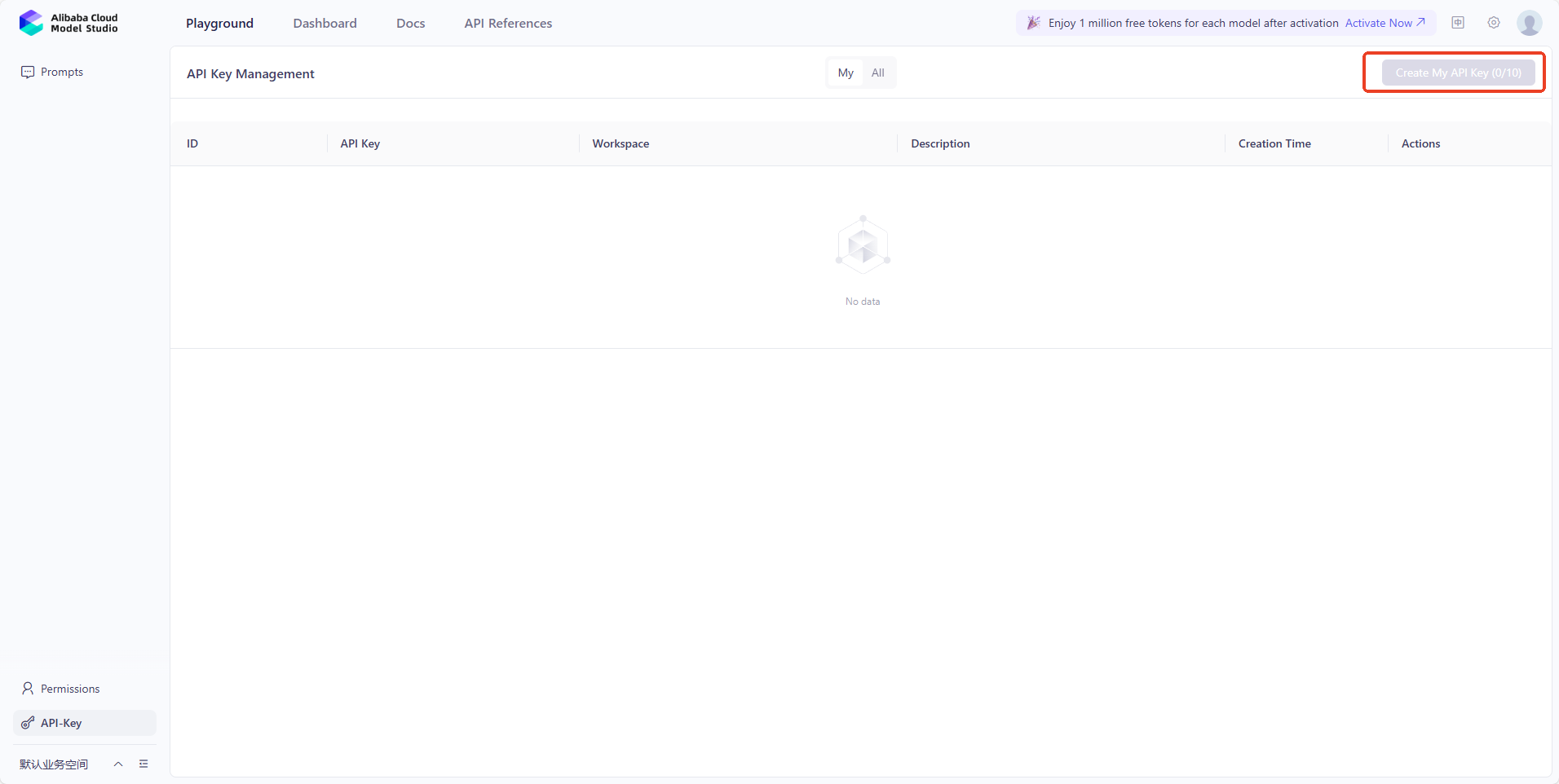
  1. Enter the API-KEY page and create one
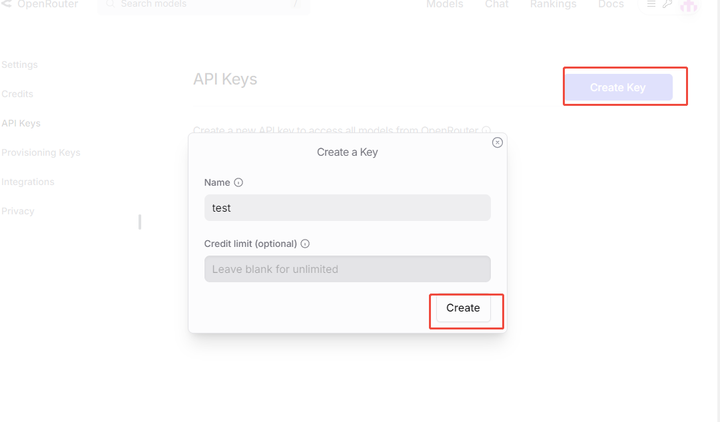
image-2025042700002

image-2025042700003

  1. Then copy the created key and save it on your computer. You can only copy this key when you create it for the first time. You cannot view it again after leaving this interface.
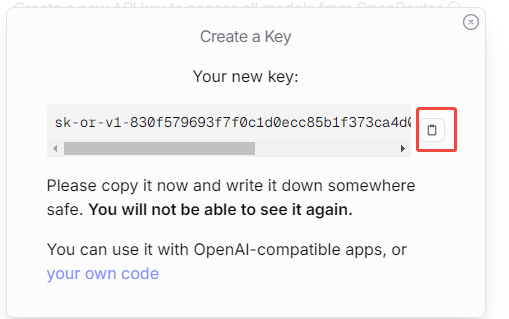
image-2025042700004

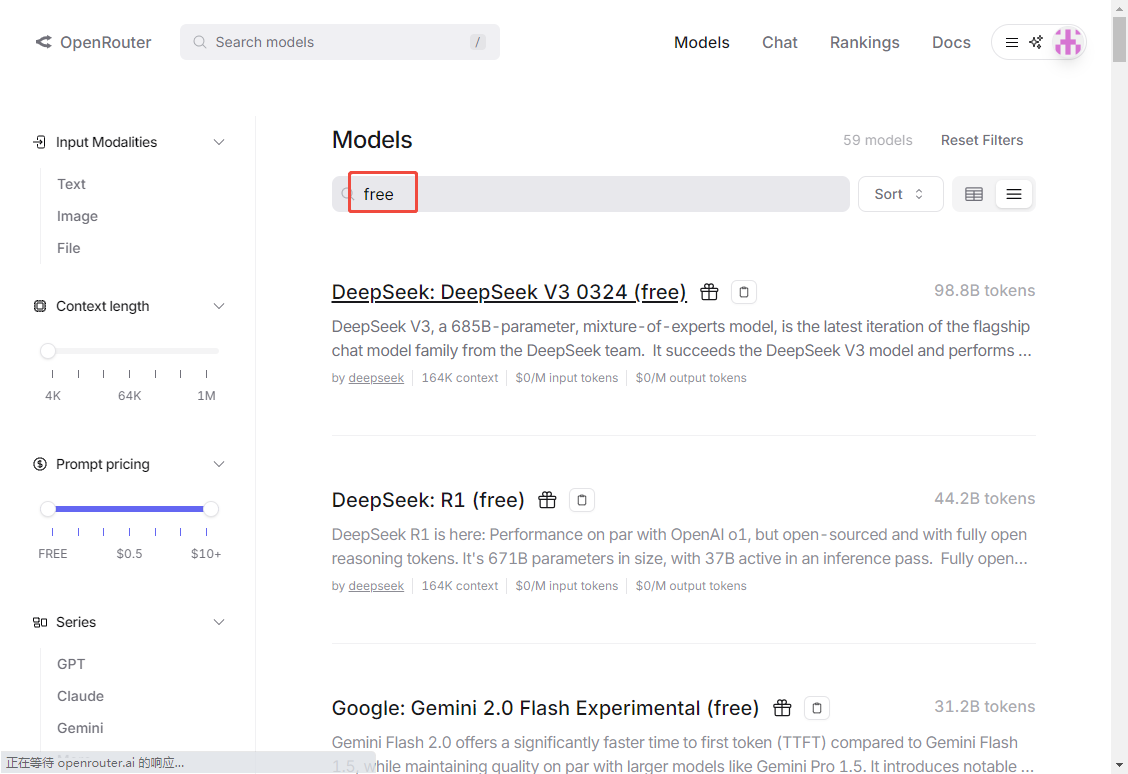
  1. Then we find a free model to test whether the registered account can be used normally
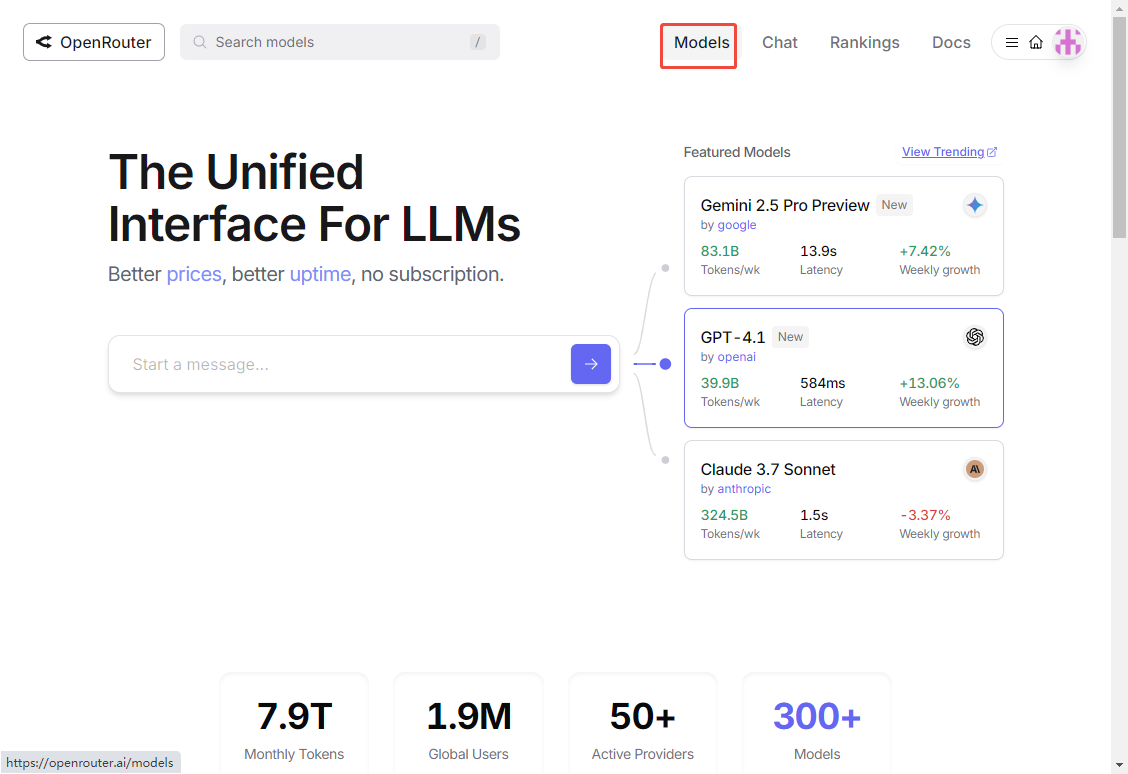
image-2025042700005

image-2025042700006

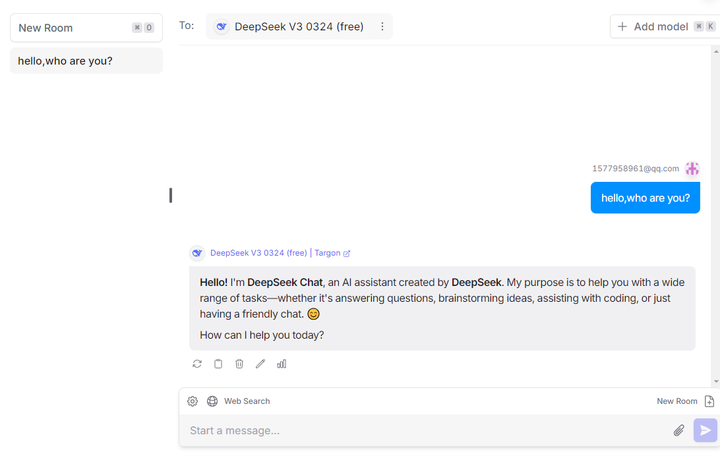
  1. If it is a normal reply, it means it can be used normally.
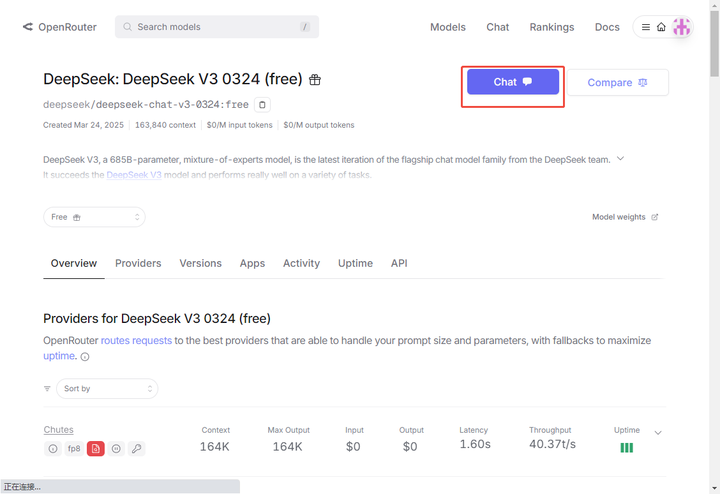
image-2025042700007

image-2025042700008

  1. The created API-KEY can directly use the free model. If you want to use the non-free model, you need to purchase the non-free model with your credit card. There is no tutorial or explanation, so you can study it yourself.

2. Overseas version of Qwen

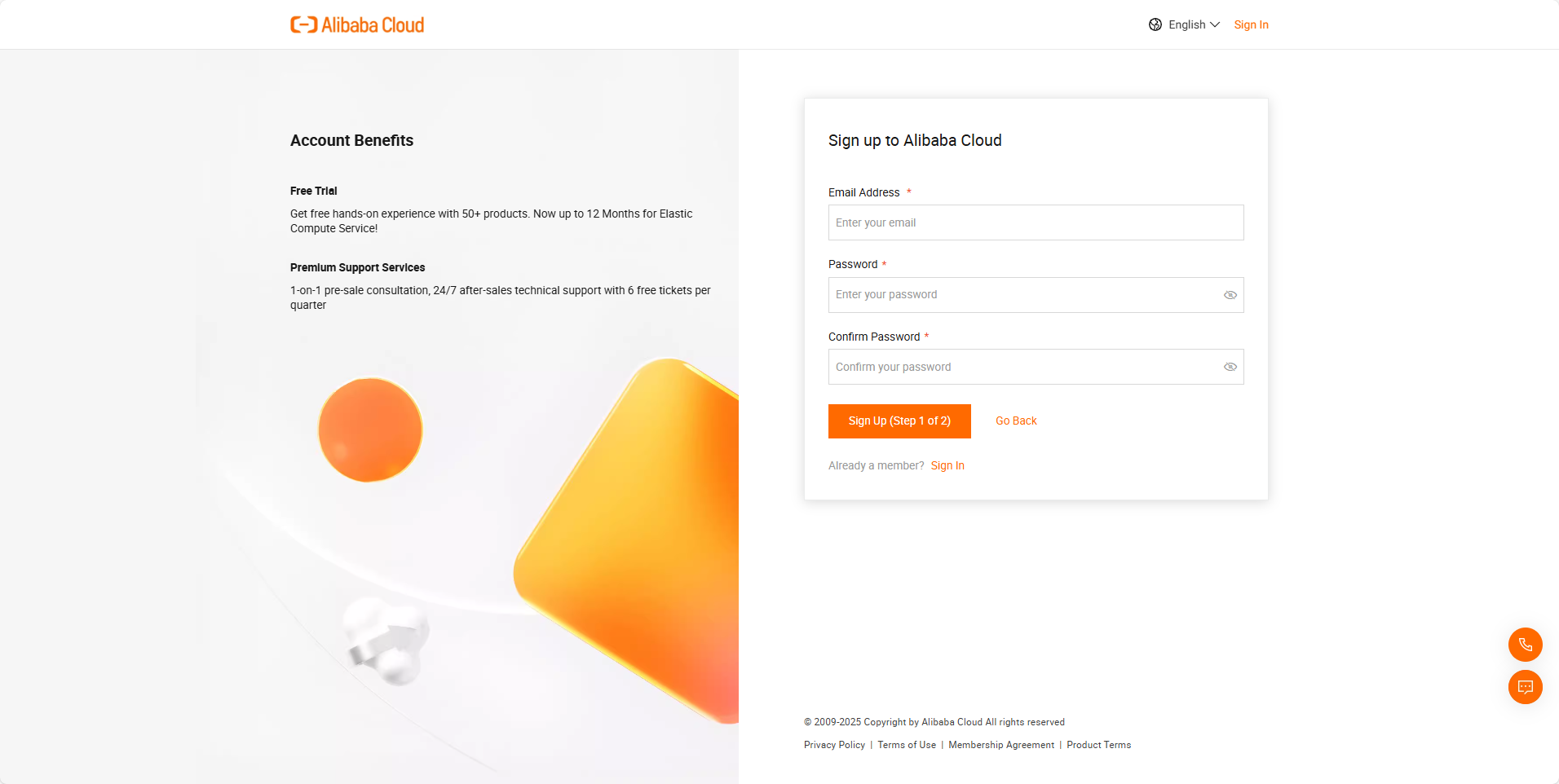
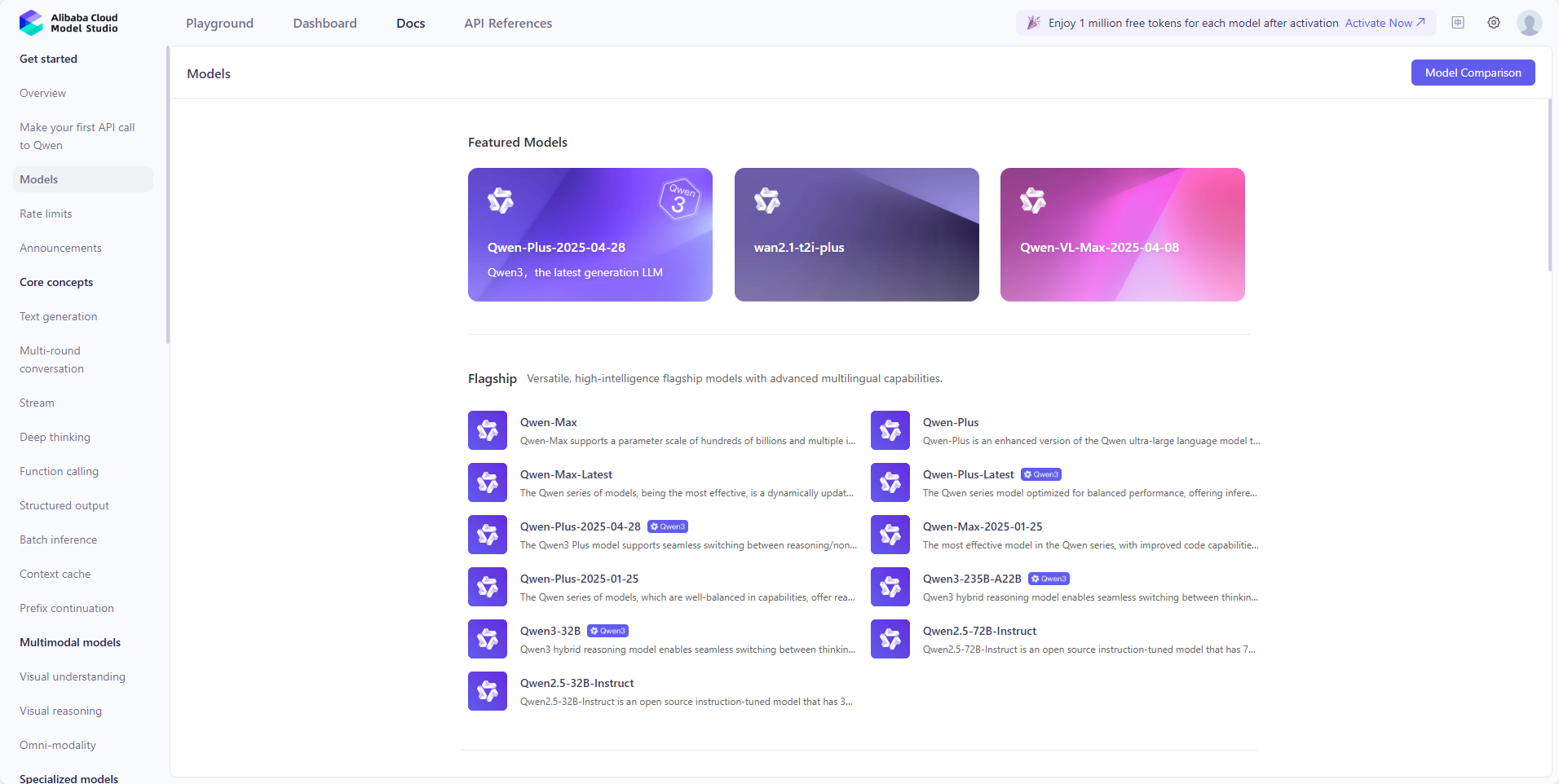
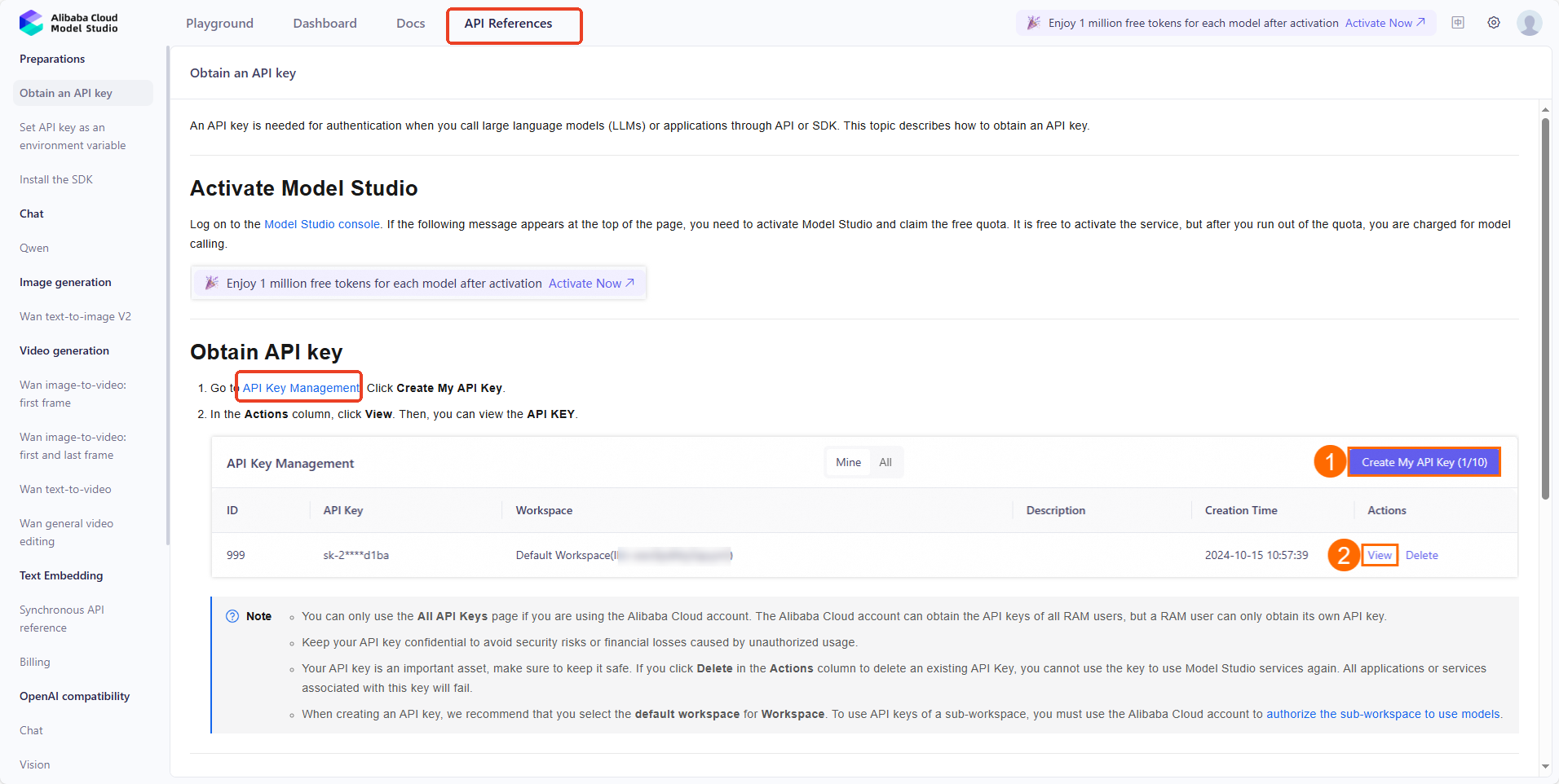
Some online large models in the overseas version startup example use the visual large model of Qwen. This platform is a third-party platform, and the large model is a powerful visual model provided by Alibaba. After the registration and authentication is completed, some large models can be used for free, and more models can be used according to this website.

The following cases require the use of this large model: Control object tracking

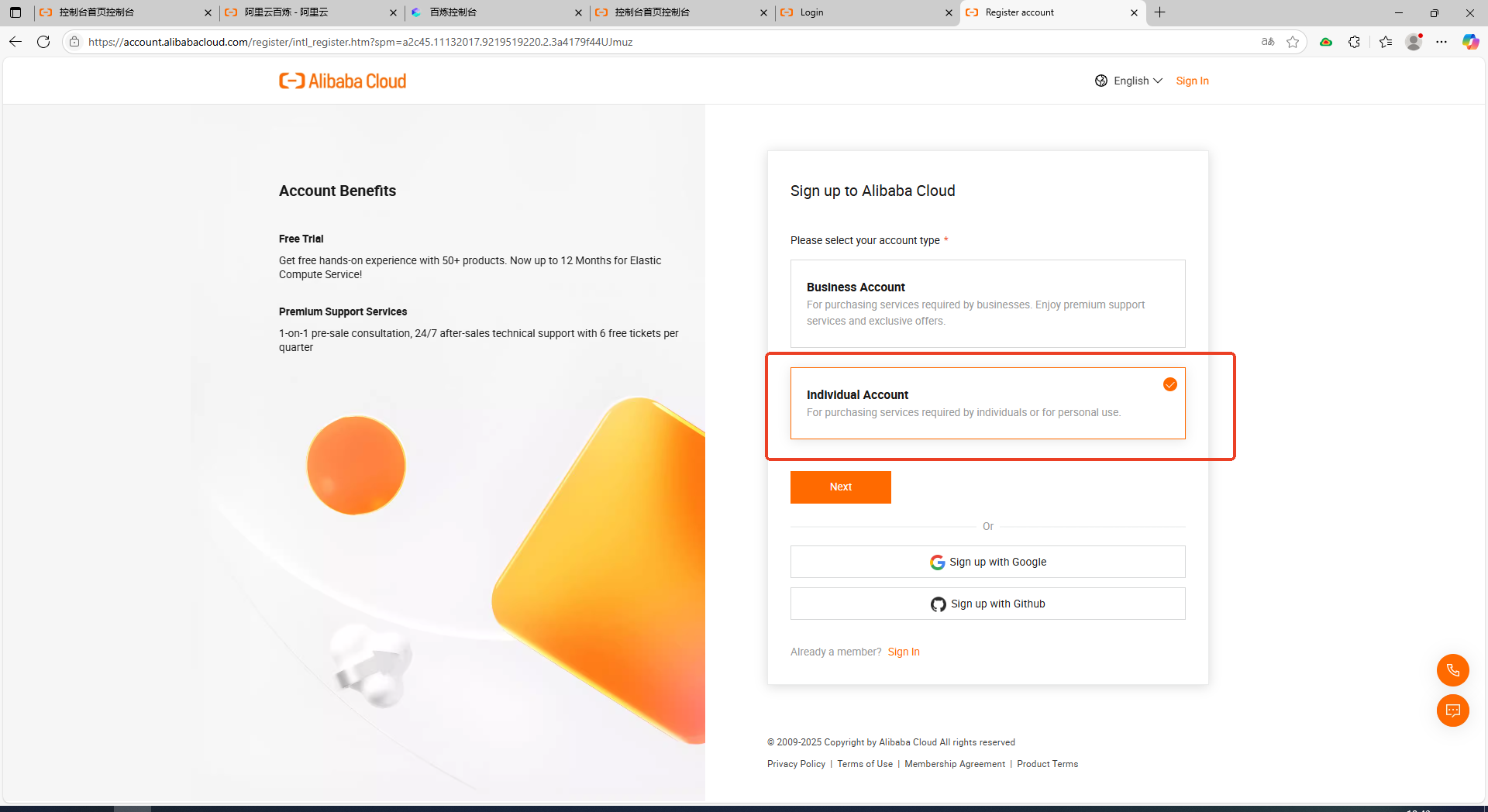
  1. Open the website and register

Register account

809BFF87-32C8-4f71-8D22-9ECBAC56586A

2C38AF14-D1DD- 46c7-8903-EC3E42FA744C

  1. After registration, enter the contact information according to your country and get certified. Without certification, you cannot get the free large model
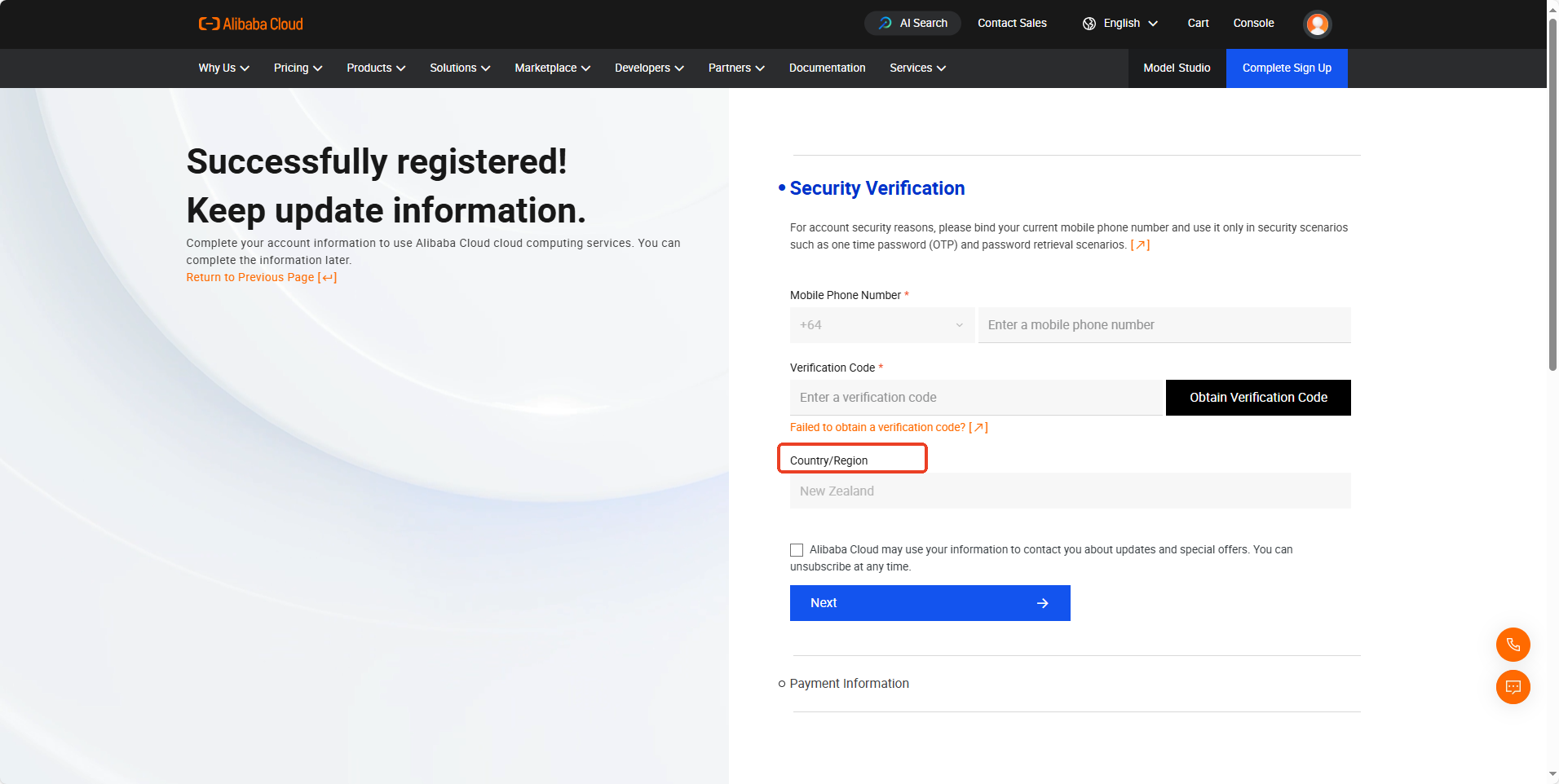
15B602EB-3B07-4b17-B6D1-FA6F146B453D

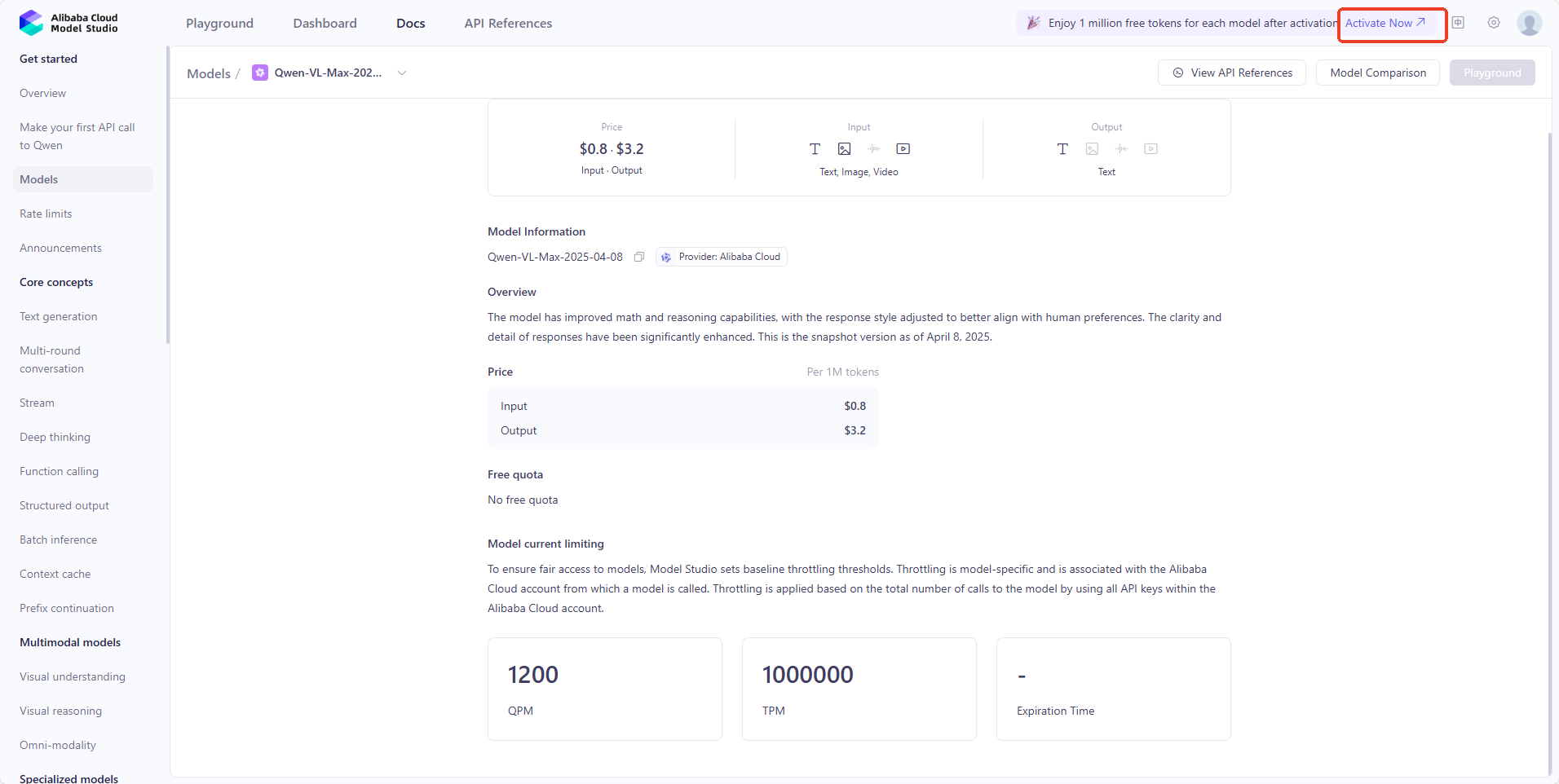
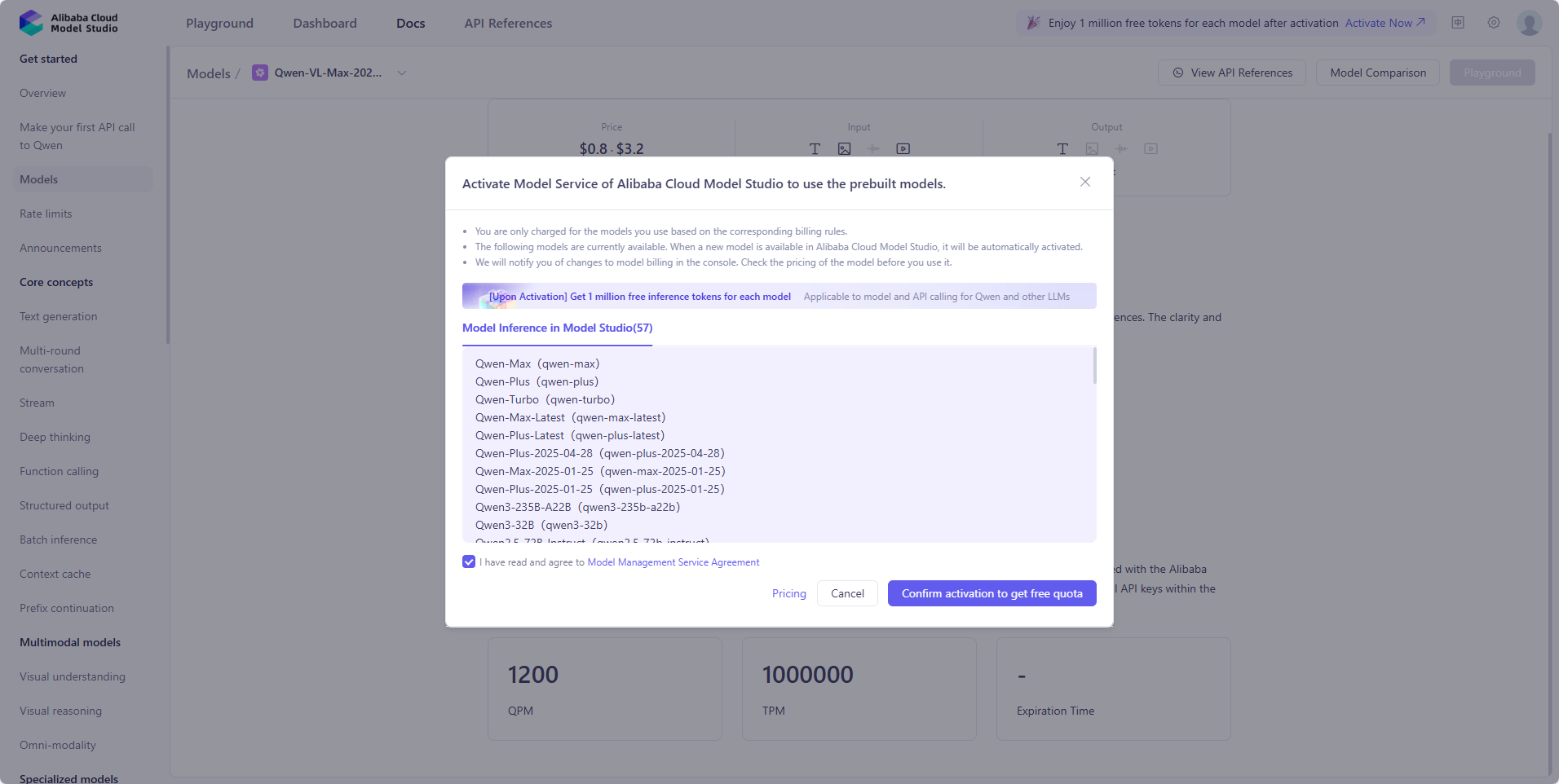
  1. Enter the large model, select Qwen-VL-Max, and get it for free Take part of the large model quota
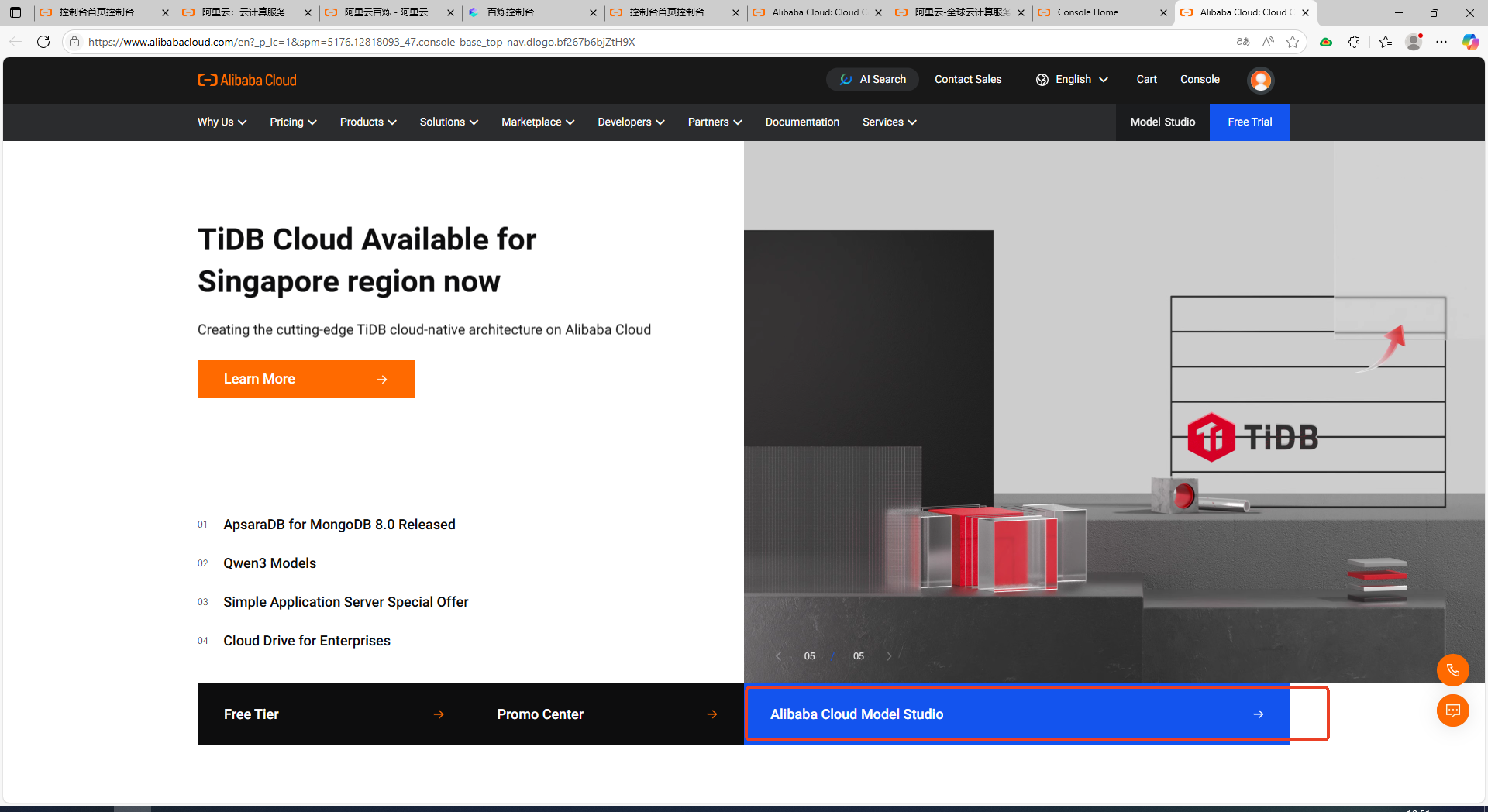
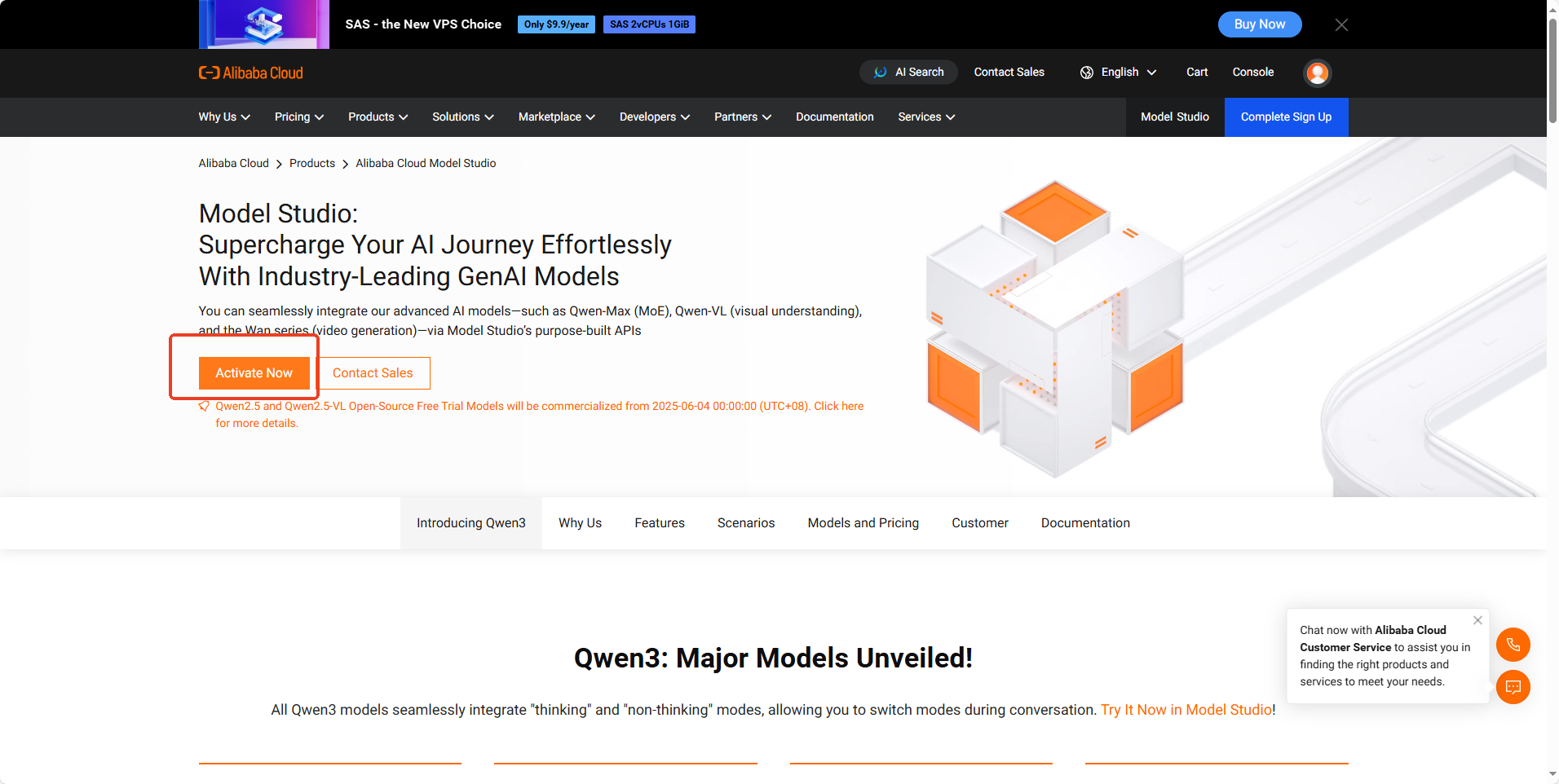
55F58FE6-3158-45f7-86F0-B5A59B8A43E6

9FB0E4C3-87B3-46c5-B10E-83FC16CB89FE

E829D35F-7B8D-4fa6-A7FB-752EA990E560

F778C9A0-1D7E-4b13-982C-7F3A21D3F796

D7F0BFA6-E4E0-4cee-8FBC-D00137EFF2AB

  1. Register your own API Key

F6342D18-D293-408c-9633-7120AEECDD70

8E63A23C-7AFD-4a89-BFF5-22E4E5688098

5.Register your own OpenAI Compatible Endpoint
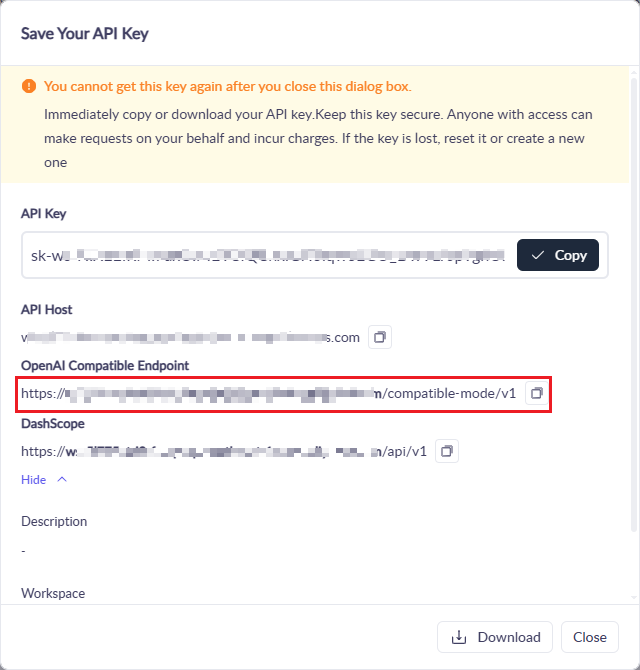
image-2026081016526666

Then remotely access the robot dog system through vnc and open the terminal. For how to enter the system through VNC, you can watch the tutorial in Chapter 1.

  1. Terminal input

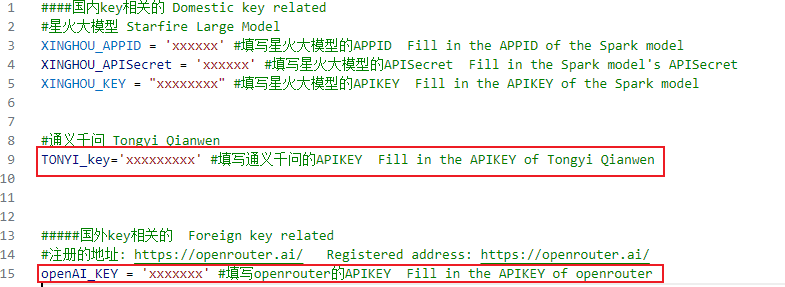
    Enter the following commands in the terminal, then fill in the API keys for Tongyi Qwen and OpenRouter respectively.

x
#cm4 run
nano RaspberryPi-CM4-main/demos/API_KEY.py
​
#cm5 run
nano RaspberryPi-CM5/demos/API_KEY.py

image-2025042700009

Then enter the API-KEY of OpenRouter and the API-KEY of TONYI_KEY according to the prompts. You do not need to fill in the Spark Big Model. Then press Ctrl+S to save and Ctrl+X to exit.

Enter the following command in the terminal and fill in the OpenAI Compatible Endpoint of Tongyi Qwen.

x
#cm4 run
nano RaspberryPi-CM4-main/demos/dog_agent/dog_Track_food_api.py
​
#cm5 run
nano RaspberryPi-CM5/demos/dog_agent/dog_Track_food_api.py
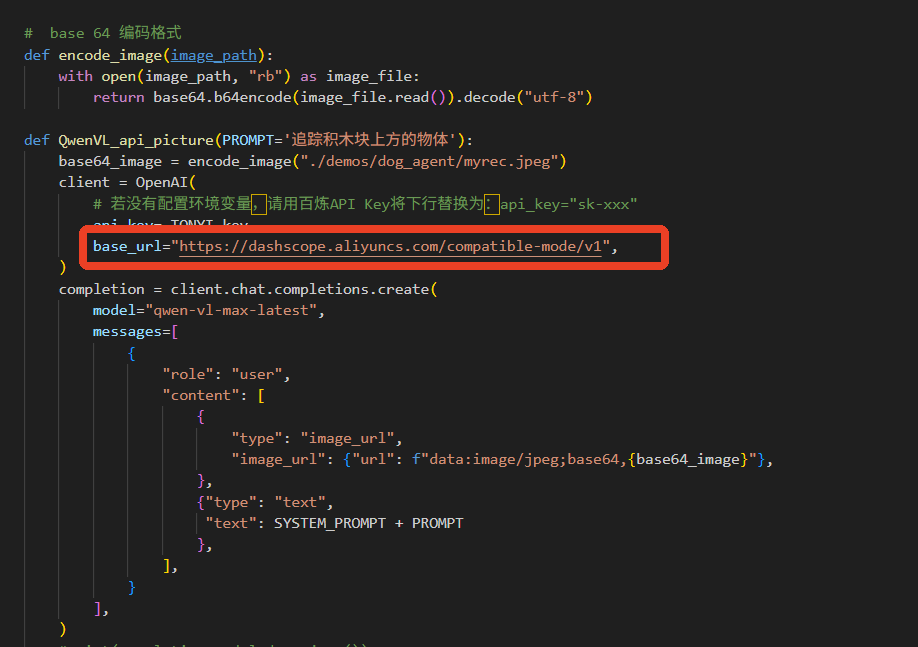
Then press Ctrl+S to save and Ctrl+X to exit.

x
#cm4 run
nano RaspberryPi-CM4-main/demos/dog_agent/dog_tongyiAPI.py
​
#cm5 run
nano RaspberryPi-CM5/demos/dog_agent/dog_tongyiAPI.py
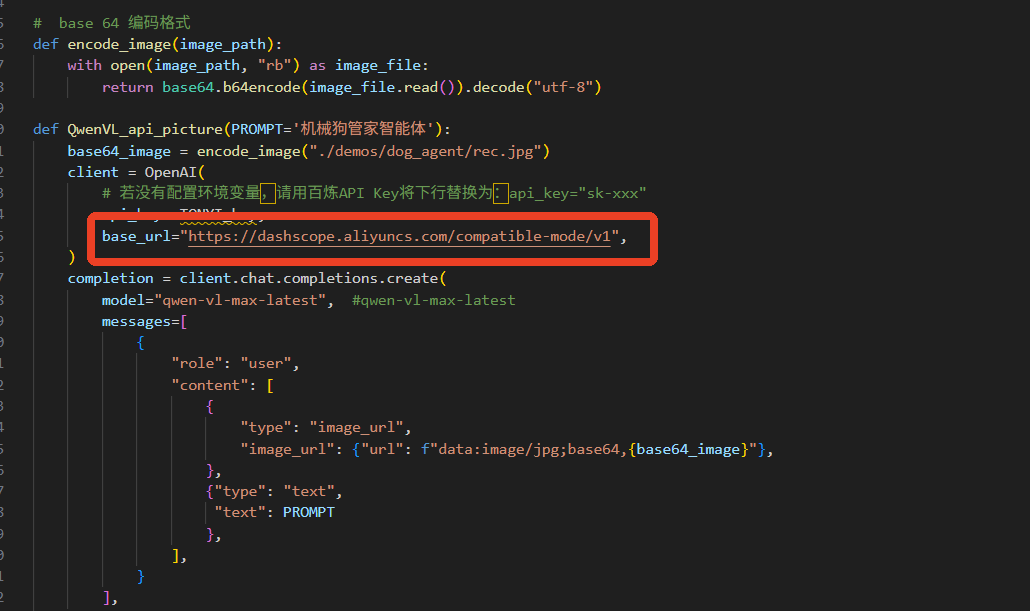
Then press Ctrl+S to save and Ctrl+X to exit.

x
#cm4 run
nano RaspberryPi-CM4-main/demos/speech_AI_food/speech_ai_food_image.py
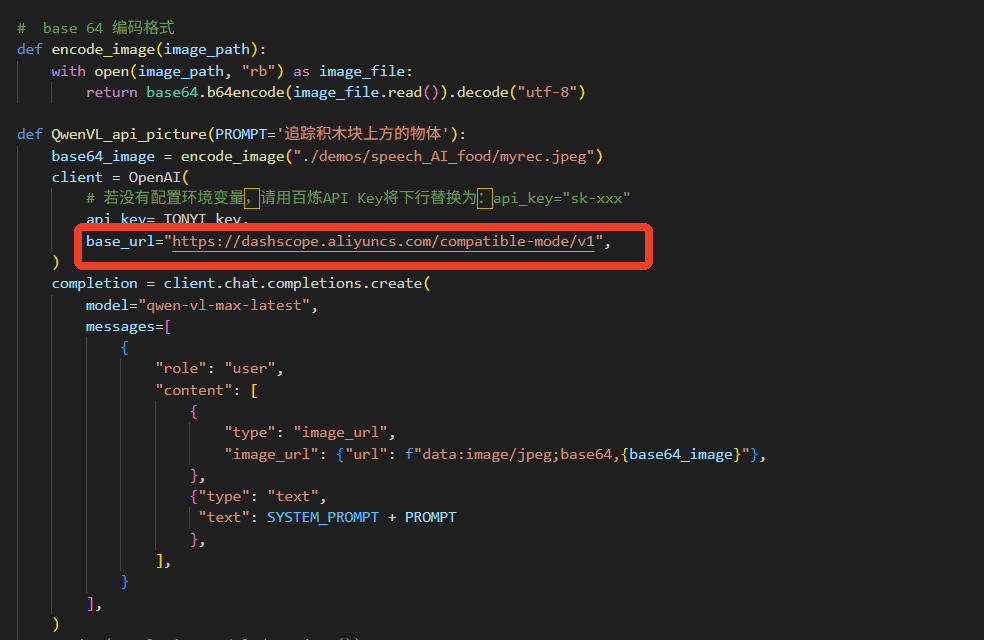
​
#cm5 run
nano RaspberryPi-CM5/demos/speech_AI_food/speech_ai_food_image.py

Then press Ctrl+S to save and Ctrl+X to exit.

You can run the Big Model routine. The Spark Big Model key used by overseas customers has been packaged in the relevant cases and does not need to be filled in here.

AI large model principle foundation
Q&A

COMPANY

  • About us
  • Team Style
  • Blog

LEARNING & EXPLORATION

  • Tutorials
  • Edge AI hardware
  • Educational robots
  • Embedded intelligent hardware

WHERE TO BUY

  • Yahboom Online Store
  • Amazon
  • Alibaba
  • AliExpress
  • Mercado

TECHNOLOGY SUPPORT

  • Email: support@yahboom.com

BE A DISTRIBUTOR

  • Email: sales@yahboom.com
QR Code

Copyright © 2017-2026 Yahboom. All Rights Reserved.

EN/中文