yahboom
HomeLearn
Solution
Blog
Online Store
About Us
EN/中文
DOGZILLA-Lite📖
1. Get started quickly
  • 0. Notes (Must Read)new
  • 1. Main interface function experience (cm5)new
  • 1. Main interface function experience(cm4)
  • 2. APP control experience
  • 3. Web page image transmission control
  • 4. LLM-Embodied Intelligence Capabilities
  • 5. LLM-Smart Dog Capabilities
2. Basic operations of Raspberry Pi system
  • 1.SSH remote login
  • 2.VNC remote login desktop
  • 3.Remote file transfer
  • 4.JupyterLab environment construction and use
  • 5.Burn the system image
  • 6.Connect to WiFi
  • 7.Close large programs
  • 8.Raspberry Pi system expansion
3. Basic control of the dogzilla
  • 0. Introduction to DOGZILLA-Lite
  • 1. Screen display control
  • 2. Record Audio
  • 3. Play Audio
  • 4. Text to audio
  • 5. Voice to text
  • 6. Record Video
  • 7. Play Video
  • 8. Video recording function
  • 9. Read the posture angle
  • 10. Battery level reading
  • 11. Read the servo angle
  • 12. Screen display of expressions
  • 13. Calibration of the robot dog
  • 14. Burn the firmware
  • 15. Analysis of common problems
4. Motion control of the dogzilla
  • 1. The dog's forward, backward, left, and right movements and gait
  • 2. Dog Spin
  • 3. The dog adjusts its height and posture
  • 4. Dog periodic translation and rotation
  • 5. Self-balancing mode
  • 6. The dog performs preset actions
  • 7. Single Leg Control
  • 8. Robotic arm control
  • 9. Teaching mode
  • 10. Group Control Performance
  • 11. Teaching demonstration onlinenew
5. Open Source CV
A. Getting started with OpenCV
  • 1. Introduction to OpenCV
  • 2. OpenCV image reading and display
  • 3. OpenCV image writing
  • 4. OpenCV Image Quality
  • 5.OpenCV pixel operations
B. OpenCV geometric transformation
  • 1. Image scaling
  • 2. Image cutting
  • 3. Image translation
  • 4. Image mirroring
  • 5. Affine Transformation
  • 6. Image Rotation
  • 7. Perspective Transformation
C. OpenCV image processing and drawing text segments
  • 1. Grayscale processing
  • 2. Image Binarization
  • 3. Edge Detection
  • 4. Line drawing
  • 5. Rectangle and circle drawing
  • 6. Text and picture drawing
D. Image beautification
  • 1. Color Image Histogram
  • 2. Histogram Equalization
  • 3. Image repair
  • 4. Brightness enhancement
  • 5. Skin whitening
  • 6. Gaussian mean filtering
  • 7. Median Filter
6. AI recognition of the dogzilla
  • 1. Camera driver tutorial
  • 2. Color recognition
  • 3. HSV value test
  • 4. Object Recognition
  • 5. QR code recognition
  • 6. License Plate Recognition
  • 7. Human Pose Estimation
  • 8. Yolo detection
  • 9. Face Detection
  • 10. Human face mask
  • 11. Face effects
  • 12. 3D Object Recognition
  • 13. Paintbrush
  • 14. Finger recognition
  • 15. Gesture Recognition
  • 16. Age and gender identification
  • 17. Background Segmentation
  • 18. Facial Recognitionnew
  • 19. Emotion Recognitionnew
  • 20. Motion Detectionnew
7. Dogzilla AI Interaction
  • 1. Color patrol
  • 2. Line patrol and obstacle removal
  • 3. Color tracking
  • 4. Ball tracking
  • 5. The ball follows
  • 6. QR code recognition exercise
  • 7. Face tracking
  • 8. Remote control
  • 9. Gesture tracking
  • 10. Gesture-controlled movement
  • 11. You Drop, I Pick
  • 12. Independent football exercise
  • 13. Human Body Followingnew
8. AI large model interaction
  • 0.AI large model principle foundation
  • 1.Large model premise use configuration
  • 2.Q&A
  • 3.Embodied intelligence
  • 4.Smart dog
  • 5.Picture to text
  • 6.Intelligent interaction
  • 7.Voice intelligent vision
  • 8.Playing football
  • 9.Block gripping
  • 10.Line tracking and obstacle removal
  • 11.Control object tracking
Download
  • System_File
  • Code
  • Firmware
  • Communication interface
  • Instruction Manual
  • Appendix
Download ZIP

Welcome to DOGZILLA-Lite repository

5. Rectangle and circle drawing

5. Rectangle and circle drawing

5. Rectangle and circle drawing5.1. Rectangle and circle drawing5.1.1. OpenCV draws rectangle5.1.2.OpenCV draws a circle5.1.3. OpenCV draws an ellipse5.1.4. OpenCV draws polygons5.2. Actual effect display

5.1. Rectangle and circle drawing

5.1.1. OpenCV draws rectangle

cv2.rectangle(img,pt1,pt2,color,thickness=None,lineType=None,shift=None)

Parameter meaning:

img: canvas or carrier image

pt1,pt2: required parameters. The vertices of the rectangle represent the top and diagonal vertices, that is, the upper left corner and lower right corner of the rectangle (these two vertices can determine a unique rectangle), which can be understood as diagonal lines.

color: required parameter. Used to set the color of the rectangle

thickness: optional parameter. Used to set the width of the rectangle side. When the value is negative, it means filling the rectangle

lineType: optional parameter. Used to set the type of line segment, optional 8 (8 adjacent connecting lines - default), 4 (4 adjacent connecting lines) and cv2.LINE_AA for anti-aliasing

5.1.2.OpenCV draws a circle

cv2.circle(img, center, radius, color[,thickness[,lineType]])

Parameter description:

img: canvas or carrier image

center: circle center coordinates, format: (50,50)

radius: radius

color: color

thickness: line thickness. Default is 1. If -1, it is filled solid.

lineType: line type. Default is 8, connection type. As shown in the following table

ParameterDescription
cv2.FILLEDFill
cv2.LINE_44-connection type
cv2.LINE_88-connection type
cv2.LINE_AAAnti-aliasing, this parameter will make the line smoother
5.1.3. OpenCV draws an ellipse

cv2.ellipse(img, center, axes, angle, StartAngle, endAngle, color[,thickness[,lineType]])

center: the center point of the ellipse, (x, x)

axes: refers to the short radius and the long radius, (x, x)

angle: refers to the angle of counterclockwise rotation

StartAngle: the angle of the arc start angle

endAngle: the angle of the arc end angle

img, color can refer to the description of the circle.

The fifth parameter refers to the angle at which the drawing starts counterclockwise, and the sixth refers to the angle at which the drawing ends counterclockwise

If the fourth, fifth, and sixth parameters are added with a symbol, they represent the opposite direction, that is, the clockwise direction

5.1.4. OpenCV draws polygons

cv2.polylines(img,[pts],isClosed, color[,thickness[,lineType]])

Parameter meaning:

pts: vertices of the polygon

isClosed: whether it is closed. (True/False)

Other parameters refer to the drawing parameters of the circle

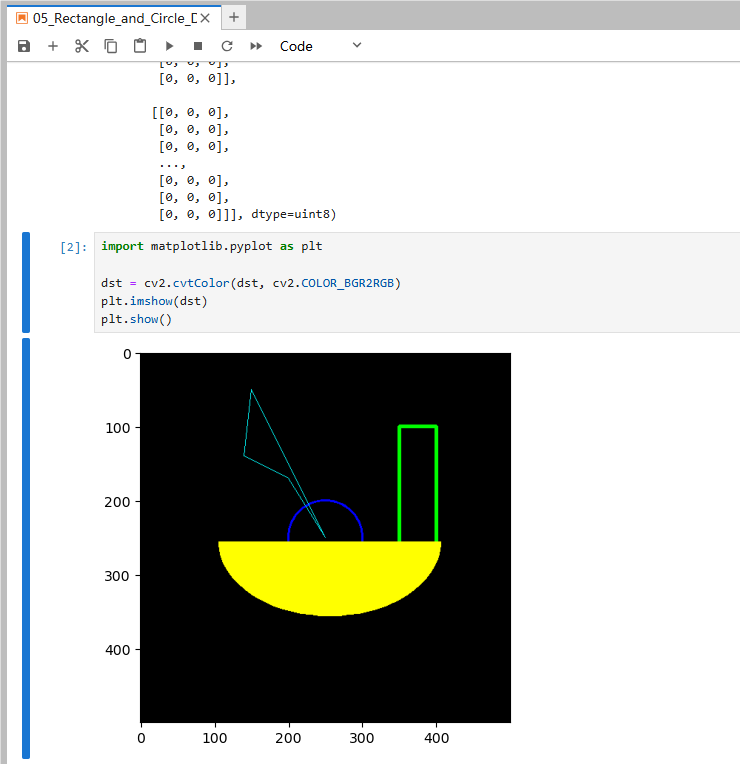
5.2. Actual effect display

Source code path:

/home/pi/DOGZILLA_Lite_class/4.Open Source CV/C.Image_Processing_Text_Drawing/05_Rectangle_and_Circle_Drawing.ipynb

​x
import cv2
import numpy as np
newImageInfo = (500,500,3)
dst = np.zeros(newImageInfo,np.uint8)
#  1 2 左上角 3 右下角 4 5 fill -1 >0 line w.  1 2 upper left corner 3 lower right corner 4 5 fill -1 >0 line w.
cv2.rectangle(dst,(350,100),(400,270),(0,255,0),3)
# 2 center 3 r 
cv2.circle(dst,(250,250),(50),(255,0,0),2)
# 2 center 3 轴 4 angle 5 begin 6 end 7 
cv2.ellipse(dst, (256,256), (150,100), 0, 0, 180, (0,255,255), -1)
​
points = np.array([[150,50], [140,140], [200,170], [250,250], [150,50]], np.int32)
#print(points.shape)
points = points.reshape((-1,1,2))
#print(points.shape)
cv2.polylines(dst,[points],True,(255,255,0))
# cv2.imshow('dst',dst)
# cv2.waitKey(0)
xxxxxxxxxx
import matplotlib.pyplot as plt
​
dst = cv2.cvtColor(dst, cv2.COLOR_BGR2RGB)
plt.imshow(dst)
plt.show()


Line drawing
Text and picture drawing

COMPANY

  • About us
  • Team Style
  • Blog

LEARNING & EXPLORATION

  • Tutorials
  • Edge AI hardware
  • Educational robots
  • Embedded intelligent hardware

WHERE TO BUY

  • Yahboom Online Store
  • Amazon
  • Alibaba
  • AliExpress
  • Mercado

TECHNOLOGY SUPPORT

  • Email: support@yahboom.com

BE A DISTRIBUTOR

  • Email: sales@yahboom.com
QR Code

Copyright © 2017-2026 Yahboom. All Rights Reserved.

EN/中文