Welcome to DOGZILLA-Lite repository
5. The ball follows
The ball follows
1. Purpose of the experiment
This practical case will introduce how to use OpenCV image processing technology to enable the robot dog to identify a small ball target of a specific color (red/green/blue/yellow) in real time through a camera. The system first extracts the target color area through HSV color space threshold segmentation, then calculates the center of mass coordinates and motion trajectory of the ball, and finally adjusts the movement direction and speed of the robot dog through the PID control algorithm to achieve a stable following function.
2. Main source code path
First, end the big program, then open the browser and enter "ip (ip is the IP of the robot dog): 8888", enter the password "yahboom" and enter
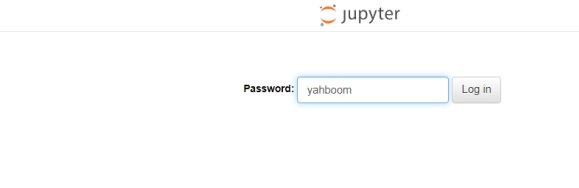
the path to ~/DOGZILLA_Lite_class/6.AI Visual Interaction Course/05.Ball Follow. Open the Ball_Follow.ipynb program and run it, or enter it in the terminal
xxxxxxxxxxcd ~/DOGZILLA_Lite_class/6.AI Visual Interaction Course/05.Ball Followpython3 Ball_Follow.py
3. Experimental Phenomenon
After running the source code, the body of the robot dog will follow the recognized color and move. Press the button on the upper right corner of the screen to switch the color. You can switch the color of the four balls: red, yellow, blue and green.
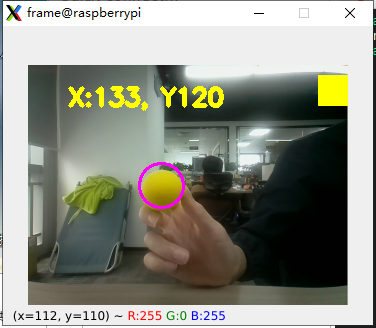
4. Main source code analysis
#初始化pid init pidPx = 0.15 Ix = 0.001Dx = 0.001X_Middle_error = 160 #图像X轴中心 Image X-axis centerX_track_PID = PID.PositionalPID(Px, Ix, Dx) •Pa = 1.5Ia = 0Da = 0.0001Area_Middle_error = 20 #小球的距离 The distance of the ballArea_track_PID = PID.PositionalPID(Pa, Ia, Da) Adjust the parameters that follow pid, which can be adjusted as needed
xxxxxxxxxxif g_mode == 1: if len(cnts) > 0: cnt = max (cnts, key = cv2.contourArea) (color_x,color_y),color_radius = cv2.minEnclosingCircle(cnt) #print(color_x,color_radius) if color_radius > 10: cv2.circle(frame,(int(color_x),int(color_y)),int(color_radius),(255,0,255),2) if abs(color_x-X_Middle_error)>25: #### X的方向(控制左右) Direction of X (control left and right) X_track_PID.SystemOutput = color_x #X X_track_PID.SetStepSignal(X_Middle_error) X_track_PID.SetInertiaTime(0.01, 0.1) x_real_value = int(X_track_PID.SystemOutput) # x_real_value = limit_fun(x_real_value ,-18,18) # g_dog.move('y',x_real_value) x_real_value = limit_fun(x_real_value ,-150,150) g_dog.turn(x_real_value) else: # g_dog.move('y',x_real_value) g_dog.turn(0) #### 面积大小,即圆的半径(控制前后) ##Area size, i.e. the radius of the circle (controlling the front and back) if abs(color_radius-Area_Middle_error)>5: Area_track_PID.SystemOutput = color_radius #area Area_track_PID.SetStepSignal(Area_Middle_error) Area_track_PID.SetInertiaTime(0.01, 0.1) area_real_value = int(Area_track_PID.SystemOutput) area_real_value = limit_fun(area_real_value ,-25,25) g_dog.move('x',area_real_value) else: g_dog.move('x',0) else: color_x = 0 color_y = 0 g_dog.stop()The above source code mainly includes the ball color following part. Press the button in the upper right corner of the screen to switch to different colors, and the button in the lower left corner can exit the recognition.