Welcome to DOGZILLA-Lite repository
12. 3D Object Recognition
3D Object Recognition
1. Purpose of the experiment
The robot dog can detect objects such as cups, chairs, shoes, and cameras, and draw 3D results.
2. Experimental path source code
Enter the robot dog system, end the robot dog program, enter "ip (ip is the robot dog's ip): 8888" in the browser, enter the password "yahboom" and log in. Enter the path of DOGZILLA_Lite_class/5.AI Visual Recognition Course/12. Three dimensional object recognition and run Objectron_USB.ipynb .
Or enter the command in the terminal to directly start the Python script
xxxxxxxxxxcd /home/pi/ DOGZILLA_Lite_class/5.AI Visual Recognition Course/12. Three dimensional object recognitionpython3 Objectron_USB.py
3. Experimental Phenomenon
After running the source code, you can see that the robot dog detects objects such as cups, chairs, shoes, and cameras.
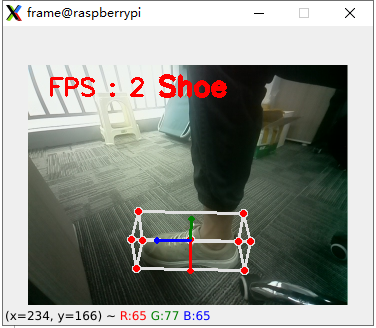
Press the "F" button to switch or press the button in the upper right corner of the robot dog's screen to switch and identify different targets. In this experiment, only shoes are identified.
Note: The F key has a switching effect only when running the source code in the terminal. It is not effective when running the source code in jupyter-lab.
4. Main program source code analysis
xxxxxxxxxxif __name__ == '__main__': capture = cv.VideoCapture(0) capture.set(6, cv.VideoWriter.fourcc('M', 'J', 'P', 'G')) capture.set(cv.CAP_PROP_FRAME_WIDTH, 320) capture.set(cv.CAP_PROP_FRAME_HEIGHT, 240) print("capture get FPS : ", capture.get(cv.CAP_PROP_FPS)) pTime = cTime = 0 objectron = Objectron() while capture.isOpened(): ret, frame = capture.read() # frame = cv.flip(frame, 1) action = cv.waitKey(1) & 0xFF if action == ord('q'): break if action == ord('f') or action == ord('F') : objectron.configUP() # 按屏幕的按键进行切换 Press the button on the screen to switch if button.press_d(): objectron.configUP() frame = objectron.findObjectron(frame) cTime = time.time() fps = 1 / (cTime - pTime) pTime = cTime text = "FPS : " + str(int(fps)) cv.putText(frame, text, (20, 30), cv.FONT_HERSHEY_SIMPLEX, 0.8, (0, 0, 255), 2) cv.imshow('frame', frame) #把画面显示在lcd屏上 Display the image on the LCD screen b, g, r = cv.split(frame) image = cv.merge((r, g, b)) imgok = Image.fromarray(image) display.ShowImage(imgok) capture.release() cv.destroyAllWindows()From the source code analysis, it can be seen that the robot dog will call the camera and the recognition model to determine the recognized target. If it is a target in the model, the recognition result will be displayed on the screen of the computer and the robot dog, and the target to be recognized will be switched through the button in the upper right corner of the robot dog.