Welcome to Muto RS Robot repository
2.Jupyter Lab login and running example code
2. Jupyter Lab Login and Running Example Code
Introduction to Jupyter Lab
JupyterLab is a comprehensive upgrade of Jupyter Notebook, an all-in-one IDE that integrates Jupyter Notebook, a text editor, a terminal, and various personalized components (giving it a VSCode feel). Compared to Jupyter Notebook, JupyterLab can open more file formats, including not only code files (.py, .cpp) but also CSV, JSON, Markdown, and PDF. JupyterLab supports over 40 programming languages, including Python, R, Julia, and Scala.
On MutoRS, we can use Jupyter Lab to quickly debug some of the simple functions of MutoRS. In the factory image, we have pre-installed Jupyter Lab and configured it to start automatically.
Entering Jupyter Lab
We first need to get the IP address of the Raspberry Pi board (it is usually displayed on the OLED screen on the side).
In your browser, enter IP_address:8888 and press Enter.
My IP address is 192.168.12.36, so I enter 192.168.12.36:8888 in the browser's address bar.
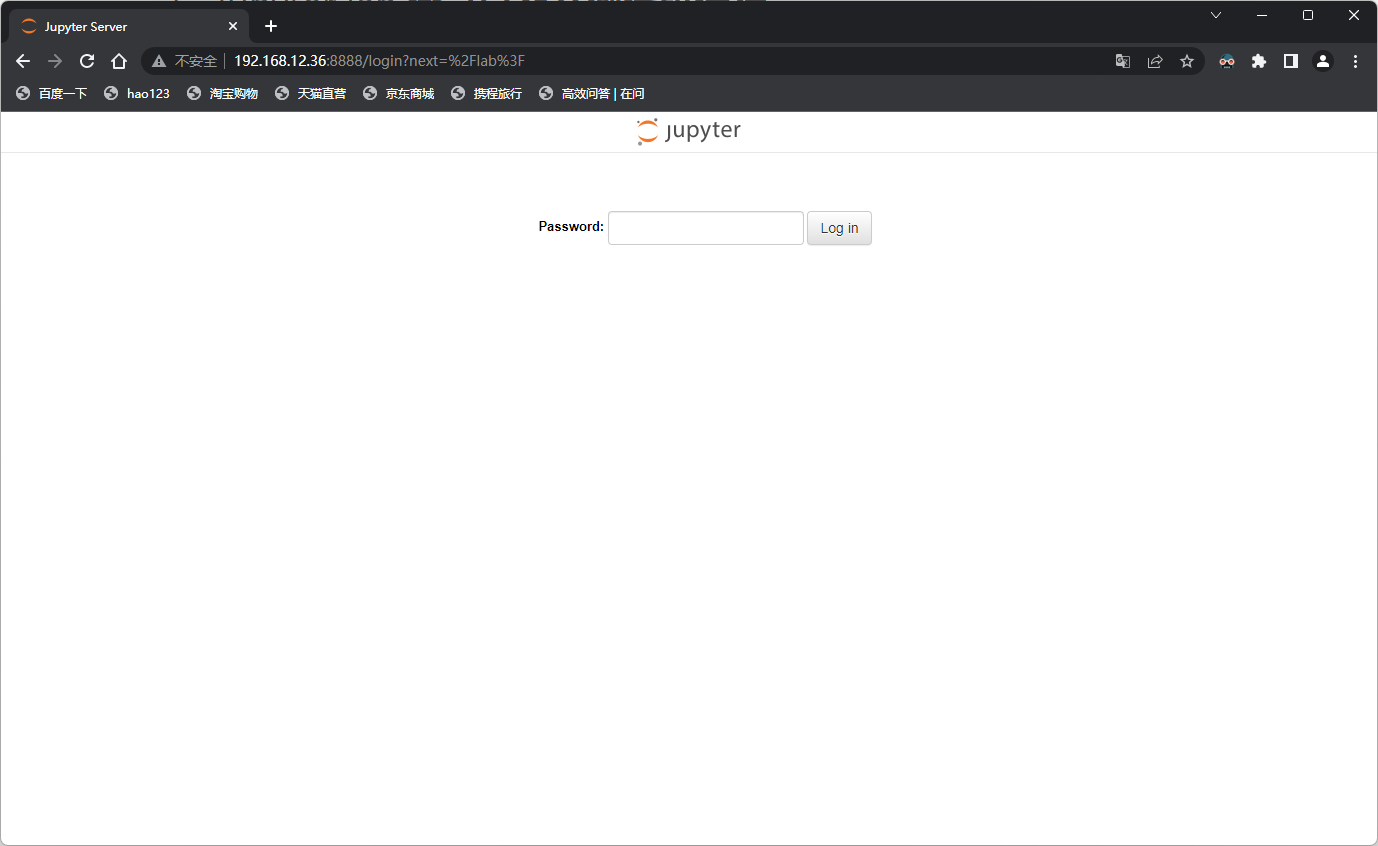
Enter the password yahboom and click the Log in button.
You can see that we have entered the Jupyter Lab interface.
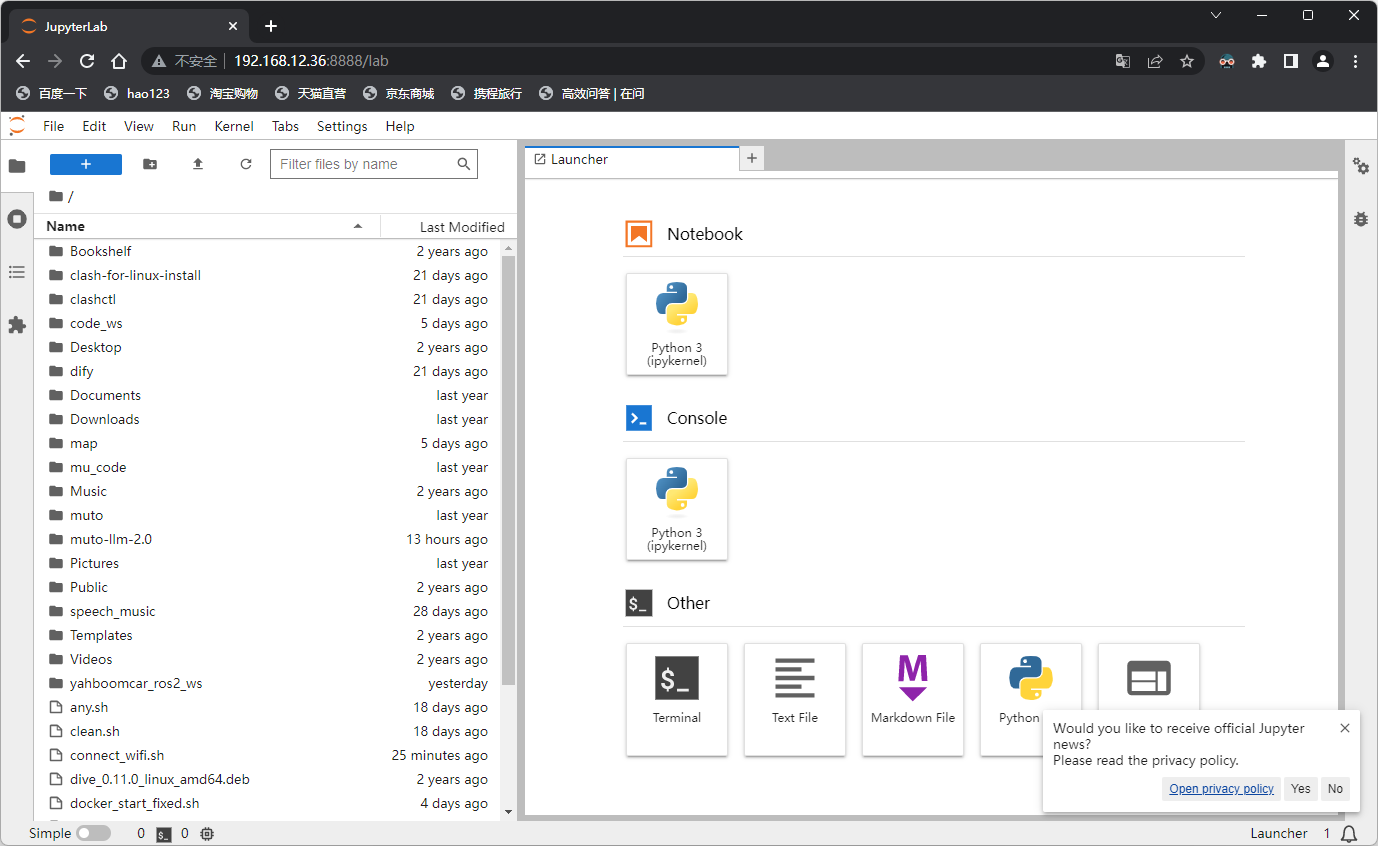
Let's try running an example code first.
On the left, find the path ~/muto/Samples/Control/
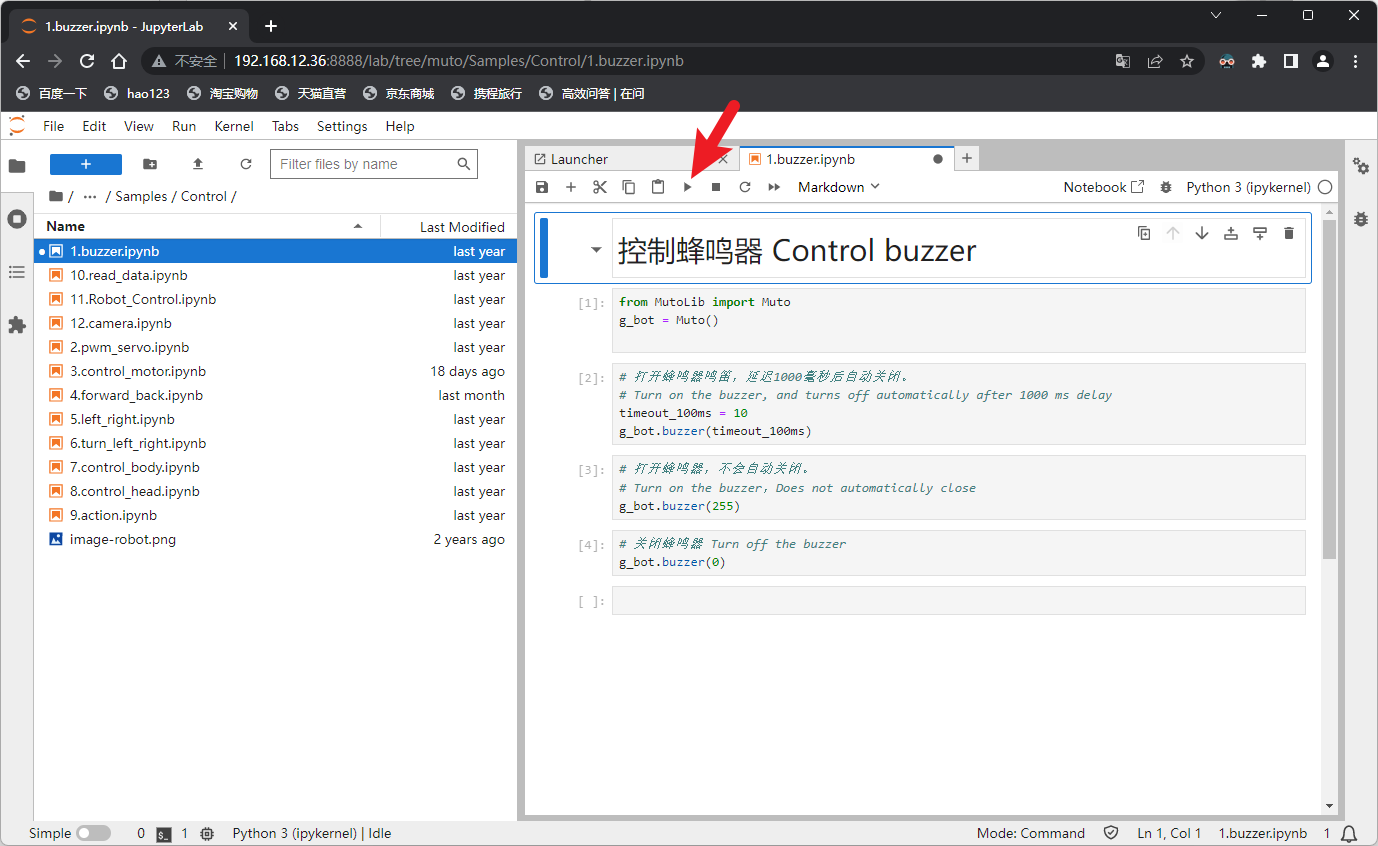
Let's take 1.buzzer.ipynb as an example. Double-click to open it on the right.
After opening, click the run button.
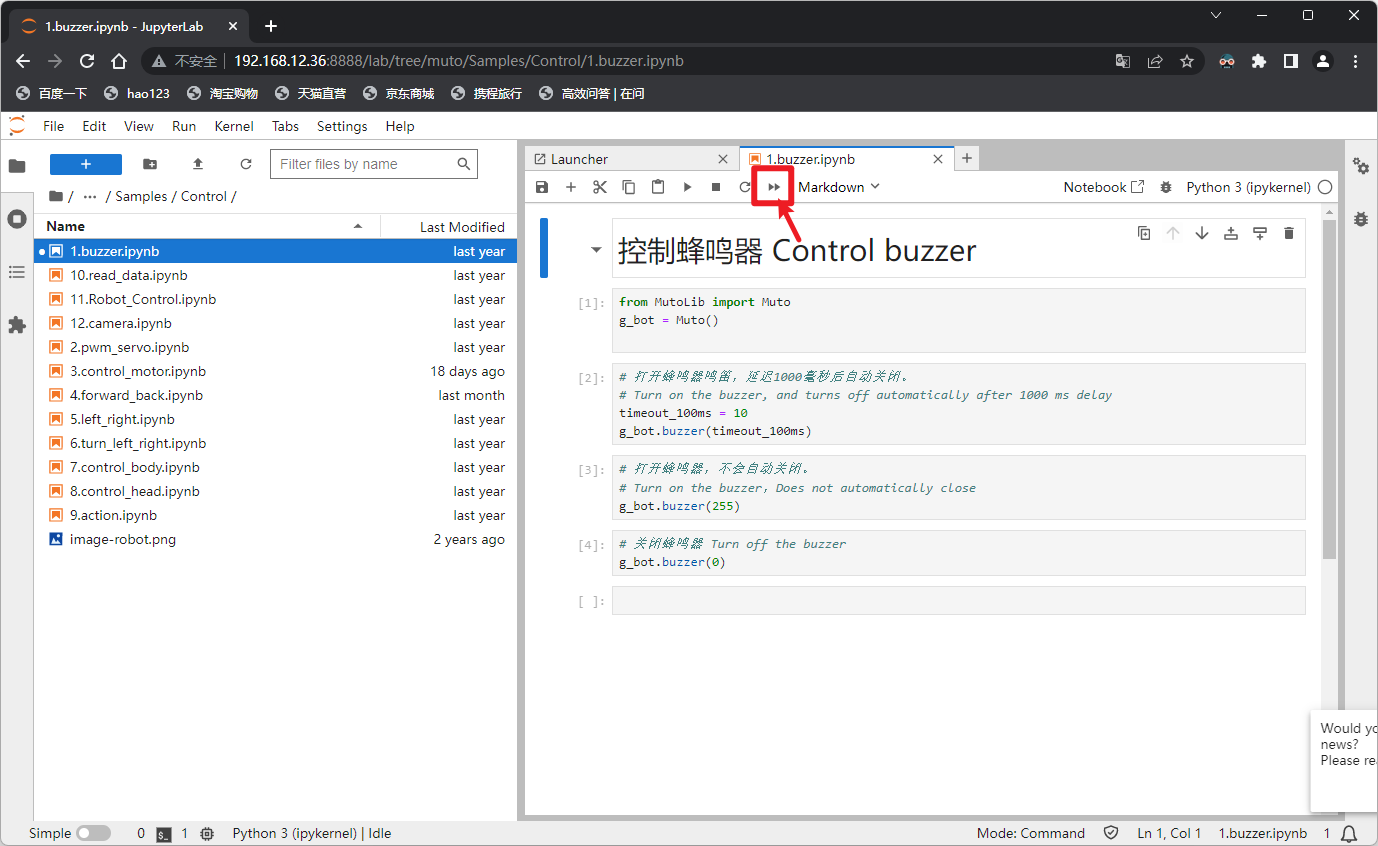
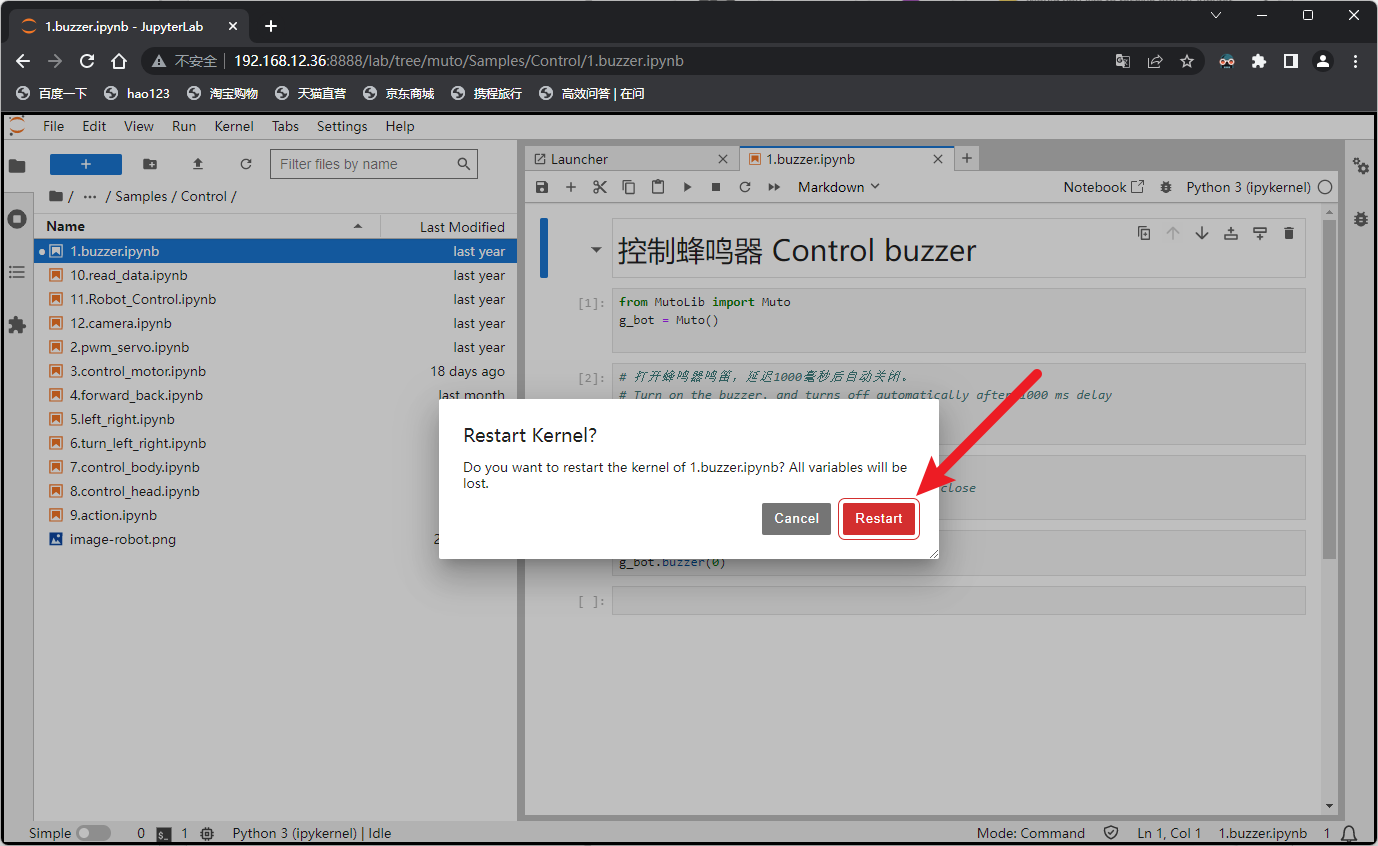
You can hear the buzzer sound for a short time.
We can also use this button to run and test step by step 我们也可以用这个按钮单步运行测试