Welcome to Muto RS Robot repository
1.Raspberry Pi write system
Raspberry Pi write system
1. Ready to install
Note: The TF that comes with the robot has been burned into the factory image. You can directly insert the TF card into the robot for use. Generally, there is no need to follow this tutorial to burn the image system! ! !
1.Prepare a win10 system computer, card reader and TF card (64G recommended)
2.Download the image of Muto RS
Find the factory image on the tutorial website and download the corresponding image compressed package file according to different control boards.
Raspberry Pi system: user name: pi password: yahboom
3.Format SD card
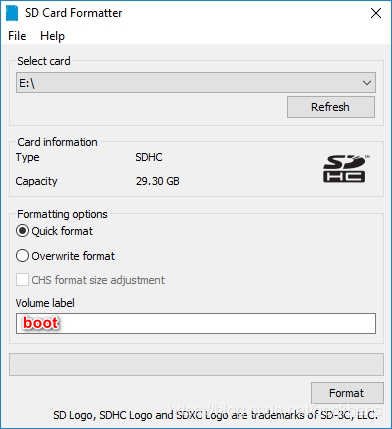
Use SDFormatter to format the TF card. Be careful not to select the wrong Drive here, otherwise it will cause unnecessary trouble. If the system has been burned into the TF card, an error may occur during the first formatting. Just execute it again.
Note: Fill in boot in the Volume label for formatting.
2. Flash system image
1.Unzip the downloaded system compressed file to get the img image file
2.Insert the TF card into the card reader, and then insert the card reader into the computer USB port
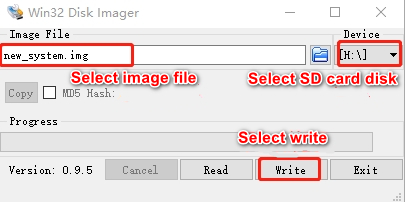
3.Unzip and run the Win32DiskImager tool
4.Select the img (image) file in the software, select the drive letter under "Device", then select "Write" and then start flashing the system. According to the speed of your TF card and card reader, the flashing process is fast slow.
5.A completion dialog box will pop up after the flashing is completed, indicating that the installation is complete. If it is unsuccessful, please close the software such as the firewall and start the flashing again. Please note that after the installation, the TF card is divided into multiple partitions under the windows system and cannot be clicked to enter. This is a normal phenomenon, because the disk partition under linux cannot be seen under win!
So far, the Raspberry Pi system has been successfully programmed. After the writing is successful, the system may prompt to format the partition because the partition cannot be recognized. Do not format at this time! Do not format! Do not format! Click Cancel, then eject the TF card.