Welcome to Muto RS Robot repository
10)KCF object tracking
10.KCF object tracking
This is a ROS 2-based vision tracking package that uses OpenCV's KCF (Kernelized Correlation Filters), CSRT, or MOSSE algorithms to track targets and controls MutoRS to follow them.
1. Program function description
After the program is started, select the object to be tracked with the mouse, press the space bar, and Muto enters tracking mode. Muto will maintain a distance of 1 meter from the tracked object and always ensure that the tracked object remains in the center of the screen. Press the R key to enter the selection mode, and press the Q key to exit the program. After the controller program is started, you can also pause/continue tracking through the R2 key on the controller.
2. Code reference path
After entering the docker container, the source code of this function is located at
xxxxxxxxxx/root/yahboomcar_ros2_ws/yahboomcar_ws/src/yahboomcar_kcftracker/src/KCF_Tracker.cpp/root/yahboomcar_ros2_ws/yahboomcar_ws/src/yahboomcar_kcftracker/launch/kcf_tracker_launch.py
3. Program startup
3.1. Start command
After entering the docker container, enter in the terminal,
xxxxxxxxxx#Start the depth cameraros2 launch astra_camera astro_pro_plus.launch.xml#Start object tracking noderos2 launch yahboomcar_kcftracker kcf_tracker_launch.pyThis command will automatically:
- Check and start the chassis driver (
muto_driver). - Start the handle control node (optional).
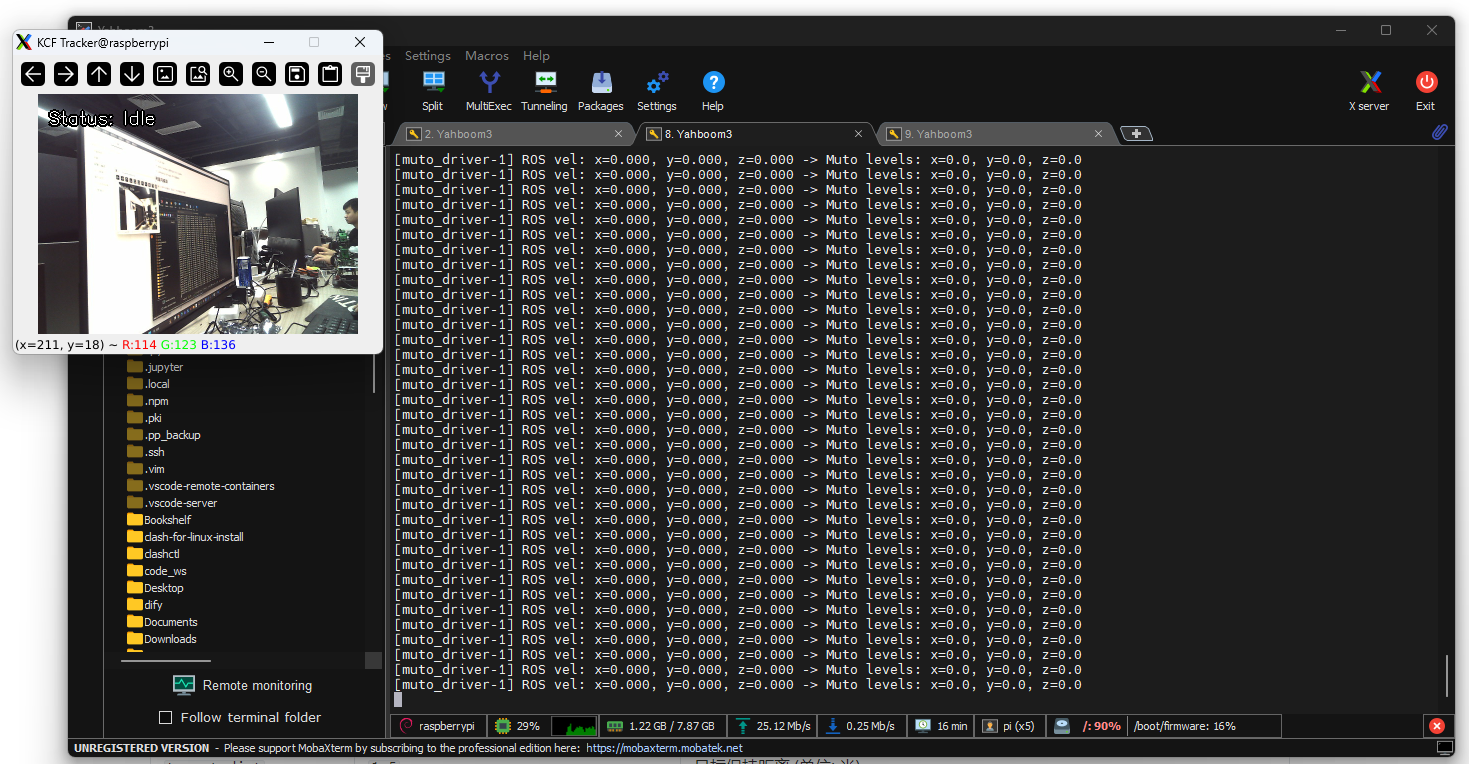
- Start the tracker node and open the image window.
Launch Parameters
You can modify the configuration via command-line parameters:
| Parameter Name | Default Value | Description |
|---|---|---|
tracker_type | CSRT | Tracking algorithm type. Optional: KCF, CSRT, MOSSE. |
camera_topic | /camera/color/image_raw | Subscribed RGB image topic. |
process_scale | 2 | Image processing scaling ratio. 1 for the original image, 2 for half-scale (improves performance). |
keep_distance | False | Whether to enable distance keeping (requires a depth camera). |
target_dist | 1.5 | Target keeping distance (in meters). |
track_only | False | If True, only image tracking is performed; speed commands are not issued. |
Use the mouse cursor to select the object you want to track, then release to select the target. Slowly move the object, and Muto will follow it.
Topic Control
You can control nodes by publishing topic commands:
- Stop Tracking:
xxxxxxxxxxros2 topic pub -1 /kcf_tracker/command std_msgs/msg/String "data: stop"- Reset State:
xxxxxxxxxxros2 topic pub -1 /kcf_tracker/command std_msgs/msg/String "data: reset"- Procedurally Set Tracking Frame:
Publish Int32MultiArray to /kcf_tracker/init_rect in the format [x1, y1, x2, y2] (original coordinates).
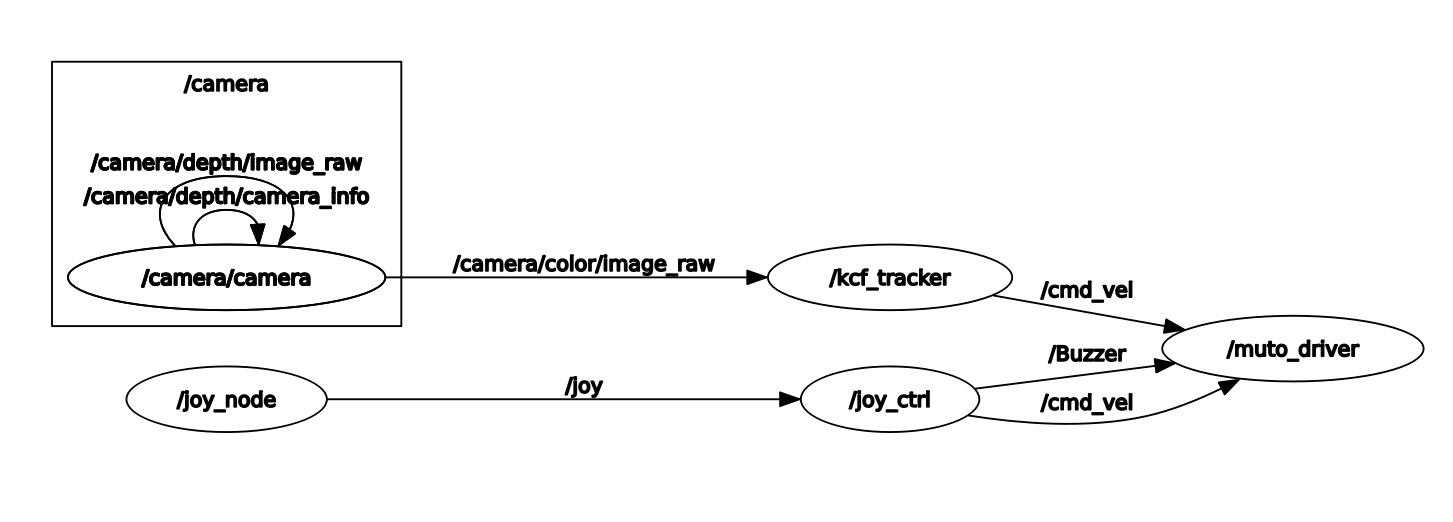
3.2 Viewing the Node Topic Communication Graph
You can view the topic communication between nodes using the following command:
ros2 run rqt_graph rqt_graph