Welcome to Muto RS Robot repository
7)Visual line following
7.visual line following
1. Introduction
The visual line tracking function of the hexapod robot can switch to recognize multiple colors and calculate the center point of the square. According to the coordinates of the center point, if the center point deviates from the visual center, combined with the PID algorithm, it can calculate whether the hexapod robot should go left or right. Walk to achieve the function of visual line following.
2. Core content analysis
Initialize the hexapod robot's visual line tracking object and set the camera pan/tilt angle. The default is S1=90 and S2=0. The initial angle can be modified according to actual needs.
xfrom follow_line import LineDetectline_detect = LineDetect()line_detect.Gimbal_1_2(90, 0)
g_ENABLE_CHINESE represents the Chinese character switch of the control. The default is False for English characters. If you need to display Chinese, please set it to True.
xxxxxxxxxxg_ENABLE_CHINESE = FalseName_widgets = {'Start': ("Start", "开始"),'Stop': ("Stop", "停止"),'Switch': ("Switch", "图像二值化开关"),'Reset': ("Reset", "重新学习"),'Finish': ("Finish", "完成学习"),'Identify': ("Identify", "识别模式"),'Close_Camera': ("Close_Camera", "关闭摄像头")}
The function of the Start button is to start line following, the function of the Stop button is to stop the line following, the function of the Switch button is to turn on and off the binary image display, the function of the Reset button is to reselect the color, the function of the Finish button is to confirm the color, and the function of the Identify button The function of the button is to return to the recognition mode, and the function of the Close_Camera button is to close the camera and exit the program.

The recognized color HSV values are saved in the LineFollowHSV.txt local file.
xxxxxxxxxxHSV_FILE_NAME = "LineFollowHSV.txt"
Create a new PID algorithm to control the movement of the robot. If the robot does not turn in time or cannot follow the line normally, please modify the PID value appropriately.
xxxxxxxxxxself.FollowLinePID = (200, 1, 50)self.PID_init()
The robot obtains the location information of the recognized color based on the camera screen analysis.
xxxxxxxxxxelif self.Track_state == 'tracking':rgb_img, binary, self.circle = self.color.line_follow(rgb_img, self.hsv_range)
In the thread, the steering amplitude of the robot is controlled based on the position information obtained by visual analysis and the PID algorithm.
xxxxxxxxxxif (self.circle[2] > 0 and self.__run):[z_Pid, _] = self.PID_controller.update([(self.circle[0]-320), 0])print("robot_move:", z_Pid)self.__robot.move(15, 0, int(z_Pid))
3. Operation
Open the jupyterLab client and find the code path:
xxxxxxxxxxmuto/Samples/AI_Samples/10_follow_line/follow_line.ipynb
Click to run all cells, and then scroll to the bottom to see the generated controls.

For the first time, please click the Reset button to switch to reset mode, and put the color line you want to visually follow into the green box in the image.
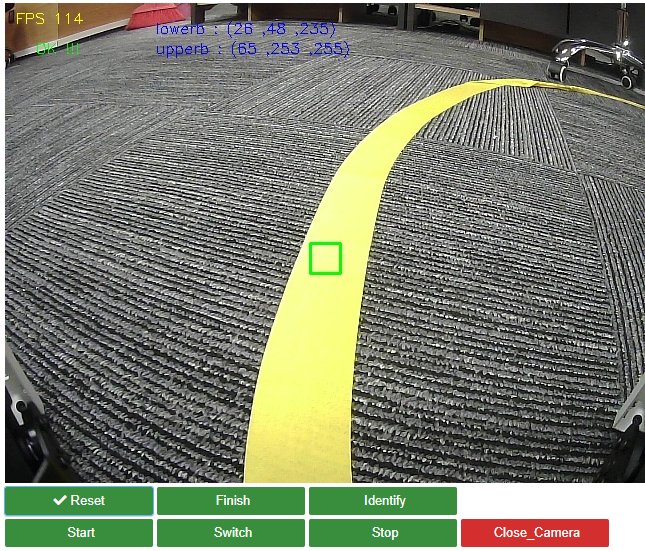
When OK is displayed in the upper left corner, clicking the Finish button will record the HSV value of the color in the green box and save it locally, and automatically switch to recognition mode. At this time, the Switch button is automatically turned on, and the recognized color status is displayed on the right.

After confirming that the color recognition is normal, click the Start button to turn on the robot's visual line following function.
If you want the robot to stop, press the Stop button to stop the robot.
Finally click the Close_Camera button to close the camera.