Welcome to Muto RS Robot repository
3)Deeply understand and publish images
3.Deeply understand and publish images
3.Deeply understand and publish images3.1.Understanding of images3.2.UnionFS (Union File System)3.3.Image layering3.3.1.Layered understanding3.3.2. The benefits of using layering for docker images3.4. Produce and publish images3.4.1. Create images3.4.2. Release image
3.1.Understanding of images
- An image is a lightweight, executable independent software package that contains everything needed to run a certain software. We package the application and configuration into a formed, deliverable, and deployable operating environment, including code, libraries required for runtime, environment variables, and configuration files, etc. This large packaged operating environment is an image image file.
- Docker container instances can only be generated through image files.
3.2.UnionFS (Union File System)
- Union File System (UnionFS) is a layered, lightweight, high-performance file system. It is the basis of docker images and supports modifications to the file system to be superimposed layer by layer as a single submission. At the same time, different directories can be mounted under the same virtual file system.
- Images can be inherited through layering. Based on the basic image, various specific application images can be produced.
Features of the Union file system: multiple file systems are loaded at the same time, but from the outside, only one file system can be seen;Union loading superimposes each layer of file systems so that the final file system contains files and directories from all layers.
3.3.Image layering
When downloading an image, pay attention to the download log output. You can see that it is downloading layer by layer:
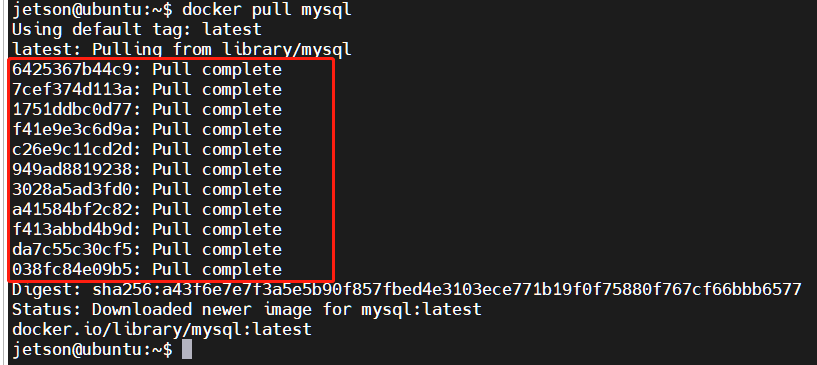
# To view the image layering method, you can use the command:docker image inspect inspect image namejetson@ubuntu:~$ docker image inspect mysql:latest[{"Id": "sha256:5371f8c3b63eec64a33b35530be5212d6148e0940111b57b689b5ba1ffe808c8",........."RootFS": {"Type": "layers","Layers": ["sha256:d6d4fc6aef875958d6186f85f03d88e6bb6484ab2dd56b30a79163baceff2f6d","sha256:05c3b0b311a02bc56ca23105a76d16bc9b8c1d3e6eac808f4efb1a2e8350224b","sha256:7b80f7f05642477ebc7d93de9539af27caab7c41a768db250fe3fe2b5506ca2c","sha256:50e037faefab22cb1c75e60abb388b823e96a845650f3abd6d0a27e07a5a1d5e","sha256:66040abb3f7201d2cc64531349a8225412db1029447a9431d59d999c941d56f6","sha256:857162425652837a362aa5f1c3d4974cc83702728793de52ba48176d5367a89b","sha256:7eebed3016f6b6ab68aa8e6be35f0689a3c18d331b7b542984a0050b859eaf26","sha256:2fc4c142633d57d795edc0f3fd457f99a35fa611eab8b8c5d75c66e6eb729bc2","sha256:7fde2d12d484f0c14dabd9ca845da0bcdaf60bd773a58ca2d73687473950e7fe","sha256:9319848a00d38e15b754fa9dcd3b6e77ac8506850d32d8af493283131b9745a3","sha256:5ff94d41f068ea5b52244393771471edb6a9a10f7a4ebafda9ef6629874a899b"]},"Metadata": {"LastTagTime": "0001-01-01T00:00:00Z"}}]
3.3.1.Layered understanding
- All docker images start from a basic image layer. When modifications are made or new content is added, a new image layer will be created on top of the current image layer.
- To give a simple example, if a new image is created based on Ubuntu 20.04, this is the first layer of the new image; if a python package is added to the image, a second image layer will be created on top of the basic image layer; If you continue to add a security patch, a third image layer will be created.
- Docker images are read-only, when the container starts, a new writable layer is loaded on top of the image! This layer is what we usually call the container layer, and everything below the container is called the mirror layer!
3.3.2. The benefits of using layering for docker images
Resource sharing. For example, if multiple images are built from the same Base image, the host only needs to keep a copy of the Base image on the disk.At the same time, only one base image needs to be loaded into the memory, so that it can serve all containers, and each layer of the image can be shared.
3.4. Produce and publish images
3.4.1. Create images
Method 1. Submit an image from the container:
x# commanddocker commit -m="Submission description" -a="Author" Container id Target image name to be created: [tag name] [-m -a parameters can also be omitted]# testjetson@ubuntu:~$ docker ps -aCONTAINER ID IMAGE COMMAND CREATED STATUS PORTS NAMESc54bf9efae47 ubuntu:latest "/bin/bash" 3 hours ago Up 24 minutes funny_hugle3b9c01839579 hello-world "/hello" 3 hours ago Exited (0) 3 hours ago jovial_brownjetson@ubuntu:~$ docker commit c54bf9efae47 ubuntu:1.0sha256:78ca7be949b6412f74ba12e8d16bd548aaa7c3fa25134326db3a67784f848f8fjetson@ubuntu:~$ docker images # Generated ubuntu:1.0 imageREPOSITORY TAG IMAGE ID CREATED SIZEubuntu 1.0 78ca7be949b6 5 seconds ago 69.2MByahboomtechnology/ros-humble 3.4.0 49581aa78b6b 5 hours ago 24.3GByahboomtechnology/ros-humble 3.3.9 cefb5ac2ca02 4 days ago 20.5GByahboomtechnology/ros-humble 3.3.8 49996806c64a 4 days ago 20.5GByahboomtechnology/ros-humble 3.3.7 8989b8860d17 5 days ago 17.1GByahboomtechnology/ros-humble 3.3.6 326531363d6e 5 days ago 16.1GBubuntu latest bab8ce5c00ca 6 weeks ago 69.2MBhello-world latest 46331d942d63 13 months ago 9.14kB
Method 2.dockerfile to create the image:
xxxxxxxxxx# commanddocker build -f dockerfile File path -t new image name:TAG . #There is a . at the end of the docker build command indicating the current directory# testdocker build -f dockerfile-ros2 -t yahboomtechnology/ros-humble:1.2 .For information on writing dockerfile, please refer to:https://docs.docker.com/develop/develop-images/dockerfile_best-practices/
3.4.2. Release image
The docker repository is a centralized place for storing image files. The largest public repository is docker hub (https://hub.docker.com/), which stores a large number of images for users to download. Domestic public warehouses include Alibaba Cloud, NetEase Cloud, etc.
Steps to publish image to docker hub:
- Address: https://hub.docker.com/, register an account first
- Ensure that the account can be logged in normally

- Use the tag command to modify the image name.
The specifications for publishing images to docker hub are:
xxxxxxxxxxdocker push Register username/image name
For example, my registered user name here is: pengan88, then I need to change the image name first.
xxxxxxxxxx# Command:docker tag image ID modified image name# testjetson@ubuntu:~$ docker imagesREPOSITORY TAG IMAGE ID CREATED SIZEubuntu 1.0 78ca7be949b6 5 seconds ago 69.2MBubuntu latest bab8ce5c00ca 6 weeks ago 69.2MBhello-world latest 46331d942d63 13 months ago 9.14kBjetson@ubuntu:~$ docker tag 78ca7be949b6 pengan88/ubuntu:1.0jetson@ubuntu:~$ docker imagesREPOSITORY TAG IMAGE ID CREATED SIZEpengan88/ubuntu 1.0 78ca7be949b6 23 minutes ago 69.2MBubuntu 1.0 78ca7be949b6 23 minutes ago 69.2MBubuntu latest bab8ce5c00ca 6 weeks ago 69.2MBhello-world latest 46331d942d63 13 months ago 9.14kB
- Log in to docker hub to publish the image:
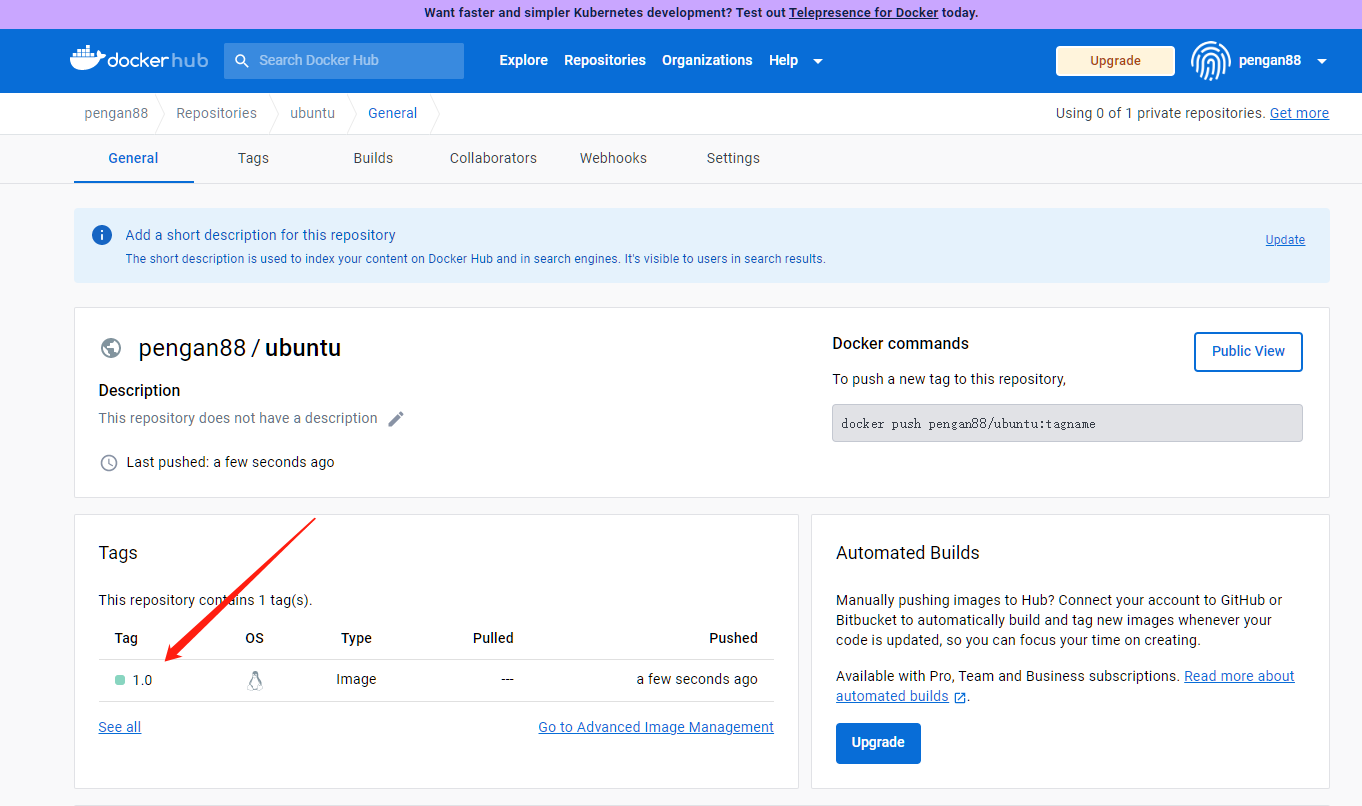
xxxxxxxxxxjetson@ubuntu:~$ docker login -u pengan88Password: #Enter the account and password registered by docker hub here.WARNING! Your password will be stored unencrypted in /home/jetson/.docker/config.json.Configure a credential helper to remove this warning. Seehttps://docs.docker.com/engine/reference/commandline/login/#credentials-storeLogin Succeededjetson@ubuntu:~$ docker push pengan88/ubuntu:1.0The push refers to repository [docker.io/pengan88/ubuntu]ca774712d11b: Pushed874b048c963a: Mounted from library/ubuntu1.0: digest: sha256:6767d7949e1c2c2adffbc5d3c232499435b95080a25884657fae366ccb71394d size: 736
- Visit docker hub to see that it has been successfully published.