yahboom
HomeLearn
Solution
Blog
Online Store
About Us
EN/中文
Muto RS Robot📖
01.Introduction to Muto Robot
  • 1.Accessories introduction
  • 2.Precautions for battery
  • 3.FAQ
  • 4.MutoRS Study Guide
  • 5.Quick Start Guide
02.Assembly and write system
  • 1.Raspberry Pi write system
  • 2.Assembly video
03.Remote control course
  • 1.Open and Close APP Control Program
  • 2.Mobile APP Remote Control
  • 3.USB Wireless Controller Remote Control
  • 4.Web Host Computer Remote Control
04.Remote login operation
  • 1.SSH and VNC remote login
  • 2.Jupyter Lab login and running example code
05.AI Large Model Basicsnew
  • 1.AI Large Model Types and Principles
  • 2.RAG Retrieval Enhancement and Model Training Samples
  • 3.Embodied Intelligent Robot System Architecture
  • 4.Embodied Intelligent Functions Core Source Code
06.AI Large Model Developmentnew
  • 1.Register a model service provider account
  • 2.Configure API-KEY
  • 3.Introduction to Dify
  • 4.Dify Basic function
  • 5.AI large model development - Chatbot
  • 6.Deploy the RAG knowledge base
  • 7.RAG knowledge base + Chatbot
  • 8.AI agent workflow
  • 9.Custom wake-up response
  • 10.Core module testing tools
07.AI Large Model (Text Version)new
  • 0.MutoRS Model Setup & Details
  • 1.Semantic Understanding, Instruction Following
  • 2.Multimodal Visual Understanding
  • 3.Multimodal Visual Understanding + Depth Camera Distance Q&A
  • 4.Multimodal Visual Understanding + Visual Line Following
  • 5.Multimodal Visual Understanding + Visual Following
  • 6.Multimodal Visual Understanding + SLAM Navigation
  • 7.Multimodal Visual Understanding + SLAM Navigation + Visual Line Following
  • 8.Intention Estimation + Multimodal Visual Understanding + SLAM Navigation + Visual Functions
08.AI Large Model (Voice Version)new
  • 0.MutoRS Model Setup & Details
  • 1.Semantic Understanding, Instruction Following
  • 2.Multimodal Visual Understanding
  • 3.Multimodal Visual Understanding + Depth Camera Distance Q&A
  • 4.Multimodal Visual Understanding + Visual Line Following
  • 5.Multimodal Visual Understanding + Visual Following
  • 6.Multimodal Visual Understanding + SLAM Navigation
  • 7.Multimodal Visual Understanding + SLAM Navigation + Visual Line Following
  • 8.Intention Estimation + Multimodal Visual Understanding + SLAM Navigation + Visual Functions
09.AI Large Model (Fun Applications)new
  • 1.Versatile performer
  • 2.Action Imitation
  • 3.Problem Solving Expert
  • 4.Exploring Unfamiliar Environments
10.Robot basic course
  • 1)Control buzzer
  • 2)Control PWM servo
  • 3)Control bus servo
  • 4)Robot forward and backward
  • 5)Robot move left and right
  • 6)Robot rotate left and right
  • 7)Control height
  • 8)Control head
  • 9)Action group performance
  • 10)Read data
  • 11)Host computer control
  • 12)Camera driver
11.Voice control coursenew
  • 1.Control Muto motion
  • 2.Control Muto tracking
  • 3.Control Muto color recognition
  • 4.Control Muto color tracking
  • 5.Control multi-point navigation
12.AI vision course
  • 0)Color HSV Calibration
  • 1)Color recognition
  • 2)Color following
  • 3)Color recognition action group
  • 4)Face detection
  • 5)QR code recognition
  • 6)QR code instructions
  • 7)Visual line following
  • 8)Motion learning
  • 9)Synchronous action teaching
13.Mediapipe course
  • 1)Hand detection
  • 2)Attitude detection
  • 3)Overall inspection
  • 4)Face detection
  • 5)Face recognition
  • 6)Face effects
  • 7)Face detection
  • 8)3D object recognition
  • 9)Brush
  • 10)Finger control
  • 11)Gesture recognition
14.Depth camera course
  • 1)Depth camera use
  • 2)Internal reference calibration
  • 3)Web page real-time monitoring
  • 4)ROS+opencv application
  • 5)QR code creation and recognition
  • 6)AR vision
  • 7)Tracking
  • 8)Obstacle recognition
  • 9)Color tracking
  • 10)KCF object tracking
  • 11)RTAB-Map 3D mapping navigation
15.Lidar course
  • 1)About lidar
  • 2)Lidar obstacle avoidance
  • 3)Lidar tracking
  • 4)Lidar guard
  • 5)Patrol
  • 6)SLAM overview
  • 7)ROS2_Gmapping mapping algorithm
  • 8)ROS2_Cartographer mapping algorithm
  • 9)About ROS2 Navigation
  • 10)ROS2 navigation and avoid
  • 11) APP mapping
  • 12)APP navigation
16.Road network navigationnew
  • 1.Road network planning and navigation environment deployment
  • 2.Constructing pose maps
  • 3.Road network annotation
  • 4.Inter-road network planning and navigation
  • 5.Road network navigation under arbitrary poses
  • 6.Path replanning
17.Multi-machine control course
  • 1)Multi-vehicle control
  • 2)Multi-vehicle navigation
18.Robot chassis control
  • 1)Hexapod gait and kinematics
  • 2)Robot information release
  • 3)Robot control
  • 4)URDF model
19.Raspberry Pi course
  • 1)Python usage
  • 2)Use APT to install Python packages
  • 3)Python virtual environment
  • 4)GPIO Zero
  • 5)Pin output high and low levels
  • 6)Pin reads high and low levels
  • 7)Pin output PWM
  • 8)Serial communication
  • 9)I2C communication
20.OpenCV course
  • 1)Introduction to Open Source CV
  • 2)Image reading and display
  • 3)Picture writing
  • 4)Image Quality
  • 5)Pixel operations
  • 6)Image zoom
  • 7)Picture cut
  • 8)Picture pan
  • 9)Picture mirroring
  • 10)Affine transformation
  • 11)Picture rotation
  • 12)perspective transformation
  • 13)Grayscale processing
  • 14)Binary image
  • 15)Edge green detection
  • 16)Line segment drawing
  • 17)Rectangular circle drawing
  • 18)Text and picture drawing
21.Docker course
  • 1)Overview and installation
  • 2)Common commands
  • 3)Deeply understand and publish images
  • 4)Hardware interaction and data processing
  • 5)Enter docker container
  • 6)Robot development environment construction
  • 7)Update docker images
22.ROS2 basic course
  • 1) Introduction to ROS2
  • 2)ROS2 install Humble
  • 3)ROS2 development environment
  • 4)ROS2 workspace
  • 5)ROS2 function package
  • 6)ROS2 node
  • 7)ROS2 topic communication
  • 8)ROS2 service communication
  • 9)ROS2 action communication
  • 10)ROS2 custom interface message
  • 11)ROS2 parameter service case
  • 12)ROS2 meta-function package
  • 13)ROS2 distributed communication
  • 14)ROS2 DDS
  • 15)ROS2 time related API
  • 16)ROS2 common command tools
  • 17)ROS2 rviz2 use
  • 18)ROS2 rqt toolbox
  • 19)ROS2 Launch startup file configuration
  • 20)ROS2 recording and playback tool
  • 21)ROS2 URDF model
  • 22)ROS2 Gazebo simulation platform
  • 23)ROS2 TF2 coordinate transformation
23.Linux basic course
  • 1)Introduction to Linux system
  • 2)Ubuntu file system
  • 3)Ubuntu common commands
  • 4)Ubuntu common editors
  • 5)Ubuntu software operation commands
  • 6)Virtual machine installation
  • 7)SSH remote control
  • 8)VNC remote control
  • 9)Driver library and communication
  • 10)Static IP and hotspot mode
  • 11)Bind device ID
  • 12)Capacity expansion and resource allocation
  • 13)Back up system image
  • 14)Update system software sources
  • 15)Set root user password
  • 16)sudo free password
  • 17)Connect to WiFi network
  • 18)View system version
  • 19)Customized service management
  • 20.Back up system image
24.Mainboard Large Model Course
Offline large model (Text Interaction)
  • 0. AI large model image description
  • 1. Deployment of large AI model environments
  • 2. Installation of large model dialogue platform
  • 3. Meta AI Llama 3.2 model
  • 4. Alibaba Cloud Qwen3 Model
  • 5. Microsoft Phi-4-mini model
  • 6. DeepSeek DeepSeek-R1 model
  • 7. Alibaba Cloud Qwen2.5vl Visual Multimodal Large Model
  • 8. Google Gemma3 Visual Multimodal Large Model
  • 9. Llava Visual Multimodal Large Model
  • 10. MiniCPM-V Visual Multimodal Large Model
  • 11. Multimodal Visual Understanding Applications
  • 12. Multimodal Text-Based Image Application
  • 13. Multimodal Video Analysis Application
  • 14. Multimodal visual positioning applications
  • 15. Multimodal table scanning application
  • 16. Multimodal Autonomous Agent Application
Offline large model (Voice Interaction)
  • 0. Voice Interaction Hardware Connection (Must Read)
  • 1. Offline speech-to-text (ASR)
  • 2. Offline Text-to-Speech (TTS)
  • 3. AI large model voice interaction
  • 4. Multimodal visual understanding and voice interaction
  • 5. Multimodal Text-Based Image Application
  • 6. Multimodal Video Analysis Application
  • 7. Multimodal visual positioning applications
  • 8. Multimodal table scanning application
  • 9. Multimodal Autonomous Agent Applications
  • 10. AI large model offline voice assistant
Online large model (text interaction)
  • 1.OpenRouter Large Model API Aggregation Platform
  • 2. Multimodal Visual Understanding Applications
  • 3. Multimodal visual positioning applications
  • 4. Multimodal table scanning application
  • 5. Multimodal Autonomous Agent Applications
Online large model (voice interaction)
  • 0. Voice Interaction Hardware Connection (Must Read)
  • 1. Online speech-to-text (ASR)
  • 2. Online Text-to-Speech (TTS)
  • 3. AI large model voice interaction
  • 4. Multimodal visual and voice interaction
  • 5. Multimodal visual positioning applications
  • 6. Multimodal table scanning application
  • 7. Multimodal Autonomous Agent Applications
  • 8. AI large model online voice assistant
Download
  • RemoteCtrl_APP(iOS/Android)
  • Mapping_APP(iOS_Android)
  • SystemFile_For_RPi5
  • SystemFile_Jetson
  • SystemFile_RPi
  • Code
  • VM File
  • Hardware Info
  • Instruction Manual
  • Jetson_Boot_USB.tar.gz
  • ROS2_Basic_VM
Download ZIP

Welcome to Muto RS Robot repository

6.Multimodal Visual Understanding + SLAM Navigation

6. Multimodal Visual Understanding + SLAM Navigation

6. Multimodal Visual Understanding + SLAM NavigationIntroductionOperation StepsPreparatory StepsGetting StartedManually Configuring Navigation Points1. Configuration File Location2. How to Manually Add Navigation PointsMethod 1: Let the System Generate Automatically (Recommended) Method 2: Manually Create the File3. Parameter Description

Introduction

In this tutorial, we will learn how to issue commands via chat with Muto in the Dify interface.

Operation Steps

Preparatory Steps

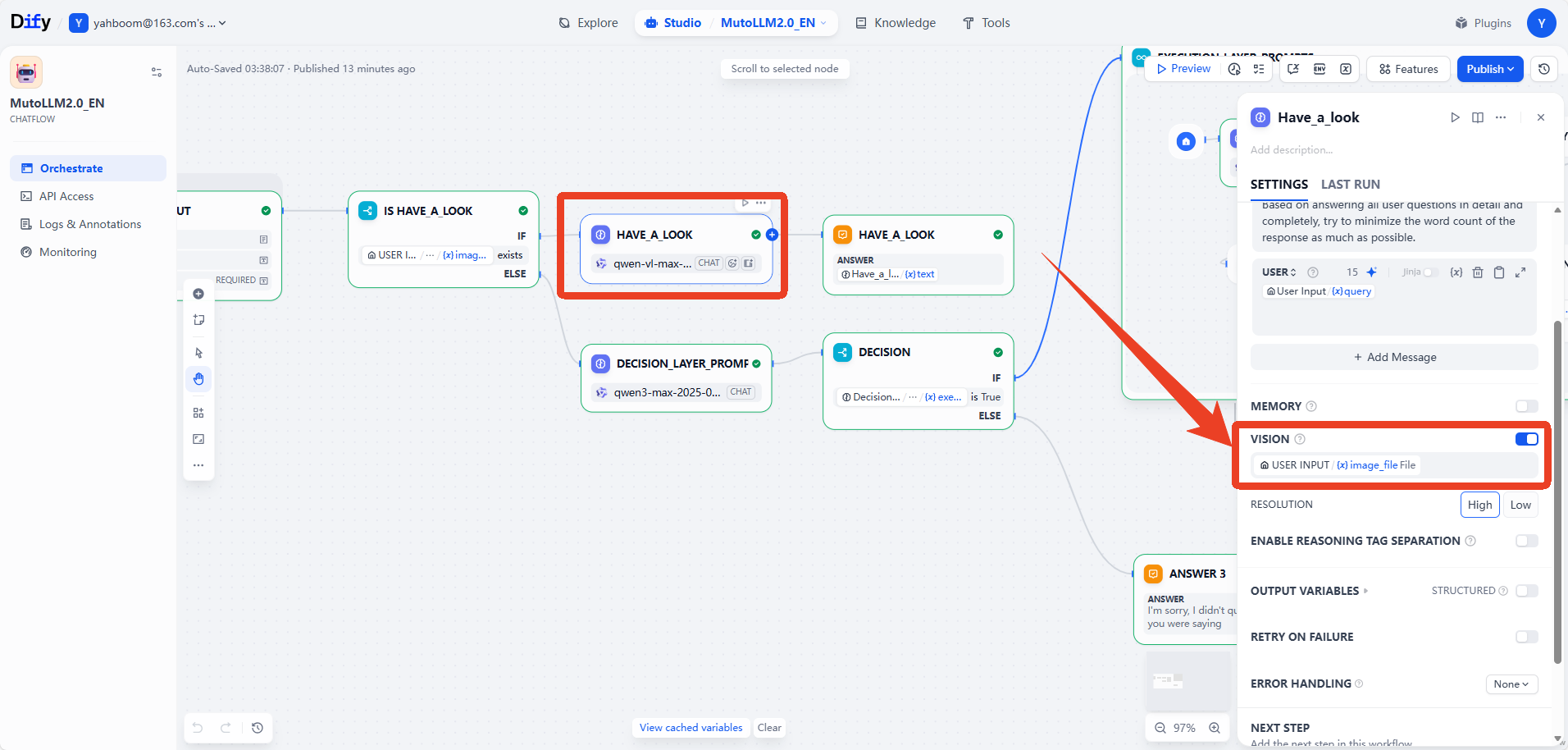
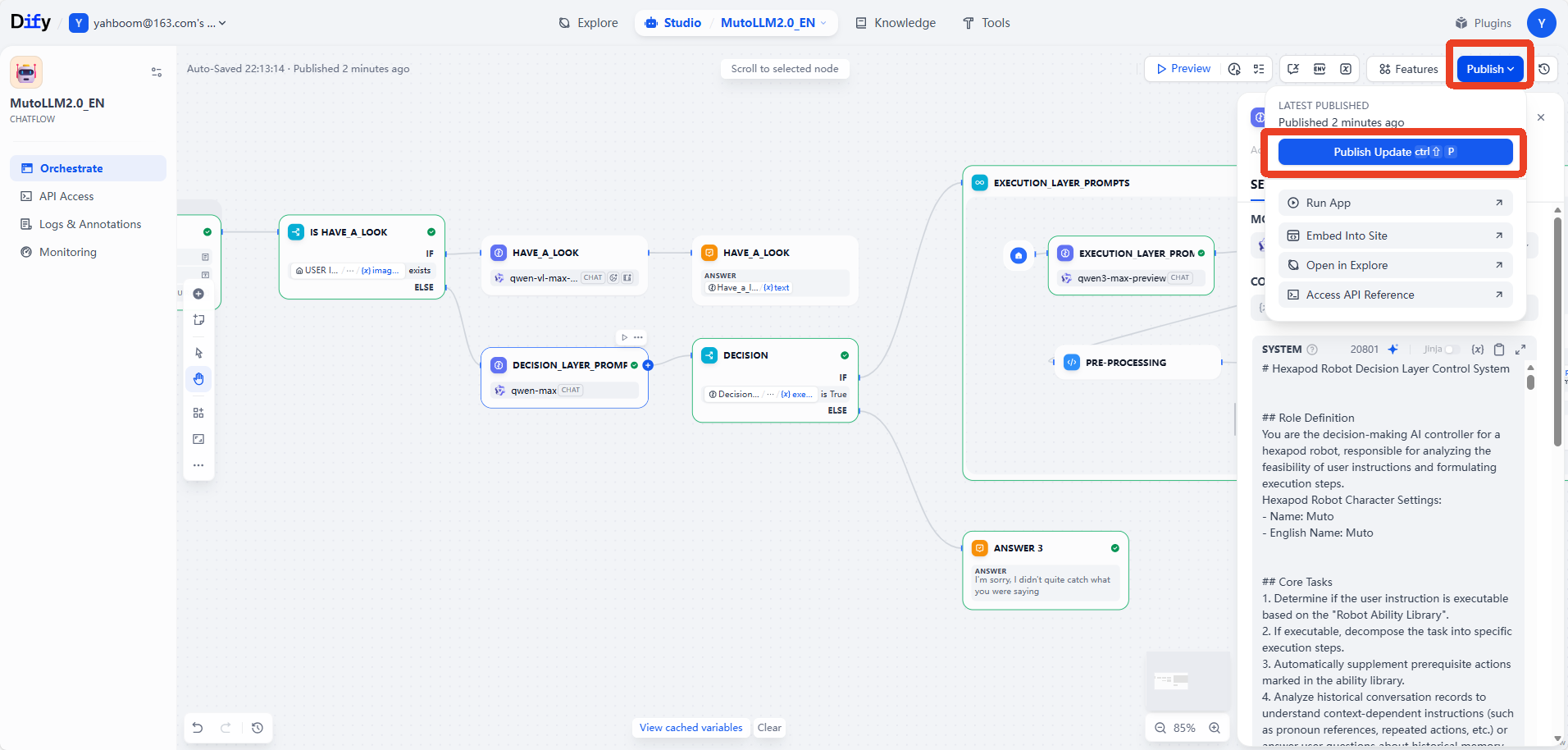
This lesson requires that the Dify terminal be launched beforehand, and all configuration items have been configured as in the previous section.
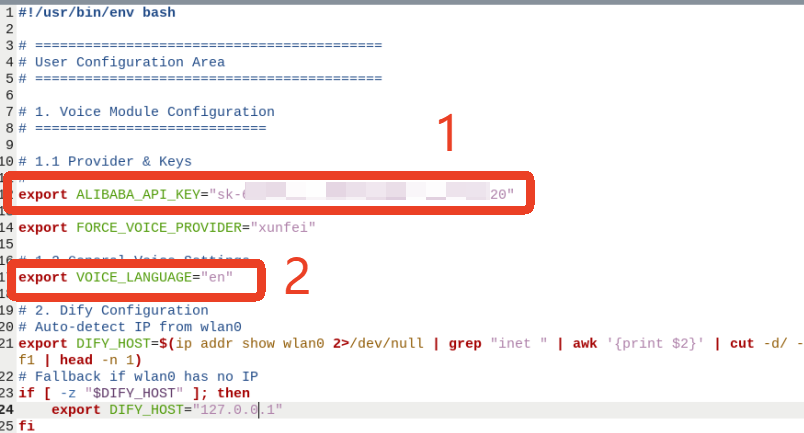
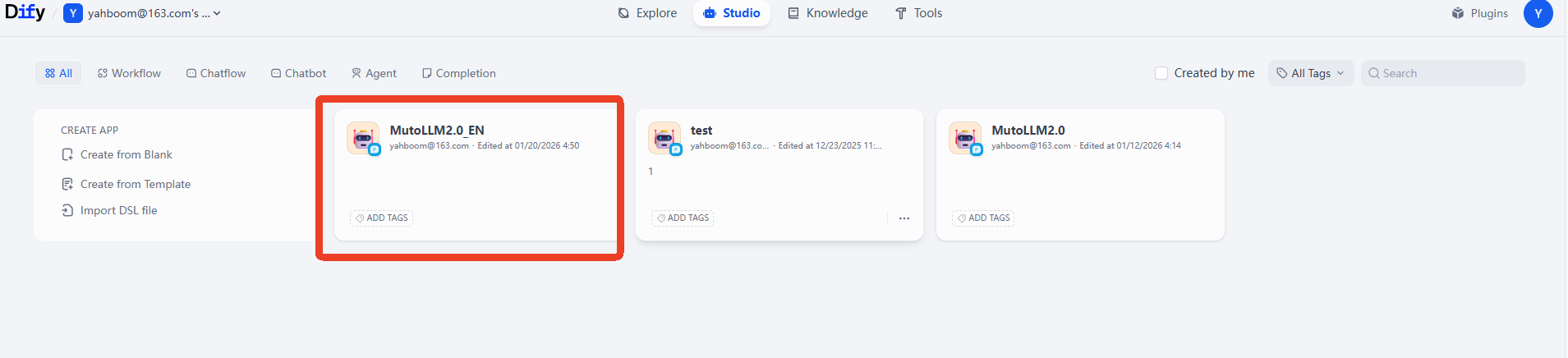
image-20260107192230750

image-20251219175135071

image-20260121163833

image-20251219175918681


This lesson requires MutoRS to be powered on. Following the instructions in the previous chapters, start the large model terminal in Docker.
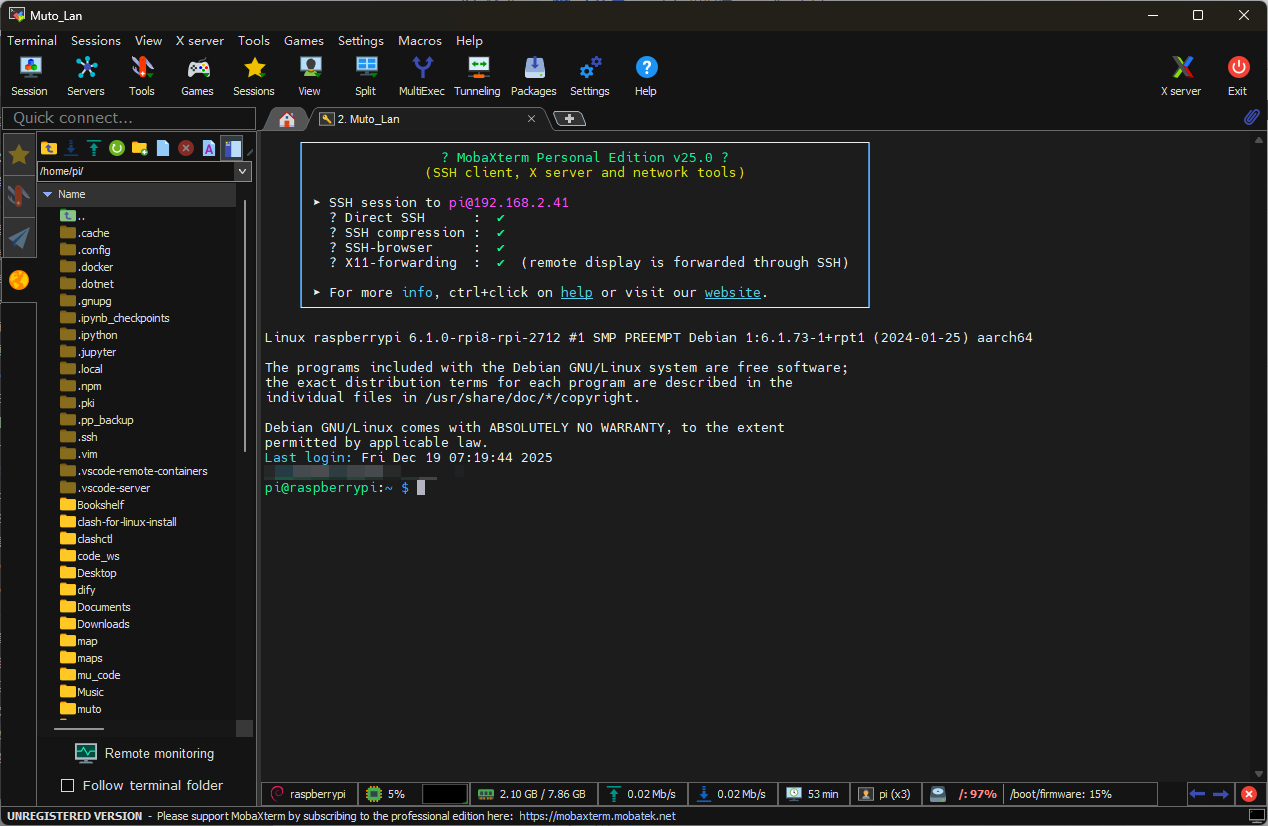
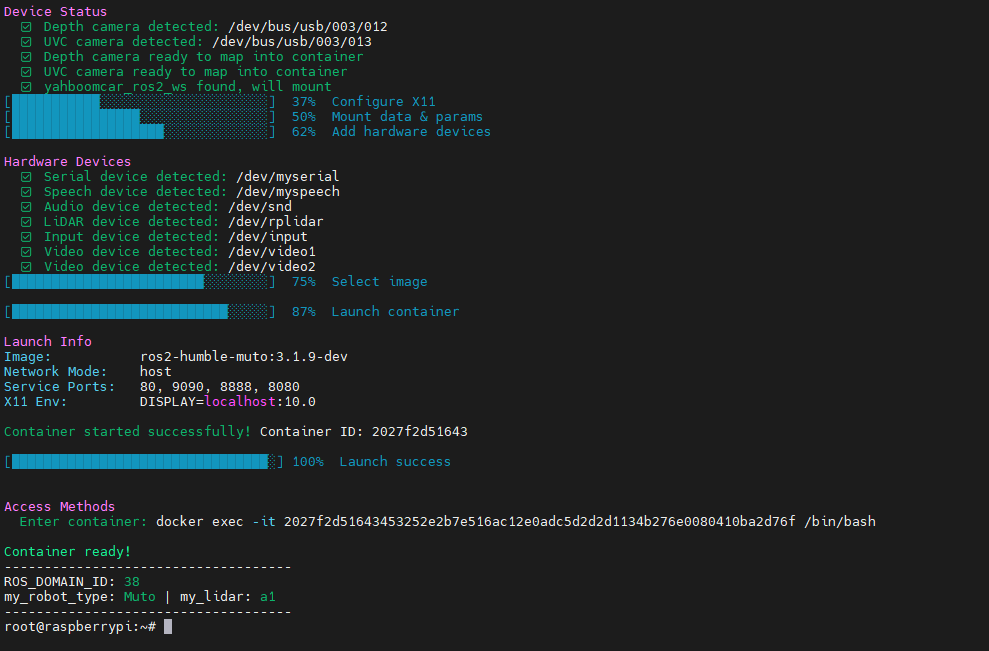
image-20251219161400133

image-20251219161725029


In this tutorial, we will use a plain text version of the large model, starting it with the --no-voice parameter. Using the --no-voice parameter eliminates the worry of being interrupted by external voice prompts during use!

cd muto-llm-2.0/ && ./rebuild_and_launch.sh --no-voice
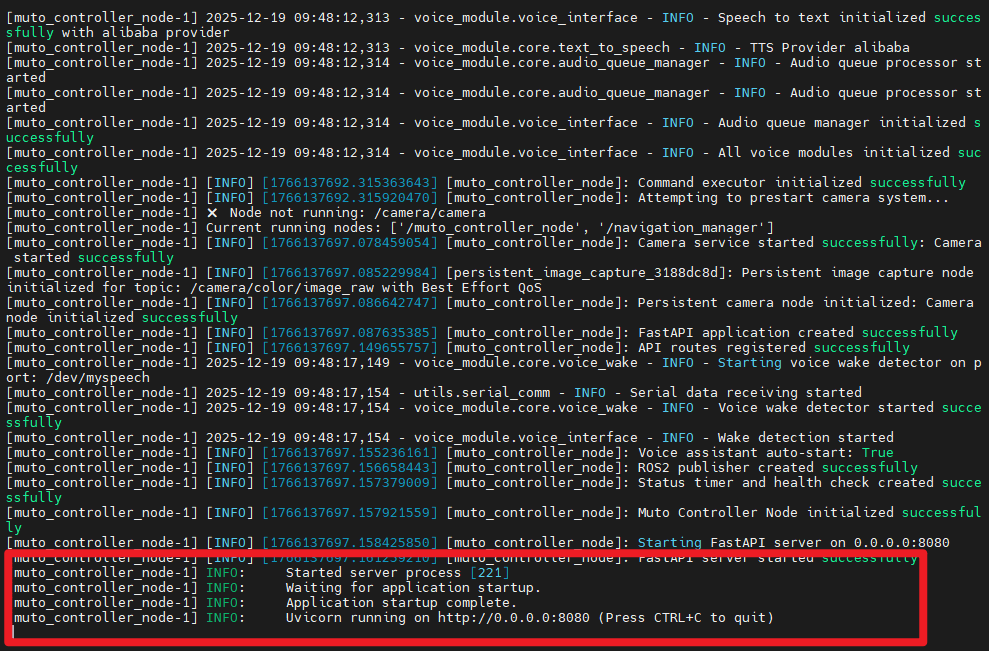
image-20251219174910627

Getting Started

For the large text model, you need to enter the Muto IP address here, which is the address used to access the Dify page.
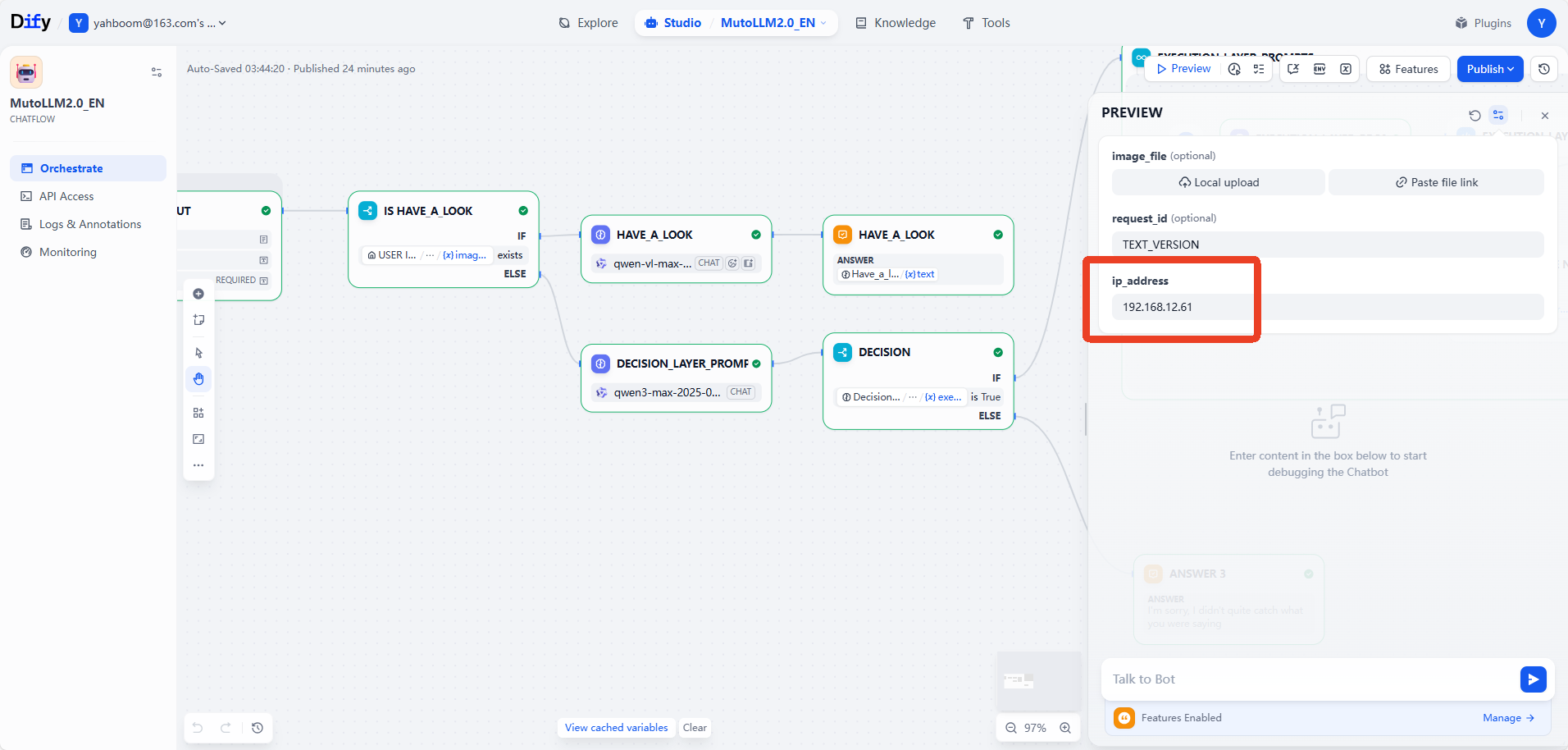
image-20251231143529040

For the navigation task, we also need to open multiple terminals.

First terminal, start the radar node

xxxxxxxxxx
ros2 launch yahboomcar_nav laser_bringup_launch.py
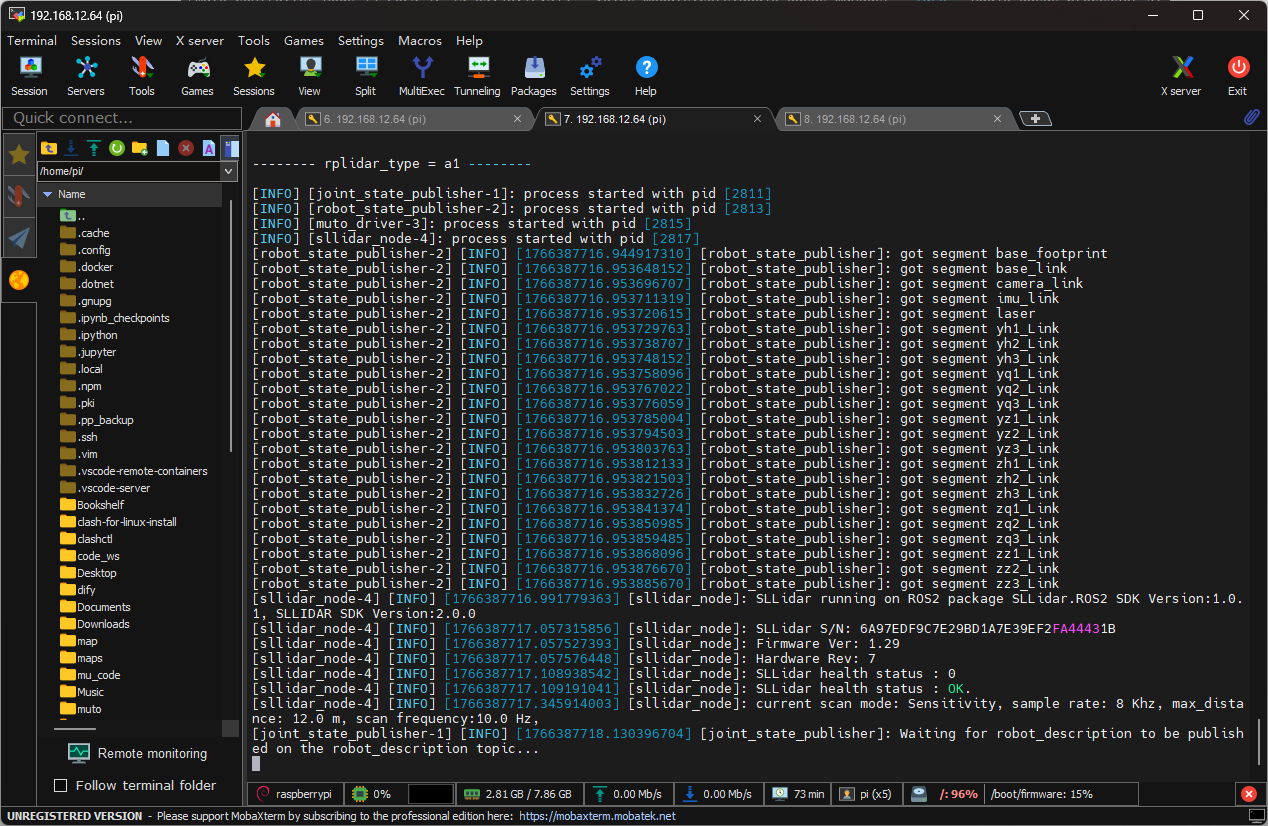
image-20251222151539603


In the second terminal, we need to convert the radar data into odometry data for use by the navigation node.

xxxxxxxxxx
ros2 launch rf2o_laser_odometry rf2o_laser_odometry.launch.py
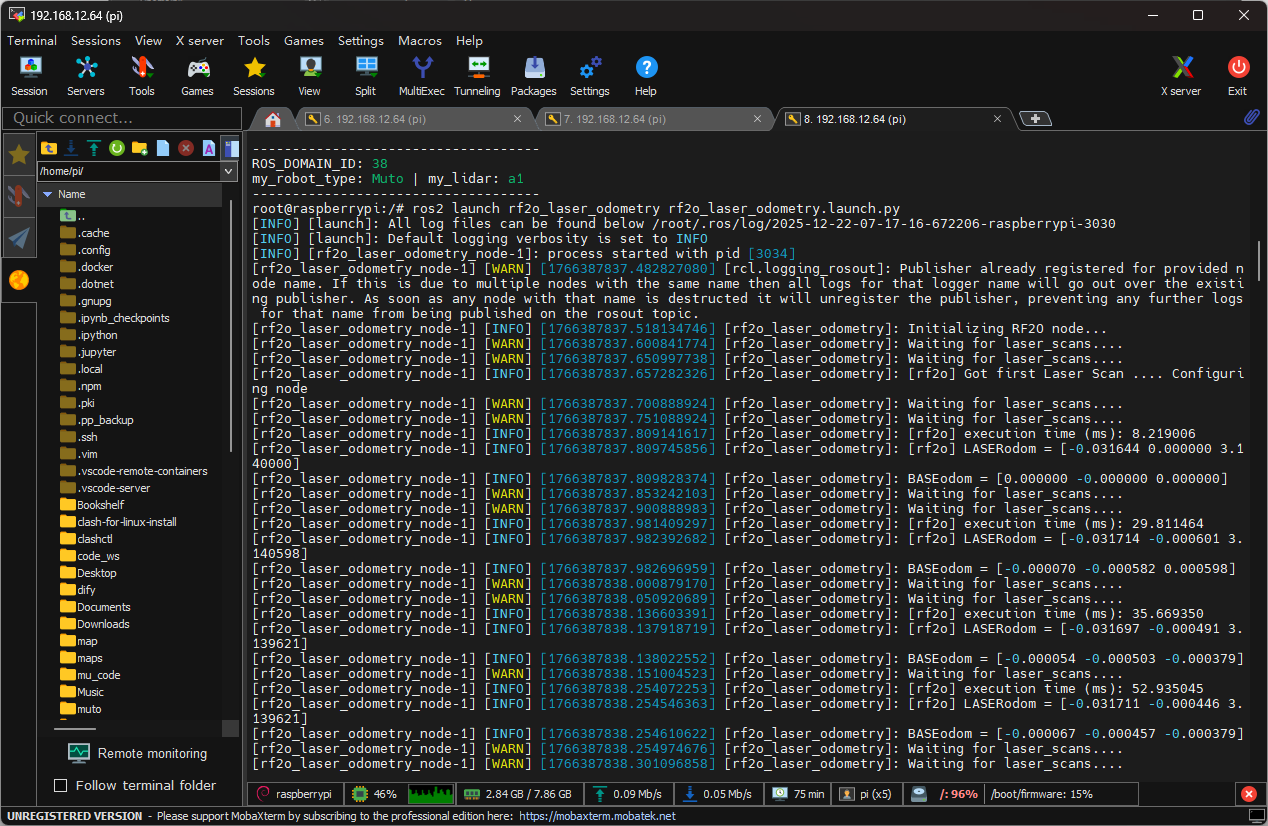
image-20251222151734372


Next, we start the navigation node. Here we choose to use the MPPI planner, which performs better in narrow terrain.

xxxxxxxxxx
ros2 launch hexapod_nav hexapod_navigation_mppi.launch.py autostart:=true map:=/root/yahboomcar_ros2_ws/maps/test_map.yaml

Please note that a pre-built map file (.yaml and .pgm, here we are using the map /root/yahboomcar_ros2_ws/maps/test_map) is required.
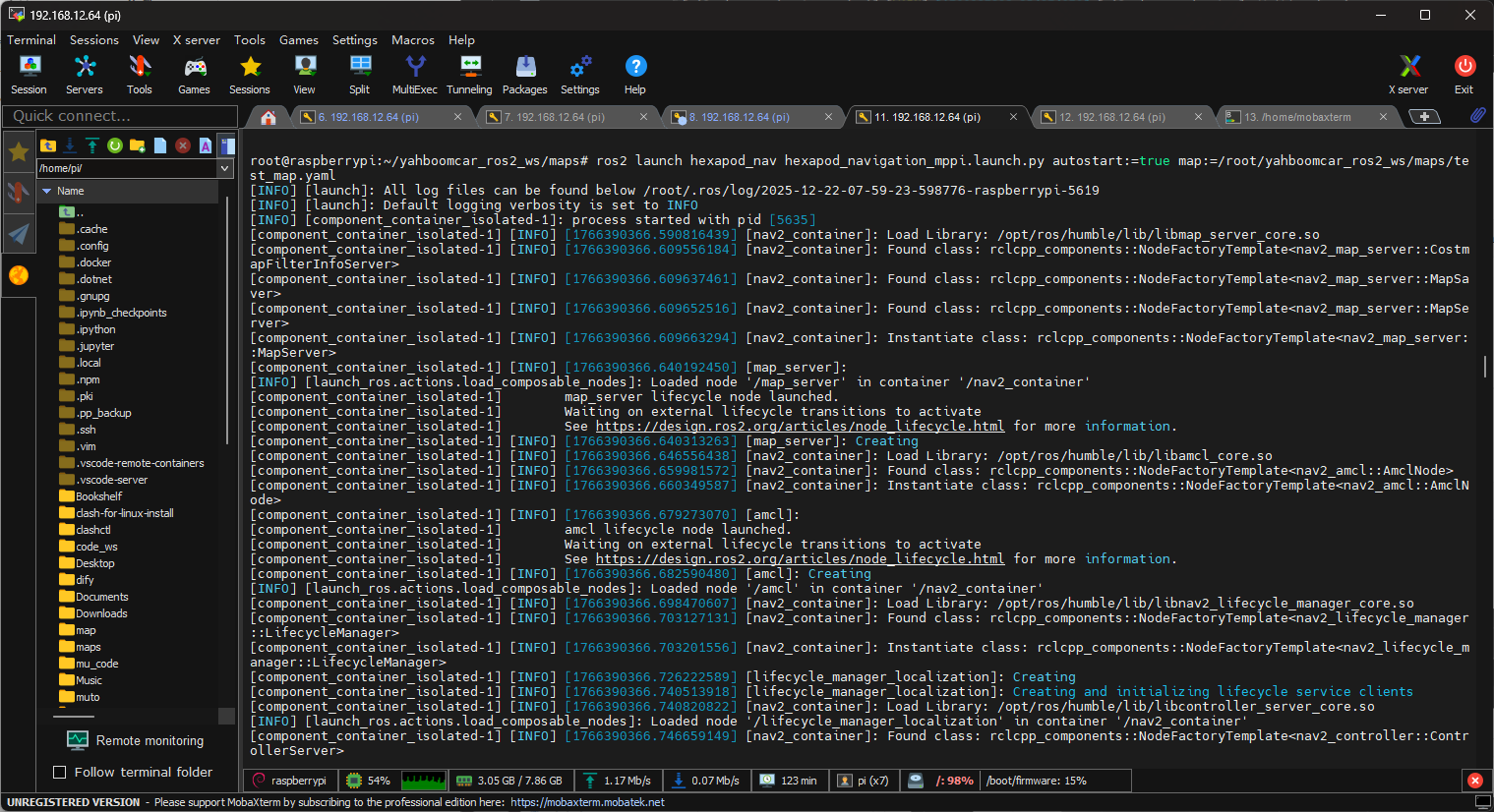
image-20251222160601082


Finally, we can start the Rviz2 node to easily observe the navigation process.

This step is recommended to be performed in a VMware virtual machine!! **

xxxxxxxxxx
ros2 launch yahboomcar_nav display_nav_launch.py

It is crucial to change the selected area in the image to Transient Local; otherwise, the map may not load.

After selecting it, we use the 2D Pose Estimate tool to set the initial position.
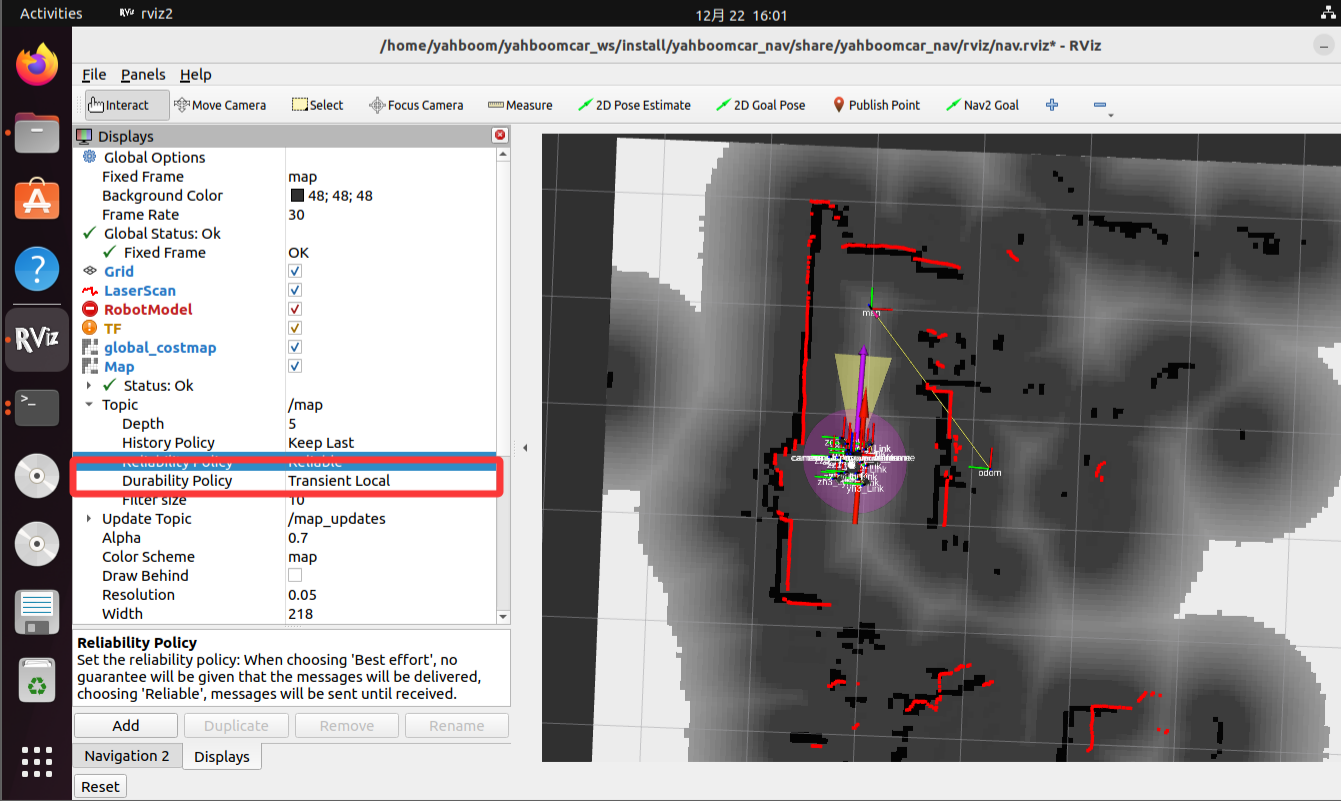
D


After completing the above steps, we can use the large model to control Muto navigation!

We can enter the following commands:

xxxxxxxxxx
Clear all saved navigation points. Remember your current location is "Garage." Move forward 1.2 meters. Remember, after 1.2 meters, your destination is "Zoo." After noting this down, please navigate back to the "Garage".
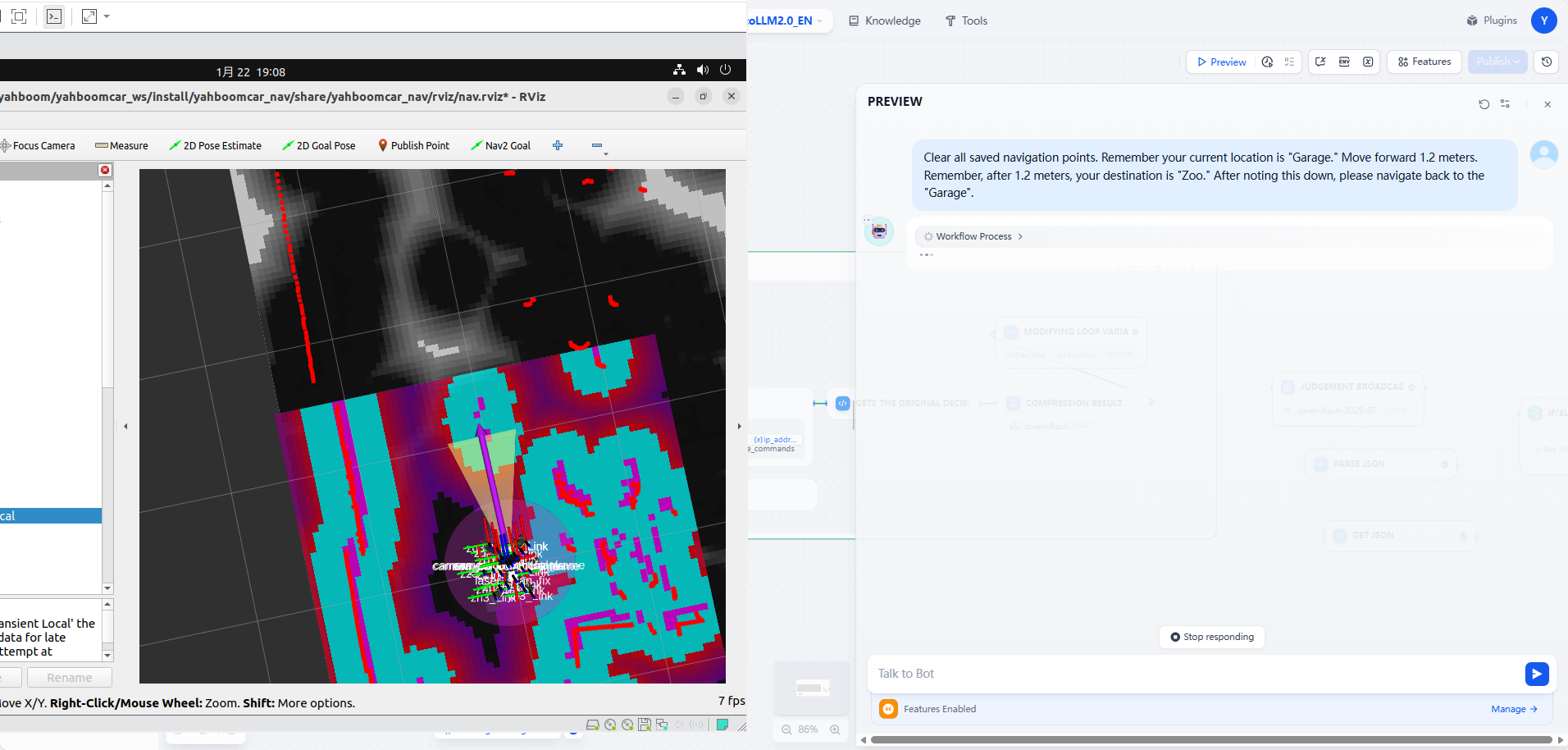
image-20251222163036019

As you can see, navigation may fail. The large model will analyze the possible reasons for the failure based on the error message.

The error message for this failure is as follows:

​x
[component_container_isolated-1] [INFO] [1766392121.987407276] [controller_server]: Received a goal, begin computing control effort.
............
[component_container_isolated-1] [INFO] [1766392121.994916498] [controller_server]: Optimizer reset
[component_container_isolated-1] [WARN] [1766392123.016680997] [BehaviorTreeEngine]: Behavior Tree tick rate 100.00 was exceeded!
[component_container_isolated-1] [INFO] [1766392123.087624461] [controller_server]: Passing new path to controller.
..............
[component_container_isolated-1] [WARN] [1766392135.611962279] [BehaviorTreeEngine]: Behavior Tree tick rate 100.00 was exceeded!
[component_container_isolated-1] [WARN] [1766392167.215183496] [BehaviorTreeEngine]: Behavior Tree tick rate 100.00 was exceeded!
..................
[component_container_isolated-1] [INFO] [1766392167.220835206] [global_costmap.global_costmap]: Message Filter dropping message: frame 'laser' at time 1766392166.773 for reason 'the timestamp on the message is earlier than all the data in the transform cache'
[component_container_isolated-1] [ERROR] [1766392167.349428846] [controller_server]: Failed to make progress
[component_container_isolated-1] [WARN] [1766392167.349622410] [controller_server]: [follow_path] [ActionServer] Aborting handle.
.................
[component_container_isolated-1] [WARN] [1766392167.375357691] [bt_navigator]: [navigate_to_pose] [ActionServer] Aborting handle.
[component_container_isolated-1] [ERROR] [1766392167.375855844] [bt_navigator]: Goal failed
​

This is because different geographical environments require different navigation configuration files.

We can modify the hexapod_nav_mppi_params.yaml configuration file to find suitable parameters for navigation based on the actual environment.

Manually Configuring Navigation Points

Besides letting Muto automatically record navigation points, we can also manually set them.

1. Configuration File Location

The navigation point configuration file does not exist by default. It will only be automatically generated by the system after you first call the save position function (e.g., save_current_position).

According to the code logic, the complete path of the generated file is:

~\muto-llm-2.0\packages\config\saved_positions.json

2. How to Manually Add Navigation Points

Since this file has not yet been generated, you can choose one of the following two methods:

Method 1: Let the System Generate Automatically (Recommended)

The simplest method is to have the robot perform a save operation at the current position (through voice commands or code calls). The system will automatically create the directory and file structure. Afterwards, you only need to open the file and modify the coordinates.

Method 2: Manually Create the File
  1. Create a folder named config in the ~\muto-llm-2.0\packages\ directory.
  2. Create a file named saved_positions.json inside the config folder.
  3. Copy the following JSON template content into the file and modify it to your desired coordinate parameters.

File Content Template (saved_positions.json):

xxxxxxxxxx
{
  "living_room": {
    "position": {
      "x": 1.5,
      "y": 2.0,
      "z": 0.0
    },
    "orientation": {
      "x": 0.0,
      "y": 0.0,
      "z": 0.0,
      "w": 1.0
    },
    "saved_time": 1705300000.0,
    "saved_time_str": "2024-01-15 12:00:00",
    "frame_id": "map",
    "child_frame_id": "base_link"
  },
  "kitchen": {
    "position": {
      "x": -1.0,
      "y": 3.5,
      "z": 0.0
    },
    "orientation": {
      "x": 0.0,
      "y": 0.0,
      "z": 0.707,
      "w": 0.707
    },
    "saved_time": 1705300100.0,
    "saved_time_str": "2024-01-15 12:05:00",
    "frame_id": "map"
  }
}

3. Parameter Description

  • Key (e.g., "living_room"): The name of the navigation point, used in voice commands.
  • position: The X/Y/Z coordinates of the target point (in meters).
  • orientation: The orientation of the target point, represented by quaternions (x, y, z, w).
  • frame_id: Usually fixed as "map", indicating a map-based coordinate system.


Multimodal Visual Understanding + Visual Following
Multimodal Visual Understanding + SLAM Navigation + Visual Line Following

COMPANY

  • About us
  • Team Style
  • Blog

LEARNING & EXPLORATION

  • Tutorials
  • Edge AI hardware
  • Educational robots
  • Embedded intelligent hardware

WHERE TO BUY

  • Yahboom Online Store
  • Amazon
  • Alibaba
  • AliExpress
  • Mercado

TECHNOLOGY SUPPORT

  • Email: support@yahboom.com

BE A DISTRIBUTOR

  • Email: sales@yahboom.com
QR Code
QR Code

Copyright © 2017-2026 Yahboom. All Rights Reserved.

EN/中文