Welcome to Muto RS Robot repository
1.Open and Close APP Control Program
Open and Close APP Control Program
Open and Close APP Control Program1. What is the auto-start APP control program2. Temporary Closure3. Permanent Closure4. Set to Auto-start at Boot5. Temporary Program Start
1. What is the auto-start APP control program
In order to facilitate the experience of the robot's APP functions, a program has been added to the system. This program integrates APP control and USB wireless gamepad control functions, and is called the "APP Control Program". Moreover, this program will automatically start when the mainboard system is powered on, so it is called the "Auto-start APP Control Program".
The auto-start APP control program is only for the convenience of experiencing the mobile APP functions. In actual development, it is necessary to close the APP control program, otherwise it will occupy the device and cause unpredictable errors. Therefore, before developing your program, please close the APP control program first.
There are two ways to close the auto-start APP control program. One is to close it only once, and it will automatically start again the next time the system boots, which is called a temporary closure. The other way is that it will not start automatically after being closed, unless it is manually re-enabled, which is called a permanent closure.
Factory system default username and password:
Raspberry Pi version: Username: pi Password: yahboom
2. Temporary Closure
If you have a display, mouse, and keyboard, log in to the desktop after connecting them.
If you do not have a display, mouse, and keyboard, please use a computer on the same local area network to open the VNC Viewer software and log in to the desktop remotely.
After entering the desktop, you will see a terminal. Simply click the X symbol in the upper right corner to close the terminal and thus close the APP control program. Sometimes a prompt may appear stating that closing the terminal will close the running program; select confirm to close.
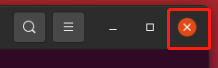
If there is no desktop environment, open a terminal and run the following command to close it:
sh ~/muto/app_muto/kill_program.sh
3. Permanent Closure
First, follow the temporary closure method to close the running APP control program.
Then open a terminal and navigate to the Raspberry Pi's auto-start directory.
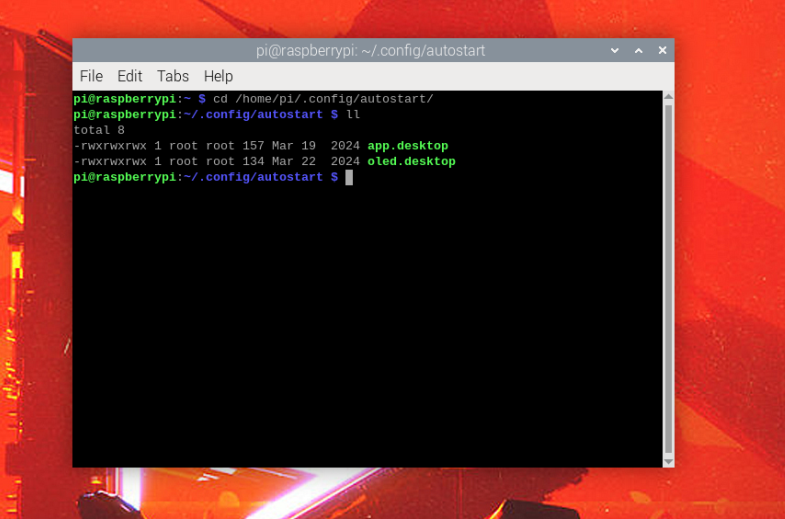
Rename app.desktop to app.desktop.bak.
xxxxxxxxxxmv app.desktop app.desktop.bak
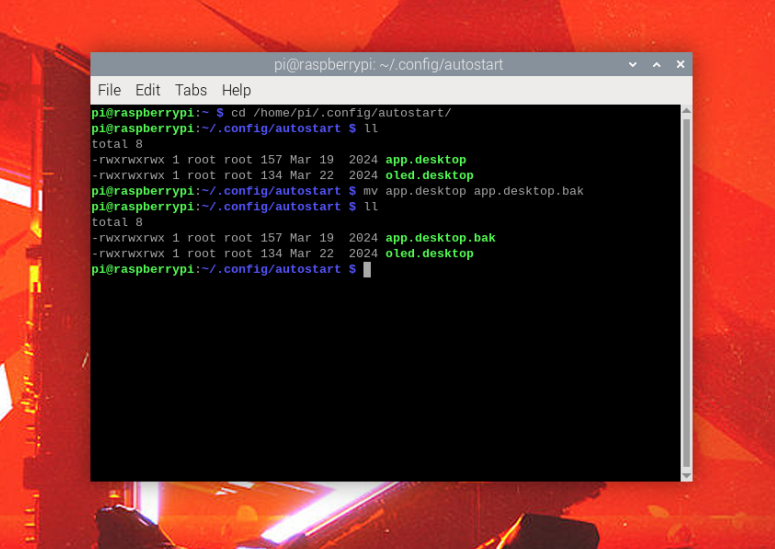
4. Set to Auto-start at Boot
To restore auto-start at boot, we just need to rename app.desktop.bak from the previous step back to app.desktop.
xxxxxxxxxxcd /home/pi/.config/autostart/ && mv app.desktop.bak app.desktop
After the modification is complete, you can restart to verify if the change was successful.
xxxxxxxxxxsudo reboot
5. Temporary Program Start
If you need to manually start the APP control program, please open a terminal on Ubuntu first, and then enter the following command:
xxxxxxxxxxpython3 ~/muto/app_muto/app_muto.py