yahboom
HomeLearn
Solution
Blog
Online Store
About Us
EN/中文
ROSMASTER X3 Plus📖
1.Preparation and First Trial
  • 1.1 Wiring Introduction
  • 1.2 Precautions for battery
  • 1.3 First Trial
  • 1.4 Precautions for DIY Robotic Arm
2. Assembly steps
  • Installation Video
3.Remote control course
  • 3.1 APP remote control
  • 3.2 Model aircraft remote control
  • 3.3 Handle remote control
4.Hardware course
  • 4.1 About expansion board_V3.0
  • 4.1 About expansion board_V1.0
  • 4.2 STM32 Development
  • 4.3 Button to control the buzzer
  • 4.4 FreeRTOS application
  • 4.5 Serial communication
  • 4.6 SBUS model aircraft remote control
  • 4.7 CAN bus communication
  • 4.8 RGB colorful light bar
  • 4.9 Timer interrupt to control
  • 4.10 Control serial port servos
  • 4.11 Nine-axis attitude sensor
  • 4.12 Control motor
  • 4.13 Timer captures the encoder data
  • 4.14 Kinematic Analysis
  • 4.15 PID control robot movement
5.Basic course
  • 5.1 Update the firmware
  • 5.2 Turn off the self-starting process
  • 5.3 Install the Rosmaster driver
  • 5.4 Buzzer whistle
  • 5.5 Control PWM servo
  • 5.6 RGB colorful light bar
  • 5.7 Control motor
  • 5.8 Control robot movement
  • 5.9 Control Serial Servo
6.Linux operating system
  • 6.1 Virtual machine installation
  • 6.2 Linux basics
  • 6.3 Remote control
  • 6.4 Multi-machine communication
  • 6.5 Static IP and hotspot mode
  • 6.6 Bind the device ID
  • 6.7 Web page real-time monitor
  • 6.8 Expansion tutorial
  • 6.9.1 Jetson Nano write sytem
  • 6.9.2 Jetson Xavier NX write system
  • 6.9.3 Jetson TX2 NX write system
  • 6.9.4 Raspberry Pi write system
7.Docker-Just for pi5
  • 7.1 Docker overview and docker installation
  • 7.2 Common commands for docker image containers
  • 7.3 Docker images deeply understand and publish images
  • 7.4 Docker hardware interaction and data processing
  • 7.5 Enter the bot's docker container
  • 7.6 Robot development environment construction in Docker
  • 7.7 How customers can update docker images in the future
8.ROS basic course
  • 8.1 ROS introduction
  • 8.2 ROS installation
  • 8.3 ROS common command tools
  • 8.4 ROS workspace
  • 8.5 ROS function package
  • 8.6 ROS node
  • 8.7 ROS topic publisher
  • 8.8 ROS topic subscribers
  • 8.9 ROS service client
  • 8.10 ROS service server
  • 8.11 ROS action client
  • 8.12 ROS action server
  • 8.13 ROS custom message reception
  • 8.14 ROS-launch file
  • 8.15 ROS-TF transformation
  • 8.16 ROS parameter service
  • 8.17 ROS-rviz use
  • 8.18 ROS-rqt tool usage
  • 8.19 Topic message recording and playback
  • 8.20 urdf model introduction
  • 8.21 gazebo introduction
  • 8.22 ROS distributed communication
9.OpenCV courses
  • 9.1 Getting started with Open Source CV
  • 9.2 Geometric transformation
  • 9.3 Image processing and draw
  • 9.4 Image beautification
  • 9.5 Opencv application
  • 9.6 AR vision
  • 9.7 AR QR code
  • 9.8 ROS+Opencv foundation
  • 9.9 ROS+Opencv application
  • 9.10 Data transformation
  • 9.11 MediaPipe development
10.Robot control course
  • 10.1 PID algorithm theory
  • 10.2 Robot PID debugging
  • 10.3 Robot information release
  • 10.4 Robot keyboard control
  • 10.5 Robot handle control
  • 10.6 Robot state estimation
  • 10.7 Robot calibration
  • 10.8 Robot URDF model
11.Depth camera course
  • 11.1 How to use the Astra camera
  • 11.2 Astra camera calibration
  • 11.3 Astra Color Tracking
  • 11.4 Astra Object Tracking
  • 11.5 Visual tracking autopilot
  • 11.6 Pure visual 2D mapping
  • 11.7 RTAB-Map 3D mapping
  • 11.8 ORB_SLAM2 basics
  • 11.9 ORB_SLAM2_Octomap
12.Lidar course
  • 12.1 Lidar basic-SLAM
  • 12.1 Lidar basic-EAI
  • 12.2 Lidar avoiding
  • 12.3 Lidar guard
  • 12.4 Lidar follow
  • 12.5 Patrol game
  • 12.6 gmapping mapping algoritm
  • 12.7 hector mapping algorithm
  • 12.8 karto mapping algorithm
  • 12.9 cartographer mapping
  • 12.10 rrt_exploration mapping
  • 12.11 AMCL
  • 12.12 Navigation and avoiding
  • 12.13 APP mapping and navigation
13.Multi-robot control course
  • 13.1 Multi-machine handle control
  • 13.2 Multi-machine navigation
  • 13.3 Multi-machine formation
  • 13.4 Multi-machine surround
14.Deep learning courses
  • 14.1 KNN recognizes handwritten
  • 14.2 Basic use of TensorFlow
  • 14.3 Basic use of PyTorch(jetson)
  • 14.4 yolov5 model training(jetson)
  • 14.5 yolov5+tensorrt acceleration
  • 14.6 yolov4-tiny
15.Voice control courses
  • 0. How to use old voice module in new image
  • 15.1 Introduction of voice control-new
  • 15.2 Voice control module port-new
  • 15.3.Introduction of voice module-old
  • 15.4.Voice control module port binding-old
  • 15.5 Voice control car movement
  • 15.6 Voice control Autopilot
  • 15.7 Voice control color recogzition
  • 15.8 Voice control color tracking
  • 15.9 Voice control multi-point nagavation
16.Robotic arm control course
  • 16.1 MoveIt configuration
  • 16.2 MoveIt control the real machine
  • 16.3 MoveIt moves randomly
  • 16.4 MoveIt kinematics design
  • 16.5 MoveIt cartesian path
  • 16.6 MoveIt avoiding
  • 16.7 MoveIt scene design
  • 16.8 MoveIt trajectory planning
  • 16.9 Mediapipe palm control car
  • 16.10 Mediapipe gesture control robotic arm
  • 16.11 Mediapipe gesture control car
  • 16.12 Mediapipe arm attitude control robotic arm
  • 16.13 Mediapipe recognizes and tracks palm control robotic arm
  • 16.14 Recognizes color block and handling
  • 16.15 Autopilot to clear obstacles
17.Voice control robotic arm course
  • 17.1 Voice control robotic arm movement
  • 17.2 Voice control robotic arm learning
  • 17.3 Voice control color block transport
  • 17.4 Voice control robotic arm grip objects
  • 17.5 Voice control robotic arm garbage sorting
18.Model training Autopilot
  • 18.0 ReadMe
  • 18.1 yolov5 to train traffic signs
  • 18.2 TensorRt acceleration identification mark
  • 18.3 Road sign indication function description
  • 18.4 Collect data
  • 18.5 Training model
  • 18.6 Model transformation and application
  • 18.7 AI Autopilot
19.For Orin-Remote control course
1. APP control
  • 1. APP control
  • 2. Model aircraft control
  • 3. Handle control
2. Model aircraft control
3. Handle control
20.Orin-Hardware course
  • 1. About expansion board_V1.0
  • 1. About expansion board_V2.0
  • 2. STM32 Development environment
  • 3. Button control
  • 4. FreeRTOS application
  • 5. Serial communication
  • 6. SBUS model aircraft remote control
  • 7. CAN bus communication
  • 8. RGB colorful light bar
  • 9. Timer interrupt to control PWM servo
  • 10. Control serial port servos
  • 11. Nine-axis attitude sensor to obtain data
  • 12. Control motor
  • 13. Timer captures the encoder data
  • 14. Robot kinematics analysis theory
  • 15. PID control robot movement
21.Orin-Basic course
  • 1. Update the firmware
  • 2. Turn off the self-starting process at startup
  • 3. Install the Rosmaster driver library
  • 4. Buzzer whistle
  • 5. Control PWM servo
  • 6. RGB colorful light bar special effects display
  • 7. Control motor
  • 8. Control robot movement
  • 9. Control Serial Servo
22.Orin-Linux operating systemnew
  • 1. Virtual machine installation and use
  • 2. Linux basics
  • 3. Remote control
  • 4. Multi-machine communication configuration
  • 5. Static IP and hotspot mode
  • 6. Bind the device ID
  • 7. Web page real-time monitoring
  • 8. Expansion tutorial
  • 9.1 Jetson Nano write sytem
  • 9.2 Jetson Xavier NX write system
  • 9.3 Jetson TX2 NX-Orin series write system
  • 9.4 Raspberry Pi write system
  • 10.Jetpack old system upgraded to SUPER system
23.Orin-Dockernew
SUPER image uses ros environment in docker
  • 1、Docker overview and docker installationnew
  • 2、Common commands for docker image containersnew
  • 3、Docker images deeply understand and publish imagesnew
  • 4、Docker hardware interaction and data processingnew
  • 5、Enter the bot's docker containernew
  • 6、Robot development environment construction in Dockernew
23.Orin-ROS basic course
  • 1.ROS introduction
  • 2.Project file structure
  • 3.Common commands and tools
  • 4.Publisher
  • 5.Subscribers
  • 6.Customize topic messages and use
  • 7.Client
  • 8.Server
  • 9.Custom service messages and usage
  • 10.TF release and monitoring
24.Orin-OpenCV courses
  • 1. Getting started with Open Source CV
  • 2. Open Source CV geometric transformation
  • 3. Open Source CV image processing and drawing text line segments
  • 4. Open Source CV image beautification
  • 5. Opencv application
  • 6. AR vision
  • 7. AR QR code
  • 8. ROS+Opencv foundation
  • 9. ROS+Opencv application
  • 10. Data transformation and point cloud
  • 11. MediaPipe development
25.Orin-Robot control course
  • 1.PID algorithm theory
  • 2.Robot PID debugging
  • 3.Robot information release
  • 4.Robot keyboard control
  • 5.Robot handle control
  • 6.Robot state estimation
  • 7.Robot calibration
  • 8.Robot URDF model
26.Orin-Depth camera course
  • 01.How to use the Astra camera
  • 02.Astra camera calibration
  • 03.Astra Color Tracking
  • 04.Astra Object Tracking
  • 05.Visual tracking autopilot
  • 06.Pure visual 2D mapping and navigation
  • 07.RTAB-Map 3D mapping navigation
  • 08.ORB_SLAM2 basics
  • 09.ORB_SLAM2_Octomap
27.Orin-Lidar course
  • 1.Lidar basic-4ROS-EAI
  • 1.Lidar basic-SLAM
  • 2.Lidar avoiding
  • 3.Lidar guard
  • 4.Lidar follow
  • 5.Patrol game
  • 6.gmapping mapping algorithm
  • 7.hector mapping algorithm
  • 8.karto mapping algorithm
  • 9.cartographer mapping algorithm
  • 10.rrt_exploration mapping algorithm
  • 11.AMCL
  • 12.Navigation and avoiding
  • 13.APP mapping and navigation
28.Orin-Multi-robot control course
  • 1.Multi-machine handle control
  • 2.Multi-machine navigation
  • 3.Multi-machine formation
  • 4.Multi-machine surround
29.Orin-Deep learning courses
  • 1.KNN recognizes handwritten digits
  • 2.Basic use of TensorFlow
  • 3.Basic use of PyTorch(jetson)
  • 4.YOLOv11Model conversion(SUPER)new
  • 5.YOLOv11Dataset annotation(SUPER)new
  • 6.YOLOv11Model conversion + tensorrt acceleration(SUPER)new
  • 7.YOLOv11Object recognition(SUPER)new
30.Orin-Voice control courses
  • 0. How to use old voice module in new image
  • 1.1 Introduction of voice module-new
  • 1.2 Introduction of voice module-old
  • 2.1 Voice control module port binding-new
  • 2.2 Voice control module port binding-old
  • 3. Voice control car movement
  • 4. Voice control Autopilot
  • 5. Voice control color recognition
  • 6. Voice control color tracking
  • 7. Voice control multi-point navigation
31.Orin-Robotic arm control course
  • 1.MoveIt configuration(VM)
  • 2.MoveIt control the real machine(VM)
  • 3.MoveIt moves randomly(VM)
  • 4.MoveIt kinematics design(VM)
  • 5.MoveIt cartesian path(VM)
  • 6.MoveIt avoiding(VM)
  • 7.MoveIt scene design(VM)
  • 8.MoveIt trajectory planning(VM)
  • 9.Mediapipe palm control car
  • 10.Mediapipe gesture control robotic arm
  • 11.Mediapipe gesture control car
  • 12.Mediapipe arm attitude control robotic arm
  • 13.Mediapipe recognizes and tracks palm control robotic arm
  • 14.Recognizes color block and handling
  • 15.Autopilot to clear obstacles
32.Orin-Voice control robotic arm course
  • 1.Voice control robotic arm movement
  • 2.Voice control robotic arm learning
  • 3.Voice control color block transport
  • 4.Voice control robotic arm grip objects
  • 5.Voice control robotic arm garbage sorting
LLM tutorial
1.Development environment
  • 0. Model usage instructions
  • 1.Environments deployment
  • 2.Dialogue platform installation
2.Jetson Nano B01
  • 1.Qwen2 model
  • 2.TinyLlama model
  • 3.Phi-3 model
  • 4.Gemma model
  • 5.Orca Mini model
  • 6.StarCoder2 model
  • 7.DeepSeek-R1 model
  • 8.Expand LLaVA-Phi3
3.Jetson Orin NXNANO
  • 1.Llama3 model
  • 2.Qwen2 model
  • 3.Phi-3 model
  • 4.Gemma model
  • 5.WizardLM2 model
  • 6.Codellama model
  • 7.DeepSeek-R1 model
  • 8.Orca Mini model
  • 9.StarCoder2 model
  • 10.TinyLlama model
  • 11.Expand LLaVA
  • 12.Expand LLaVA-Phi3
4.Raspberry Pi 5B
  • 1.Meta AI Llama3 model
  • 2.Qwen2 model
  • 3.Phi-3 model
  • 4.Gemma model
  • 5.WizardLM2 model
  • 6.Meta AI Codellama model
  • 7.DeepSeek-R1 model
  • 8.Expand LLaVA
FAQ
  • Using your own Jetson board, car cannot start normally
Download
  • RemoteCtrl_APP(iOS/Android)
  • Mapping_APP(iOS_Android)
  • SystemFile_OrinNANOSUPER
  • SystemFile_OrinNXSUPER
  • SystemFile_RPi_NANO
  • Instruction Manual
  • Code
  • Autopilot Annex
  • VM software
  • Jetson_Boot_USB.tar.gz
  • Other_Annex_File
Download ZIP
FAQ
  • 1、How to connect OLED?
  • 2、Precautions for DIY Robotic Arm

Welcome to ROSMASTER X3 Plus repository

1.Environments deployment

Ollama

OllamaLarge Language Model (LLM)Ollama installationScript installationOllama UsageOllama uninstallReferences

Demonstration environment

Development board: Jetson Orin series motherboard

SSD: 128G

Tutorial scope

Development board model: Jetson series, Raspberry Pi 5

Ollama is an open source tool that aims to simplify the deployment and operation of large language models, allowing users to use high-quality language models in a local environment.

Large Language Model (LLM)

Large Language Models (LLM) is a type of advanced text generation system based on artificial intelligence technology. Its main feature is that it can learn and understand human language through large-scale training data and can generate natural and fluent text.

Ollama installation

The tutorial demonstrates the use of scripts to install Ollama on the Jetson Orin series motherboard.

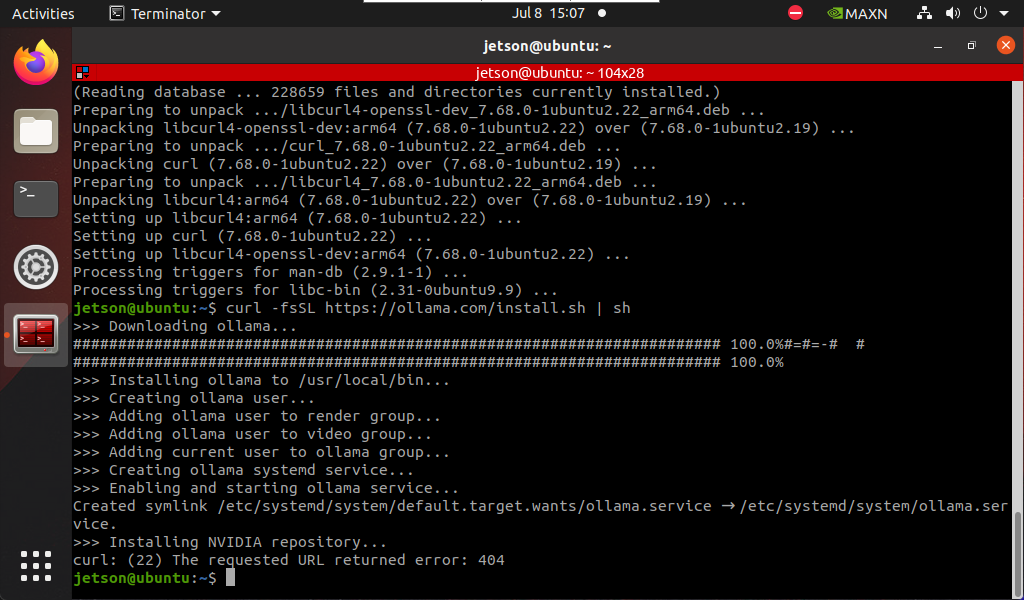
Script installation

xxxxxxxxxx
sudo apt install curl
curl -fsSL https://ollama.com/install.sh | sh
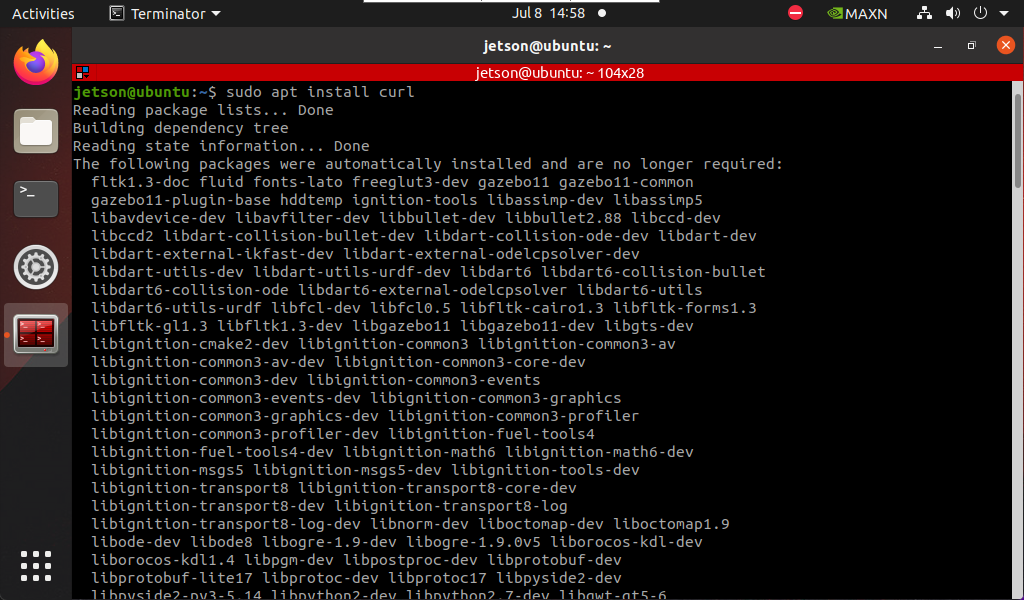
image-20240708145853030

image-20240708150713025

The entire installation process takes a long time, please wait patiently!

xxxxxxxxxx
The prompt curl: (22) The requested URL returned error: 404 appears, which can be ignored!

Raspberry Pi 5 The motherboard installation steps are the same.
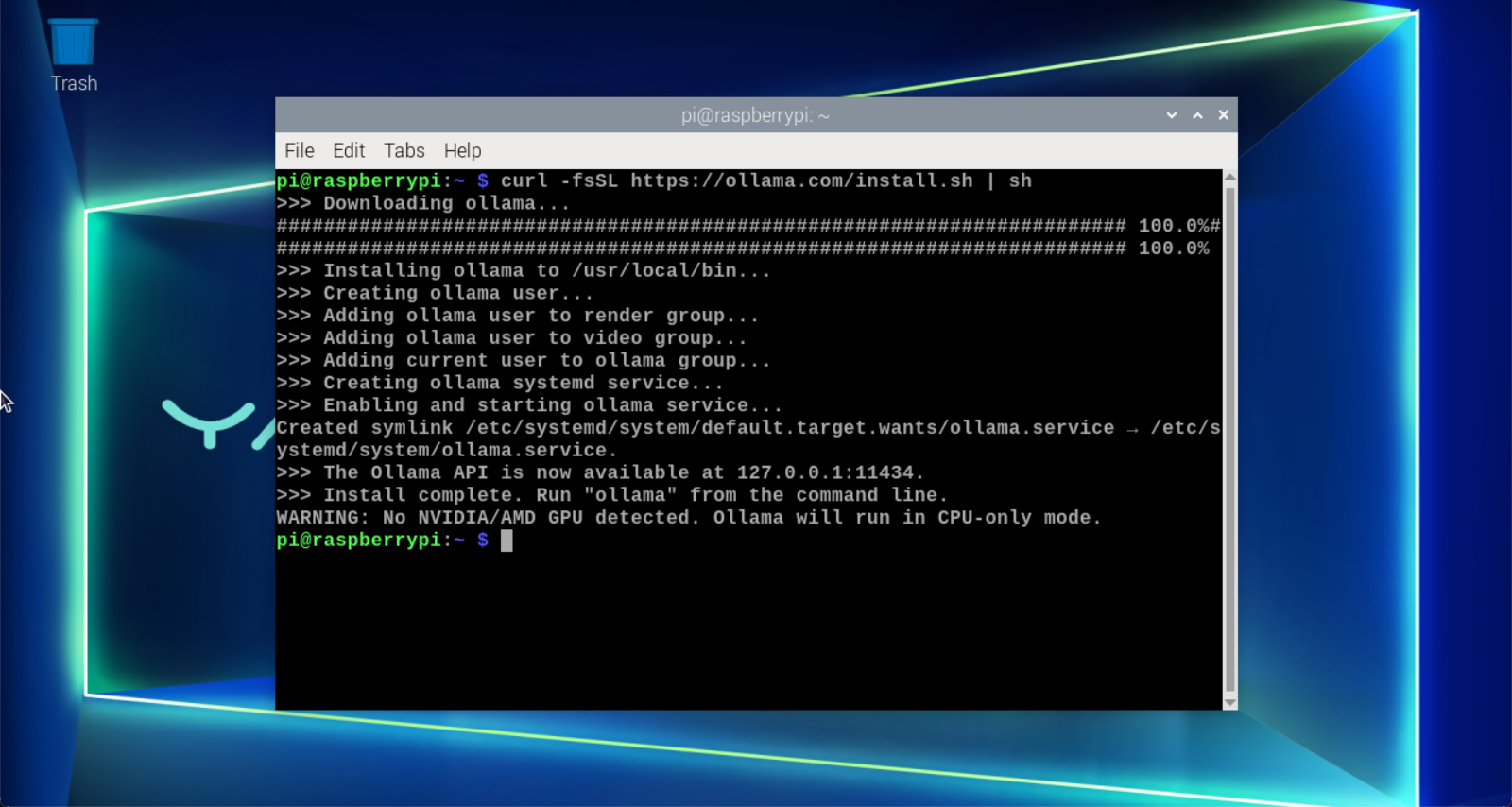
image-20240625122656248

The Raspberry Pi terminal displays "Install complete", indicating that Ollama has been successfully installed!

xxxxxxxxxx
The warning is that NVIDIA/AMD GPU is not detected, and Ollama will run in CPU mode. We can ignore this prompt directly.

Ollama Usage

You can see the prompt by typing ollama in the terminal:
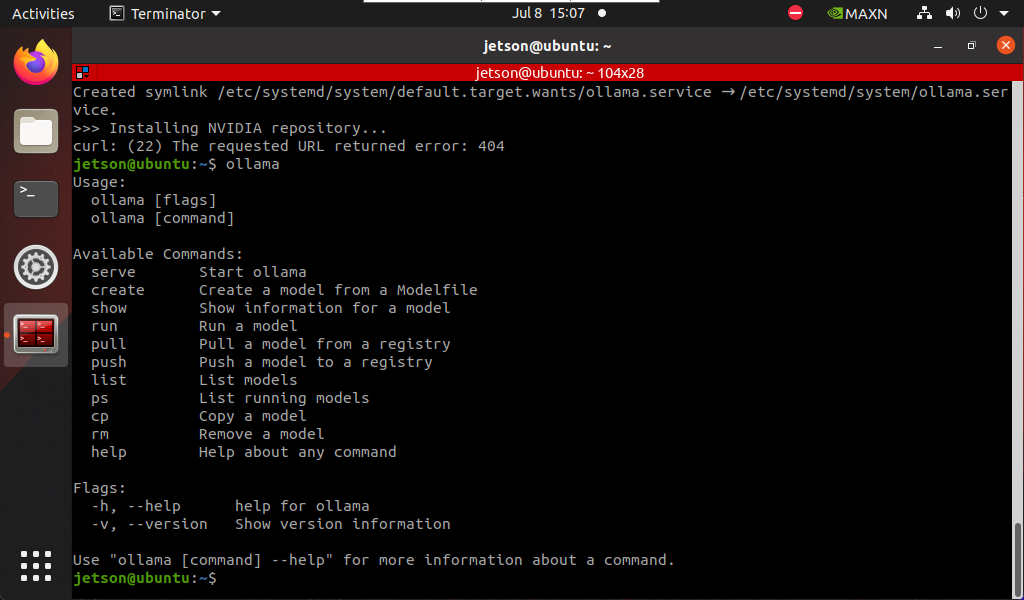
image-20240708150727776

CommandFunction
ollama serveStart ollama
ollama createCreate a model from a model file
ollama showDisplay model information
ollama runRun the model
ollama pullPull the model from the registry
ollama pushPush the model to the registry
ollama listList the models
ollama psList the running models
ollama cpCopy the model
ollama rmDelete the model
ollama helpGet help information about any command
ollama -vView ollama version number

Ollama uninstall

  • Delete service
xxxxxxxxxx
sudo systemctl stop ollama
sudo systemctl disable ollama
sudo rm /etc/systemd/system/ollama.service
  • Delete file
xxxxxxxxxx
sudo rm $(which ollama)
  • Delete model and service user and group
xxxxxxxxxx
sudo rm -r /usr/share/ollama
sudo userdel ollama
sudo groupdel ollama

References

Ollama

Official website: https://ollama.com/

GitHub: https://github.com/ollama/ollama

Model usage instructions
Dialogue platform installation

COMPANY

  • About us
  • Team Style
  • Blog

LEARNING & EXPLORATION

  • Tutorials
  • Edge AI hardware
  • Educational robots
  • Embedded intelligent hardware

WHERE TO BUY

  • Yahboom Online Store
  • Amazon
  • Alibaba
  • AliExpress
  • Mercado

TECHNOLOGY SUPPORT

  • Email: support@yahboom.com

BE A DISTRIBUTOR

  • Email: sales@yahboom.com
QR Code

Copyright © 2017-2026 Yahboom. All Rights Reserved.

EN/中文