Welcome to ROSMASTER X3 Plus repository
2. Linux basics
2. Linux basics
2. Linux basics 2.1. Introduction to Linux system 2.2. Ubuntu overview 2.3. Ubuntu file system 2.4. Common commands 2.4.1. increase 2.4.2. delete 2.4.3. change 2.4.4. Check 2.4.5. Others 2.5. Editor 2.5.1. vim 2.5.2. nano 2.5.3. gedit 2.6. Ubuntu software operation command
2.1. Introduction to Linux system
Linux is an open source operating system whose kernel was first released on October 5, 1991 by Linus Benadict Torvalds. It inherits the network-centric design idea of Unix and is a performance Stable multi-user network operating system.
In March 1994, Linux 1.0 was released with a code volume of 170,000 lines. At that time, it was released under a completely free and free agreement, and then the GPL agreement was officially adopted.
In January 1995, Bob Young founded RedHat (Little Red Hat), with GNU and Linux as the core, integrating more than 400 open source program modules, and came up with a brand of Linux, namely RedHat Linux, called RedHat Linux. Linux distribution, sold in the market.
In June 1996, the Linux 2.0 kernel was released, which can support multiple processors.
- Main features of Linux
Free and open source; fully compatible with POSIX 1.0 standard; multi-user, multi-task; has a good interface; supports multiple platforms.
- Linux major version
There are currently about 300 Linux distributions, almost all of which can be run as server systems. Linux distributions rarely copy each other, and the popular Linux server distributions are mainly the following:
Red Hat Enterprise Linux: This is the first Linux distribution for the commercial market. It is available in server versions and supports numerous processor architectures.
Debian: Debian is extremely stable, which makes it ideal for servers.
CentOS: CentOS is an enterprise Linux distribution rebuilt from free source code from Red Hat Enterprise Linux. This refactored version completely removes the registered trademark and a very subtle change in the Binary package.
Ubuntu: Ubuntu is a derivative of Debian that focuses on its use in this market, common on servers, cloud computing, and even some mobile devices running Ubuntu Linux.
2.2. Ubuntu overview
Ubuntu is a Linux operating system based on desktop applications. Ubuntu is based on the Debian distribution and the Gnome desktop environment, and since version 11.04, the Ubuntu distribution has abandoned the Gnome desktop environment in favor of Unity. Since Ubuntu 18.04 LTS, Ubuntu distributions are back to using the GNOME3 desktop environment. Debian-based Ubuntu has a place on almost every Linux-related list. Canonical's Ubuntu trumps all other Linux server distributions - From simple installation, excellent hardware discovery, to world-class commercial support, Ubuntu sets standards that are hard to match
2.3. Ubuntu file system
Ubuntu is different from Windows, there is no concept of drive letter, there is only one root directory [/], all files are under it
├── bin # bin is the abbreviation of Binary. Stores the most commonly used executable files (binaries) in the system. ├── boot # The Linux kernel and system boot files are stored here, including Grub and lilo launcher programs. ├── dev # dev is the abbreviation of Device. This directory stores the external devices of Linux, such as hard disk, partition, keyboard, mouse, usb, etc. ├── etc # This directory is used to store all configuration files and subdirectories required for system management, such as passwd, hostname, etc. ├── home # The home directory of the user. In Linux, each user has a directory of his own. Generally, the directory name is named after the user's account. │ └── yahboom # user │ ├── Desktop # Desktop │ ├── Documents # Documents │ ├── Downloads # Download │ ├── Music # Music │ ├── Pictures # Pictures │ ├── Public # Share │ ├── Templates # Templates │ ├── Videos # Video │ ... │ ... ├── lost + found # This directory is usually empty. When the system is shut down illegally, some scattered files are stored here. ├── lib # Stores shared library files, including many library files used by programs in /bin and /sbin. ├── media # The CD-ROM and USB devices automatically mounted by the ubuntu system, which store the temporarily read files. ├── mnt # As the mount point of the mounted file system. ├── opt # As a storage directory for optional files and programs, it is mainly used by third-party developers to easily install and uninstall their software. ├── proc # This directory is a virtual directory, which is the mapping of the system memory, where all processes marked as files are stored, and cpuinfo stores the data of the current working state of the cpu. ├── root # This directory is the home directory of the system administrator, also known as the super-authorized user. ├── sbin # s means Super User, which stores system management programs used by system administrators, such as system management, directory query and other key command files. ├── srv # Store the service data provided by the system. ├── sys # System device and file hierarchy, and provide detailed kernel data information to user programs. ├── usr # Store files and directories related to system users. │ ├── bin # Standard commands for users and administrators │ ├── games # Stores the small games that come with XteamLinux │ ├── include # Used to store the header files needed to develop and compile applications under Linux, c or c++ │ ├── lib # Link library for applications and packages │ ├── local # System administrator installed application directory │ ├── sbin # Stores the management program used by the root superuser │ └── src # Linux open source code │ └── share # Store shared data │ ... ├── var # Variable-length files, especially log data such as log files and printer files. │ ├── backups │ ├── cache # Application cache directory │ ├── crash # System error message │ ├── log # log file │ ├── mail # email │ └── tmp # Temporary file directory │ ... ├── tmp # This directory is used to store some temporary files, and all users have read and write permissions to this directory. ... 2.4. Common commands
2.4.1. increase
create a new file
xxxxxxxxxxtouch test.txt new folder
xxxxxxxxxxmkdir test # create a file mkdir -p test/src # create the test folder and create the src folder in the test folder copy
xxxxxxxxxxsudo cp test.txt test_copy.txt # copy a file 2.4.2. delete
| -i | to execute interactively |
|---|---|
| -f | Force delete, ignore non-existing files without prompting |
| -r | Recursively delete the contents of a directory |
xxxxxxxxxxsudo rm test.txt # delete filesudo rm -r test # delete the folder and its contents 2.4.3. change
- mv move, rename
xxxxxxxxxxsudo mv test test_new # Change the test folder to test_new sudo mv test.txt test_new.txt # Modify the test.txt file to test_new.txt - chmod changes file permissions
Permission setting
| symbol | meaning |
|---|---|
| + | Increase permissions |
| - | Revoke permission |
| = | set permissions |
rwx
| Letter permissions | meaning |
|---|---|
| r | read means read permission. For a directory, if there is no r permission, it means that the contents of this directory cannot be viewed through ls. |
| in | write means writable permission. For a directory, if there is no w permission, it means that new files cannot be created in the directory. |
| x | execute means executable permission. For a directory, if there is no x permission, it means that the directory cannot be entered through cd. |
xxxxxxxxxxsudo chmod +rwx test.txt Shortcut to add all permissions
xxxxxxxxxxsudo chmod 777 test.txt - change Password
set root password
xxxxxxxxxxsudo passwd root Set username and password
xxxxxxxxxxsudo passwd username 2.4.4. Check
- View system version
xxxxxxxxxxlsb_release -a # release version number uname -a # Kernel version and system bitness cat /proc/version # kernel version and gcc version - View hardware information
xcurl cip.cc or ifconfig # View IP address cat /proc/cpuinfo or lscpu # cpu info sudo dmidecode -t memory # memory information df -h # View the space of all mounted file systems which python3 # View command location v4l2-ctl --list-formats-ext # View camera device parameters nproc # View the number of cores
- View file information
xxxxxxxxxxla # Display all subdirectories and files in the specified directory, including hidden files ll # display the details of the file in a list ls -h # cooperate to display the file size in a user-friendly way cat test.txt # View file content tree # View the file directory (requires tree installation) tree installation command
xxxxxxxxxxsudo apt install tree - find files
xxxxxxxxxxfind ./ -name test.sh # Find all files or directories named test.sh in the current directory find ./ -name '*.sh' # Find all files or directories with the suffix .sh in the current directory find ./ -name "[A-Z]*" # Find all files or directories starting with an uppercase letter in the current directory 2.4.5. Others
- tar command
tar uses the format: tar [parameter] package file name file
xxxxxxxxxx-c # Generate archive file, create package file -v # List the detailed process of archive unarchiving, showing progress -f # Specify the name of the archive file, f must be followed by a .tar file, so you must put the option at the end -t # list the files contained in the -x # unpack the archive Pack
xxxxxxxxxxtar -cvf xxx.tar * # all files in the current directory tar -cvf xxx.tar *.txt # files ending in .txt tar -cvf xxx.tar my-file my-dir # Package the specified directory or file unpack
xxxxxxxxxxtar -xvf xxx.tar # unpack to current directory tar -xvf xxx.tar -C my-dir # Unpack to the specified directory (need to create the my-dir directory first) - zip, unzip commands
Compressed file: zip [-r] destination file (without extension) source file
xxxxxxxxxxzip bak * # All files in the current directory, you can also specify a file zip -r bak * # all files & directories in current directory recursively Unzip the file: unzip -d unzip the directory file compressed file
xxxxxxxxxxunzip -d ./target_dir bak.zip # Unzip to the specified directory unzip bak.zip # unzip to current directory - ln command
Soft link: Soft link does not occupy disk space, and the soft link is invalid if the source file is deleted. Commonly used, you can create files or folders
xxxxxxxxxxln -s source-file link-file Hard links: Hard links can only link ordinary files, not directories. Linked file exists even though source file is deleted
xxxxxxxxxxln source-file link-file - scp remote copy
xxxxxxxxxxscp jetson@192.168.16.66:/home/jetson/xxx/yahboom/xxx.tar.gz /home/yahboom/ # Copy from remote to local scp /home/yahboom/xxx.png jetson@192.168.16.66:/home/jetson/ # local to remote scp -r jetson@192.168.16.66:/home/jetson/test /home/yahboom/ # from remote to local -r scp -r /home/yahboom/test jetson@192.168.16.66:/home/jetson/ # from local to remote -r - wget file download
Just search for an image address on Baidu as an example.
xxxxxxxxxxwget "https://img0.baidu.com/it/u=3911542037,2006161295&fm=224&fmt=auto&gp=0.jpg" # Download ordinary files (Baidu links should be double-quoted) wget -O yahboom.jpg "https://img0.baidu.com/it/u=3911542037,2006161295&fm=224&fmt=auto&gp=0.jpg" # Save the file with the specified file name - other
xxxxxxxxxxnautilus . # open the current file cd ~ # Switch to the current user's home directory (/home/user directory) cd . # Change to current directory cd - # can enter the last directory cd / # Change to the system root directory/ pwd # show the current path echo "HelloWorld" # Output HelloWorld information to the console which # View command location 2.5. Editor
2.5.1. vim
vim is an upgraded version of vi. The most common difference is that it can display some special information of system files in multiple colors.
- install command
xxxxxxxxxxsudo apt install vim - Three main modes
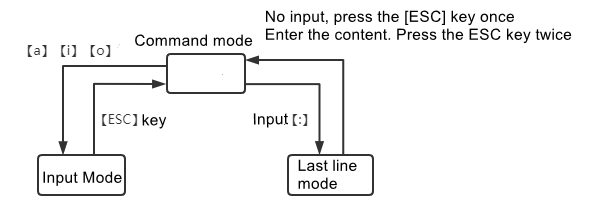
Command mode (edit mode): default mode, move the cursor, cut/paste text (interface performance: the file name is displayed in the lower left corner or empty) Insert mode (input mode): modify text (interface performance: the lower left corner displays —INSERT– ) In the insert mode, press the ESC key to return to the last line mode of the command mode (extended mode): save, exit, etc. (interface performance: the lower left corner displays -VISUAL-) In the last line mode, press the ESC key twice continuously to return to the last line mode
- Mode switch
Switch from command mode to edit mode
xxxxxxxxxxi # Insert mode to enter edit mode a # Append mode to enter edit mode o # Start editing at the beginning of the next line of the current line O # Start editing at the beginning of the previous line of the current line Switch from command mode to last line mode
xxxxxxxxxx: # Enter a colon [:] Switch from last line mode to command mode: press【esc】
Switch from editing mode to command mode: press [esc]
Esc built: exit to the current mode
Esc build Esc build: always return to command mode
- last line mode
xxxxxxxxxxw # save q # exit q! # force quit x # save and exit set nu # display line number set # nonu hide line numbers 0,$d # vim delete the entire contents of the file: /string # Start looking for the string string backwards from the cursor; press n to locate the next one, and shfit+n to locate the previous one. g/string # Retrieve string. Stops the cursor at the beginning of the first retrieved string of strings. - command mode
xxxxxxxxxxyy # copy p # paste 3yy # Copy 3 lines 2p # paste 2 times dd # cut 3dd # cut 3 lines u # undo Ctrl + r # Undo dd # delete the current line dG # delete the current line to the end of the file dH # delete the current line to the beginning of the file gg # jump to the first line of the current document G # jump to the end line of the current document ^ # Jump to the beginning of the current line $ # jump to the end of the current line h # move left one character j # move down one line k # move up one line l # move one character to the right PageDown(or Ctrl + F) # scroll down a screen PageUp(or Ctrl + B) # page up one screen 2.5.2. nano
nano is a text editor for Unix and Unix-like systems, a clone of Pico.
- Install
xxxxxxxxxxsudo apt install nano new/open file
xxxxxxxxxxnano path + file name For example: nano test_nano.txt control commands
xxxxxxxxxxCtrl + v # Next page Ctrl + y # Previous page Ctrl + w # Search for a word or phrase Ctrl + x # close the current text, exit nano, return to shell Ctrl + \ # Search and replace Ctrl + k # cut line of text Ctrl + u # Paste line of text Ctrl + c # Display cursor position in text 2.5.3. gedit
gedit is no different from using Notepad under Windows.
In the editor, we can click the "Open" button to browse the list of recently opened files and open the file; click the "Save" button to save the file currently being edited; click the menu bar on the right to perform more operations and so on. The shortcut keys are the same as under Windows:
xxxxxxxxxxCtrl + s save the file Ctrl + Shift + s save as Ctrl + f to search text content The gedit editor must be started without a remote interface such as ssh, jupyter, and putty when the interface can be displayed.
2.6. Ubuntu software operation command
xxxxxxxxxxsudo apt-get update # update source sudo apt-get install package # install package sudo apt-get remove package # remove the package sudo apt-cache search package # search for packages sudo apt-cache show package # Get information about the package, such as description, size, version, etc. sudo apt-get install package --reinstall # reinstall the package sudo apt-get -f install # repair installation sudo apt-get remove package --purge # Remove packages, including configuration files, etc. sudo apt-get build-dep package # Install the relevant compilation environment sudo apt-get upgrade # update installed packages sudo apt-get dist-upgrade # upgrade the system sudo apt-cache depends package # Know which packages to use this package depend on sudo apt-cache rdepends package # See which packages the package depends on sudo apt-get source package # Download the source code of the package sudo apt-get clean && sudo apt-get autoclean # clean useless packages sudo apt-get check # Check for broken dependencies