Welcome to ROSMASTER X3 Plus repository
16.14 Recognizes color block and handling
14. Color block identification and transportation
14. Color block identification and transportation14.1. Use14.1.1. The first step14.1.2. Step 214.1.3. The third step14.2, Node graph14.3, flow chart
14.1. Use
Note: [R2] on the remote control handle has the [pause/start] function for this gameplay. When using it for the first time, perform color calibration first.
The prerequisite for using this function is that there is a map that has been built, and the Astra camera is enabled by default.
xxxxxxxxxx#Raspberry Pi 5 master needs to enter docker first, please perform this step#If running the script into docker fails, please refer to ROS/07, Docker tutorial~/run_docker.shStart command (robot side)
xxxxxxxxxxroslaunch arm_color_transport transport_base.launch map:=my_map img_show:=false # Robotroslaunch arm_color_transport transport_rviz.launch # Virtual machineParameter map: the name of the loaded map.
Parameter img_show: whether to open the image window separately.
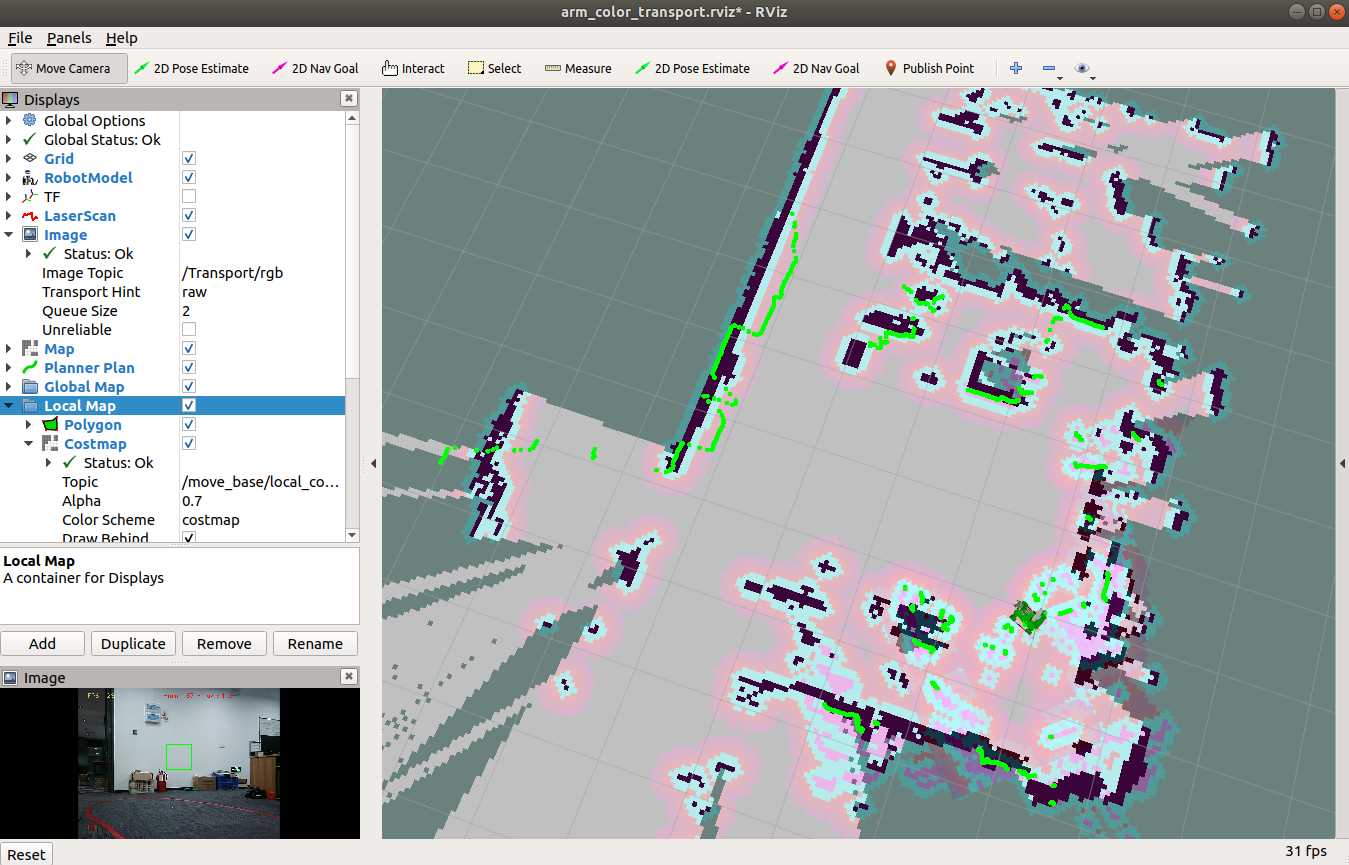
The system recognizes the topic name of the color block [/Transport/rgb].
14.1.1. The first step
position
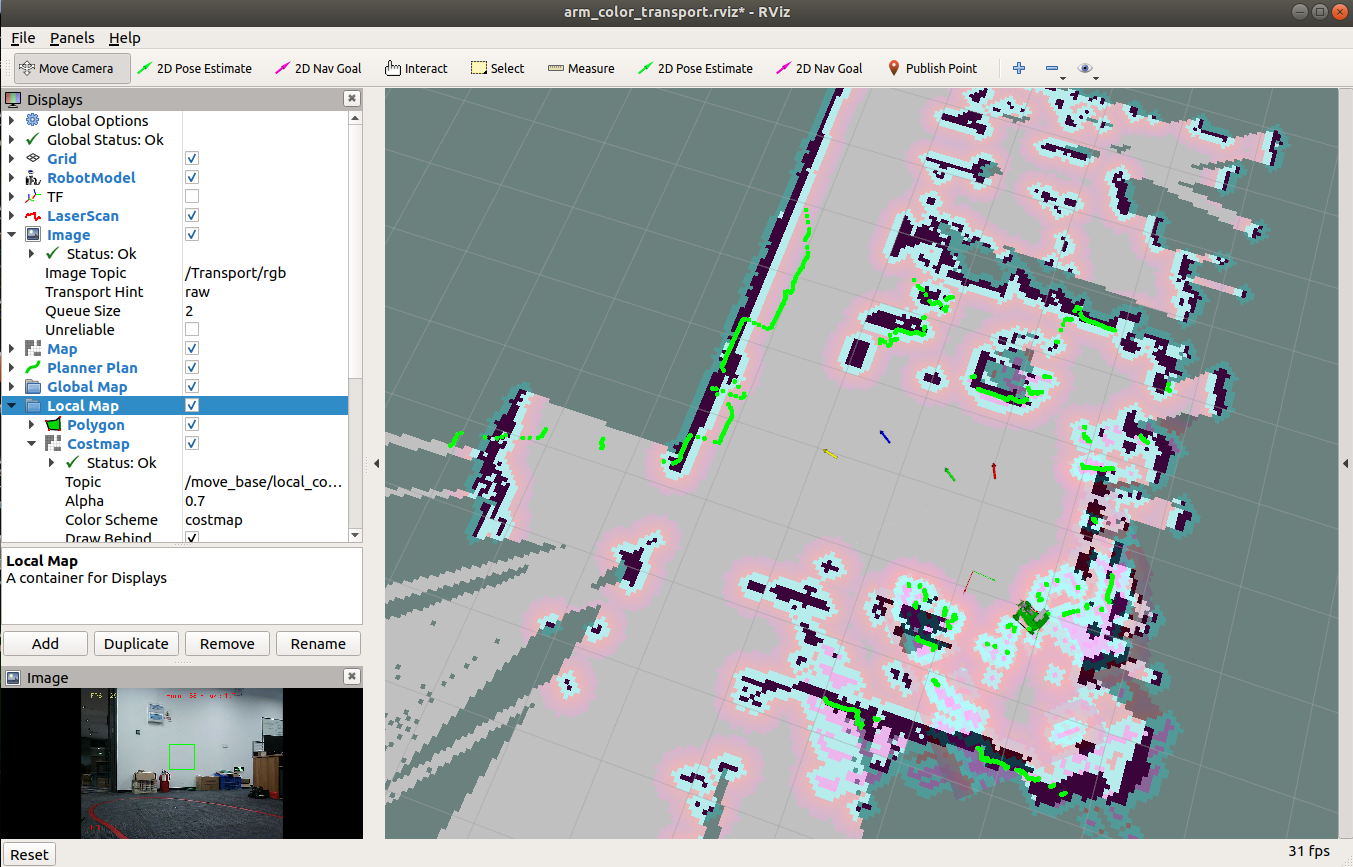
[2D Pose Estimate] on the left side of [rviz] locates the pose of the robot in the map, which is the same as general navigation.
[2D Nav Goal] on the left side of [rviz] is generally not used, it is the same as general navigation.
[2D Pose Estimate] on the right side of [rviz], set the return pose of the robot after completing the transportation.
[2D Nav Goal] on the right side of [rviz], set the target pose that needs to be carried after the robot recognizes the color block. You can set [red, green, blue, yellow] in a cycle.
[Publish Point] in [rviz] clears the target pose and return pose set by the robot.
14.1.2. Step 2
If the Setup Image window is open it can be controlled using keyboard keys.
Start function (choose 1 from 2)
Select the image window and hit the space bar on your keyboard.
Click the controller [R1] button twice within 0.5 seconds.
Other keyboard key controls (selected image window)
Click the [Space] key: start recognition.
Click the [r] key: parameters restore to default settings.
Click the [q] key: cancel navigation and exit the program.
14.1.3. The third step
Place the color block into the recognition frame in front of the camera and completely fill the recognition frame,
The system automatically recognizes the color of the color block and whistles to signal that it is ready to be picked.
When the clamping jaws open, put the color block into the clamping jaws,
The robotic arm clamps the color block and moves it autonomously to the target position of the corresponding color set in advance.
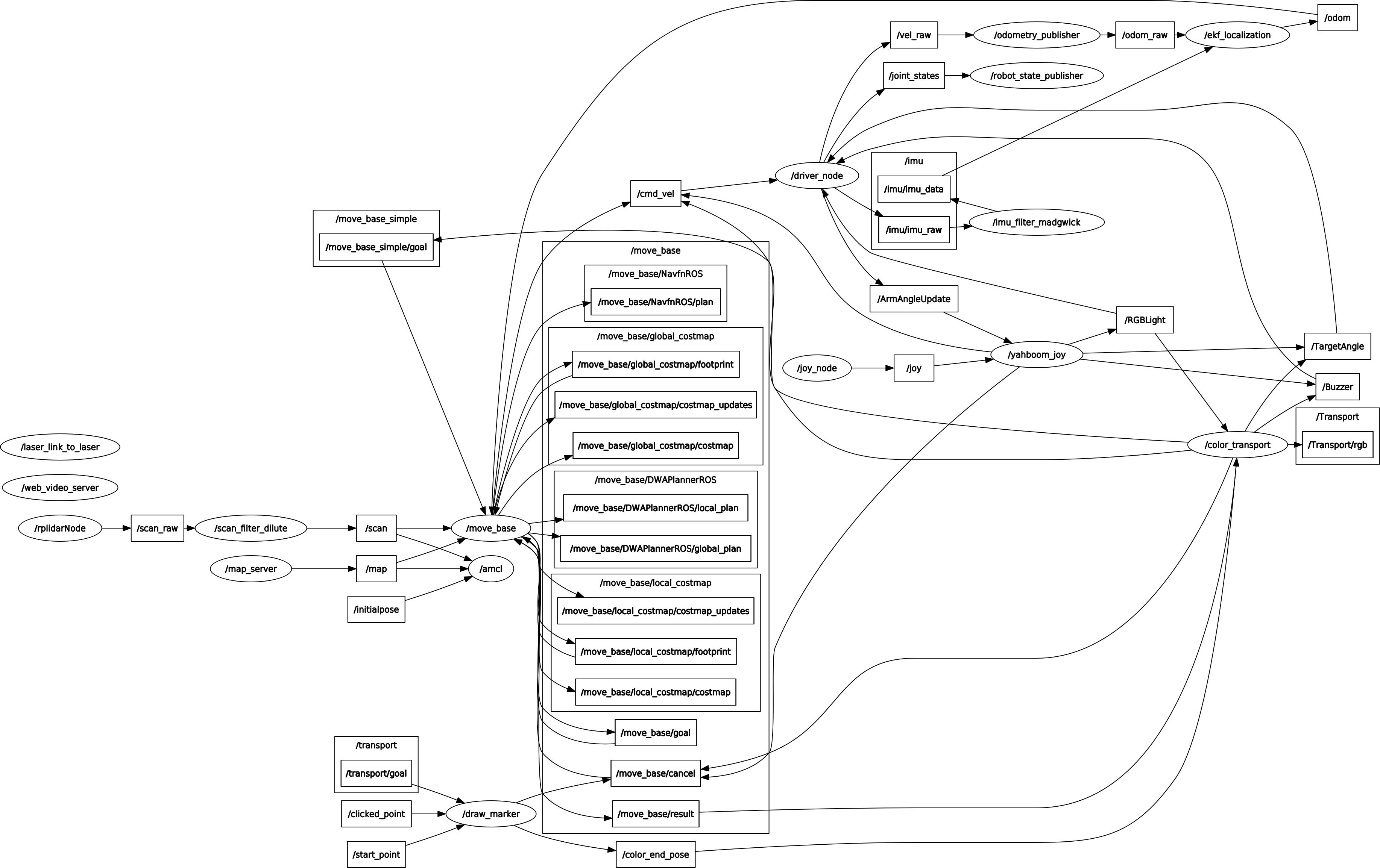
14.2, Node graph
xxxxxxxxxxrqt_graph
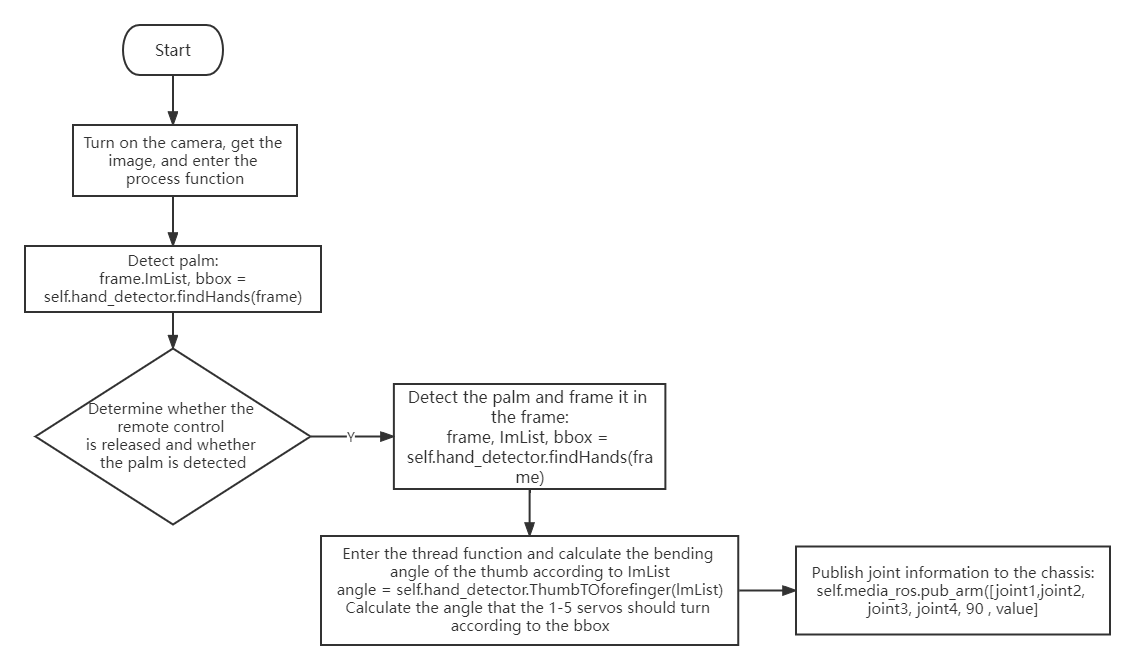
14.3, flow chart