yahboom
HomeLearn
Solution
Blog
Online Store
About Us
EN/中文
ROSMASTER X3 Plus📖
1.Preparation and First Trial
  • 1.1 Wiring Introduction
  • 1.2 Precautions for battery
  • 1.3 First Trial
  • 1.4 Precautions for DIY Robotic Arm
2. Assembly steps
  • Installation Video
3.Remote control course
  • 3.1 APP remote control
  • 3.2 Model aircraft remote control
  • 3.3 Handle remote control
4.Hardware course
  • 4.1 About expansion board_V3.0
  • 4.1 About expansion board_V1.0
  • 4.2 STM32 Development
  • 4.3 Button to control the buzzer
  • 4.4 FreeRTOS application
  • 4.5 Serial communication
  • 4.6 SBUS model aircraft remote control
  • 4.7 CAN bus communication
  • 4.8 RGB colorful light bar
  • 4.9 Timer interrupt to control
  • 4.10 Control serial port servos
  • 4.11 Nine-axis attitude sensor
  • 4.12 Control motor
  • 4.13 Timer captures the encoder data
  • 4.14 Kinematic Analysis
  • 4.15 PID control robot movement
5.Basic course
  • 5.1 Update the firmware
  • 5.2 Turn off the self-starting process
  • 5.3 Install the Rosmaster driver
  • 5.4 Buzzer whistle
  • 5.5 Control PWM servo
  • 5.6 RGB colorful light bar
  • 5.7 Control motor
  • 5.8 Control robot movement
  • 5.9 Control Serial Servo
6.Linux operating system
  • 6.1 Virtual machine installation
  • 6.2 Linux basics
  • 6.3 Remote control
  • 6.4 Multi-machine communication
  • 6.5 Static IP and hotspot mode
  • 6.6 Bind the device ID
  • 6.7 Web page real-time monitor
  • 6.8 Expansion tutorial
  • 6.9.1 Jetson Nano write sytem
  • 6.9.2 Jetson Xavier NX write system
  • 6.9.3 Jetson TX2 NX write system
  • 6.9.4 Raspberry Pi write system
7.Docker-Just for pi5
  • 7.1 Docker overview and docker installation
  • 7.2 Common commands for docker image containers
  • 7.3 Docker images deeply understand and publish images
  • 7.4 Docker hardware interaction and data processing
  • 7.5 Enter the bot's docker container
  • 7.6 Robot development environment construction in Docker
  • 7.7 How customers can update docker images in the future
8.ROS basic course
  • 8.1 ROS introduction
  • 8.2 ROS installation
  • 8.3 ROS common command tools
  • 8.4 ROS workspace
  • 8.5 ROS function package
  • 8.6 ROS node
  • 8.7 ROS topic publisher
  • 8.8 ROS topic subscribers
  • 8.9 ROS service client
  • 8.10 ROS service server
  • 8.11 ROS action client
  • 8.12 ROS action server
  • 8.13 ROS custom message reception
  • 8.14 ROS-launch file
  • 8.15 ROS-TF transformation
  • 8.16 ROS parameter service
  • 8.17 ROS-rviz use
  • 8.18 ROS-rqt tool usage
  • 8.19 Topic message recording and playback
  • 8.20 urdf model introduction
  • 8.21 gazebo introduction
  • 8.22 ROS distributed communication
9.OpenCV courses
  • 9.1 Getting started with Open Source CV
  • 9.2 Geometric transformation
  • 9.3 Image processing and draw
  • 9.4 Image beautification
  • 9.5 Opencv application
  • 9.6 AR vision
  • 9.7 AR QR code
  • 9.8 ROS+Opencv foundation
  • 9.9 ROS+Opencv application
  • 9.10 Data transformation
  • 9.11 MediaPipe development
10.Robot control course
  • 10.1 PID algorithm theory
  • 10.2 Robot PID debugging
  • 10.3 Robot information release
  • 10.4 Robot keyboard control
  • 10.5 Robot handle control
  • 10.6 Robot state estimation
  • 10.7 Robot calibration
  • 10.8 Robot URDF model
11.Depth camera course
  • 11.1 How to use the Astra camera
  • 11.2 Astra camera calibration
  • 11.3 Astra Color Tracking
  • 11.4 Astra Object Tracking
  • 11.5 Visual tracking autopilot
  • 11.6 Pure visual 2D mapping
  • 11.7 RTAB-Map 3D mapping
  • 11.8 ORB_SLAM2 basics
  • 11.9 ORB_SLAM2_Octomap
12.Lidar course
  • 12.1 Lidar basic-SLAM
  • 12.1 Lidar basic-EAI
  • 12.2 Lidar avoiding
  • 12.3 Lidar guard
  • 12.4 Lidar follow
  • 12.5 Patrol game
  • 12.6 gmapping mapping algoritm
  • 12.7 hector mapping algorithm
  • 12.8 karto mapping algorithm
  • 12.9 cartographer mapping
  • 12.10 rrt_exploration mapping
  • 12.11 AMCL
  • 12.12 Navigation and avoiding
  • 12.13 APP mapping and navigation
13.Multi-robot control course
  • 13.1 Multi-machine handle control
  • 13.2 Multi-machine navigation
  • 13.3 Multi-machine formation
  • 13.4 Multi-machine surround
14.Deep learning courses
  • 14.1 KNN recognizes handwritten
  • 14.2 Basic use of TensorFlow
  • 14.3 Basic use of PyTorch(jetson)
  • 14.4 yolov5 model training(jetson)
  • 14.5 yolov5+tensorrt acceleration
  • 14.6 yolov4-tiny
15.Voice control courses
  • 0. How to use old voice module in new image
  • 15.1 Introduction of voice control-new
  • 15.2 Voice control module port-new
  • 15.3.Introduction of voice module-old
  • 15.4.Voice control module port binding-old
  • 15.5 Voice control car movement
  • 15.6 Voice control Autopilot
  • 15.7 Voice control color recogzition
  • 15.8 Voice control color tracking
  • 15.9 Voice control multi-point nagavation
16.Robotic arm control course
  • 16.1 MoveIt configuration
  • 16.2 MoveIt control the real machine
  • 16.3 MoveIt moves randomly
  • 16.4 MoveIt kinematics design
  • 16.5 MoveIt cartesian path
  • 16.6 MoveIt avoiding
  • 16.7 MoveIt scene design
  • 16.8 MoveIt trajectory planning
  • 16.9 Mediapipe palm control car
  • 16.10 Mediapipe gesture control robotic arm
  • 16.11 Mediapipe gesture control car
  • 16.12 Mediapipe arm attitude control robotic arm
  • 16.13 Mediapipe recognizes and tracks palm control robotic arm
  • 16.14 Recognizes color block and handling
  • 16.15 Autopilot to clear obstacles
17.Voice control robotic arm course
  • 17.1 Voice control robotic arm movement
  • 17.2 Voice control robotic arm learning
  • 17.3 Voice control color block transport
  • 17.4 Voice control robotic arm grip objects
  • 17.5 Voice control robotic arm garbage sorting
18.Model training Autopilot
  • 18.0 ReadMe
  • 18.1 yolov5 to train traffic signs
  • 18.2 TensorRt acceleration identification mark
  • 18.3 Road sign indication function description
  • 18.4 Collect data
  • 18.5 Training model
  • 18.6 Model transformation and application
  • 18.7 AI Autopilot
19.For Orin-Remote control course
1. APP control
  • 1. APP control
  • 2. Model aircraft control
  • 3. Handle control
2. Model aircraft control
3. Handle control
20.Orin-Hardware course
  • 1. About expansion board_V1.0
  • 1. About expansion board_V2.0
  • 2. STM32 Development environment
  • 3. Button control
  • 4. FreeRTOS application
  • 5. Serial communication
  • 6. SBUS model aircraft remote control
  • 7. CAN bus communication
  • 8. RGB colorful light bar
  • 9. Timer interrupt to control PWM servo
  • 10. Control serial port servos
  • 11. Nine-axis attitude sensor to obtain data
  • 12. Control motor
  • 13. Timer captures the encoder data
  • 14. Robot kinematics analysis theory
  • 15. PID control robot movement
21.Orin-Basic course
  • 1. Update the firmware
  • 2. Turn off the self-starting process at startup
  • 3. Install the Rosmaster driver library
  • 4. Buzzer whistle
  • 5. Control PWM servo
  • 6. RGB colorful light bar special effects display
  • 7. Control motor
  • 8. Control robot movement
  • 9. Control Serial Servo
22.Orin-Linux operating systemnew
  • 1. Virtual machine installation and use
  • 2. Linux basics
  • 3. Remote control
  • 4. Multi-machine communication configuration
  • 5. Static IP and hotspot mode
  • 6. Bind the device ID
  • 7. Web page real-time monitoring
  • 8. Expansion tutorial
  • 9.1 Jetson Nano write sytem
  • 9.2 Jetson Xavier NX write system
  • 9.3 Jetson TX2 NX-Orin series write system
  • 9.4 Raspberry Pi write system
  • 10.Jetpack old system upgraded to SUPER system
23.Orin-Dockernew
SUPER image uses ros environment in docker
  • 1、Docker overview and docker installationnew
  • 2、Common commands for docker image containersnew
  • 3、Docker images deeply understand and publish imagesnew
  • 4、Docker hardware interaction and data processingnew
  • 5、Enter the bot's docker containernew
  • 6、Robot development environment construction in Dockernew
23.Orin-ROS basic course
  • 1.ROS introduction
  • 2.Project file structure
  • 3.Common commands and tools
  • 4.Publisher
  • 5.Subscribers
  • 6.Customize topic messages and use
  • 7.Client
  • 8.Server
  • 9.Custom service messages and usage
  • 10.TF release and monitoring
24.Orin-OpenCV courses
  • 1. Getting started with Open Source CV
  • 2. Open Source CV geometric transformation
  • 3. Open Source CV image processing and drawing text line segments
  • 4. Open Source CV image beautification
  • 5. Opencv application
  • 6. AR vision
  • 7. AR QR code
  • 8. ROS+Opencv foundation
  • 9. ROS+Opencv application
  • 10. Data transformation and point cloud
  • 11. MediaPipe development
25.Orin-Robot control course
  • 1.PID algorithm theory
  • 2.Robot PID debugging
  • 3.Robot information release
  • 4.Robot keyboard control
  • 5.Robot handle control
  • 6.Robot state estimation
  • 7.Robot calibration
  • 8.Robot URDF model
26.Orin-Depth camera course
  • 01.How to use the Astra camera
  • 02.Astra camera calibration
  • 03.Astra Color Tracking
  • 04.Astra Object Tracking
  • 05.Visual tracking autopilot
  • 06.Pure visual 2D mapping and navigation
  • 07.RTAB-Map 3D mapping navigation
  • 08.ORB_SLAM2 basics
  • 09.ORB_SLAM2_Octomap
27.Orin-Lidar course
  • 1.Lidar basic-4ROS-EAI
  • 1.Lidar basic-SLAM
  • 2.Lidar avoiding
  • 3.Lidar guard
  • 4.Lidar follow
  • 5.Patrol game
  • 6.gmapping mapping algorithm
  • 7.hector mapping algorithm
  • 8.karto mapping algorithm
  • 9.cartographer mapping algorithm
  • 10.rrt_exploration mapping algorithm
  • 11.AMCL
  • 12.Navigation and avoiding
  • 13.APP mapping and navigation
28.Orin-Multi-robot control course
  • 1.Multi-machine handle control
  • 2.Multi-machine navigation
  • 3.Multi-machine formation
  • 4.Multi-machine surround
29.Orin-Deep learning courses
  • 1.KNN recognizes handwritten digits
  • 2.Basic use of TensorFlow
  • 3.Basic use of PyTorch(jetson)
  • 4.YOLOv11Model conversion(SUPER)new
  • 5.YOLOv11Dataset annotation(SUPER)new
  • 6.YOLOv11Model conversion + tensorrt acceleration(SUPER)new
  • 7.YOLOv11Object recognition(SUPER)new
30.Orin-Voice control courses
  • 0. How to use old voice module in new image
  • 1.1 Introduction of voice module-new
  • 1.2 Introduction of voice module-old
  • 2.1 Voice control module port binding-new
  • 2.2 Voice control module port binding-old
  • 3. Voice control car movement
  • 4. Voice control Autopilot
  • 5. Voice control color recognition
  • 6. Voice control color tracking
  • 7. Voice control multi-point navigation
31.Orin-Robotic arm control course
  • 1.MoveIt configuration(VM)
  • 2.MoveIt control the real machine(VM)
  • 3.MoveIt moves randomly(VM)
  • 4.MoveIt kinematics design(VM)
  • 5.MoveIt cartesian path(VM)
  • 6.MoveIt avoiding(VM)
  • 7.MoveIt scene design(VM)
  • 8.MoveIt trajectory planning(VM)
  • 9.Mediapipe palm control car
  • 10.Mediapipe gesture control robotic arm
  • 11.Mediapipe gesture control car
  • 12.Mediapipe arm attitude control robotic arm
  • 13.Mediapipe recognizes and tracks palm control robotic arm
  • 14.Recognizes color block and handling
  • 15.Autopilot to clear obstacles
32.Orin-Voice control robotic arm course
  • 1.Voice control robotic arm movement
  • 2.Voice control robotic arm learning
  • 3.Voice control color block transport
  • 4.Voice control robotic arm grip objects
  • 5.Voice control robotic arm garbage sorting
LLM tutorial
1.Development environment
  • 0. Model usage instructions
  • 1.Environments deployment
  • 2.Dialogue platform installation
2.Jetson Nano B01
  • 1.Qwen2 model
  • 2.TinyLlama model
  • 3.Phi-3 model
  • 4.Gemma model
  • 5.Orca Mini model
  • 6.StarCoder2 model
  • 7.DeepSeek-R1 model
  • 8.Expand LLaVA-Phi3
3.Jetson Orin NXNANO
  • 1.Llama3 model
  • 2.Qwen2 model
  • 3.Phi-3 model
  • 4.Gemma model
  • 5.WizardLM2 model
  • 6.Codellama model
  • 7.DeepSeek-R1 model
  • 8.Orca Mini model
  • 9.StarCoder2 model
  • 10.TinyLlama model
  • 11.Expand LLaVA
  • 12.Expand LLaVA-Phi3
4.Raspberry Pi 5B
  • 1.Meta AI Llama3 model
  • 2.Qwen2 model
  • 3.Phi-3 model
  • 4.Gemma model
  • 5.WizardLM2 model
  • 6.Meta AI Codellama model
  • 7.DeepSeek-R1 model
  • 8.Expand LLaVA
FAQ
  • Using your own Jetson board, car cannot start normally
Download
  • RemoteCtrl_APP(iOS/Android)
  • Mapping_APP(iOS_Android)
  • SystemFile_OrinNANOSUPER
  • SystemFile_OrinNXSUPER
  • SystemFile_RPi_NANO
  • Instruction Manual
  • Code
  • Autopilot Annex
  • VM software
  • Jetson_Boot_USB.tar.gz
  • Other_Annex_File
Download ZIP
FAQ
  • 1、How to connect OLED?
  • 2、Precautions for DIY Robotic Arm

Welcome to ROSMASTER X3 Plus repository

04.Astra Object Tracking

4 Astra Object Tracking

4 Astra Object Tracking 4.1 Introduction 4.2 KCF object tracking 4.2.1 How to use 4.2.2 keyboard control 4.2.3 Node analysis

4.1 Introduction

Feature pack: ~/yahboomcar_ws/src/yahboomcar_astra

Official website: https://learnopencv.com/object-tracking-using-opencv-cpp-python/#opencv-tracking-api

  • Object Tracking

Object tracking is all about locating an object in consecutive video frames. This definition sounds straightforward, but in computer vision and machine learning, tracking is a very broad term that encompasses conceptually similar but technically different concepts. For example, all of the following different but related ideas are commonly studied under object tracking:

(1) Dense Optical flow(DOF): These algorithms help to estimate the motion vector of each pixel in a video frame.

(2) Sparse optical flow: For example, the Kanade-Lucas-Tomashi(KLT) feature tracking algorithm, which tracks the positions of several feature points in the image.

(3) Kalman Filtering: A very popular signal processing algorithm based on prior motion information for predicting the position of moving objects. One of the early applications of this algorithm was missile guidance!The onboard computer that guided the Apollo 11 lunar module to the moon had a Kalman filter.

(4) Meanshift and Camshift: These are algorithms for locating the maxima of the density function, and they are also used for tracking.

(5) Single object trackers: In this type of trackers, the first frame is marked with a rectangle to indicate the position of the object to be tracked. The object is then tracked in subsequent frames using a tracking algorithm. In most practical applications, these trackers are used together with object detectors.

(6) Multiple object track finding algorithms: When we have a fast object detector, detect multiple objects in each frame, and then run a track finding algorithm to identify which one in a frame It makes sense that the rectangles correspond to the rectangles in the next frame.

  • Comparison of Algorithms

algorithmspeedprecisiondescribe
BOOSTINGslowDifferenceThe same machine learning algorithm behind Haar casades(AdaBoost), But it has been more than ten years since its birth, a veteran-level algorithm.
THOUSANDslowDifferenceIt is more accurate than BOOSTING, but the failure rate is higher.
KCFquickhighFaster than both BOOSTING and MIL, but underperformed with occlusion.
TLDgenerallygenerallyThere are many false positives, and the phenomenon of follow-up is serious.
MEDIANFLOWGeneral+generallyFalse positives are rare, and the model will fail for fast jumping or fast moving objects.
GOTURNgenerallygenerallyA deep learning based object detector that requires additional models to run.
MOVESfastesthigh-The speed is really fast, but it is not as accurate as CSRT and KCF. You can choose it if you pursue speed.
CSRTquick-HighestSlightly more accurate than KCF, but not as fast as KCF.

4.2 KCF object tracking

The full name of KCF is the Kernel Correlation Filter kernel correlation filtering algorithm. It was proposed by Joao F. Henriques, Rui Caseiro, Pedro Martins, and Jorge Batista in 2014. After the algorithm came out, it was a sensation. This algorithm has a very dazzling performance in terms of tracking effect and tracking speed. Therefore, a large number of scholars have been researched on this algorithm, and the industry has gradually applied this algorithm to practical scenarios. this algorithm homepage that can be downloaded here, as well as some introductions. This article was posted on TPAMI in 2015, so you may see two versions, but no changes, all can be seen. The paper download address correlation filtering algorithm is a discriminative tracking, which mainly uses the given samples to train a discriminative classifier to determine whether the target or the surrounding background information is tracked. The rotation matrix is mainly used to collect the samples, and the fast Fourier transform is used to accelerate the calculation of the algorithm.

4.2.1 How to use

Note: [R2] of the remote controller has the function of [pause/on] for this gameplay.

One-click start(robot side)

xxxxxxxxxx
#You need to enter docker first, perform this step more
#If running the script to enter docker fails, please refer to Jetson Orin-Docker/05, Enter the robot's docker container
~/run_docker.sh
#Multiple ros commands require multiple terminals to enter the same docker container for execution, please refer to Jetson Orin-Docker/05, Section 5.8 tutorial
roslaunch yahboomcar_astra KCFTracker.launch 

After starting, enter the selection mode, use the mouse to select the location of the object, as shown in the figure below, release it to start recognition.
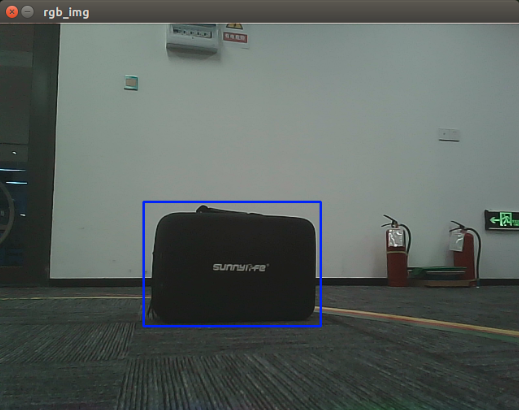
image-20210913174837340

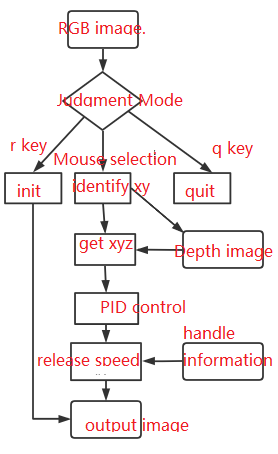
4.2.2 keyboard control

【r】: Reset mode, use the mouse to select the area to identify the target.

【q】: Exit the program.

[Spacebar]: target tracking; just move the target slowly when following, otherwise the target will be lost if you move too fast.
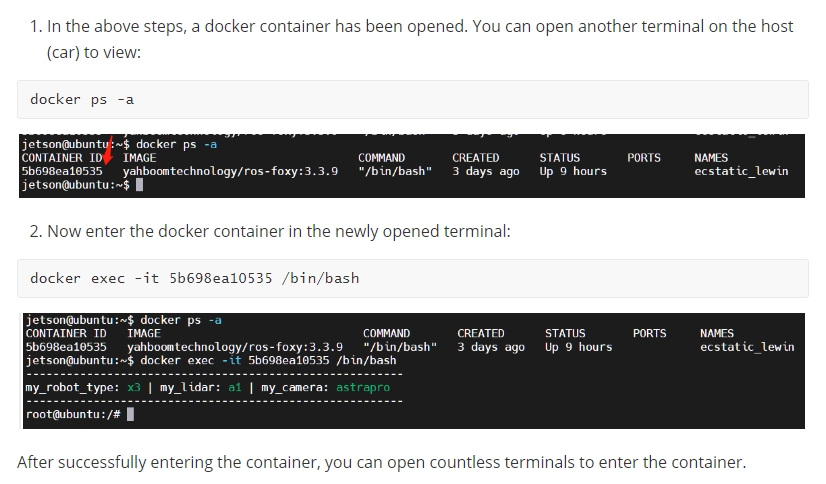
image-20240408144126098

xxxxxxxxxx
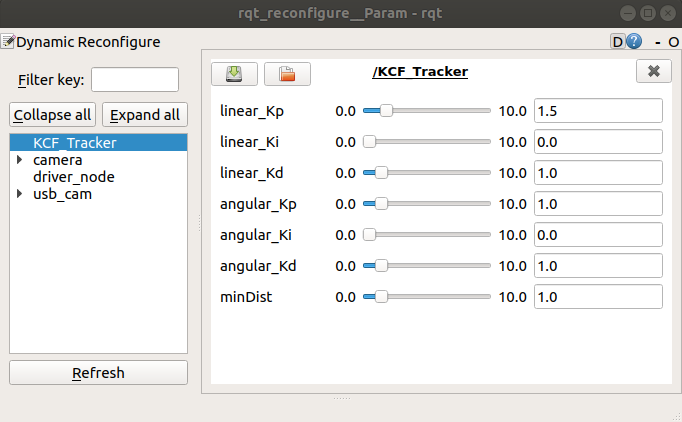
rosrun rqt_reconfigure rqt_reconfigure 

image-20220223113755759

Parameter parsing:

[linear_Kp], [linear_Ki], [linear_Kd]: Linear speed PID control during the following process of the car.

[angular_Kp], [angular_Ki], [angular_Kd]: PID control of the angular velocity during the following process of the car.

[minDist]: Follow the distance and keep this distance all the time.

  • parameter modification

When the parameters are adjusted to the optimal state, modify the corresponding parameters to the file, and there is no need to adjust them when using them again.

According to the optimal parameters of the [rqt_reconfigure] debugging tool, enter the [src] folder of the [yahboomcar_astra] function package, and modify the parameters corresponding to the [KCF_Tracker.cpp] file, as shown below

xxxxxxxxxx
ImageConverter::ImageConverter(ros::NodeHandle  & n) { 
    KCFTracker  tracker(HOG, FIXEDWINDOW, MULTISCALE, LAB); 
    float  linear_KP = 0.9; 
    float  linear_KI = 0.0; 
    float  linear_KD = 0.1; 
    float  angular_KP = 0.5; 
    float  angular_KI = 0.0; 
    float  angular_KD = 0.2; 

The minDist parameter is modified in the [KCF_Tracker.h] file

xxxxxxxxxx
float  minDist  =  1.0; 

[rqt_reconfigure] Modify the initial value of the debugging tool

xxxxxxxxxx
gen.add("linear_Kp", double_t, 0, "Kp in PID", 0.9, 0, 10.0) 
gen.add("linear_Ki", double_t, 0, "Ki in PID", 0.0, 0, 10.0) 
gen.add("linear_Kd", double_t, 0, "Kd in PID", 0.1, 0, 10.0) 
gen.add("angular_Kp", double_t, 0, "Kp in PID", 0.5, 0, 10.0) 
gen.add("angular_Ki", double_t, 0, "Ki in PID", 0.0, 0, 10.0) 
gen.add("angular_Kd", double_t, 0, "Kd in PID", 0.2, 0, 10.0) 
gen.add("minDist", double_t, 0, "minDist", 1.0, 0, 10.0) 
exit(gen.generate(PACKAGE, "KCFTracker", "KCFTrackerPID")) 

Enter the [cfg] folder of the [yahboomcar_astra] function package, and modify the initial values of the parameters corresponding to the [KCFTracker.cfg] file.

xxxxxxxxxx
gen.add("linear_Kp", double_t, 0, "Kp in PID", 0.9, 0, 10.0) 

Analysis of the above one as an example

parameterParseCorresponding parameters
namethe name of the parameter"linear_Kp"
typeparameter data typedouble_t
levela bitmask passed to the callback0
descriptiona description parameter"Kp in PID"
defaultInitial value for node startup0.9
minparameter minimum0
maxparameter maximum10.0

Note: After modification, the update environment must be recompiled to be effective.

xxxxxxxxxx
cd  ~/yahboomcar_ws 
catkin_make 
source  devel/setup.bash 

4.2.3 Node analysis

xxxxxxxxxx
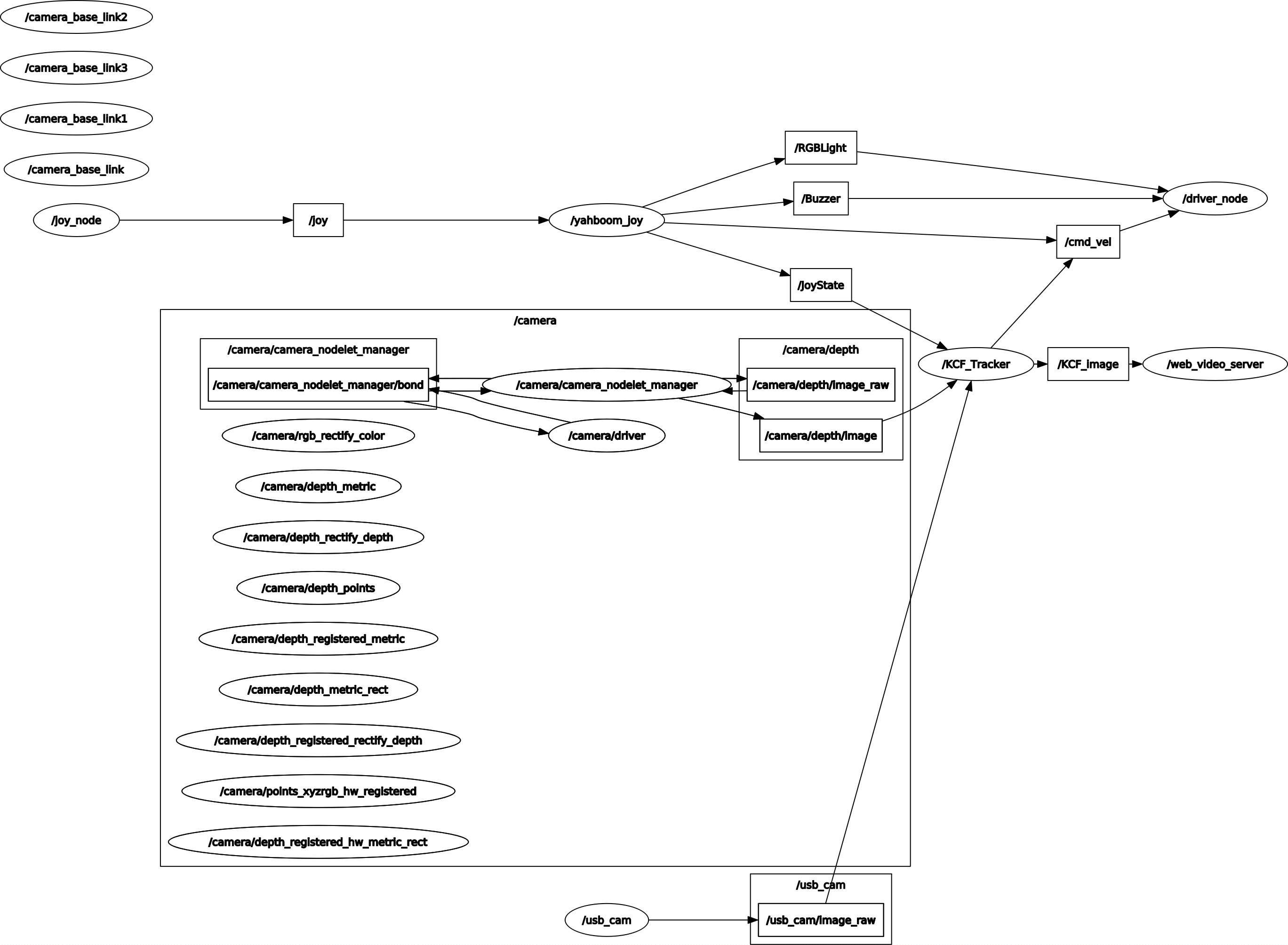
rqt_graph 

KCF_rosgraph

【KCF_Tracker】Node Analysis

image-20220223120245156

  • Subscribe to RGB Color Images

  • Subscribe to depth images

  • Subscribe to handle control information

  • Issue trolley speed control command

Astra Color Tracking
Visual tracking autopilot

COMPANY

  • About us
  • Team Style
  • Blog

LEARNING & EXPLORATION

  • Tutorials
  • Edge AI hardware
  • Educational robots
  • Embedded intelligent hardware

WHERE TO BUY

  • Yahboom Online Store
  • Amazon
  • Alibaba
  • AliExpress
  • Mercado

TECHNOLOGY SUPPORT

  • Email: support@yahboom.com

BE A DISTRIBUTOR

  • Email: sales@yahboom.com
QR Code

Copyright © 2017-2026 Yahboom. All Rights Reserved.

EN/中文