Welcome to ROSMASTER X3 Plus repository
1.3 First Trial
First use-set machine type and radar model
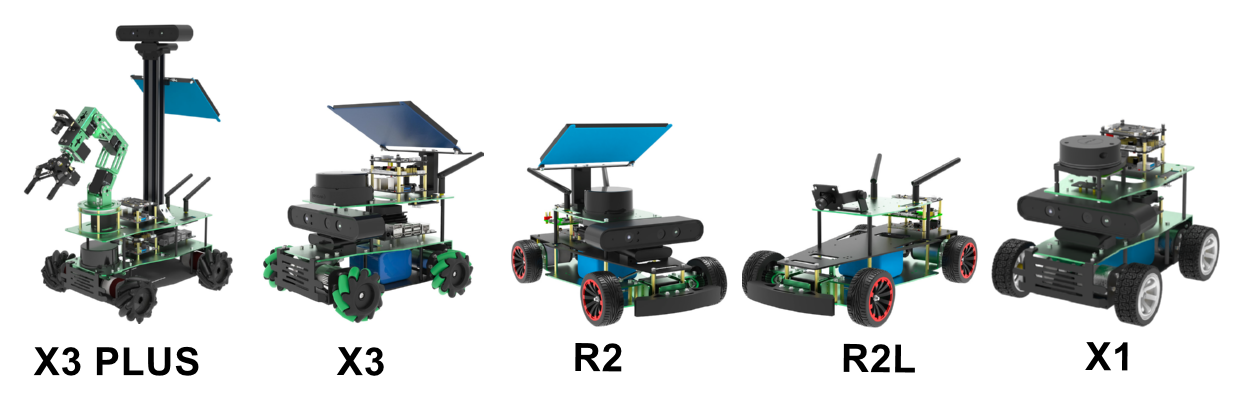
Note: Since the ROSMASTER series robots are divided into multiple types of robots and multiple types of equipment, the factory system has been configured with routines for multiple types of equipment. However, since the product cannot be automatically identified, the machine type and radar model need to be manually set.
There are two ways to set the machine type. The first is to modify it by running a script program. The second is to use the mobile APP to connect and control the car. The APP will automatically set the car type according to the selection.
(Method 2 is not applicable to pi5!!)
Method 1. Modify the car model and radar model of the ROS environment
Open the terminal of the car system
xxxxxxxxxx#Raspberry Pi 5 master needs to enter docker first, please perform this step#If running the script into docker fails, please refer to ROS/07, Docker tutorial~/run_docker.shSet the car model and radar model. Currently, the X3 model is equipped with two radars, so you need to select the running command according to the optional radar. The X3-PLUS model only has one radar, so there is no need to distinguish between radars.
If it is an X3 model, the system defaults to X3 model + A1 radar. Please follow the following method to set it to X3 model + A1 radar.
xxxxxxxxxxsh ~/Rosmaster/RobotType/set_X3_A1.sh
If it is an X3 model, the system defaults to X3 model + S2 radar. Please follow the following method to set it to X3 model + S2 radar.
xxxxxxxxxxsh ~/Rosmaster/RobotType/set_X3_S2.sh
If it is an X3PLUS model, please set it to the X3PLUS model as follows.
xxxxxxxxxxsh ~/Rosmaster/RobotType/set_X3Plus.sh
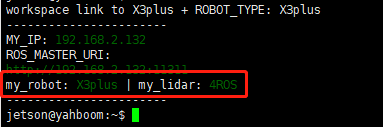
Check whether it takes effect. Close the terminal and reopen it to see if the corresponding product model is printed.