Welcome to ROSMASTER X3 Plus repository
03.Astra Color Tracking
3. Astra Color Tracking
3. Astra Color Tracking3.1 Introduction3.1.1 Introduction to HSV3.1.2 HSV hexagonal pyramid3.2. Operation steps3.2.1 Start3.2.2. Identification3.2.3. Color calibration3.3. Program analysis
3.1 Introduction
The Astra color tracking of the Yahboom mobile robot can recognize multiple colors at any time, and independently stores the currently recognized color, controls the car to follow the detected and recognized color, and maintains a certain distance from the object.
The color tracking of the Yahboom mobile robot can also realize the function of real-time control of HSV. By adjusting the high and low thresholds of HSV, the interfering colors are filtered out, so that the squares can be ideally identified in complex environments.If the color picking effect is not ideal, you need to move the car to different environments and calibrate it so that it can identify the colors we need in complex environments.
3.1.1 Introduction to HSV
HSV (Hue, Saturation, Value) is a color space created by A. R. Smith in 1978 based on the intuitive characteristics of color, also known as the Hexcone Model.
The parameters of color in this model are: hue (H), saturation (S), and lightness (V).
H: 0 — 180
S: 0 — 255
V: 0 — 255
Here, part of the red is classified into the purple range:

3.1.2 HSV hexagonal pyramid
Hue H
Represents color information, that is, the position of the spectral color. This parameter is represented by an angle, with a value ranging from 0° to 360°, starting from red and counting in counterclockwise direction. Red is 0°, green is 120°, and blue is 240°. Their complementary colors are: yellow is 60°, cyan is 180°, and purple is 300°.
Saturation S
Saturation S is expressed as the ratio between the purity of the selected color and the maximum purity of that color. When S=0, there is only grayscale. 120 degrees apart. Complimentary colors are 180 degrees apart. A color can be thought of as the result of mixing a certain spectral color with white. The greater the proportion of spectral colors, the closer the color is to spectral colors, and the higher the saturation of the color. The saturation is high and the color is deep and vivid. The white light component of the spectral color is 0, and the saturation reaches the highest level. Usually the value range is 0% ~ 100%. The larger the value, the more saturated the color.
Brightness V
Brightness represents the brightness of a color. For light source color, the brightness value is related to the brightness of the luminous body; for object color, this value is related to the transmittance or reflectance of the object. Usually the value range is 0% (black) to 100% (white). One thing to note: there is no direct connection between it and light intensity.
The three-dimensional representation of the HSV model evolves from the RGB cube. Imagine looking from the white vertices of the RGB along the diagonal of the cube to the black vertices, and you can see the hexagonal shape of the cube. The hexagonal borders represent color, the horizontal axis represents purity, and lightness is measured along the vertical axis.
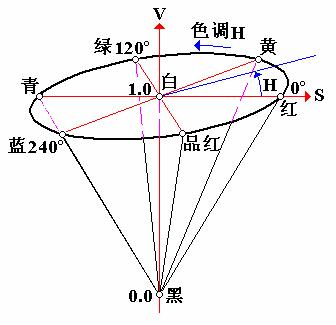
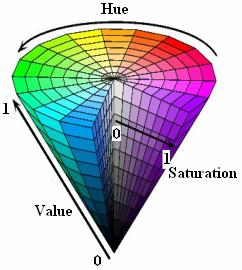
3.2. Operation steps
Note: [R2] on the remote control handle has the [pause/start] function for all gameplays.
3.2.1 Start
Note: When the image is displayed, press [q] to exit.
robot side
xxxxxxxxxx#You need to enter docker first, perform this step more#If running the script to enter docker fails, please refer to Jetson Orin-Docker/05, Enter the robot's docker container~/run_docker.sh#Multiple ros commands require multiple terminals to enter the same docker container for execution, please refer to Jetson Orin-Docker/05, Section 5.8 tutorialroslaunch yahboomcar_astra colorTracker.launch VideoSwitch parameter: whether to use the camera function package to start.
Set parameters according to needs, or modify the launch file directly, so there is no need to attach parameters when starting.
3.2.2. Identification
After startup, the system defaults to [Target Detection Mode], as shown below:
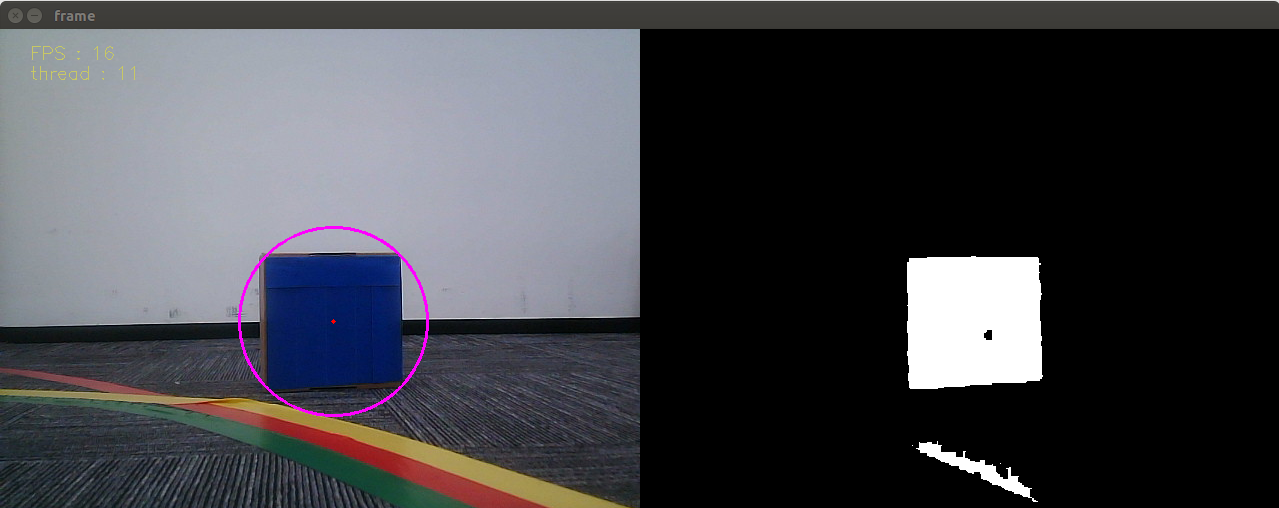
Keyboard key control (long press the following keys, release when the interface changes):
【r】:Color selection mode, you can use the mouse to select the area of the color to be recognized (cannot exceed the area range).
【i】:Target detection mode. The color image on the left (Color) and the binary image on the right (Binary).
【q】:Exit the program.
【Spacebar】:After identifying that there is no problem, click [Spacebar] on the keyboard to execute the color following program.
In the color selection mode, use the mouse to select the location of the colored object, as shown in the figure below, and release it to start recognition.
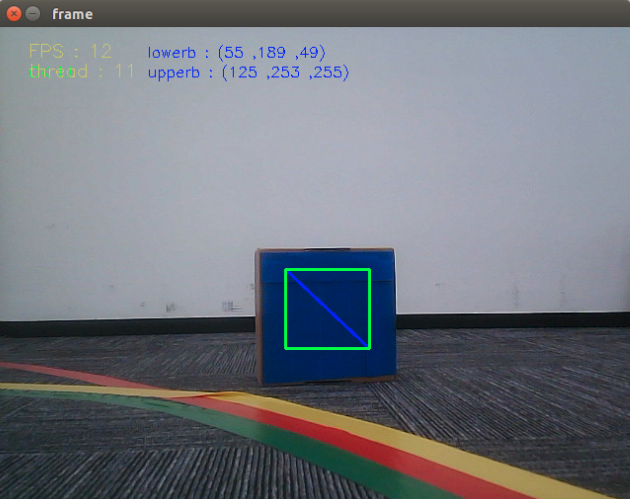
3.2.3. Color calibration
Dynamic parameter tuning
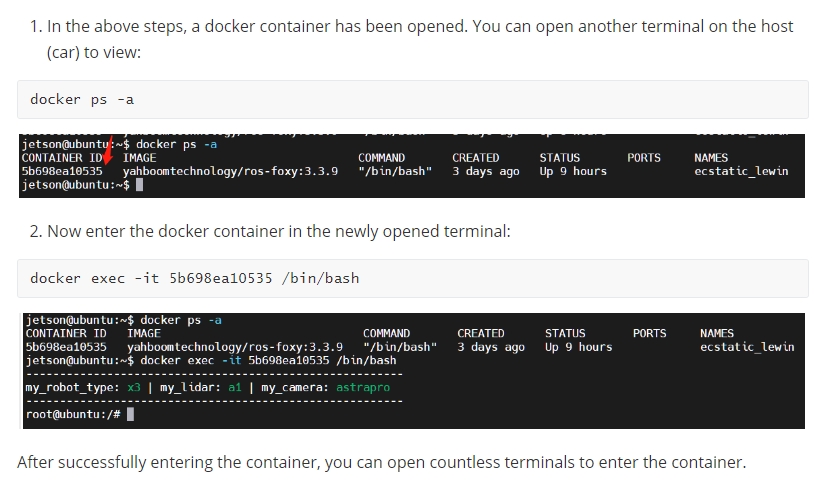
xxxxxxxxxxrosrun rqt_reconfigure rqt_reconfigure
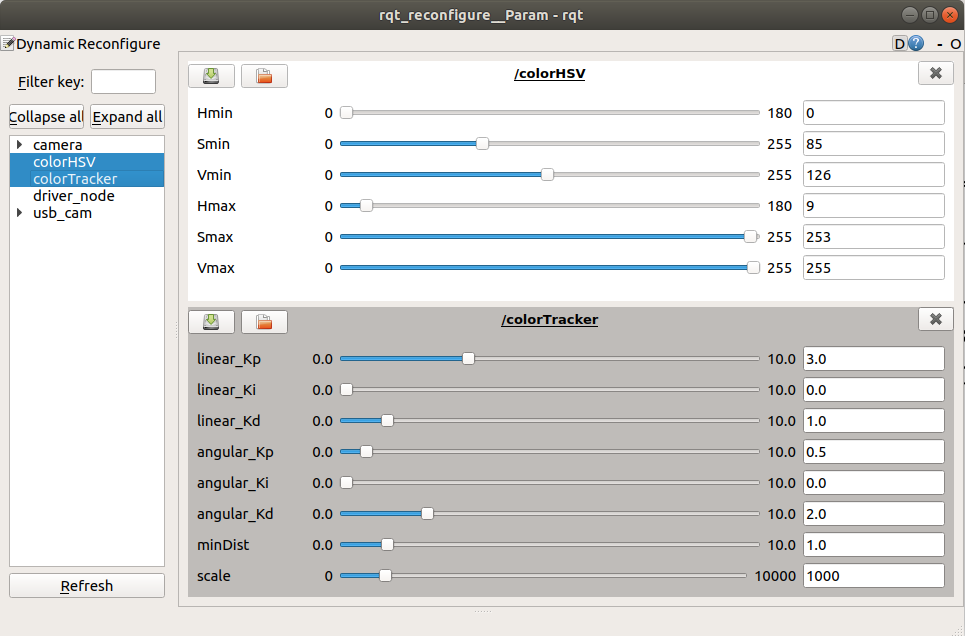
Select the [color_HSV] node and [color_Tracker] node. Generally, you only need to adjust [Hmin], [Smin], [Vmin], and [Hmax]. These four parameters can be easily identified. The slide bar is always in a dragging state and data will not be transferred to the system until it is released; you can also select a row and then slide the mouse wheel.
Parameter analysis:
【linear_Kp】、【linear_Ki】、【linear_Kd】:PID control of linear speed during car following.
【angular_Kp】、【angular_Ki】、【angular_Kd】:PID control of angular velocity during car following.
【minDist】:Follow the distance and keep this distance.
【scale】:PID scaling.
Parameter modification
When the parameters are adjusted to the optimal state, the corresponding parameters are modified into the file, and no adjustment is required when using again.
According to the optimal parameters of the [rqt_reconfigure] debugging tool, enter the [scripts] folder of the [yahboomcar_astra] function package and modify the parameters corresponding to the [colorTracker.py] file, as shown below
xxxxxxxxxxclass color_Tracker: def __init__(self): rospy.on_shutdown(self.cleanup) self.bridge = CvBridge() self.minDist = 1.0 ... ... self.linear_PID = (3.0, 0.0, 1.0) self.angular_PID = (0.5, 0.0, 2.0) self.scale = 1000 self.PID_init()【rqt_reconfigure】Initial value modification of debugging tools
xxxxxxxxxxgen = ParameterGenerator()gen.add("linear_Kp", double_t, 0, "Kp in PID", 3.0, 0, 10.0)gen.add("linear_Ki", double_t, 0, "Ki in PID", 0.0, 0, 10.0)gen.add("linear_Kd", double_t, 0, "Kd in PID", 1.0, 0, 10.0)gen.add("angular_Kp", double_t, 0, "Kp in PID", 0.5, 0, 10.0)gen.add("angular_Ki", double_t, 0, "Ki in PID", 0.0, 0, 10.0)gen.add("angular_Kd", double_t, 0, "Kd in PID", 2.0, 0, 10.0)gen.add("minDist", double_t, 0, "minDist", 1.0, 0, 10)gen.add("scale", int_t, 0, "scale", 1000, 0, 10000)exit(gen.generate(PACKAGE, "colorTracker", "ColorTrackerPID"))Enter the [cfg] folder of the [yahboomcar_astra] function package and modify the initial values of the parameters corresponding to the [ColorTrackerPID.cfg] file.
xxxxxxxxxxgen.add("linear_Kp", double_t, 0, "Kp in PID", 3.0, 0, 10.0)Take the above article as an example to analyze
| Parameter | Parse | Corresponding parameters |
|---|---|---|
| name | the name of the parameter | "linear_Kp" |
| type | parameter data type | double_t |
| level | a bitmask passed to the callback | 0 |
| description | a description parameter | "Kp in PID" |
| default | Initial value for node startup | 3.0 |
| min | parameter minimum | 0 |
| max | parameter maximum | 10.0 |
Note: After modification, you must recompile and update the environment to be effective.
xxxxxxxxxxcd ~/yahboomcar_wscatkin_makesource devel/setup.bash3.3. Program analysis
colorTracker.launch file
xxxxxxxxxx<launch> <arg name="VideoSwitch" default="false"/> <!-- Handle control node Handle control node--> <include file="$(find yahboomcar_ctrl)/launch/yahboom_joy.launch"/> <include file="$(find orbbec_camera)/launch/astraproplus.launch"/> <include file="$(find yahboomcar_bringup)/launch/yahboomcar.launch"/> <node pkg="yahboomcar_astra" type="colorTracker.py" name="colorTracker" required="true" output="screen"/> <node pkg="yahboomcar_astra" type="colorHSV.py" name="colorHSV" required="true" output="screen" > <param name="VideoSwitch" type="bool" value="$(arg VideoSwitch)"/> </node></launch>Node view
xxxxxxxxxxrqt_graph
Node【color_HSV】
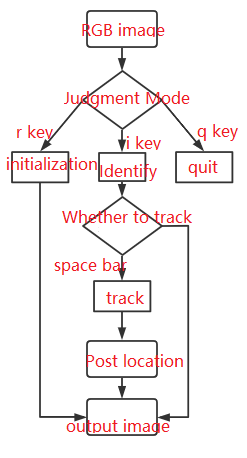
Subscribe to color images
Publish the location of the recognized object in the image
Issue control instructions (only stop commands are issued when no color is recognized in the picture)
Node【color_Tracker】
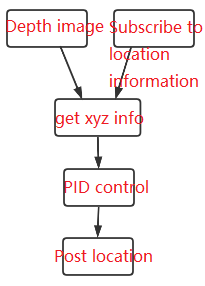
Subscribe to depth images
Subscribe to handle control information
Subscribe to the location information of the recognized object in the image
Issue the car following control command