Welcome to ROSMASTER X3 Plus repository
3. Handle control
3. USB wireless handle + mobile phone screen remote control tutorial
3.1. Open steps
After booting into the program, first close the large program, you can refer to the second section of "05. ROSMASTER Basic Control Tutorial" "2. Turn off the self-starting large program".
Open the terminal and input in the docker container,
#You need to enter docker first, perform this step more#If running the script to enter docker fails, please refer to Jetson Orin-Docker/05, enter the robot's docker container~/run_docker.sh
roslaunch yahboomcar_bringup bringup.launch #Start chassis + remote control
Open another terminal and enter
xxxxxxxxxxcd ~/Rosmaster/rosmasterpython3 rosmaster_no_control.py
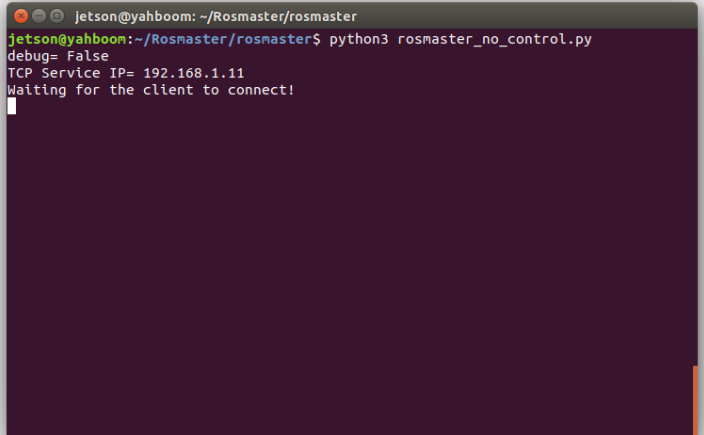
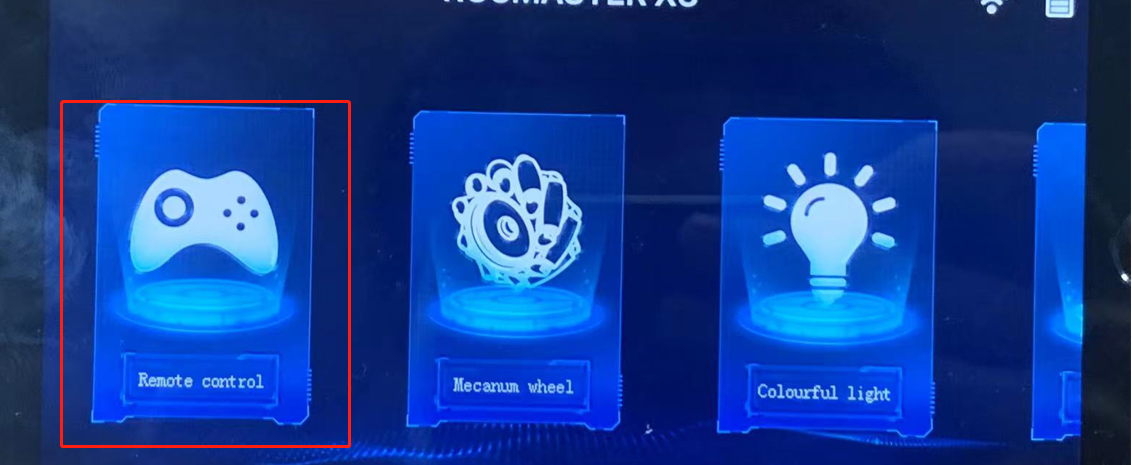
Refer to the "Mobile APP Remote Control Tutorial" in "03. Mobile Phone Remote Control Tutorial", connect the mobile phone to the rosmaster, and then you can see the screen transmitted by the rosmaster on the mobile phone screen.
Click here to enter the control screen
Click here for full screen viewing,
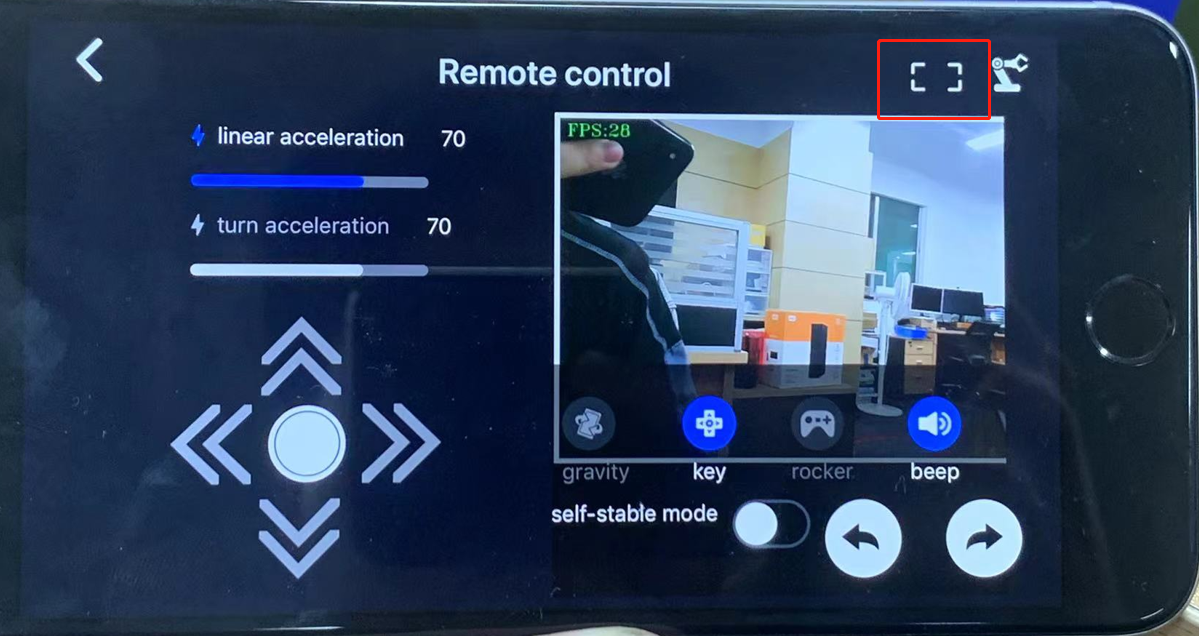
Fix the phone on the handle, press the start button on the handle, and you can control it after you hear a beep.
Precautions for using the handle
When connecting the USB handle receiver, it is recommended to connect it to the outermost USB-HUB expansion board instead of directly connecting it to the main board or the middle USB-HUB expansion board (X3plus). If it is directly connected to the main board or the middle USB-HUB expansion board (X3plus), due to the upper and lower aluminum alloy grille, it will seriously interfere with the signal reception of the handle.
After plugging and unplugging the handle receiving head, the handle program needs to be restarted, otherwise the car will not be able to be controlled.
After starting the handle control program, if the handle cannot control the car, it may be caused by the wrong handle control mode. You can press and hold the handle mode button for about 15 seconds to switch modes. After the green indicator light is always on, press the start button again. If the buzzer sounds, it means the switching is successful. If there is no response, you can press and hold the mode button on the handle again for 15 seconds.
Jetson series support mode: PC/PCS mode
Raspberry Pi series support mode: X-BOX mode
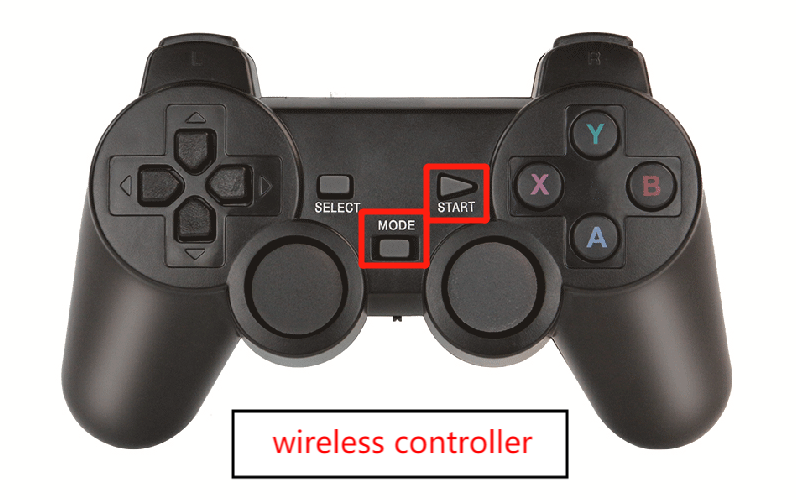
After re-plugging the handle receiver or restarting the motherboard, the handle will reset to the factory mode. If it cannot be controlled, you need to switch the mode again every time you plug or restart.