Welcome to Jetson Orin NX Developer Kit repository
当製品の日本語版マニュアル資料は、こちらからご取得ください。
04.Disabling automatic updates and troubleshooting issues
Disabling automatic updates and troubleshooting issues
1. Why automatic updates need to be disabled:
The current factory system is based on JetPack 7.2.1, L4T R39.2.1 and Ubuntu 24.04, and the development environment required by the course is already configured. Automatic updates may change the system kernel, drivers or software dependency versions, making the existing environment incompatible and causing problems such as the camera not working, program errors or abnormal case runs.
To keep the bundled environment stable, it is recommended to disable automatic updates.
2. How to disable automatic updates:
2.1 Disable updates
cd /etc/apt/apt.conf.dsudo touch 20auto-upgradessudo vi 20auto-upgrades#Paste the following content into the 20auto-upgrades fileAPT::Periodic::Update-Package-Lists "0";APT::Periodic::Unattended-Upgrade "0";
2.2 Disable and stop the apt-daily timers
xxxxxxxxxxsudo systemctl disable apt-daily.timersudo systemctl disable apt-daily-upgrade.timersudo systemctl stop apt-daily.timersudo systemctl stop apt-daily-upgrade.timer
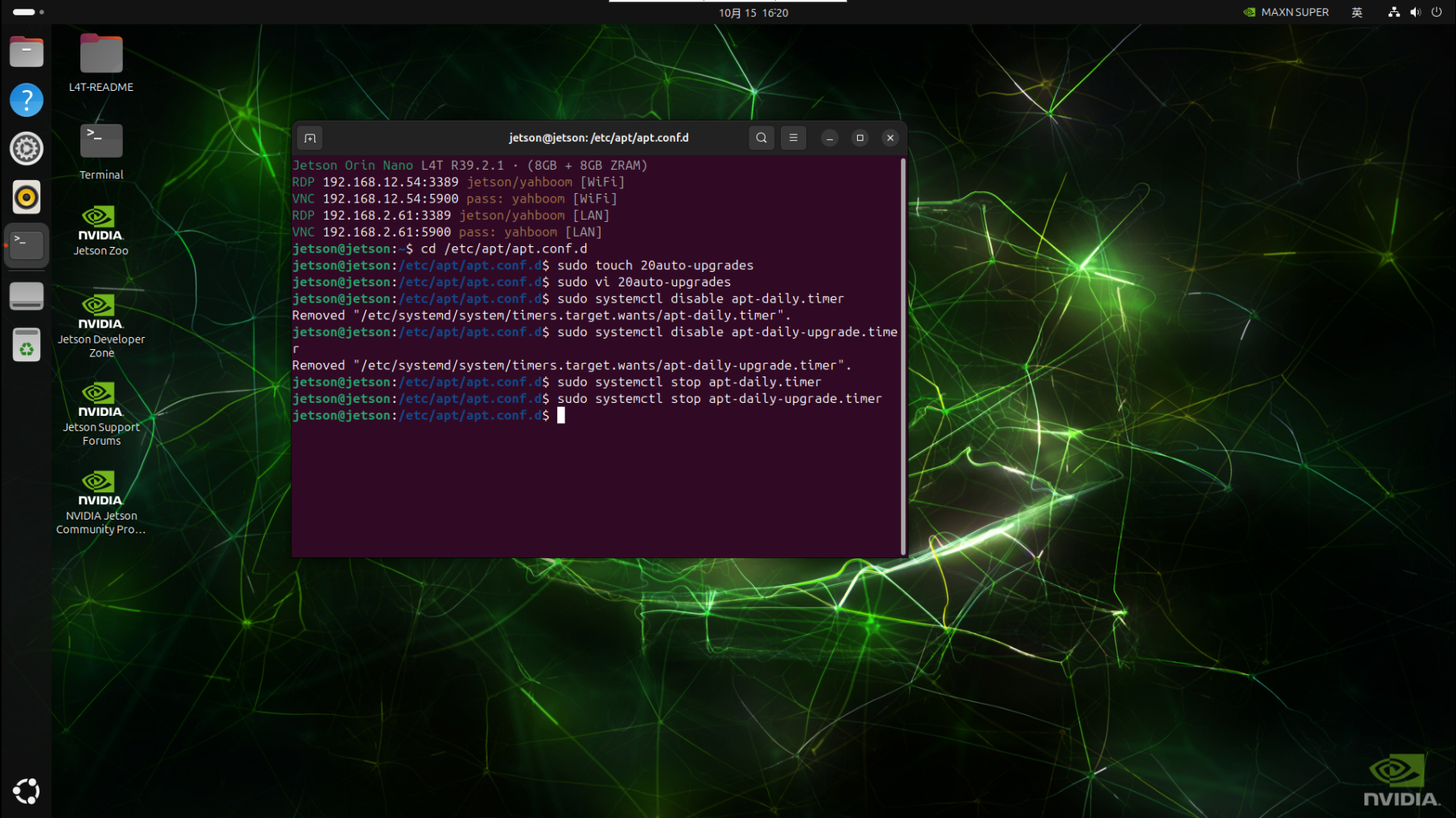
3. Troubleshooting:
3.1 The system upgrade fails and the board will not boot?
Answer: Flash the bootloader and the system image again, restore the factory state, disable automatic updates following the instructions, and upgrade the individual feature packages as actually needed.
3.2 A pop-up asks for an update when shutting down, but you do not want to update?
Answer: First confirm that no installation/upgrade task is in progress; if there is none, reboot the mainboard and then run the commands that disable automatic updates.
3.3 How to check the system version?
Answer: Run the command: cat /etc/nv_tegra_release , and check the Jetson Linux version and the corresponding JetPack version on the NVIDIA website: https://developer.nvidia.com/embedded/jetson-linux-archive
3.4 The mainboard indicator LED is not lit?
Answer: Check whether the power supply of the mainboard is 9-19V, check whether a jumper cap is connected below the core board to enter flash mode, check whether the core board is properly plugged into the carrier board; if the LED is still off, it may be a hardware problem.