Welcome to Jetson Orin NX Developer Kit repository
当製品の日本語版マニュアル資料は、こちらからご取得ください。
04.Docker usage
Docker usage
Docker usage1. Start the image2. ROS environment construction2.1. Update the system software2.2. Determine the language environment2.2.1. Verify the system environment2.2.2. Set the UTF-8 environment2.3. Set the software source2.4. Set the key2.5. Install the ROS1 desktop version2.6. Install the ROS1 dependencies2.7. rosdep initialization2.8. Set the environment variables2.8.1. Temporary setting2.8.2. Automatic setting (recommended)3. Commit the image4. Verify the image/ROS4.1. Start the image4.2. Verify the ROS environment
Historical demonstration: This section shows how to build ROS 1 Melodic in an
ubuntu:18.04container, only to help you understand the process of installing inside a container and committing the image. Ubuntu 18.04 and ROS 1 Melodic have both reached the end of their regular support, so this procedure is not an installation guide for the current Ubuntu 24.04 / ROS 2 Jazzy, and the repositories and dependencies may no longer be available.
1. Start the image
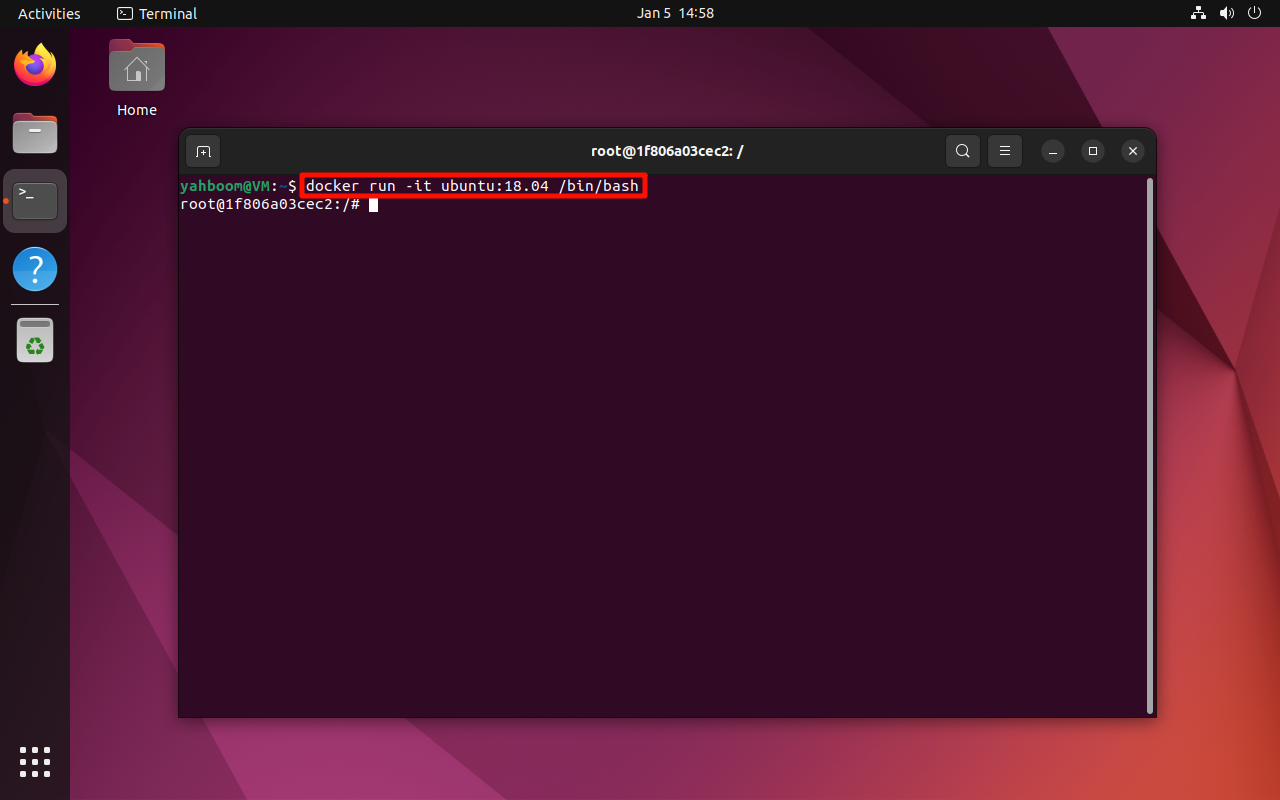
Start the ubuntu:18.04 image in interactive mode:
docker run -it ubuntu:18.04 /bin/bash
2. ROS environment construction
Administrator privileges are not needed inside Docker; if the host has the ROS environment installed, you need to add sudo to the commands.
2.1. Update the system software
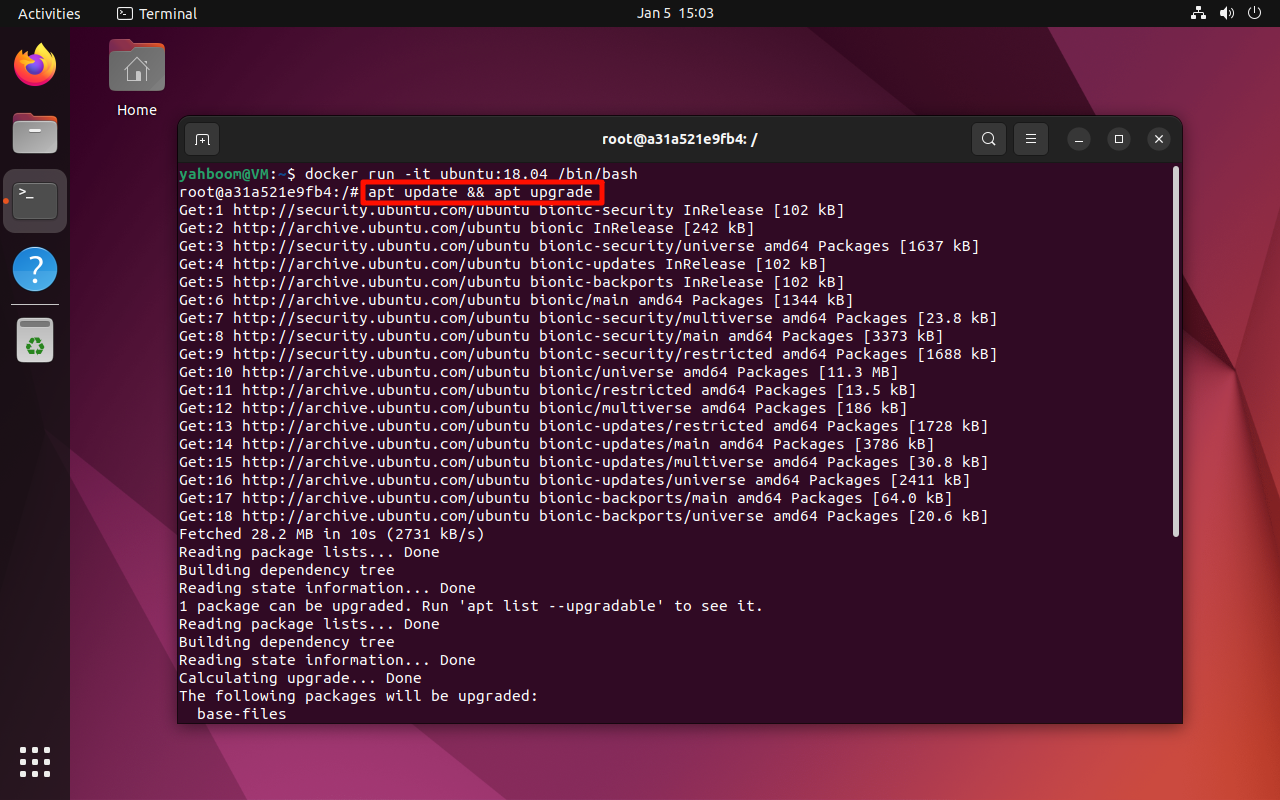
To install the ROS1 environment, you generally need to make sure the system packages are up to date:
xxxxxxxxxxapt update && apt upgrade
2.2. Determine the language environment
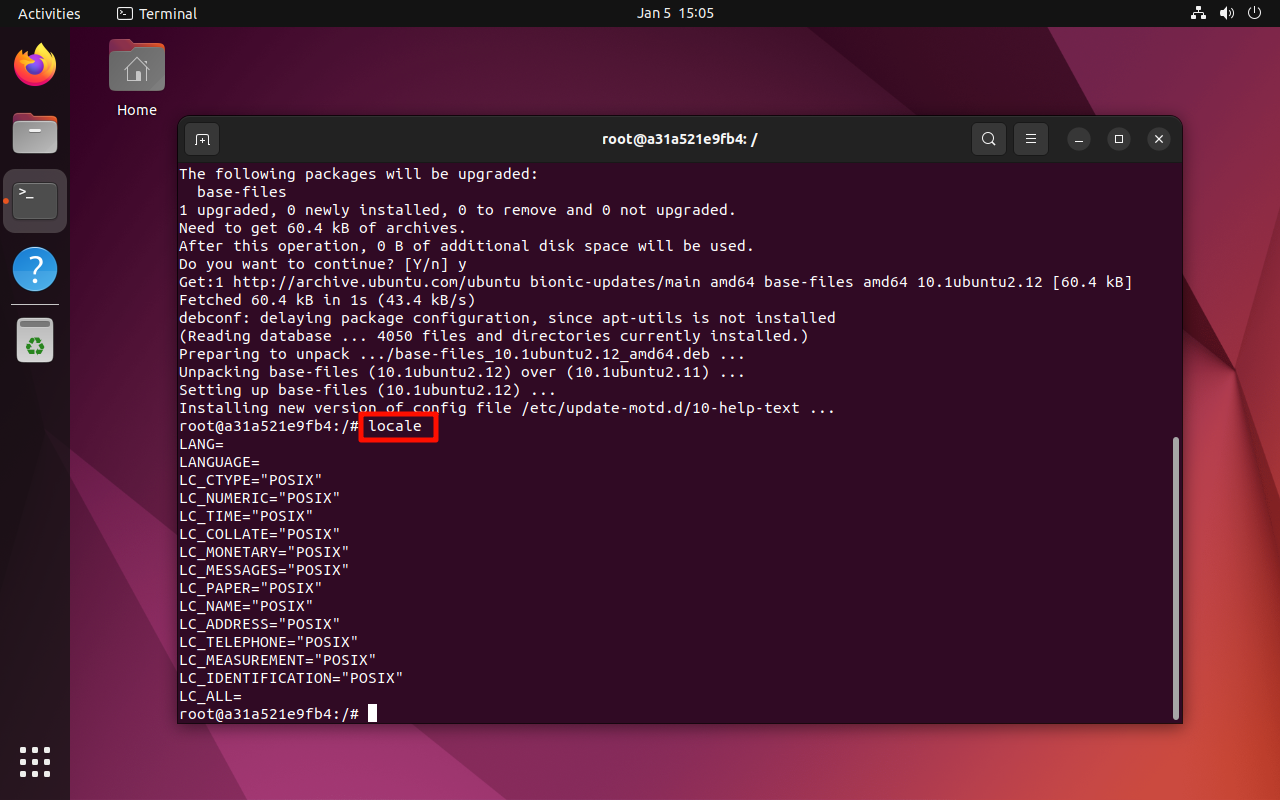
Make sure the system locale supports UTF-8!
2.2.1. Verify the system environment
xxxxxxxxxxlocale
2.2.2. Set the UTF-8 environment
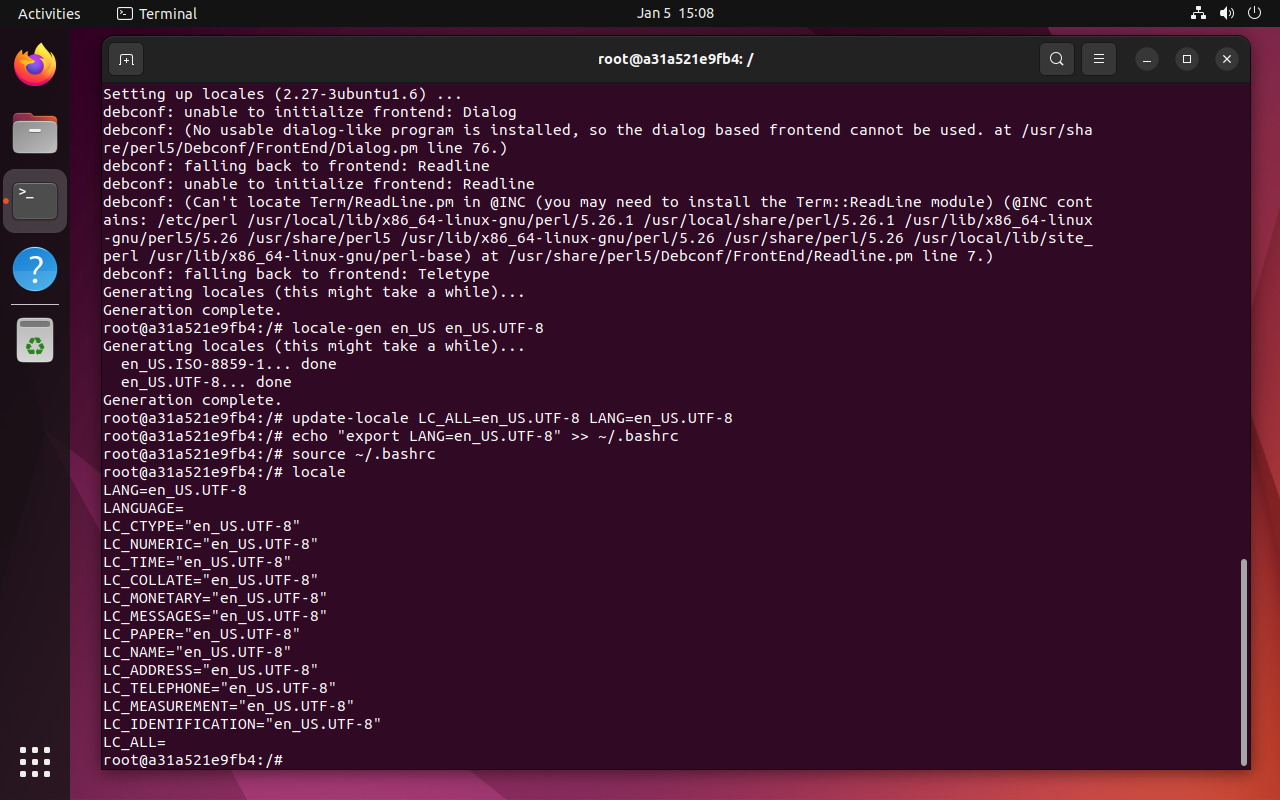
If the system language does not support the UTF-8 environment, enter the following commands line by line in the terminal:
xxxxxxxxxxapt install localeslocale-gen en_US en_US.UTF-8update-locale LC_ALL=en_US.UTF-8 LANG=en_US.UTF-8echo "export LANG=en_US.UTF-8" >> ~/.bashrcsource ~/.bashrc
2.3. Set the software source
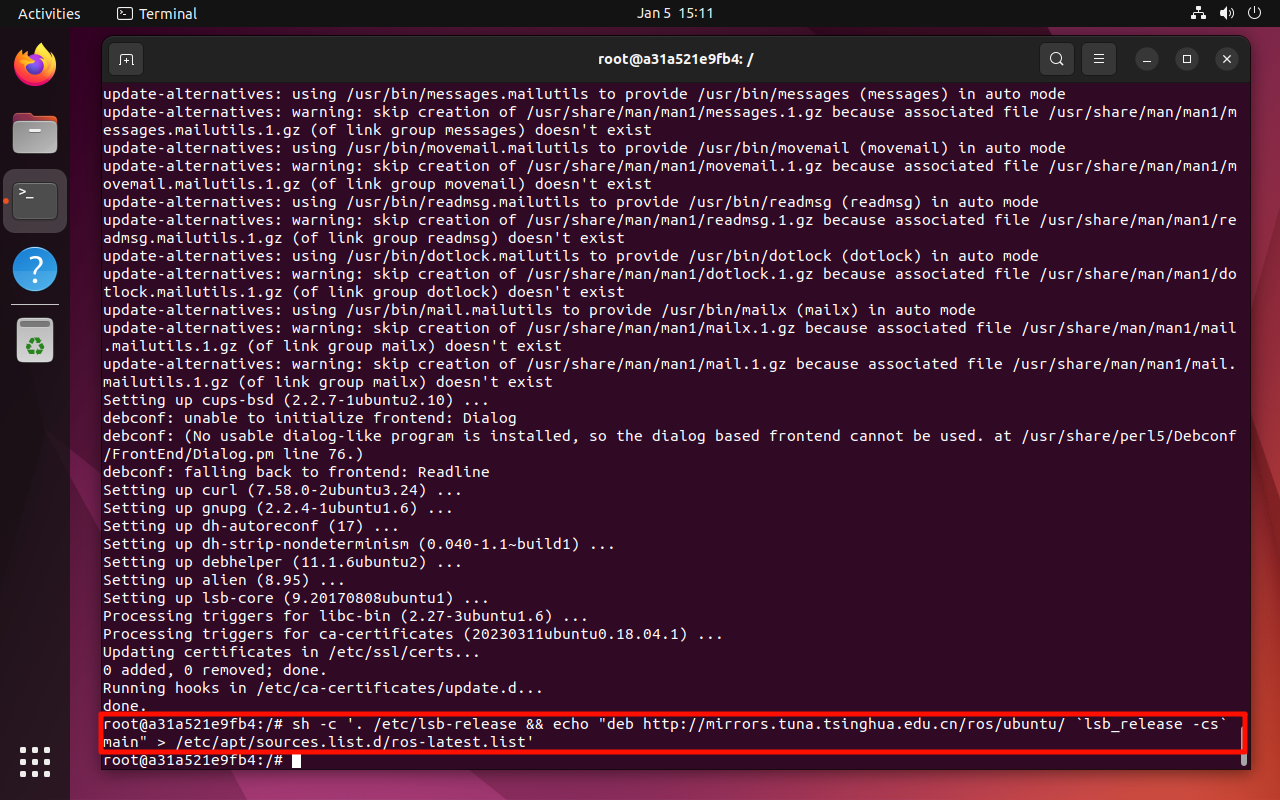
xxxxxxxxxxapt install lsb-core
xxxxxxxxxxsh -c '. /etc/lsb-release && echo "deb http://mirrors.tuna.tsinghua.edu.cn/ros/ubuntu/ `lsb_release -cs` main" > /etc/apt/sources.list.d/ros-latest.list'
2.4. Set the key
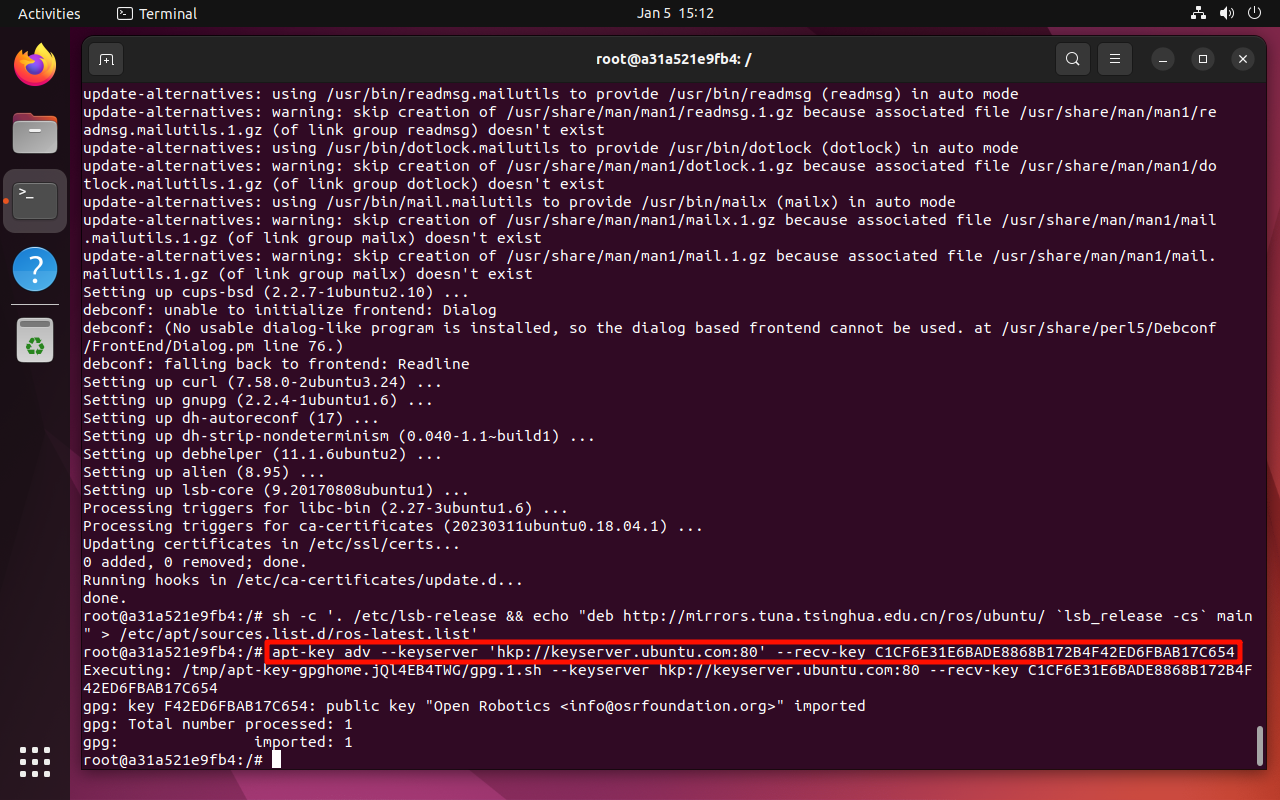
xxxxxxxxxxapt-key adv --keyserver 'hkp://keyserver.ubuntu.com:80' --recv-key C1CF6E31E6BADE8868B172B4F42ED6FBAB17C654
2.5. Install the ROS1 desktop version
The ROS desktop version includes the ROS1 core features, common tools and libraries:
xxxxxxxxxxapt update && apt upgrade
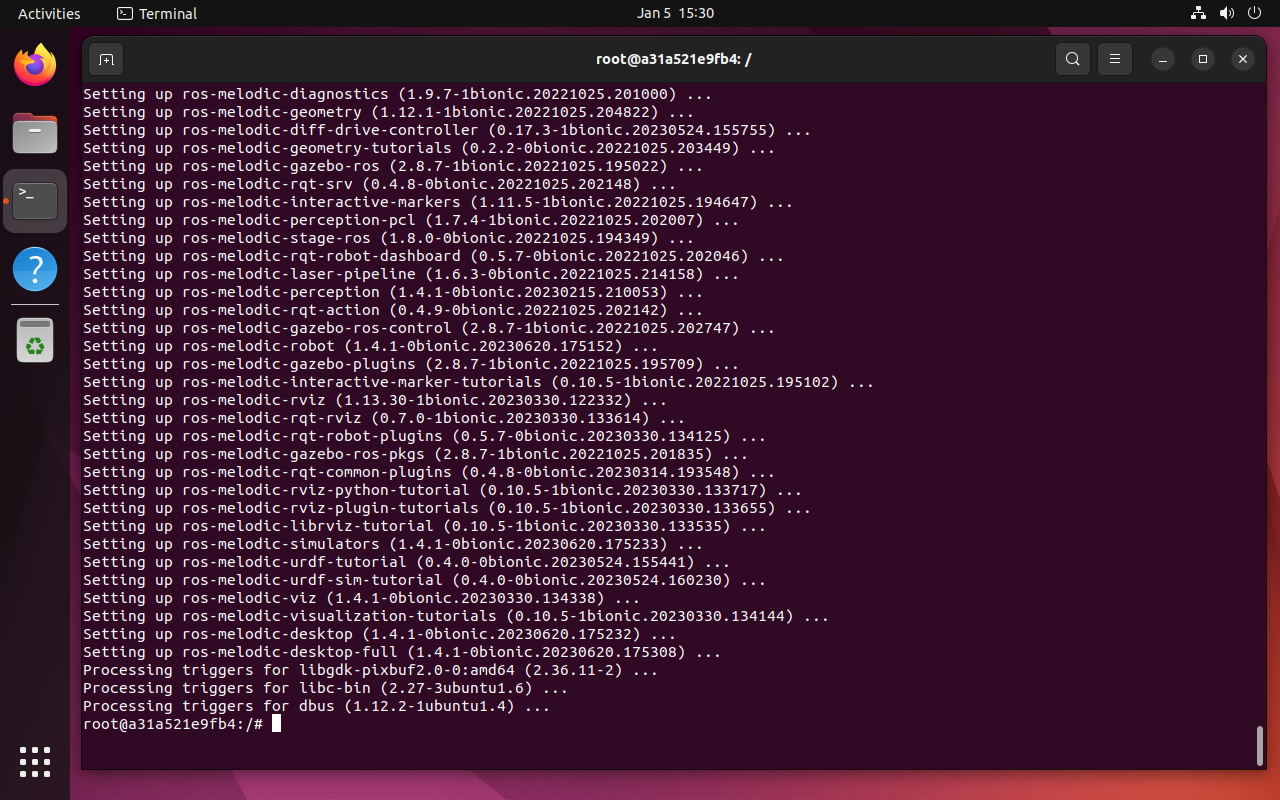
xxxxxxxxxxapt install ros-melodic-desktop-full -y
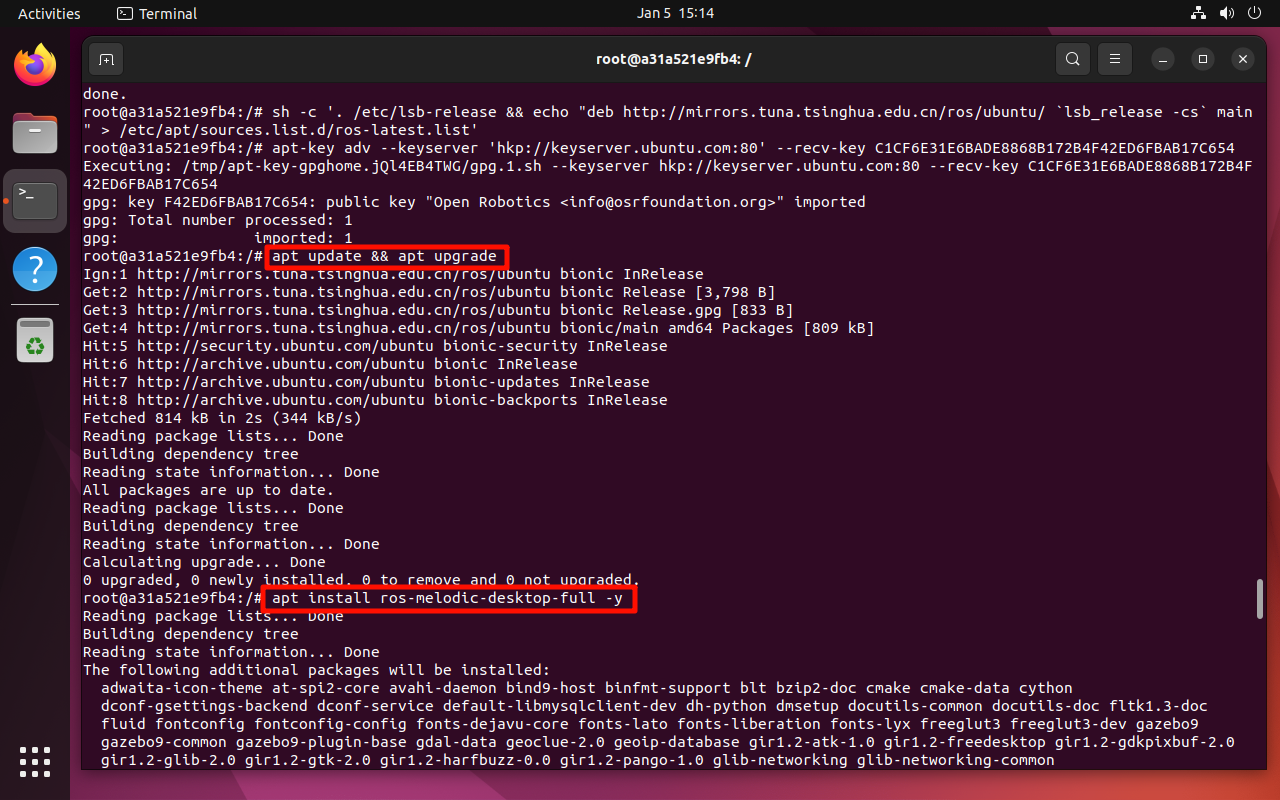
You need to select the region and city by yourself in the middle: this is not demonstrated here
2.6. Install the ROS1 dependencies
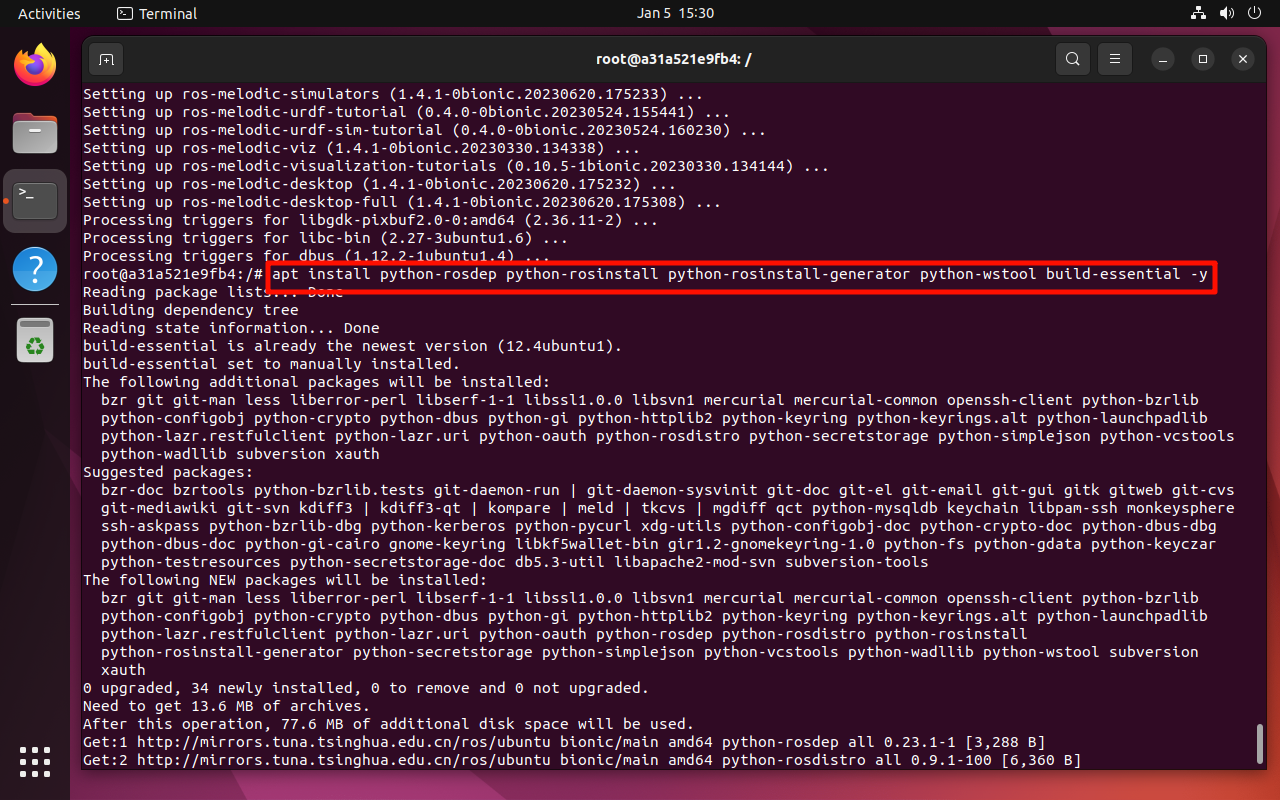
xxxxxxxxxxapt install python-rosdep python-rosinstall python-rosinstall-generator python-wstool build-essential -y
2.7. rosdep initialization
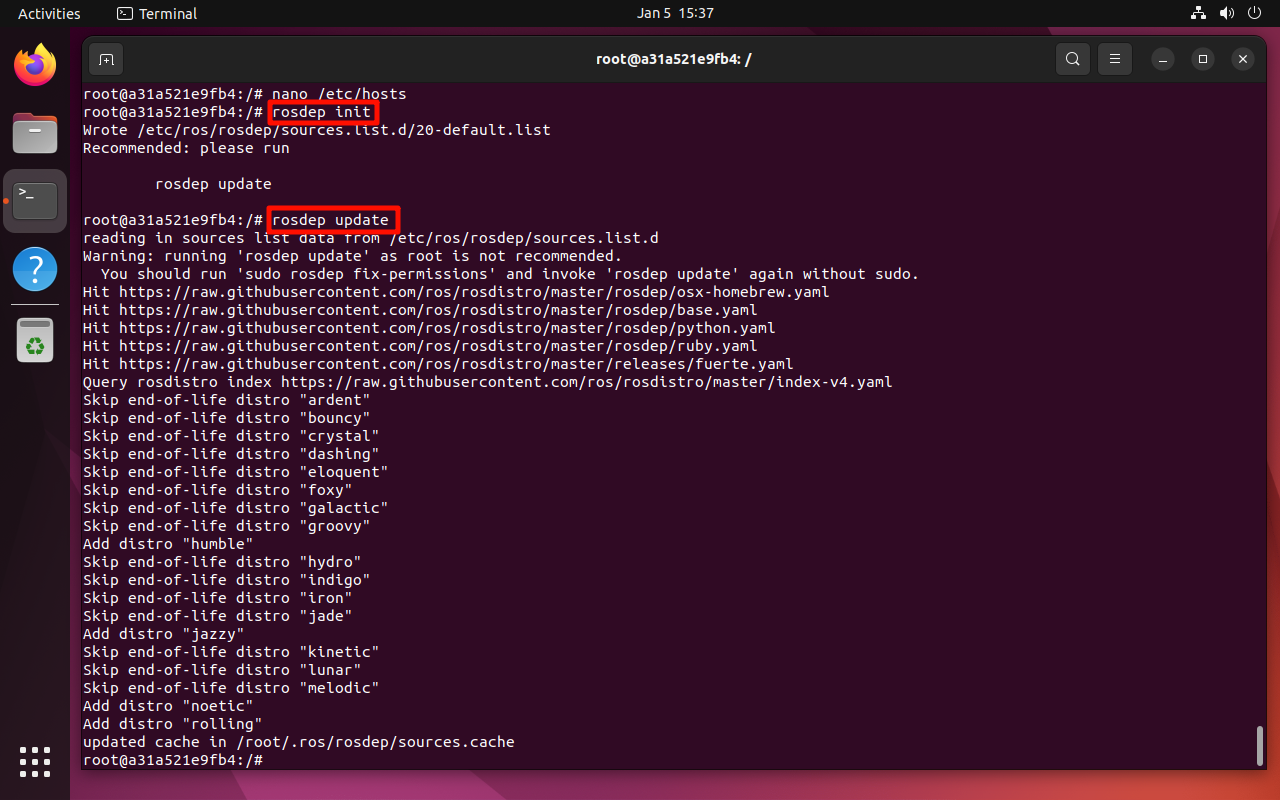
xxxxxxxxxxrosdep initrosdep update
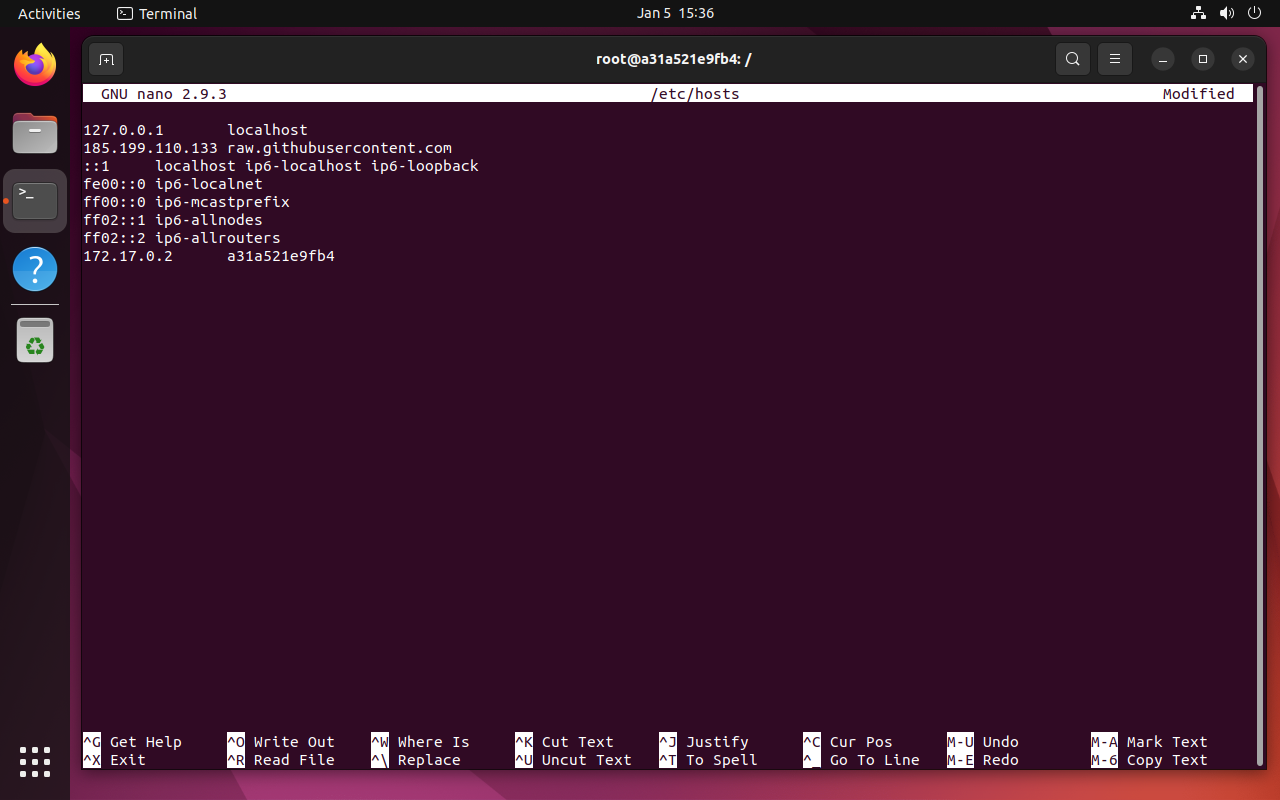
If rosdep init reports a download error, first check the container's DNS, network proxy and the HTTPS connectivity to raw.githubusercontent.com. Do not write a fixed IP address looked up from a third party into /etc/hosts; GitHub addresses may change, and a fixed resolution will cause subsequent connection errors.
Re-run:
xxxxxxxxxxrosdep initrosdep update
2.8. Set the environment variables
2.8.1. Temporary setting
Refresh the environment variables of the current terminal:
xxxxxxxxxxsource /opt/ros/melodic/setup.bash
2.8.2. Automatic setting (recommended)
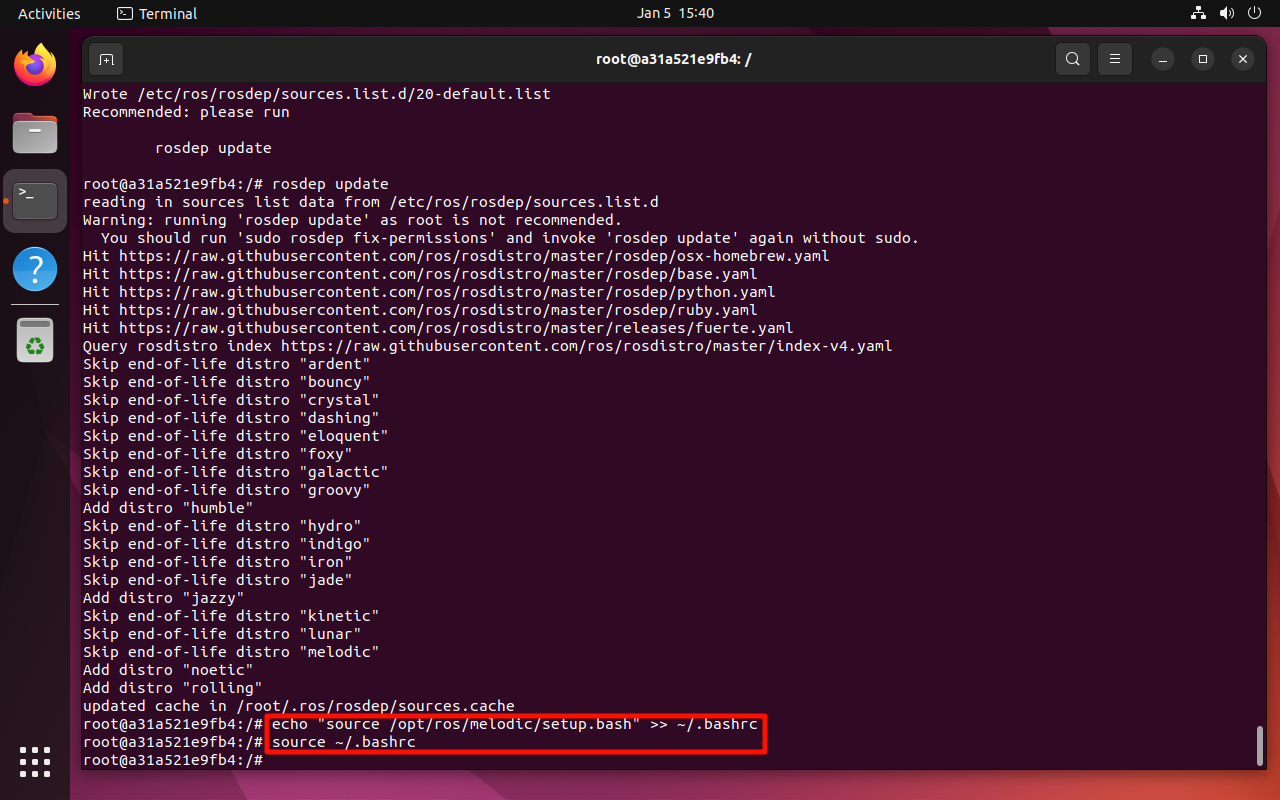
Automatically refresh the environment variables when opening a terminal: opening a terminal will automatically refresh the contents of the .bashrc file
xxxxxxxxxxecho "source /opt/ros/melodic/setup.bash" >> ~/.bashrcsource ~/.bashrc
3. Commit the image
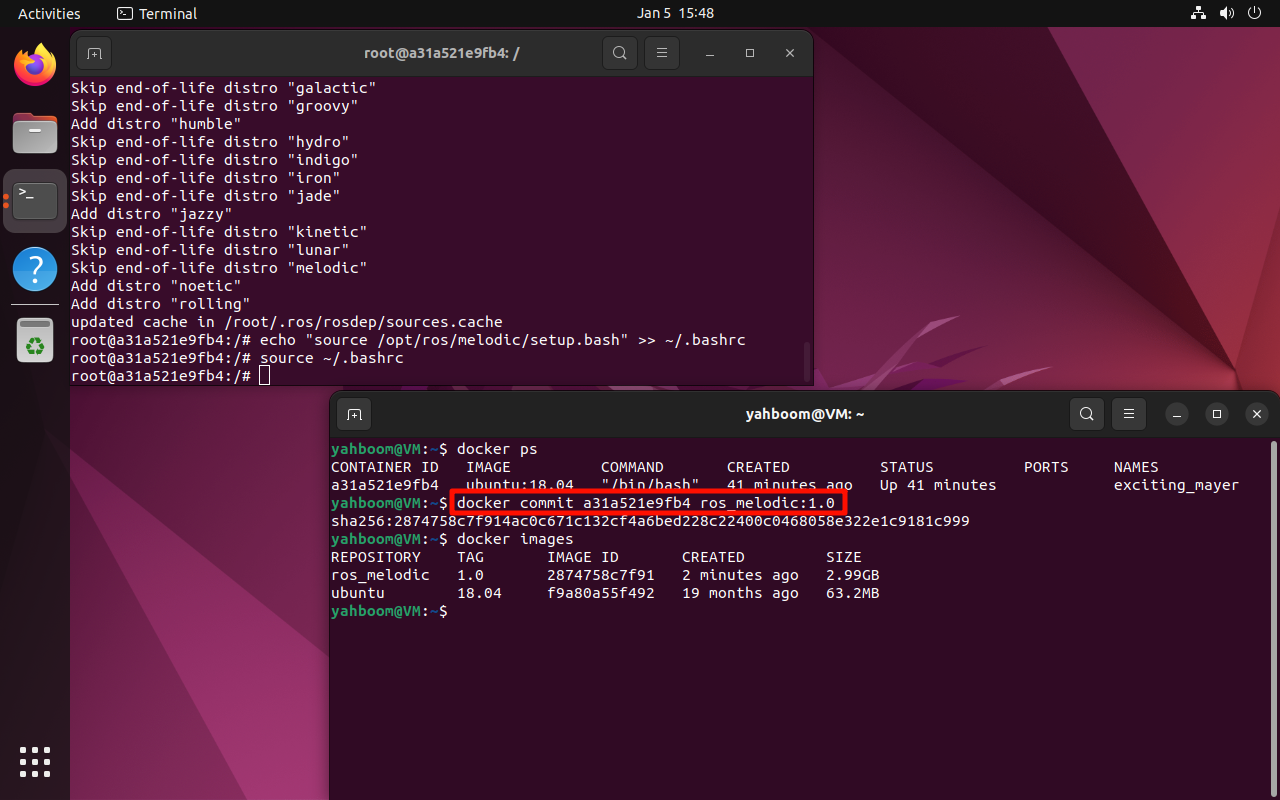
Only by committing a new image locally will the ROS environment built earlier be saved; otherwise, the next time you start the docker image, there will still be no ROS environment in the container.
Note: Modify according to the actual CONTAINER ID
xxxxxxxxxxdocker commit a31a521e9fb4 ros_melodic:1.0
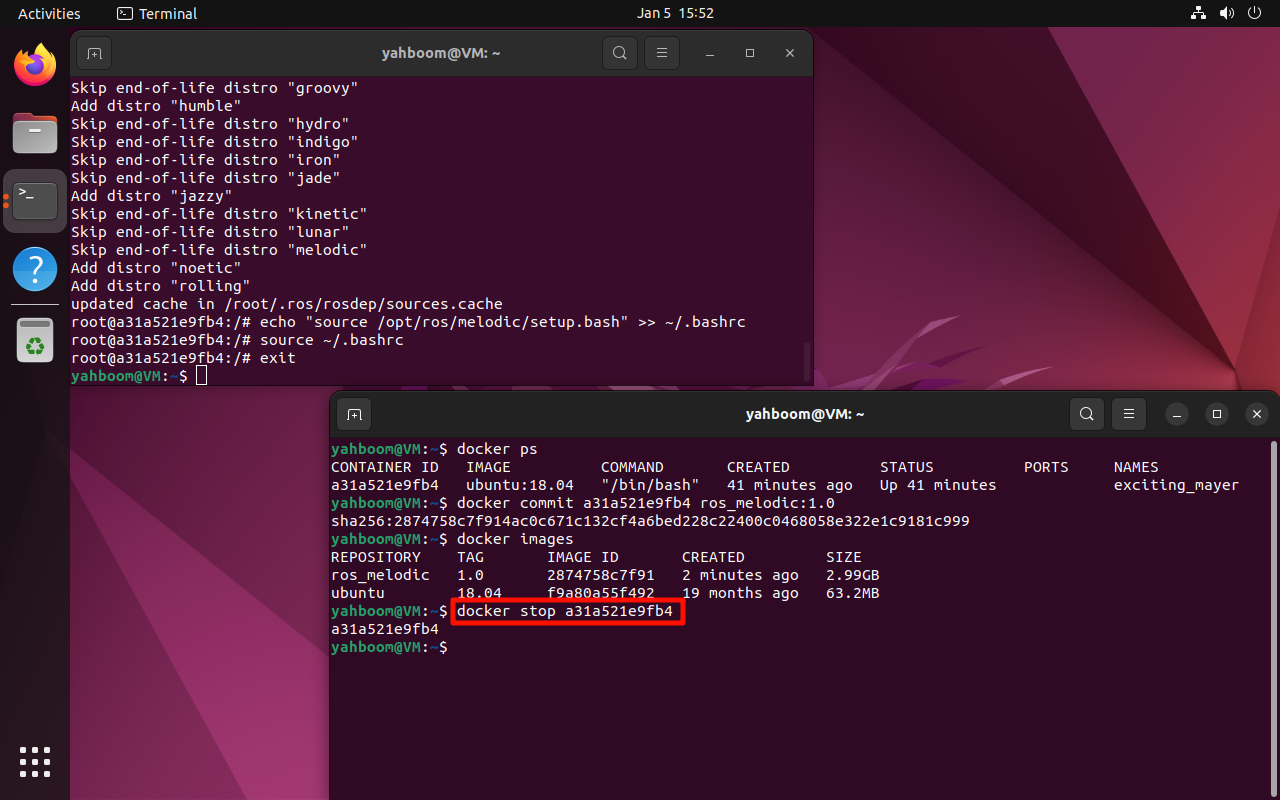
After saving, you can close the ubuntu:18.04 container:
4. Verify the image/ROS
4.1. Start the image
Start the ros_melodic:1.0 image in interactive mode: since the little turtle example has to be displayed on the graphical interface, Docker must be allowed to access the X Display
xxxxxxxxxxxhost +si:localuser:root
Revoke the authorization after the container exits:
xxxxxxxxxxxhost -si:localuser:rootxxxxxxxxxxdocker run -it -e DISPLAY=$DISPLAY -v /tmp/.X11-unix:/tmp/.X11-unix ros_melodic:1.0 /bin/bash
4.2. Verify the ROS environment
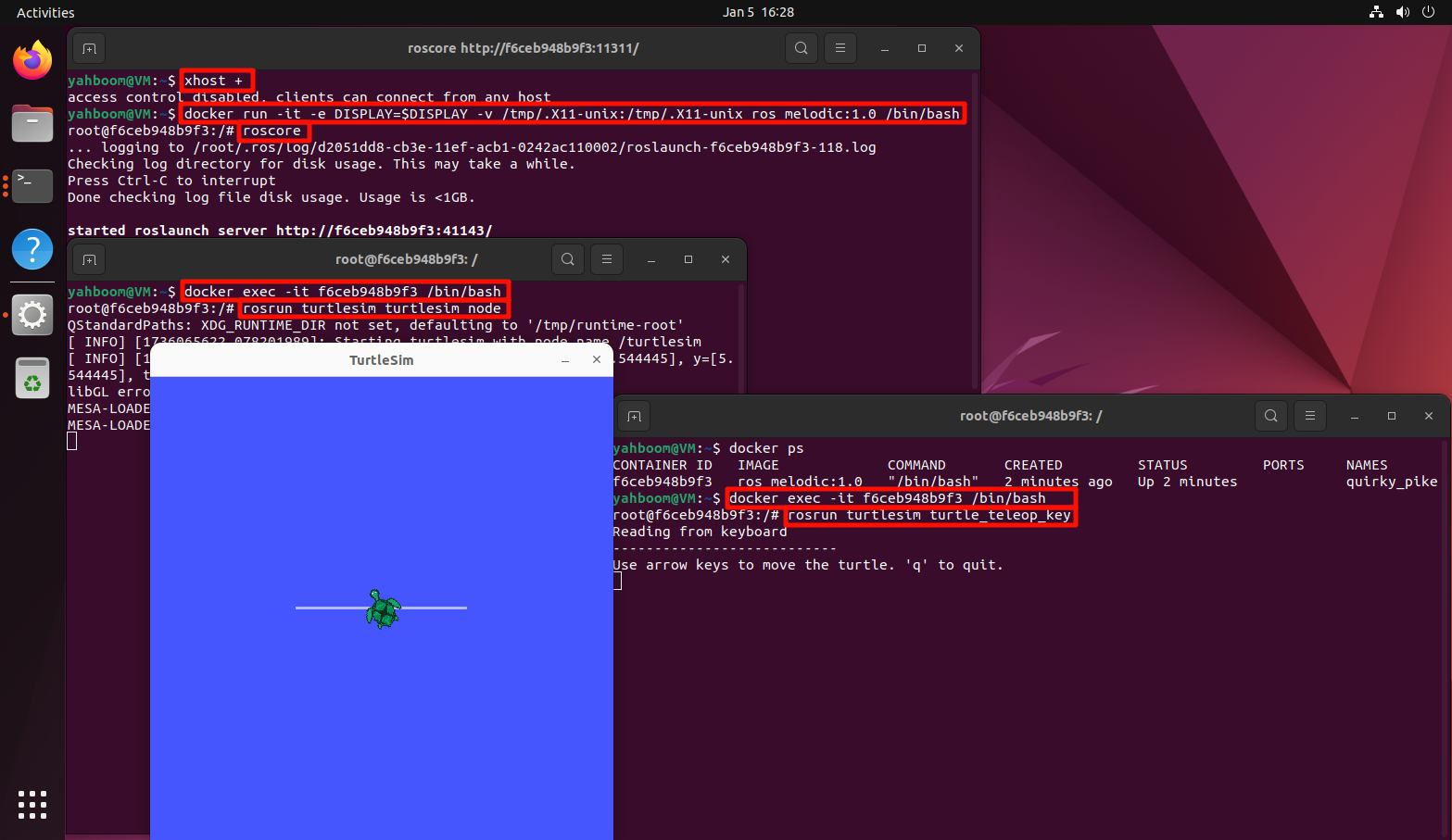
Test the ROS environment with the little turtle example: open three terminals to enter the same container, and then run the following commands respectively
xxxxxxxxxxroscore
xxxxxxxxxxrosrun turtlesim turtlesim_node
xxxxxxxxxxrosrun turtlesim turtle_teleop_key
Note: The mouse must stay in the third command window to control the little turtle