Welcome to Jetson Orin NX Developer Kit repository
当製品の日本語版マニュアル資料は、こちらからご取得ください。
4.ROS2 workspace
4. ROS2 Workspace
1. Workspace Introduction
In ROS robot development, when developing certain robot functions, the various written code, parameters, scripts and other files need to be placed in a certain folder for management. This folder is called a workspace in the ROS system. Therefore, a workspace is a folder that stores project development related files, and it is also the base camp for storing all materials during the development process.
2. Creating a Workspace
Create a folder as the workspace for storing the project files, yahboomcar_ws is the folder name, you can name it anything
mkdir -p yahboomcar_ws/srcSwitch to the workspace folder
xxxxxxxxxxcd ~/yahboomcar_ws
3. Compiling the Workspace
xxxxxxxxxxcolcon build After the build is complete, we should see the build, install and log directories:
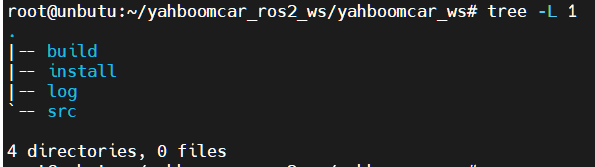
A typical workspace structure in the ROS system is shown above. This yahboomcar_ws is the root directory of the workspace, and it contains four subdirectories, or so-called four subspaces.
src, the code space, where the code and scripts written in the future need to be placed manually;
build, the compilation space, stores the intermediate files generated during the compilation process;
install, the installation space, stores the executable files and scripts obtained from the compilation;
log, the log space, stores various logs such as warnings, errors and information during compilation and running.
In general, most of our operations on these four space folders are carried out in src, and after the compilation succeeds, the results in install are executed. The build and log folders are rarely used.
Here we should also emphasize that the name of the workspace can be defined by ourselves, and the number is not unique either, for example:
xxxxxxxxxxWorkspace 1: ros2_ws_a, used for the development of robot AWorkspace 1: ros2_ws_b, used for the development of robot BWorkspace 1: ros2_ws_c, used for the development of robot CThe above situation is completely allowed, just like creating multiple new projects in an integrated development environment, they all exist in parallel.
4. Setting Environment Variables
After the compilation succeeds, so that the system can find our function packages and executable files, we also need to set the environment variables:
xxxxxxxxxx#Only takes effect in the current terminalsource install/setup.bash #Takes effect in all terminalsecho "source ~/yahboomcar_ws/install/setup.bash" >> ~/.bashrc At this point, we have completed the creation, compilation and configuration of the workspace.