yahboom
HomeTutorialsProduct
Solution
Blog
Online Store
About Us
EN/中文
Store
Jetson Orin NX Developer Kit📖
01.Get started
  • 01.Learning route
  • 02.Quick start
  • 03.System Update Notes
  • 04.Disabling automatic updates and troubleshooting issues
02.Jetson basic course
  • 01.Jetson board introduction
  • 02.Write Jetson original system
  • 03.Installing Jetson environment
  • 04.Backup SSD system
  • 05.Restore initial image system
  • 06.Upgrade to SUPER version (Optional)
  • 07.Write SUPER boot (Must read)
  • 08.SSD expansion
  • 09.Jetpack old system upgraded to Yahboom SUPER factory system
  • 10.Write the system onto your own SSD
03.Basic setting course
  • 01.Basic knowledge
  • 02.Network configuration
  • 03.SSH remote login
  • 04.VNC remote control
  • 05.RDP remote control
  • 06.Remote file transfer
  • 07.Jtop tool
  • 08.Exchange space expansion
  • 09.Use VSCode
  • 10.Use VMware
  • 11.Modify screen resolution
04.GPIO control course
  • 01.GPIO description
  • 02.GPIO library installation
  • 03.GPIO reading
  • 04.GPIO output
  • 05.Serial communication
  • 06.I2C communication
05.Vision basic course
  • 01.CSI camera preview
  • 02.USB camera preview
  • 03.Use Jupyter Lab
  • 04.Use JetCam
06.OpenCV basic course
  • 01.Image reading
  • 02.Image saving
  • 03.Image modification
  • 04.Image scaling
  • 05.Image cropping
  • 06.Image translation
  • 07.Image mirroring
  • 08.Image grayscale conversion
  • 09.Image binarization
  • 10.Image edge detection
  • 11.Add line segments
  • 12.Add rectangles
  • 13.Add circular shape
  • 14.Add ellipses
  • 15.Add polygons
  • 16.Add Text
  • 17.Preview USB camera image
  • 18.Preview CSI camera image
07.Vision advanced course
01.Environment construction
  • 01.TensorFlow
  • 02.PyTorch
  • 03.Torchvision
02.DeepStream development
  • 01.DeepStream environment
  • 02.License plate detection and recognition
  • 03.Parallel multi-model inference
  • 04.Object embedding vector generation
  • 05.Pose recognition
  • 06.NV optical flow anomaly detection
  • 07.Single-view 3D tracking
  • 08.Multi-view 3D tracking
03.NVIDIA TAO toolkit application
  • 01.Traffic scene object detection
  • 02.Person object detection
  • 03.Vehicle brand classification
  • 04.Vehicle model classification
  • 05.License plate detection and recognition
  • 06.Person semantic segmentation
  • 07.Optical character detection and recognition
  • 08.Retail product detection and recognition
  • 09.Person feature extraction and matching (ReID)
  • 10.Person action and pose classification
  • 11.Transformer-based person detection
  • 12.3D human skeleton detection
  • 13.LiDAR 3D point cloud detection
04.YOLO11 development
  • 01.YOLO environment construction
  • 02.CLI use
  • 03.Object detection
  • 04.Instance segmentation
  • 05.Pose estimation
  • 06.Image classification
  • 07.Oriented object detection
  • 08.Model conversion
  • 09.Dataset annotation
  • 10.Model training conversion
  • 11.Model prediction
05.YOLO26 development
  • 01.YOLO environment construction
  • 02.CLI use
  • 03.Object detection
  • 04.Instance segmentation
  • 05.Pose estimation
  • 06.Image classification
  • 07.Oriented object detection
  • 08.Model conversion
  • 09.Dataset annotation
  • 10.Model training conversion
  • 11.Model prediction
06.Mediapipe development
  • 01.Mediapipe environment
  • 02.Hand detection
  • 03.Face detection
  • 04.Face effects
  • 05.3D object recognition
  • 06.Virtual brush
  • 07.Gesture recognition
  • 08.Finger control
  • 09.Posture estimation
  • 10.Face mask
  • 11.Overall detection
  • 12.Background removal(Human)
07.QR code recognition
  • QR code recognition
08.Docker basic course
  • 01.Docker introduction
  • 02.Docker installation
  • 03.Docker command
  • 04.Docker usage
  • 05.Docker interaction
09.ROS2-Jazzy
01.ROS2 basic course
  • 1.Introduction to ROS2
  • 2.ROS2 install Jazzy
  • 3.ROS2 development environment
  • 4.ROS2 workspace
  • 5.ROS2 function package
  • 6.ROS2 node
  • 7.ROS2 topic communication
  • 8.ROS2 service communication
  • 9.ROS2 action communication
  • 10.ROS2 custom interface message
  • 11.ROS2 parameter service case
  • 12.ROS2 meta-function package
  • 13.ROS2 distributed communication
  • 14.ROS2 DDS
  • 15.ROS2 time related API
  • 16.ROS2 common command tools
  • 17.ROS2 rviz2 use
  • 18.ROS2 rqt toolbox
  • 19.ROS2 Launch startup file configuration
  • 20.ROS2 recording and playback tool
  • 21.ROS2 URDF model
  • 22.ROS2 Gazebo simulation platform
  • 23.ROS2 TF2 coordinate transformation
02.ROS2 vision course
  • 01.Camera preview (USB)
  • 02.Camera preview (CSI)
  • 03.Camera calibration (USB)
  • 04.Camera calibration (CSI)
  • 05.AR vision (USB)
  • 06.AR vision (CSI)
10.Large model basic course
01.Offline large model
  • 01.AI large model environment deployment
  • 02.Install large model dialogue platform
  • 03.Meta AI - Llama model
  • 04.Alibaba Cloud - Qwen model
  • 05.Microsoft - Phi-4-mini model
  • 06.DeepSeek - DeepSeek model
  • 07.Alibaba Cloud - Qwen-VL visual multimodal large model
  • 08.Google - Gemma visual multimodal large model
  • 09.Llava visual multimodal large model
  • 10.MiniCPM-V visual multimodal large model
  • 11.High-quality vision-language grounding (LocateAnything)
02.Online large model
  • 01.Tongyi Qianwen large model
  • 02.OpenRouter large model API aggregation platform
11.Large model application practice
01.Voice interaction application
  • 0.Voice interaction hardware connection (Must read)
  • 1.Speech to text (ASR)
  • 2.Text to speech (TTS)
  • 3.AI large model voice interaction
  • 4.AI large model voice assistant
02.Multimodal large model application (Online_Offline large model + Text_Voice interaction)
  • 01.Multimodal visual understand application
  • 02.Multimodal text image application
  • 03.Multimodal video analysis application
  • 04.Multi module visual position application
  • 05.Multimodal table scanning application
  • 06.Multimodal autonomous agent application
12.NVIDIA Isaac ROS course
  • 01.Build Isaac ROS environment
  • 02.Deep segmentation
  • 03.DNN stereoscopic depth
  • 04.Free space segmentation
  • 05.Image distortion processing
  • 06.Image segmentation
  • 07.3D scene reconstruction and mapping
  • 08.Object detection
  • 09.3D attitude estimation
  • 10.Visual SLAM
13.OpenClaw deployment and basic usage
01.OpenClaw deployment and introduction
  • 01.Directly use the pre-configured environment (Recommended)
  • 02.OpenClaw Deployment
  • 03.OpenClaw WhatsApp Plugin Application
  • 04.OpenClaw WebChat Interaction
  • 05.OpenClaw TUI Interaction
  • 06.OpenClaw Tools Introduction
  • 07.OpenClawGate Gateway User Manual
  • 08.OpenClawHub Introduction (Skill Installation)
  • 09.OpenClaw Features Overview
02.OpenClaw basic application
  • 01.OpenClaw Application - File Management
  • 02.OpenClaw Application - Camera
  • 03.OpenClaw Application - Browser Control
  • 04.OpenClaw Application - Script Execution
  • 05.OpenClaw Application - AI Programming (Peripheral & GPIO Control)
  • 06.OpenClaw Application - Dedicated AI Assistant
  • 07.OpenClaw Web Search Capability Configuration
03.NVIDIA official Agent Skills application
  • 01.AI-assisted development with VS Code or Cursor
  • 02.Jetson device skills
  • 03.Jetson BSP custom agent skills
14.OpenClaw advanced development
01.Preparation Before Use
  • 01. Peripheral Hardware Configuration
  • 02. OpenClaw API-KEY Configuration
  • 03. OpenClaw Model Switching
  • 04. OpenClaw Prompts
  • 05. AI Voice Interaction Configuration
  • 06. Three Dialogue Configuration Tests
02.OpenClaw AI Programming Peripheral Control
  • 1. Servo Control
  • 2. RGB Strip
  • 3. OLED Display
  • 4. Temperature and Humidity Sensor
  • 5. Camera Application
  • 6. AI Script Peripheral Control
03.OpenClaw Peripheral Integration Applications
  • 1. Plant Care Assistant
  • 2. AI Calorie Estimation
  • 3.AI Rock Paper Scissors Game
  • 4.AI Pet
  • 5.AI Weather Station
  • 6.Temperature Humidity Dashboard
  • 7.Scheduled Tasks
Download
  • System_File
  • VMFile_BootFile
  • Code
  • 3D Model File
  • DataSheet
  • Manual
Download ZIP

Welcome to Jetson Orin NX Developer Kit repository

当製品の日本語版マニュアル資料は、こちらからご取得ください。

11.Transformer-based person detection

TAO PeopleNet Transformer person detection

TAO PeopleNet Transformer person detection1. Case objective and processing flow2. Checks before running3. Starting the detection4. Real-time detection with a USB camera5. Real-time detection with a CSI camera6. Common issues7. References

Applicable environment: Jetson Orin NX, JetPack 7.2.1, DeepStream 9.1. The video entry point can run and preview.

1. Case objective and processing flow

The PeopleNet Transformer of this course configuration filters out the other classes and only outputs person; it does not detect face or bag. It uses different model assets and a different configuration from the CNN version of PeopleNet, and the engine/parser must not be mixed between them.

Video/USB/CSI → Transformer TensorRT inference → detection box/class → desktop preview

2. Checks before running

​x
cd ~/deepstream_tao_apps/deepstream_app_tao_configs

# Confirm the configuration and the input source
grep -E "uri=|config-file=|custom-lib-path|parse-bbox" run_transformer.txt

# Confirm the dedicated Transformer model and the engine
ls -la /opt/nvidia/deepstream/deepstream-9.1/samples/models/tao_pretrained/peoplenet_transformer_vdeployable_v1.1/

# Confirm the custom parser
ls -la ~/deepstream_tao_apps/post_processor/libnvds_infercustomparser_tao.so
nm -D ~/deepstream_tao_apps/post_processor/libnvds_infercustomparser_tao.so | grep DDETR

Please operate in the graphical session of the Jetson desktop/VNC. Confirm that the input exists; the Transformer has a high computational load, so the offline frame rate may be lower than the frame rate of the material.

3. Starting the detection

Video mode:

xxxxxxxxxx
cd ~
export DISPLAY=:0

export DISPLAY=:0 && ~/deepstream_tao_demo/run_case.sh transformer video
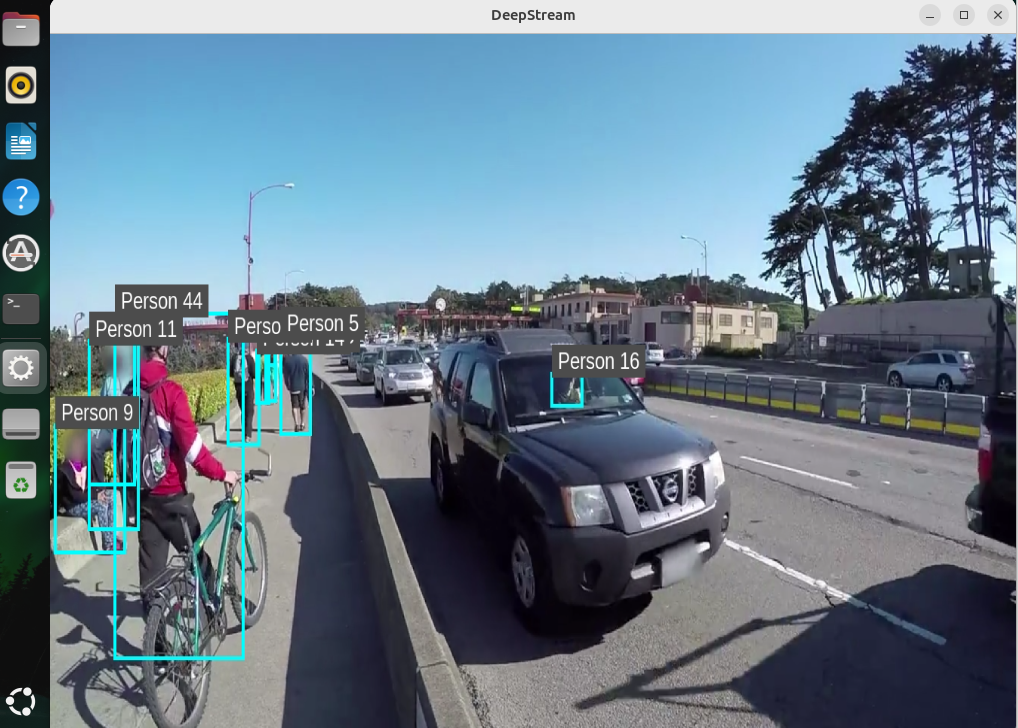
image-20261014195936052

The entry point uses the sample_720p.h264 that comes with DeepStream, and the window shows the detection results related to people. The current configuration by default only previews or outputs to the internal sink.

To replace the test video: modify the uri=file:// of the [source0] section in run_transformer.txt to the absolute path of an MP4/H.264 file on the Jetson itself. First use gst-discoverer-1.0 to confirm that the device can decode it, and keep the original material.

4. Real-time detection with a USB camera

After confirming that the USB camera device node exists, run:

xxxxxxxxxx
ls -l /dev/video*
v4l2-ctl -d /dev/video0 --list-formats-ext

export DISPLAY=:0 && ~/deepstream_tao_demo/run_case.sh transformer usb

PeopleNet Transformer person-only output

The script automatically detects the USB camera node and the supported resolution/frame rate.

The USB mode is used for the real-time preview. The script preferentially generates a temporary 640x480@15 configuration that the camera supports; the frame only shows Person + Tracker ID and does not show face/bag.

5. Real-time detection with a CSI camera

The CSI mode supports the real-time preview, and the entry point captures through Argus.

Start:

xxxxxxxxxx
export DISPLAY=:0 && ~/deepstream_tao_demo/run_case.sh transformer csi

PeopleNet Transformer person-only output

USB/CSI is a continuous stream and does not naturally play to the end. The frame only shows person and the Tracker ID. To stop it, press Ctrl+C once in the terminal where it was started, wait for the application and the camera to be released, and only then start another camera task.

6. Common issues

SymptomCheck and handling
No window is shownCheck the graphical session of the Jetson, the input file and the display authorization.
The class/the result is abnormalCheck the dedicated Transformer engine, the parser and the labels; do not use the CNN PeopleNet assets.
It reports that NvDsInferParseCustomDDETRTAO cannot be foundConfirm that the function is in ~/deepstream_tao_apps/post_processor/libnvds_infercustomparser_tao.so: nm -D ... \| grep DDETR.
Failed to load config fileCheck the config-file= path in run_transformer_csi.txt (the trap of the path missing the configs/ prefix was hit before).
The processing frame rate is lowThe Transformer load is relatively large; it was measured at about 20 FPS on an Orin NX.
ONNX file does not existCheck that the ONNX path referenced by the config-file is valid; the resnet50_peoplenet_transformer_op17.onnx under the peoplenet_transformer_vdeployable_v1.1 directory comes with DS 9.1.
No picture with USB/CSICheck the device node, the format, the permissions and the occupancy; the CSI entry point directly uses the Argus type=5.
nvv4l2h264enc has no property named 'gpu-id'It is a known non-blocking warning of DS 9.1 and does not affect the inference or the display.

7. References

  • NVIDIA DeepStream TAO application examples: https://github.com/NVIDIA/DeepStream/tree/main/src/apps/tao_apps

  • DeepStream TAO integration documentation: https://docs.nvidia.com/metropolis/deepstream/dev-guide/text/DS_TAO_integration.html

Person action and pose classification
3D human skeleton detection

COMPANY

  • About us
  • Team Style
  • Blog

LEARNING & EXPLORATION

  • Tutorials
  • Edge AI hardware
  • Educational robots
  • Embedded intelligent hardware

WHERE TO BUY

  • Yahboom Online Store
  • Amazon
  • Alibaba
  • AliExpress
  • Mercado

TECHNOLOGY SUPPORT

  • Email: support@yahboom.com

BE A DISTRIBUTOR

  • Email: sales@yahboom.com
QR Code

Copyright © 2017-2026 Yahboom. All Rights Reserved.

EN/中文