Welcome to Jetson Orin NX Developer Kit repository
当製品の日本語版マニュアル資料は、こちらからご取得ください。
03.Camera calibration (USB)
Camera calibration (USB)
Camera calibration (USB)1. Start the camera2. Image calibration2.1. Calibration board2.2. View topics2.3. Image calibration2.3.1. Install the image calibration tool2.3.2. Start the image calibration tool2.3.3. Calibration process2.3.4. Calibration results
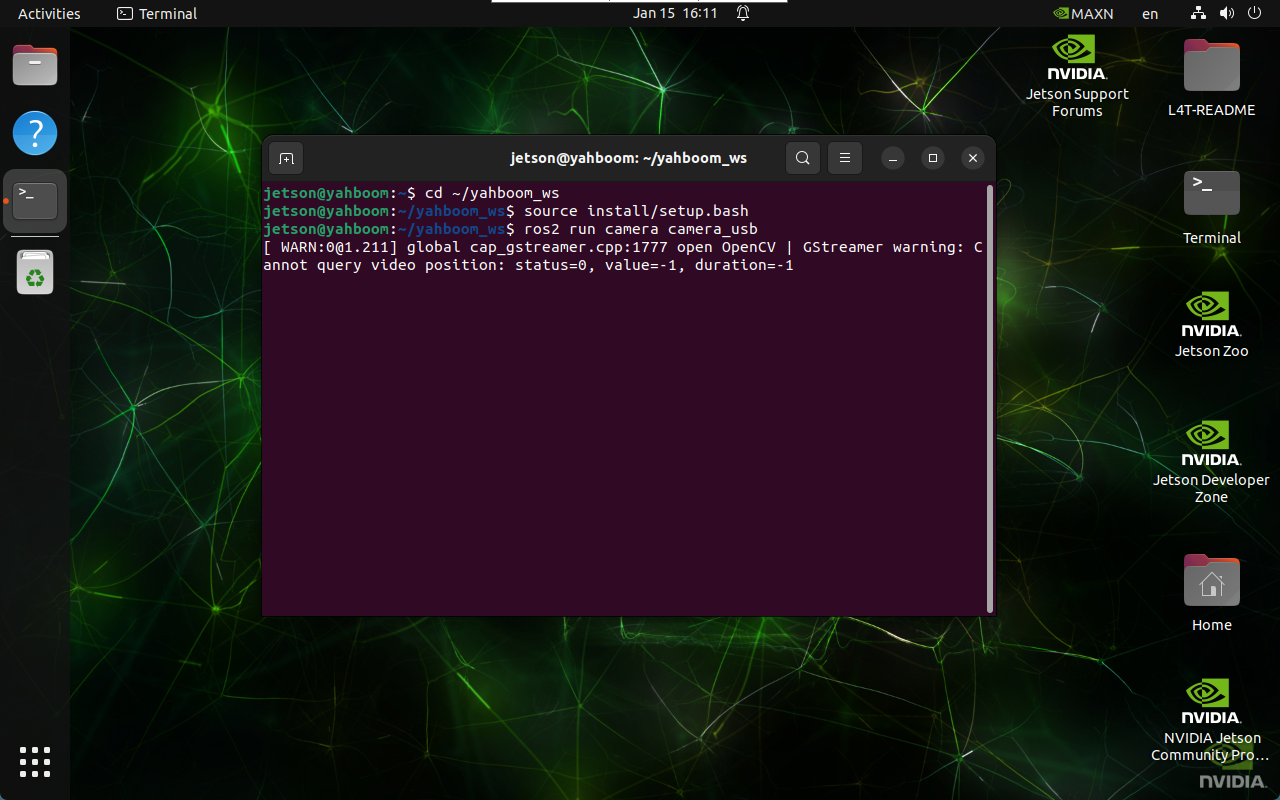
1. Start the camera
xxxxxxxxxxcd ~/yahboom_ws
xxxxxxxxxxsource install/setup.bash
xxxxxxxxxxros2 run camera camera_usb
2. Image calibration
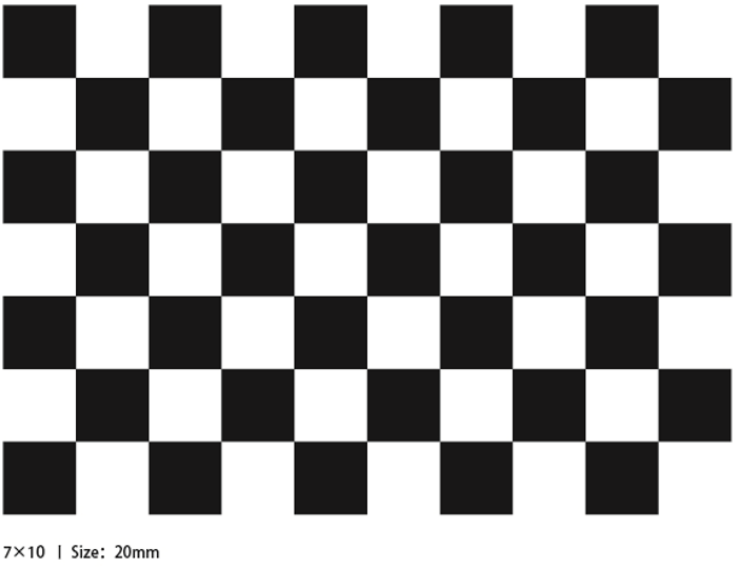
2.1. Calibration board
2.2. View topics
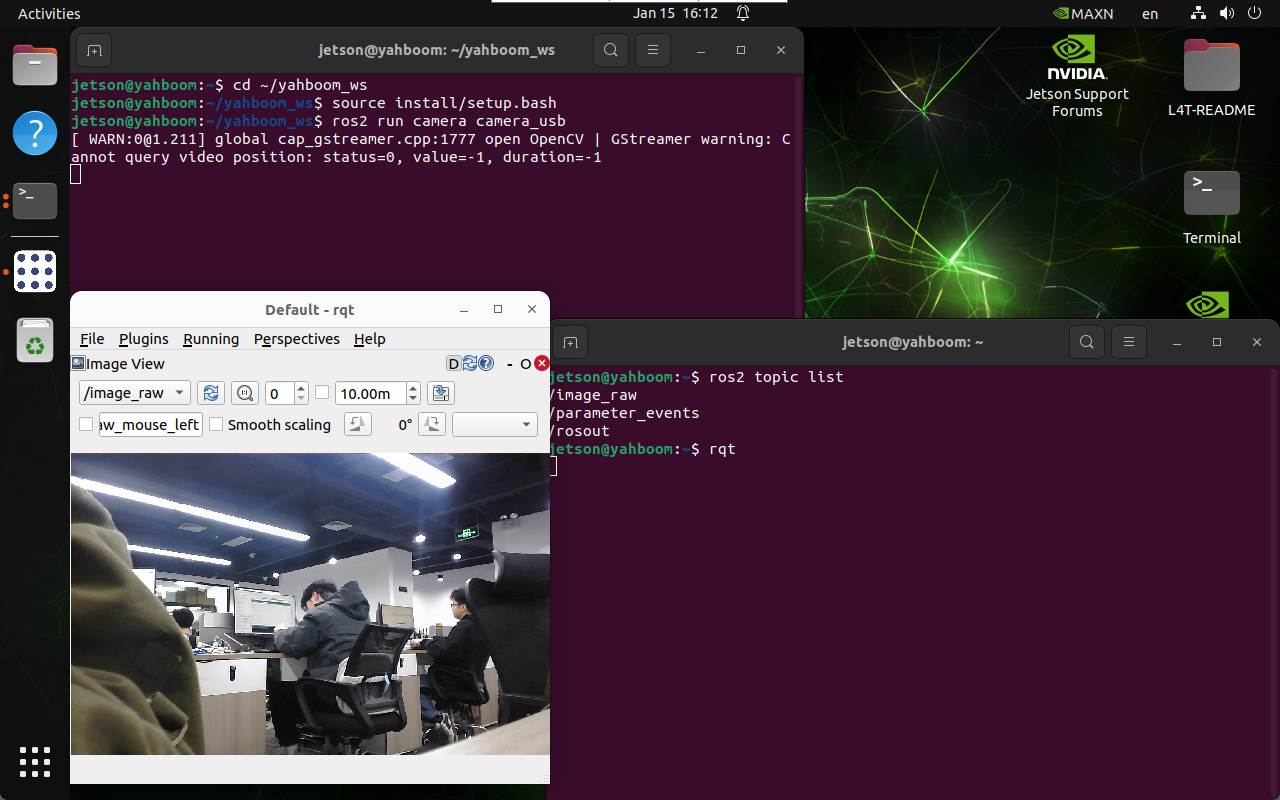
xxxxxxxxxxros2 topic list
2.3. Image calibration
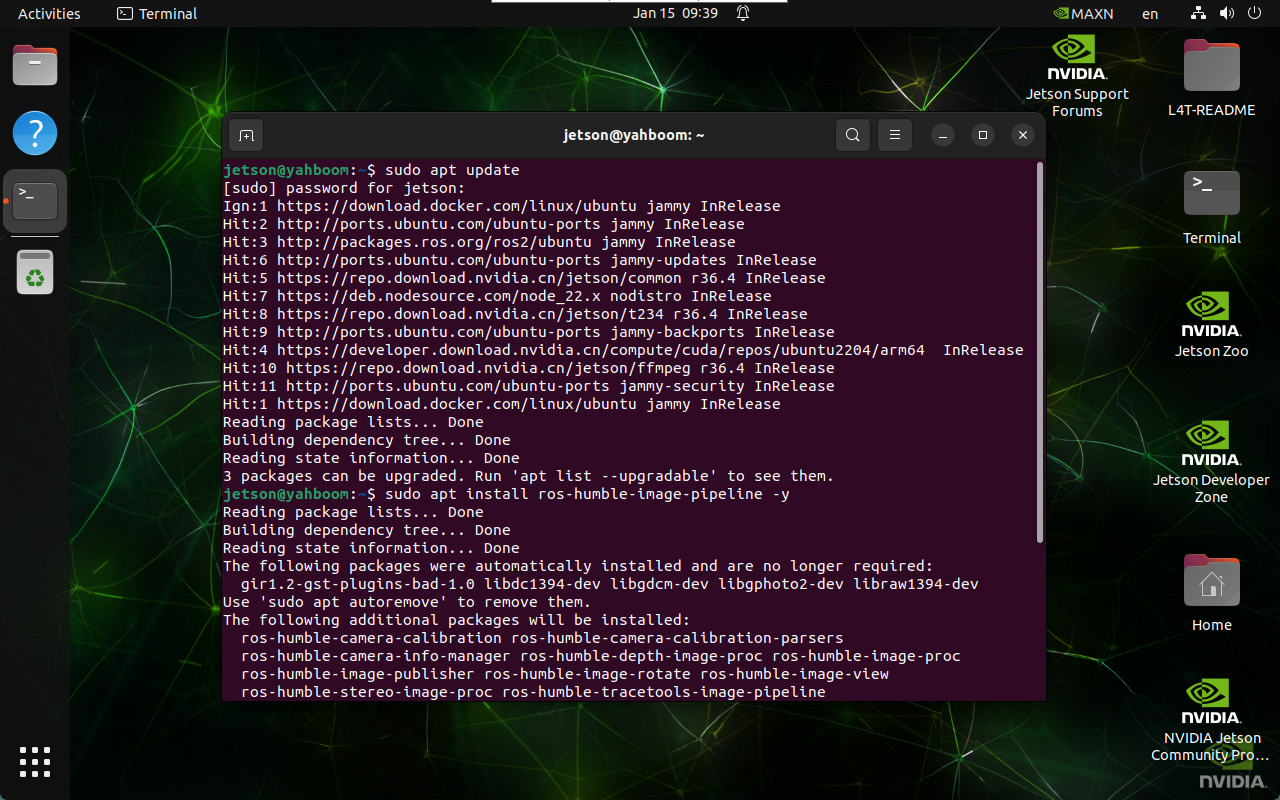
2.3.1. Install the image calibration tool
xxxxxxxxxxsudo apt updatesudo apt install ros-${ROS_DISTRO}-image-pipeline -y
2.3.2. Start the image calibration tool
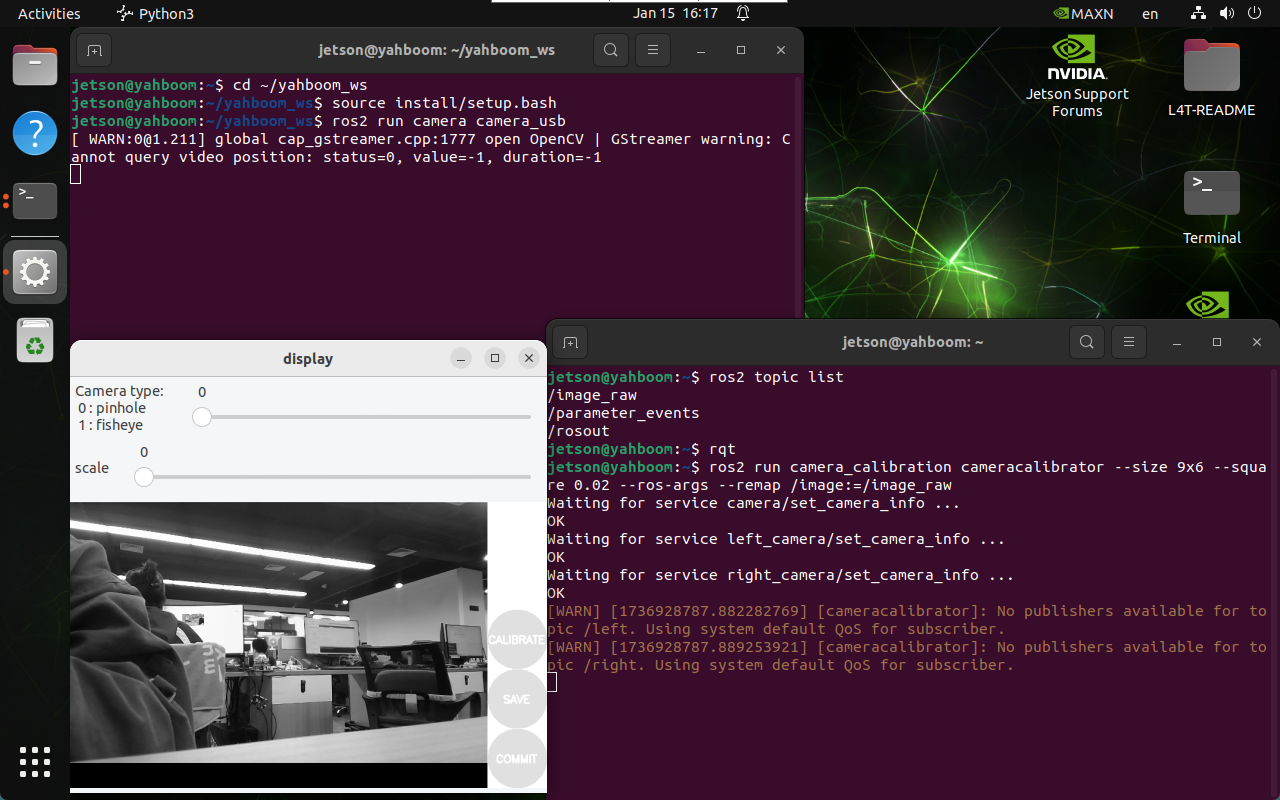
Start the ROS2 camera calibration tool camera_calibration and perform the camera calibration: before calibrating, you need to start the camera first
xxxxxxxxxxros2 run camera_calibration cameracalibrator --size 9x6 --square 0.02 --ros-args --remap /image:=/image_raw
Parameter Description
--size: the number of inner corner points of the chessboard → inner corner points of 9 rows and 6 columns
--square: the side length of the chessboard → 0.02 meters
--ros-args: pass ROS parameters
--remap: topic remapping → /image_raw as the image input stream
2.3.3. Calibration process
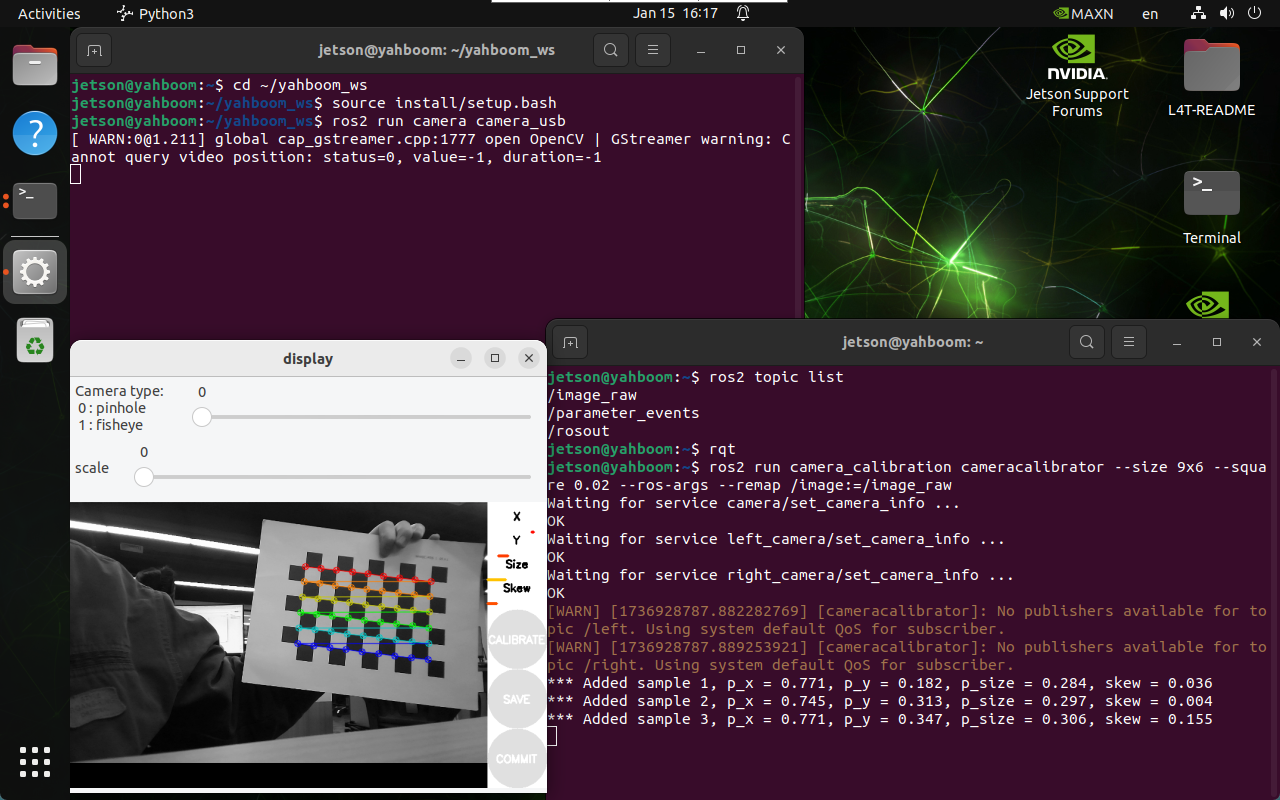
Parameter Description
X: move the chessboard left and right within the camera's field of view
Y: move the chessboard up and down within the camera's field of view
Size: move the chessboard back and forth within the camera's field of view
Skew: tilt and rotate the chessboard within the camera's field of view
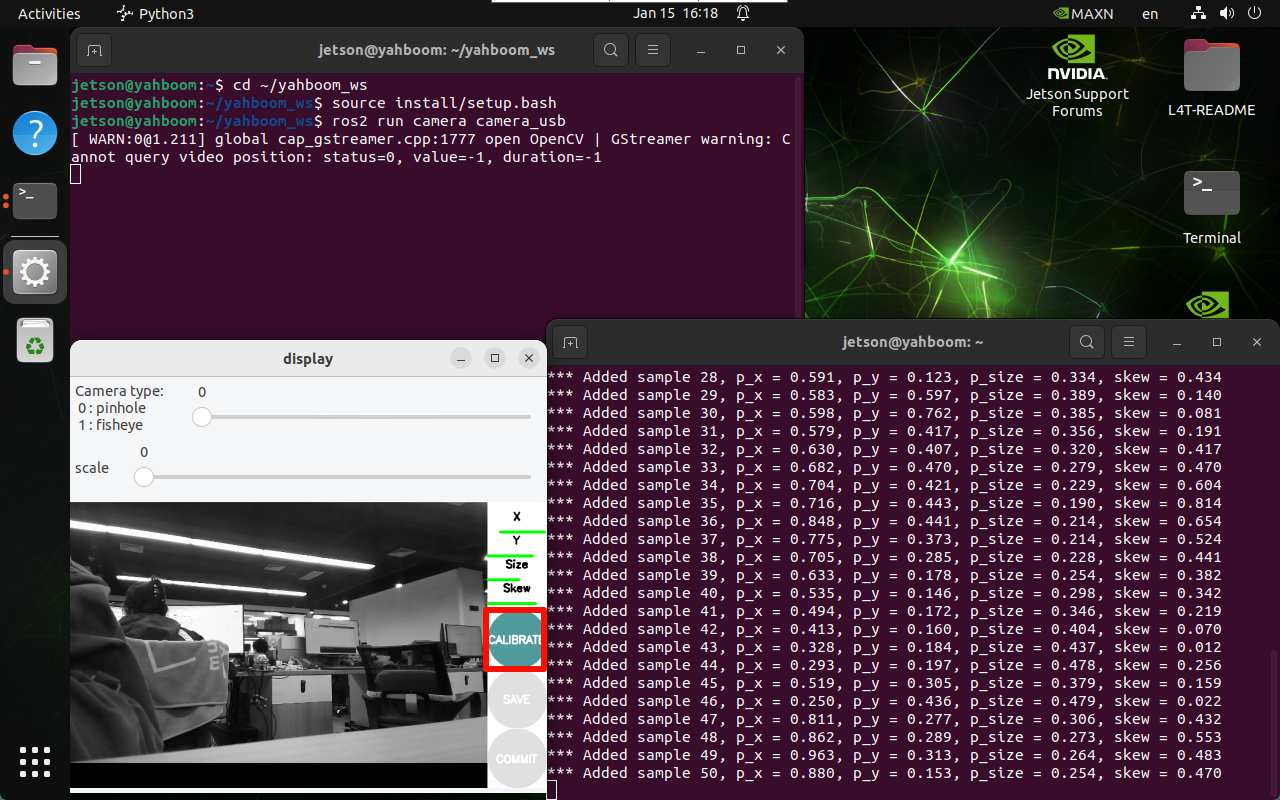
When X, Y, Size and Skew turn green, you can click CALIBRATE to calculate the camera intrinsic parameters: the more images you calibrate, the longer it takes, and the program may get stuck
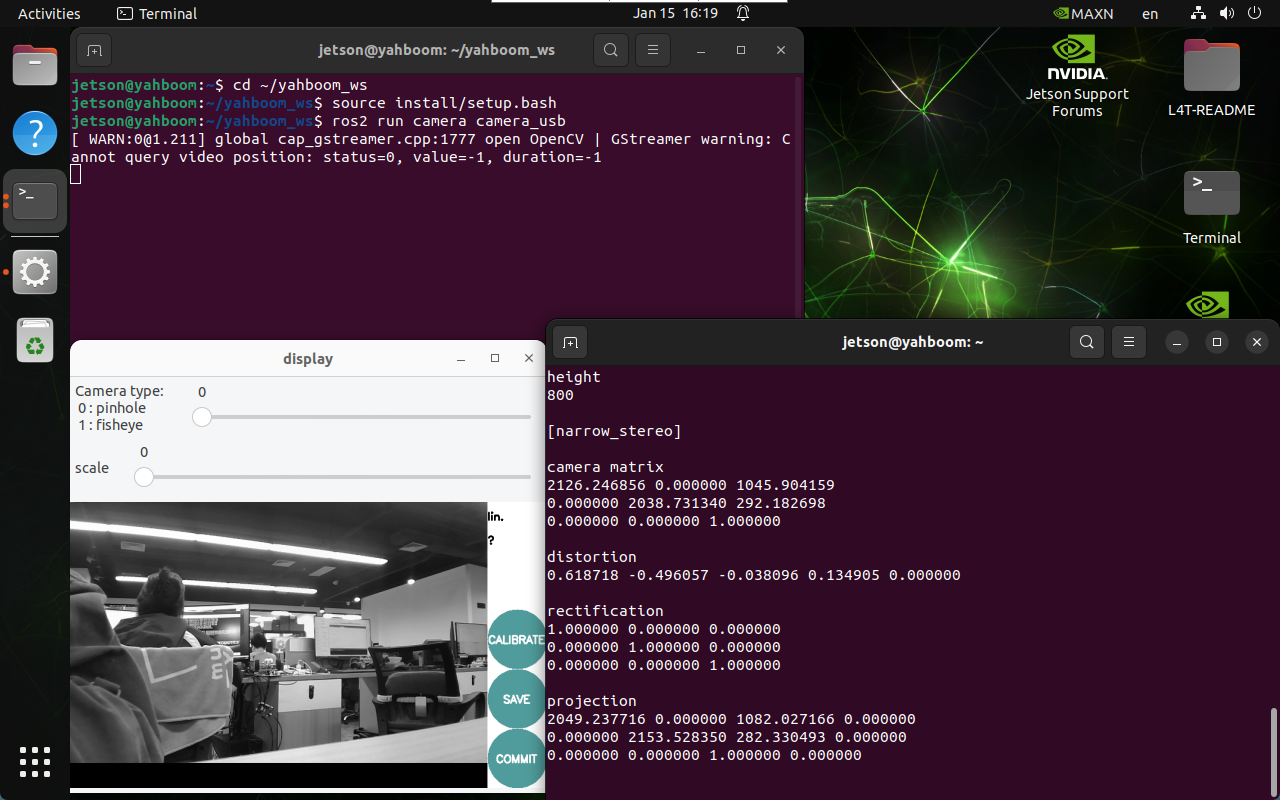
After the calibration is finished, click SAVE to save the results!
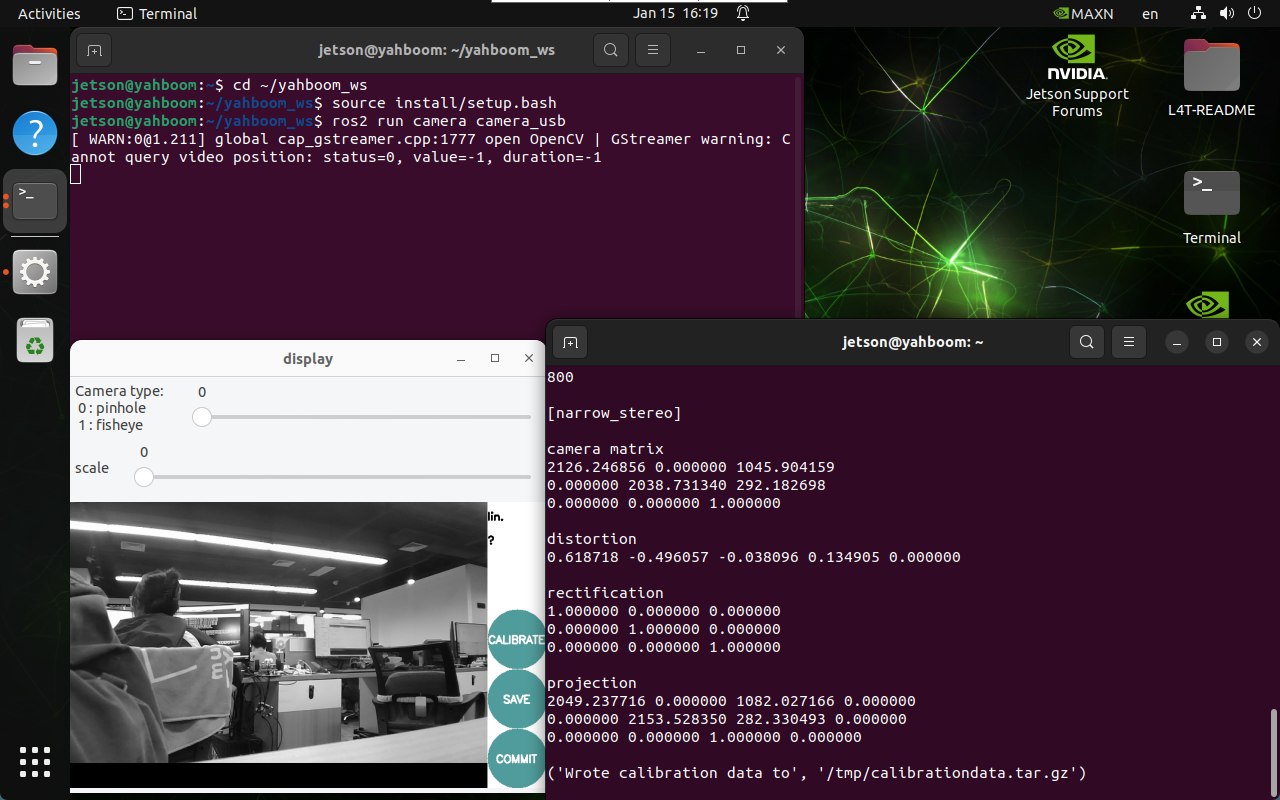
Close the program after saving successfully!
2.3.4. Calibration results
The default save location and file name of the calibration results:
xxxxxxxxxx/tmp/calibrationdata.tar.gz
Copy and decompress the calibration results:
xxxxxxxxxxsudo mv /tmp/calibrationdata.tar.gz ~mkdir calibrationdatatar -xzvf calibrationdata.tar.gz -C ~/calibrationdata
The decompressed files contain the calibration *.png, ost.yaml and ost.txt files. We mainly copy the data in the ost.yaml file into the camera_usb.yaml file.
ost.yaml
Replace the camera_usb.yaml file data with the image_width, image_height, the data in camera_matrix, the data in projection_matrix, and the data in distortion_coefficients
xxxxxxxxxximage_width: 1280image_height: 800camera_name: narrow_stereocamera_matrix:rows: 3cols: 3data: [2126.24686, 0. , 1045.90416,0. , 2038.73134, 292.1827 ,0. , 0. , 1. ]distortion_model: plumb_bobdistortion_coefficients:rows: 1cols: 5data: [0.618718, -0.496057, -0.038096, 0.134905, 0.000000]rectification_matrix:rows: 3cols: 3data: [1., 0., 0.,0., 1., 0.,0., 0., 1.]projection_matrix:rows: 3cols: 4data: [2049.23772, 0. , 1082.02717, 0. ,0. , 2153.52835, 282.33049, 0. ,0. , 0. , 1. , 0. ]
camera_csi.yaml
The modified file:
%YAML:1.0---image_width: 1920image_height: 1080camera_name: cameracamera_matrix: !!opencv-matrixrows: 3cols: 3dt: ddata: [2126.24686, 0. , 1045.90416,0. , 2038.73134, 292.1827 ,0. , 0. , 1. ]distortion_model: plumb_bobdistortion_coefficients: !!opencv-matrixrows: 1cols: 5dt: ddata: [0.618718, -0.496057, -0.038096, 0.134905, 0.000000]rectification_matrix:rows: 3cols: 3data: [1., 0., 0.,0., 1., 0.,0., 0., 1.]projection_matrix:rows: 3cols: 4data: [2049.23772, 0. , 1082.02717, 0. ,0. , 2153.52835, 282.33049, 0. ,0. , 0. , 1. , 0. ]