Welcome to Jetson Orin NX Developer Kit repository
当製品の日本語版マニュアル資料は、こちらからご取得ください。
10.Use VMware
Use VMware
Use VMware1. VMware download2. VMware installation2.1. Open the installation package2.2. Accept the agreement2.3. Installation location2.4. Installation options2.5. Complete the installation3. VMware use3.1. Extract the virtual machine image3.2. Open the virtual machine image
1. VMware download
Official website: https://www.broadcom.com/
Note: you need to register an account before you can download the software. Currently VMware Workstation Pro is free for personal use!
The VMware Workstation Pro package is provided in the software data folder
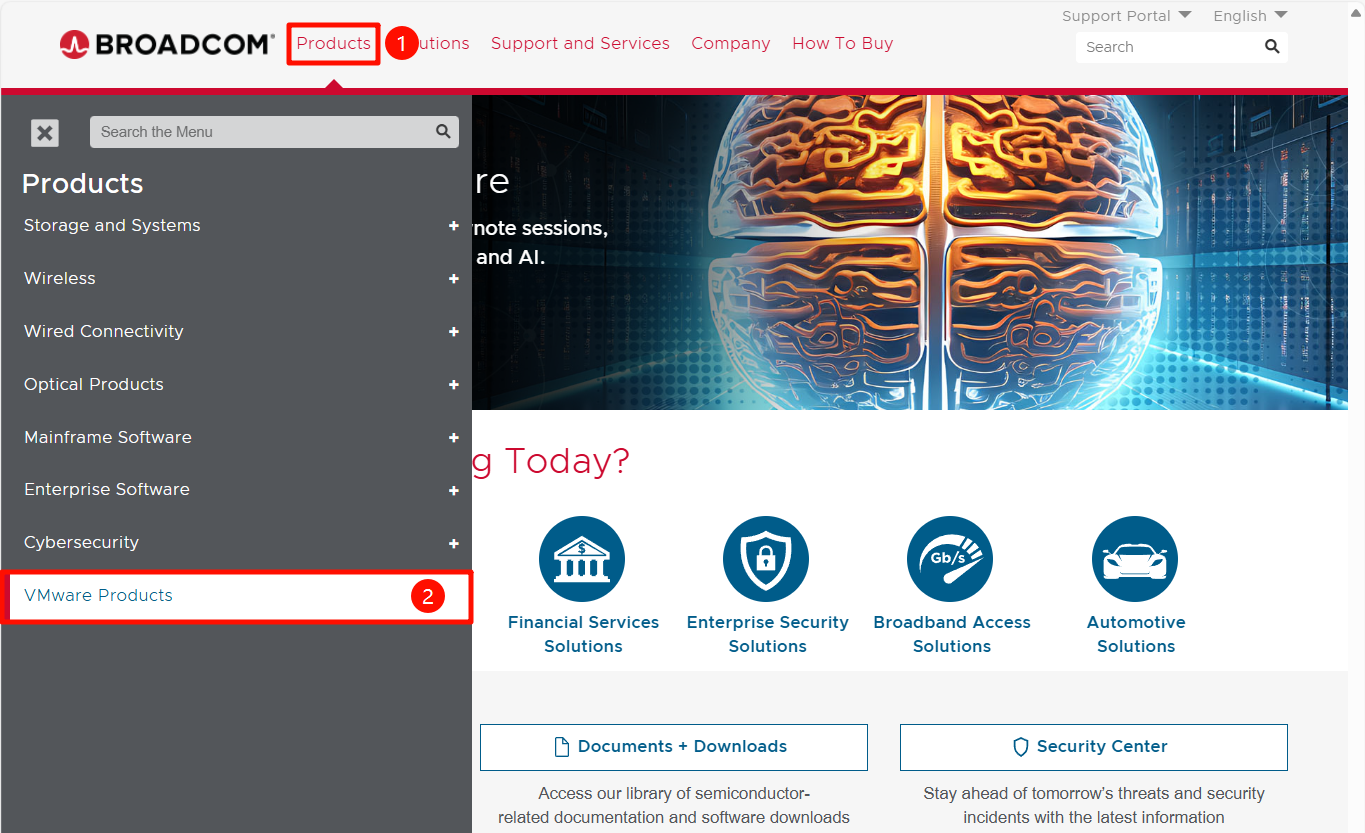
Go to the official website and select "VMware Products":
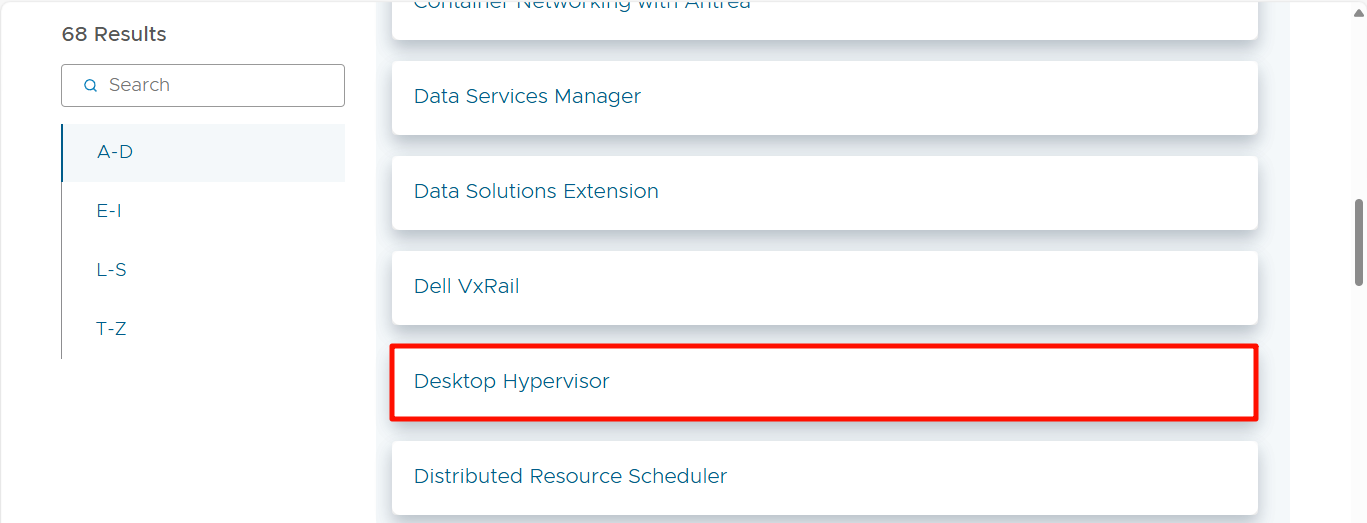
Select "Desktop Hypervisor":
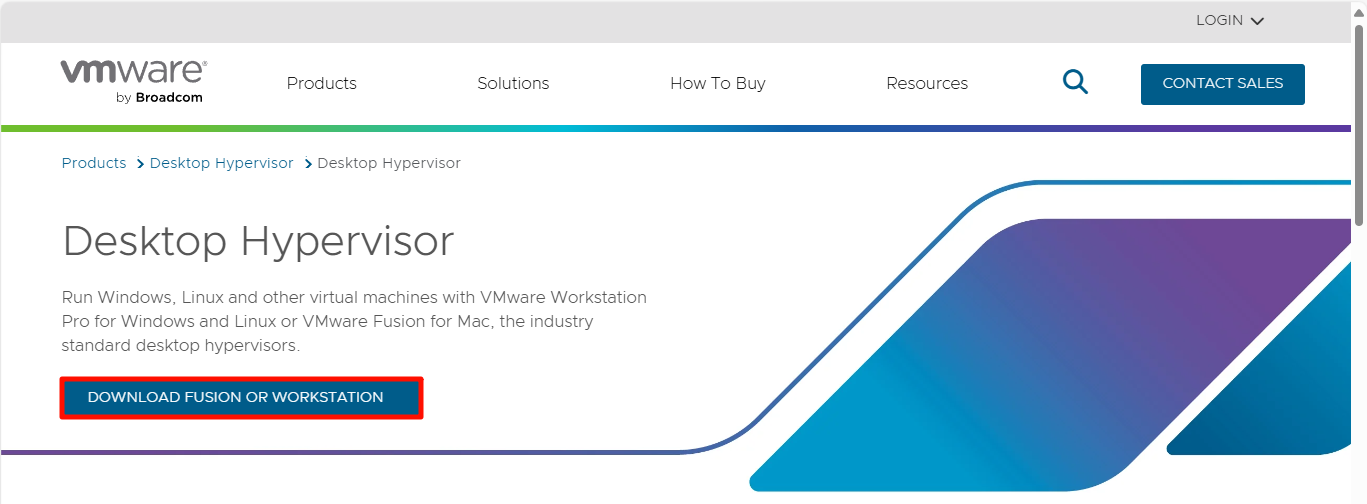
Click "DOWNLOAD FUSION OR WORKSTATION" to enter the download page:
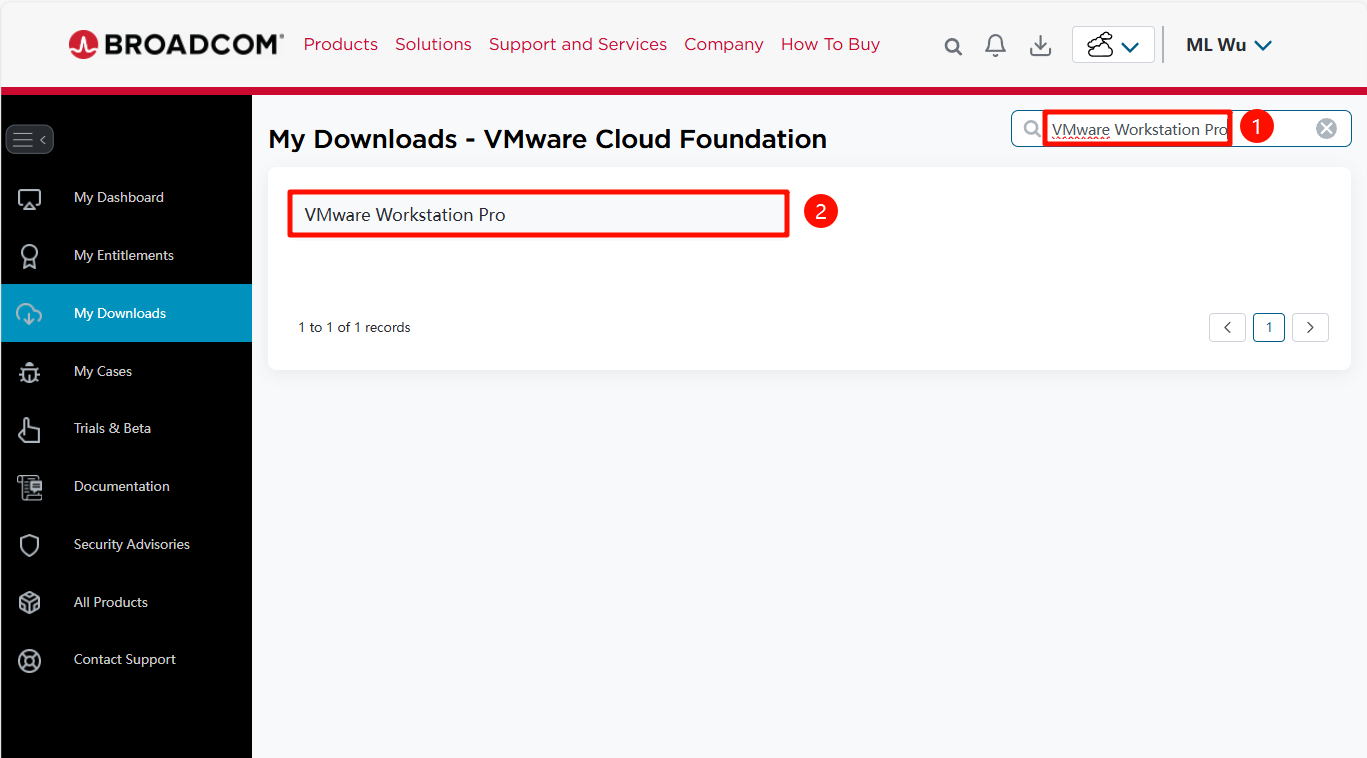
Search for "VMware Workstation Pro" on the download page:
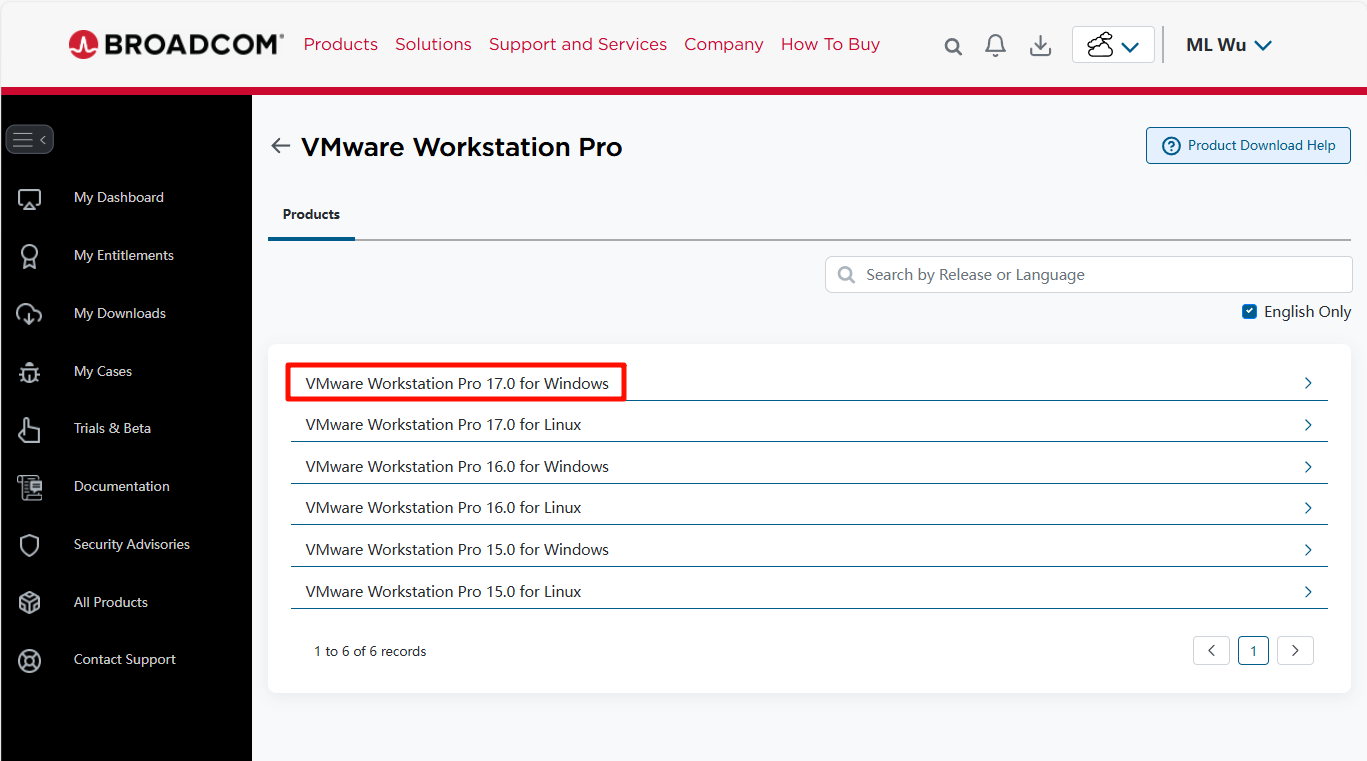
Select the matching platform to download: we choose Windows here
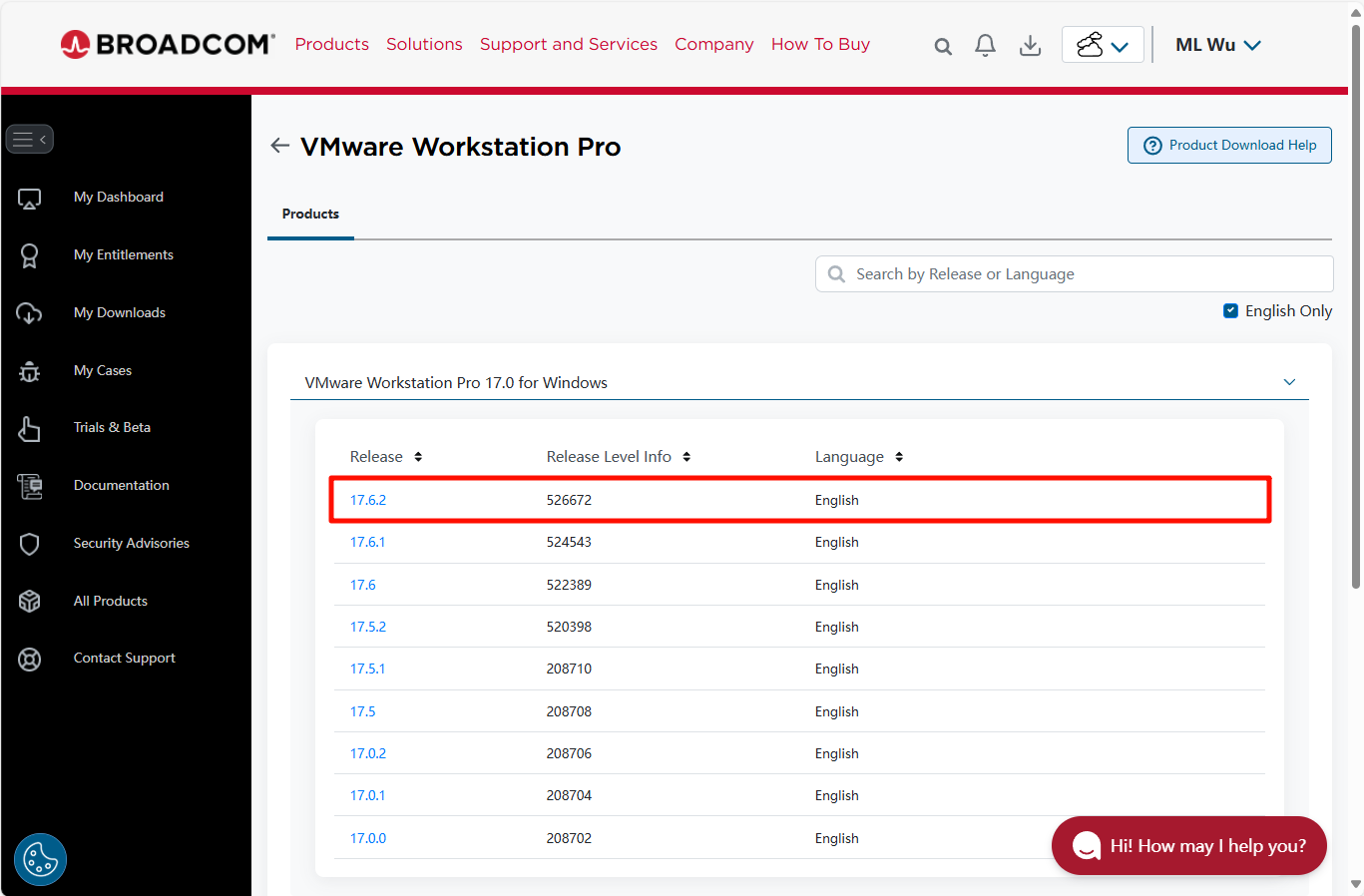
Select the version number to download:
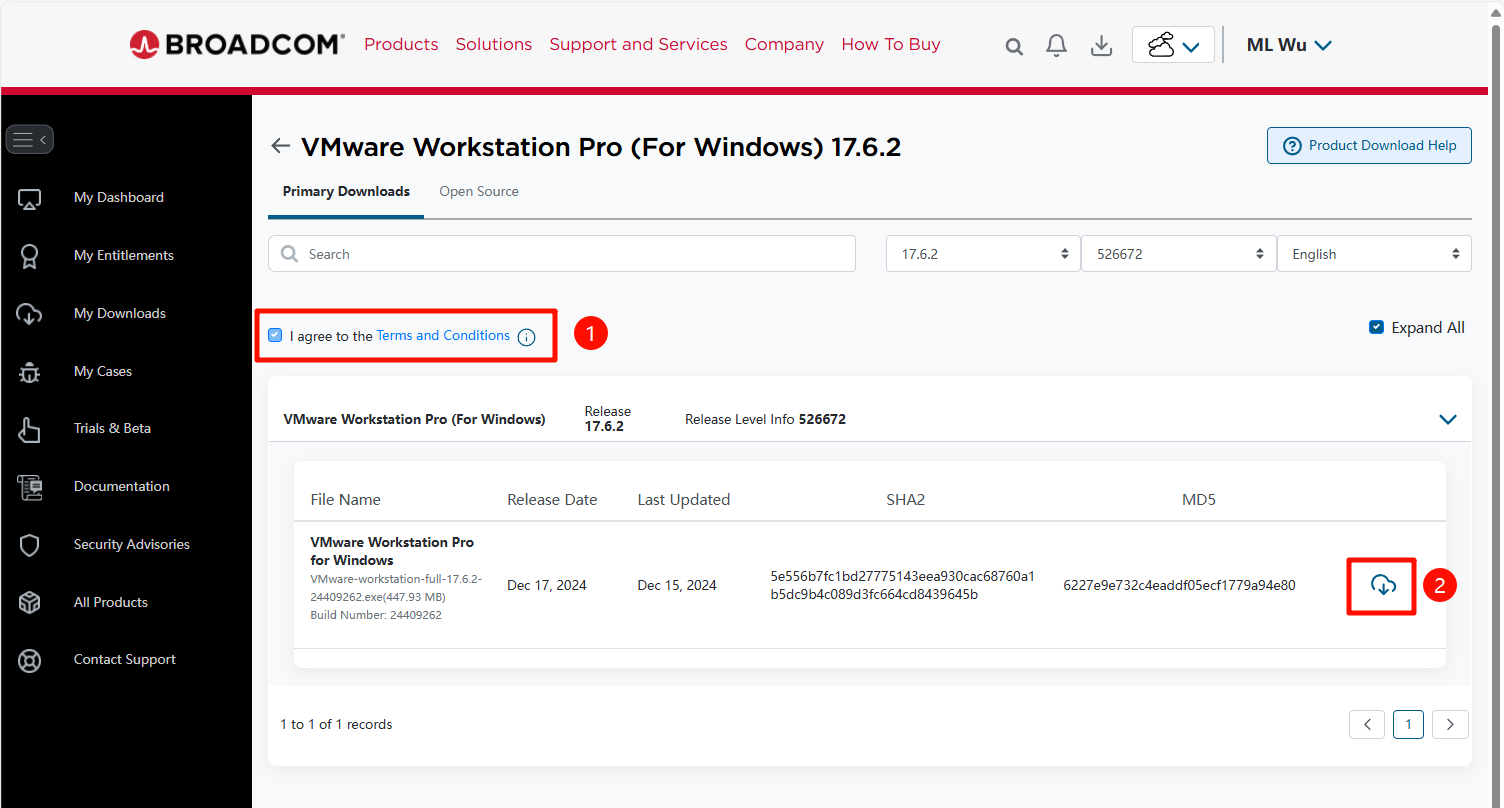
Download the software:
2. VMware installation
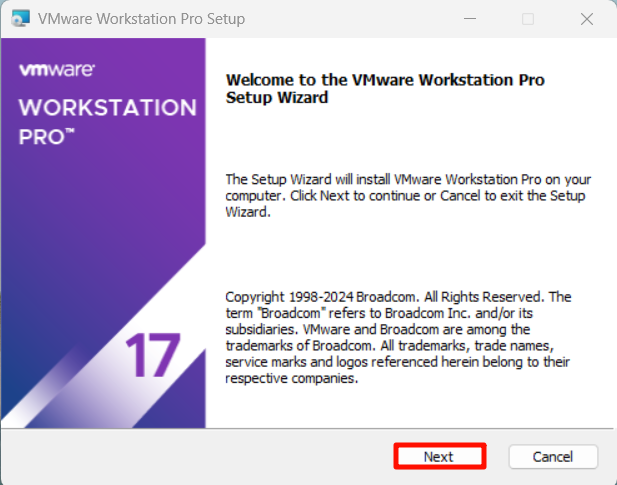
2.1. Open the installation package
Open VMware-workstation-full-xxx.exe as an administrator

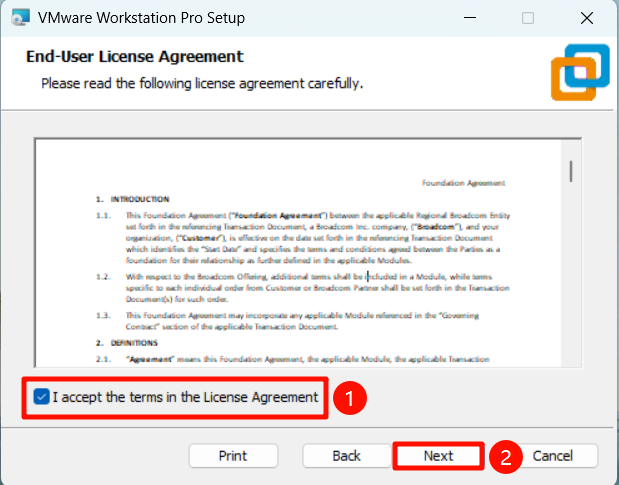
2.2. Accept the agreement
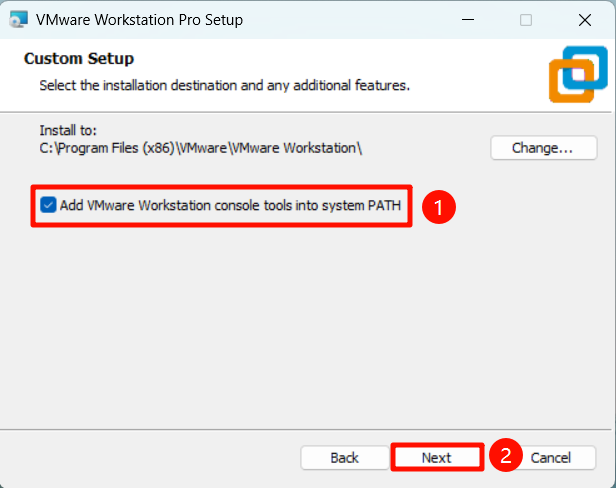
2.3. Installation location
It is recommended to keep the default installation location of the software:
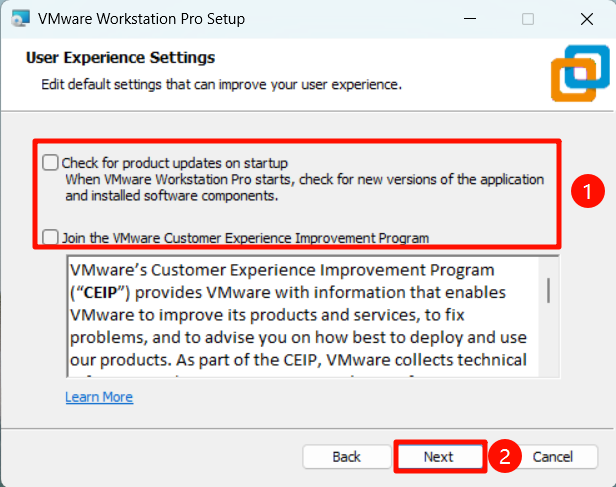
2.4. Installation options
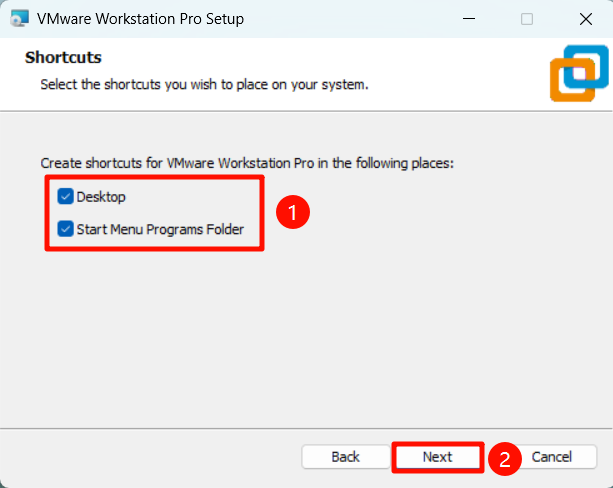
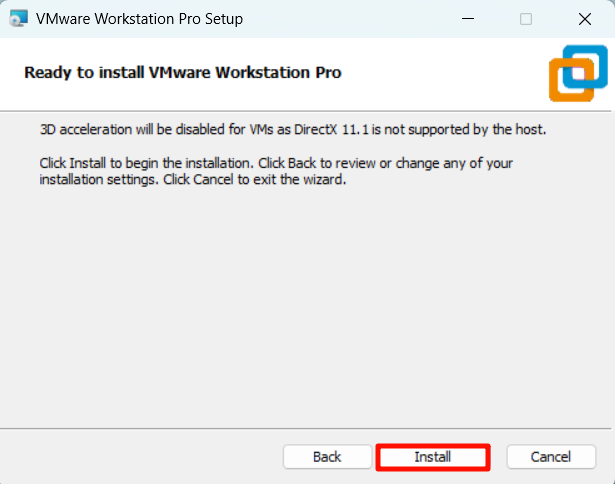
2.5. Complete the installation
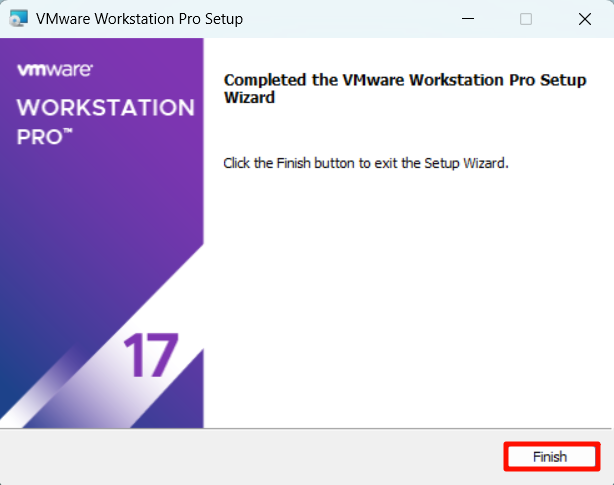
3. VMware use
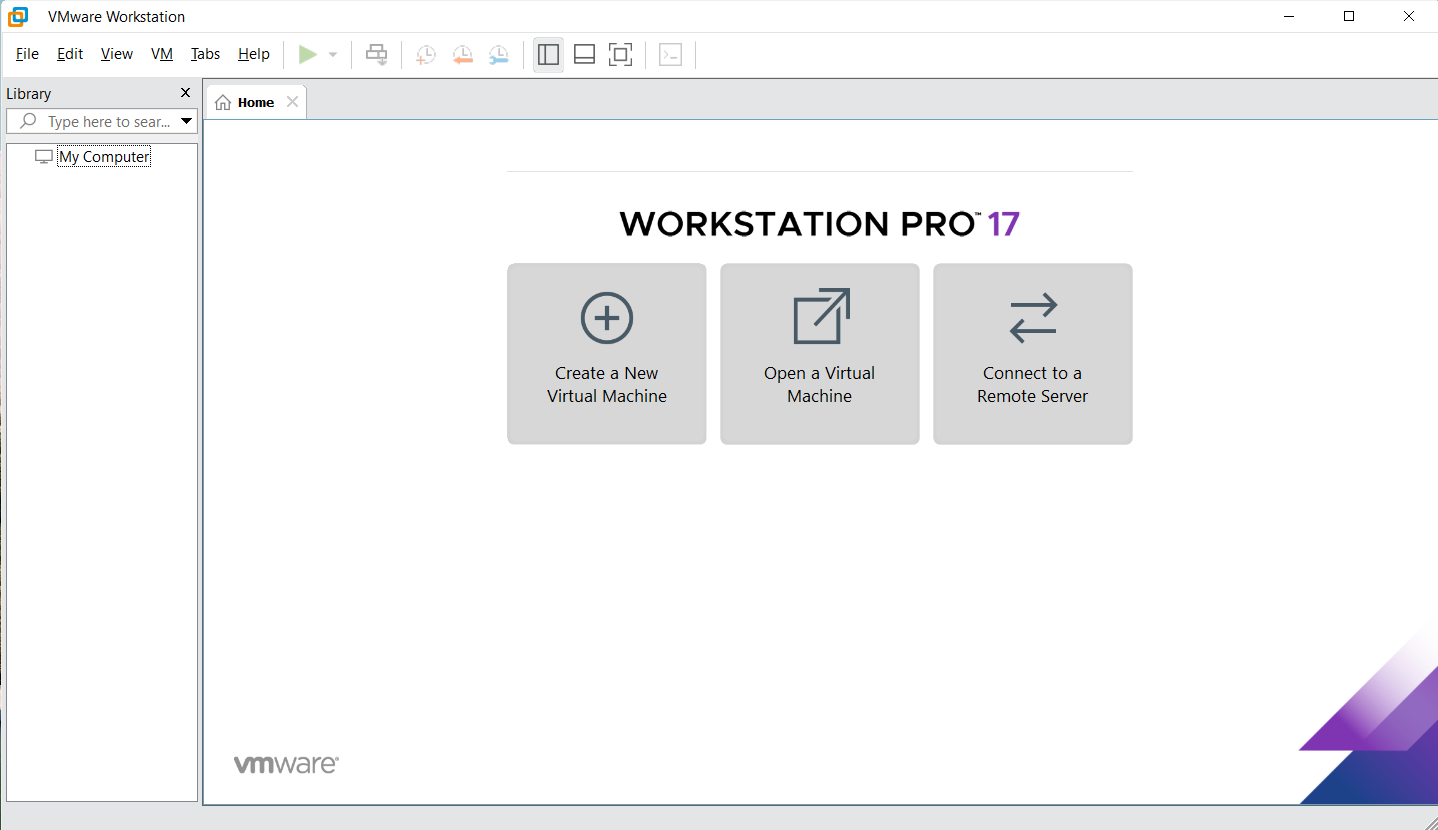
Double-click the "VMware Workstation Pro" icon to open the application:
3.1. Extract the virtual machine image
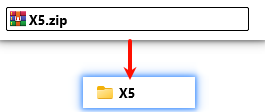
Extract the ***.zip of the virtual machine image with an extraction tool: the X5 virtual machine archive is used for this demonstration
3.2. Open the virtual machine image
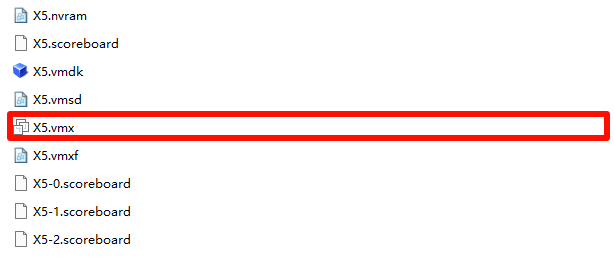
Open the ***.vmx file in the virtual machine image folder with VMware: