Welcome to Jetson Orin NX Developer Kit repository
当製品の日本語版マニュアル資料は、こちらからご取得ください。
09.Dataset annotation
Dataset annotation
Dataset annotation1. Dataset collection1.1. Extract the images1.2. Dataset path2. The use of Label Studio2.1. Installing Label Studio2.2. Starting Label Studio2.2.1. The permission of the shared folder2.2.2. Starting Label Studio2.2.3. Accessing Label StudioThe host machineThe same LANThe first use3. Dataset annotation3.1. Creating a project3.2. The project name3.3. Importing the training set3.4. The label settings3.5. Dataset annotation3.6. Exporting the dataset3.7. The directory structure of the dataset3.8. The dataset configuration fileReferences
To recognize a specific object or to improve the recognition accuracy of an object, the user needs to train the model himself, and the dataset collection and annotation are an indispensable part of this.
1. Dataset collection
Description: for the recognition of a specific scene, the user can use a camera to record a video of the object from different angles, and then cut the images out of the video as the training set
1.1. Extract the images
Here is a simple example: extract one image frame every 15 frames from the video as the dataset
ximport cv2import os# Path to the input video filevideo_file = '/home/jetson/ultralytics/ultralytics/data/yahboom_data/orange_video/orange.mkv'# Path to the output folder to save the framesoutput_folder = '/home/jetson/ultralytics/ultralytics/data/yahboom_data/orange_pic'# Check if the output folder exists, if not, create itif not os.path.exists(output_folder):os.makedirs(output_folder)# Open the video file using OpenCVcap = cv2.VideoCapture(video_file)# Get the total number of frames in the videototal_frames = int(cap.get(cv2.CAP_PROP_FRAME_COUNT))# Get the frames per second (fps) of the videofps = cap.get(cv2.CAP_PROP_FPS)# Frame counter to keep track of the current frame numberframe_number = 0# Define the interval for extracting frames (every 15th frame)frame_interval = 15# Initialize a new counter for saved frames (starting from 1)saved_frame_number = 1while True:ret, frame = cap.read()# If the frame is not successfully read, exit the loopif not ret:break# Save every 15th frameif frame_number % frame_interval == 0:# Format the frame number starting from 1 (e.g., 1.png, 2.png)image_name = f'{saved_frame_number}.png'image_path = os.path.join(output_folder, image_name)# Save the current frame as a PNG imagecv2.imwrite(image_path, frame)print(f'Saving frame {frame_number}/{total_frames} as {image_name}')# Increment the saved frame countersaved_frame_number += 1# Increment the frame counter for the videoframe_number += 1# Release the video capture objectcap.release()# Print message when processing is completeprint("Video processing complete! Every 15th frame saved as an image!")
1.2. Dataset path
Sample video: /home/jetson/ultralytics/ultralytics/data/yahboom_data/orange_video
Sample images: /home/jetson/ultralytics/ultralytics/data/yahboom_data/orange_pic
2. The use of Label Studio
Label Studio is an open-source data annotation platform, used for data annotation and for the management of the annotation tasks, and it supports various types of data input and annotation formats.
2.1. Installing Label Studio
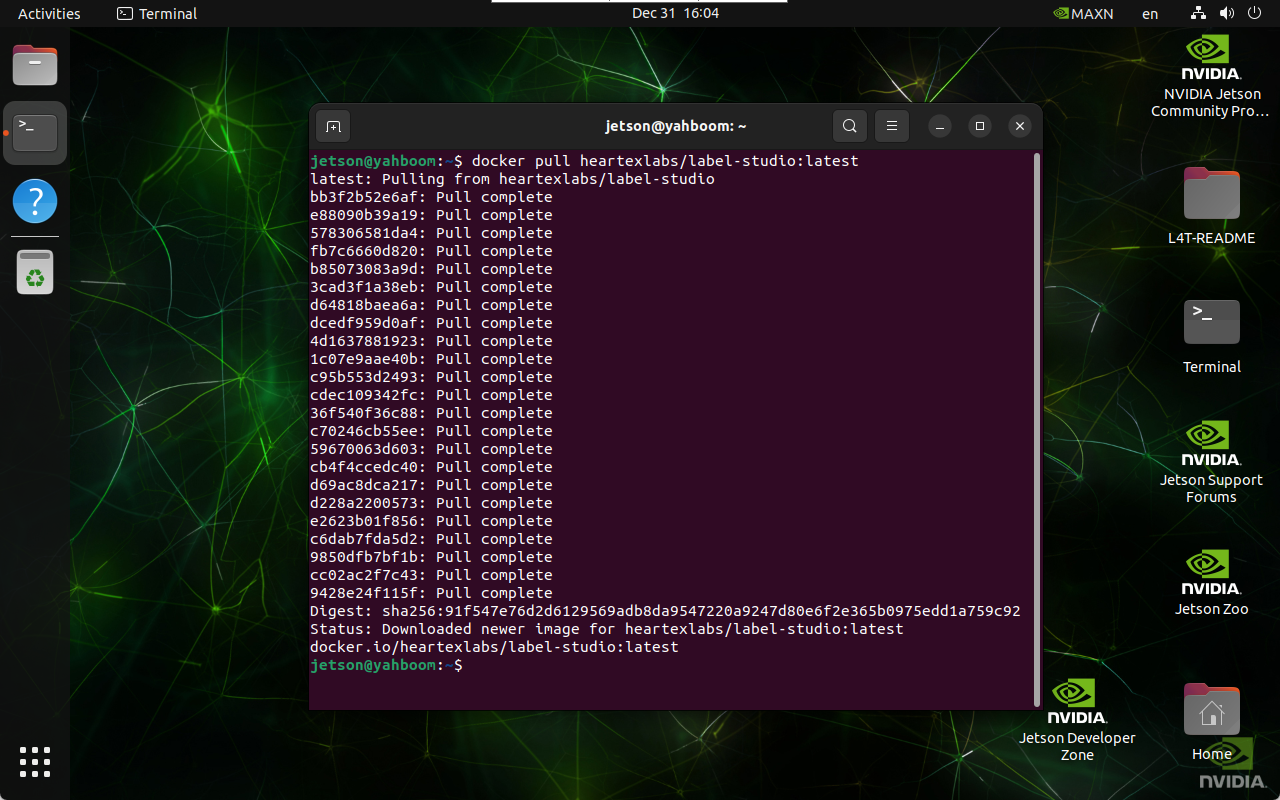
xxxxxxxxxxdocker pull heartexlabs/label-studio:latest
2.2. Starting Label Studio
2.2.1. The permission of the shared folder
Share the dataset that has been prepared in advance to the corresponding folder of Label Studio:
xxxxxxxxxxsudo chmod 777 /home/jetson/ultralytics/ultralytics/data/
2.2.2. Starting Label Studio
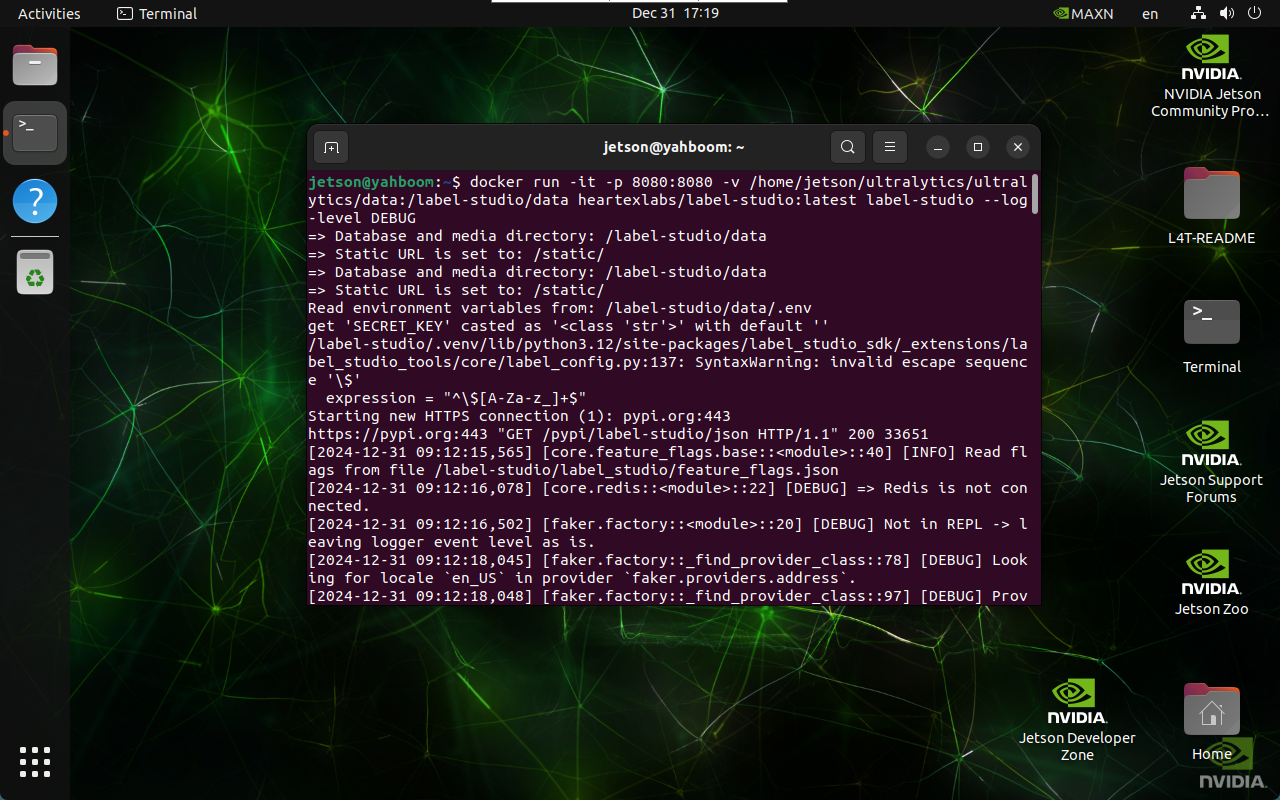
xxxxxxxxxxsudo docker run -it -p 8080:8080 -v /home/jetson/ultralytics/ultralytics/data:/label-studio/data heartexlabs/label-studio:latest label-studio --log-level DEBUG
Note:
If the port 8080 is already occupied, please change the port mapping function and replace the first 8080 of the -p parameter with 8081 or another suitable port.
xxxxxxxxxxsudo docker run -it -p 8081:8080 -v /home/jetson/ultralytics/ultralytics/data:/label-studio/data heartexlabs/label-studio:latest label-studio --log-level DEBUG
After the port has been changed, Label Studio can be accessed at the new port address in the browser, such as http://localhost:8081/
2.2.3. Accessing Label Studio
The host machine
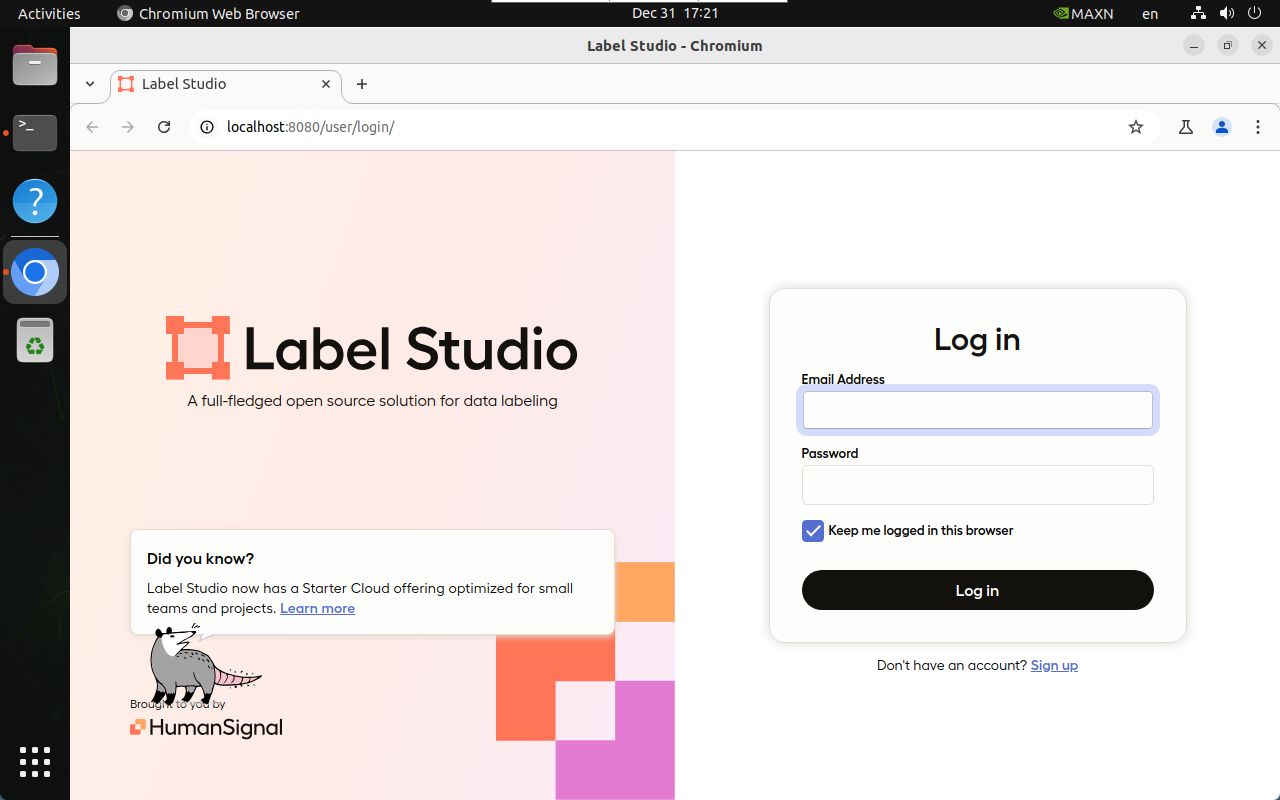
The access method for the Jetson series development boards; on the first entry you need to enter the user name and the password yourself
xxxxxxxxxxhttp://localhost:8080/
The same LAN
A device in the same LAN can access it according to the IP of the mainboard:8080
xxxxxxxxxxhttp://mainboard IP:8080/ # For example: http://192.168.2.114:8080/
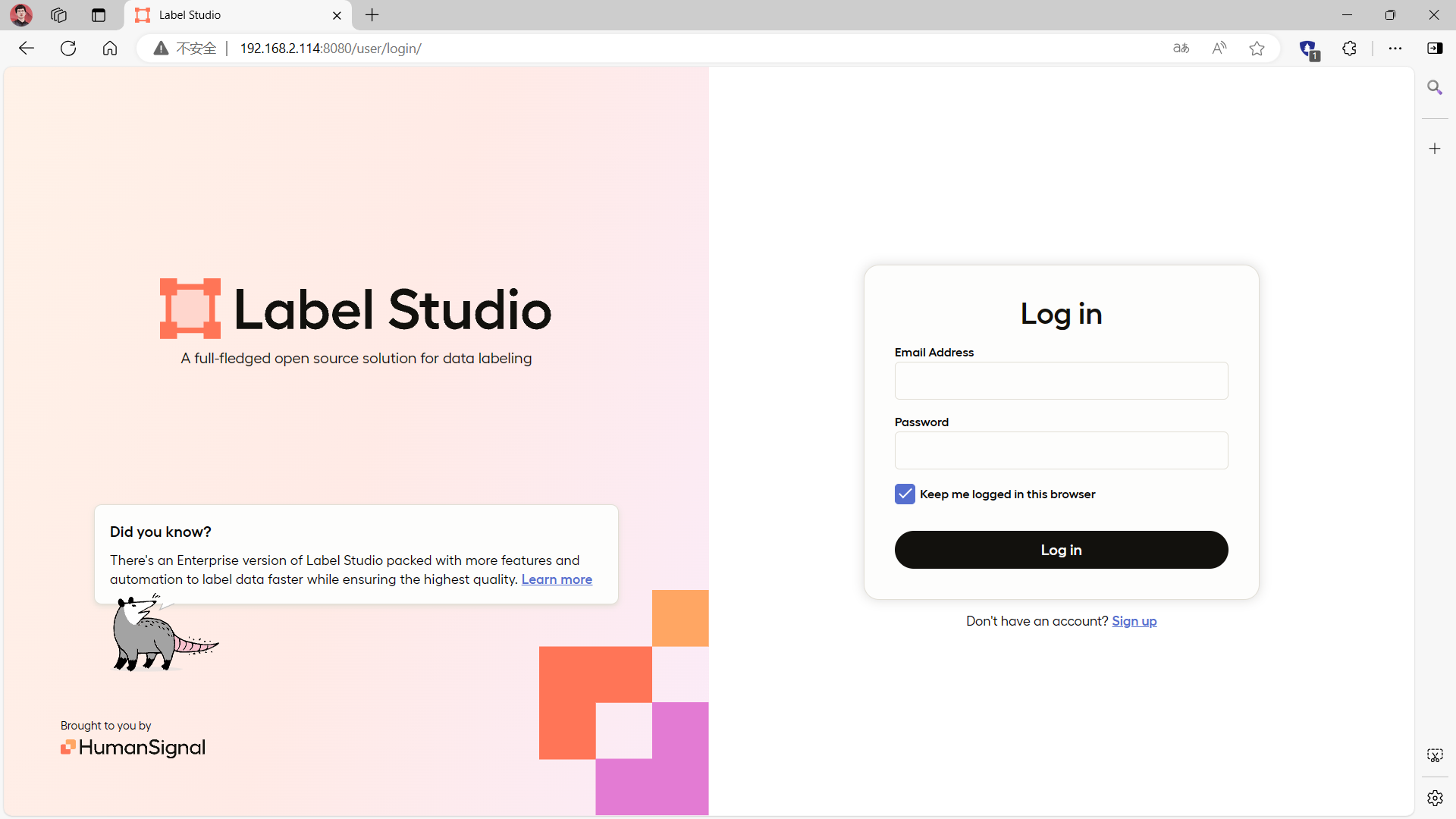
The first use
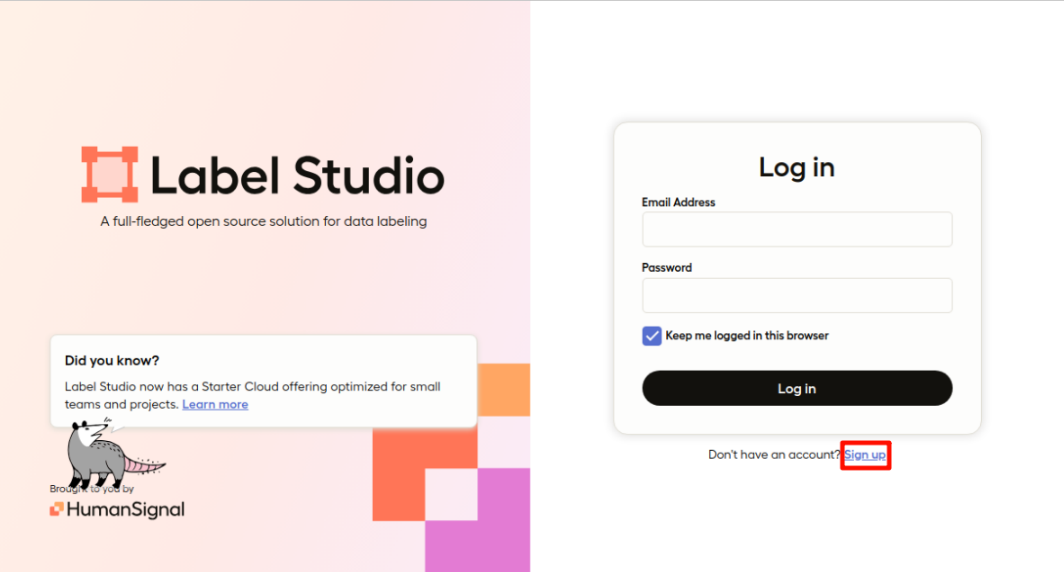
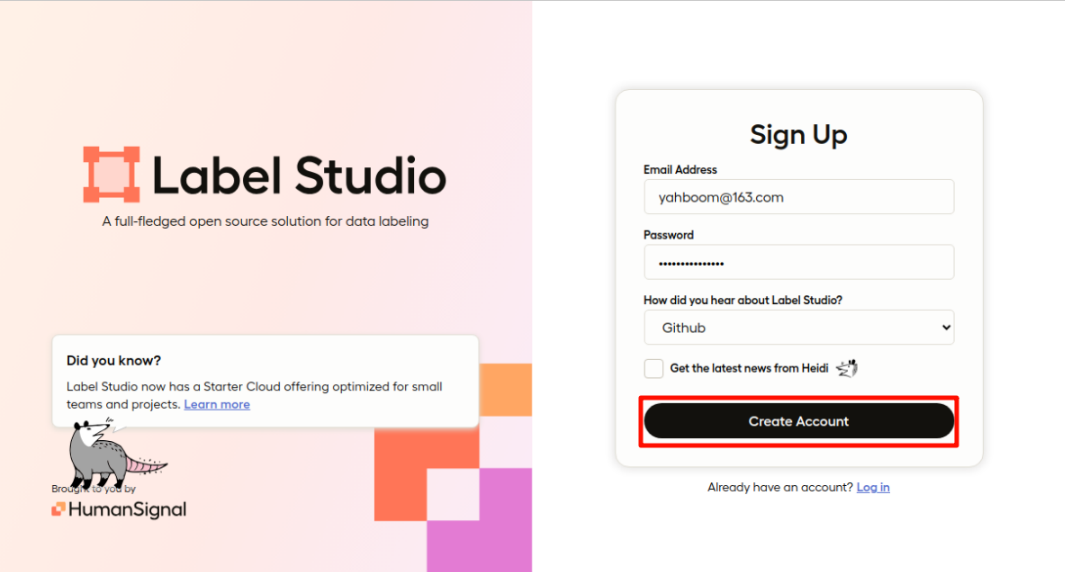
The first use requires you to register and log in with an account yourself; the factory account information is as follows (the account information is a fictitious one):
xxxxxxxxxxAccount: yahboom@163.comPassword: yahboom@163.com
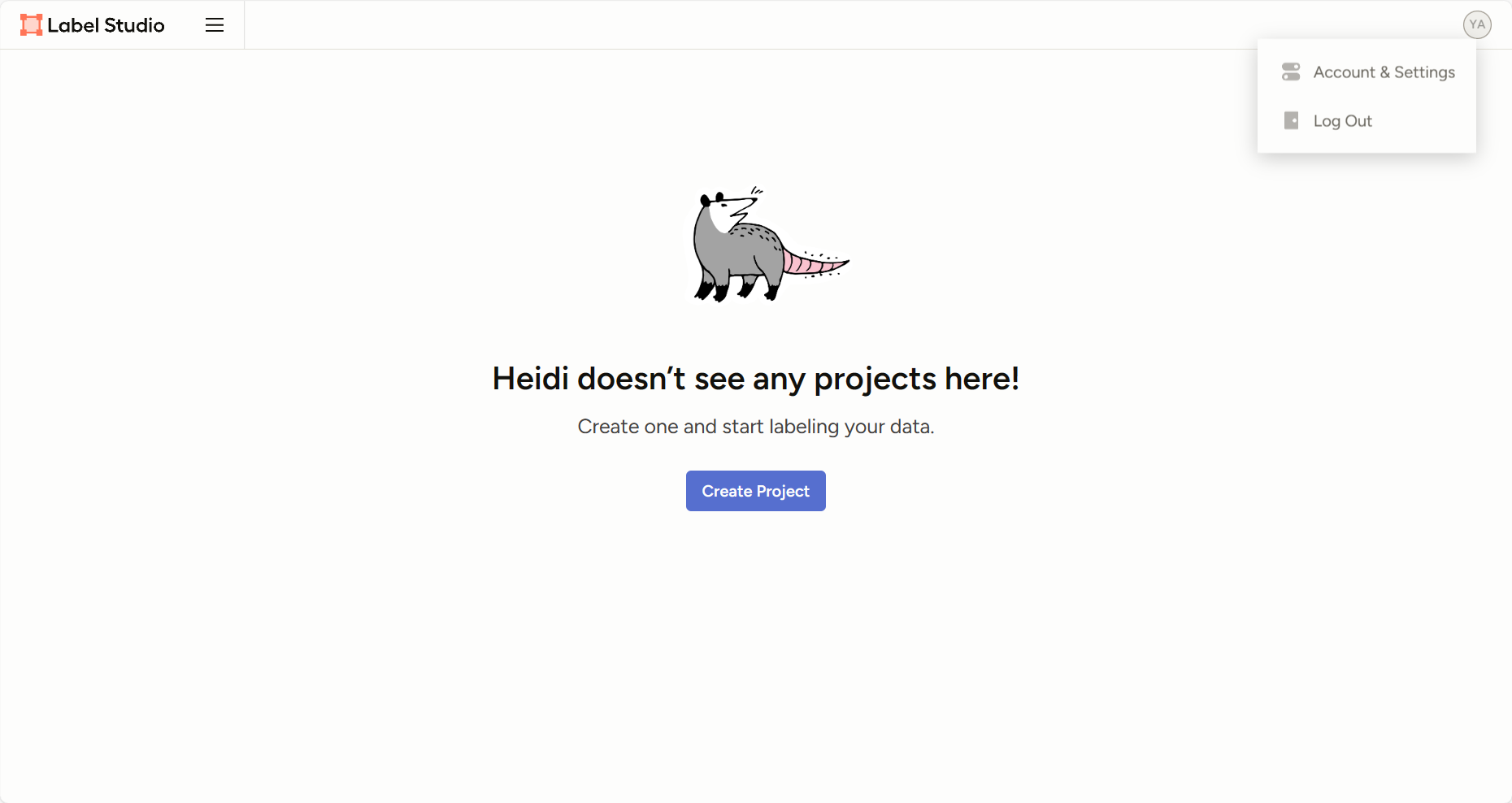
After the registration is complete, the web address logs in automatically:
3. Dataset annotation
The demo dataset is on the mainboard, so access Label Studio on the mainboard.
3.1. Creating a project
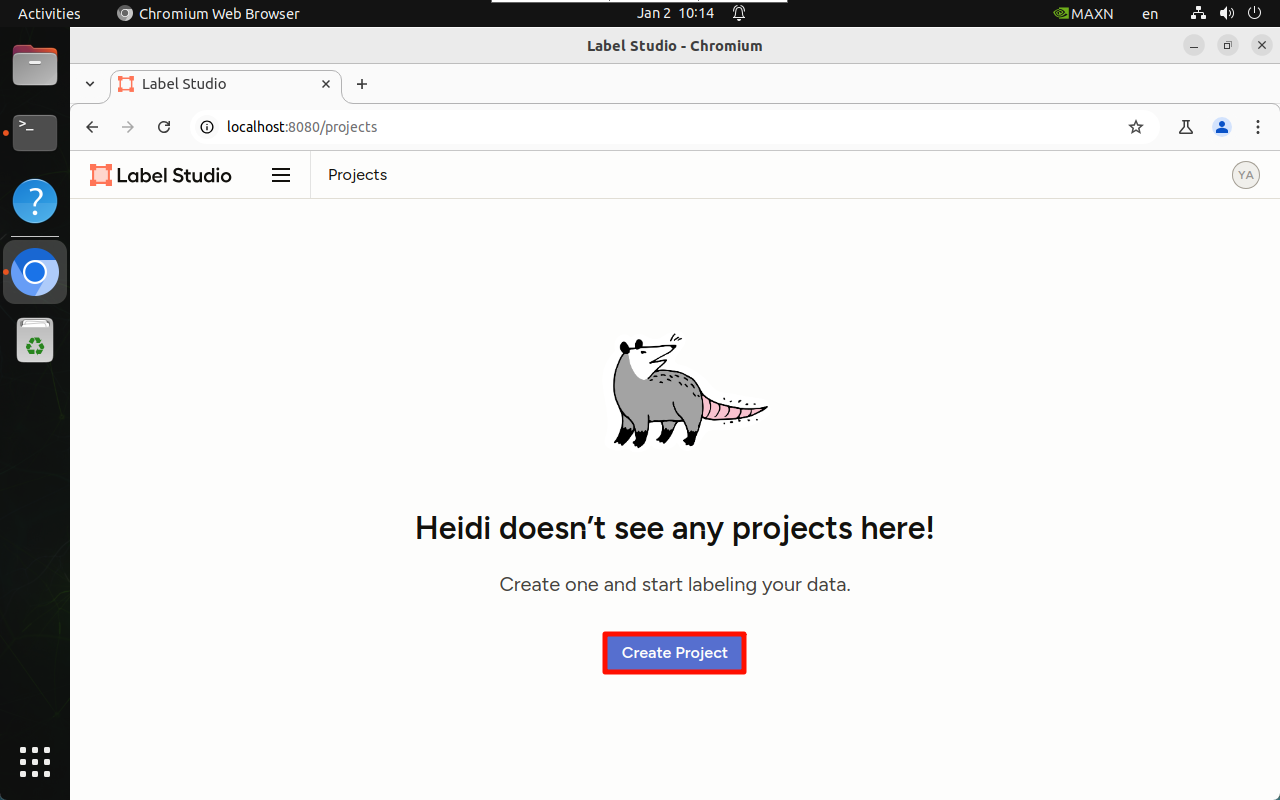
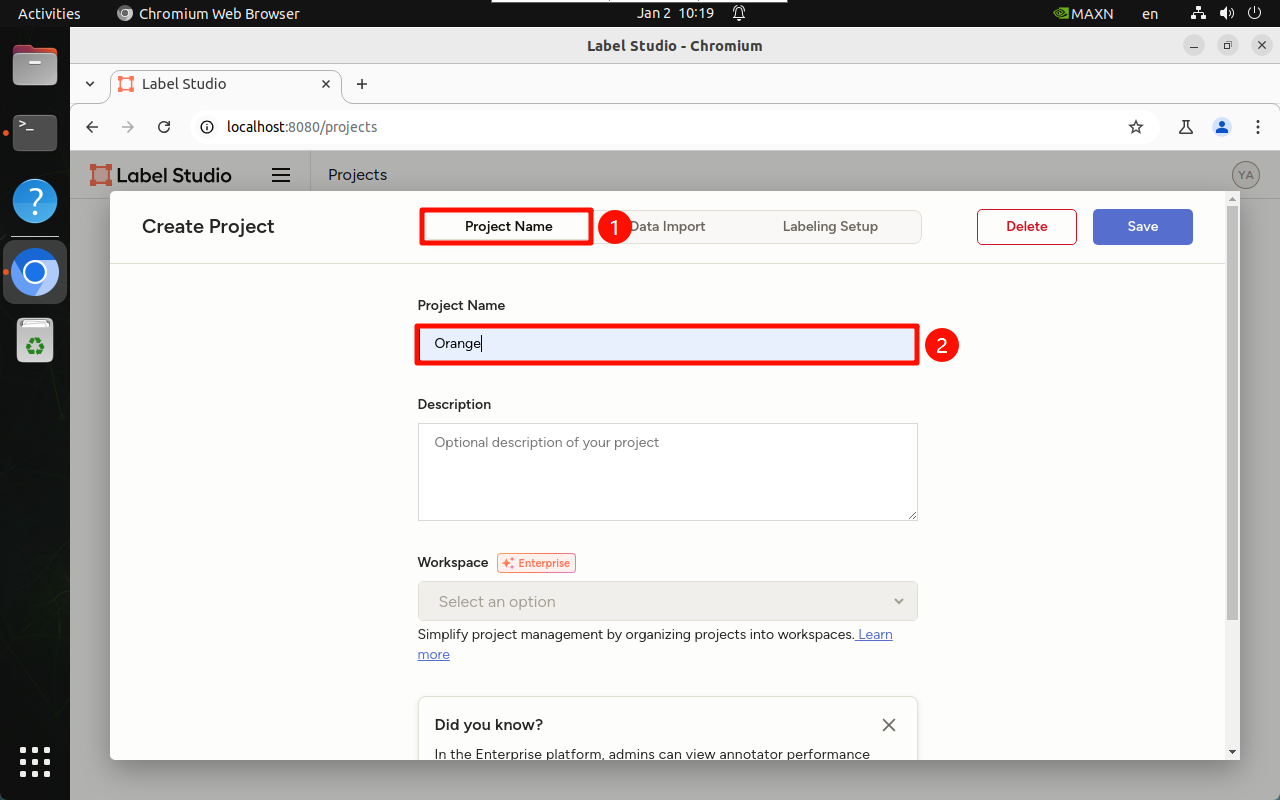
3.2. The project name
The project name can be named freely; name it according to your own training set:
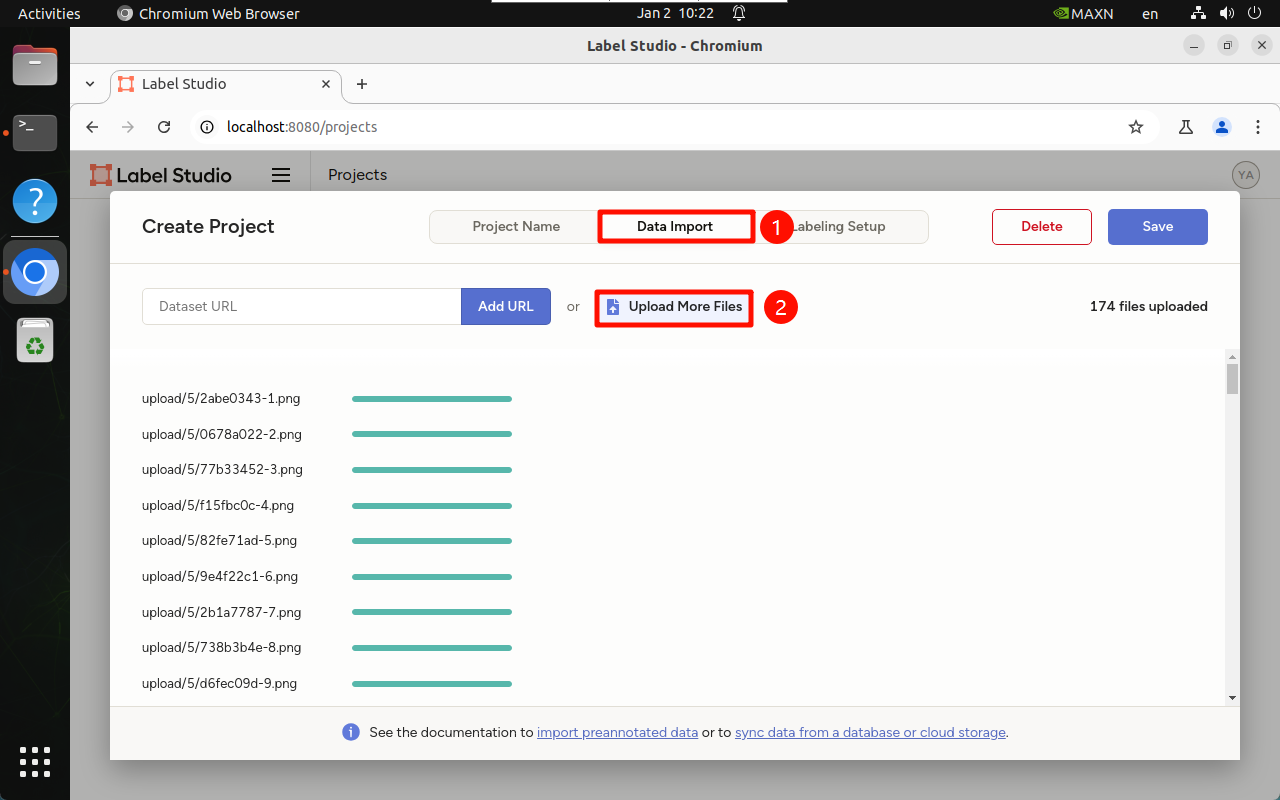
3.3. Importing the training set
Manually import the dataset that has been prepared in advance: too many images cannot be imported at a time, so it is recommended to select 50-100 images each time and then import them several times
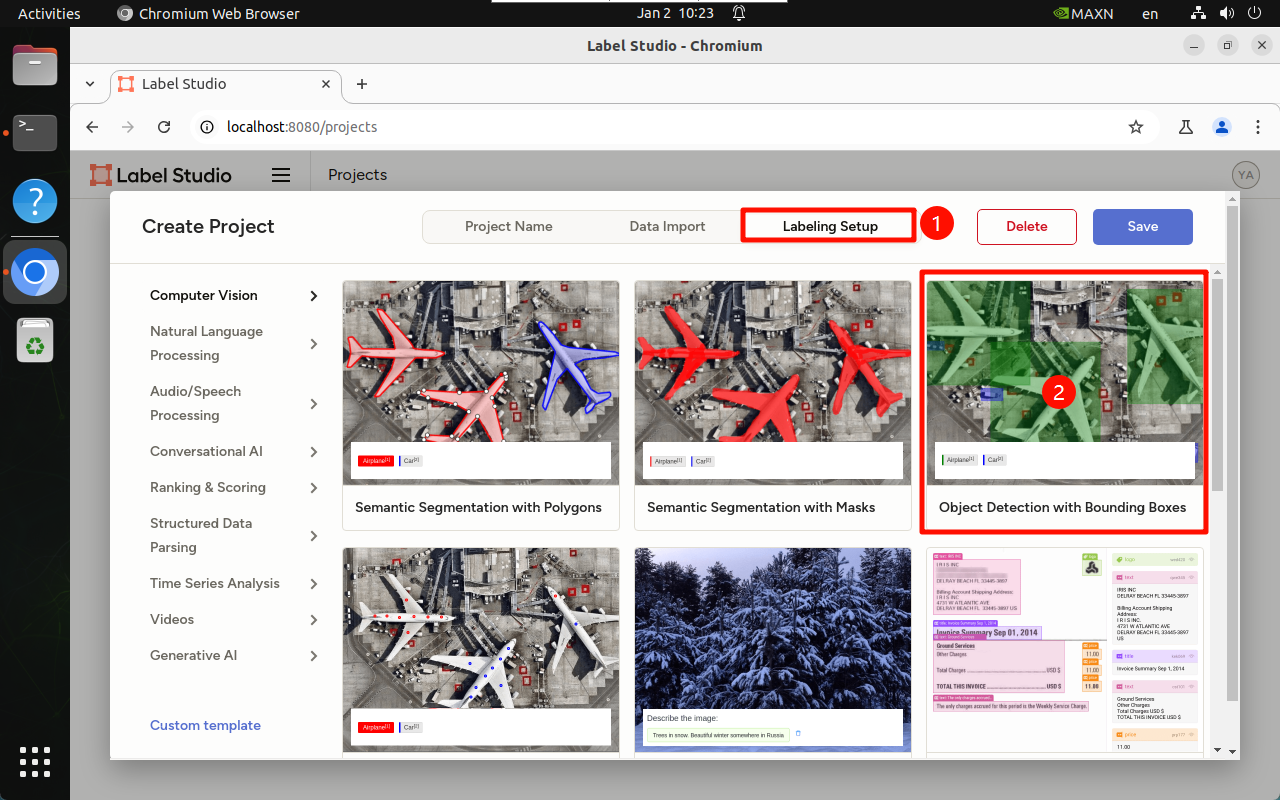
3.4. The label settings
What we demonstrate is the recognition of oranges, so we choose "Object Detection"
Delete the built-in labels:
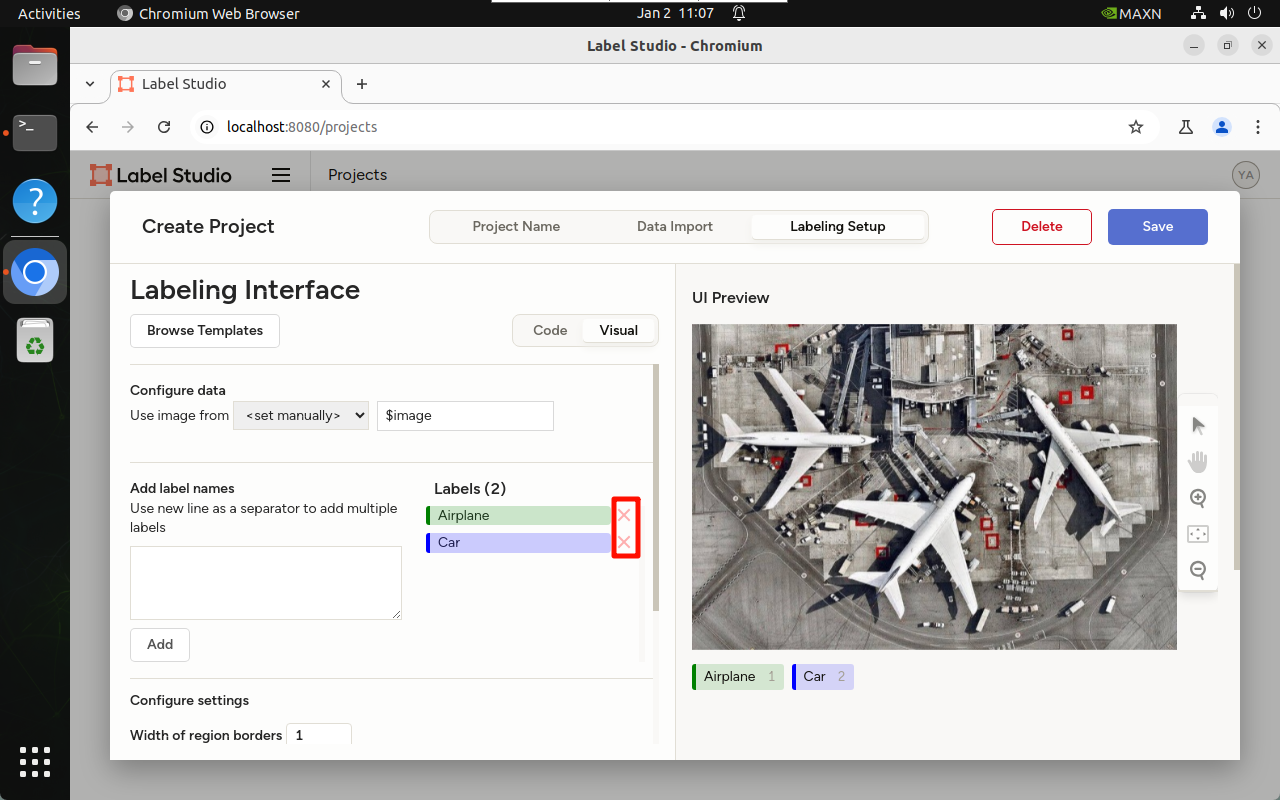
Add the new labels:
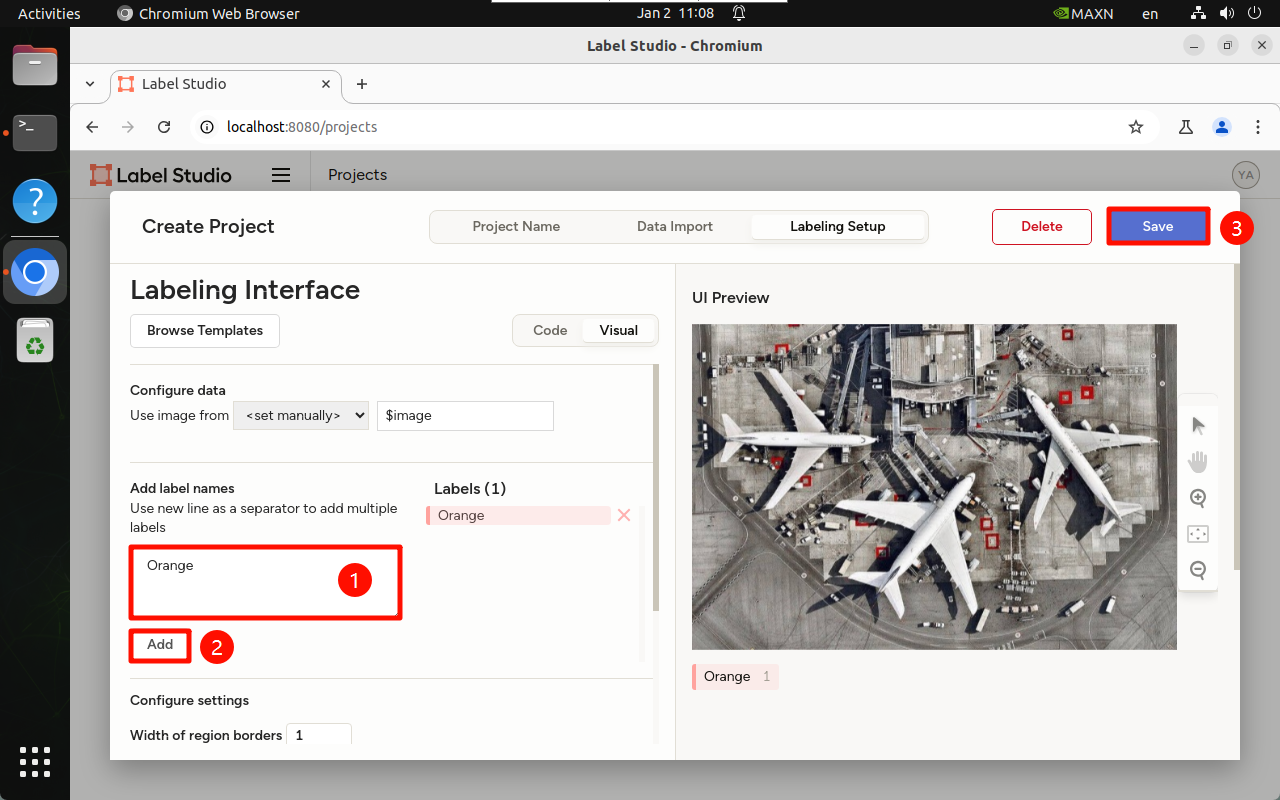
3.5. Dataset annotation
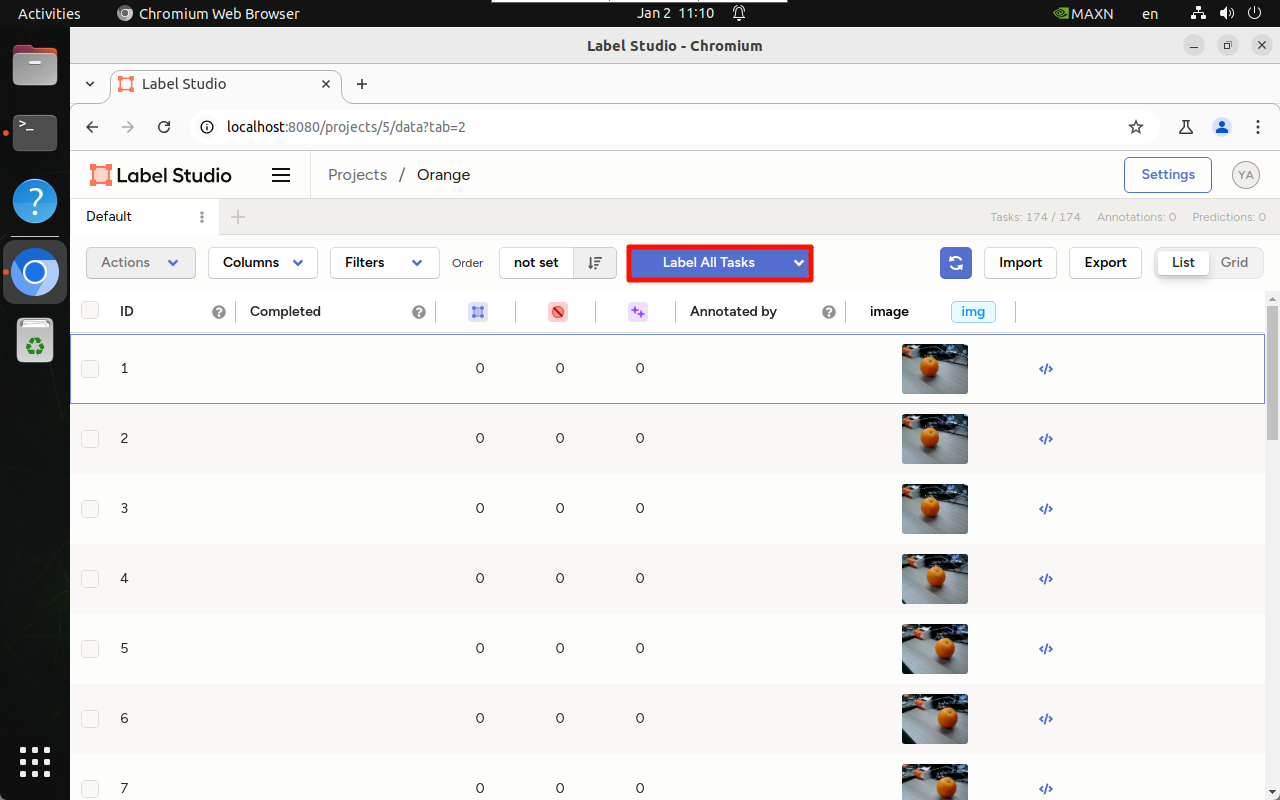
Click to annotate all the tasks:
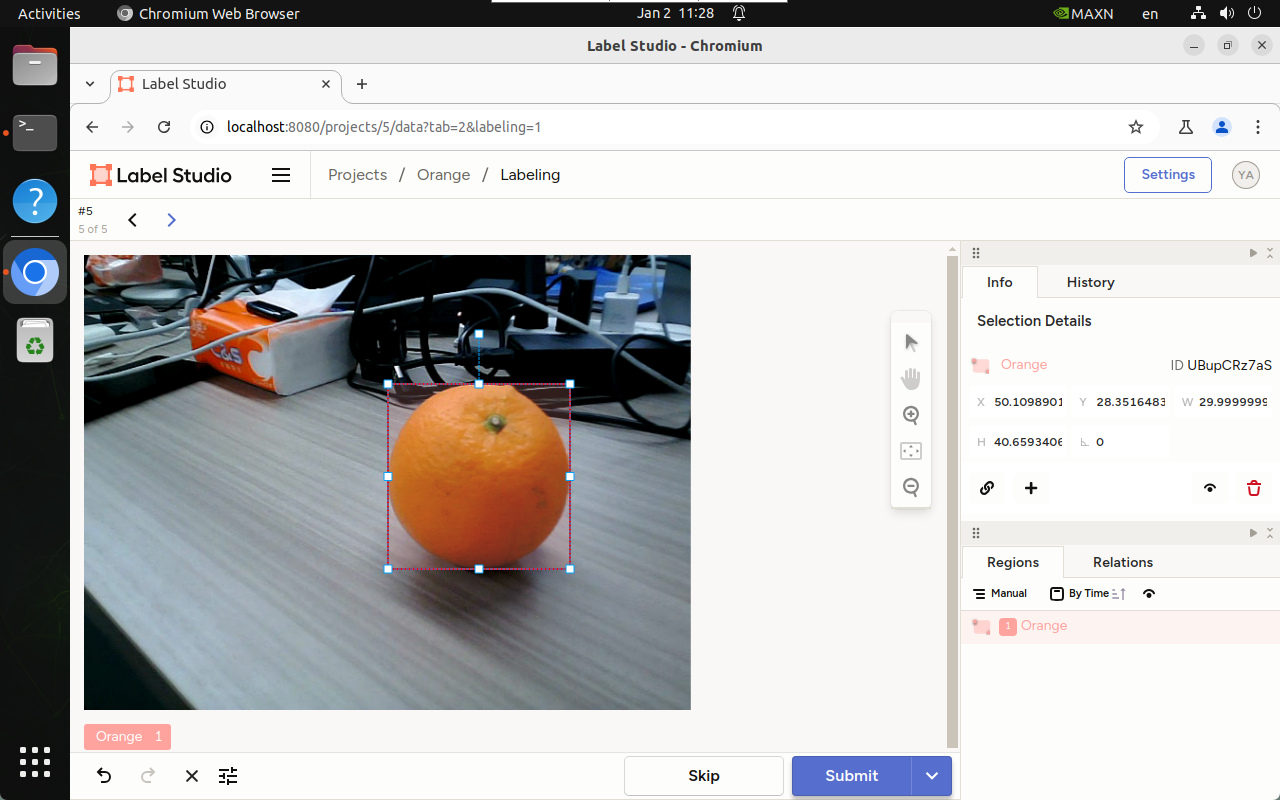
The annotation steps: first click the label "Orange" and then use the mouse to box the corresponding orange in the image; when it is done, click submit to enter the next annotation
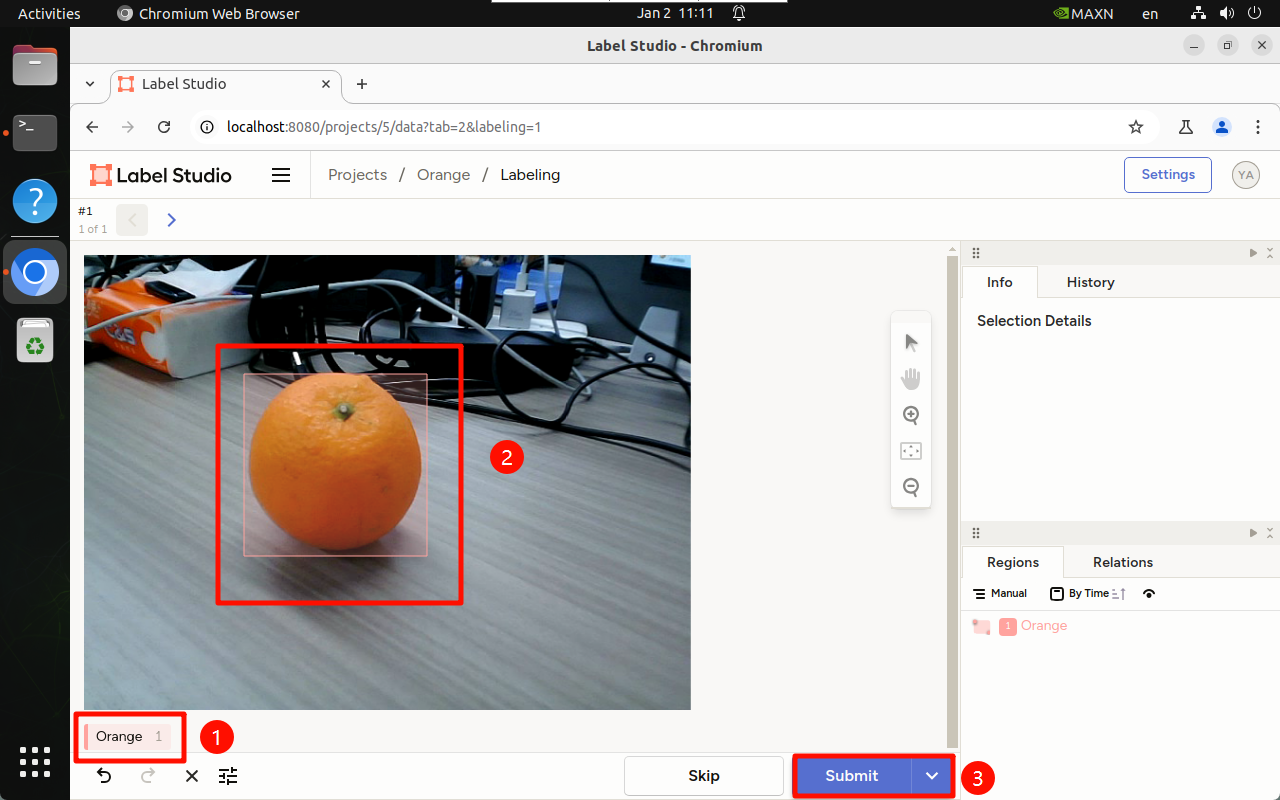
If the boxed object is not a complete orange, you can click the selected box and adjust the position of each edge:
3.6. Exporting the dataset
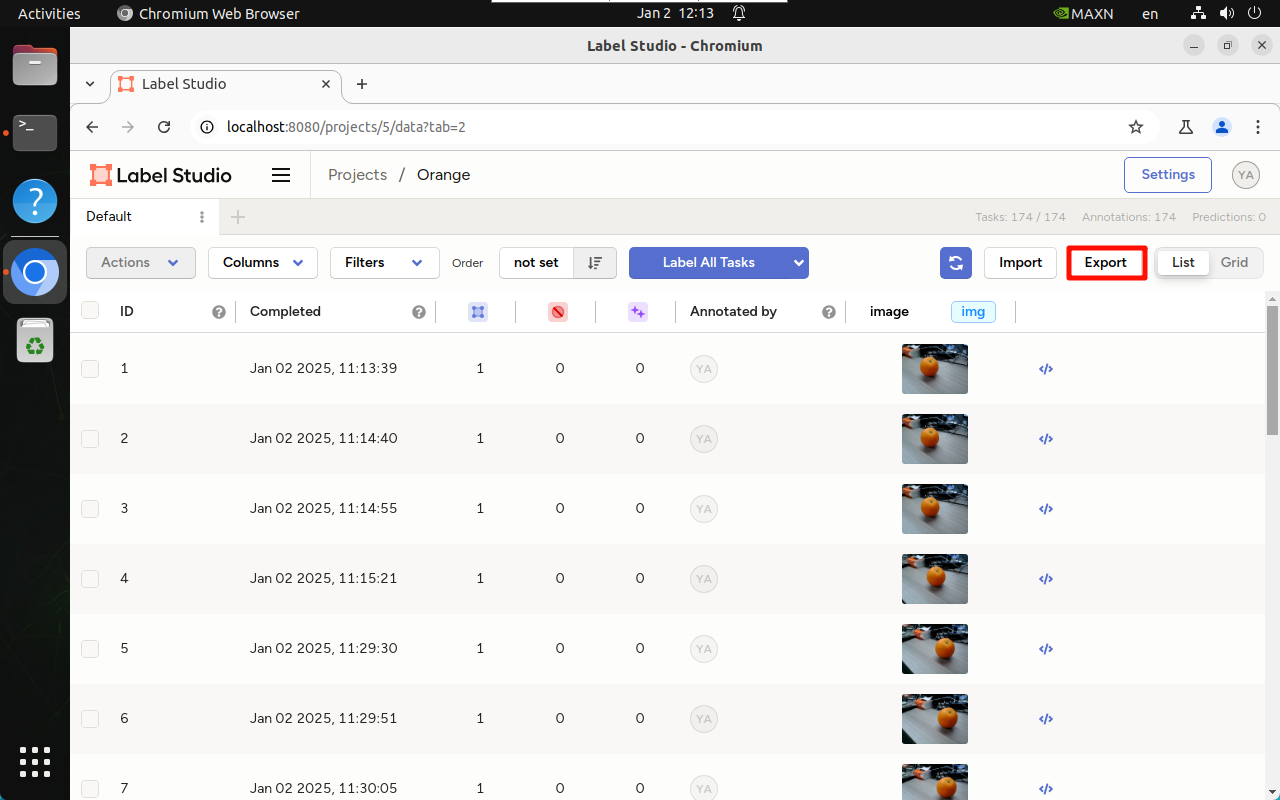
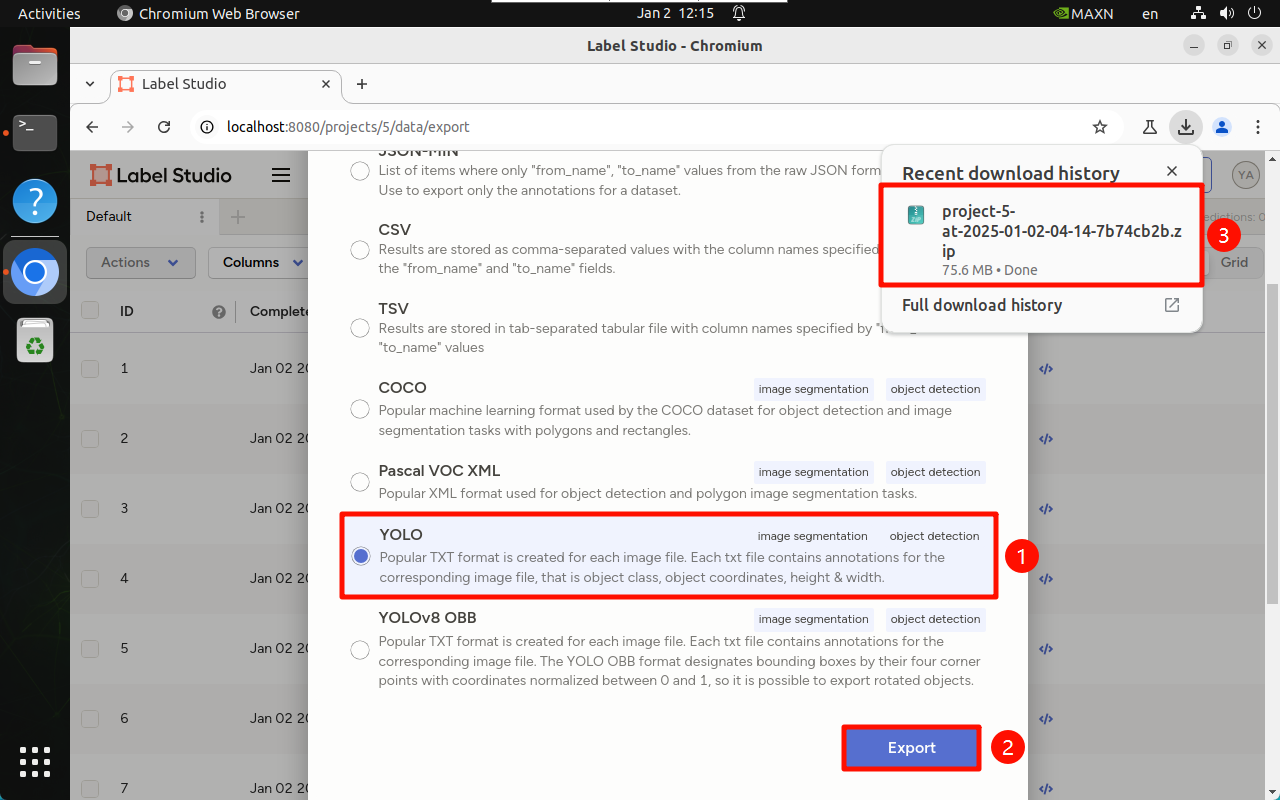
Choose the YOLO format to export, and the browser automatically downloads an archive
3.7. The directory structure of the dataset
The directory structure corresponding to the archive exported by Label Studio:
xxxxxxxxxx.├── images├── labels├── classes.txt└── notes.json
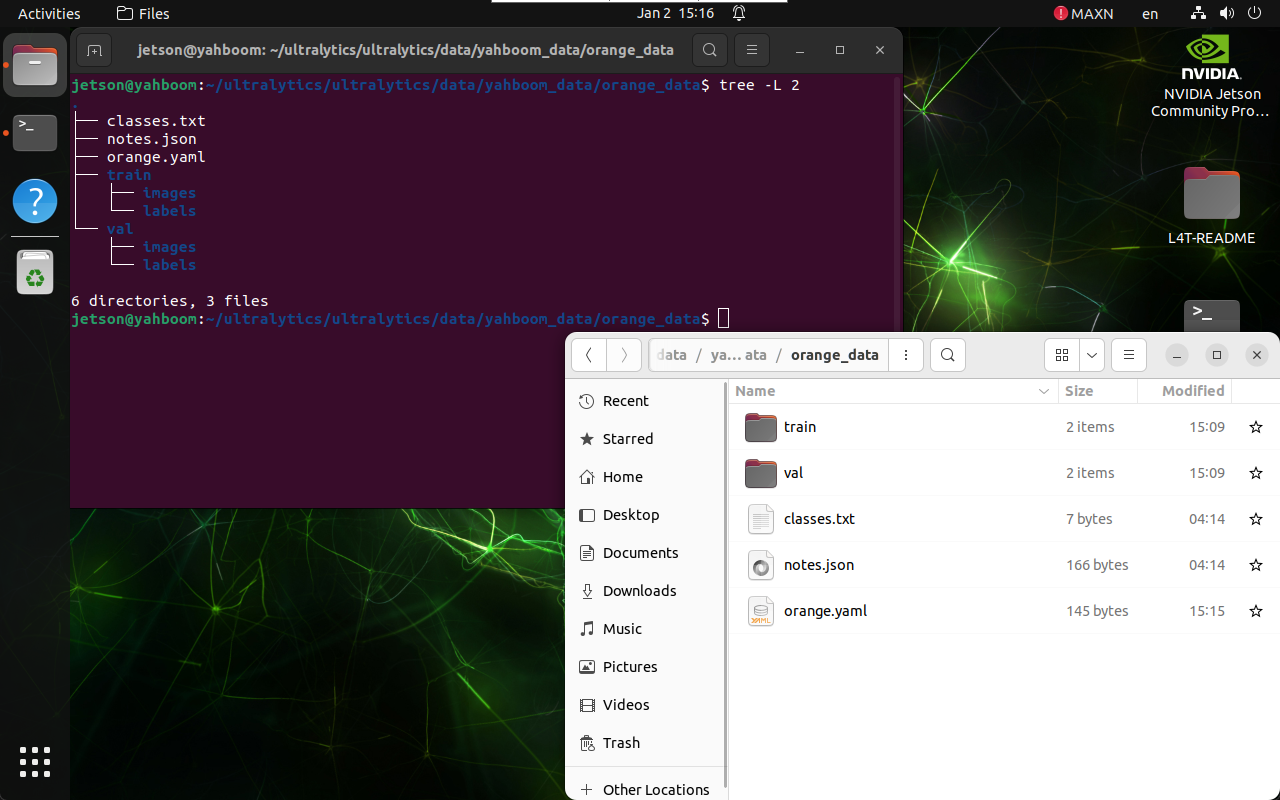
We need to split the images and the labels exported by Label Studio into train (the training set) and val (the validation set), and the ratio of the two is about 8:2: the images and the labels inside train and val must correspond to each other by name.
xxxxxxxxxx.├── classes.txt├── notes.json├── train│ ├── images│ └── labels└── val├── images└── labels
3.8. The dataset configuration file
It contains the paths of the training set and of the validation set, as well as the number and the names of the classes.
xxxxxxxxxxpath: /home/jetson/ultralytics/ultralytics/data/yahboom_data/orange_datatrain: train/imagesval: val/imagesnc: 1# Classesnames:0: Orange