Welcome to Jetson Orin NX Developer Kit repository
当製品の日本語版マニュアル資料は、こちらからご取得ください。
4. Temperature and Humidity Sensor
OpenClaw Temperature and Humidity Reading Tutorial
Before starting, please complete the following in the
Pre-use Preparationdirectory: [01-Peripheral Hardware Configuration], [02-OpenClaw API-KEY Configuration], [03-OpenClaw Model Switching], [05-AI Voice Interaction Configuration], and [06-Three Dialogue Configuration Tests]. If you are currently only using TUI / WhatsApp, you can skip05for now. This article assumes the basic environment is already prepared and only covers DHT-related content.
1. Tutorial Objective
This article demonstrates OpenClaw's natural language control capabilities through the DHT temperature and humidity sensor. After completing this tutorial, readers will be able to:
Understand the basic approach of OpenClaw reading temperature and humidity
Interact with OpenClaw through three methods: WhatsApp, TUI, and voice interaction
Complete four DHT cases: single reading, comfort judgment, threshold alert, and OLED linked display
Understand the complete chain from "user question" to "sensor reading" and "result feedback"
2. Hardware Preparation
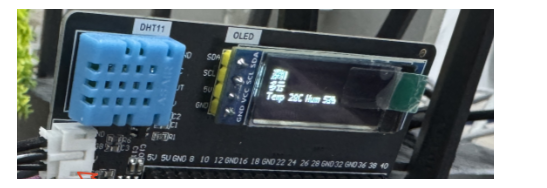
OpenClaw main control board
DHT temperature and humidity sensor
[Default DHT11][Optional] OLED display[Optional] Microphone moduleWiring diagram
3. Software Preparation
Code entry points used in this tutorial
Low-level driver code:
/home/jetson/hardware_hal_demo/Temperature and humidity reading command:
/home/jetson/hardware_hal_demo/dhtTemperature and humidity linked display:
/home/jetson/hardware_hal_demo/dht_oledVoice entry:
/home/jetson/voice_to_openclaw/src/main.py
The dht tool supports the following capabilities:
Read current temperature and humidity
Output results in
jsonortextformatUse
mockfake data for local debugging
dht_oled #Display temperature and humidity data on OLEDdht #Return `json` resultIf you want to display temperature and humidity results directly on the OLED, you can also use dht_oled.
Note: If you want to write your own script to read temperature and humidity data using the ajetson Python driver library, it is recommended to read DHT data at 2-second intervals, as the DHT sensor works best with a 2-second sampling period.
4. Testing Temperature and Humidity Reading
Before starting this tutorial, please complete a basic openclaw tui dialogue self-check first; if you haven't done so, see [06-Three Dialogue Configuration Tests]. After confirming that OpenClaw can reply normally, proceed to the DHT-specific test.
Enter the following command in the terminal to enter TUI:
xxxxxxxxxxopenclaw tui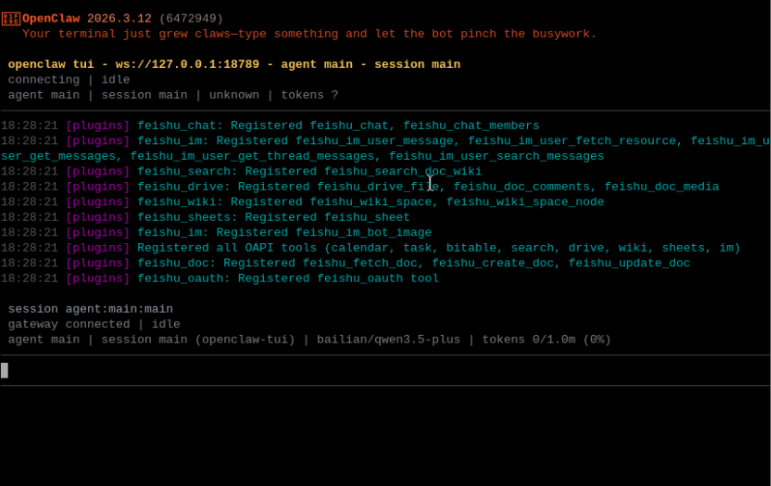
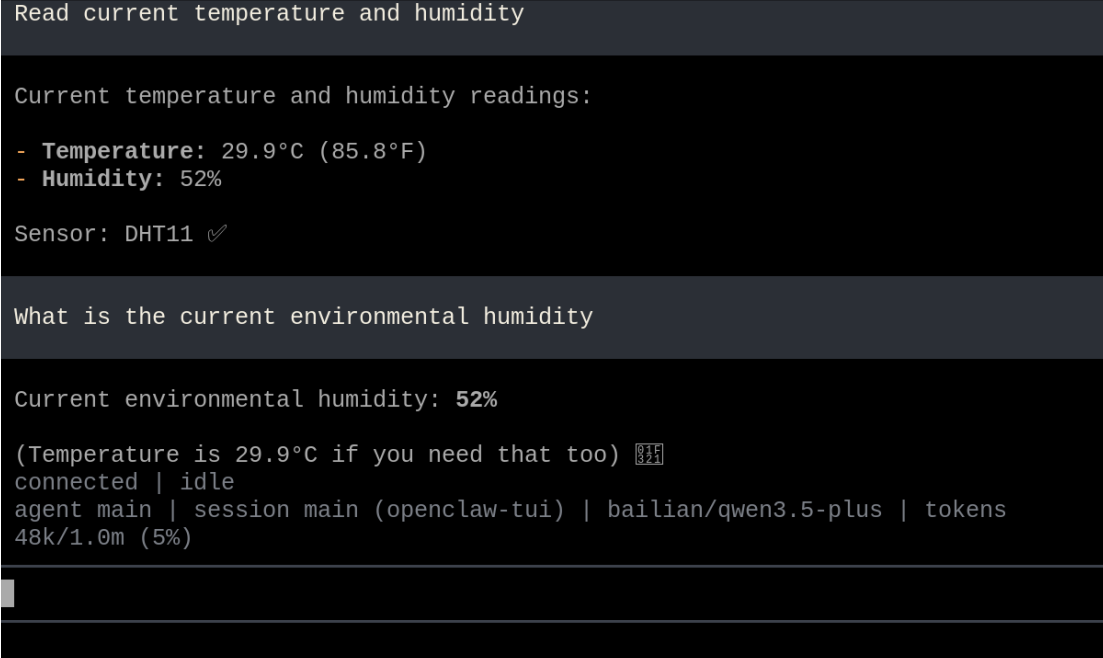
You can try entering the following content in the terminal:
Read the current temperature and humidity
What is the current ambient humidity
Help me judge whether the current environment is comfortable
Alert me if the temperature is too high
5. Three Schemes for Communicating with OpenClaw
| Scheme | Suitable Scenarios | Advantages | Recommended Use |
|---|---|---|---|
| Remote control, classroom demonstration | Easy to connect, suitable for multi-person experience | Demonstrate "remote natural language control" | |
| TUI | Local debugging, command verification | Most direct, easiest to troubleshoot | First run through the control chain |
| Voice code | Voice interaction, complete AI experience | Closest to a real conversational experience | As the final demonstration scheme |
If the optional AI voice module + speaker is selected, Feishu dialogue, TUI, and WhatsApp dialogue need to play back OpenClaw's replies via TTS. You can run the following program in the terminal. The AI voice module dialogue itself does not need to run it again.
Modify the TTS broadcast parameter
xxxxxxxxxx/home/jetson/voice_to_openclaw/.env
xxxxxxxxxxENABLE_TTS=true # This parameter controls whether the replies are broadcast. After modification, save it and run the following program in the terminalEnter the following in the terminal
xxxxxxxxxxcd ~/voice_to_openclawsource .venv/bin/activatepython -m src.openclaw_session_tts
5.1 WhatsApp Scheme
For WhatsApp connection steps, please directly refer to [06-Three Dialogue Configuration Tests]. This section only includes dialogue examples suitable for the DHT tutorial.
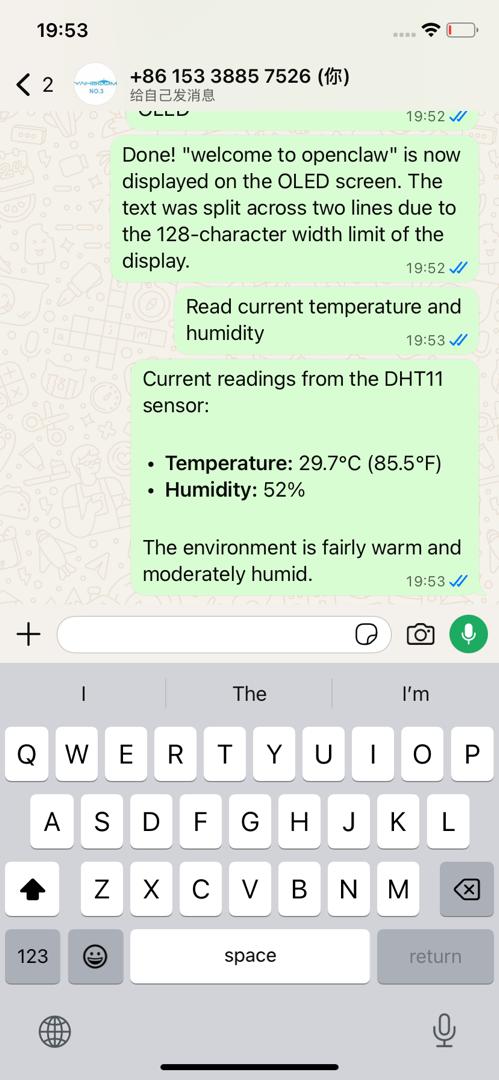
After creation, you can directly converse, for example:
Read the current temperature and humidity
Judge whether it's a bit hot right now
Alert me if the humidity is too low
5.2 TUI Scheme
If you have completed the TUI self-check in Part 0, simply enter the following command in the terminal to continue the conversation:
xxxxxxxxxxopenclaw tui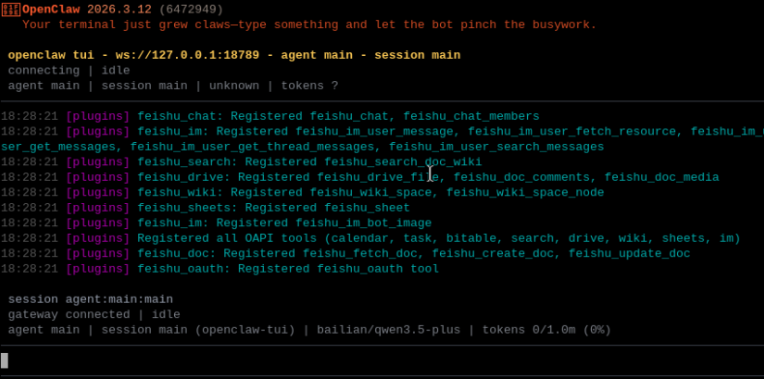
5.3 Voice Code Scheme
xxxxxxxxxxRequires optional AI voice interaction module + speaker
For voice module installation, environment configuration, and basic wake-up process, please directly refer to [05-AI Voice Interaction Configuration].
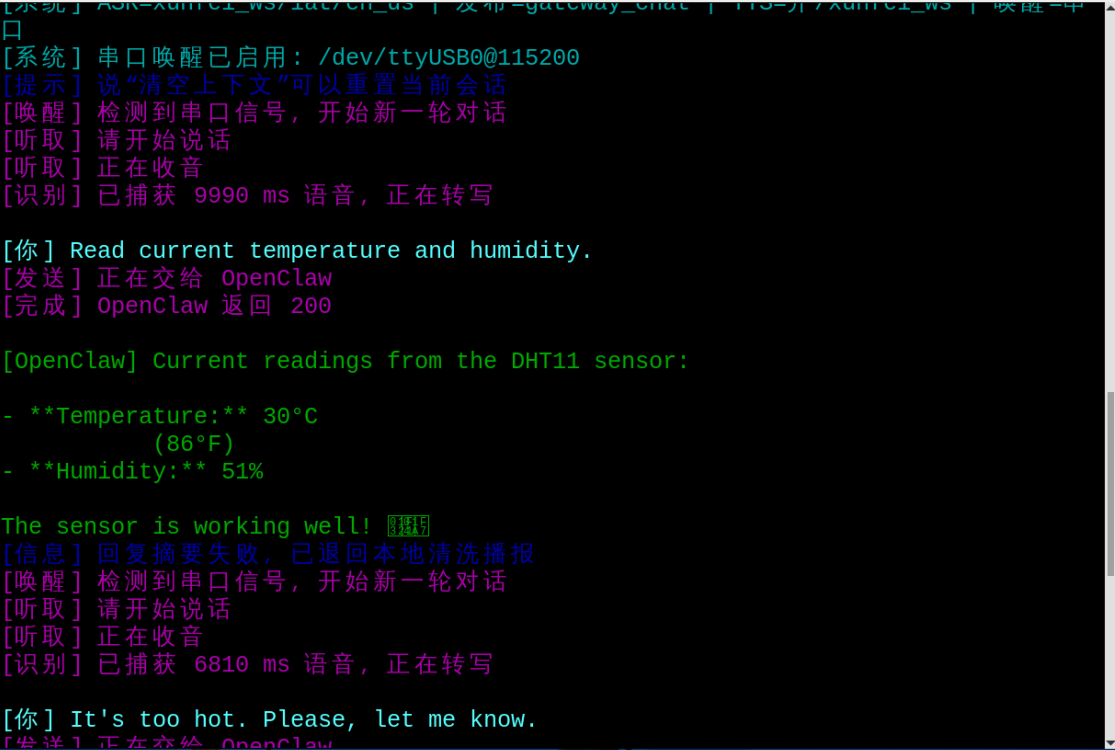
You need to say "Hi, yahboom" to wake up for conversation.
After wake-up, you can directly speak control commands, for example:
What is the current temperature
Help me read the humidity
Tell me if it's too stuffy
6. Comprehensive Cases
Note: The following are all demonstrated using the openclaw tui method. You can also choose WhatsApp or voice methods to complete them.
6.1 Case 1: Single Reading
Experimental Objective
Obtain a single reading of the current temperature and humidity to complete the most basic environmental sampling.
Effect Description
After OpenClaw receives the instruction, it will call the DHT driver to read the current temperature and humidity, and return the results to the user in natural language.
Example Instructions
Read the current temperature and humidity
What is the current indoor temperature
Help me check the current humidity
6.2 Case 2: Comfort Judgment
Experimental Objective
Have OpenClaw make a simple judgment about the current environment after reading the data.
Effect Description
In addition to just reporting numbers, OpenClaw can also roughly judge states like "too hot", "too cold", "too dry", or "too stuffy" based on temperature and humidity, making the output sound more like a natural conversation.
Example Instructions
Help me judge whether the current environment is comfortable
Is the current temperature and humidity suitable for long-time office work
Give me a brief evaluation based on the temperature and humidity
6.3 Case 3: Threshold Alert
Experimental Objective
Have OpenClaw alert the user when the temperature or humidity exceeds a set range.
Effect Description
When the temperature is too high or too low, or the humidity is too high or too low, OpenClaw can directly output alert messages, or link with RGB lights for more obvious feedback.
Example Instructions
Alert me if the temperature exceeds 30 degrees
Notify me if the humidity drops below 40%
Has the alarm condition been reached
Extensible Ideas
Link with RGB for red-yellow-blue three-color alerts
Link with OLED to display alarm text
Add a buzzer for stronger alerts
6.4 Case 4: OLED Linked Display
Experimental Objective
Display the just-read temperature and humidity results directly on the OLED, forming a complete data display chain.
Effect Description
After OpenClaw completes an environmental sampling, it can not only reply the results to the user but also simultaneously write the temperature and humidity to the OLED screen, forming a complete "reading + display" effect.
Example Instructions
Read the current temperature and humidity and display on OLED
Write the temperature and humidity to the screen
Create a simple temperature and humidity display page
Extensible Ideas
Periodically refresh OLED content
Create a temperature and humidity dashboard
Link with a weather station project to form a complete application